How to Publish Quiz on PageFly Page
PageFly currently integrates only with the legacy version of RevenueHunt app for Shopify. The new 💎Built for Shopify version of RevenueHunt app does not support embedding quizzes directly into PageFly pages.
Possible Workaround
A possible workaround is following these instructions on How to Publish the Quiz on a New Page in Shopify and then adding a link to that page where the quiz is embeded to a button or a link on your PageFly page.
- Publish the quiz on a new page in Shopify by following the instructions on How to Publish the Quiz on a New Page in Shopify.
- Open the PageFly editor and create a new page or open an existing page.
- In the page builder, go to
Elementsand add aButtonelement to your page by draggin it. - In Button settings, under Action select
Go to URLand enter the URL of the page where the quiz is embeded.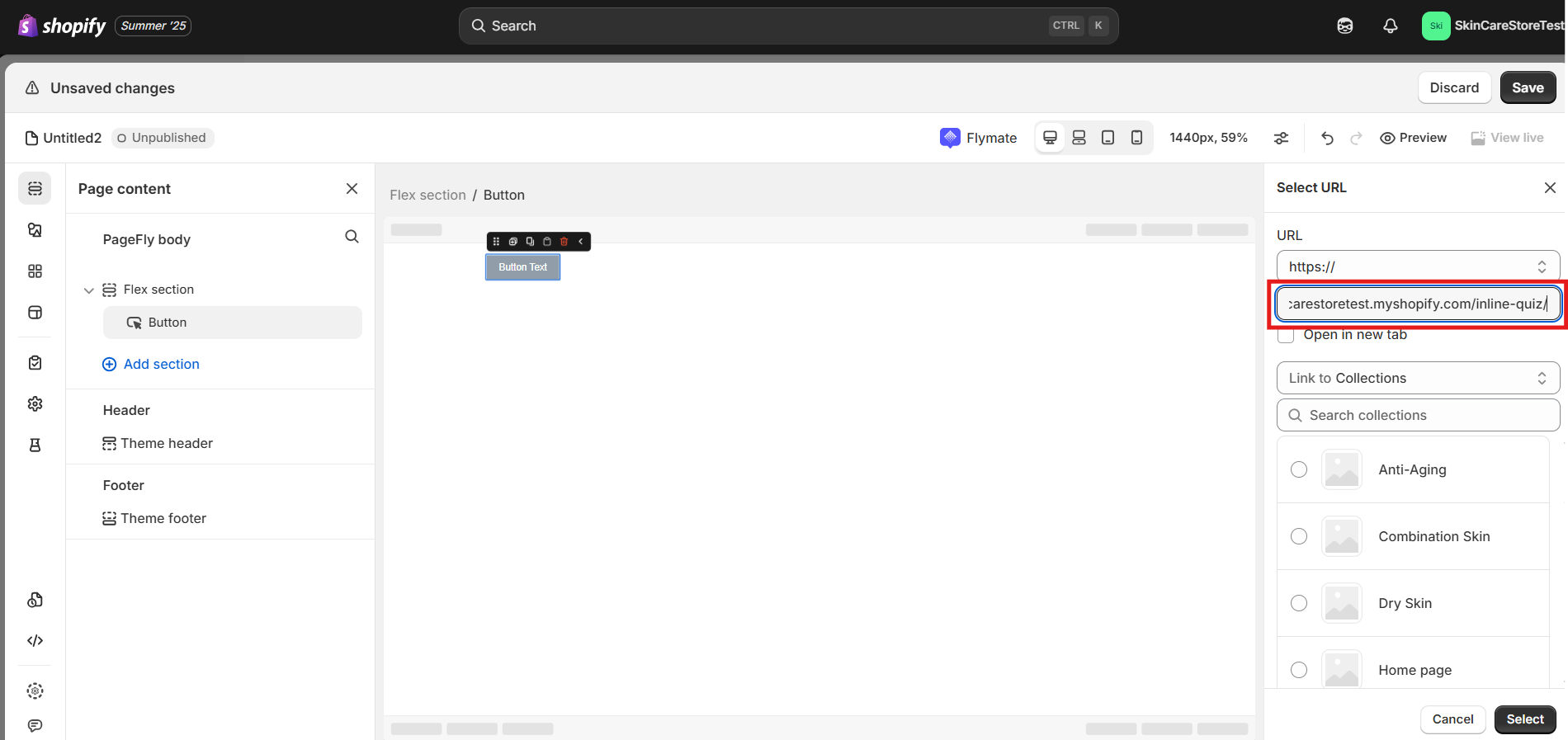
- Click
Saveand the button will be added to your page. - Click
Previewto see the button on the page.
PageFly currently integrates only with the legacy version of RevenueHunt app for Shopify. There are several ways to embed a quiz on a PageFly page. Check the instructions below for the method that suits you best.
Embeding Quiz Inline on Pagefly Page
- Open the PageFly editor and create a new page or open an existing page.
- Integrate RevenueHunt. Go to
Third-party elements>+Add app.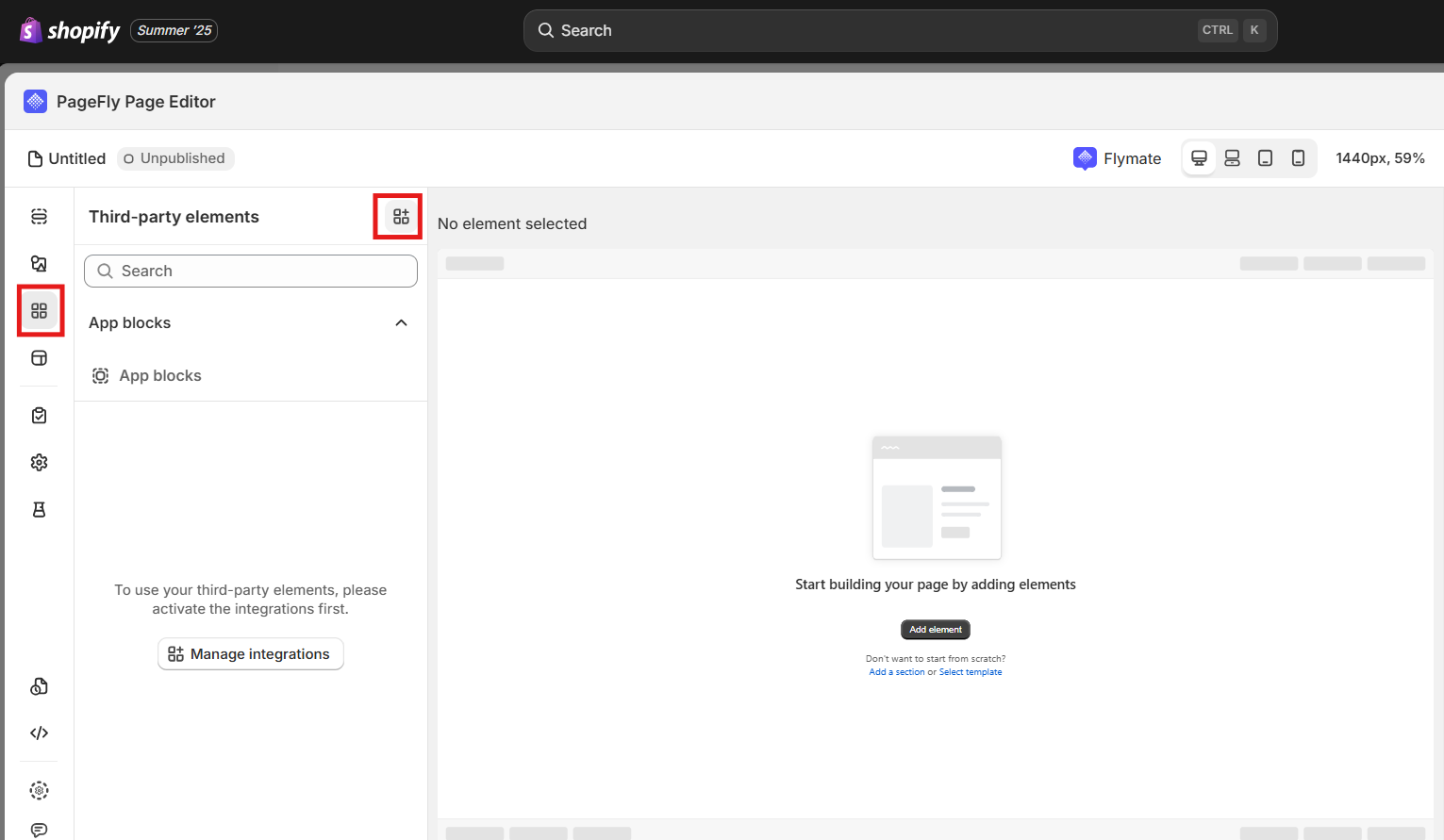
- Search for
RevenueHunt. ClickActivate.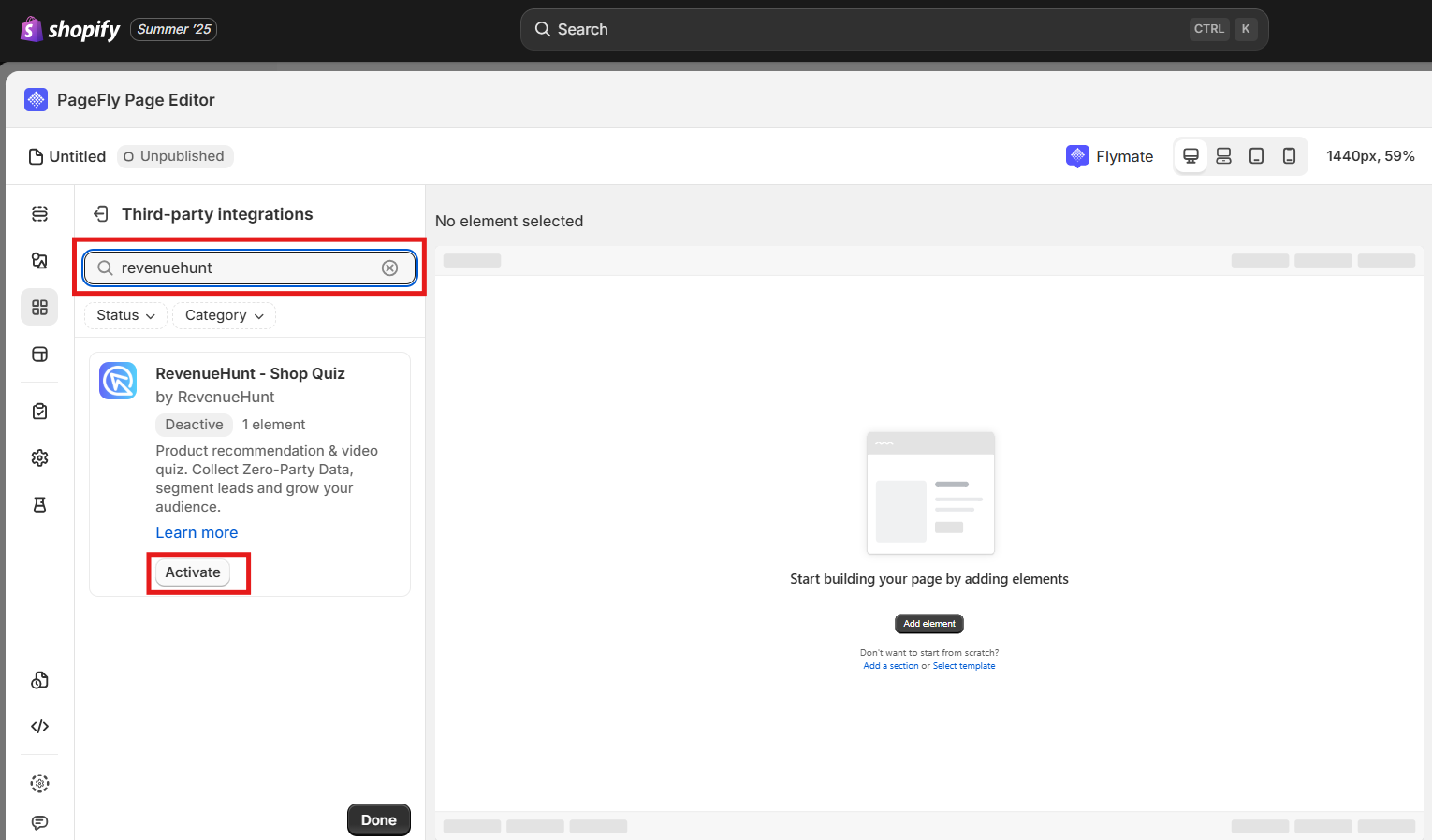
- Go back to
Third-party elements. Click onRevenueHuntand a new Shop Quiz embed element will become available. Drag and drop it to the page.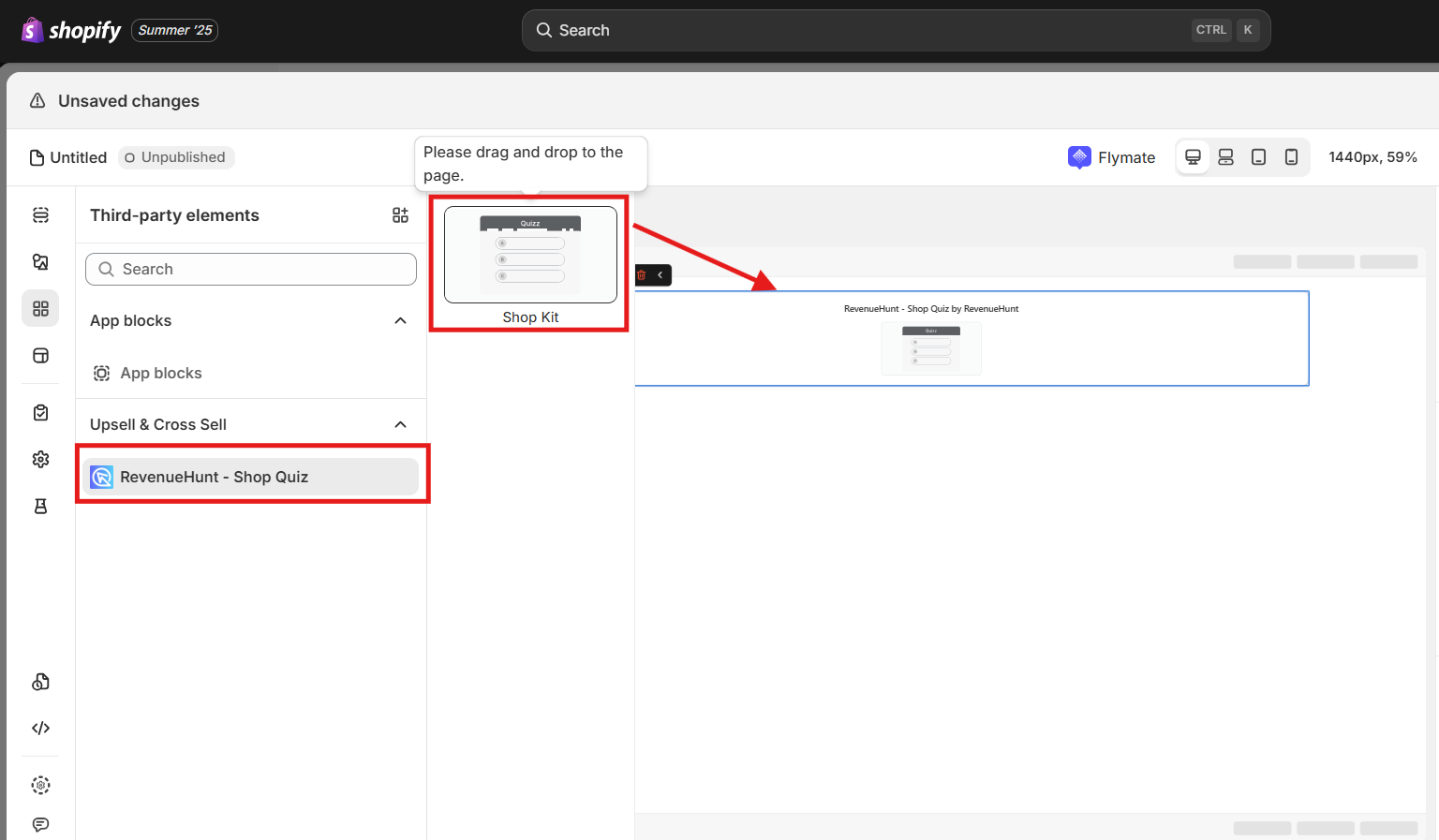
-
Click on the element and a settings panel will appear on the right side of the screen.Enter the shortcode of the quiz you want to embed. The shortcode follows the following format:
Shortcode Format
https://admin.revenuehunt.com/public/quiz/QUIZ_IDwhere
QUIZ_IDis the ID of the quiz you want to embed.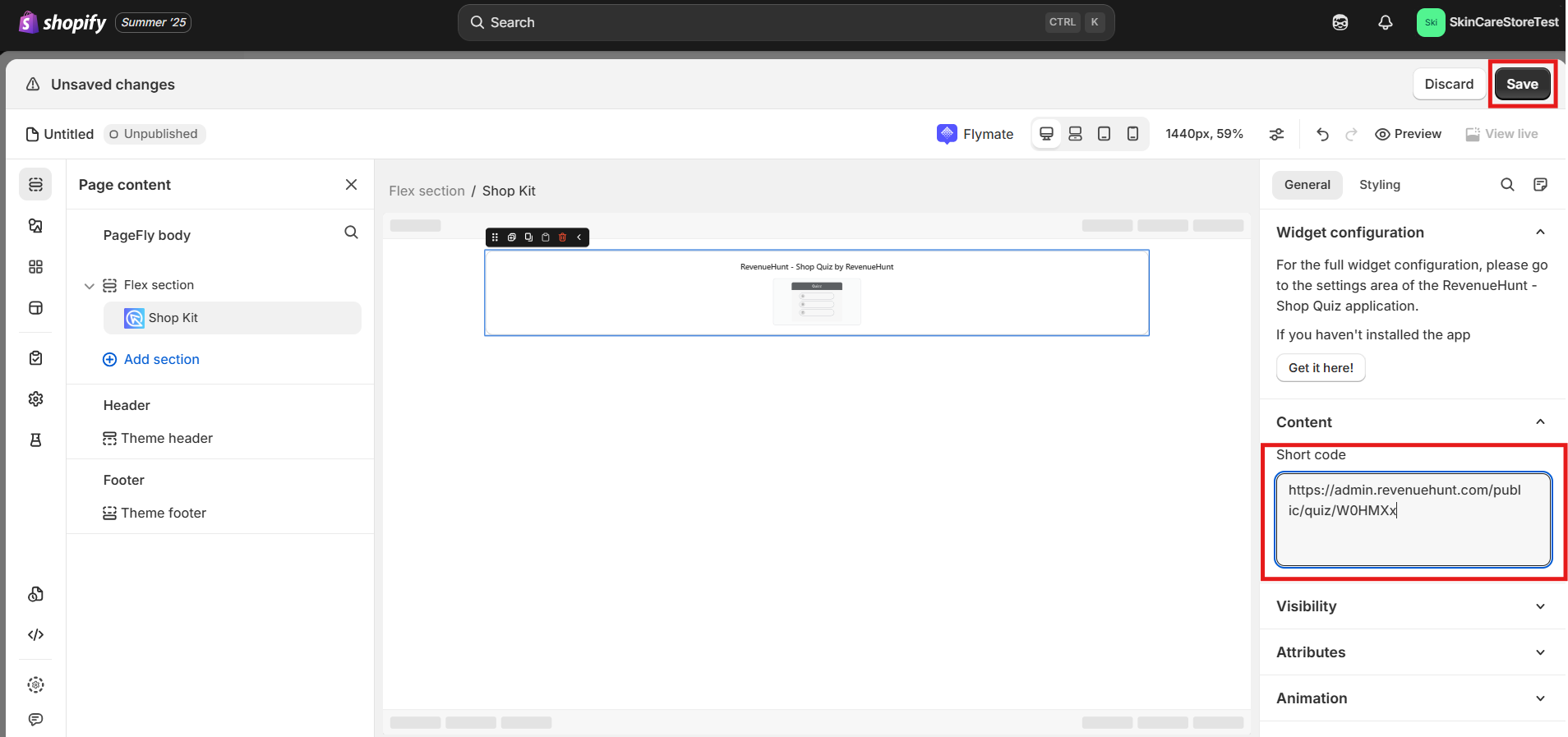
To find your Quiz ID check the Quiz Settings.
-
Click
Saveand the quiz will be embedded on the page. - Click
Previewto see the quiz on the page.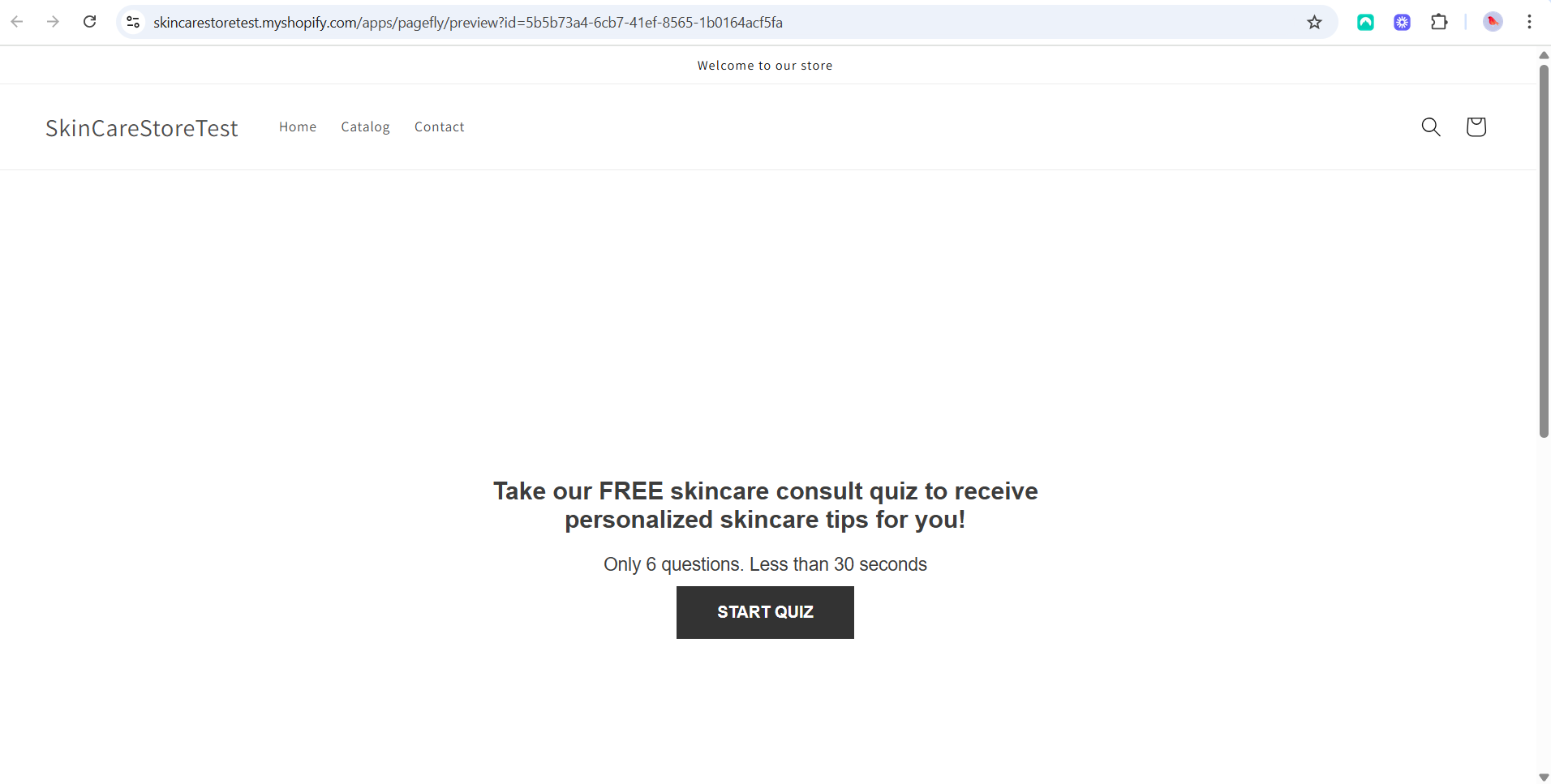
Adding a Link to the Quiz via PageFly Button
- Open the PageFly editor and create a new page or open an existing page.
- In the page builder, go to
Elementsand add aButtonelement to your page by draggin it. - In Button settings, under Action select
Go to URLand enter the URL of the quiz link or the URL of the page where the quiz is embeded. - Click
Saveand the button will be added to your page. - Click
Previewto see the button on the page.
Not applicable.
Not applicable.
Not applicable.
Not applicable.
This article explains how to publish a Revenue Hunt quiz on a PageFly page in Shopify.