Assign Quizzes to Shopify Markets and Languages
In this tutorial you will learn how to show a different quiz for each Shopify market. It also covers showing a quiz in a different language or currency, based on your market settings.
What you will learn
- how to create Shopify Markets,
- how to duplicate quizzes,
- how to create quizzes in different languages,
- how to translate quizzes to different languages with the help of Quiz Copilot,
- how to display different quizzes for different Shopify markets,
- how to show quizzes in different languages based on market and language,
- how to change currency formats in quizzes for different markets,
- how to test the quiz for different markets in Shopify.
Platform Availability
This feature is only available in the Built for Shopify version of the RevenueHunt app. It is not available for the legacy version of the RevenueHunt app for Shopify.
Platform Availability
This feature is only available in the Built for Shopify version of the RevenueHunt app. It is not available for WooCommerce stores.
Platform Availability
This feature is only available in the Built for Shopify version of the RevenueHunt app. It is not available for Magento stores.
Platform Availability
This feature is only available in the Built for Shopify version of the RevenueHunt app. It is not available for BigCommerce stores.
Platform Availability
This feature is only available in the Built for Shopify version of the RevenueHunt app. It is not available for standalone installations.
Intro
This tutorial covers setting up quizzes in the RevenueHunt app for different Shopify markets, with their language and currency settings. It shows how to create, duplicate and assign quizzes, so that a customer sees the content that matches their market and language.
Platform Availability
This feature is only available in the Built for Shopify version of the RevenueHunt app. It is not available for the legacy version of the RevenueHunt app for Shopify.
Platform Availability
This feature is only available in the Built for Shopify version of the RevenueHunt app. It is not available for WooCommerce stores.
Platform Availability
This feature is only available in the Built for Shopify version of the RevenueHunt app. It is not available for Magento stores.
Platform Availability
This feature is only available in the Built for Shopify version of the RevenueHunt app. It is not available for BigCommerce stores.
Platform Availability
This feature is only available in the Built for Shopify version of the RevenueHunt app. It is not available for standalone installations.
Set up Shopify Markets
Before assigning quizzes, make sure your Shopify Markets are set up:
- In your Shopify Admin, go to
Markets. - Click
Create Marketand enter the market name, its regions and its currency. - Repeat for every region you sell to, such as the European Union and the United States.
- Save your changes. The markets sync with the RevenueHunt app on their own.
Platform Availability
This feature is only available in the Built for Shopify version of the RevenueHunt app. It is not available for the legacy version of the RevenueHunt app for Shopify.
Platform Availability
This feature is only available in the Built for Shopify version of the RevenueHunt app. It is not available for WooCommerce stores.
Platform Availability
This feature is only available in the Built for Shopify version of the RevenueHunt app. It is not available for Magento stores.
Platform Availability
This feature is only available in the Built for Shopify version of the RevenueHunt app. It is not available for BigCommerce stores.
Platform Availability
This feature is only available in the Built for Shopify version of the RevenueHunt app. It is not available for standalone installations.
Create multiple quizzes
Create a quiz for each market or language.
Example
Skincare Quiz (USA), the default quizSkincare Quiz (Europe)Skincare Quiz (Spanish)Skincare Quiz (French)
-
Open the RevenueHunt app and click
Create new quiz. Build the main quiz for your primary market first, such asSkincare Quiz (USA).Use Quiz Copilot
Use Quiz Copilot to help build the first draft, add questions, and set up recommendations.
-
Once the main quiz is ready, open the
...menu on the Dashboard and clickDuplicate. - Rename the copy after its market and make any market-specific changes, such as
Skincare Quiz (Europe).
Then, for each extra language:
-
Duplicate the quiz again and translate the questions and choices by hand.
There is no automatic translation
The app cannot translate a quiz for you. You can, however, ask Quiz Copilot to create a translated copy.
-
Go to
Quiz settings > Quiz contentand clickReset messages. This pulls in the system buttons and helper text for the new language. - Change any remaining field by hand, then click
Save.
Product titles and descriptions are translated automatically
You translate the quiz questions, choices and interface text yourself. The product titles, descriptions and prices on the results page come from Shopify in the customer's language and currency, through Shopify's Storefront API. Set up your product translations in the Translate & Adapt app, or a compatible one, and they appear in the quiz results.
Platform Availability
This feature is only available in the Built for Shopify version of the RevenueHunt app. It is not available for the legacy version of the RevenueHunt app for Shopify.
Platform Availability
This feature is only available in the Built for Shopify version of the RevenueHunt app. It is not available for WooCommerce stores.
Platform Availability
This feature is only available in the Built for Shopify version of the RevenueHunt app. It is not available for Magento stores.
Platform Availability
This feature is only available in the Built for Shopify version of the RevenueHunt app. It is not available for BigCommerce stores.
Platform Availability
This feature is only available in the Built for Shopify version of the RevenueHunt app. It is not available for standalone installations.
Assign quizzes to markets
Once the quizzes are built, you can assign each one to a market or to a language.
- Go to
App settings. - Open the
Shopify Marketstab. It lists all your markets. -
Click the dropdown next to a market name and pick that market's default quiz.
Example
- assign
Skincare Quiz Europeto the European market, - assign
Skincare Quiz USAto the United States market.
- assign
-
Save the changes with the
Savebutton.
Platform Availability
This feature is only available in the Built for Shopify version of the RevenueHunt app. It is not available for the legacy version of the RevenueHunt app for Shopify.
Platform Availability
This feature is only available in the Built for Shopify version of the RevenueHunt app. It is not available for WooCommerce stores.
Platform Availability
This feature is only available in the Built for Shopify version of the RevenueHunt app. It is not available for Magento stores.
Platform Availability
This feature is only available in the Built for Shopify version of the RevenueHunt app. It is not available for BigCommerce stores.
Platform Availability
This feature is only available in the Built for Shopify version of the RevenueHunt app. It is not available for standalone installations.
Assign quizzes by language
You can also assign a quiz to a specific language within a market.
- Go to
App settings. - Open the
Shopify Marketstab. It lists all your markets. -
Click the
>arrow on a market. It expands to show the languages available in your Shopify store.Info
The list of languages available in the RevenueHunt app is synced directly from your
Shopify Settings > Languagesand is managed in Shopify with theTranslate & Adaptapp. -
Click the dropdown next to a language name and pick that language's default quiz.
Example
- assign
Skincare Quiz Spanishto the Spanish language in the European market, - assign
Skincare Quiz Frenchto the French language in the European market, - assign
Skincare Quiz Spanishto the Spanish language in the United States market, - assign
Skincare Quiz Frenchto the French language in the United States market.
- assign
-
Save the changes with the
Savebutton.
Platform Availability
This feature is only available in the Built for Shopify version of the RevenueHunt app. It is not available for the legacy version of the RevenueHunt app for Shopify.
Platform Availability
This feature is only available in the Built for Shopify version of the RevenueHunt app. It is not available for WooCommerce stores.
Platform Availability
This feature is only available in the Built for Shopify version of the RevenueHunt app. It is not available for Magento stores.
Platform Availability
This feature is only available in the Built for Shopify version of the RevenueHunt app. It is not available for BigCommerce stores.
Platform Availability
This feature is only available in the Built for Shopify version of the RevenueHunt app. It is not available for standalone installations.
Change currency format for markets
By default, quiz result prices follow the currency format in your Shopify Markets settings.
Example
If USD is the default currency format for your US market, the results page shows prices as 25 USD.
To change the format for a specific market:
- Go to
App settingsand open theShopify Marketstab. - Click the
>arrow on a market. It expands to show a language dropdown and aCurrencyfield. -
In the
Currencyfield, enter the format you want.Example
${{amount}}shows prices as $25.00 rather than 25 USD.€{{amount}}shows prices as €25.00 rather than 25 EUR.
-
Save the changes with the
Savebutton.
Platform Availability
This feature is only available in the Built for Shopify version of the RevenueHunt app. It is not available for the legacy version of the RevenueHunt app for Shopify.
Platform Availability
This feature is only available in the Built for Shopify version of the RevenueHunt app. It is not available for WooCommerce stores.
Platform Availability
This feature is only available in the Built for Shopify version of the RevenueHunt app. It is not available for Magento stores.
Platform Availability
This feature is only available in the Built for Shopify version of the RevenueHunt app. It is not available for BigCommerce stores.
Platform Availability
This feature is only available in the Built for Shopify version of the RevenueHunt app. It is not available for standalone installations.
Publish the main quiz
Your default quiz has to be published on the website before you can test any of this. Until it is, the app has no quiz to show.
To publish the default quiz:
- Go to the
Publishtab in the RevenueHunt app. - Pick a publishing option and follow the instructions to add the quiz to your website.
From then on the app reads the market and language of each customer, and shows the quiz you assigned to them.
Platform Availability
This feature is only available in the Built for Shopify version of the RevenueHunt app. It is not available for the legacy version of the RevenueHunt app for Shopify.
Platform Availability
This feature is only available in the Built for Shopify version of the RevenueHunt app. It is not available for WooCommerce stores.
Platform Availability
This feature is only available in the Built for Shopify version of the RevenueHunt app. It is not available for Magento stores.
Platform Availability
This feature is only available in the Built for Shopify version of the RevenueHunt app. It is not available for BigCommerce stores.
Platform Availability
This feature is only available in the Built for Shopify version of the RevenueHunt app. It is not available for standalone installations.
Test the setup
With the default quiz published and the markets set up, preview your store and test each market and language.
- In Shopify, go to
Online storeand click the👁️eye icon. Your store opens in a new window. - Open the page the quiz is published on.
- Switch market and language, and check that the right quiz loads each time.
-
Check that the prices use the format you set.
What to try
Market change: Switch to the United States → US quiz appears.
Market change: Switch to Belgium → EU quiz appears.
Language change: Change to French → French quiz appears.
Language change: Change to Spanish → Spanish quiz appears.
You have set up quizzes for different markets and languages in the RevenueHunt app.
Tip
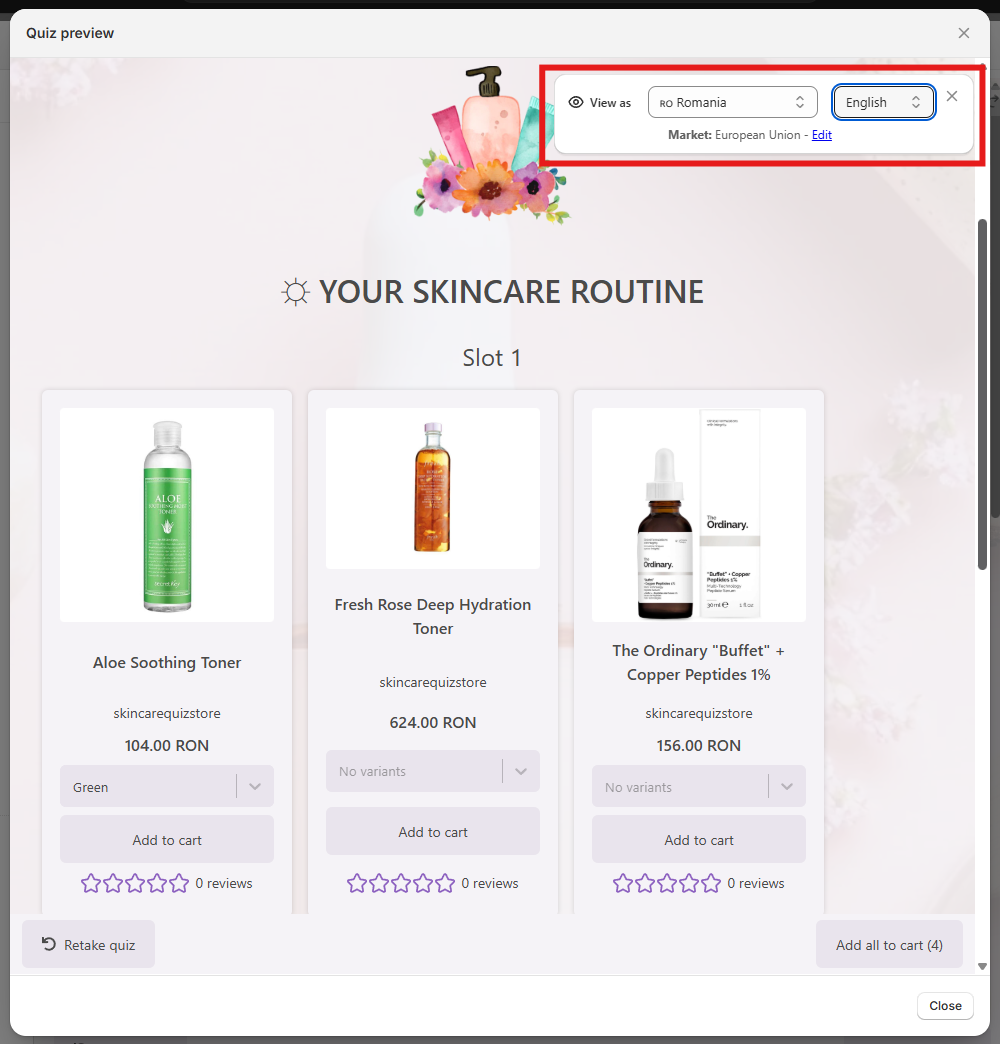
You can also preview a specific quiz results page within the Preview option in the app.
- Open the Quiz builder.
- Click the top-right
Previewbutton and work through the quiz to the results page. - From there, preview the results page as a different market or language.
Platform Availability
This feature is only available in the Built for Shopify version of the RevenueHunt app. It is not available for the legacy version of the RevenueHunt app for Shopify.
Platform Availability
This feature is only available in the Built for Shopify version of the RevenueHunt app. It is not available for WooCommerce stores.
Platform Availability
This feature is only available in the Built for Shopify version of the RevenueHunt app. It is not available for Magento stores.
Platform Availability
This feature is only available in the Built for Shopify version of the RevenueHunt app. It is not available for BigCommerce stores.
Platform Availability
This feature is only available in the Built for Shopify version of the RevenueHunt app. It is not available for standalone installations.
This tutorial explains how to show a different quiz for each Shopify market, and how to show a quiz in a different language or currency.