Customer Tags
You can create custom tags and link them to choices in the quiz. Customer tags are useful for segmenting customers and email marketing. See how to add and use customer tags for the full walkthrough.
To add customer tags to choices, go to Questions, select a multiple-choice question, then a choice and open the Choice settings.
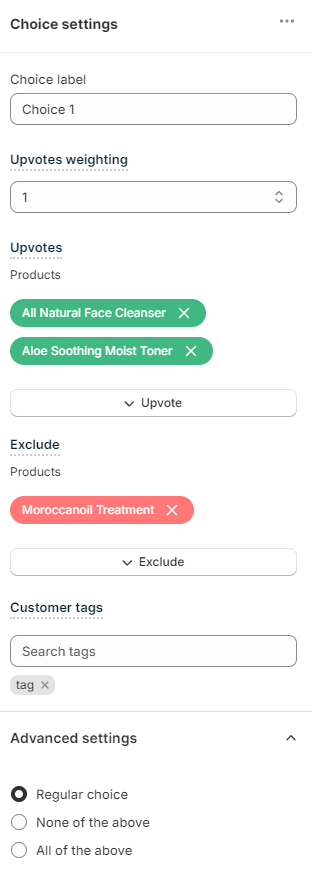
Under Choice settings, find the Customer tags section and click on it to open the settings.
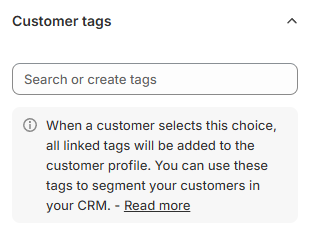
Click Search or create tags to pick a tag to link to this choice or start typing the name to create a new tag.
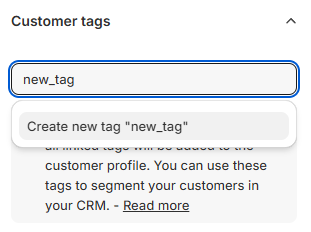
Confirm by clicking on Create new tag.
All the tags you create will be visible at the bottom in grey.

When a customer selects this choice, every linked tag is added to their customer profile. Use the tags to segment your customers in your CRM.
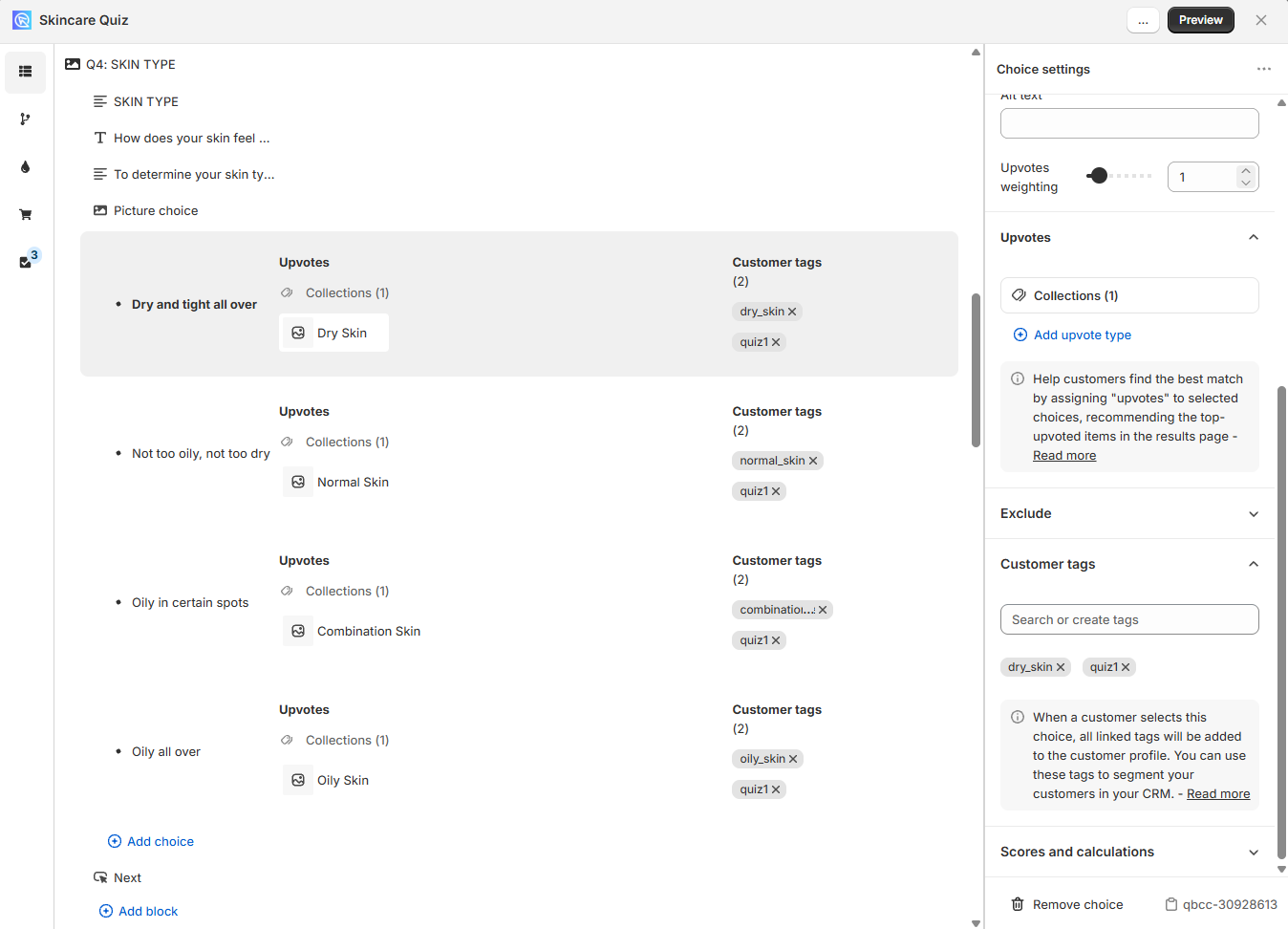
Back in the question, every choice shows its own Customer tags column, with the number of linked tags above them. Click the x on a tag to unlink it from that choice.
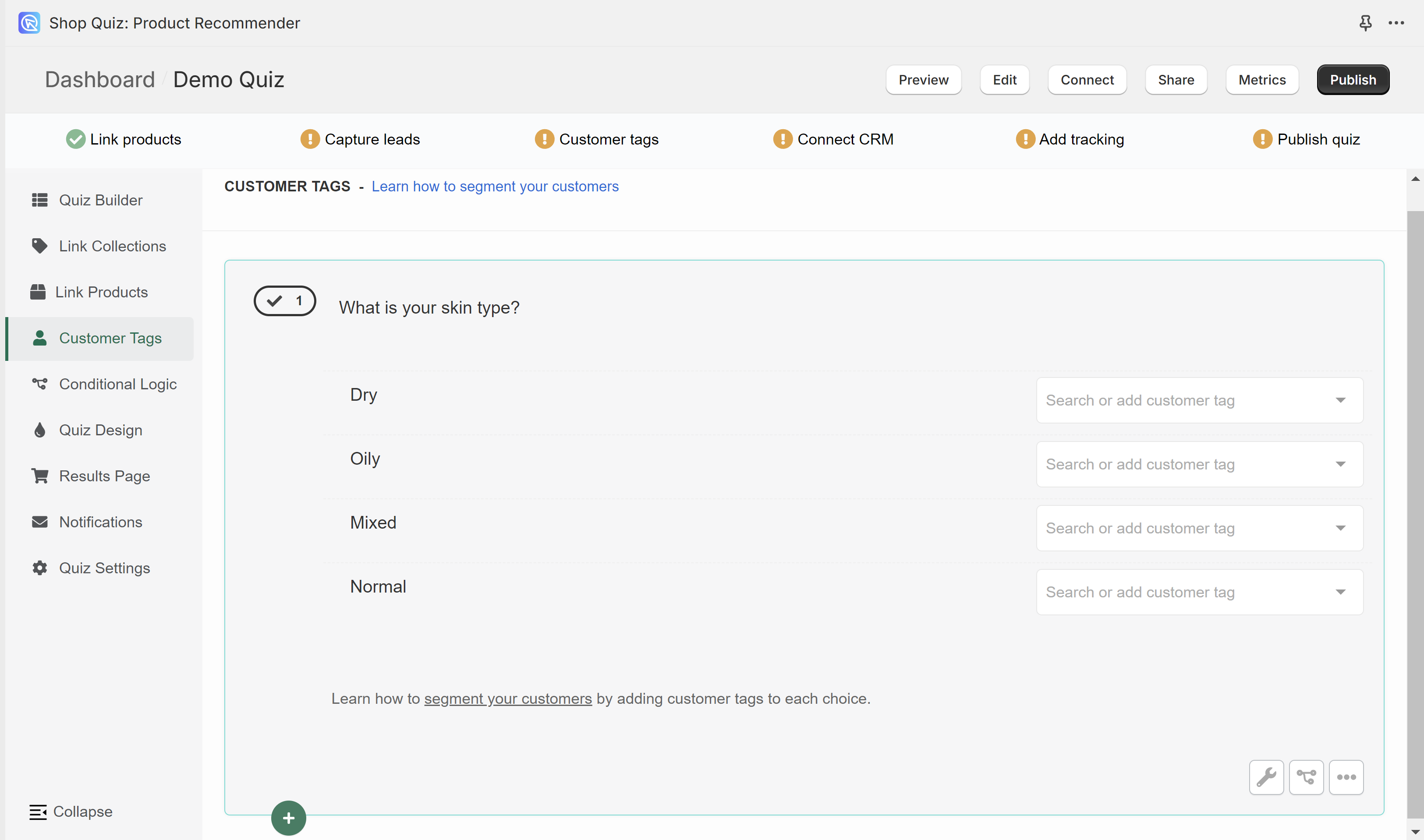
In the Customer Tags section, you can create custom tags and link them to choices in the quiz. Customer tags are useful for segmenting customers and email marketing. See how to add and use customer tags for the full walkthrough.
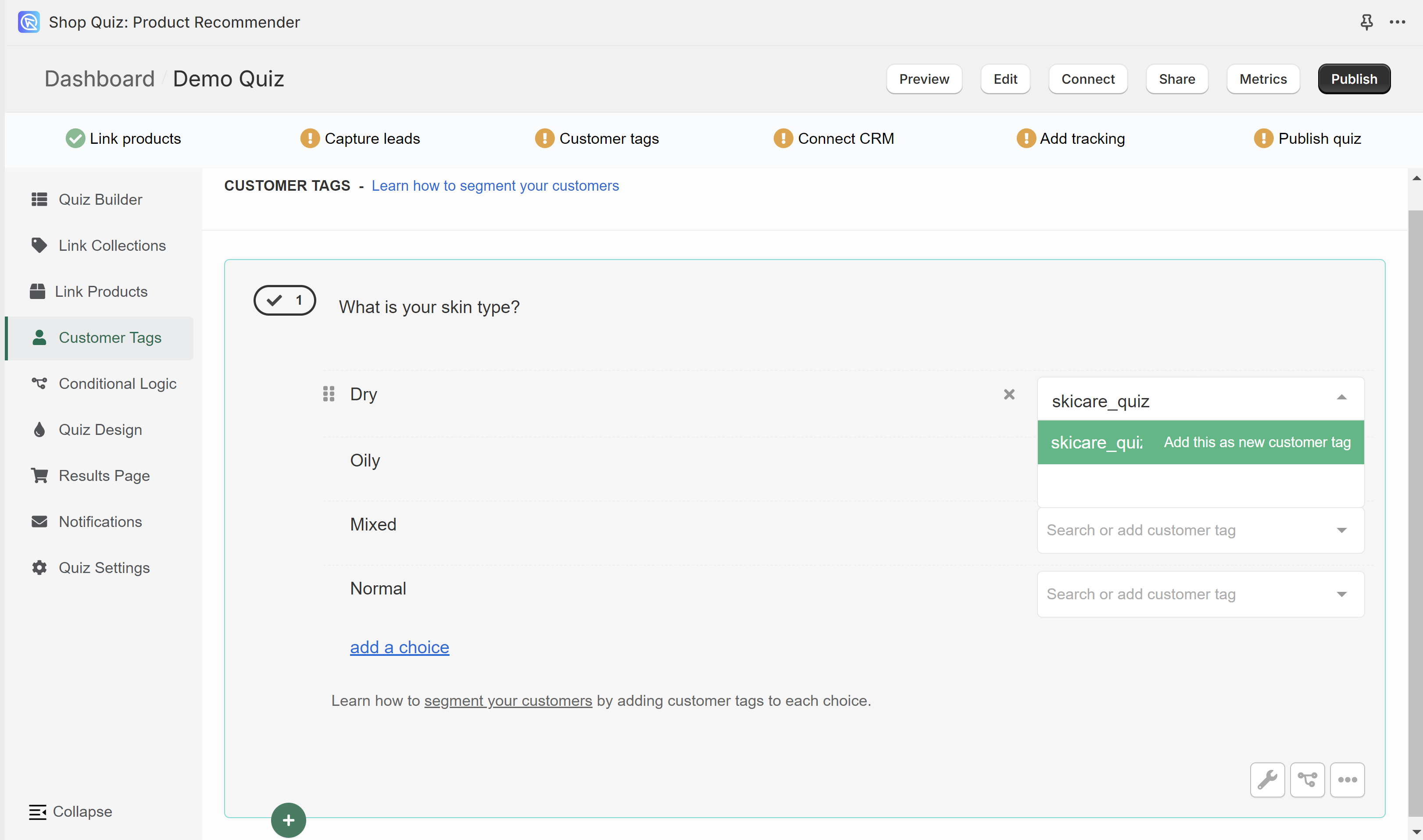
To add a new tag, type its name in the white bar next to one of the choices. Confirm it by clicking Add this as a new customer tag.
The new tag then shows as an available option whenever you select another choice.
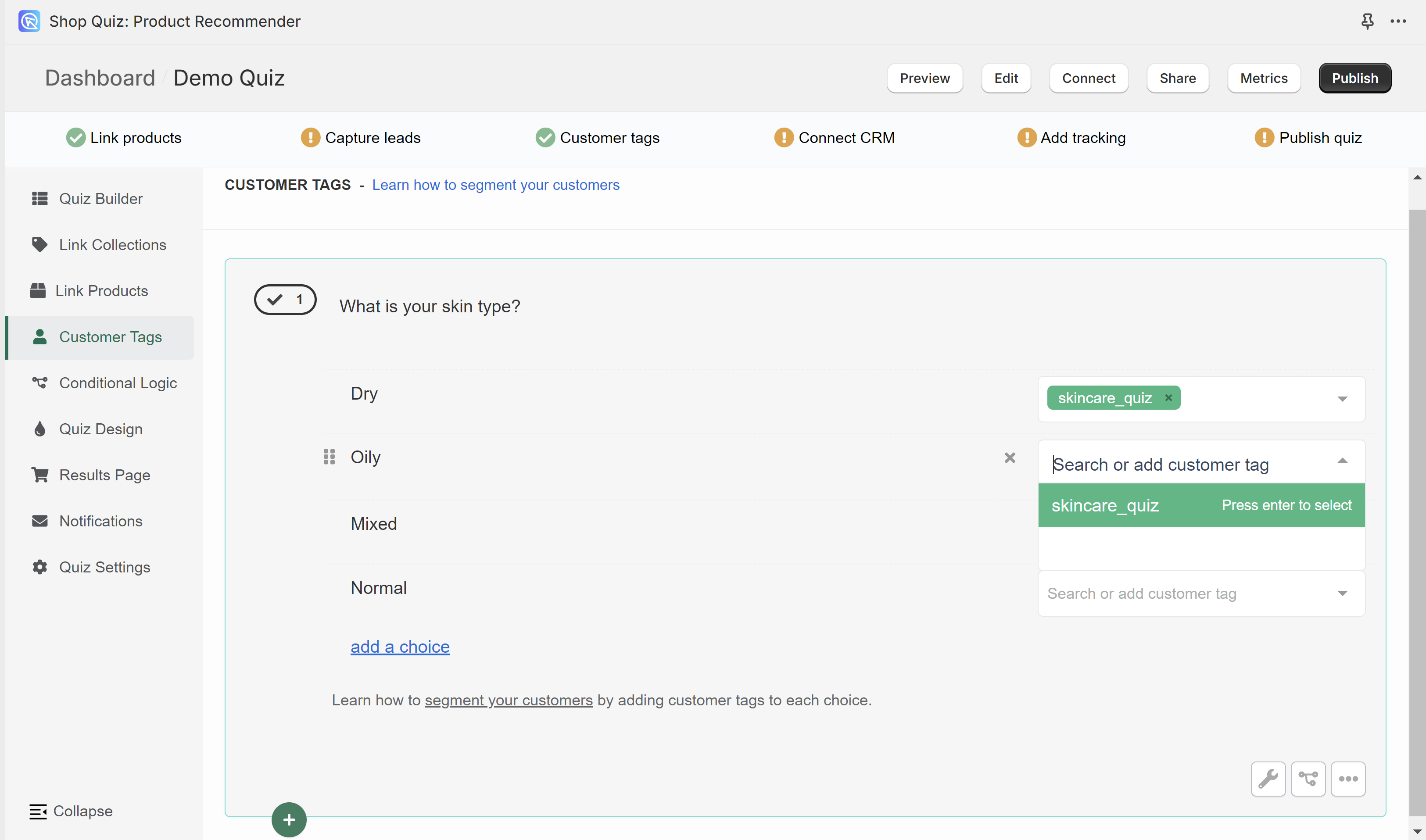
You can create as many tags as you like. You can link as many tags as you like to the same choice.
In the Customer Tags section, you can create custom tags and link them to choices in the quiz. Customer tags are useful for segmenting customers and email marketing. See how to add and use customer tags for the full walkthrough.
To add a new tag, type its name in the white bar next to one of the choices. Confirm it by clicking Add this as a new customer tag.
The new tag then shows as an available option whenever you select another choice.
You can create as many tags as you like. You can link as many tags as you like to the same choice.
In the Customer Tags section, you can create custom tags and link them to choices in the quiz. Customer tags are useful for segmenting customers and email marketing. See how to add and use customer tags for the full walkthrough.
To add a new tag, type its name in the white bar next to one of the choices. Confirm it by clicking Add this as a new customer tag.
The new tag then shows as an available option whenever you select another choice.
You can create as many tags as you like. You can link as many tags as you like to the same choice.
In the Customer Tags section, you can create custom tags and link them to choices in the quiz. Customer tags are useful for segmenting customers and email marketing. See how to add and use customer tags for the full walkthrough.
To add a new tag, type its name in the white bar next to one of the choices. Confirm it by clicking Add this as a new customer tag.
The new tag then shows as an available option whenever you select another choice.
You can create as many tags as you like. You can link as many tags as you like to the same choice.
In the Customer Tags section, you can create custom tags and link them to choices in the quiz. Customer tags are useful for segmenting customers and email marketing. See how to add and use customer tags for the full walkthrough.
To add a new tag, type its name in the white bar next to one of the choices. Confirm it by clicking Add this as a new customer tag.
The new tag then shows as an available option whenever you select another choice.
You can create as many tags as you like. You can link as many tags as you like to the same choice.
← Previous: Link Products Next: Conditional Logic →