Notifications
To set up email notifications, go to the Quiz settings section. Emails to self are sent to the store owner. Emails to respondents are sent to the customer.
In the Notifications tab of the Quiz Builder, you can activate and edit two emails. One goes to the customer and one goes to the store owner. Both are sent at the end of the quiz.
In the Notifications tab of the Quiz Builder, you can activate and edit two emails. One goes to the customer and one goes to the store owner. Both are sent at the end of the quiz.
In the Notifications tab of the Quiz Builder, you can activate and edit two emails. One goes to the customer and one goes to the store owner. Both are sent at the end of the quiz.
In the Notifications tab of the Quiz Builder, you can activate and edit two emails. One goes to the customer and one goes to the store owner. Both are sent at the end of the quiz.
In the Notifications tab of the Quiz Builder, you can activate and edit two emails. One goes to the customer and one goes to the store owner. Both are sent at the end of the quiz.
Emails to customers
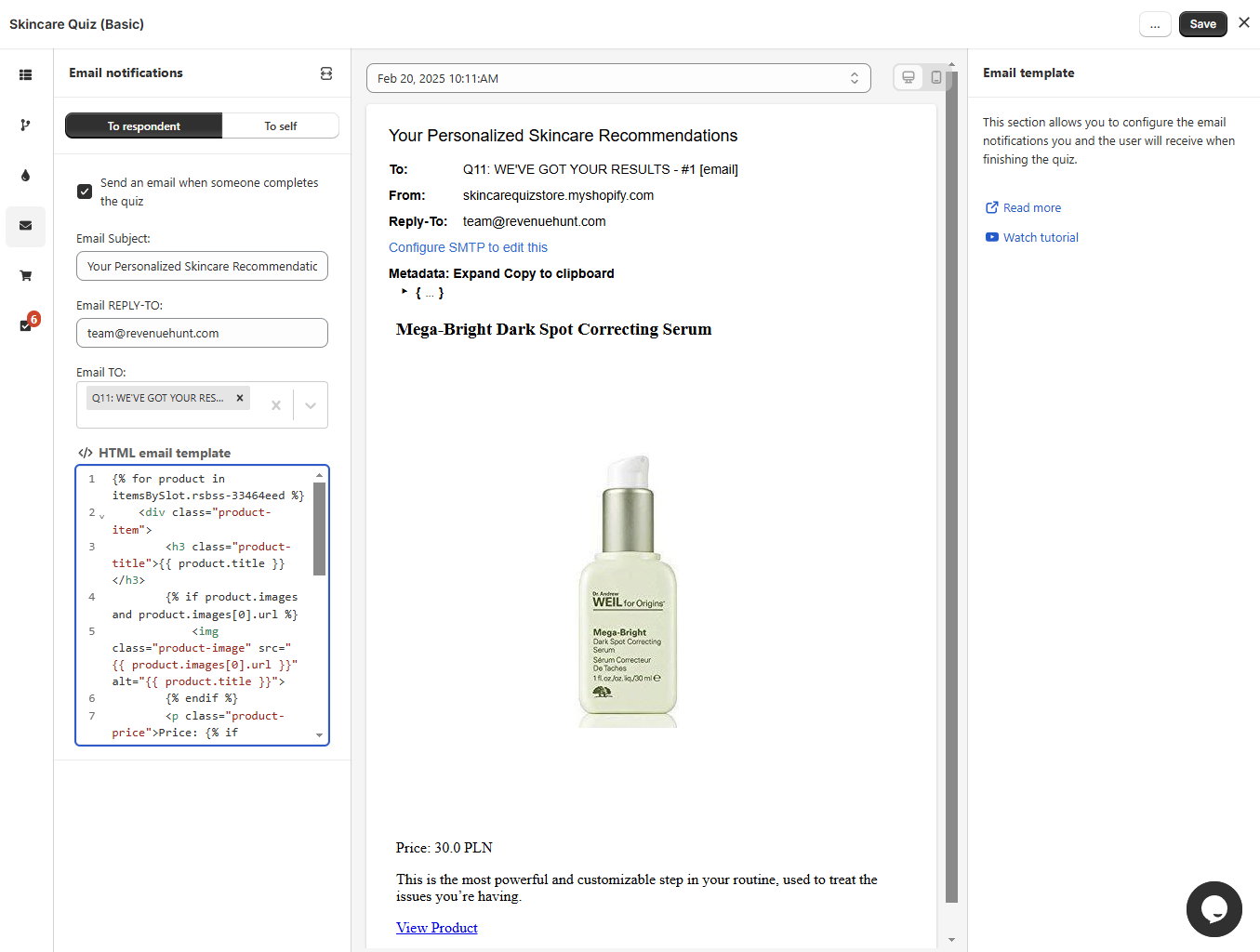
Email template
Send an email when someone completes the quiz - Activate this option to send the results email to the address the customer gave, once they complete the quiz and reach the results page.
Email to: - Pick the email question that supplies the customer's address.
Reply-to: - The address a customer reaches if they reply to the email. Use one you monitor.
Email subject: - Add the title of the notification email.
Email Liquid template: - The Liquid template for the email. Build it from the metadata below.
Reset - Resets the email template to the default template.
Edit with AI - Rewrites the template from a prompt, instead of editing the Liquid by hand.
Useful code snippets: - Click an item below to copy the code snippets to customize the Liquid email template.
Items list snippet - Lists all the recommended products.
Responses by block snippet - Lists all the customer answers.
Email preview
Jul 10, 2025 12:35 PM - Date of the quiz completion. Click to open a dropdown and choose a different response.
From: - Email address of the sender. Go to the App settings > SMTP section to set up your email server details. Otherwise, the email will be sent from RevenueHunt email address.
Metadata - Lists all the metadata provided by the customer.
Expand all - Expands all the metadata.
Copy to clipboard - Copies the selected metadata to the clipboard.
Quiz response metadata structure
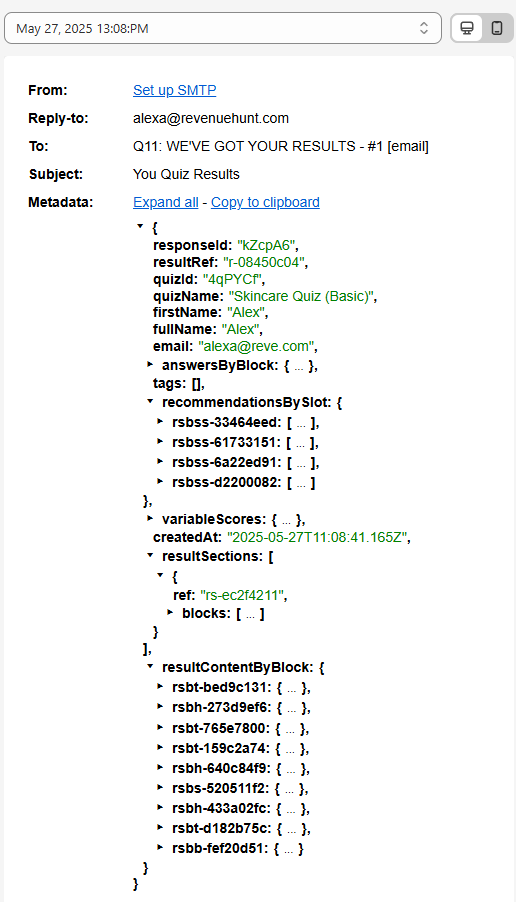
This object contains all the data generated when a customer completes a quiz, including responses, product recommendations and result content. It is used to power dynamic results pages, follow-up emails, and custom workflows.
Basic Information
responseId - Unique ID for this specific quiz response
resultRef - Internal reference to the results layout
quizId - ID of the quiz that was completed
quizName - Name of the quiz
firstName / fullName - Name entered by the customer
email - Email address submitted
createdAt - Timestamp of quiz completion (ISO format)
Customer answers (answersByBlock)
"answersByBlock": {
"qbc-485600ce": {
"type": "picture_choice",
"value": "Dry and tight all over",
"choicesRefs": ["qbcc-30928613"]
}
}
Each quiz question block is mapped to the customer's answer.
Fields inside each entry:
type - The kind of question, for example multiple_choice, picture_choice or email
value - The answer selected or typed by the customer
choicesRefs - List of selected choice references (used internally)
Example: qbc-485600ce → type: picture_choice, value: "Dry and tight all over", choicesRefs: ["qbcc-30928613"]
Tags
tags - A list of tags to assign to the customer. Often used for segmentation. Empty if unused.
Product Recommendations (recommendationsBySlot)
"recommendationsBySlot": {
"rsbss-33464eed": {
"type": "product",
"value": "Ordinary Serum",
"variants": [
Each result "slot" contains one or more product recommendations.
Each product object includes: id, title, vendor, handle: Shopify product metadata
variants - Variant ID, price, and image per product
slotHeading / slotDescription - Rich text HTML displayed on results pages
image - URL for the main product image
price - Object with amount and currencyCode
Example: rsbss-33464eed → contains "Ordinary Serum", $45 USD
Variable Scores (variableScores)
Used only if the quiz has a scoring logic. Contains numerical results or score breakdowns.
Result Sections (resultSections)
"resultSections": [
"rsbh-273d9ef6": {
"type": "heading",
"content": "<p>Here's what your skin wants!</p>"
}
]
An ordered array of blocks that make up the results page. Each block can be:
heading
text
products
button
Products blocks have a slots array that contains product lists grouped by slot reference.
Rendered Result Content (resultContentByBlock)
A lookup table of rendered content for each block (used in external templates like email).
Each entry is keyed by the block reference and contains:
type - Type of block (text, heading, products, etc.)
content or slots - The rendered HTML or product data
Use cases
Use this metadata to:
-
Personalize results pages based on customer answers
-
Send dynamic follow-up emails with relevant product suggestions
-
Store quiz responses for analytics and customer profiling
-
Integrate with marketing tools like Klaviyo or HubSpot using dynamic fields
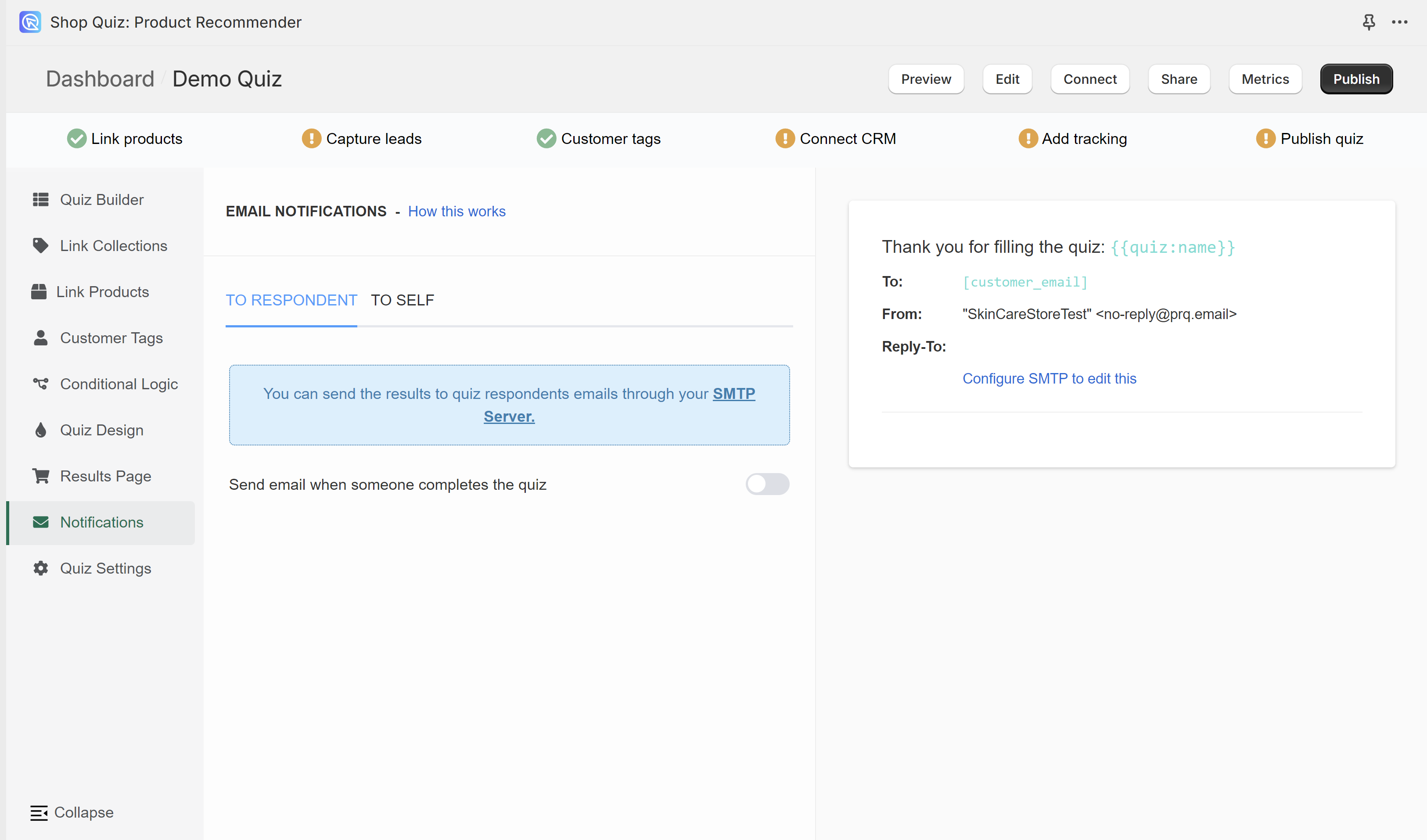
Your quiz needs an email question before it can send notifications to customers. See Questions to add one.
To activate notification emails to customers, toggle Send email when someone completes the quiz on. Additional customization options will appear.
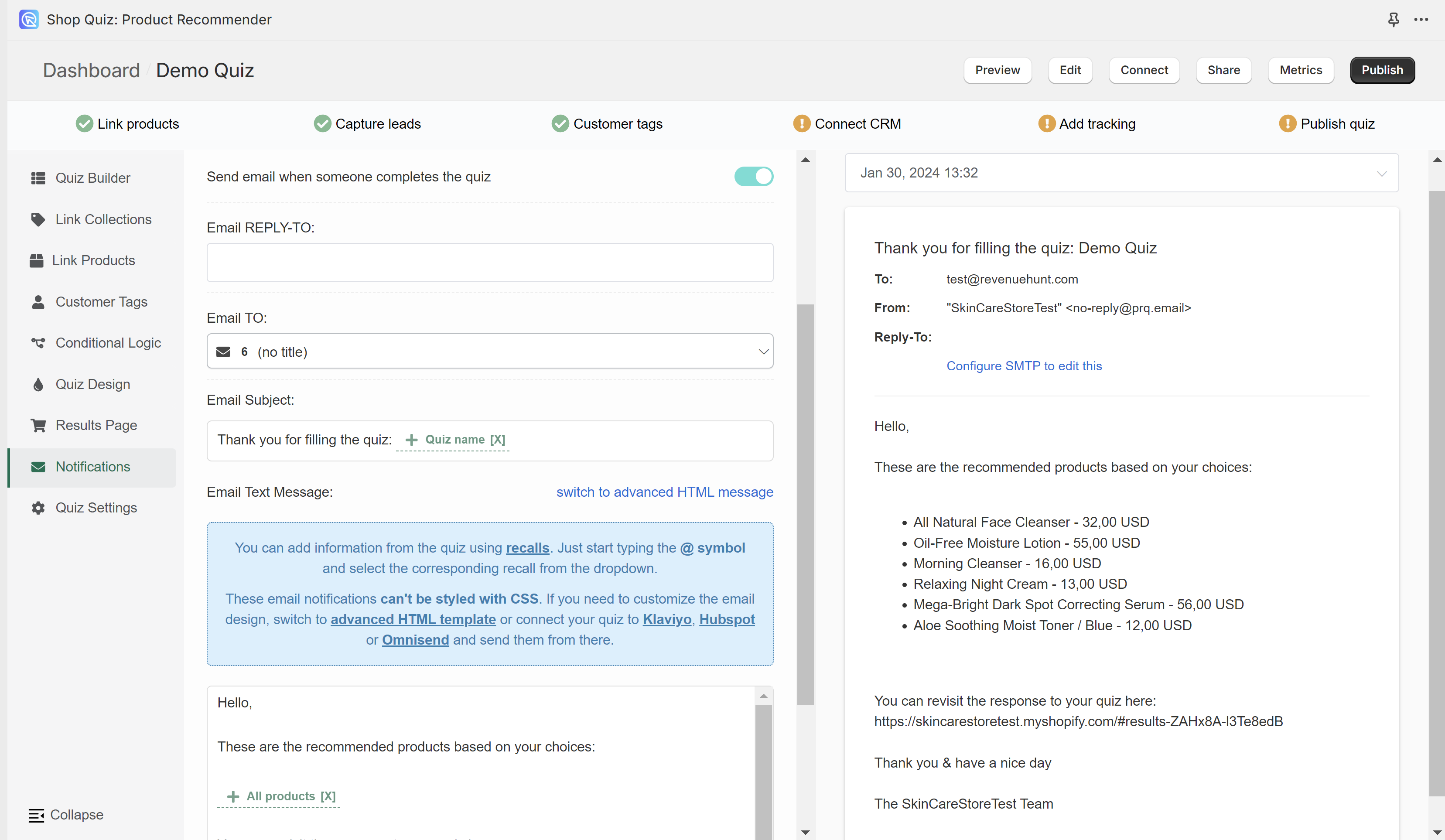
The TO RESPONDENT section shows the email settings on the left and the email preview on the right.

Select a response from the list to preview what the email will look like.
Email REPLY_TO: - Fill in the email address to which the customer will be able to send a reply.
Email TO: - Select from which email question (in case of multiple email questions) the customer's address should be taken in order to send the results.
Email Subject: - Type in the email subject that the customer will see in their inbox. You can use Information Recalls to recall information in this text field (for example customer name, quiz name, answer to a specific question, etc.)
Email Text Message - Edit the content of the email sent to the customer. Choose between the Basic text email template, which cannot be styled, and the advanced HTML template. The HTML template can be styled and can show product images.
switch to advanced HTML message - Switches to the advanced HTML email template. Email can be edited with HTML and metadata can be included with Handlebars.
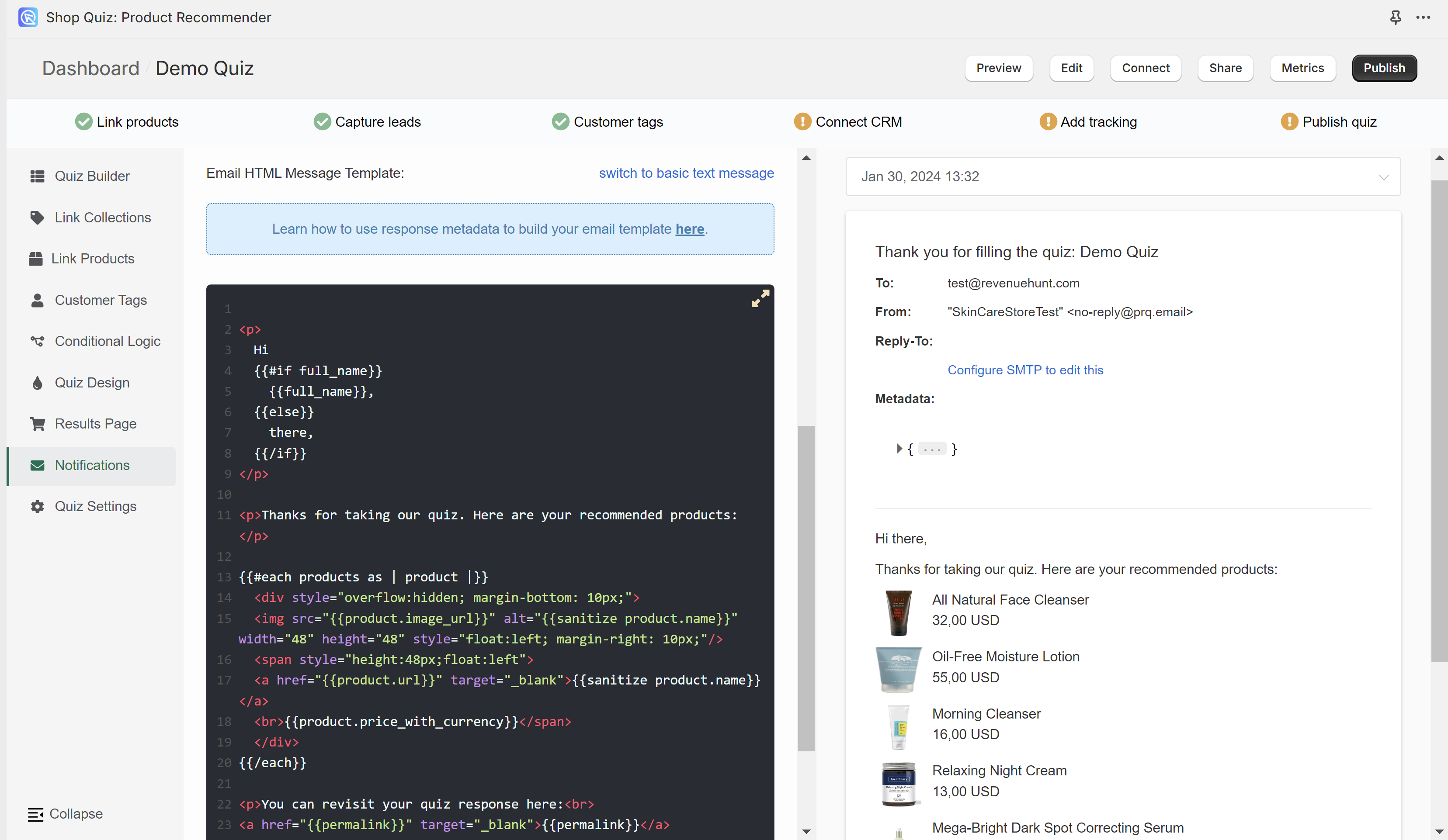
switch to basic text message - Switched to the basic text email template. Email can be edited with regular text. You can use Information Recalls to recall information in this text field (for example customer name, quiz name, recommended products, answers to questions, etc.).
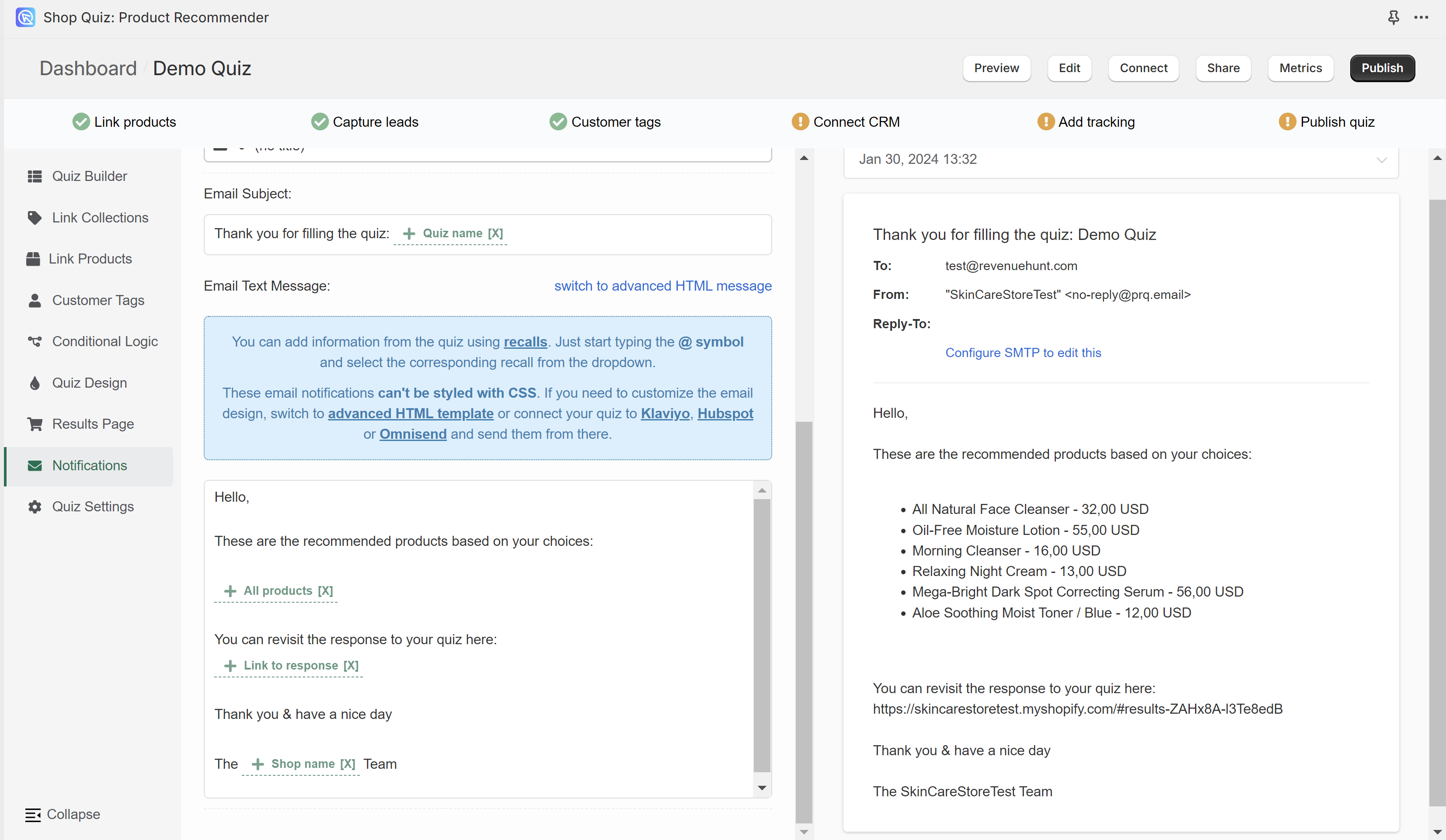
Your quiz needs an email question before it can send notifications to customers. See Questions to add one.
To activate notification emails to customers, toggle Send email when someone completes the quiz on. Additional customization options will appear.
The TO RESPONDENT section shows the email settings on the left and the email preview on the right.
Select a response from the list to preview what the email will look like.
Email REPLY_TO: - Fill in the email address to which the customer will be able to send a reply.
Email TO: - Select from which email question (in case of multiple email questions) the customer's address should be taken in order to send the results.
Email Subject: - Type in the email subject that the customer will see in their inbox. You can use Information Recalls to recall information in this text field (for example customer name, quiz name, answer to a specific question, etc.)
Email Text Message - Edit the content of the email sent to the customer. Choose between the Basic text email template, which cannot be styled, and the advanced HTML template. The HTML template can be styled and can show product images.
switch to advanced HTML message - Switches to the advanced HTML email template. Email can be edited with HTML and metadata can be included with Handlebars.
switch to basic text message - Switched to the basic text email template. Email can be edited with regular text. You can use Information Recalls to recall information in this text field (for example customer name, quiz name, recommended products, answers to questions, etc.).
Your quiz needs an email question before it can send notifications to customers. See Questions to add one.
To activate notification emails to customers, toggle Send email when someone completes the quiz on. Additional customization options will appear.
The TO RESPONDENT section shows the email settings on the left and the email preview on the right.
Select a response from the list to preview what the email will look like.
Email REPLY_TO: - Fill in the email address to which the customer will be able to send a reply.
Email TO: - Select from which email question (in case of multiple email questions) the customer's address should be taken in order to send the results.
Email Subject: - Type in the email subject that the customer will see in their inbox. You can use Information Recalls to recall information in this text field (for example customer name, quiz name, answer to a specific question, etc.)
Email Text Message - Edit the content of the email sent to the customer. Choose between the Basic text email template, which cannot be styled, and the advanced HTML template. The HTML template can be styled and can show product images.
switch to advanced HTML message - Switches to the advanced HTML email template. Email can be edited with HTML and metadata can be included with Handlebars.
switch to basic text message - Switched to the basic text email template. Email can be edited with regular text. You can use Information Recalls to recall information in this text field (for example customer name, quiz name, recommended products, answers to questions, etc.).
Your quiz needs an email question before it can send notifications to customers. See Questions to add one.
To activate notification emails to customers, toggle Send email when someone completes the quiz on. Additional customization options will appear.
The TO RESPONDENT section shows the email settings on the left and the email preview on the right.
Select a response from the list to preview what the email will look like.
Email REPLY_TO: - Fill in the email address to which the customer will be able to send a reply.
Email TO: - Select from which email question (in case of multiple email questions) the customer's address should be taken in order to send the results.
Email Subject: - Type in the email subject that the customer will see in their inbox. You can use Information Recalls to recall information in this text field (for example customer name, quiz name, answer to a specific question, etc.)
Email Text Message - Edit the content of the email sent to the customer. Choose between the Basic text email template, which cannot be styled, and the advanced HTML template. The HTML template can be styled and can show product images.
switch to advanced HTML message - Switches to the advanced HTML email template. Email can be edited with HTML and metadata can be included with Handlebars.
switch to basic text message - Switched to the basic text email template. Email can be edited with regular text. You can use Information Recalls to recall information in this text field (for example customer name, quiz name, recommended products, answers to questions, etc.).
Your quiz needs an email question before it can send notifications to customers. See Questions to add one.
To activate notification emails to customers, toggle Send email when someone completes the quiz on. Additional customization options will appear.
The TO RESPONDENT section shows the email settings on the left and the email preview on the right.
Select a response from the list to preview what the email will look like.
Email REPLY_TO: - Fill in the email address to which the customer will be able to send a reply.
Email TO: - Select from which email question (in case of multiple email questions) the customer's address should be taken in order to send the results.
Email Subject: - Type in the email subject that the customer will see in their inbox. You can use Information Recalls to recall information in this text field (for example customer name, quiz name, answer to a specific question, etc.)
Email Text Message - Edit the content of the email sent to the customer. Choose between the Basic text email template, which cannot be styled, and the advanced HTML template. The HTML template can be styled and can show product images.
switch to advanced HTML message - Switches to the advanced HTML email template. Email can be edited with HTML and metadata can be included with Handlebars.
switch to basic text message - Switched to the basic text email template. Email can be edited with regular text. You can use Information Recalls to recall information in this text field (for example customer name, quiz name, recommended products, answers to questions, etc.).
Emails to the store owner
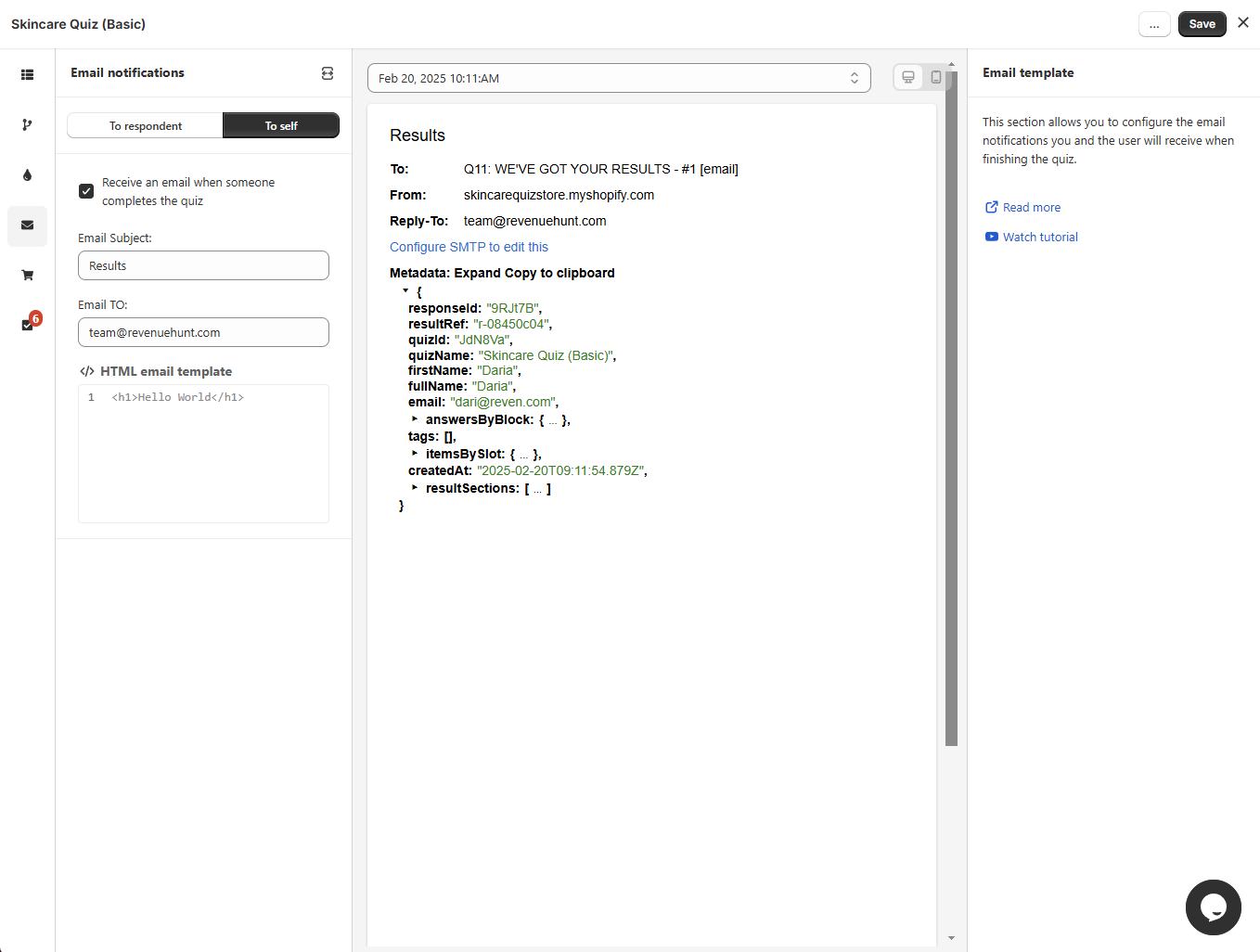
Email template
Receive an email when someone completes the quiz - Activate this option to receive notifications to your specified email address when someone completes the quiz (reaches the results page).
Email to: - Add an email address to which the notification should be sent.
Email subject: - Add the title of the notification email.
Email Liquid template: - The Liquid template for the email. Build it from the metadata below.
Reset - Resets the email template to the default template.
Edit with AI - Rewrites the template from a prompt, instead of editing the Liquid by hand.
Useful code snippets: - Click an item below to copy the code snippets to customize the Liquid email template.
Personal information template - Lists all the personal information provided by the customer.
Responses by block snippet - Lists all the customer answers.
Email preview
Jul 10, 2025 12:35 PM - Date of the quiz completion. Click to open a dropdown and choose a different response.
From: - Email address of the sender. Go to the App settings > SMTP section to set up your email server details. Otherwise, the email will be sent from RevenueHunt email address.
Metadata - Lists all the metadata provided by the customer.
Expand all - Expands all the metadata.
Copy to clipboard - Copies the selected metadata to the clipboard.
Quiz response metadata structure
This object contains all the data generated when a customer completes a quiz, including responses, product recommendations and result content. It is used to power dynamic results pages, follow-up emails, and custom workflows.
Basic Information
responseId - Unique ID for this specific quiz response
resultRef - Internal reference to the results layout
quizId - ID of the quiz that was completed
quizName - Name of the quiz
firstName / fullName - Name entered by the customer
email - Email address submitted
createdAt - Timestamp of quiz completion (ISO format)
Customer answers (answersByBlock)
"answersByBlock": {
"qbc-485600ce": {
"type": "picture_choice",
"value": "Dry and tight all over",
"choicesRefs": ["qbcc-30928613"]
}
}
Each quiz question block is mapped to the customer's answer.
Fields inside each entry:
type - The kind of question, for example multiple_choice, picture_choice or email
value - The answer selected or typed by the customer
choicesRefs - List of selected choice references (used internally)
Example: qbc-485600ce → type: picture_choice, value: "Dry and tight all over", choicesRefs: ["qbcc-30928613"]
Tags
tags - A list of tags to assign to the customer. Often used for segmentation. Empty if unused.
Product Recommendations (recommendationsBySlot)
"recommendationsBySlot": {
"rsbss-33464eed": {
"type": "product",
"value": "Ordinary Serum",
"variants": [
Each result "slot" contains one or more product recommendations.
Each product object includes: id, title, vendor, handle: Shopify product metadata
variants - Variant ID, price, and image per product
slotHeading / slotDescription - Rich text HTML displayed on results pages
image - URL for the main product image
price - Object with amount and currencyCode
Example: rsbss-33464eed → contains "Ordinary Serum", $45 USD
Variable Scores (variableScores)
Used only if the quiz has a scoring logic. Contains numerical results or score breakdowns.
Result Sections (resultSections)
"resultSections": [
"rsbh-273d9ef6": {
"type": "heading",
"content": "<p>Here's what your skin wants!</p>"
}
]
An ordered array of blocks that make up the results page. Each block can be:
heading
text
products
button
Products blocks have a slots array that contains product lists grouped by slot reference.
Rendered Result Content (resultContentByBlock)
A lookup table of rendered content for each block (used in external templates like email).
Each entry is keyed by the block reference and contains:
type - Type of block (text, heading, products, etc.)
content or slots - The rendered HTML or product data
Use cases
Use this metadata to:
-
Personalize results pages based on customer answers
-
Send dynamic follow-up emails with relevant product suggestions
-
Store quiz responses for analytics and customer profiling
-
Integrate with marketing tools like Klaviyo or HubSpot using dynamic fields
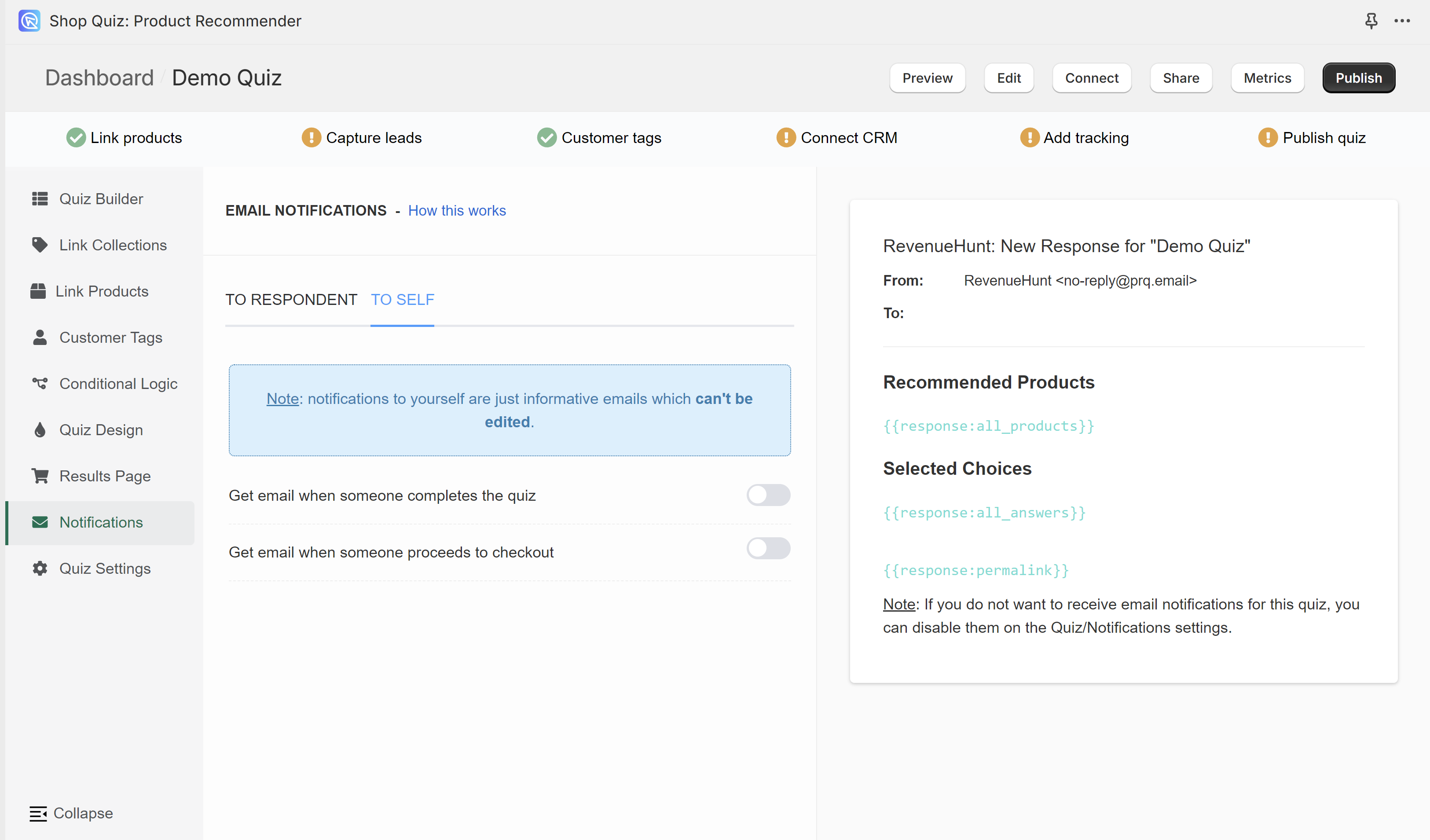
Get email when someone completes the quiz - You will receive an email at the address you provide whenever someone reaches the results page. This email template cannot be edited.
Get email when someone proceedes to checkout - You will receive an email at the address you provide whenever someone reaches the results page and then goes to the cart. This email template cannot be edited.
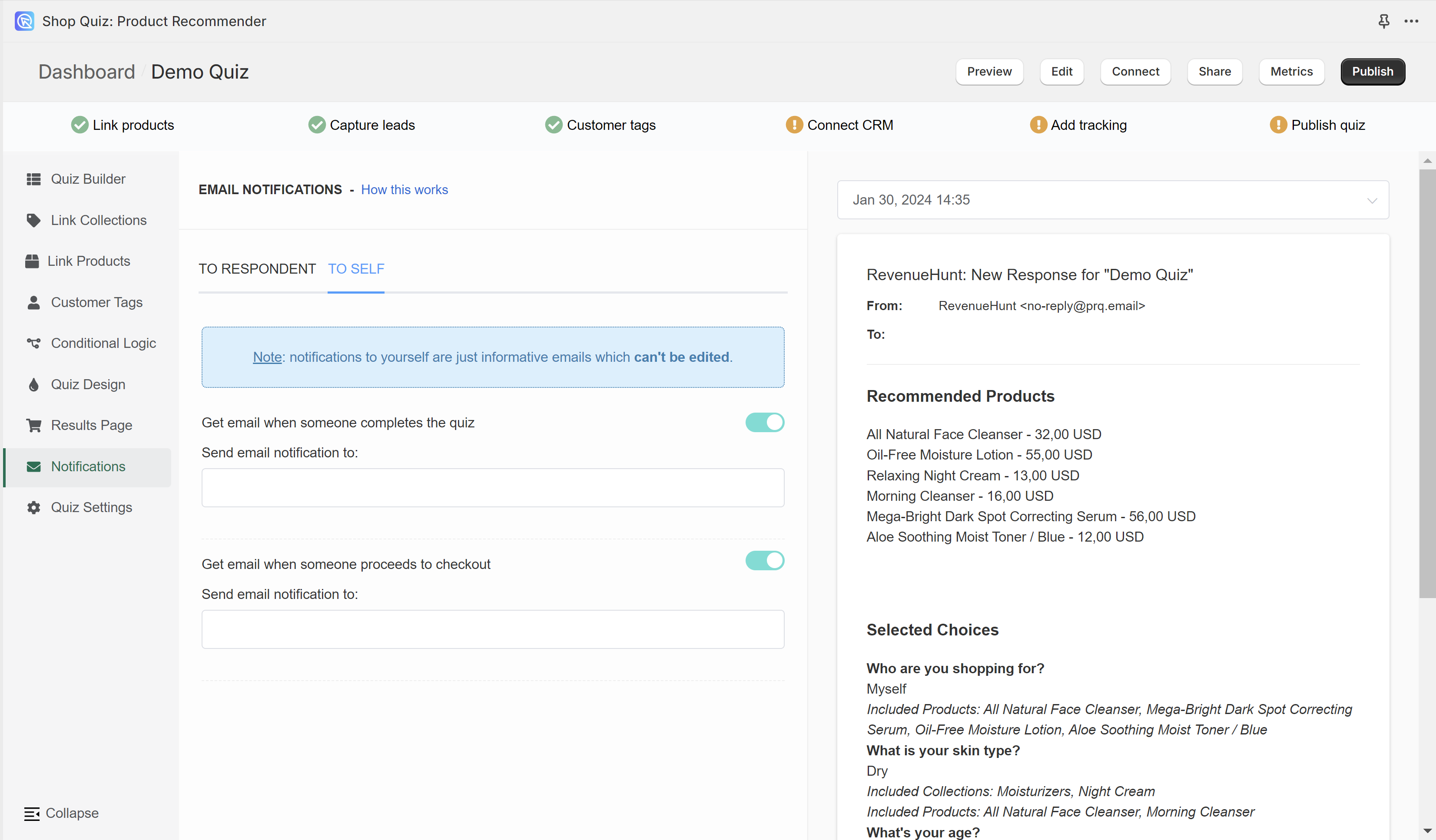
Get email when someone completes the quiz - You will receive an email at the address you provide whenever someone reaches the results page. This email template cannot be edited.
Get email when someone proceedes to checkout - You will receive an email at the address you provide whenever someone reaches the results page and then goes to the cart. This email template cannot be edited.
Get email when someone completes the quiz - You will receive an email at the address you provide whenever someone reaches the results page. This email template cannot be edited.
Get email when someone proceedes to checkout - You will receive an email at the address you provide whenever someone reaches the results page and then goes to the cart. This email template cannot be edited.
Get email when someone completes the quiz - You will receive an email at the address you provide whenever someone reaches the results page. This email template cannot be edited.
Get email when someone proceedes to checkout - You will receive an email at the address you provide whenever someone reaches the results page and then goes to the cart. This email template cannot be edited.
Get email when someone completes the quiz - You will receive an email at the address you provide whenever someone reaches the results page. This email template cannot be edited.
Get email when someone proceedes to checkout - You will receive an email at the address you provide whenever someone reaches the results page and then goes to the cart. This email template cannot be edited.
← Previous: Results Page Next: Quiz Settings →