Share / Publish
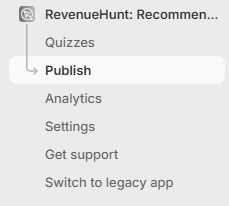
To add the quiz to your store, go the Publish tab from your Dashboard side menu.
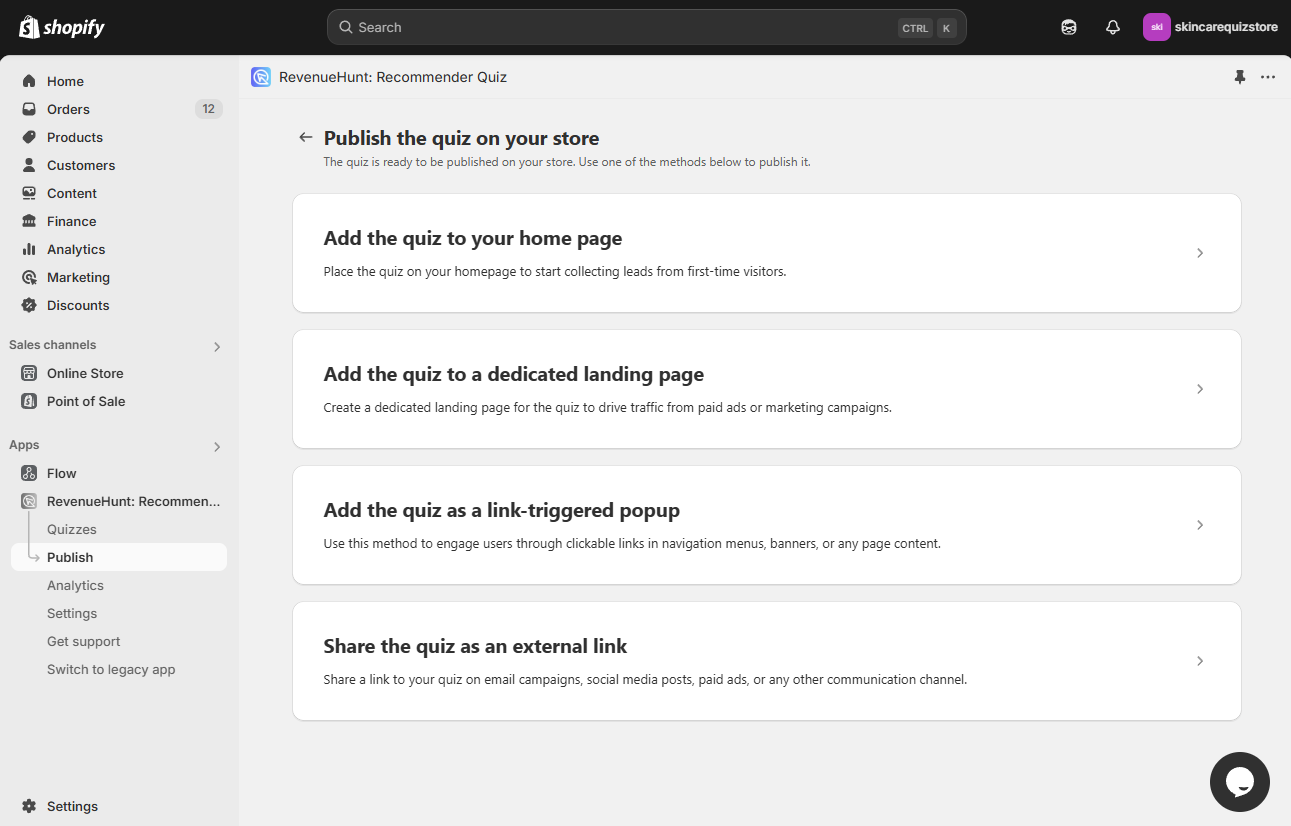
Theme extensions usage - Tells you whether the RevenueHunt theme extension is active, and where it is installed in your Shopify theme.
Refresh- Refresh the theme extension usage status.
Below, you will find step-by-step instructions on how to publish the default quiz onto your website. Click on the option tiles to see instructions and extra settings.
Tip
See how to publish the quiz for detailed instructions.
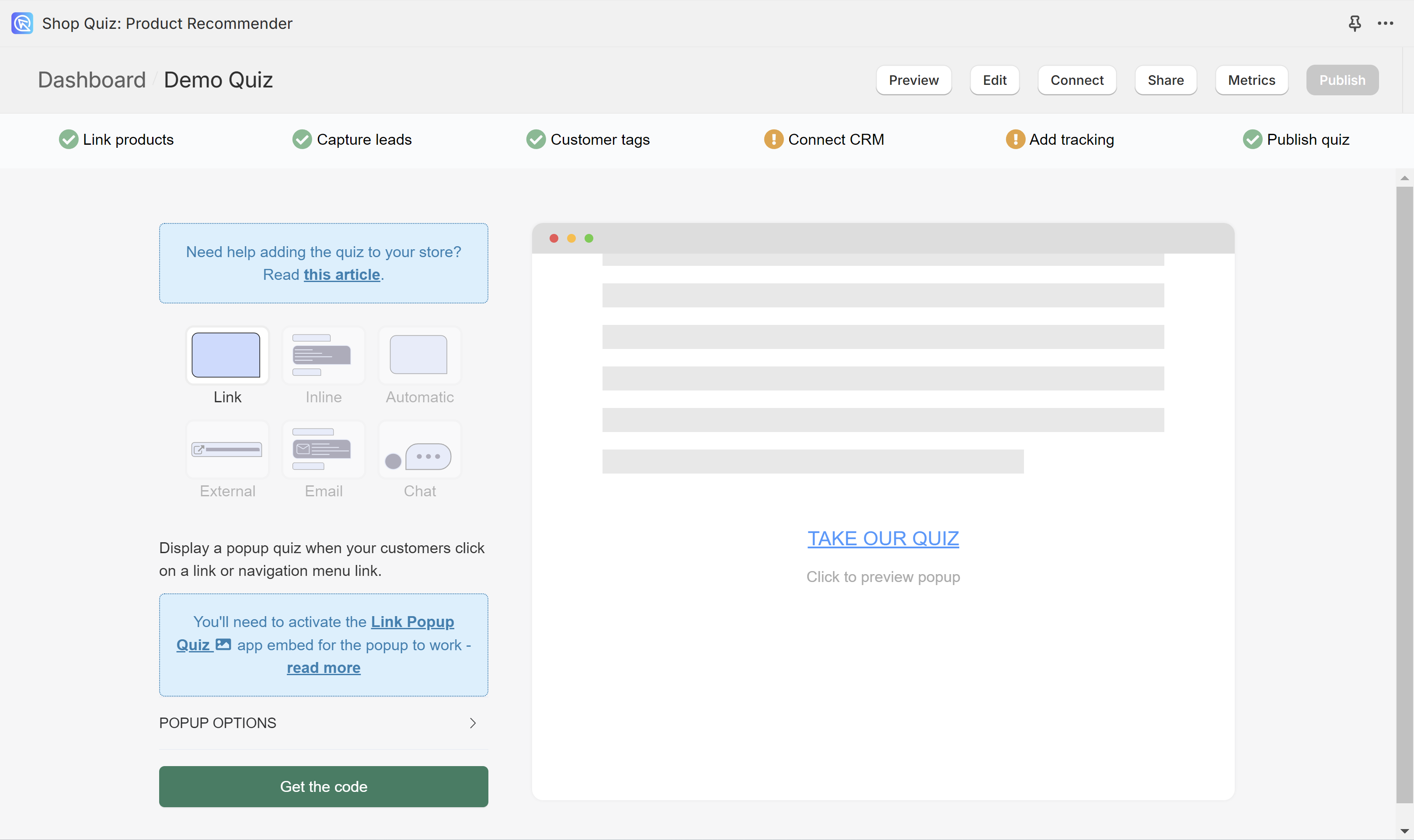
In the Share tab of the Quiz Builder, choose how to publish the quiz on your website. You can also share it with your customers. Click on the option tiles to see instructions and extra settings.
For step-by-step instructions, see how to publish the quiz.
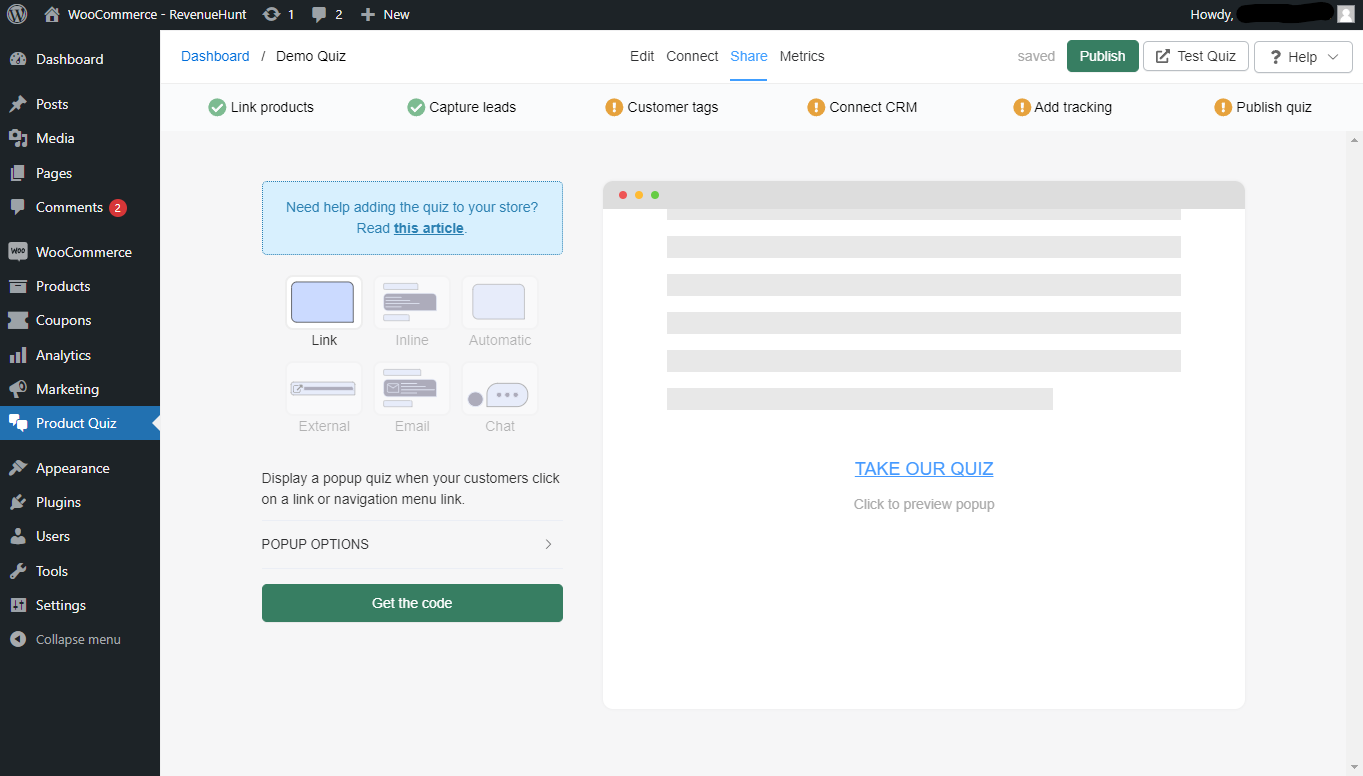
In the Share tab of the Quiz Builder, choose how to publish the quiz on your website. You can also share it with your customers. Click on the option tiles to see instructions and extra settings.
For step-by-step instructions, see how to publish the quiz.
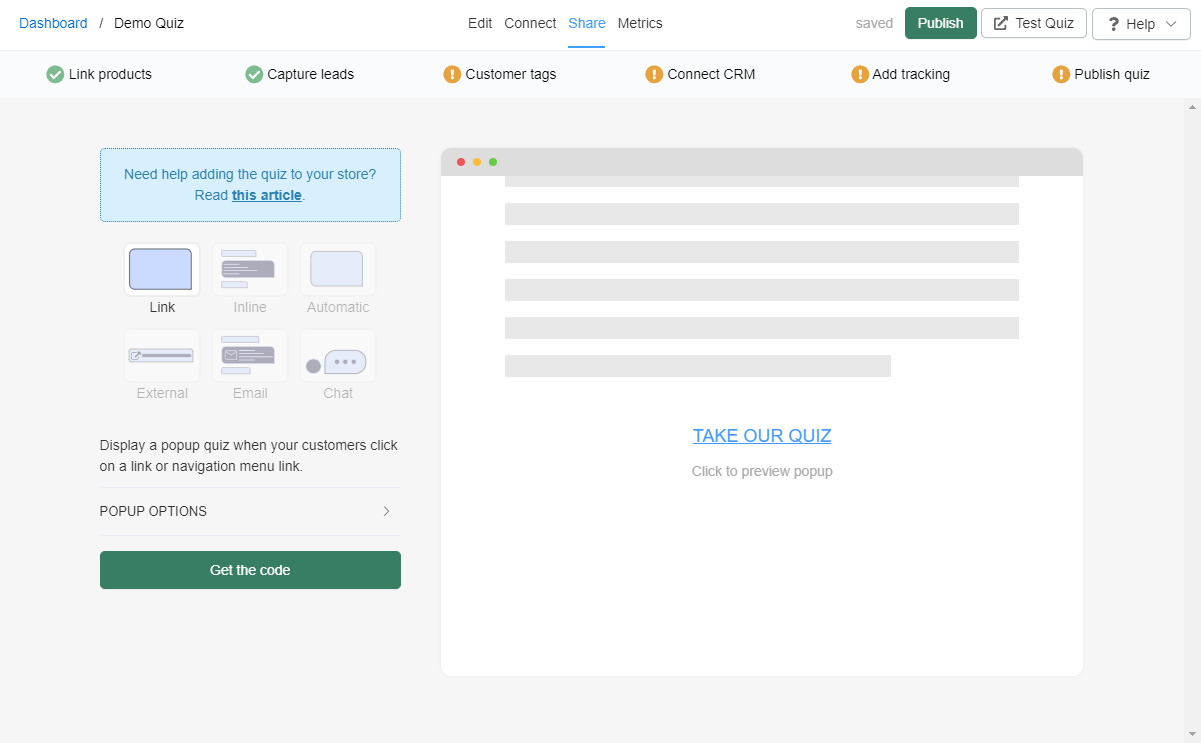
In the Share tab of the Quiz Builder, choose how to publish the quiz on your website. You can also share it with your customers. Click on the option tiles to see instructions and extra settings.
For step-by-step instructions, see how to publish the quiz.
In the Share tab of the Quiz Builder, choose how to publish the quiz on your website. You can also share it with your customers. Click on the option tiles to see instructions and extra settings.
For step-by-step instructions, see how to publish the quiz.
In the Share tab of the Quiz Builder, choose how to publish the quiz on your website. You can also share it with your customers. Click on the option tiles to see instructions and extra settings.
For step-by-step instructions, see how to publish the quiz.
Link
What is a Link Popup?
A link that opens the quiz as a popup over your page.
On every page
- To add a link popup to your website, in Shopify, go to
Online Store > Themeand clickCustomize. -
Open
App Embedsand toggle the button to activate theLink Popup Quiz.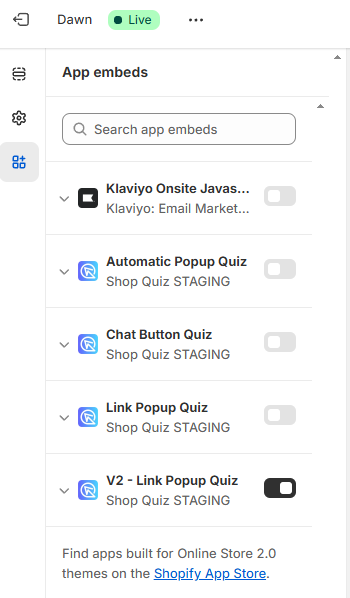
-
Adjust the popup options:
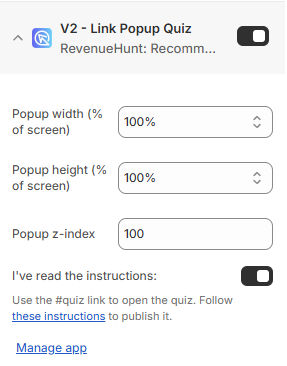
Popup width (% of screen)- Controls the width of the quiz popup window as a percentage of the customer's screen width.Popup height (% of screen)- Controls the height of the quiz popup window as a percentage of the customer's screen height.Popup z-index- Determines the stacking order of the quiz popup relative to other elements on the webpage.Quiz ID (optional)- Enter a quiz ID to show a specific quiz. Leave blank to load the default.Manage app- Opens the RevenueHunt dashboard with full settings and options. -
Click
Save. - Add
#quizto any element of your website to trigger the link popup. For example, you can add it to a button, link or a menu item.
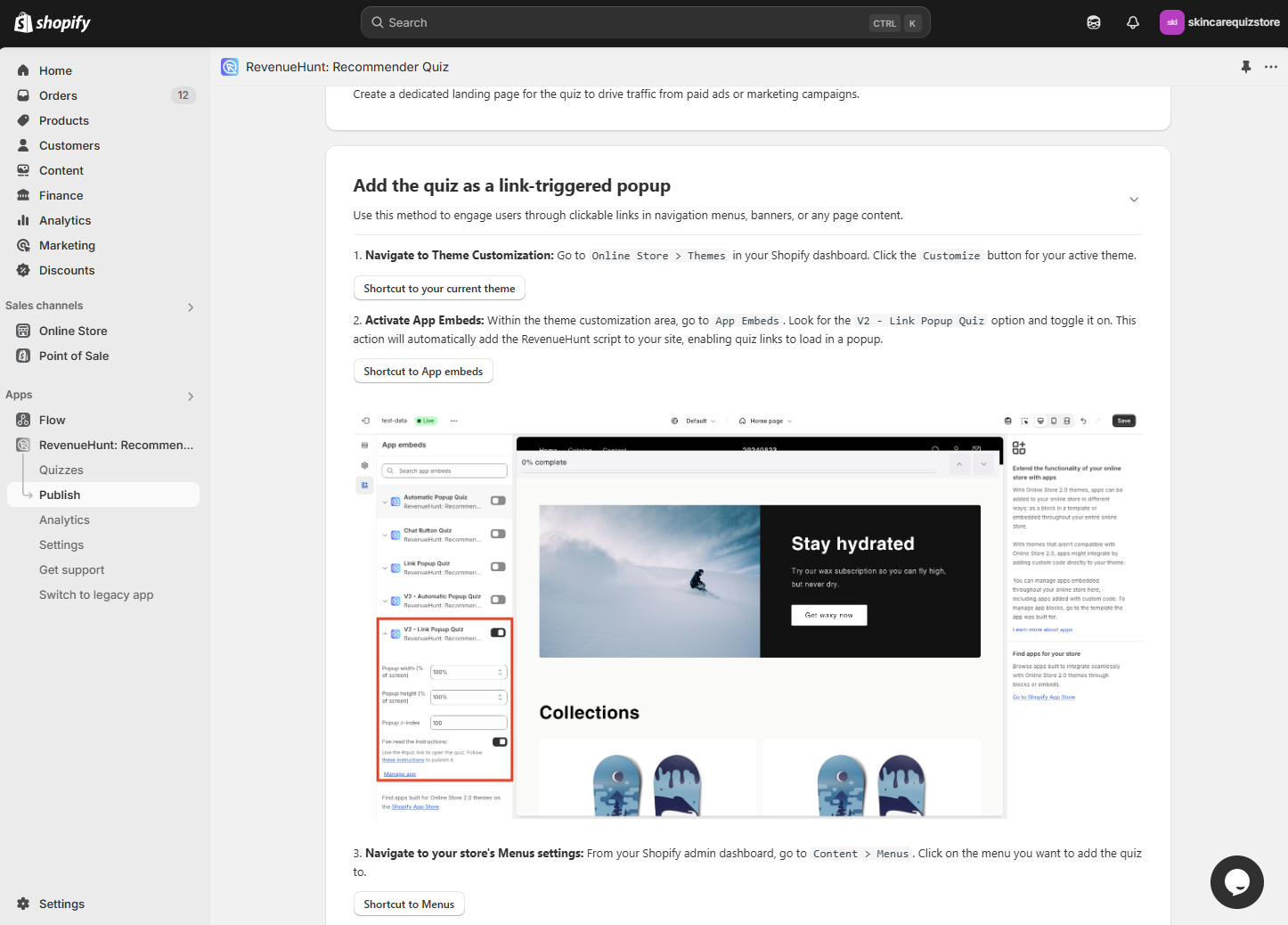
Step-by-step instructions
See how to set up a quiz link popup on your store, or the Add the quiz as a link-triggered popup section in the app.
On a specific page
- In Shopify, go to
Online Store > Themeand clickCustomize. - From the
Home pagemenu at the top, go toPages. - Open the page template you want to add the link popup to, or create a new one.
-
Once in the page template editor, click
+ Add section, thenApps. From the list, pick theLink Popup Quiz.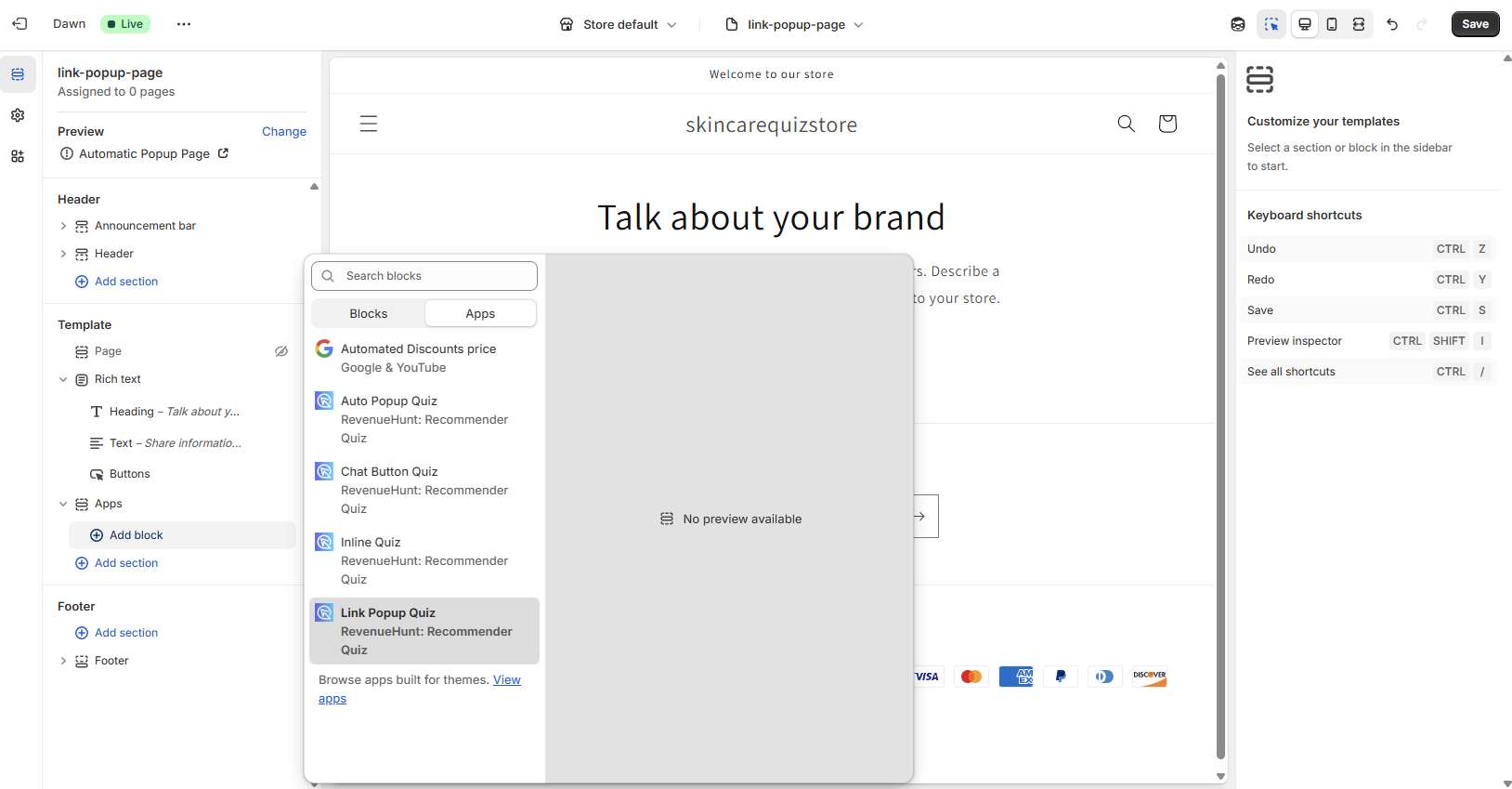
-
In the
Link Popup Quizsection, adjust the link popup settings.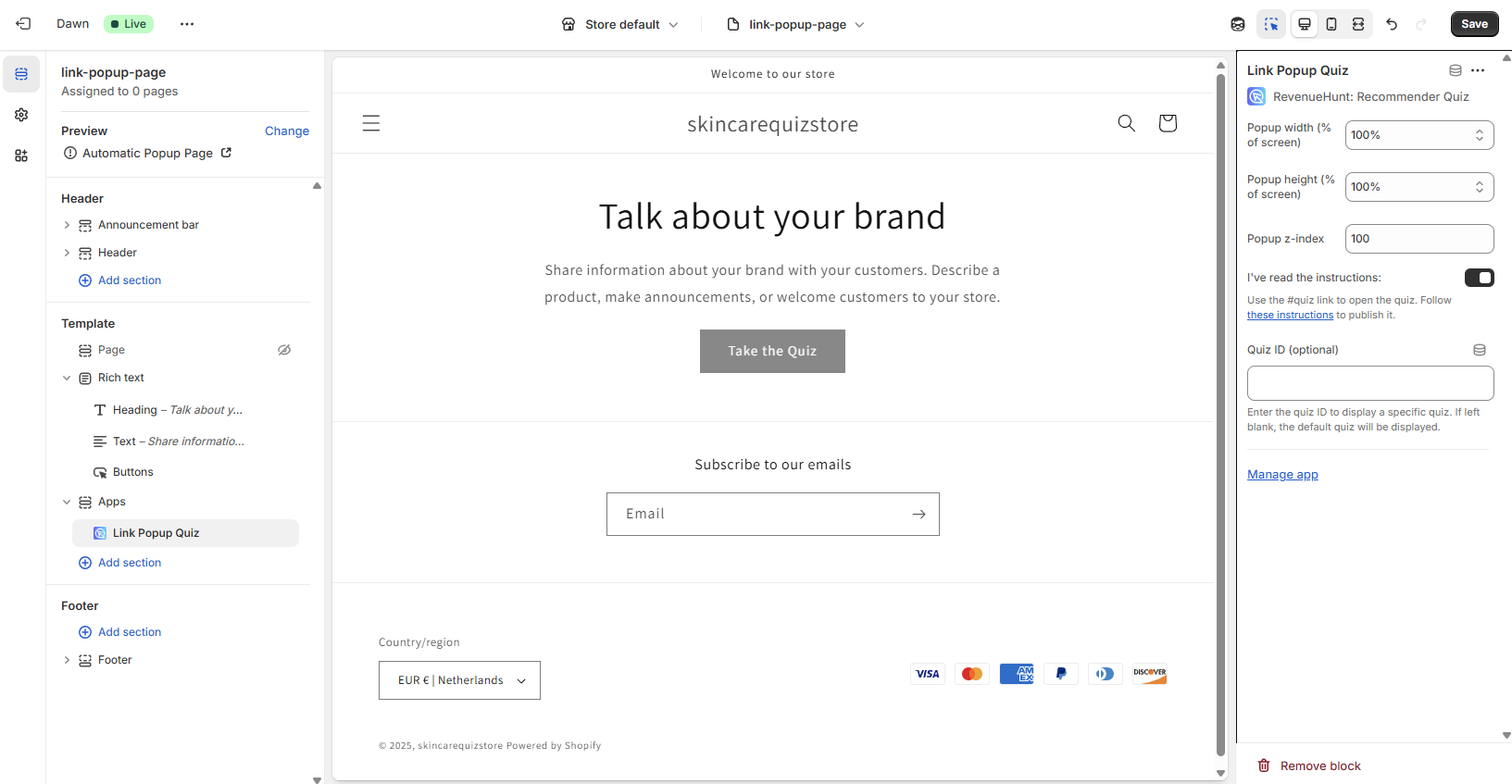
Popup width (% of screen)- Controls the width of the quiz popup window as a percentage of the customer's screen width.Popup height (% of screen)- Controls the height of the quiz popup window as a percentage of the customer's screen height.Popup z-index- Determines the stacking order of the quiz popup relative to other elements on the webpage.Quiz ID (optional)- Enter a quiz ID to show a specific quiz. Leave blank to load the default.Manage app- Opens the RevenueHunt dashboard with full settings and options. -
Click
Save. - Remember to apply the new page template to the page you want to add the link popup to.
- Add
#quizto any element of your website to trigger the link popup. For example, you can add it to a button, link or a menu item.
Step-by-step instructions
See how to set up a quiz link popup on your store, or the Add the quiz as a link-triggered popup section in the app.
What is a Link Popup?
A link that opens the quiz as a popup over your page.
Instructions for legacy themes - Opens extra settings menu.
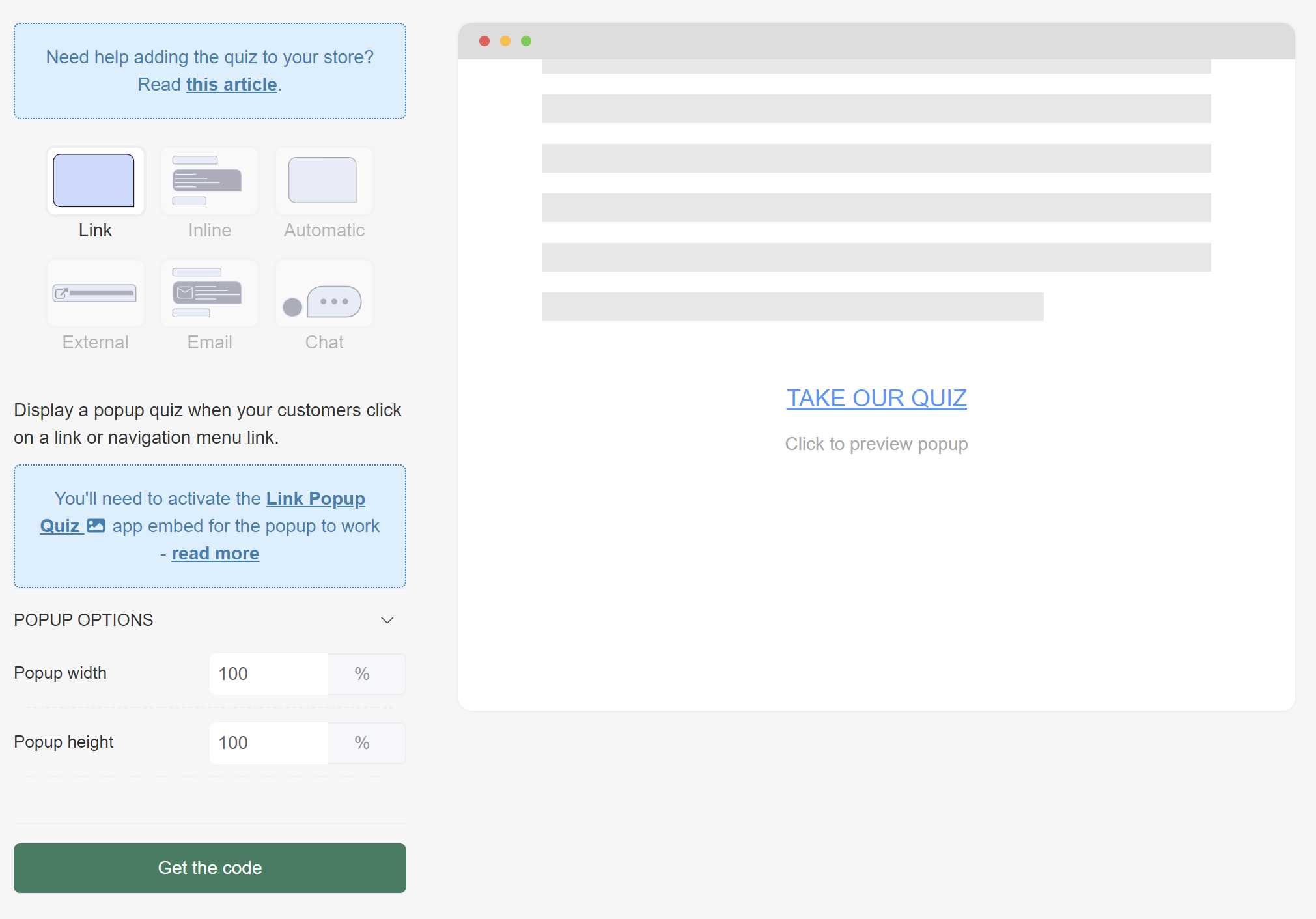
POPUP OPTIONS
Popup width - Adjust the width of the quiz by typing the percentage number.
Popup height - Adjust the height of the quiz by typing the percentage number.
What is a Link Popup?
A link that opens the quiz as a popup over your page.
Instructions for legacy themes - Opens extra settings menu.
POPUP OPTIONS
Popup width - Adjust the width of the quiz by typing the percentage number.
Popup height - Adjust the height of the quiz by typing the percentage number.
What is a Link Popup?
A link that opens the quiz as a popup over your page.
Instructions for legacy themes - Opens extra settings menu.
POPUP OPTIONS
Popup width - Adjust the width of the quiz by typing the percentage number.
Popup height - Adjust the height of the quiz by typing the percentage number.
What is a Link Popup?
A link that opens the quiz as a popup over your page.
Instructions for legacy themes - Opens extra settings menu.
POPUP OPTIONS
Popup width - Adjust the width of the quiz by typing the percentage number.
Popup height - Adjust the height of the quiz by typing the percentage number.
What is a Link Popup?
A link that opens the quiz as a popup over your page.
Instructions for legacy themes - Opens extra settings menu.
POPUP OPTIONS
Popup width - Adjust the width of the quiz by typing the percentage number.
Popup height - Adjust the height of the quiz by typing the percentage number.
Inline
What is an Inline Quiz?
A quiz embedded inline with a page.
On every page
Warning
Most merchants place the inline quiz on one specific page. To do that, see On a Specific Page.
- To add an inline quiz to your website, in Shopify, go to
Online Store > Themeand clickCustomize. - From the
Home pagemenu on top, select theDefault pagetemplate. This is a template applied by default to most pages in your store. -
When in the page template editor, click
+ Add section, thenApps. From the list, pick theInline Quiz.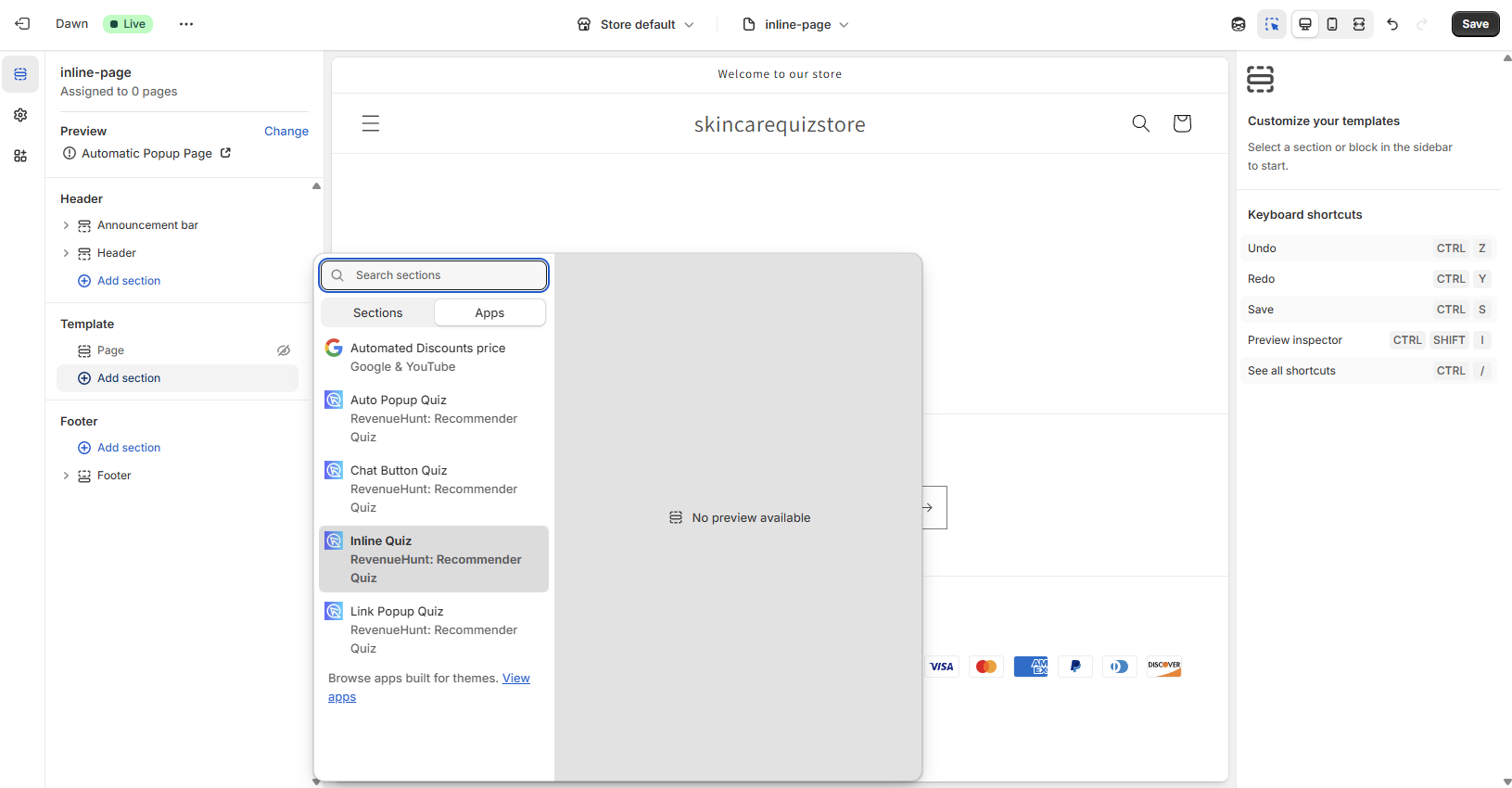
-
In the
Inline Quizsection, adjust the inline quiz settings.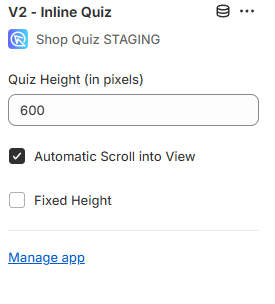
Quiz height- The initial height of the quiz. If the quiz is not tall enough, after the first question, it will expand to fit the content.Quiz height (unit)- The unit of the quiz height. Default isPixels (px). You can change it toViewport height percentage (vh).Fixed height- Keeps the quiz height fixed. Turn off to allow automatic height adjustment.Full width quiz- Makes the quiz span the full width of the page. Off by default (Shopify recommended).Auto-scroll on retake quiz- Enable this to make the quiz auto-scroll when the user retakes the quiz. Select the scrolling behavior (Disabled,Top of the page,Top of the quiz).Auto-scroll on question change- Enable this to make the quiz auto-scroll when the user navigates to another question. Select the scrolling behavior (Disabled,Top of the page,Top of the quiz).Quiz ID (optional)- Enter a quiz ID to show a specific quiz. Leave blank to load the default.Manage app- Opens the RevenueHunt dashboard with full settings and options. -
Click
Save. From now on, the inline quiz will be visible on all the pages that use theDefault pagetemplate.
Step-by-step instructions
Follow the step by step instructions provided in the Add the quiz to your home page section, or in how to embed an inline quiz on your store for step by step instructions.
On a specific page
- In Shopify, go to
Online Store > Themeand clickCustomize. - From the
Home pagemenu at the top, go toPages. - Open the page template you want to add the inline quiz to, or create a new one.
-
Click
+ Add section, thenApps. From the list, pick theInline Quiz.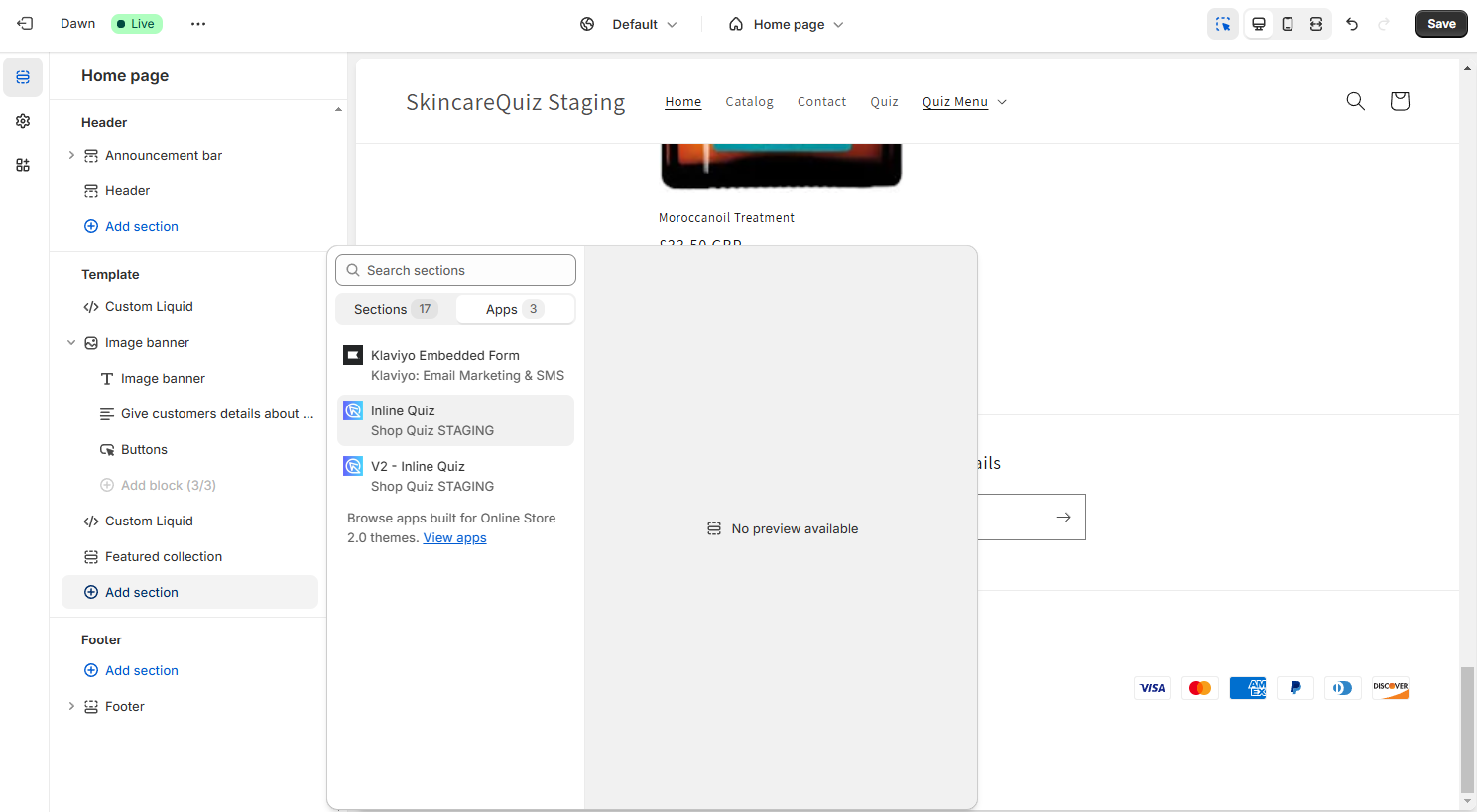
-
In the
Inline Quizsection, adjust the inline quiz settings.Quiz height- The initial height of the quiz. If the quiz is not tall enough, after the first question, it will expand to fit the content.Quiz height (unit)- The unit of the quiz height. Default isPixels (px). You can change it toViewport height percentage (vh).Fixed height- Keeps the quiz height fixed. Turn off to allow automatic height adjustment.Full width quiz- Makes the quiz span the full width of the page. Off by default (Shopify recommended).Auto-scroll on retake quiz- Enable this to make the quiz auto-scroll when the user retakes the quiz. Select the scrolling behavior (Disabled,Top of the page,Top of the quiz).Auto-scroll on question change- Enable this to make the quiz auto-scroll when the user navigates to another question. Select the scrolling behavior (Disabled,Top of the page,Top of the quiz).Quiz ID (optional)- Enter a quiz ID to show a specific quiz. Leave blank to load the default.Manage app- Opens the RevenueHunt dashboard with full settings and options. -
Remember to apply the new page template to the page you want to add the inline quiz to.
- Click
Save. From now on, the inline quiz will be visible on that page.
Step-by-step instructions
Follow the step by step instructions provided in the Add the quiz to a dedicated landing page section, or in how to embed an inline quiz on your store for step by step instructions.
What is an Inline Quiz?
A quiz embedded inline with a page.
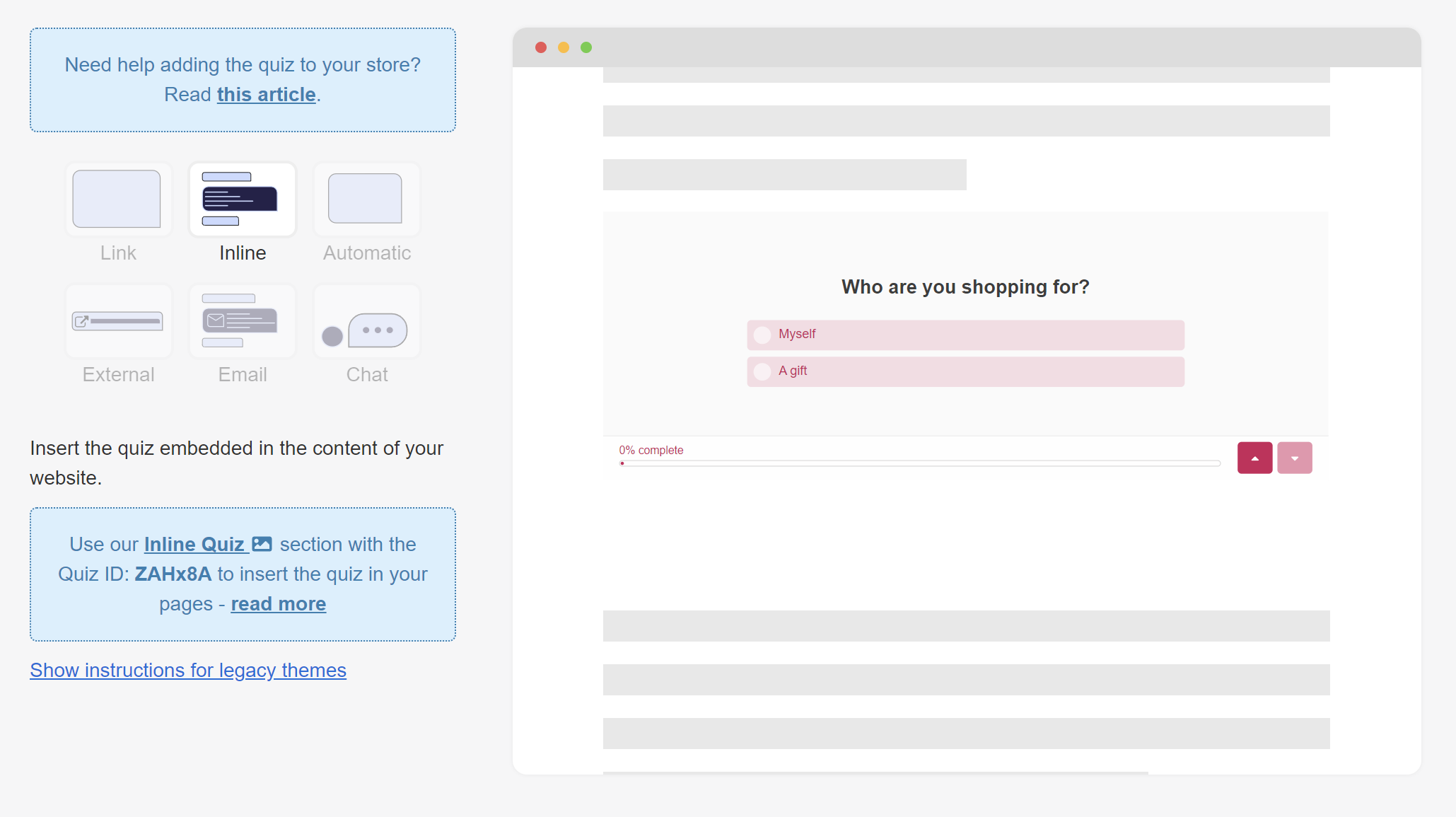
Instructions for legacy themes - Opens extra settings menu.
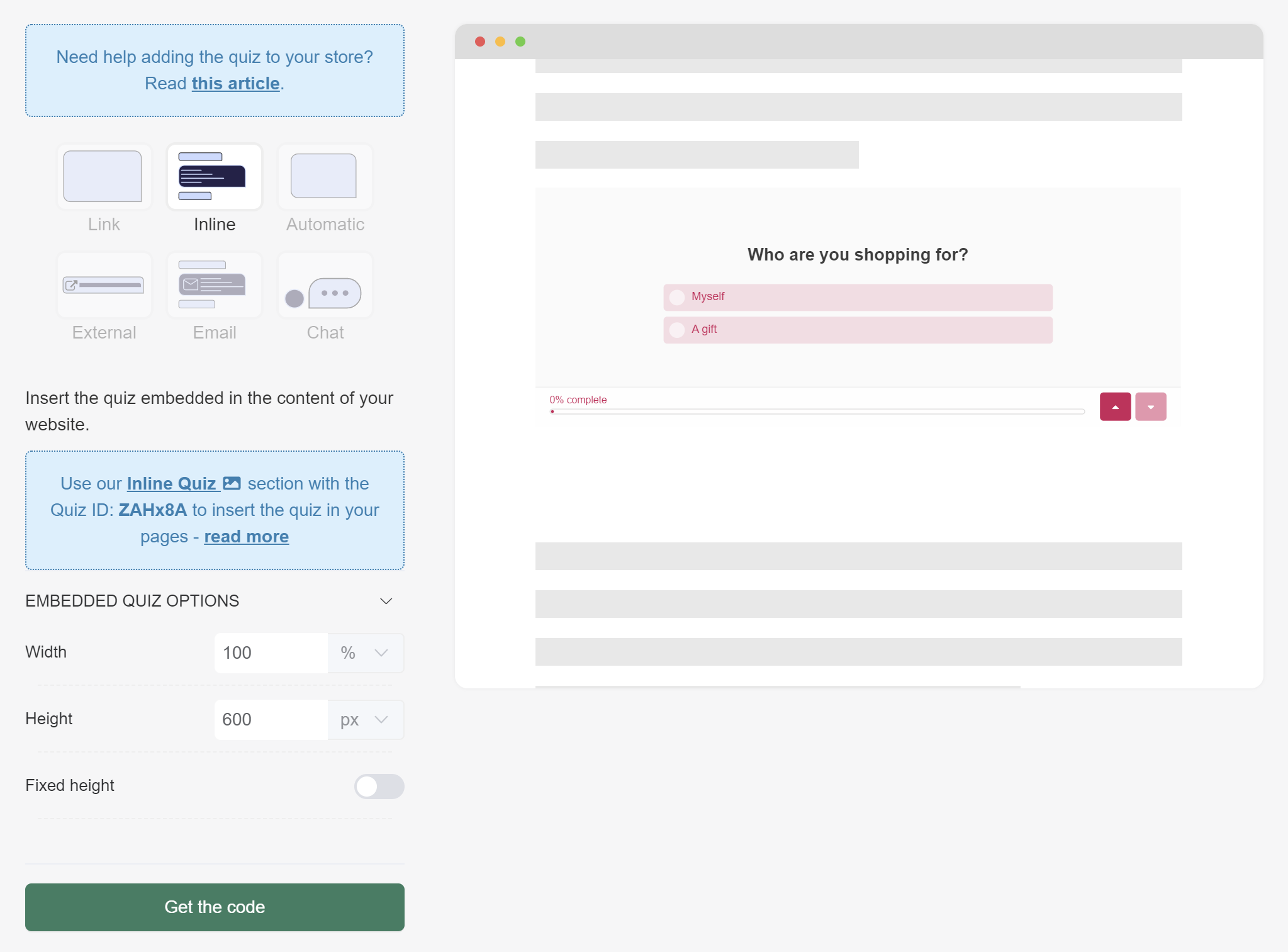
EMBEDDED QUIZ OPTIONS
Width - Adjust the width of the quiz by typing the percentage number or px value.
Height - Adjust the width of the quiz by typing the percentage number or px value.
Fixed height - Will set a fixed height of the quiz iframe as specified in the Height field above. Toggle to activate.
What is an Inline Quiz?
A quiz embedded inline with a page.
Instructions for legacy themes - Opens extra settings menu.
EMBEDDED QUIZ OPTIONS
Width - Adjust the width of the quiz by typing the percentage number or px value.
Height - Adjust the width of the quiz by typing the percentage number or px value.
Fixed height - Will set a fixed height of the quiz iframe as specified in the Height field above. Toggle to activate.
What is an Inline Quiz?
A quiz embedded inline with a page.
Instructions for legacy themes - Opens extra settings menu.
EMBEDDED QUIZ OPTIONS
Width - Adjust the width of the quiz by typing the percentage number or px value.
Height - Adjust the width of the quiz by typing the percentage number or px value.
Fixed height - Will set a fixed height of the quiz iframe as specified in the Height field above. Toggle to activate.
What is an Inline Quiz?
A quiz embedded inline with a page.
Instructions for legacy themes - Opens extra settings menu.
EMBEDDED QUIZ OPTIONS
Width - Adjust the width of the quiz by typing the percentage number or px value.
Height - Adjust the width of the quiz by typing the percentage number or px value.
Fixed height - Will set a fixed height of the quiz iframe as specified in the Height field above. Toggle to activate.
What is an Inline Quiz?
A quiz embedded inline with a page.
Instructions for legacy themes - Opens extra settings menu.
EMBEDDED QUIZ OPTIONS
Width - Adjust the width of the quiz by typing the percentage number or px value.
Height - Adjust the width of the quiz by typing the percentage number or px value.
Fixed height - Will set a fixed height of the quiz iframe as specified in the Height field above. Toggle to activate.
Automatic
What is an Automatic Popup?
A quiz popup that appears after X seconds. It is shown once per session, unless Exit Intent is enabled in the popup settings.
On every page
-
To add an automatic popup to your website, in Shopify, go to
Online Store > Themeand clickCustomize. OpenApp Embedsand toggle the button to activate theAutomatic Popup Quiz.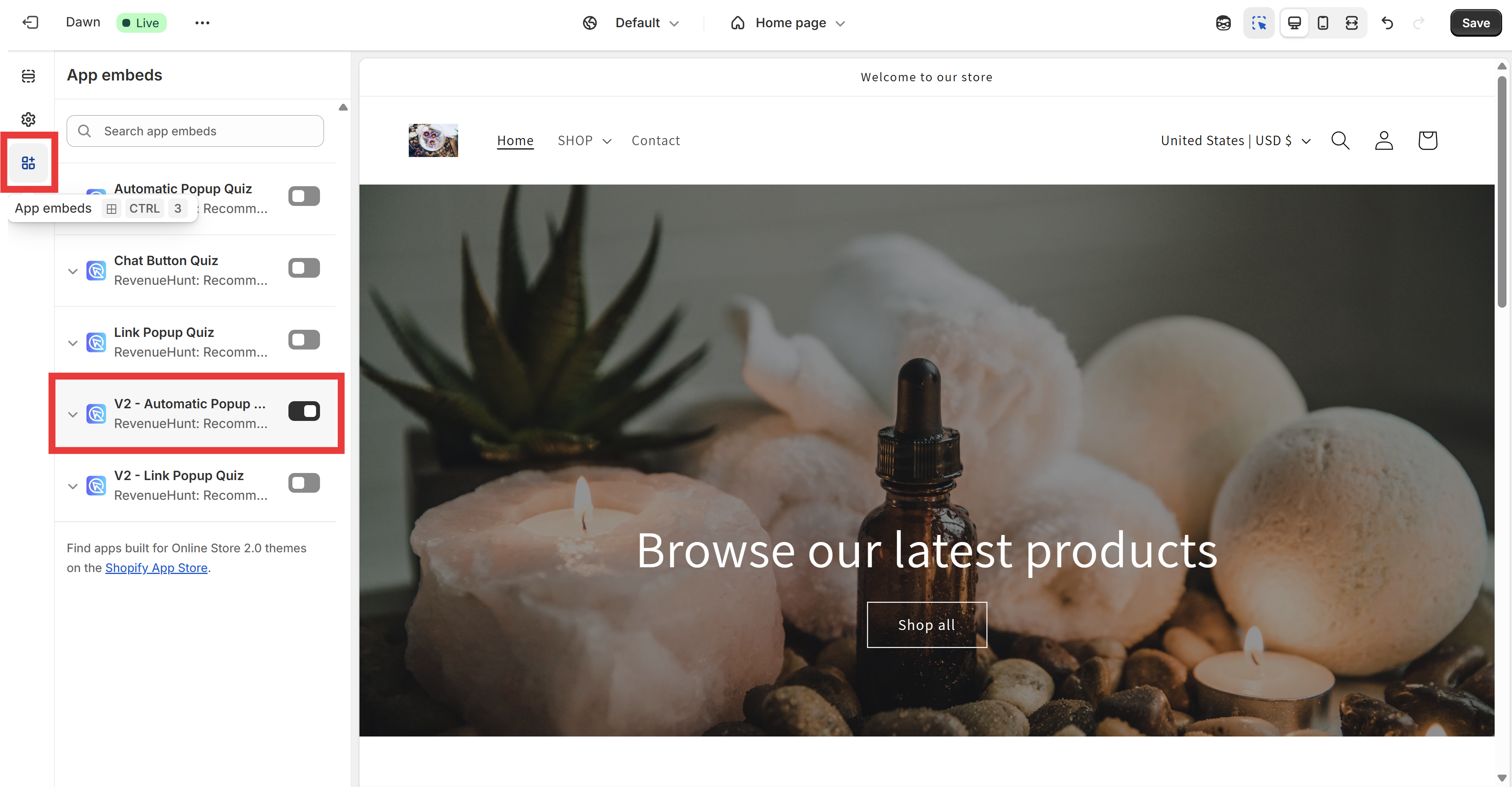
-
Adjust the popup options:
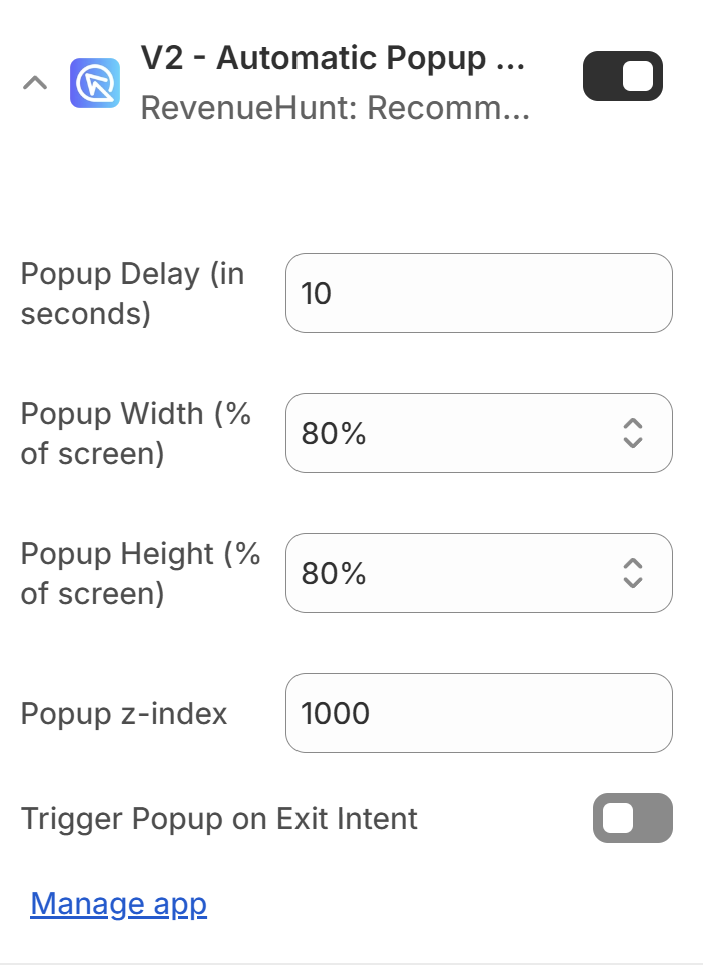
Popup Delay (in seconds)- Set up the number of seconds after which the quiz popup will be automatically displayed.Popup Width (% of screen)- Controls the width of the quiz popup window as a percentage of the customer's screen width.Popup Height (% of screen)- Controls the height of the quiz popup window as a percentage of the customer's screen height.Popup z-index- Determines the stacking order of the quiz popup relative to other elements on the webpage.Trigger Popup on Exit Intent- Show the automatic popup when the customer shows exit intent (moving cursor towards closing the tab/window).Quiz ID (optional)- Enter a quiz ID to show a specific quiz. Leave blank to load the default. -
Click
Save. From now on, the automatic popup will be triggered on all the pages.
Step-by-step instructions
Follow the step by step instructions in how to set up automatic popups to add an automatic popup to your website.
Note
By default, the popup is only shown once per session unless Exit Intent is enabled.
On a specific page
- In Shopify, go to
Online Store > Themeand clickCustomize. - From the
Home pagemenu at the top, go toPages. - Open the page template you want to add the automatic popup to, or create a new one.
-
Click
+ Add section, thenApps. From the list, pick theAutomatic Popup Quiz.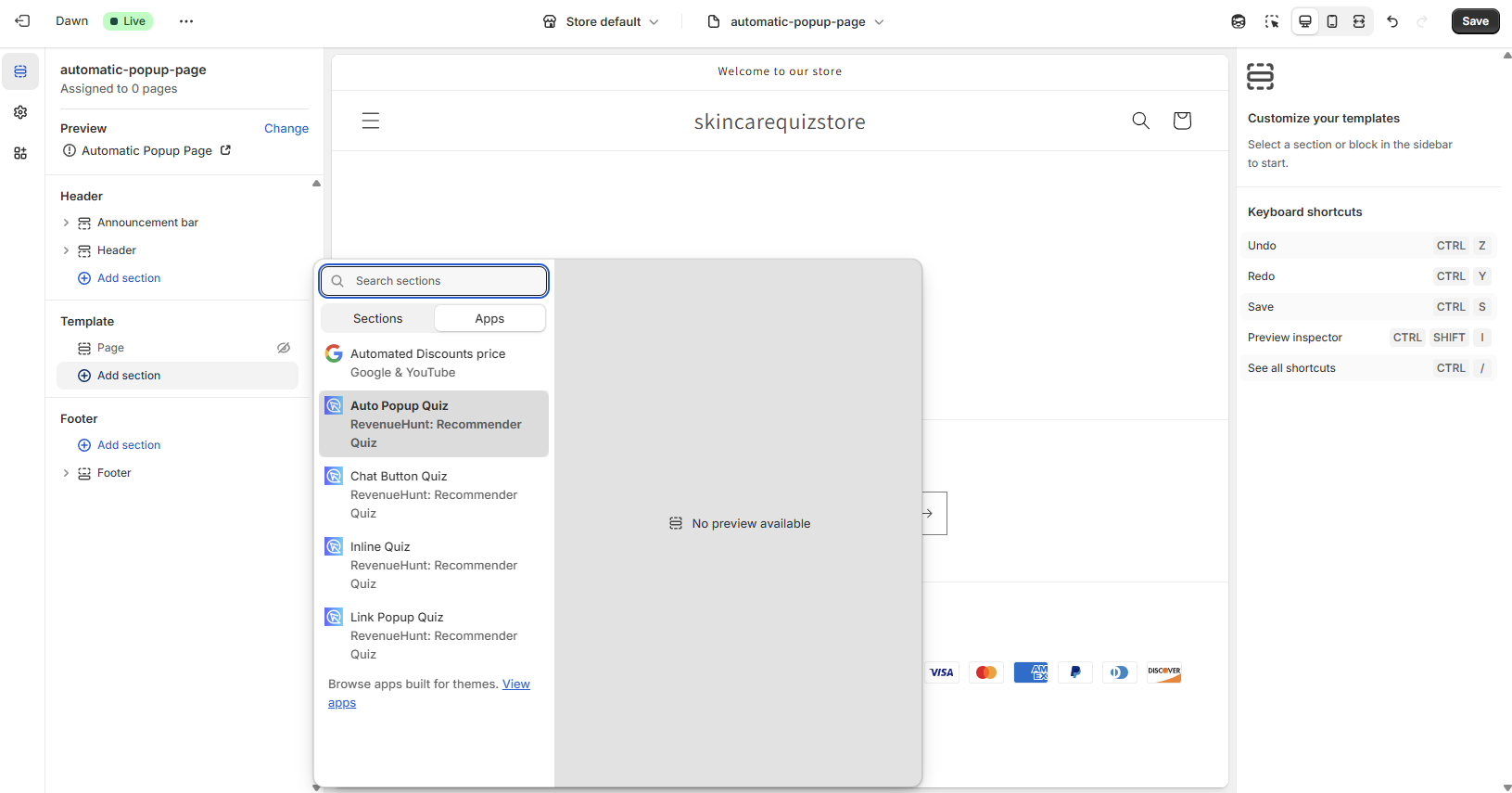
-
In the
Automatic Popup Quizsection, adjust the automatic popup settings.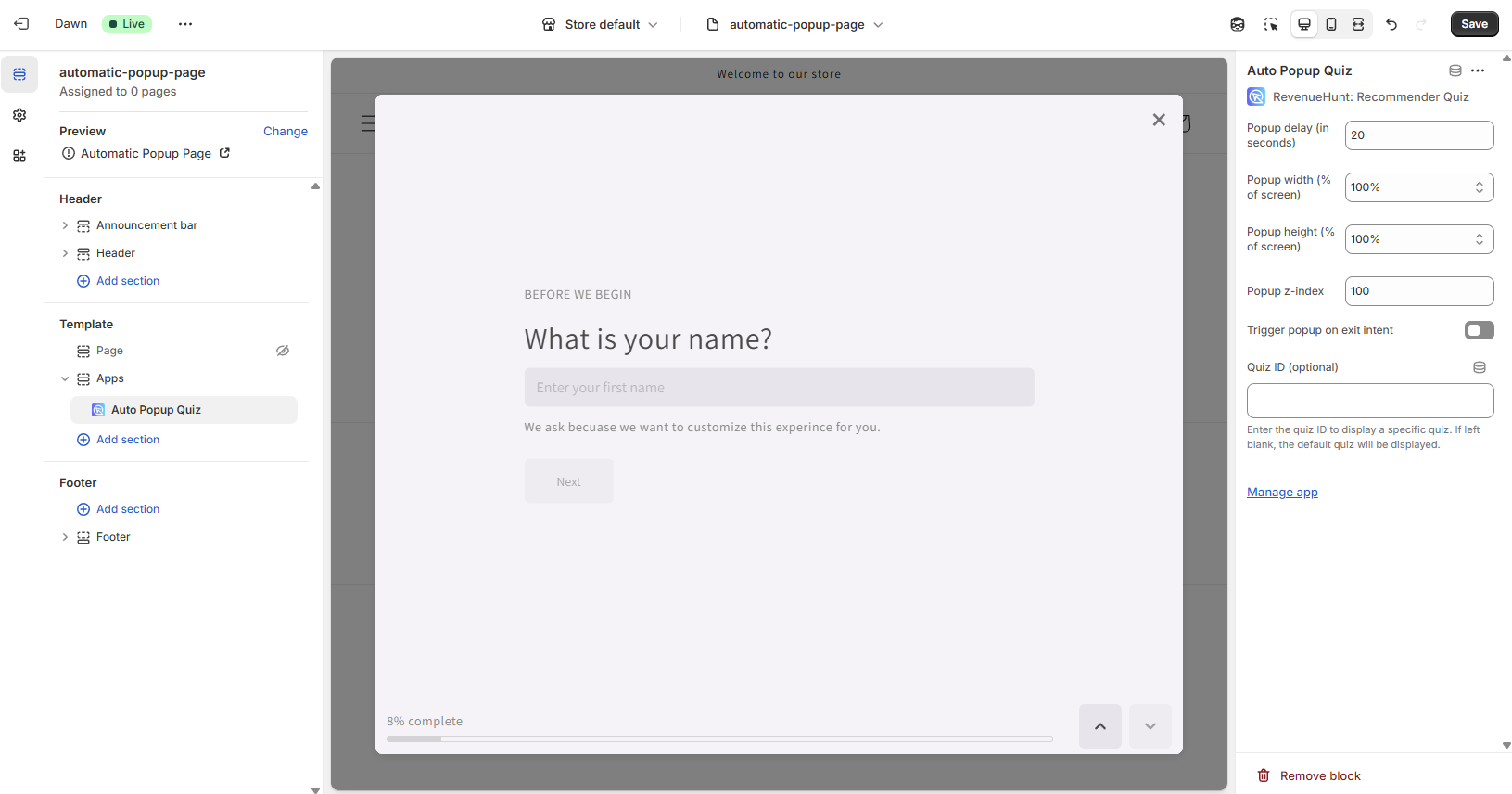
Popup Delay (in seconds)- Set up the number of seconds after which the quiz popup will be automatically displayed.Popup Width (% of screen)- Controls the width of the quiz popup window as a percentage of the customer's screen width.Popup Height (% of screen)- Controls the height of the quiz popup window as a percentage of the customer's screen height.Popup z-index- Determines the stacking order of the quiz popup relative to other elements on the webpage.Trigger Popup on Exit Intent- Show the automatic popup when the customer shows exit intent (moving cursor towards closing the tab/window).Quiz ID (optional)- Enter a quiz ID to show a specific quiz. Leave blank to load the default. -
Click
Save. From now on, the automatic popup will be triggered on that page or any page that uses the same template. - Remember to apply the new page template to the page you want to add the automatic popup to.
Step-by-step instructions
Follow the step by step instructions in how to set up automatic popups on a specific page to add an automatic popup to your website.
Note
By default, the popup is only shown once per session unless Exit Intent is enabled.
What is an Automatic Popup?
A quiz popup that appears after X seconds.
By default, the popup is only shown once per session.
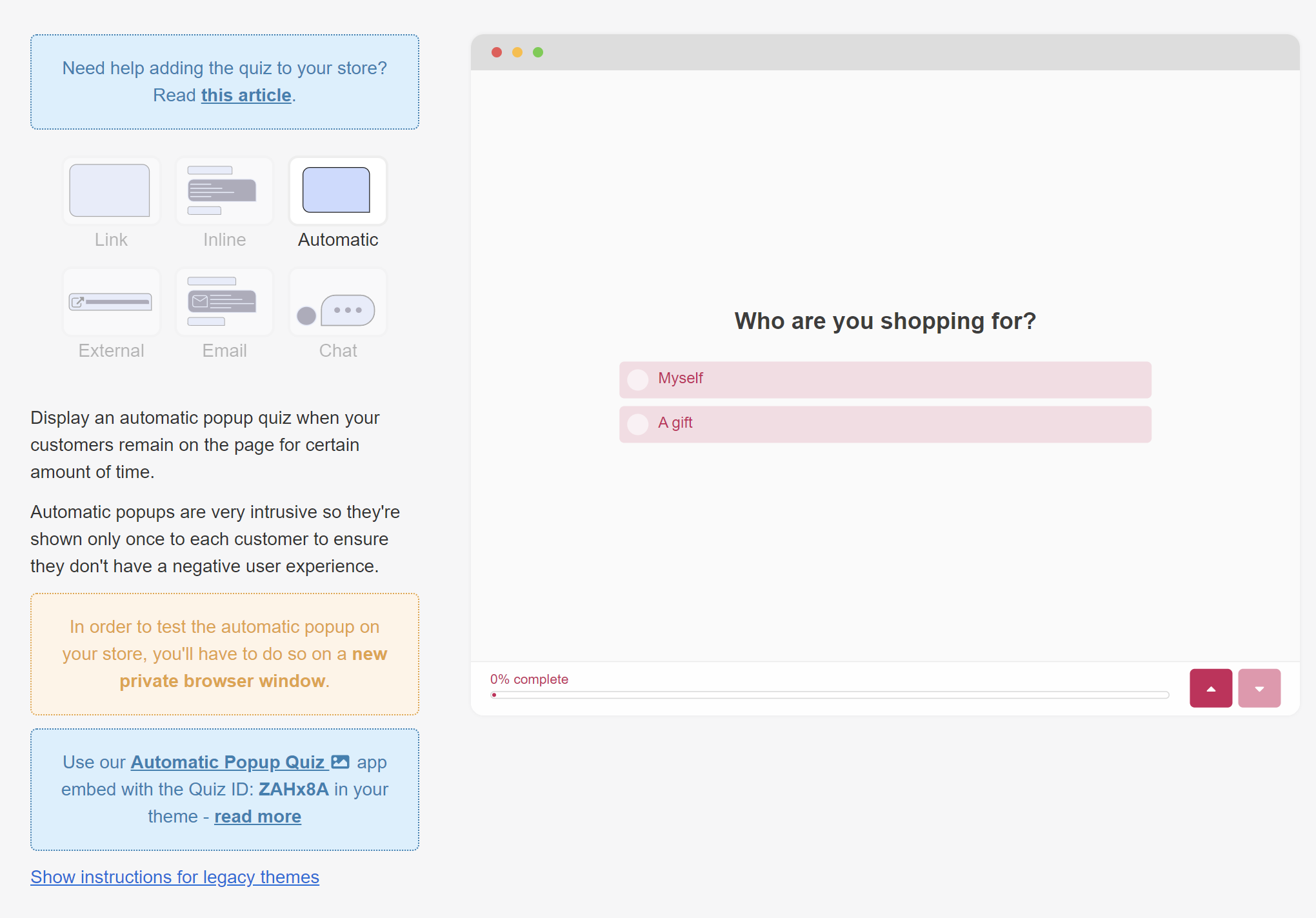
Instructions for legacy themes - Opens extra settings menu.
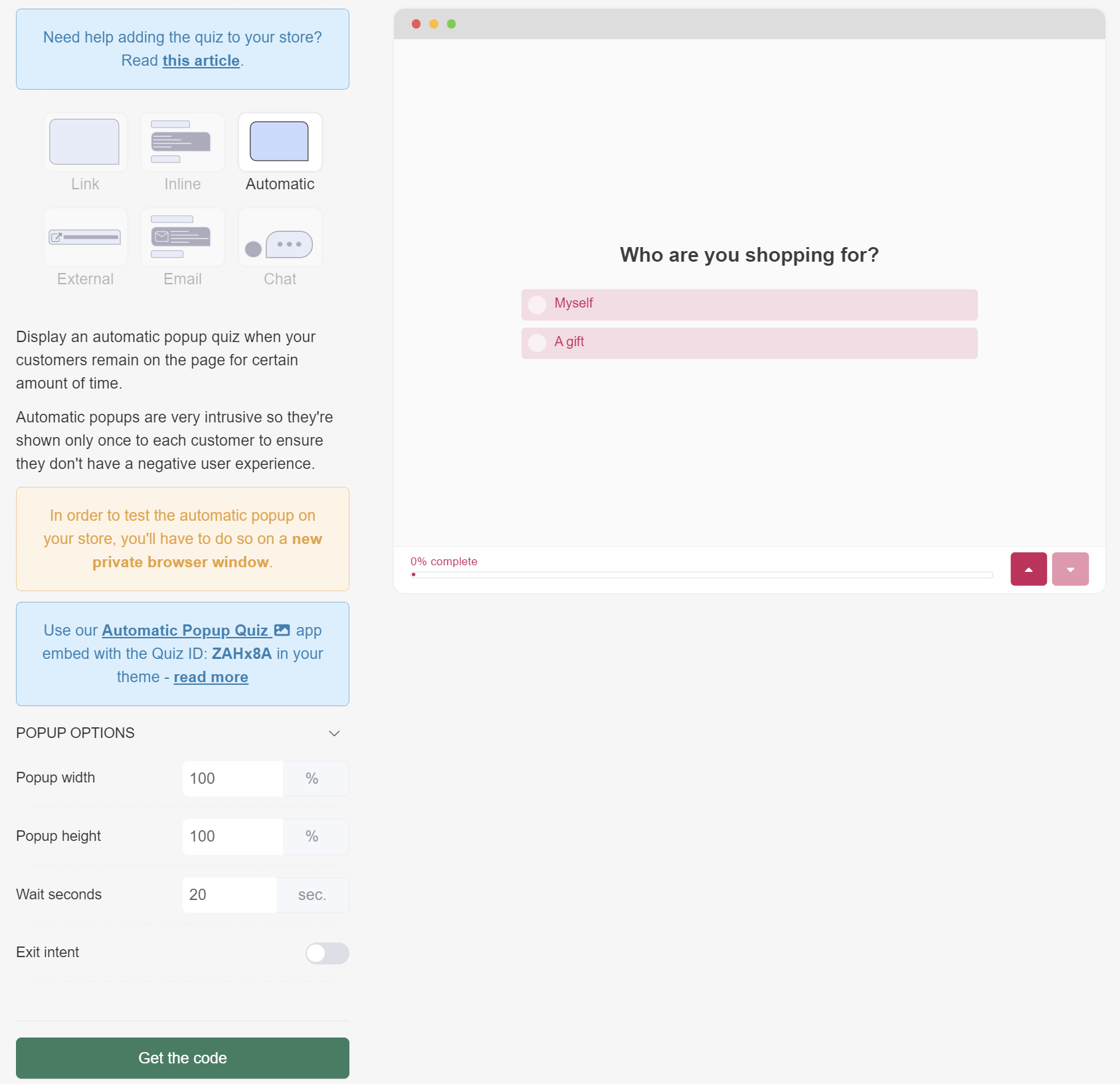
POPUP OPTIONS
Popup width - Adjust the width of the quiz by typing the percentage number.
Popup height - Adjust the width of the quiz by typing the percentage number.
Wait seconds - Set up the number of seconds after which the quiz popup will be automatically displayed. Note: Do not set a value to 0.
Exit intent - Show the automatic popup when the customer is exit intent. Toggle to activate.
What is an Automatic Popup?
A quiz popup that appears after X seconds.
By default, the popup is only shown once per session.
Instructions for legacy themes - Opens extra settings menu.
POPUP OPTIONS
Popup width - Adjust the width of the quiz by typing the percentage number.
Popup height - Adjust the width of the quiz by typing the percentage number.
Wait seconds - Set up the number of seconds after which the quiz popup will be automatically displayed. Note: Do not set a value to 0.
Exit intent - Show the automatic popup when the customer is exit intent. Toggle to activate.
What is an Automatic Popup?
A quiz popup that appears after X seconds.
By default, the popup is only shown once per session.
Instructions for legacy themes - Opens extra settings menu.
POPUP OPTIONS
Popup width - Adjust the width of the quiz by typing the percentage number.
Popup height - Adjust the width of the quiz by typing the percentage number.
Wait seconds - Set up the number of seconds after which the quiz popup will be automatically displayed. Note: Do not set a value to 0.
Exit intent - Show the automatic popup when the customer is exit intent. Toggle to activate.
What is an Automatic Popup?
A quiz popup that appears after X seconds.
By default, the popup is only shown once per session.
Instructions for legacy themes - Opens extra settings menu.
POPUP OPTIONS
Popup width - Adjust the width of the quiz by typing the percentage number.
Popup height - Adjust the width of the quiz by typing the percentage number.
Wait seconds - Set up the number of seconds after which the quiz popup will be automatically displayed. Note: Do not set a value to 0.
Exit intent - Show the automatic popup when the customer is exit intent. Toggle to activate.
What is an Automatic Popup?
A quiz popup that appears after X seconds.
By default, the popup is only shown once per session.
Instructions for legacy themes - Opens extra settings menu.
POPUP OPTIONS
Popup width - Adjust the width of the quiz by typing the percentage number.
Popup height - Adjust the width of the quiz by typing the percentage number.
Wait seconds - Set up the number of seconds after which the quiz popup will be automatically displayed. Note: Do not set a value to 0.
Exit intent - Show the automatic popup when the customer is exit intent. Toggle to activate.
External
What is an External Link?
A direct link to the quiz, for social media.
There are two ways to create an external link for your quiz:
Dedicated quiz page
Create a dedicated quiz page, for example https://yourstore.myshopify.com/pages/quiz-page. Embed the quiz on that page, then share the link on social media.
Step-by-step instructions
For step by step instructions, check Inline Quiz on a Specific Page.
Link popup for socials
This method involves activating the Link Popup Quiz app embed in your store theme and then adding a #quiz to any URL. For example, https://yourstore.myshopify.com/#quiz can open the quiz as long as the Link Popup Quiz app embed is activated. You can use this URL to share the quiz on social media.
Step-by-step instructions
For step by step instructions, check Link Popup on Every Page.
What is an External Link?
A direct link to the quiz, for social media.
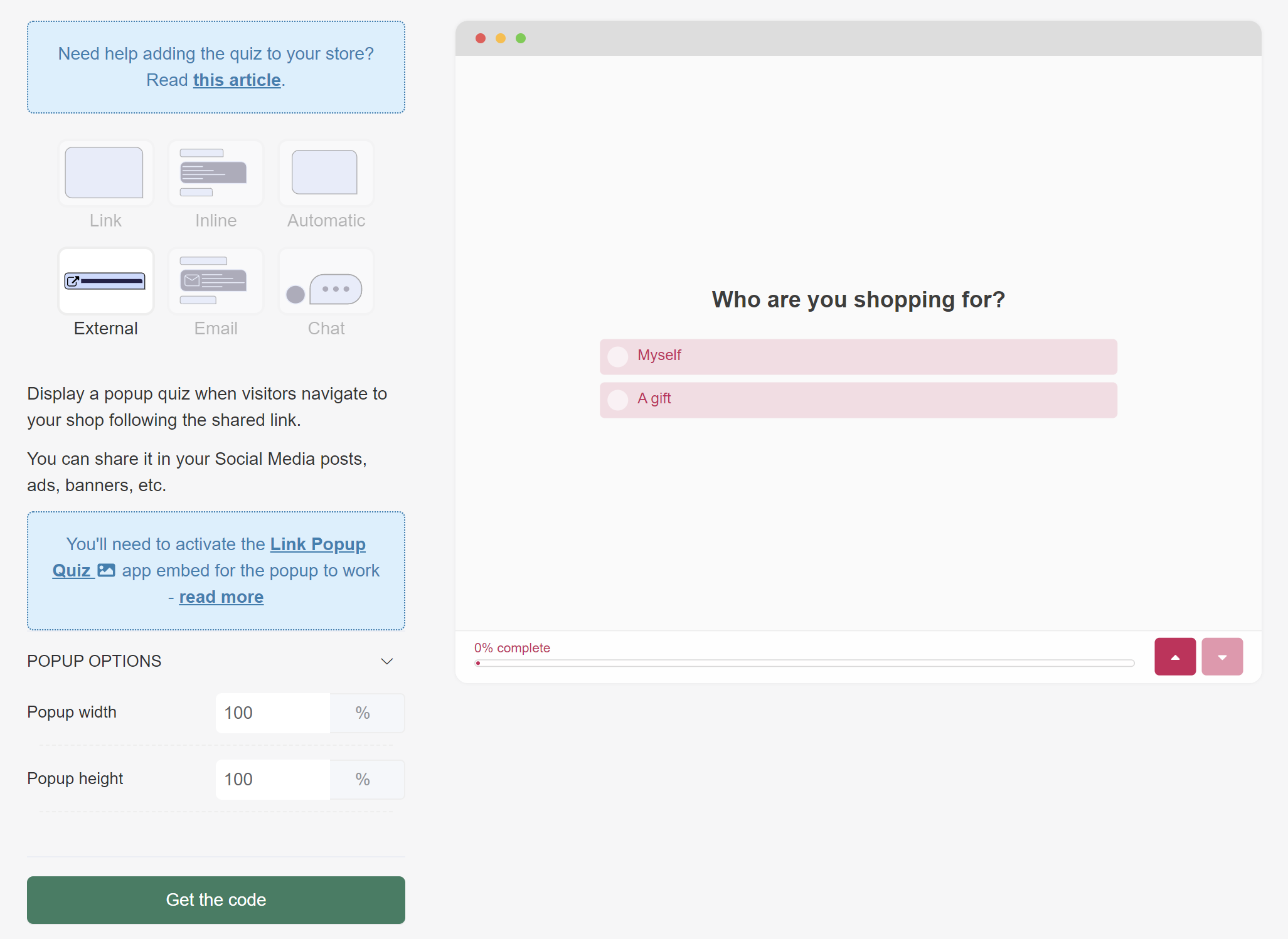
POPUP OPTIONS
Popup width - Adjust the width of the quiz by typing the percentage number.
Popup height - Adjust the height of the quiz by typing the percentage number.
What is an External Link?
A direct link to the quiz, for social media.
POPUP OPTIONS
Popup width - Adjust the width of the quiz by typing the percentage number.
Popup height - Adjust the height of the quiz by typing the percentage number.
What is an External Link?
A direct link to the quiz, for social media.
POPUP OPTIONS
Popup width - Adjust the width of the quiz by typing the percentage number.
Popup height - Adjust the height of the quiz by typing the percentage number.
What is an External Link?
A direct link to the quiz, for social media.
POPUP OPTIONS
Popup width - Adjust the width of the quiz by typing the percentage number.
Popup height - Adjust the height of the quiz by typing the percentage number.
What is an External Link?
A direct link to the quiz, for social media.
POPUP OPTIONS
Popup width - Adjust the width of the quiz by typing the percentage number.
Popup height - Adjust the height of the quiz by typing the percentage number.
Email
What is an Email Link?
A direct link to the quiz, for emails.
There are two ways to create an external email link for your quiz:
Dedicated quiz page
Create a dedicated quiz page, for example https://yourstore.myshopify.com/pages/quiz-page. Embed the quiz on that page, then share the link in your emails.
Step-by-step instructions
For step by step instructions, check Inline Quiz on a Specific Page.
Link popup for socials
This method involves activating the Link Popup Quiz app embed in your store theme and then adding a #quiz to any URL. For example, https://yourstore.myshopify.com/#quiz can open the quiz as long as the Link Popup Quiz app embed is activated. You can use this URL to share the quiz in your emails.
Step-by-step instructions
For step by step instructions, check Link Popup on Every Page.
What is an Email Link?
A quiz popup that opens when a customer clicks the link in your email.
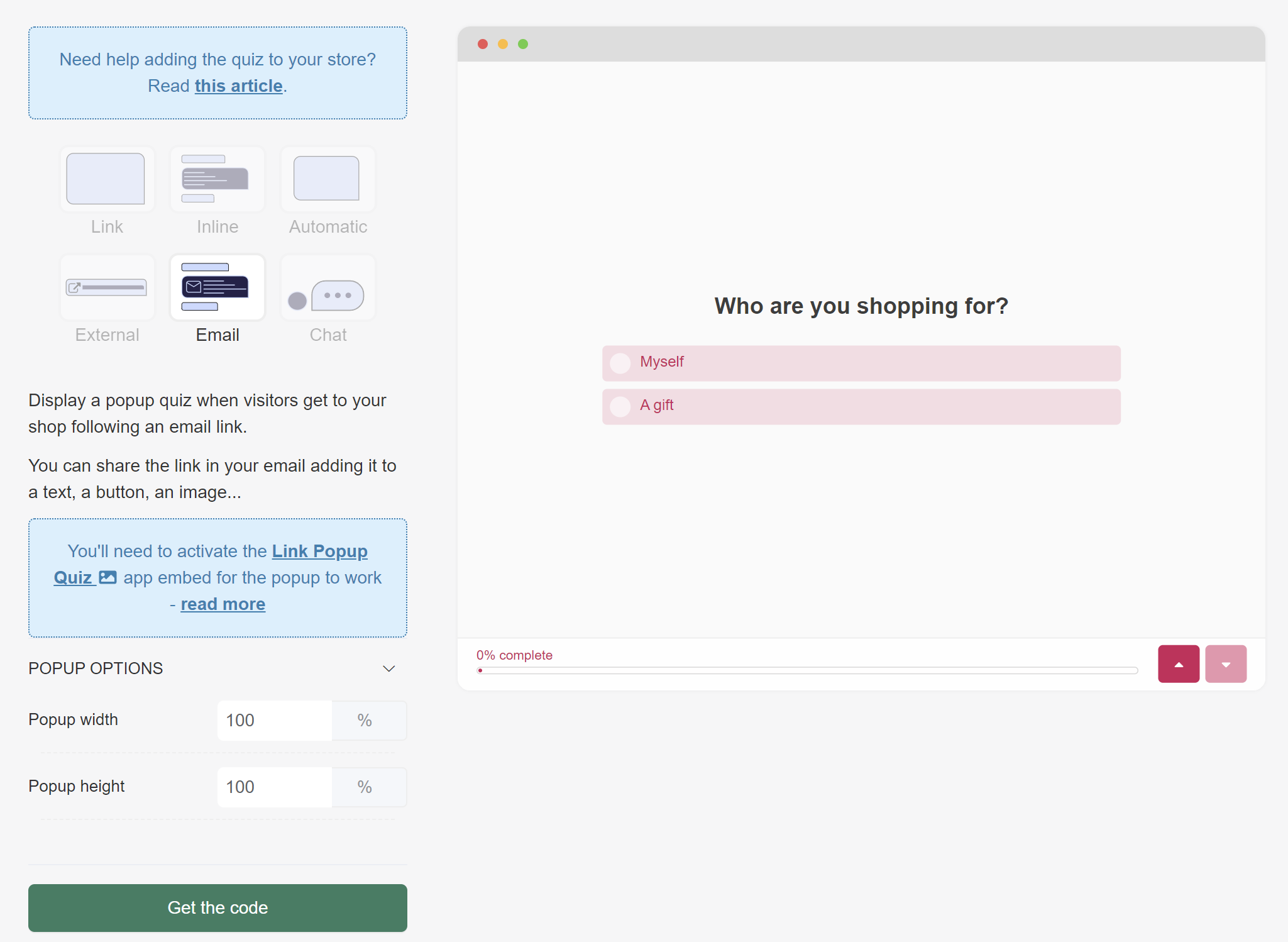
POPUP OPTIONS
Popup width - Adjust the width of the quiz by typing the percentage number.
Popup height - Adjust the height of the quiz by typing the percentage number.
What is an Email Link?
A quiz popup that opens when a customer clicks the link in your email.
POPUP OPTIONS
Popup width - Adjust the width of the quiz by typing the percentage number.
Popup height - Adjust the height of the quiz by typing the percentage number.
What is an Email Link?
A quiz popup that opens when a customer clicks the link in your email.
POPUP OPTIONS
Popup width - Adjust the width of the quiz by typing the percentage number.
Popup height - Adjust the height of the quiz by typing the percentage number.
What is an Email Link?
A quiz popup that opens when a customer clicks the link in your email.
POPUP OPTIONS
Popup width - Adjust the width of the quiz by typing the percentage number.
Popup height - Adjust the height of the quiz by typing the percentage number.
What is an Email Link?
A quiz popup that opens when a customer clicks the link in your email.
POPUP OPTIONS
Popup width - Adjust the width of the quiz by typing the percentage number.
Popup height - Adjust the height of the quiz by typing the percentage number.
Chat
What is a Chat Popup?
A quiz popup that opens when a customer clicks a chat-like button.
On every page
-
To add a chat popup to your website, in Shopify, go to
Online Store > Themeand clickCustomize. OpenApp Embedsand toggle the button to activate theChat Button Quiz.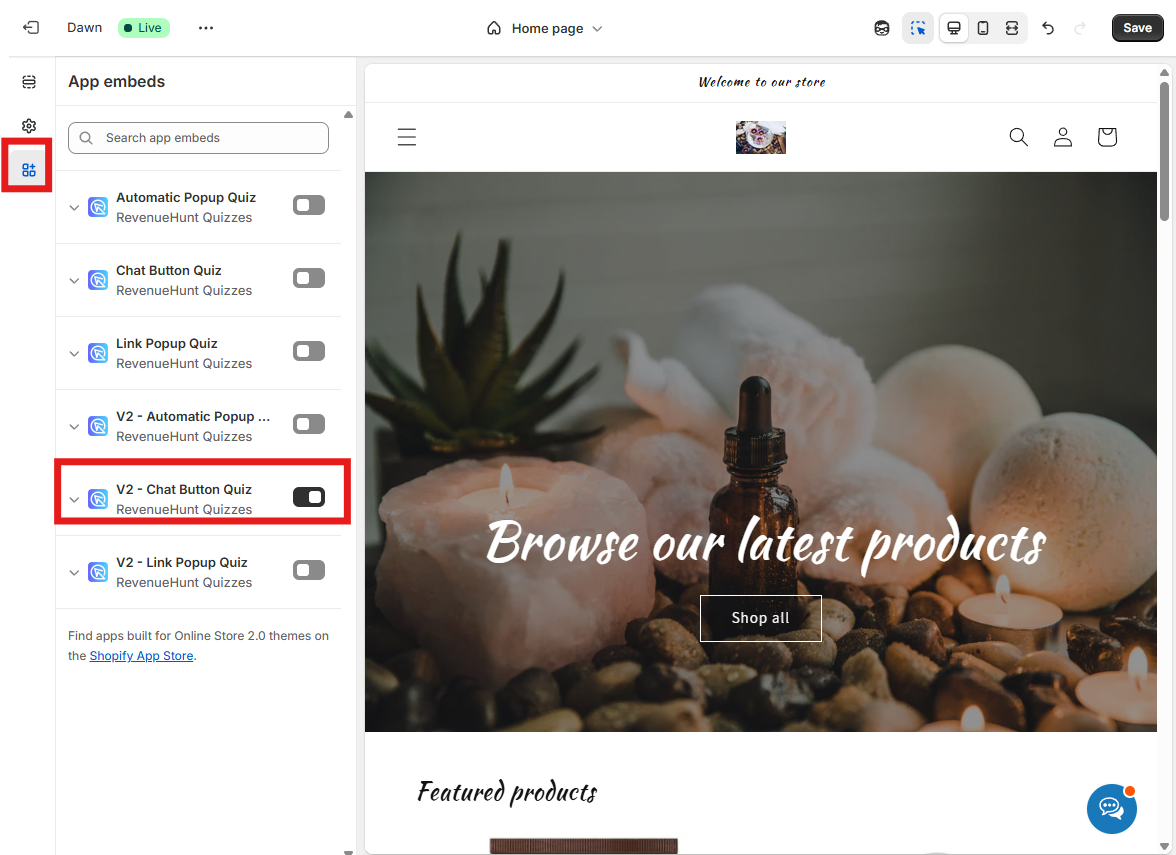
-
Adjust the chat button options:
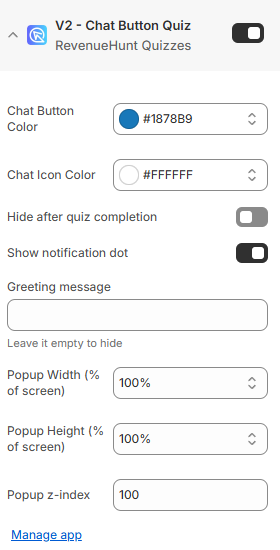
Chat Button Color- Adjust the color of the chat button by selecting one from the tool or adding a #color.Chat Icon Color- Adjust the color of the chat icon by selecting one from the tool or adding a #color.Hide after quiz completion- Hide the chat button after the customer reaches the results page. Toggle to activate.Show notification dot- Show the small red notification dot on the chat icon. Toggle to activate.Greeting message- Show and edit the greeting message displayed next to the chat icon. Leave it empty to hidePopup Width (% of screen)- Controls the width of the quiz popup window as a percentage of the customer's screen width.Popup Height (% of screen)- Controls the height of the quiz popup window as a percentage of the customer's screen height.Popup z-index- Determines the stacking order of the quiz popup relative to other elements on the webpage.Quiz ID (optional)- Enter a quiz ID to show a specific quiz. Leave blank to load the default.Manage app- Opens the RevenueHunt dashboard with full settings and options. -
Click
Save. From now on, the chat popup will show up on every page.
Step-by-step instructions
Follow the step by step instructions in how to set up chat button popups to add a chat popup to your website.
On a specific page
- In Shopify, go to
Online Store > Themeand clickCustomize. - From the
Home pagemenu at the top, go toPages. - Open the page template you want to add the chat popup to, or create a new one.
-
Click
+ Add section, thenApps. From the list, pick theChat Button Quiz.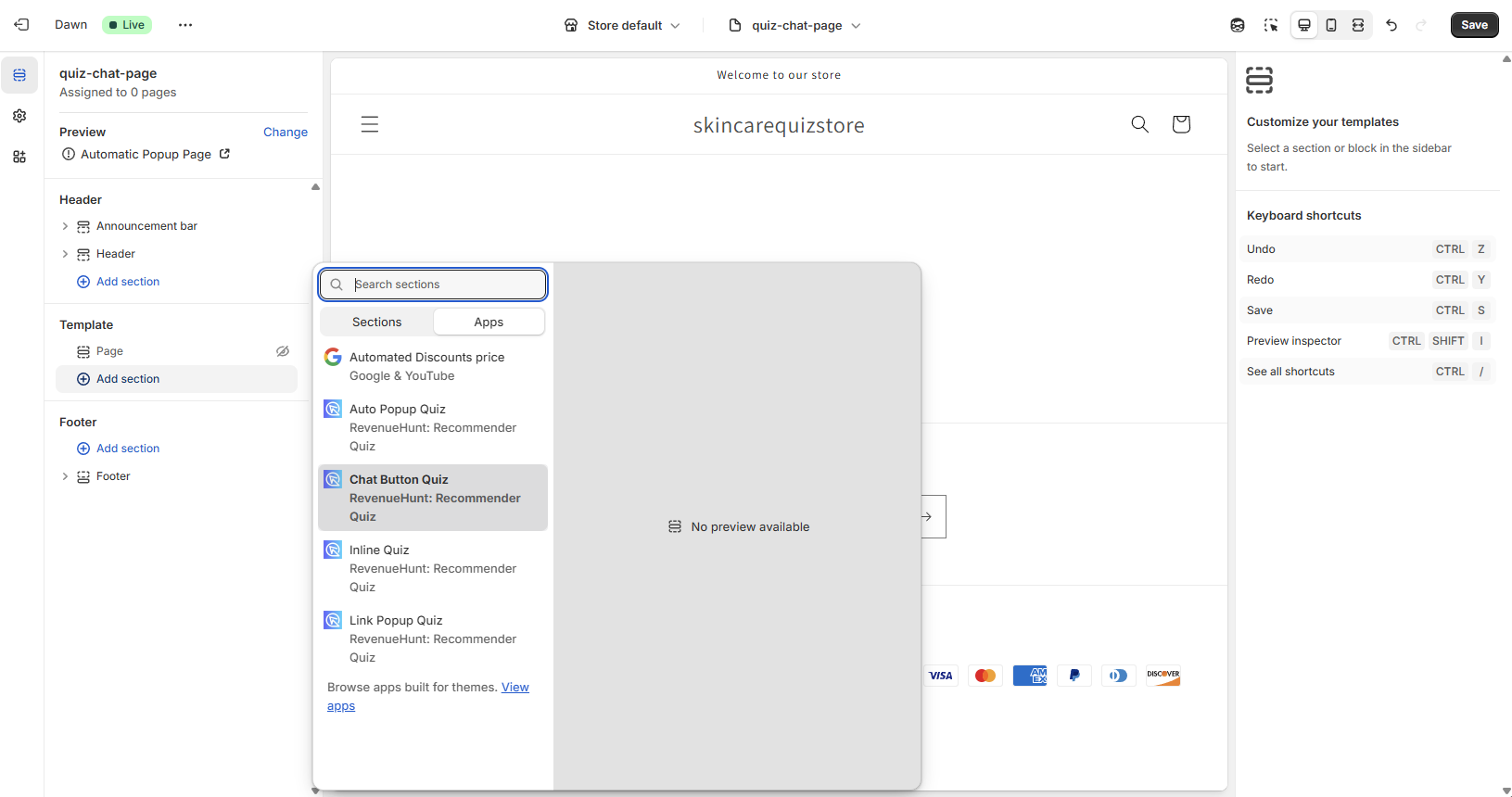
-
Adjust the chat button options:
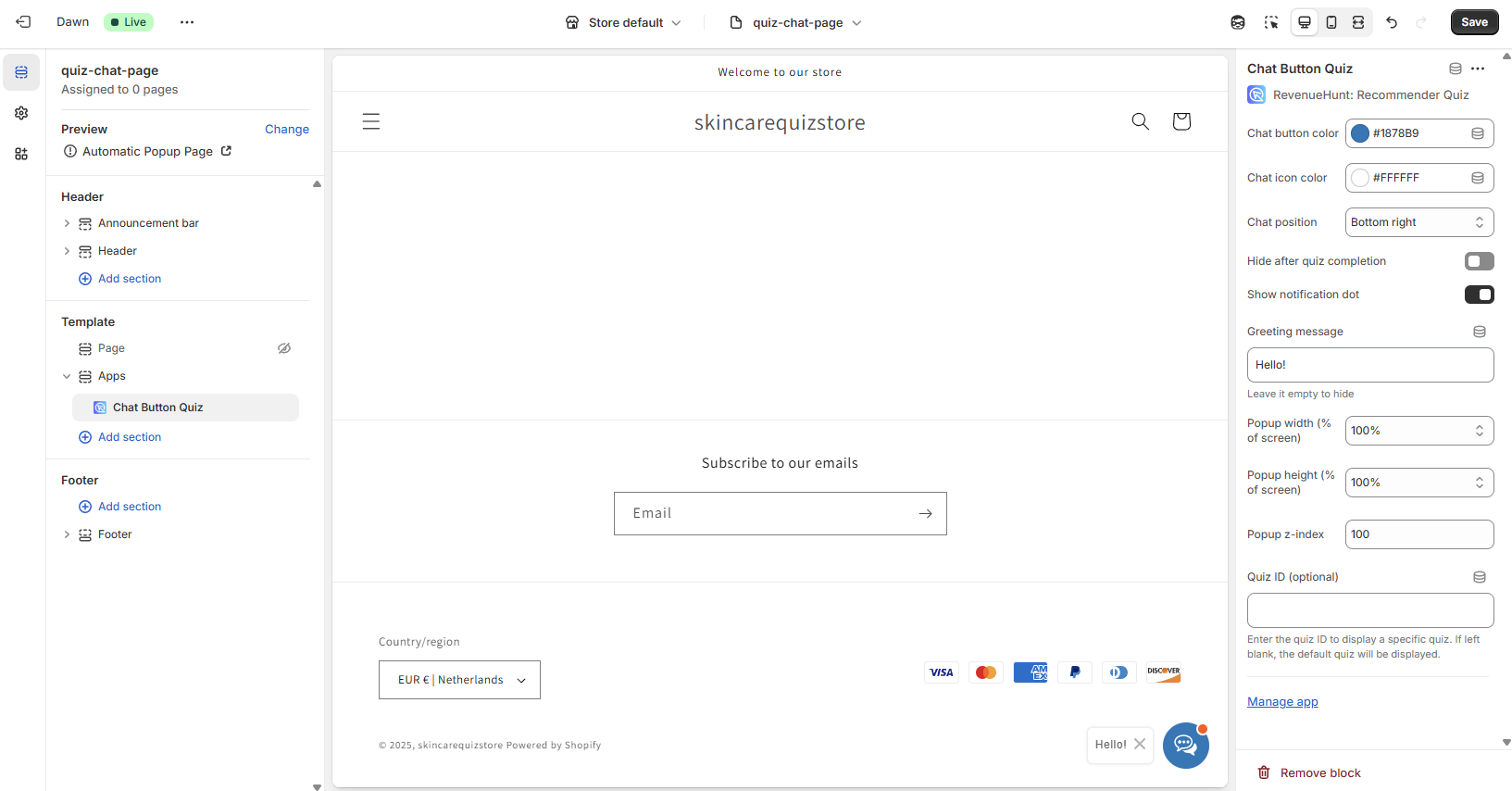
Chat Button Color- Adjust the color of the chat button by selecting one from the tool or adding a #color.Chat Icon Color- Adjust the color of the chat icon by selecting one from the tool or adding a #color.Hide after quiz completion- Hide the chat button after the customer reaches the results page. Toggle to activate.Show notification dot- Show the small red notification dot on the chat icon. Toggle to activate.Greeting message- Show and edit the greeting message displayed next to the chat icon. Leave it empty to hideQuiz ID (optional)- Enter a quiz ID to show a specific quiz. Leave blank to load the default. -
Click
Save. From now on, the chat popup will show up on that page or any page that uses the same template. - Remember to apply the new page template to the page you want to add the chat popup to.
Step-by-step instructions
Follow the step by step instructions in how to set up chat button popups on a specific page to add a chat popup to your website.
What is a Chat Popup?
A quiz popup that opens when a customer clicks a chat-like button.
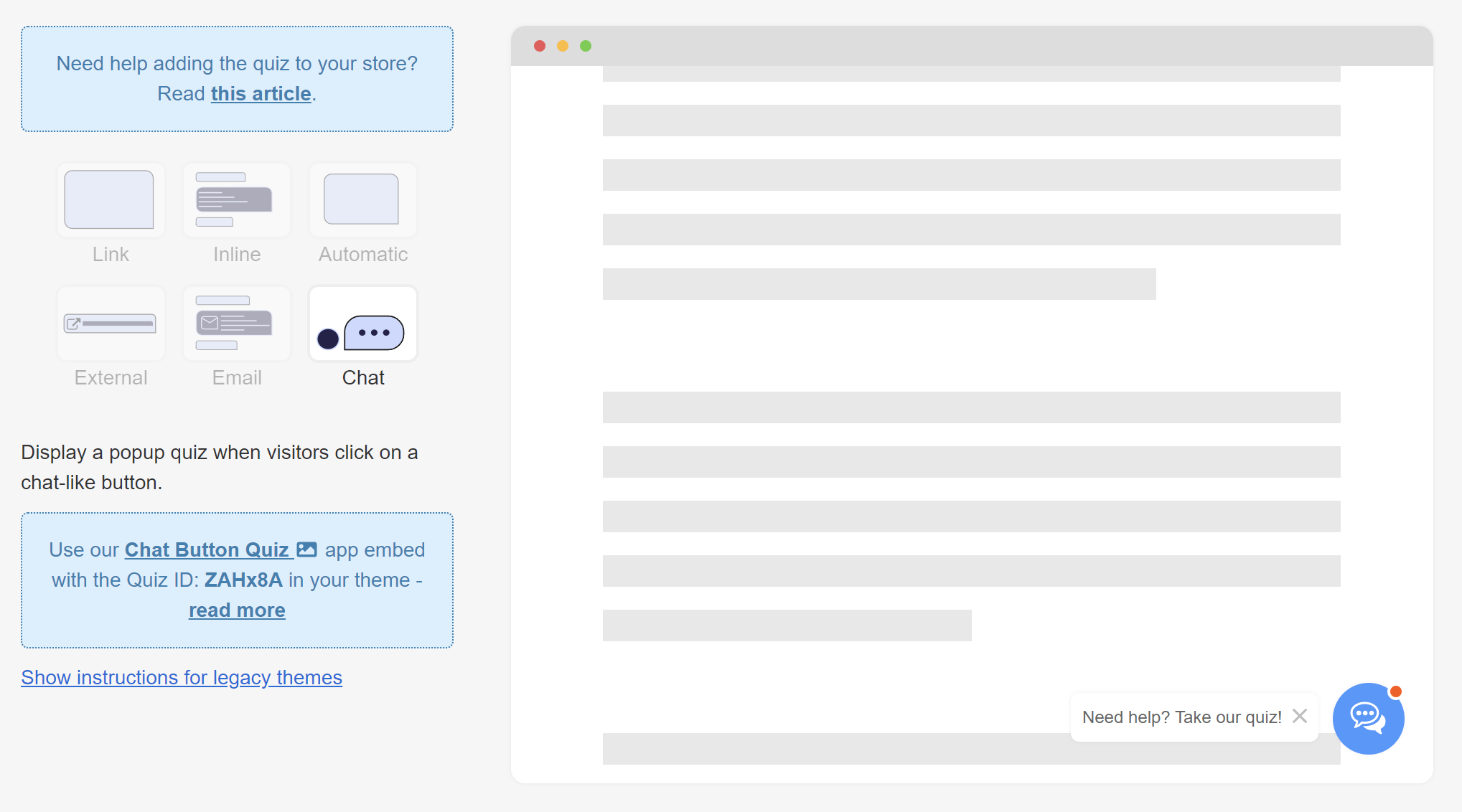
Instructions for legacy themes - Opens extra settings menu.
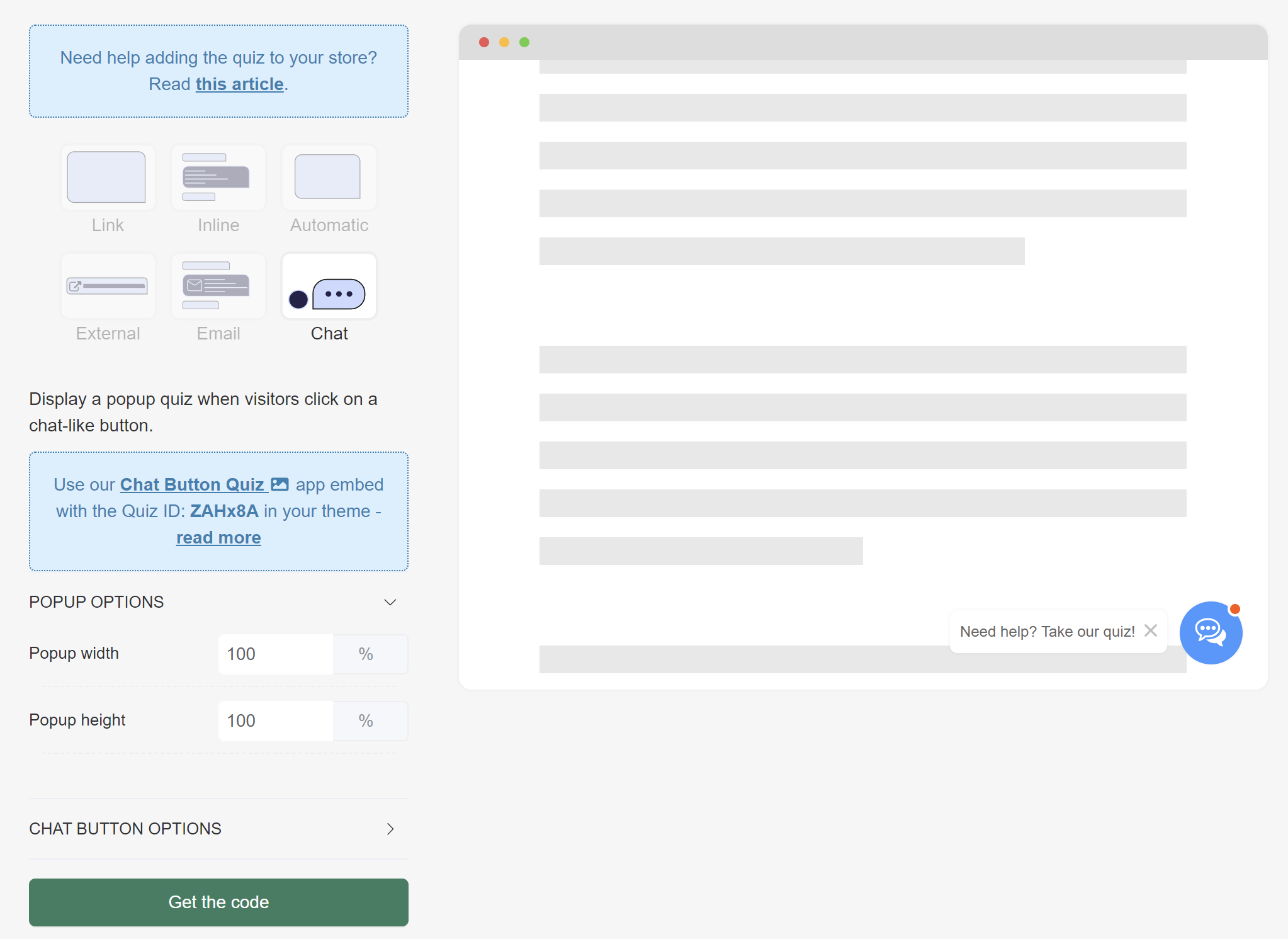
POPUP OPTIONS
Popup width - Adjust the width of the quiz by typing the percentage number.
Popup height - Adjust the height of the quiz by typing the percentage number.
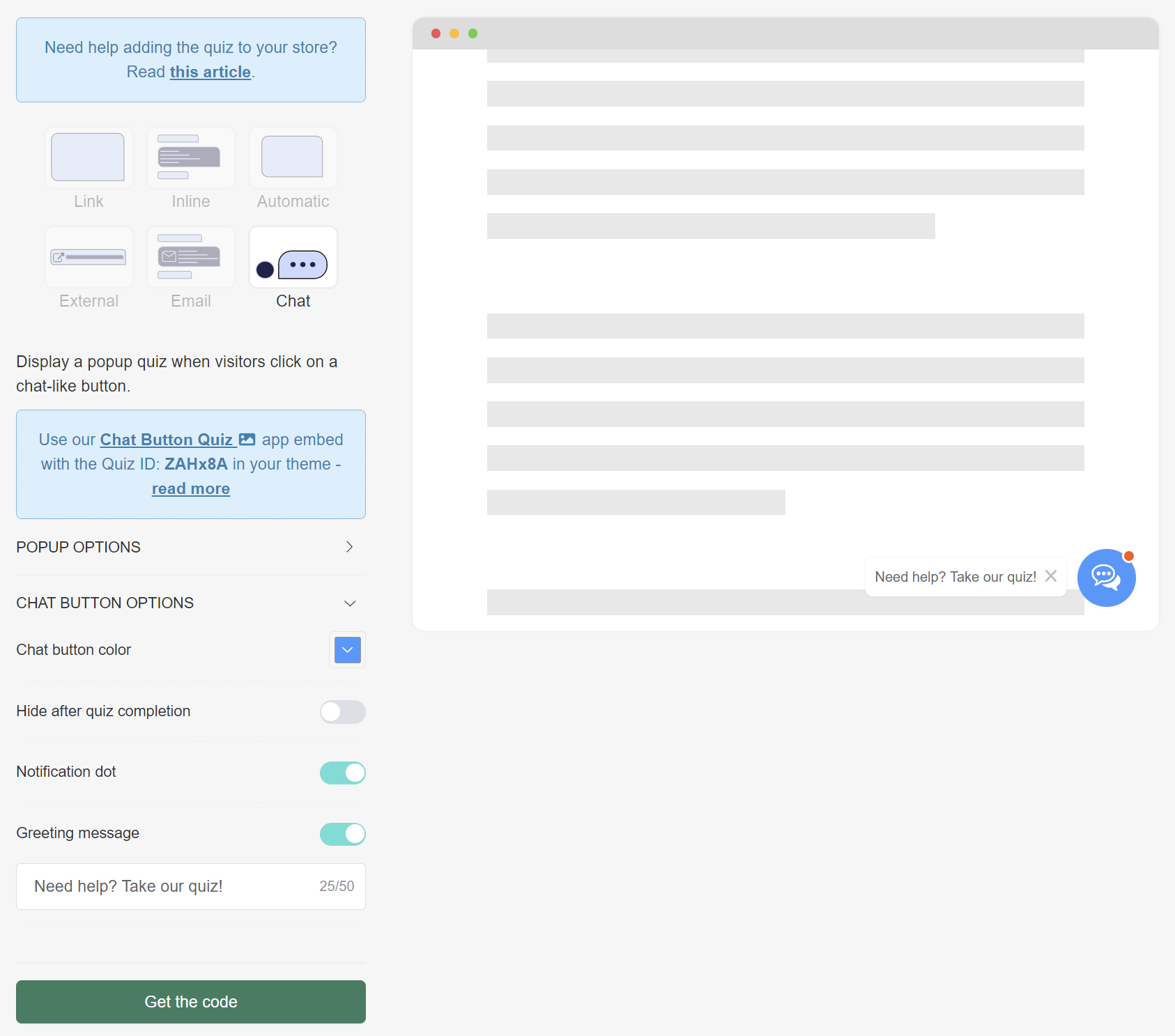
CHAT BUTTON OPTIONS
Chat button color - Adjust the color of the chat button by selecting one from the tool or adding a #color.
Hide after quiz completion - Hide the chat button after the customer reaches the results page. Toggle to activate.
Notification dot - Show the small red notification dot on the chat icon. Toggle to activate.
Greeting message - Show and edit the greeting message displayed next to the chat icon. Toggle to activate.
What is a Chat Popup?
A quiz popup that opens when a customer clicks a chat-like button.
Instructions for legacy themes - Opens extra settings menu.
POPUP OPTIONS
Popup width - Adjust the width of the quiz by typing the percentage number.
Popup height - Adjust the height of the quiz by typing a percentage.
CHAT BUTTON OPTIONS
Chat button color - Adjust the color of the chat button by selecting one from the tool or adding a #color.
Hide after quiz completion - Hide the chat button after the customer reaches the results page. Toggle to activate.
Notification dot - Show the small red notification dot on the chat icon. Toggle to activate.
Greeting message - Show and edit the greeting message displayed next to the chat icon. Toggle to activate.
What is a Chat Popup?
A quiz popup that opens when a customer clicks a chat-like button.
Instructions for legacy themes - Opens extra settings menu.
POPUP OPTIONS
Popup width - Adjust the width of the quiz by typing the percentage number.
Popup height - Adjust the height of the quiz by typing the percentage number.
CHAT BUTTON OPTIONS
Chat button color - Adjust the color of the chat button by selecting one from the tool or adding a #color.
Hide after quiz completion - Hide the chat button after the customer reaches the results page. Toggle to activate.
Notification dot - Show the small red notification dot on the chat icon. Toggle to activate.
Greeting message - Show and edit the greeting message displayed next to the chat icon. Toggle to activate.
What is a Chat Popup?
A quiz popup that opens when a customer clicks a chat-like button.
Instructions for legacy themes - Opens extra settings menu.
POPUP OPTIONS
Popup width - Adjust the width of the quiz by typing the percentage number.
Popup height - Adjust the height of the quiz by typing the percentage number.
CHAT BUTTON OPTIONS
Chat button color - Adjust the color of the chat button by selecting one from the tool or adding a #color.
Hide after quiz completion - Hide the chat button after the customer reaches the results page. Toggle to activate.
Notification dot - Show the small red notification dot on the chat icon. Toggle to activate.
Greeting message - Show and edit the greeting message displayed next to the chat icon. Toggle to activate.
What is a Chat Popup?
A quiz popup that opens when a customer clicks a chat-like button.
Instructions for legacy themes - Opens extra settings menu.
POPUP OPTIONS
Popup width - Adjust the width of the quiz by typing the percentage number.
Popup height - Adjust the width of the quiz by typing the percentage number.
CHAT BUTTON OPTIONS
Chat button color - Adjust the color of the chat button by selecting one from the tool or adding a #color.
Hide after quiz completion - Hide the chat button after the customer reaches the results page. Toggle to activate.
Notification dot - Show the small red notification dot on the chat icon. Toggle to activate.
Greeting message - Show and edit the greeting message displayed next to the chat icon. Toggle to activate.
← Previous: Connect / Integrations Next: Metrics →