Connect / Integrations
In the Integrations tab of the Quiz builder, you can connect your quiz to third-party services.
Currently integrated with
To open the Integrations tab, go to the Dashboard and open the Quiz settings page.
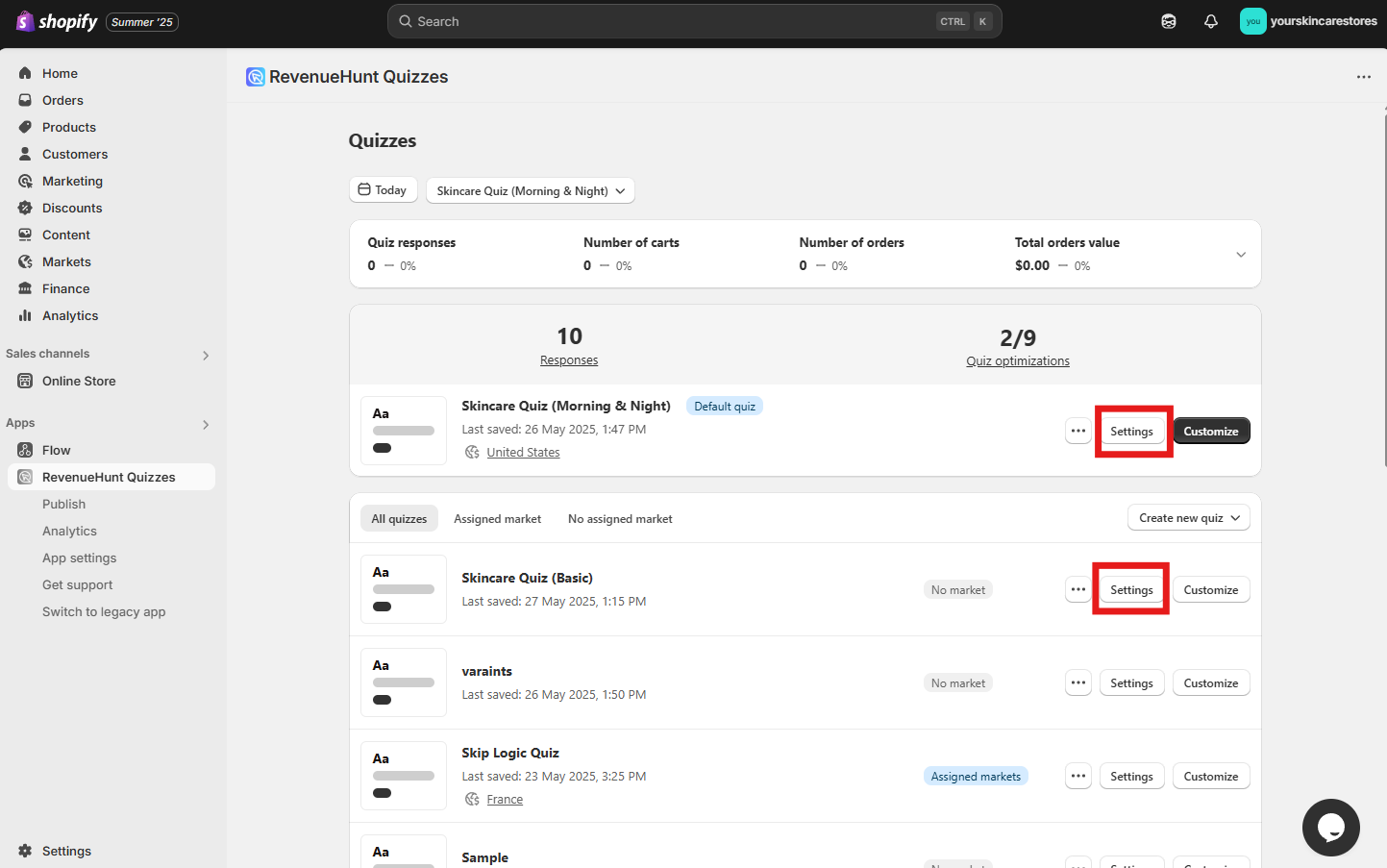
Then navigate to the Integrations tab.
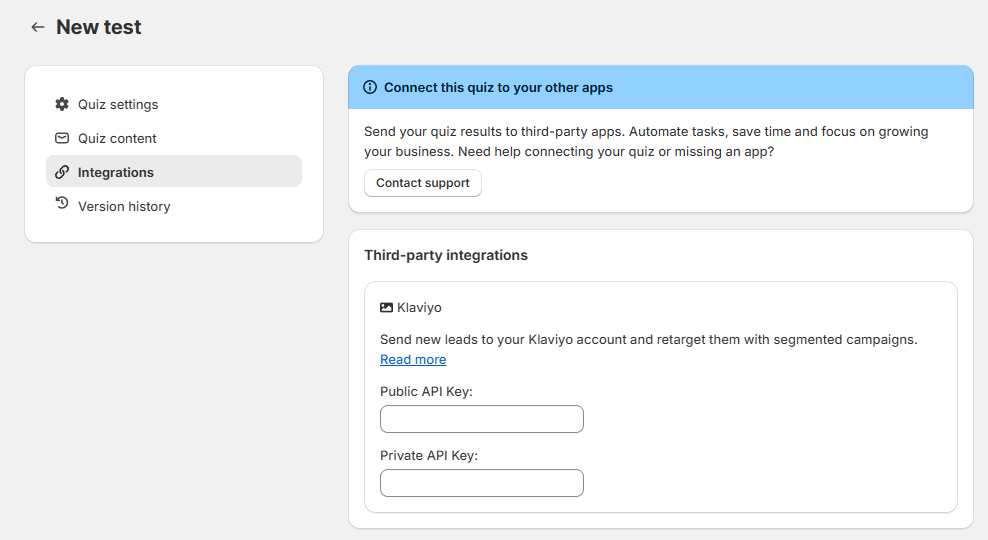
A banner sits above the cards.
Get help - Opens a chat about connecting your quiz.
Missing an app - Tells the team which integration you would like added.
Each service has its own card. Find the service, then follow the instructions on the card or under Read more. The button on a card depends on the service:
Activate - Switches on a service that needs no credentials, such as Google Analytics or Meta Pixel.
Connect - Links a service you have pasted a key into, such as Zapier.
+ Add webhook - Adds a webhook endpoint.
Disconnect - Appears once a service is connected. Click it to disconnect.
Use the filter tabs above the cards to narrow the list:
All - Every integration, the view the tab opens on.
Automations - Connect to services like Zapier or Webhooks and redirect your quiz data anywhere.
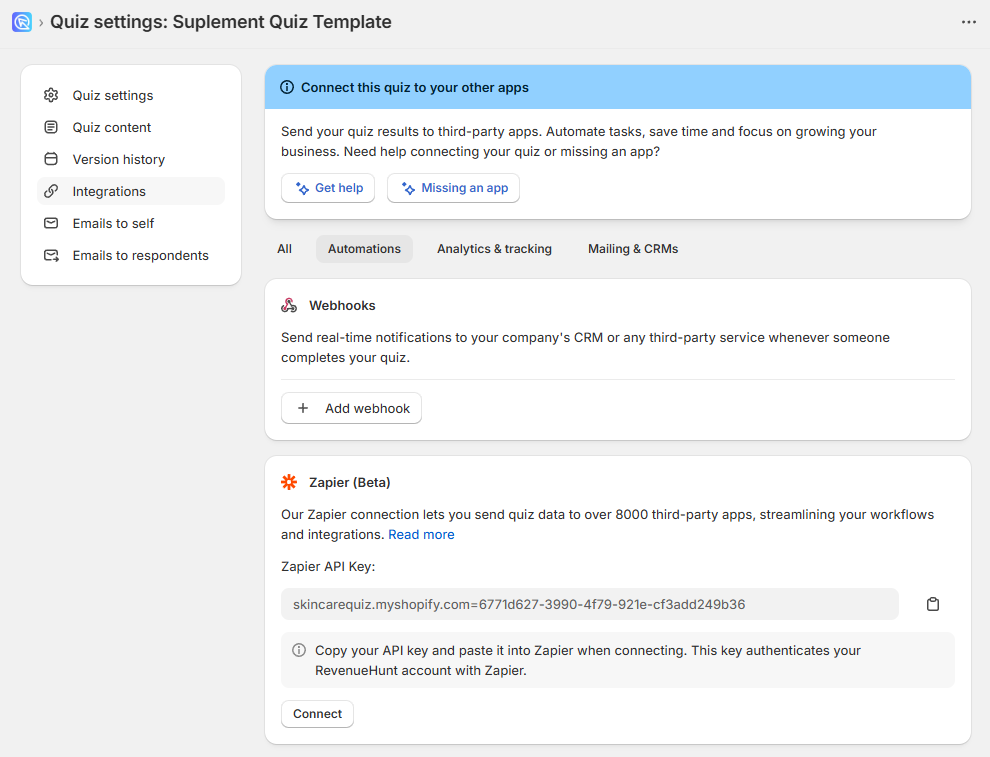
Analytics & tracking - Integrate with platforms like Google Analytics and Meta Pixel to track quiz events, measure conversions, and understand customer behavior.

Info
Google Analytics and Meta Pixel connect directly to the property set up in your store. If you have not set up tracking for your store yet, you should do it before connecting the quiz to these services.
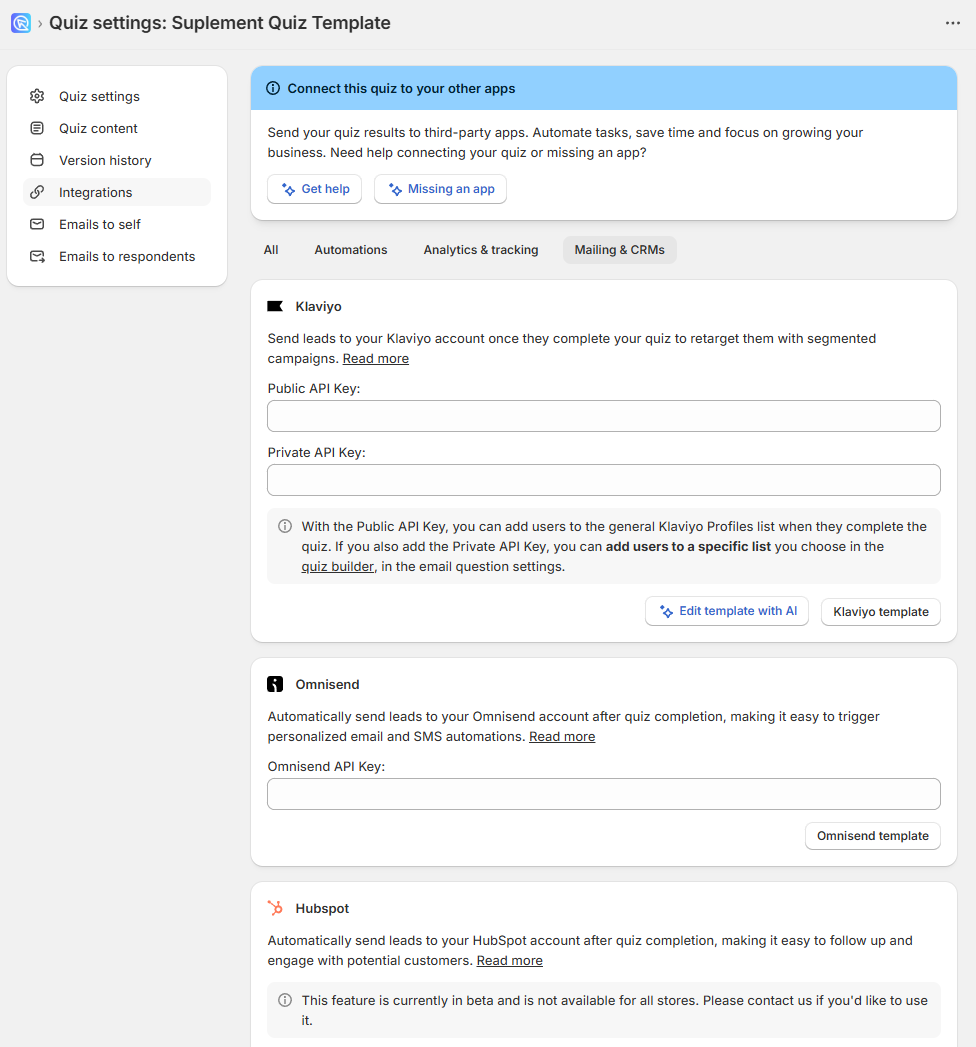
Mailing & CRMs - Sync captured quiz leads directly to your email marketing or CRM platforms, such as Klaviyo, Omnisend or HubSpot. Use this data for personalized campaigns, segmentation, and automated follow-ups.
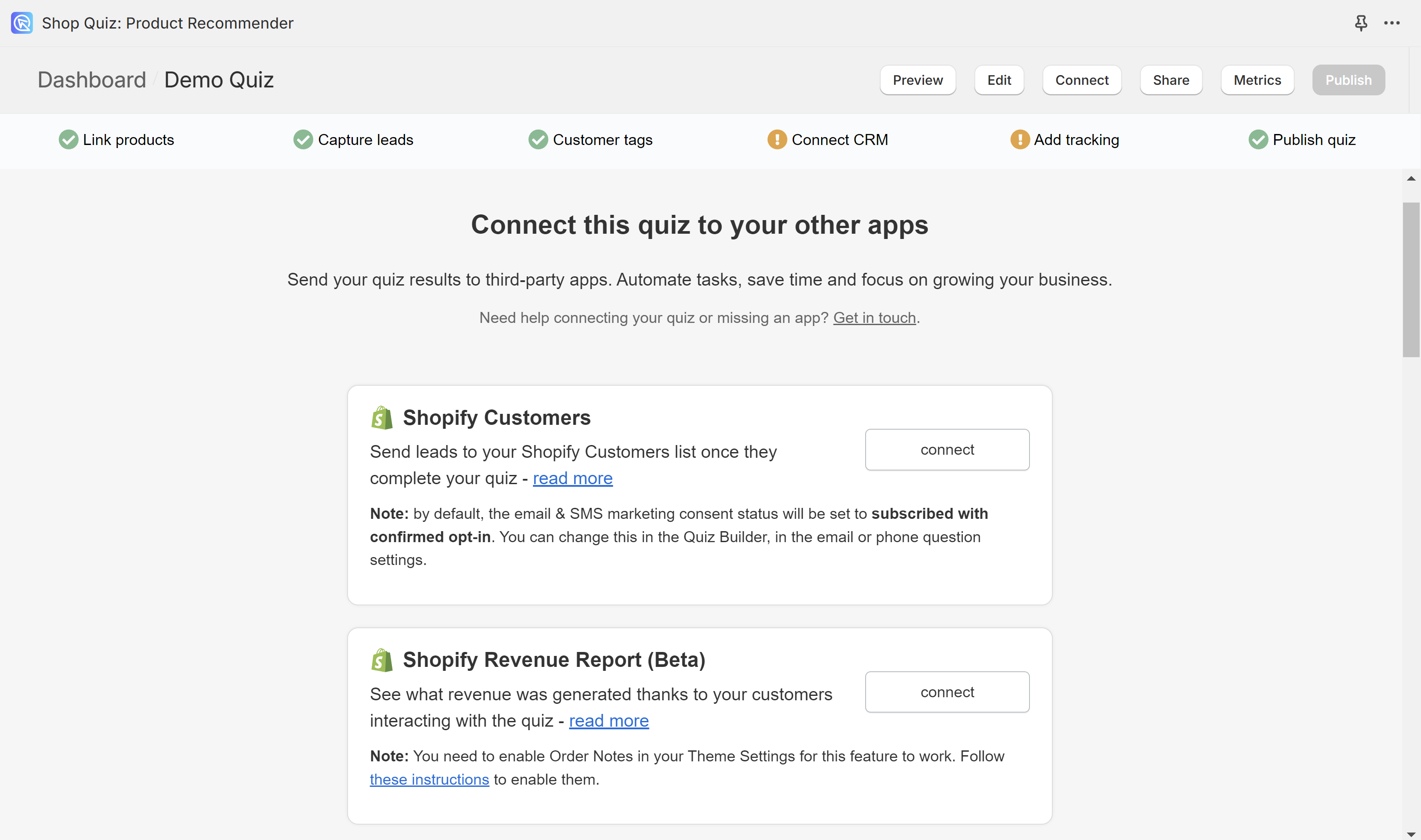
In the Connect tab of the Quiz Builder, you can connect your quiz to third-party services. See the list of integrations for the services RevenueHunt connects to.
Currently integrated with
To connect the quiz to a particular service, find it on the page and click Connect. Then follow the instructions displayed in the browser or in the read more section.
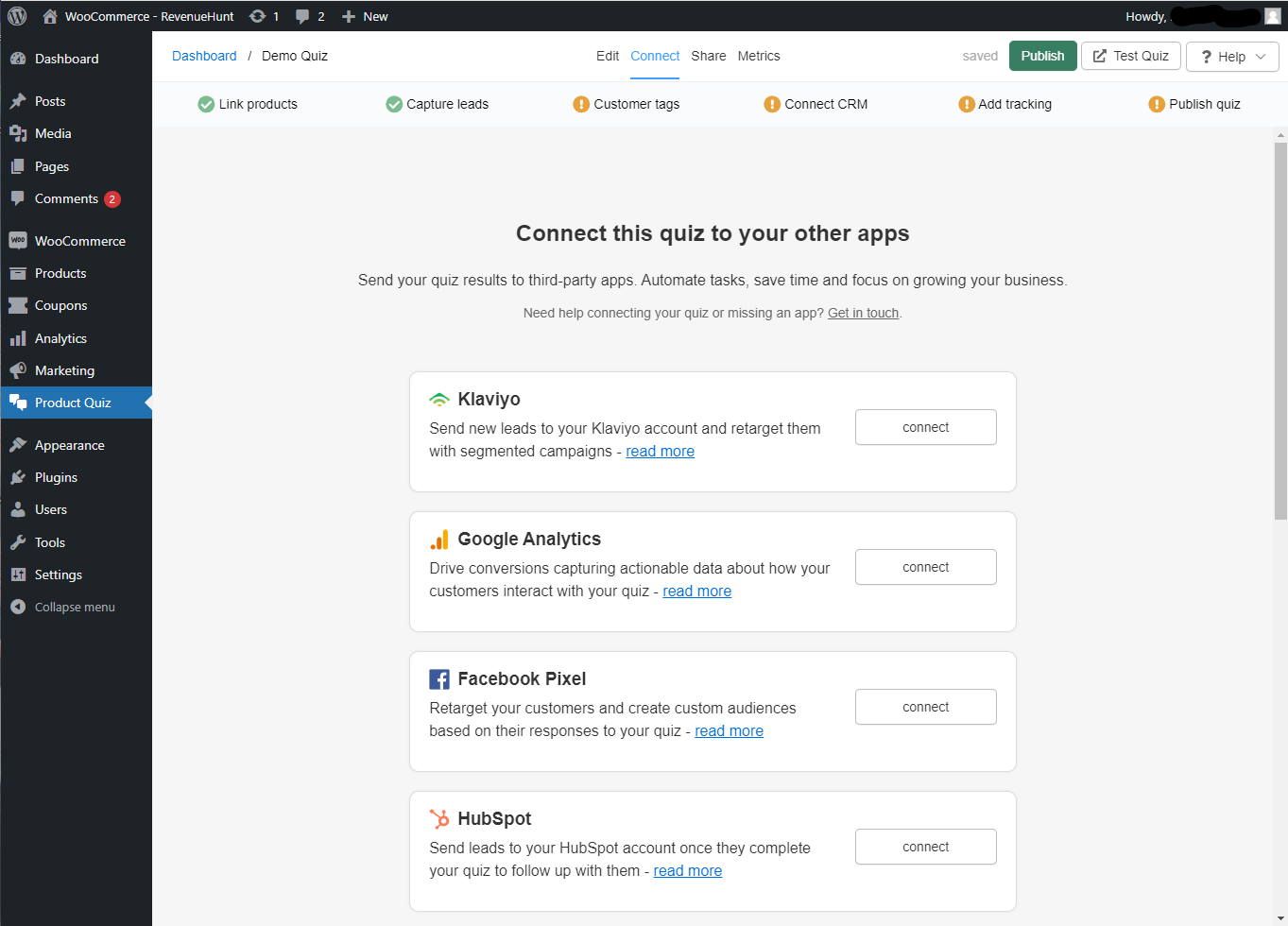
In the Connect tab of the Quiz Builder, you can connect your quiz to third-party services. See the list of integrations for the services RevenueHunt connects to.
Currently integrated with
To connect the quiz to a particular service, find it on the page and click Connect. Then follow the instructions displayed in the browser or in the read more section.
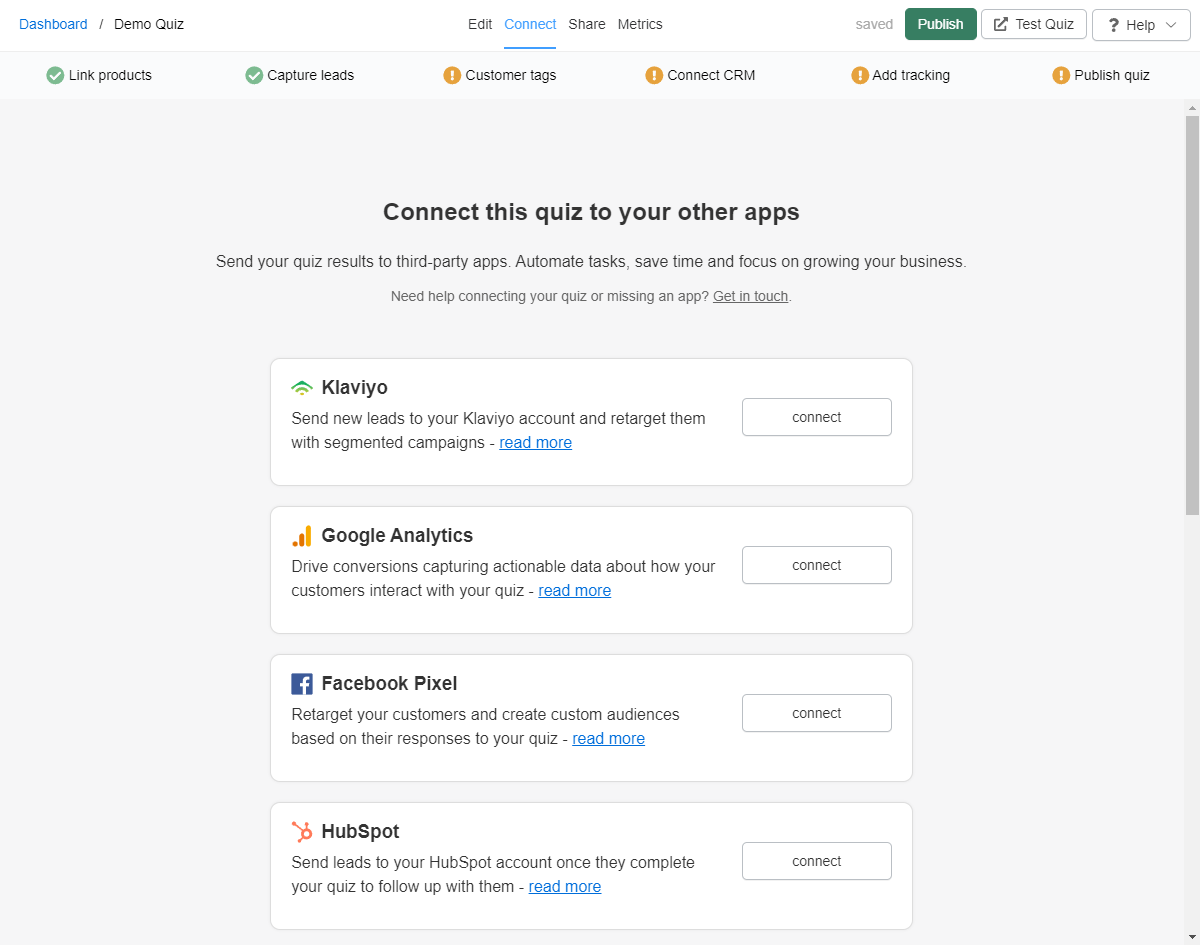
In the Connect tab of the Quiz Builder, you can connect your quiz to third-party services. See the list of integrations for the services RevenueHunt connects to.
Currently integrated with
To connect the quiz to a particular service, find it on the page and click Connect. Then follow the instructions displayed in the browser or in the read more section.
In the Connect tab of the Quiz Builder, you can connect your quiz to third-party services. See the list of integrations for the services RevenueHunt connects to.
Currently integrated with
To connect the quiz to a particular service, find it on the page and click Connect. Then follow the instructions displayed in the browser or in the read more section.
In the Connect tab of the Quiz Builder, you can connect your quiz to third-party services. See the list of integrations for the services RevenueHunt connects to.
Currently integrated with
To connect the quiz to a particular service, find it on the page and click Connect. Then follow the instructions displayed in the browser or in the read more section.
← Previous: Quiz Settings Next: Share / Publish →