Quiz Design
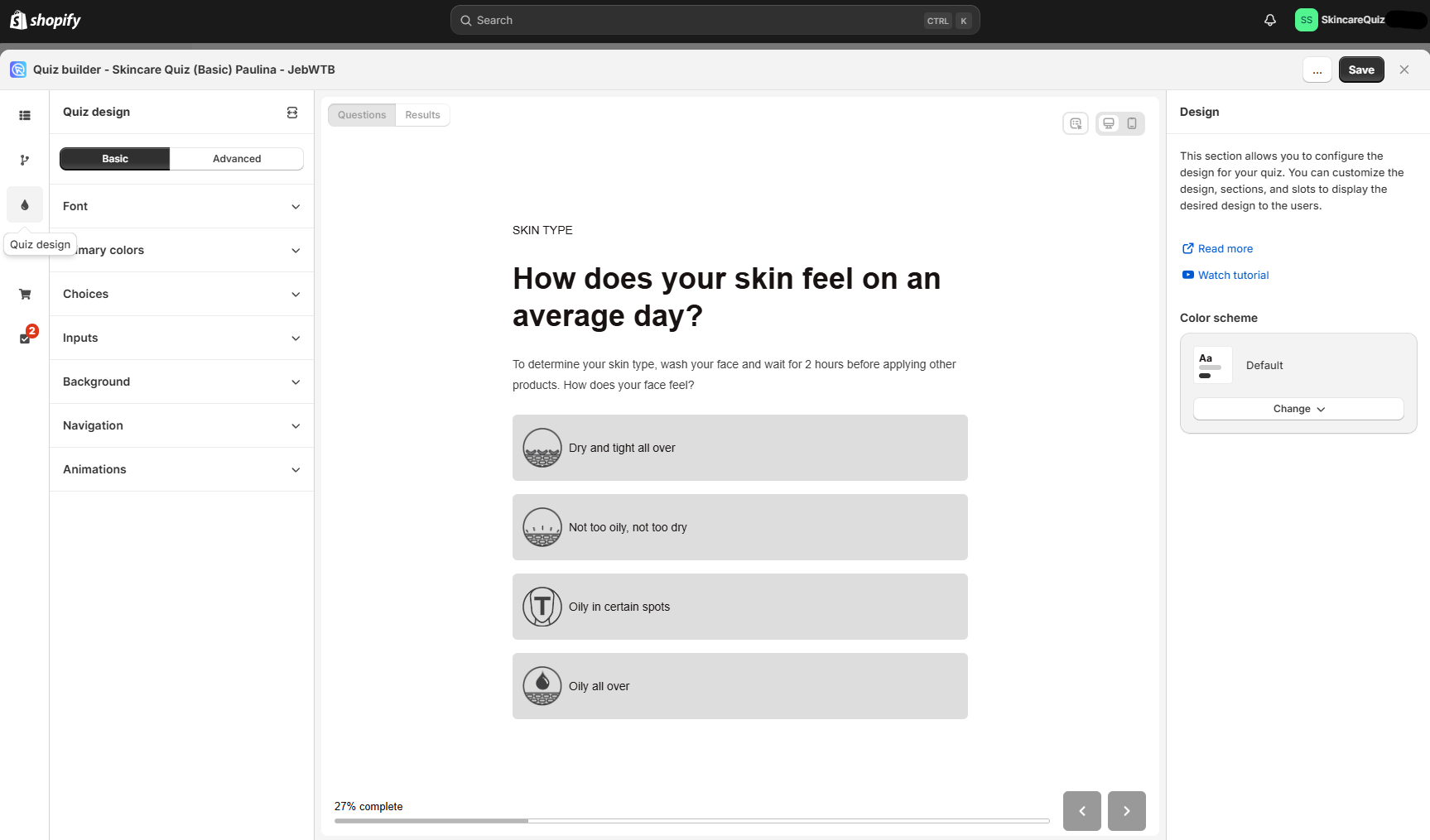
In the Quiz design section of the quiz builder, you can change how the quiz questions and the results page look. Customize the colors, fonts, sections and slots that customers see.
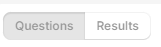
Questions/Results - Toggle between the preview of the quiz questions and the results page.
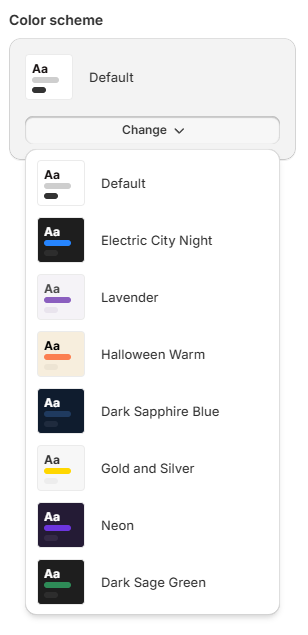
Color scheme - Choose one of the pre-determined color schemes for your quiz.
Click Change to pick another color scheme.
In the Quiz Design section of the Quiz Builder, you can change how the quiz Questions or the Results Page look.

Use the top menu to switch between questions and preview them.
arrow up - Moves up to the previous question.
arrow down - Moves down to the next question.
Questions - Shows the preview of how the questions look like.
Results - Shows the preview of how the results page looks like.
In the Quiz Design section of the Quiz Builder, you can change how the quiz Questions or the Results Page look.
Use the top menu to switch between questions and preview them.
arrow up - Moves up to the previous question.
arrow down - Moves down to the next question.
Questions - Shows the preview of how the questions look like.
Results - Shows the preview of how the results page looks like.
In the Quiz Design section of the Quiz Builder, you can change how the quiz Questions or the Results Page look.
Use the top menu to switch between questions and preview them.
arrow up - Moves up to the previous question.
arrow down - Moves down to the next question.
Questions - Shows the preview of how the questions look like.
Results - Shows the preview of how the results page looks like.
In the Quiz Design section of the Quiz Builder, you can change how the quiz Questions or the Results Page look.
Use the top menu to switch between questions and preview them.
arrow up - Moves up to the previous question.
arrow down - Moves down to the next question.
Questions - Shows the preview of how the questions look like.
Results - Shows the preview of how the results page looks like.
In the Quiz Design section of the Quiz Builder, you can change how the quiz Questions or the Results Page look.
Use the top menu to switch between questions and preview them.
arrow up - Moves up to the previous question.
arrow down - Moves down to the next question.
Questions - Shows the preview of how the questions look like.
Results - Shows the preview of how the results page looks like.
Edit theme
Basic
Basic - The basic menu of quiz design customization. Here you can edit the quiz colors, fonts, change the navigation options, add animations or a background image.
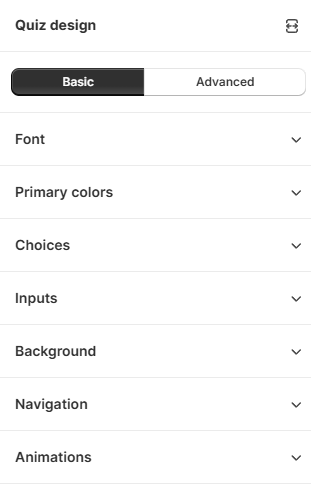
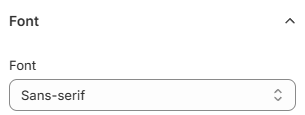
Typography - Pick a font for your quiz from the list.
Info
When the font is set to Inherit, the quiz takes its heading and body fonts from your Shopify theme.
Primary colors - Click on the color to change it.
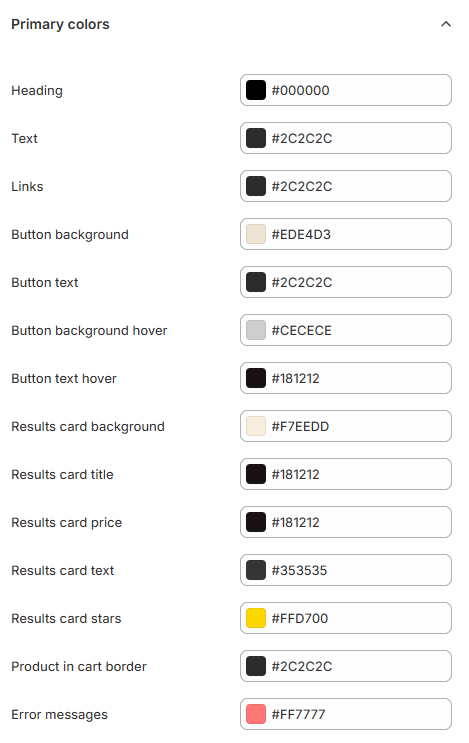
Select a color from the picker to change it.
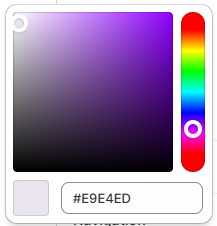
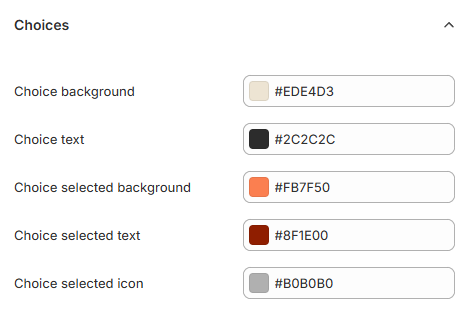
Choices - Click the color to change it.
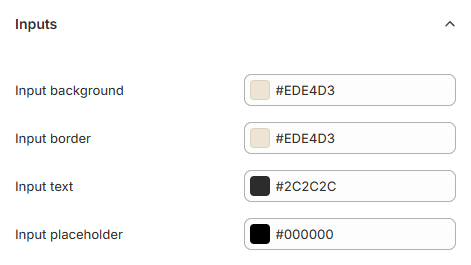
Inputs - Click the color to change it.
Background - Change the background color by clicking on the color. Adjust the background opacity with the slider or upload a background image by clicking Select image.
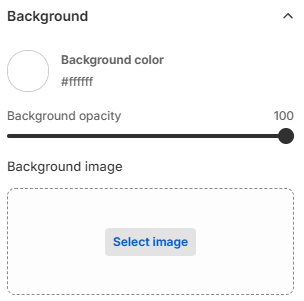
Once the background image is uploaded, you can adjust the opacity with the slider.
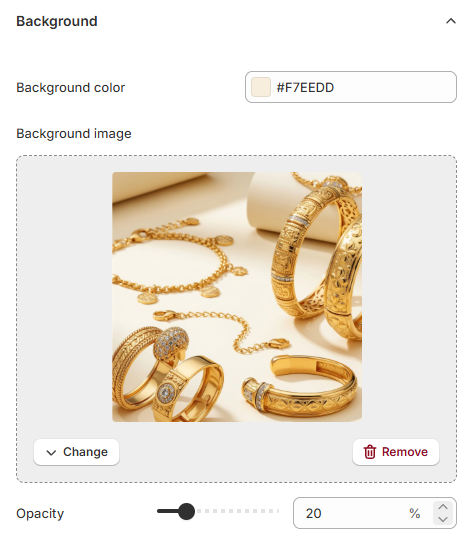
Change - Click to change the background image.
Remove - Click to remove the background image.
Opacity - Adjust the opacity of the background image.
Navigation - Change the colors of the Navigation bar background, text and border by clicking the color.
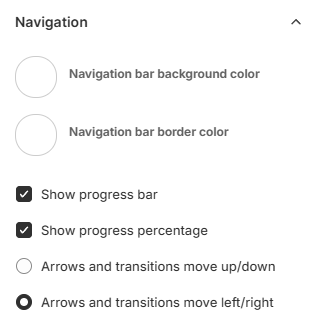
Show progress bar - Uncheck to hide the progress bar.
Show progress percentage - Uncheck to hide the % text from the progress bar.
Tip
Change the navigation bar text in Quiz settings > Quiz content.
Transitions - Choose the transition effect for the quiz.
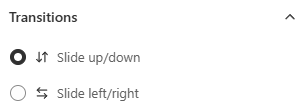
Slide up/down - Select this option to make the quiz slide up and down.
Slide left/right - Select this option to make the quiz slide left and right.
Advanced
Advanced - Add your own CSS code in the box to override the default quiz's styles.
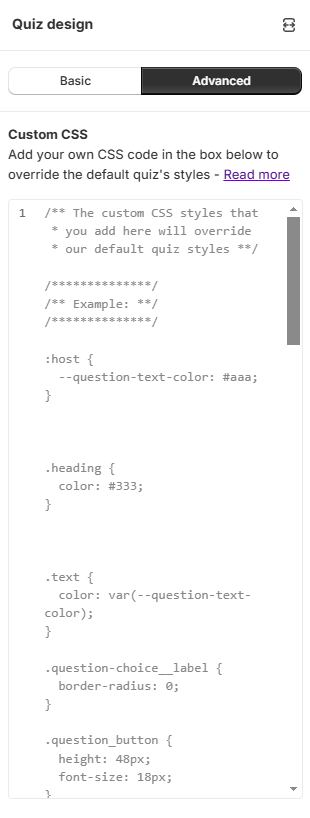
App CSS structure
For the CSS structure of the app and worked examples, see the CSS Structure Reference Guide.
✨Get help with custom CSS - Opens a chat window with the Quiz Copilot AI. It can directly make design changes with CSS code.
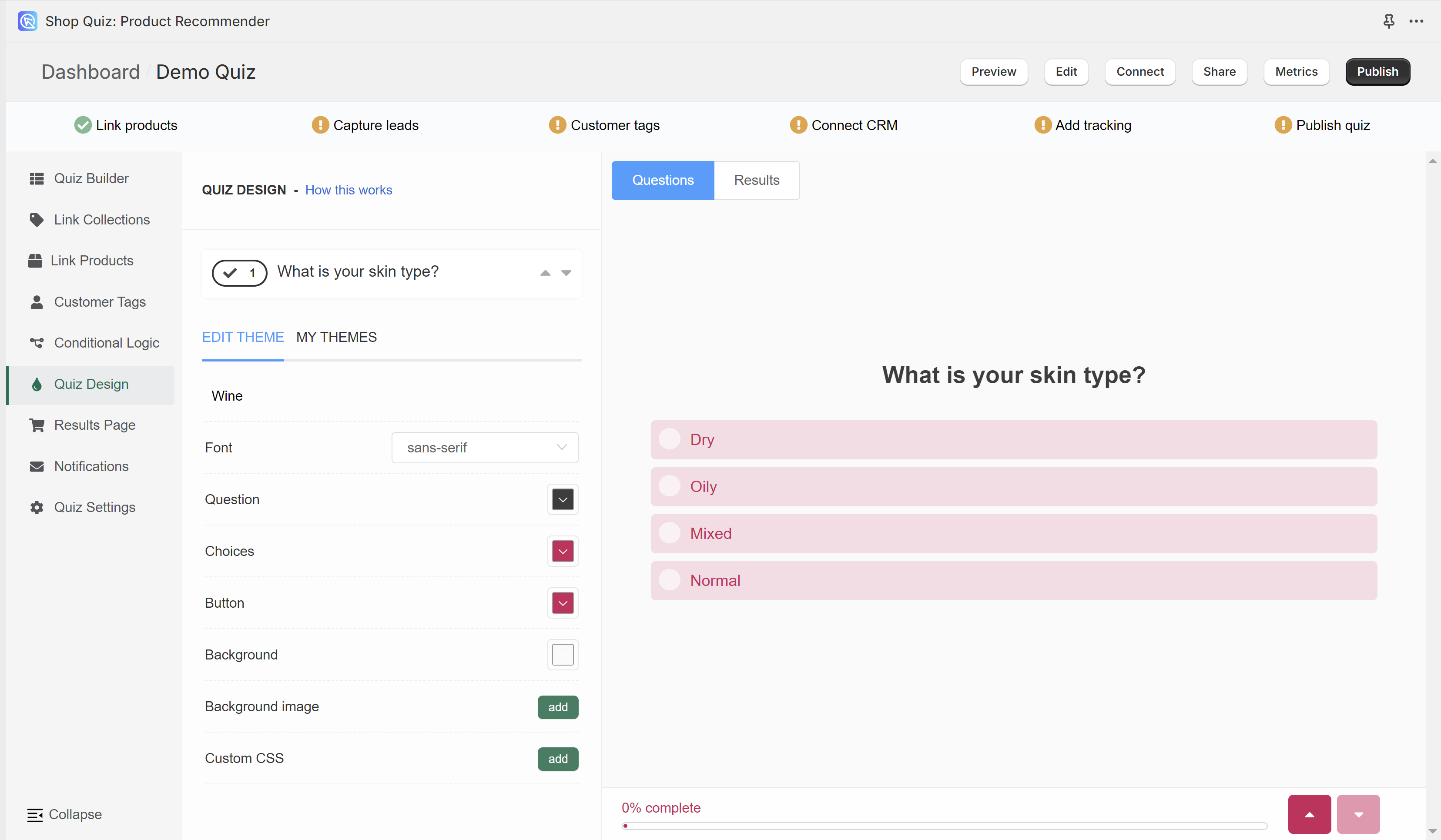
In the Edit Theme section you can change the styling of your current quiz theme. To change a theme or add a new one, go to the My Themes tab.
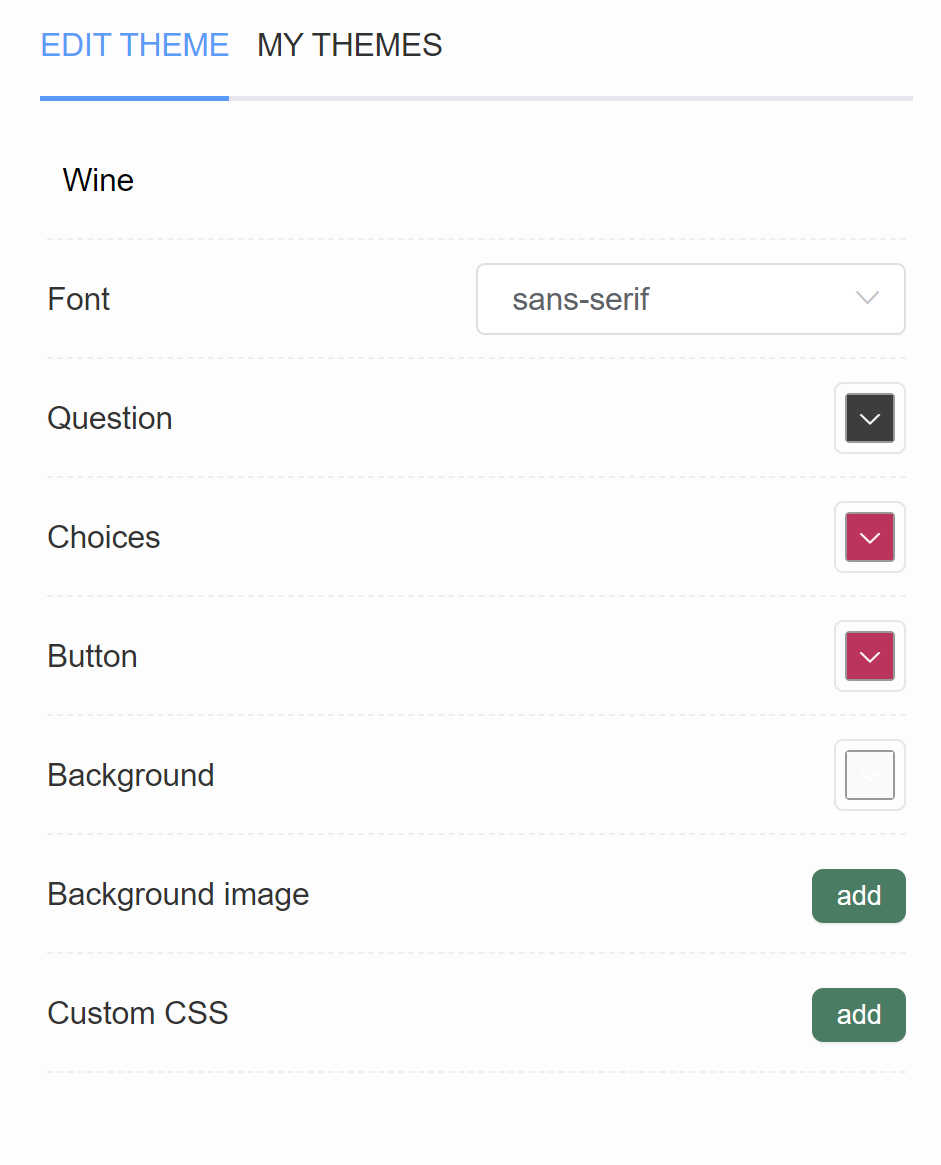
Wine - Displays the name of your current theme.
Font - Shows a dropdown of available fonts. Pick a font from the list to change it.
Question - Opens a color menu where you change the color of quiz questions. You can add a custom color by pasting the color code, for example #ecb3b3.
Choices - Opens a color menu where you change the color of quiz choices. You can add a custom color by pasting the color code, for example #ecb3b3.
Button - Opens a color menu where you change the color of quiz buttons (next, start quiz, add to cart). You can add a custom color by pasting the color code, for example #ecb3b3.
Background - Opens a color menu where you change the color of the quiz background. You can add a custom color by pasting the color code, for example #ecb3b3.
Background image - Click Add to upload a background image. Image should be max 1000px x 1000px and 2MB. An extra menu appears once activated.
Background Opacity - A slider which lets you adjust the opacity of the uploaded background image.
Custom CSS - Opens a CSS console, where you can add any custom styling rules. Any element of the quiz or the results page can be customized via CSS. To find a selector for the element, inspect it in your browser by right-clicking.
In the Edit Theme section you can change the styling of your current quiz theme. To change a theme or add a new one, go to the My Themes tab.
Wine - Displays the name of your current theme.
Font - Shows a dropdown of available fonts. Pick a font from the list to change it.
Question - Opens a color menu where you change the color of quiz questions. You can add a custom color by pasting the color code, for example #ecb3b3.
Choices - Opens a color menu where you change the color of quiz choices. You can add a custom color by pasting the color code, for example #ecb3b3.
Button - Opens a color menu where you change the color of quiz buttons (next, start quiz, add to cart). You can add a custom color by pasting the color code, for example #ecb3b3.
Background - Opens a color menu where you change the color of the quiz background. You can add a custom color by pasting the color code, for example #ecb3b3.
Background image - Click Add to upload a background image. Image should be max 1000px x 1000px and 2MB. An extra menu appears once activated.
Background Opacity - A slider which lets you adjust the opacity of the uploaded background image.
Custom CSS - Opens a CSS console, where you can add any custom styling rules. Any element of the quiz or the results page can be customized via CSS. To find a selector for the element, inspect it in your browser by right-clicking.
In the Edit Theme section you can change the styling of your current quiz theme. To change a theme or add a new one, go to the My Themes tab.
Wine - Displays the name of your current theme.
Font - Shows a dropdown of available fonts. Pick a font from the list to change it.
Question - Opens a color menu where you change the color of quiz questions. You can add a custom color by pasting the color code, for example #ecb3b3.
Choices - Opens a color menu where you change the color of quiz choices. You can add a custom color by pasting the color code, for example #ecb3b3.
Button - Opens a color menu where you change the color of quiz buttons (next, start quiz, add to cart). You can add a custom color by pasting the color code, for example #ecb3b3.
Background - Opens a color menu where you change the color of the quiz background. You can add a custom color by pasting the color code, for example #ecb3b3.
Background image - Click Add to upload a background image. Image should be max 1000px x 1000px and 2MB. An extra menu appears once activated.
Background Opacity - A slider which lets you adjust the opacity of the uploaded background image.
Custom CSS - Opens a CSS console, where you can add any custom styling rules. Any element of the quiz or the results page can be customized via CSS. To find a selector for the element, inspect it in your browser by right-clicking.
In the Edit Theme section you can change the styling of your current quiz theme. To change a theme or add a new one, go to the My Themes tab.
Wine - Displays the name of your current theme.
Font - Shows a dropdown of available fonts. Pick a font from the list to change it.
Question - Opens a color menu where you change the color of quiz questions. You can add a custom color by pasting the color code, for example #ecb3b3.
Choices - Opens a color menu where you change the color of quiz choices. You can add a custom color by pasting the color code, for example #ecb3b3.
Button - Opens a color menu where you change the color of quiz buttons (next, start quiz, add to cart). You can add a custom color by pasting the color code, for example #ecb3b3.
Background - Opens a color menu where you change the color of the quiz background. You can add a custom color by pasting the color code, for example #ecb3b3.
Background image - Click Add to upload a background image. Image should be max 1000px x 1000px and 2MB. An extra menu appears once activated.
Background Opacity - A slider which lets you adjust the opacity of the uploaded background image.
Custom CSS - Opens a CSS console, where you can add any custom styling rules. Any element of the quiz or the results page can be customized via CSS. To find a selector for the element, inspect it in your browser by right-clicking.
In the Edit Theme section you can change the styling of your current quiz theme. To change a theme or add a new one, go to the My Themes tab.
Wine - Displays the name of your current theme.
Font - Shows a dropdown of available fonts. Pick a font from the list to change it.
Question - Opens a color menu where you change the color of quiz questions. You can add a custom color by pasting the color code, for example #ecb3b3.
Choices - Opens a color menu where you change the color of quiz choices. You can add a custom color by pasting the color code, for example #ecb3b3.
Button - Opens a color menu where you change the color of quiz buttons (next, start quiz, add to cart). You can add a custom color by pasting the color code, for example #ecb3b3.
Background - Opens a color menu where you change the color of the quiz background. You can add a custom color by pasting the color code, for example #ecb3b3.
Background image - Click Add to upload a background image. Image should be max 1000px x 1000px and 2MB. An extra menu appears once activated.
Background Opacity - A slider which lets you adjust the opacity of the uploaded background image.
Custom CSS - Opens a CSS console, where you can add any custom styling rules. Any element of the quiz or the results page can be customized via CSS. To find a selector for the element, inspect it in your browser by right-clicking.
My themes
A quiz has one theme. Set its fonts, colors, background, navigation and transitions in Edit theme.
In the My Themes section you will find all the Design Themes that you create. Click on a theme to apply it to the quiz. You can customize it in the Edit Theme tab.
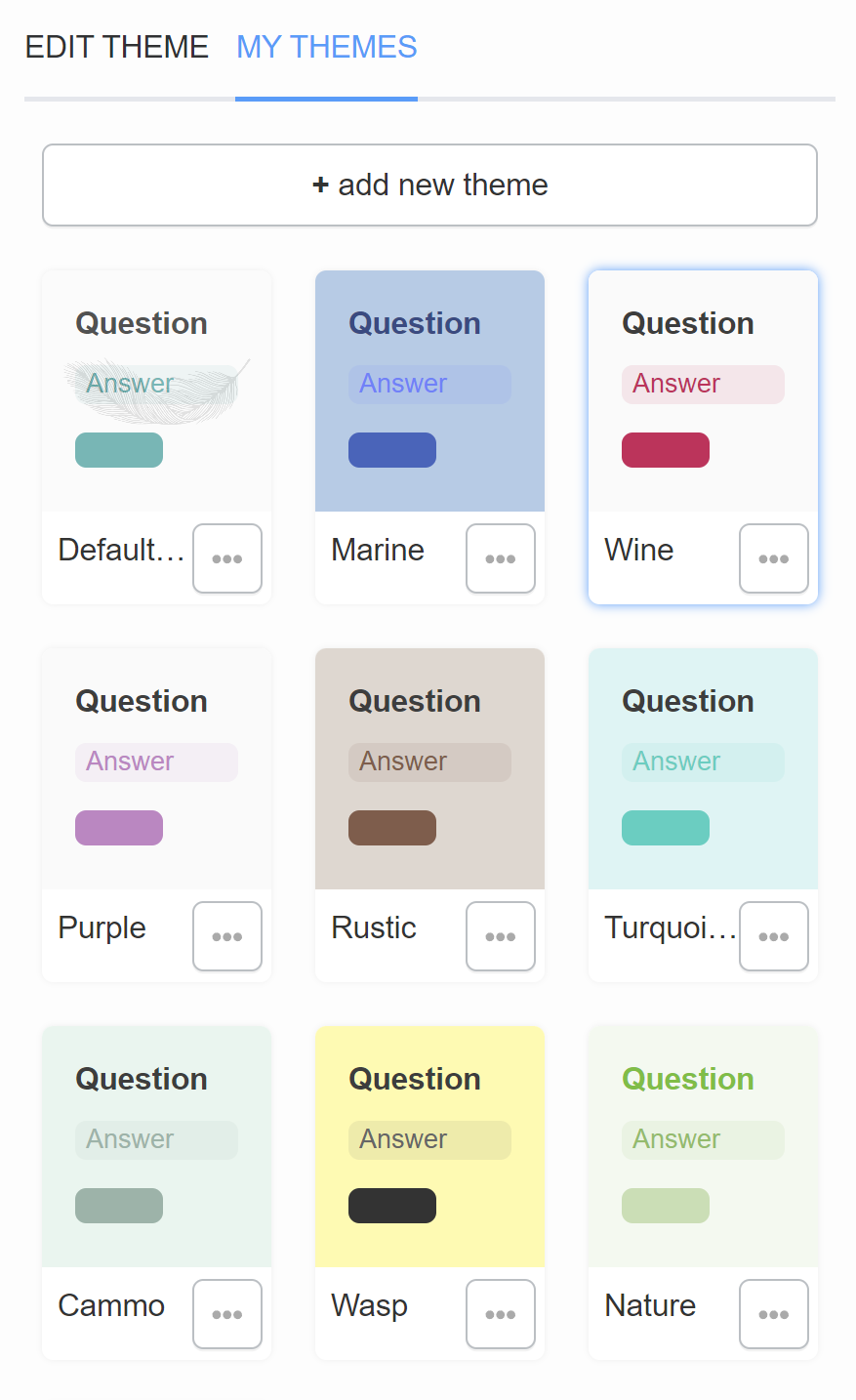
+ add new theme - Adds a new blank theme to your My Themes gallery.
... - Opens the theme options.
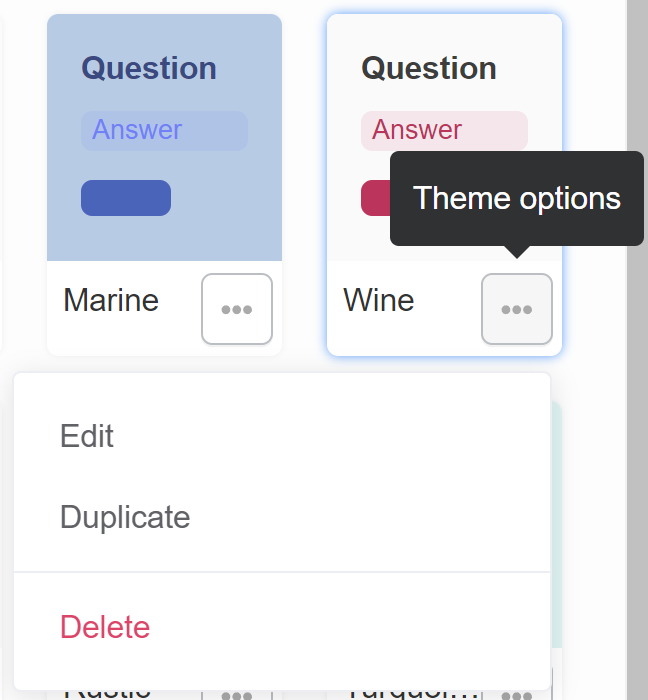
Edit - Opens the selected theme in Edit Theme.
Duplicate - Creates a copy of the selected theme.
Delete - Deletes the selected theme from the My Themes gallery.
In the My Themes section you will find all the Design Themes that you create. Click on a theme to apply it to the quiz. You can customize it in the Edit Theme tab.
+ add new theme - Adds a new blank theme to your My Themes gallery.
... - Opens the theme options.
Edit - Opens the selected theme in Edit Theme.
Duplicate - Creates a copy of the selected theme.
Delete - Deletes the selected theme from the My Themes gallery.
In the My Themes section you will find all the Design Themes that you create. Click on a theme to apply it to the quiz. You can customize it in the Edit Theme tab.
+ add new theme - Adds a new blank theme to your My Themes gallery.
... - Opens the theme options.
Edit - Opens the selected theme in Edit Theme.
Duplicate - Creates a copy of the selected theme.
Delete - Deletes the selected theme from the My Themes gallery.
In the My Themes section you will find all the Design Themes that you create. Click on a theme to apply it to the quiz. You can customize it in the Edit Theme tab.
+ add new theme - Adds a new blank theme to your My Themes gallery.
... - Opens the theme options.
Edit - Opens the selected theme in Edit Theme.
Duplicate - Creates a copy of the selected theme.
Delete - Deletes the selected theme from the My Themes gallery.
In the My Themes section you will find all the Design Themes that you create. Click on a theme to apply it to the quiz. You can customize it in the Edit Theme tab.
+ add new theme - Adds a new blank theme to your My Themes gallery.
... - Opens the theme options.
Edit - Opens the selected theme in Edit Theme.
Duplicate - Creates a copy of the selected theme.
Delete - Deletes the selected theme from the My Themes gallery.
← Previous: Conditional Logic Next: Results Page →