Quiz Settings
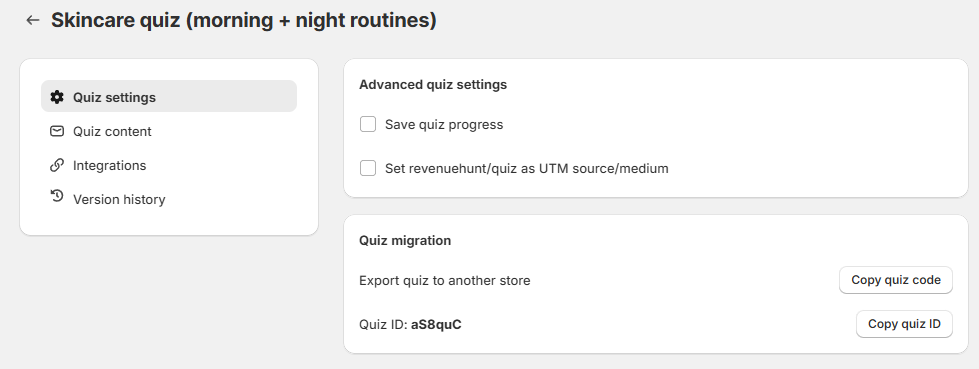
In Quiz settings you can change the quiz language and currency, and edit button translations and placeholder texts. You can also set up integrations, notification emails to yourself, and result emails to customers. It is also where you restore a previously published version of the quiz.
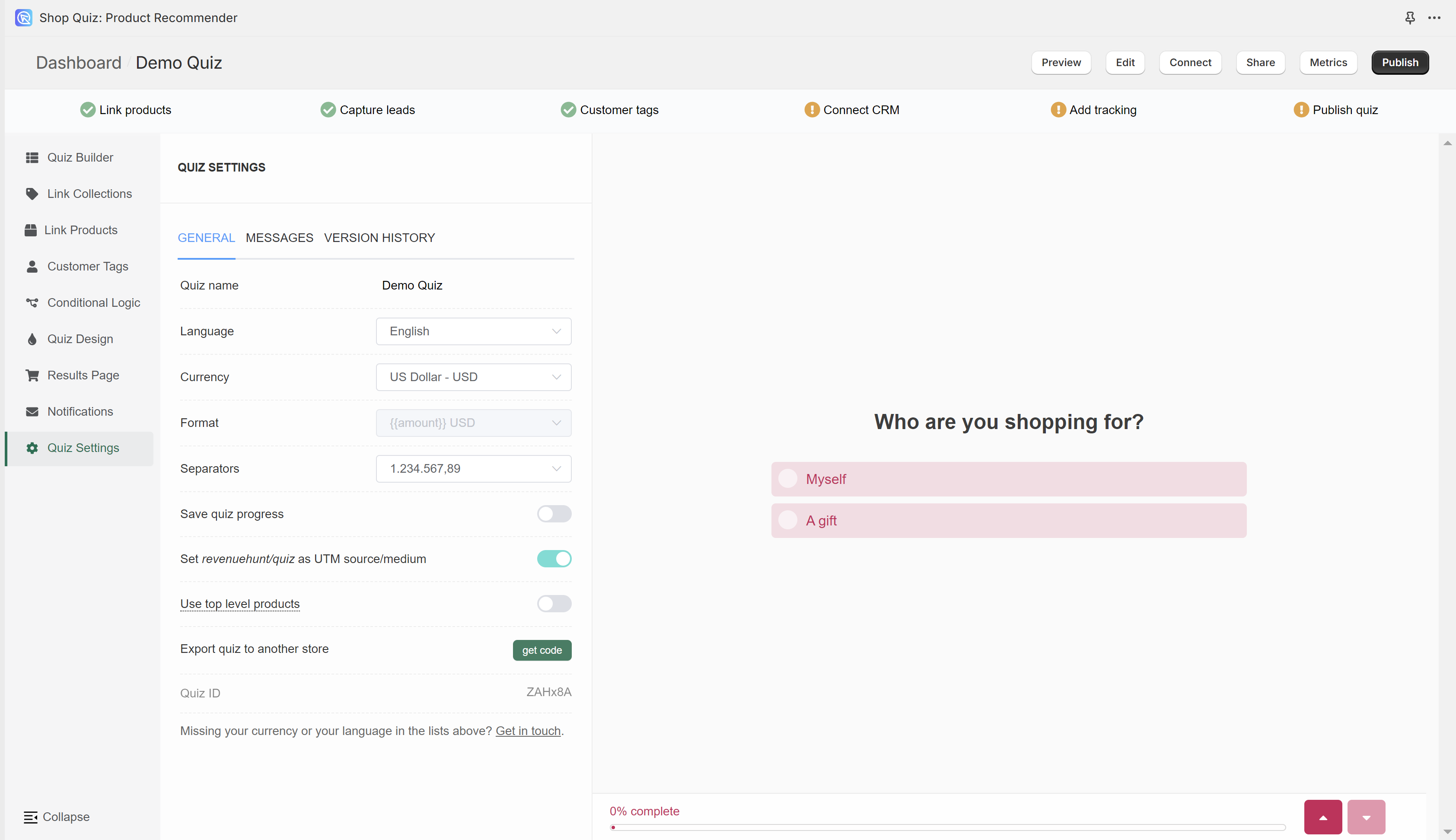
In Quiz Settings you can change the quiz language and currency, and edit button translations and placeholder texts. You can also restore a previously published version of the quiz.
In Quiz Settings you can change the quiz language and currency, and edit button translations and placeholder texts. You can also restore a previously published version of the quiz.
In Quiz Settings you can change the quiz language and currency, and edit button translations and placeholder texts. You can also restore a previously published version of the quiz.
In Quiz Settings you can change the quiz language and currency, and edit button translations and placeholder texts. You can also restore a previously published version of the quiz.
In Quiz Settings you can change the quiz language and currency, and edit button translations and placeholder texts. You can also restore a previously published version of the quiz.
General
Quiz name - Click on the field to edit the quiz name.
Quiz behavior settings
Save quiz progress - Remembers where the customer left the quiz and reopens it there on their next visit. For example, a customer who finished the quiz sees their results page again, not the first question. Toggle to activate.
Pre-fill answers on retake - Activating this setting will pre-fill the answers on the retake quiz page. Toggle to activate. When customers retake the quiz, their previous answers will be pre-filled so they only need to change what is different.
Quiz accessibility settings
Disable zooming in on mobile devices - Enabling this setting prevents the screen from zooming in when customers tap on text fields on mobile. This also disables pinch-to-zoom on the quiz.
Data sent to integrations
Include product variants - Sends product variant details to Klaviyo, Zapier, Webhooks and other integrations. This setting is turned off by default. Turn it on only if an integration specifically needs variant details. Most integrations do not need this, and large payloads may not be accepted.
Include custom HTML - Sends the custom HTML content on your results page to Klaviyo, Zapier, Webhooks and other integrations. This setting is turned off by default. Turn it on only if an integration specifically needs that content. Most integrations do not need this, and large payloads may not be accepted. When the setting is off, the app replaces the custom HTML with a short redacted message.
Personal data deletion
Delete personal data after - Choose how long to keep what customers typed into this quiz. This covers an email address, a name, a phone number, short text, long text, a number and a date. At the next cleanup the app permanently deletes those values from every response older than the period you chose. This will affect ALL the responses of that quiz, even the ones collected before you turn the setting on. The choices customers picked, the recommended products and your quiz analytics stay. Support has to turn on personal data deletion for your shop first, because the deletion cannot be undone.
Quiz migration
Export quiz to another store - Click Copy quiz code to generate a JSON code. Use it to copy the whole quiz to another store that also runs RevenueHunt. See how to copy the quiz from one store to another for detailed instructions.
Quiz ID: XXXXXX - Click Copy quiz ID to copy the quiz ID to clipboard.
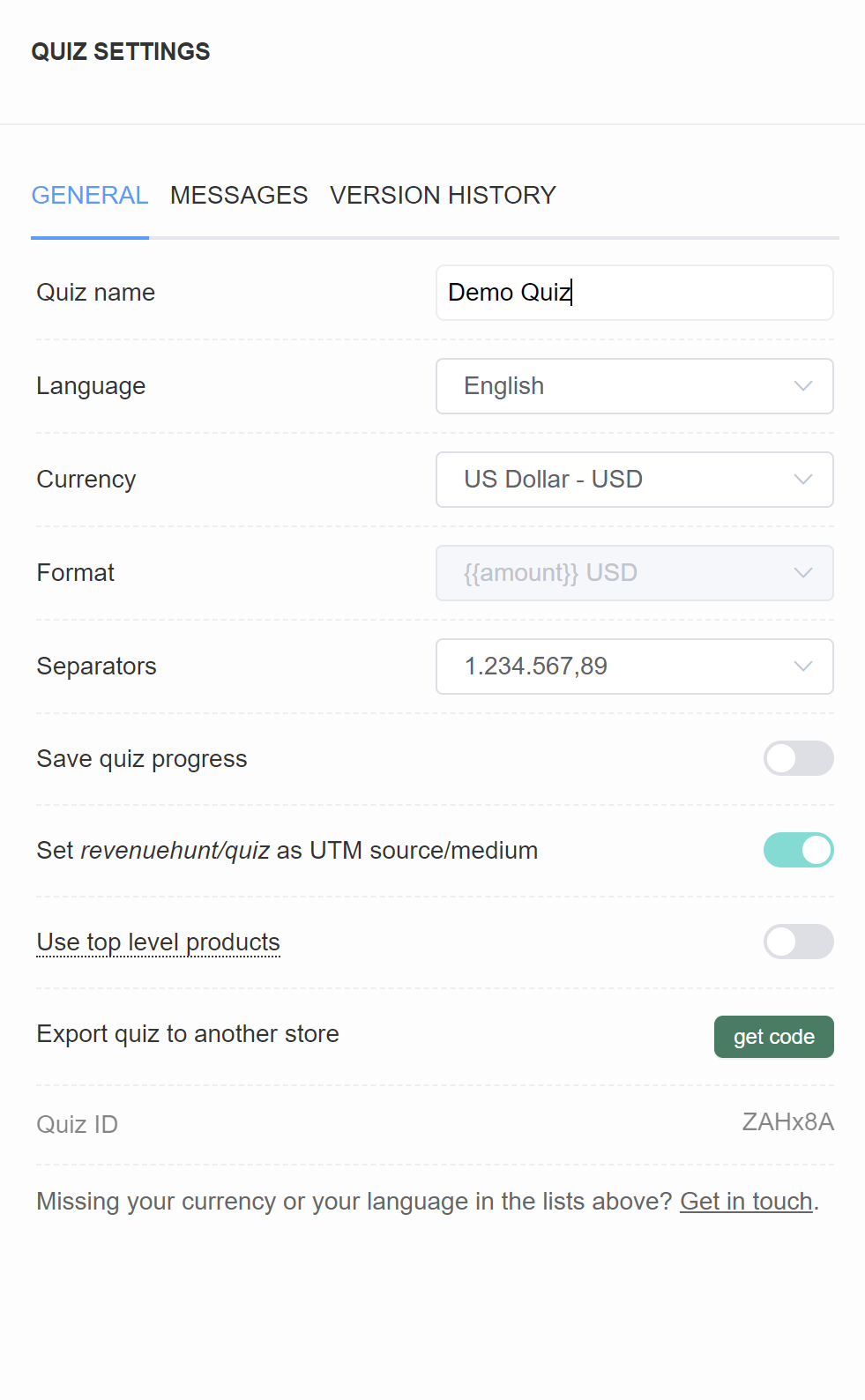
Quiz name - Click on the field to edit the quiz name.
Language - Choose a language from a dropdown list to change the text on the quiz buttons and placeholders into that language.
Currency - Choose from a dropdown in which currency the product price should be displayed.
Format - For some currencies, you can choose the format in which the currency symbol will be displayed (before/after the price value).
Separators - Choose from a dropdown how the currency number should be displayed.
Save quiz progress - Remembers where the customer left the quiz and reopens it there on their next visit. For example, a customer who finished the quiz sees their results page again, not the first question. Toggle to activate.
Set revenuehunt/quiz as UTM source/medium - Deactivating this setting will remove revenuehunt/quiz as a source/medium in your tracking integrations (such as Google Analytics or Meta Pixel).
Use top level product - Merges all product variants onto the main product in the Link Products section. You can then link every variant of a product to a choice at once. Activating this setting refreshes the quiz page. The affected products show an [ALL VARIANTS] suffix in the Link Products tab.
Warning
For large stores, with more than 2,000 products, the top-level product option is not available. Use the automatically created Tags and Variants instead, to upvote whole groups of products at once in the Link Collections tab.
Export quiz to another store - Click get code to generate a code. Use it to copy the whole quiz to another store that also runs RevenueHunt. See how to copy the quiz from one store to another for detailed instructions.
Quiz ID - Displays the current quiz ID.
Quiz name - Click on the field to edit the quiz name.
Language - Choose a language from a dropdown list to change the text on the quiz buttons and placeholders into that language.
Currency - Choose from a dropdown in which currency the product price should be displayed.
Format - For some currencies, you can choose the format in which the currency symbol will be displayed (before/after the price value).
Separators - Choose from a dropdown how the currency number should be displayed.
Save quiz progress - Remembers where the customer left the quiz and reopens it there on their next visit. For example, a customer who finished the quiz sees their results page again, not the first question. Toggle to activate.
Set revenuehunt/quiz as UTM source/medium - Deactivating this setting will remove revenuehunt/quiz as a source/medium in your tracking integrations (such as Google Analytics or Meta Pixel).
Use top level product - Merges all product variants onto the main product in the Link Products section. You can then link every variant of a product to a choice at once. Activating this setting refreshes the quiz page. The affected products show an [ALL VARIANTS] suffix in the Link Products tab.
Export quiz to another store - Click get code to generate a code. Use it to copy the whole quiz to another store that also runs RevenueHunt. See how to copy the quiz from one store to another for detailed instructions.
Quiz ID - Displays the current quiz ID.
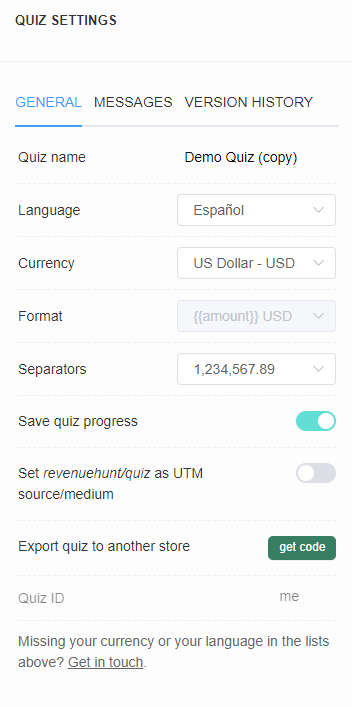
Quiz name - Click on the field to edit the quiz name.
Language - Choose a language from a dropdown list to change the text on the quiz buttons and placeholders into that language.
Currency - Choose from a dropdown in which currency the product price should be displayed.
Format - For some currencies, you can choose the format in which the currency symbol will be displayed (before/after the price value).
Separators - Choose from a dropdown how the currency number should be displayed.
Save quiz progress - Remembers where the customer left the quiz and reopens it there on their next visit. For example, a customer who finished the quiz sees their results page again, not the first question. Toggle to activate.
Set revenuehunt/quiz as UTM source/medium - Deactivating this setting will remove revenuehunt/quiz as a source/medium in your tracking integrations (such as Google Analytics or Meta Pixel).
Export quiz to another store - Click get code to generate a code. Use it to copy the whole quiz to another store that also runs RevenueHunt. See how to copy the quiz from one store to another for detailed instructions.
Quiz ID - Displays the current quiz ID.
Quiz name - Click on the field to edit the quiz name.
Language - Choose a language from a dropdown list to change the text on the quiz buttons and placeholders into that language.
Currency - Choose from a dropdown in which currency the product price should be displayed.
Format - For some currencies, you can choose the format in which the currency symbol will be displayed (before/after the price value).
Separators - Choose from a dropdown how the currency number should be displayed.
Save quiz progress - Remembers where the customer left the quiz and reopens it there on their next visit. For example, a customer who finished the quiz sees their results page again, not the first question. Toggle to activate.
Set revenuehunt/quiz as UTM source/medium - Deactivating this setting will remove revenuehunt/quiz as a source/medium in your tracking integrations (such as Google Analytics or Meta Pixel).
Use top level product - Merges all product variants onto the main product in the Link Products section. You can then link every variant of a product to a choice at once. Activating this setting refreshes the quiz page. The affected products show an [ALL VARIANTS] suffix in the Link Products tab.
Export quiz to another store - Click get code to generate a code. Use it to copy the whole quiz to another store that also runs RevenueHunt. See how to copy the quiz from one store to another for detailed instructions.
Quiz ID - Displays the current quiz ID.
Quiz name - Click on the field to edit the quiz name.
Language - Choose a language from a dropdown list to change the text on the quiz buttons and placeholders into that language.
Currency - Choose from a dropdown in which currency the product price should be displayed.
Format - For some currencies, you can choose the format in which the currency symbol will be displayed (before/after the price value).
Separators - Choose from a dropdown how the currency number should be displayed.
Save quiz progress - Remembers where the customer left the quiz and reopens it there on their next visit. For example, a customer who finished the quiz sees their results page again, not the first question. Toggle to activate.
Set revenuehunt/quiz as UTM source/medium - Deactivating this setting will remove revenuehunt/quiz as a source/medium in your tracking integrations (such as Google Analytics or Meta Pixel).
Export quiz to another store - Click get code to generate a code. Use it to copy the whole quiz to another store that also runs RevenueHunt. See how to copy the quiz from one store to another for detailed instructions.
Quiz ID - Displays the current quiz ID.
Messages / quiz content
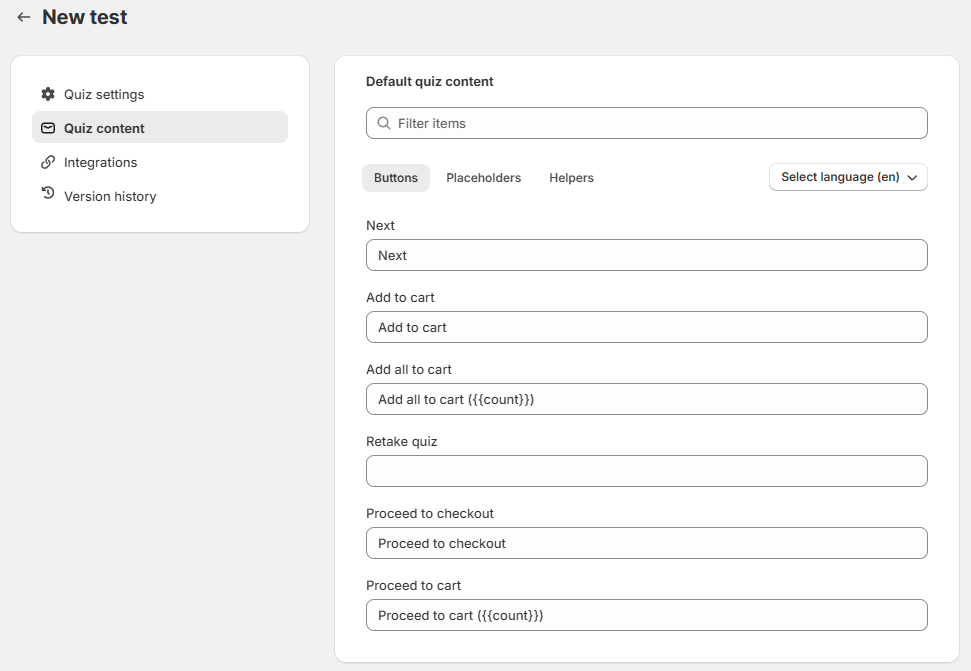
Default quiz content
Filter items - Search the messages for a specific one to edit.
Reset messages(en) - Select a language from the list to change the default app translations. Each individual content can be edited below.
Buttons
Next - Default text on the buttons that move the user to the next slide. | Quiz
Add to cart - Default text on the product CTA button when checkout settings are set to "Add to Cart". | Results page
Sold out - Default text on the product CTA button when a product or selected variant is out of stock. | Results page
View product - Default text on the product CTA button when checkout settings are set to "Link to Product". | Results page
View collection - Default text on the product CTA button when checkout settings are set to "Link to Collection". | Results page
Add all to cart ({{count}}) - Default text on the CTA button before the customer adds anything to the cart. Applies when checkout settings are set to Add to Cart. | Results page
Retake quiz - Default text on the button that lets the customer retake the quiz. | Results page
Proceed to Checkout ({{count}}) - Default text on the product CTA button when checkout settings are set to "Add to Cart" and "Go to checkout". | Results page
Proceed to Cart ({{count}}) - Default text on the product CTA button when checkout settings are set to "Add to Cart" and "Go to cart". | Results page
{{count}} in cart - Default text on the product CTA button when a customer added something to the cart when checkout settings are set to "Add to Cart". | Results page
Info
The variable {{count}} will be replaced with the number of items in the cart.
Helpers
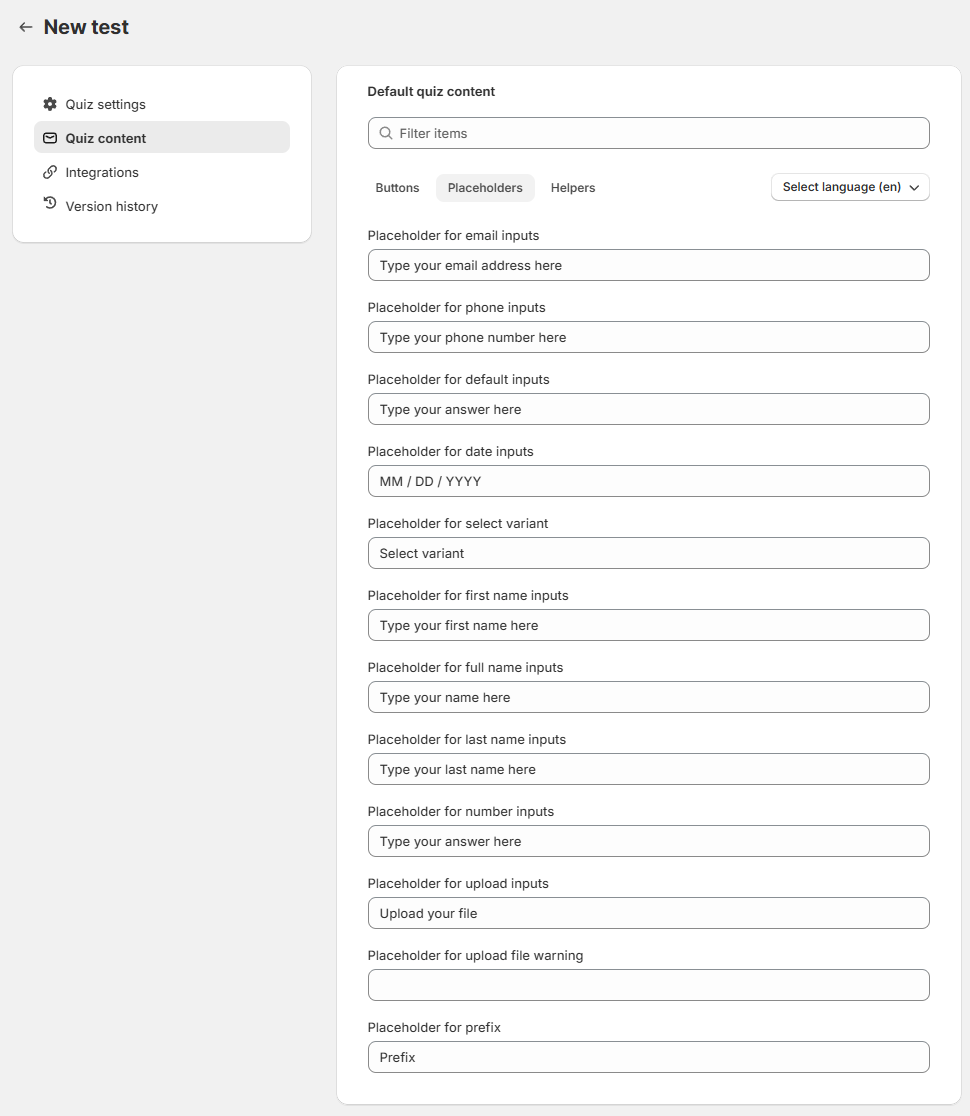
Select variant - Default placeholder text on variants dropdown | Results page
No variants - Default text on the product tile if the product has variants grouped but the product has no variants. | Results page
Dropdown "select" placeholder - Default placeholder text on the dropdowns. | Quiz
Dropdown "search" placeholder - Default placeholder text on the dropdowns. | Quiz
Phone "Select" placeholder - Default placeholder text on the phone question slides. | Quiz
Phone "Filter" placeholder - Default placeholder text on the phone question slides. | Quiz
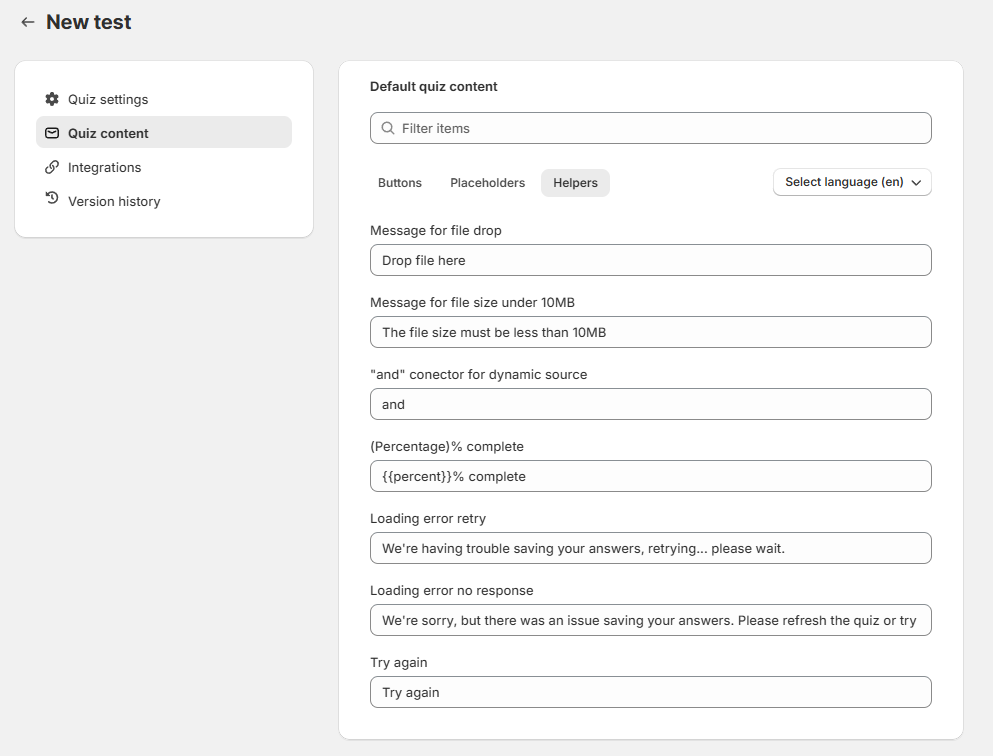
Message for file drop - Default text on the file upload question slides. | Quiz
Message for file size under 10MB - Default text on the file upload question slides. | Quiz
'and' connector for dynamic source - Default text displayed between each personalization (information recalls). | Quiz
(Percentage)% complete - Default text on the quiz progress bar. | Quiz
Error loading, retrying... - Default text on the results page in case of loading issues. | Results page
Error loading response - Default text on the results page in case of loading issues. | Results page
Try again - Default text on the results page in case of loading issues. | Results page
Review (singular) - Default text on the review block. | Results page
Review (plural) - Default text on the review block. | Results page
One-time purchase - Default text on the one-time purchase block. | Results page
Subscribe & save - Default text on the subscribe & save block. | Results page
{{percent}}% complete - Default text on the quiz progress bar. | Quiz
Info
The variable {{percent}} will be replaced with the percentage of the quiz that has been completed.
Accessibility
Quiz complete - Default text on the quiz complete slide. | Quiz
No previous question - Default text on the quiz navigation buttons. | Quiz
Previous question - Default text on the quiz navigation buttons. | Quiz
Answer before proceeding - Default text on the quiz navigation buttons. | Quiz
Next question - Default text on the quiz navigation buttons. | Quiz
Quiz navigation buttons - Default text on the quiz navigation buttons. | Quiz
Results bottom bar - Default text on the results bottom bar. | Results page
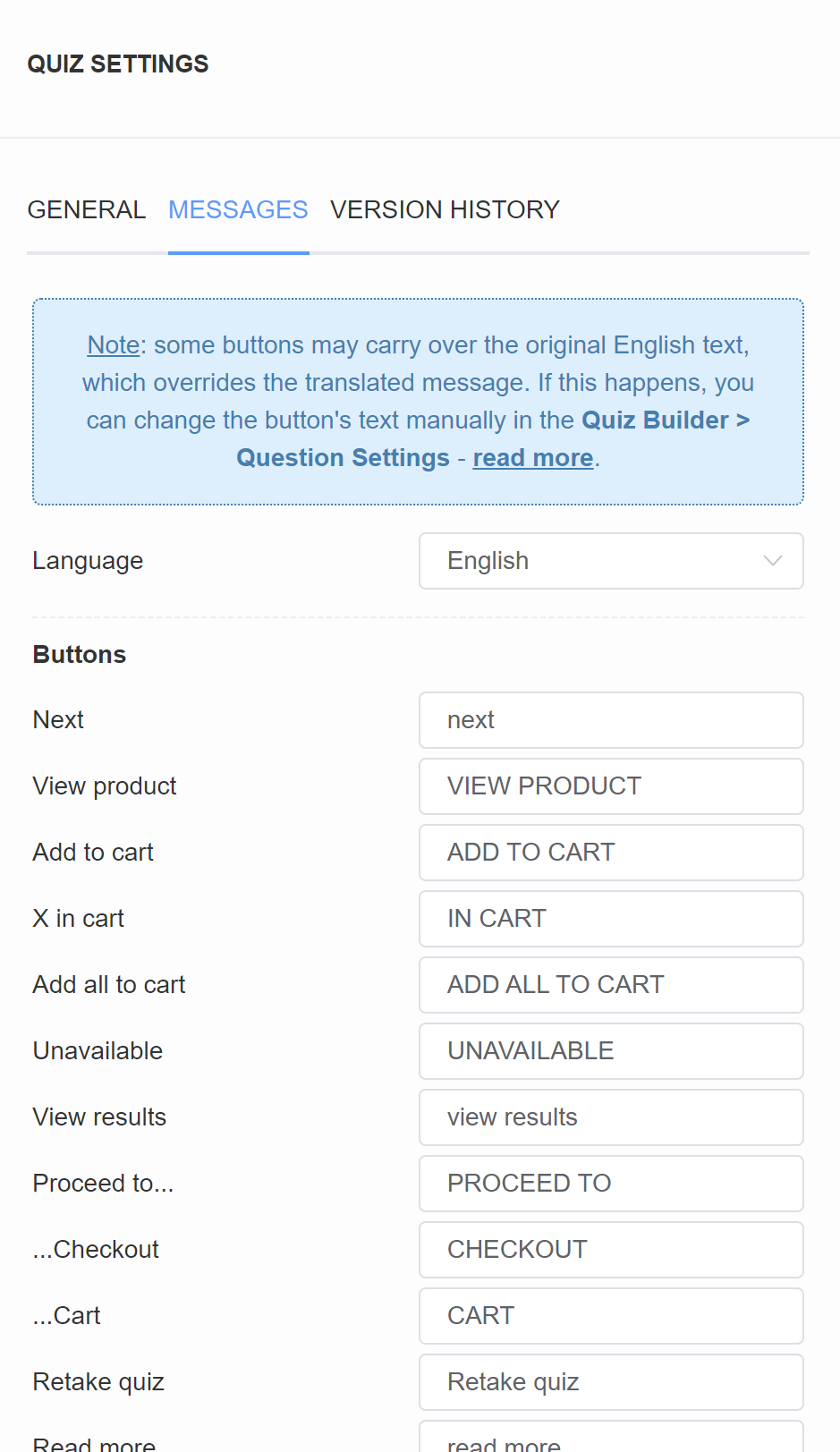
Language - Choose a language from a dropdown list to change the text on the quiz buttons and placeholders into that language.
Buttons
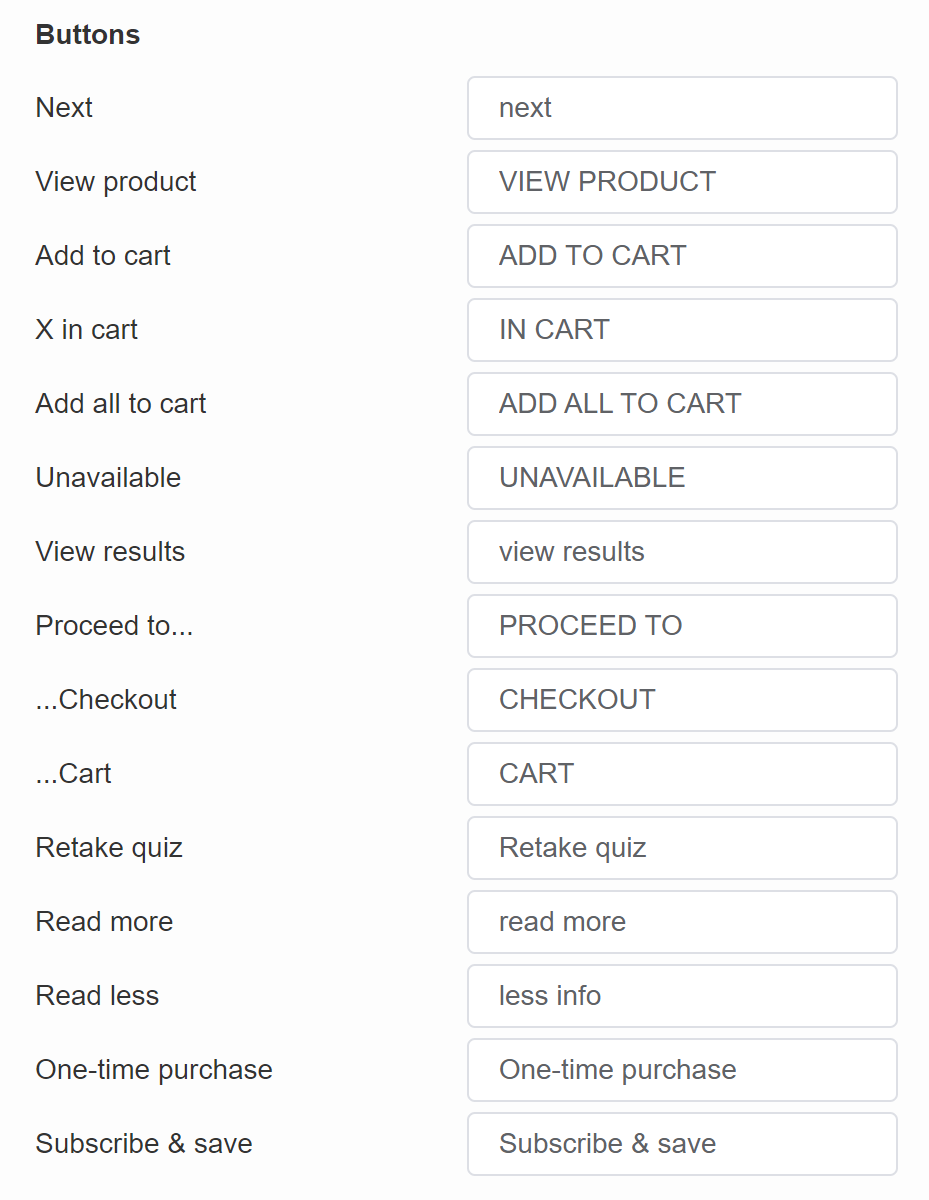
Next - Default text on the buttons that move the user to the next slide. | Quiz
View product - Default text on the product CTA button when checkout settings are set to "Link to Product". | Results Page
Add to cart - Default text on the product CTA button when checkout settings are set to "Add to Cart". | Results Page
X in cart - Default text on the CTA button when a customer added something to the cart when checkout settings are set to "Add to Cart". | Results Page
Add all to cart - Default text on the CTA button before the customer adds anything to the cart. Applies when checkout settings are set to Add to Cart. | Results Page
Unavailable - Default text on the product CTA button when the product is out of stock when checkout settings are set to "Add to Cart". | Results Page
View results - Default text on the button on the "Thank You" slide type. | Quiz
Proceed to... - Default text on the product CTA button when checkout settings are set to "Add to Cart". | Results Page
...Checkout - Default text on the product CTA button when checkout settings are set to "Add to Cart" and "Go to checkout". | Results Page
...Cart - Default text on the product CTA button when checkout settings are set to "Add to Cart" and "Go to cart". | Results Page
Retake quiz - Default text on the button that lets the customer retake the quiz. | Results Page
Read more - Default text on the product tile that opens the extended product description. | Results Page
One-time purchase - Default text that lets the customer add a single-purchase variant of the product to the cart if a product is a subscription product. | Results Page
Subscribe & save - Default text that lets the customer add a recurring-purchase variant of the product to the cart if a product is a subscription product. | Results Page
Placeholders
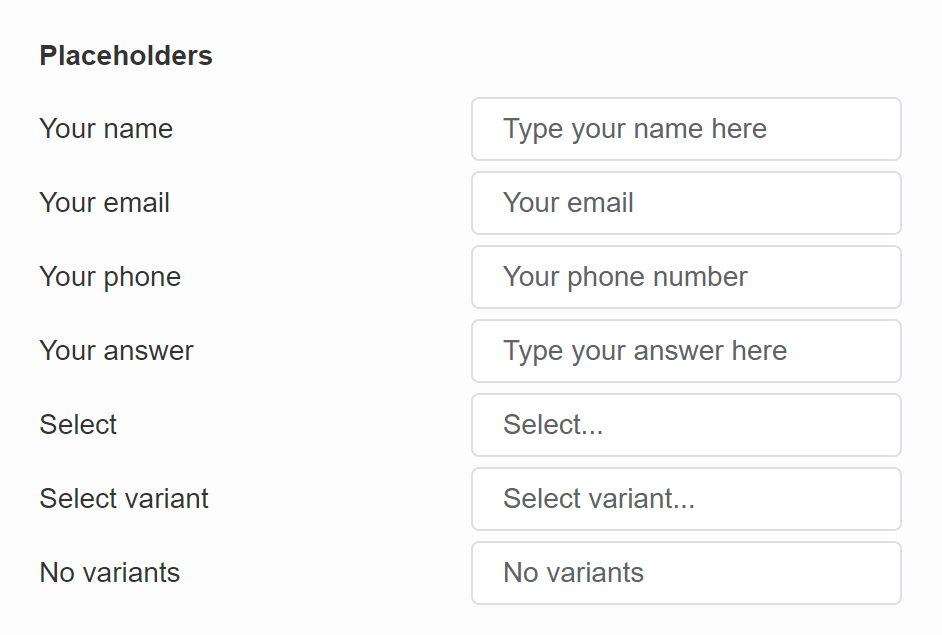
Your name - Default placeholder text on the name question slides. | Quiz
Your email - Default placeholder text on the email question slides. | Quiz
Your phone - Default placeholder text on the phone question slides. | Quiz
Select - Default text on the product tile if the recommended product has variants grouped. | Results Page
Select variant - Default text on the product tile if the recommended product has variants grouped. | Results Page
No variants - Default text on the product tile if the product has variants grouped but the product has no variants. | Results Page
Helpers
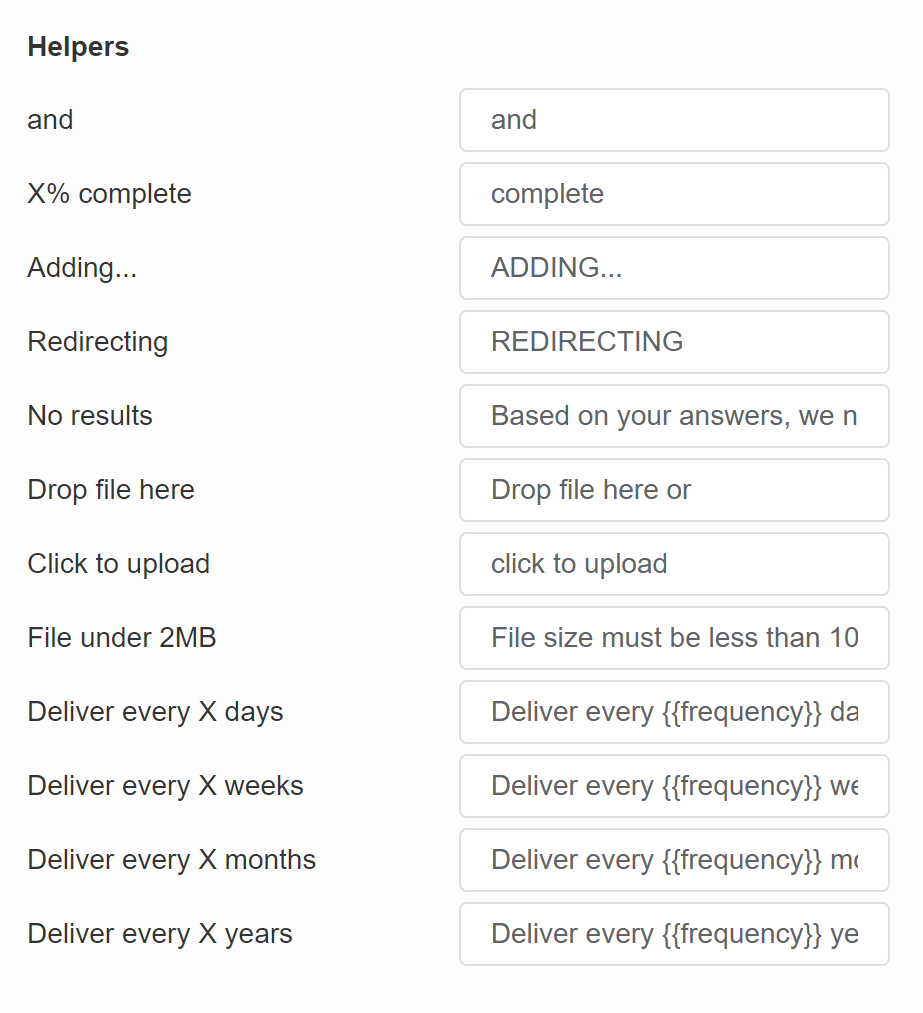
and - Default text used in Information Recalls when recalling answers from multiple-selection questions. | Quiz & Results Page
X% complete - Default text on the quiz progress bar. | Quiz
Adding... - Default text when adding a product to the cart. | Results Page
Redirecting - Default text when redirecting the user from the results page. | Results Page
No results - Default text displayed when the quiz cannot produce recommendations. (For example, no products were upvoted or there are no products that match all the customer criteria.) | Results Page
Drop file here - Default text on the file upload question slides. | Quiz
Click to upload - Default text on the file upload question slides. | Quiz
File under 2MB - Default text on the file upload question slides. | Quiz
Delivery every X days - Default text that lets the customer add a recurring-purchase variant of the product to the cart if a product is a subscription product. | Results Page
Delivery every X weeks - Default text that lets the customer add a recurring-purchase variant of the product to the cart if a product is a subscription product. | Results Page
Delivery every X months - Default text that lets the customer add a recurring-purchase variant of the product to the cart if a product is a subscription product. | Results Page
Delivery every X years - Default text that lets the customer add a recurring-purchase variant of the product to the cart if a product is a subscription product. | Results Page
Discount Notifications
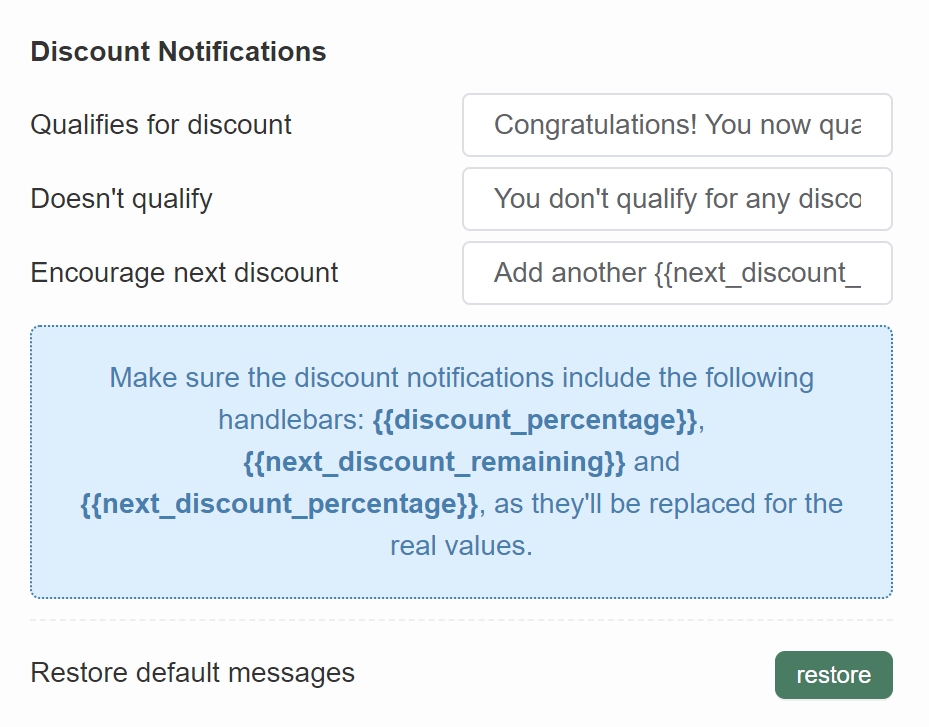
Qualifies for discount - Default text when dynamic discounts are active in the quiz. | Results Page
Doesn't qualify - Default text when dynamic discounts are active in the quiz. | Results Page
Encourage next discount - Default text when dynamic discounts are active in the quiz. | Results Page
Restore default messages - Click "restore" to set all fields back to default.
Language - Choose a language from a dropdown list to change the text on the quiz buttons and placeholders into that language.
Buttons
Next - Default text on the buttons that move the user to the next slide. | Quiz
View product - Default text on the product CTA button when checkout settings are set to "Link to Product". | Results Page
Add to cart - Default text on the product CTA button when checkout settings are set to "Add to Cart". | Results Page
X in cart - Default text on the CTA button when a customer added something to the cart when checkout settings are set to "Add to Cart". | Results Page
Add all to cart - Default text on the CTA button before the customer adds anything to the cart. Applies when checkout settings are set to Add to Cart. | Results Page
Unavailable - Default text on the product CTA button when the product is out of stock when checkout settings are set to "Add to Cart". | Results Page
View results - Default text on the button on the "Thank You" slide type. | Quiz
Proceed to... - Default text on the product CTA button when checkout settings are set to "Add to Cart". | Results Page
...Checkout - Default text on the product CTA button when checkout settings are set to "Add to Cart" and "Go to checkout". | Results Page
...Cart - Default text on the product CTA button when checkout settings are set to "Add to Cart" and "Go to cart". | Results Page
Retake quiz - Default text on the button that lets the customer retake the quiz. | Results Page
Read more - Default text on the product tile that opens the extended product description. | Results Page
One-time purchase - Default text that lets the customer add a single-purchase variant of the product to the cart if a product is a subscription product. | Results Page
Subscribe & save - Default text that lets the customer add a recurring-purchase variant of the product to the cart if a product is a subscription product. | Results Page
Placeholders
Your name - Default placeholder text on the name question slides. | Quiz
Your email - Default placeholder text on the email question slides. | Quiz
Your phone - Default placeholder text on the phone question slides. | Quiz
Select - Default text on the product tile if the recommended product has variants grouped. | Results Page
Select variant - Default text on the product tile if the recommended product has variants grouped. | Results Page
No variants - Default text on the product tile if the product has variants grouped but the product has no variants. | Results Page
Helpers
and - Default text used in Information Recalls when recalling answers from multiple-selection questions. | Quiz & Results Page
X% complete - Default text on the quiz progress bar. | Quiz
Adding... - Default text when adding a product to the cart. | Results Page
Redirecting - Default text when redirecting the user from the results page. | Results Page
No results - Default text displayed when the quiz cannot produce recommendations. (For example, no products were upvoted or there are no products that match all the customer criteria.) | Results Page
Drop file here - Default text on the file upload question slides. | Quiz
Click to upload - Default text on the file upload question slides. | Quiz
File under 2MB - Default text on the file upload question slides. | Quiz
Delivery every X days - Default text that lets the customer add a recurring-purchase variant of the product to the cart if a product is a subscription product. | Results Page
Delivery every X weeks - Default text that lets the customer add a recurring-purchase variant of the product to the cart if a product is a subscription product. | Results Page
Delivery every X months - Default text that lets the customer add a recurring-purchase variant of the product to the cart if a product is a subscription product. | Results Page
Delivery every X years - Default text that lets the customer add a recurring-purchase variant of the product to the cart if a product is a subscription product. | Results Page
Discount Notifications
Qualifies for discount - Default text when dynamic discounts are active in the quiz. | Results Page
Doesn't qualify - Default text when dynamic discounts are active in the quiz. | Results Page
Encourage next discount - Default text when dynamic discounts are active in the quiz. | Results Page
Restore default messages - Click "restore" to set all fields back to default.
Language - Choose a language from a dropdown list to change the text on the quiz buttons and placeholders into that language.
Buttons
Next - Default text on the buttons that move the user to the next slide. | Quiz
View product - Default text on the product CTA button when checkout settings are set to "Link to Product". | Results Page
Add to cart - Default text on the product CTA button when checkout settings are set to "Add to Cart". | Results Page
X in cart - Default text on the CTA button when a customer added something to the cart when checkout settings are set to "Add to Cart". | Results Page
Add all to cart - Default text on the CTA button before the customer adds anything to the cart. Applies when checkout settings are set to Add to Cart. | Results Page
Unavailable - Default text on the product CTA button when the product is out of stock when checkout settings are set to "Add to Cart". | Results Page
View results - Default text on the button on the "Thank You" slide type. | Quiz
Proceed to... - Default text on the product CTA button when checkout settings are set to "Add to Cart". | Results Page
...Checkout - Default text on the product CTA button when checkout settings are set to "Add to Cart" and "Go to checkout". | Results Page
...Cart - Default text on the product CTA button when checkout settings are set to "Add to Cart" and "Go to cart". | Results Page
Retake quiz - Default text on the button that lets the customer retake the quiz. | Results Page
Read more - Default text on the product tile that opens the extended product description. | Results Page
One-time purchase - Default text that lets the customer add a single-purchase variant of the product to the cart if a product is a subscription product. | Results Page
Subscribe & save - Default text that lets the customer add a recurring-purchase variant of the product to the cart if a product is a subscription product. | Results Page
Placeholders
Your name - Default placeholder text on the name question slides. | Quiz
Your email - Default placeholder text on the email question slides. | Quiz
Your phone - Default placeholder text on the phone question slides. | Quiz
Select - Default text on the product tile if the recommended product has variants grouped. | Results Page
Select variant - Default text on the product tile if the recommended product has variants grouped. | Results Page
No variants - Default text on the product tile if the product has variants grouped but the product has no variants. | Results Page
Helpers
and - Default text used in Information Recalls when recalling answers from multiple-selection questions. | Quiz & Results Page
X% complete - Default text on the quiz progress bar. | Quiz
Adding... - Default text when adding a product to the cart. | Results Page
Redirecting - Default text when redirecting the user from the results page. | Results Page
No results - Default text displayed when the quiz cannot produce recommendations. (For example, no products were upvoted or there are no products that match all the customer criteria.) | Results Page
Drop file here - Default text on the file upload question slides. | Quiz
Click to upload - Default text on the file upload question slides. | Quiz
File under 2MB - Default text on the file upload question slides. | Quiz
Delivery every X days - Default text that lets the customer add a recurring-purchase variant of the product to the cart if a product is a subscription product. | Results Page
Delivery every X weeks - Default text that lets the customer add a recurring-purchase variant of the product to the cart if a product is a subscription product. | Results Page
Delivery every X months - Default text that lets the customer add a recurring-purchase variant of the product to the cart if a product is a subscription product. | Results Page
Delivery every X years - Default text that lets the customer add a recurring-purchase variant of the product to the cart if a product is a subscription product. | Results Page
Discount Notifications
Qualifies for discount - Default text when dynamic discounts are active in the quiz. | Results Page
Doesn't qualify - Default text when dynamic discounts are active in the quiz. | Results Page
Encourage next discount - Default text when dynamic discounts are active in the quiz. | Results Page
Restore default messages - Click "restore" to set all fields back to default.
Language - Choose a language from a dropdown list to change the text on the quiz buttons and placeholders into that language.
Buttons
Next - Default text on the buttons that move the user to the next slide. | Quiz
View product - Default text on the product CTA button when checkout settings are set to "Link to Product". | Results Page
Add to cart - Default text on the product CTA button when checkout settings are set to "Add to Cart". | Results Page
X in cart - Default text on the CTA button when a customer added something to the cart when checkout settings are set to "Add to Cart". | Results Page
Add all to cart - Default text on the CTA button before the customer adds anything to the cart. Applies when checkout settings are set to Add to Cart. | Results Page
Unavailable - Default text on the product CTA button when the product is out of stock when checkout settings are set to "Add to Cart". | Results Page
View results - Default text on the button on the "Thank You" slide type. | Quiz
Proceed to... - Default text on the product CTA button when checkout settings are set to "Add to Cart". | Results Page
...Checkout - Default text on the product CTA button when checkout settings are set to "Add to Cart" and "Go to checkout". | Results Page
...Cart - Default text on the product CTA button when checkout settings are set to "Add to Cart" and "Go to cart". | Results Page
Retake quiz - Default text on the button that lets the customer retake the quiz. | Results Page
Read more - Default text on the product tile that opens the extended product description. | Results Page
One-time purchase - Default text that lets the customer add a single-purchase variant of the product to the cart if a product is a subscription product. | Results Page
Subscribe & save - Default text that lets the customer add a recurring-purchase variant of the product to the cart if a product is a subscription product. | Results Page
Placeholders
Your name - Default placeholder text on the name question slides. | Quiz
Your email - Default placeholder text on the email question slides. | Quiz
Your phone - Default placeholder text on the phone question slides. | Quiz
Select - Default text on the product tile if the recommended product has variants grouped. | Results Page
Select variant - Default text on the product tile if the recommended product has variants grouped. | Results Page
No variants - Default text on the product tile if the product has variants grouped but the product has no variants. | Results Page
Helpers
and - Default text used in Information Recalls when recalling answers from multiple-selection questions. | Quiz & Results Page
X% complete - Default text on the quiz progress bar. | Quiz
Adding... - Default text when adding a product to the cart. | Results Page
Redirecting - Default text when redirecting the user from the results page. | Results Page
No results - Default text displayed when the quiz cannot produce recommendations. (For example, no products were upvoted or there are no products that match all the customer criteria.) | Results Page
Drop file here - Default text on the file upload question slides. | Quiz
Click to upload - Default text on the file upload question slides. | Quiz
File under 2MB - Default text on the file upload question slides. | Quiz
Delivery every X days - Default text that lets the customer add a recurring-purchase variant of the product to the cart if a product is a subscription product. | Results Page
Delivery every X weeks - Default text that lets the customer add a recurring-purchase variant of the product to the cart if a product is a subscription product. | Results Page
Delivery every X months - Default text that lets the customer add a recurring-purchase variant of the product to the cart if a product is a subscription product. | Results Page
Delivery every X years - Default text that lets the customer add a recurring-purchase variant of the product to the cart if a product is a subscription product. | Results Page
Discount Notifications
Qualifies for discount - Default text when dynamic discounts are active in the quiz. | Results Page
Doesn't qualify - Default text when dynamic discounts are active in the quiz. | Results Page
Encourage next discount - Default text when dynamic discounts are active in the quiz. | Results Page
Restore default messages - Click "restore" to set all fields back to default.
Language - Choose a language from a dropdown list to change the text on the quiz buttons and placeholders into that language.
Buttons
Next - Default text on the buttons that move the user to the next slide. | Quiz
View product - Default text on the product CTA button when checkout settings are set to "Link to Product". | Results Page
Add to cart - Default text on the product CTA button when checkout settings are set to "Add to Cart". | Results Page
X in cart - Default text on the CTA button when a customer added something to the cart when checkout settings are set to "Add to Cart". | Results Page
Add all to cart - Default text on the CTA button before the customer adds anything to the cart. Applies when checkout settings are set to Add to Cart. | Results Page
Unavailable - Default text on the product CTA button when the product is out of stock when checkout settings are set to "Add to Cart". | Results Page
View results - Default text on the button on the "Thank You" slide type. | Quiz
Proceed to... - Default text on the product CTA button when checkout settings are set to "Add to Cart". | Results Page
...Checkout - Default text on the product CTA button when checkout settings are set to "Add to Cart" and "Go to checkout". | Results Page
...Cart - Default text on the product CTA button when checkout settings are set to "Add to Cart" and "Go to cart". | Results Page
Retake quiz - Default text on the button that lets the customer retake the quiz. | Results Page
Read more - Default text on the product tile that opens the extended product description. | Results Page
One-time purchase - Default text that lets the customer add a single-purchase variant of the product to the cart if a product is a subscription product. | Results Page
Subscribe & save - Default text that lets the customer add a recurring-purchase variant of the product to the cart if a product is a subscription product. | Results Page
Placeholders
Your name - Default placeholder text on the name question slides. | Quiz
Your email - Default placeholder text on the email question slides. | Quiz
Your phone - Default placeholder text on the phone question slides. | Quiz
Select - Default text on the product tile if the recommended product has variants grouped. | Results Page
Select variant - Default text on the product tile if the recommended product has variants grouped. | Results Page
No variants - Default text on the product tile if the product has variants grouped but the product has no variants. | Results Page
Helpers
and - Default text used in Information Recalls when recalling answers from multiple-selection questions. | Quiz & Results Page
X% complete - Default text on the quiz progress bar. | Quiz
Adding... - Default text when adding a product to the cart. | Results Page
Redirecting - Default text when redirecting the user from the results page. | Results Page
No results - Default text displayed when the quiz cannot produce recommendations. (For example, no products were upvoted or there are no products that match all the customer criteria.) | Results Page
Drop file here - Default text on the file upload question slides. | Quiz
Click to upload - Default text on the file upload question slides. | Quiz
File under 2MB - Default text on the file upload question slides. | Quiz
Delivery every X days - Default text that lets the customer add a recurring-purchase variant of the product to the cart if a product is a subscription product. | Results Page
Delivery every X weeks - Default text that lets the customer add a recurring-purchase variant of the product to the cart if a product is a subscription product. | Results Page
Delivery every X months - Default text that lets the customer add a recurring-purchase variant of the product to the cart if a product is a subscription product. | Results Page
Delivery every X years - Default text that lets the customer add a recurring-purchase variant of the product to the cart if a product is a subscription product. | Results Page
Discount Notifications
Qualifies for discount - Default text when dynamic discounts are active in the quiz. | Results Page
Doesn't qualify - Default text when dynamic discounts are active in the quiz. | Results Page
Encourage next discount - Default text when dynamic discounts are active in the quiz. | Results Page
Restore default messages - Click "restore" to set all fields back to default.
Version history
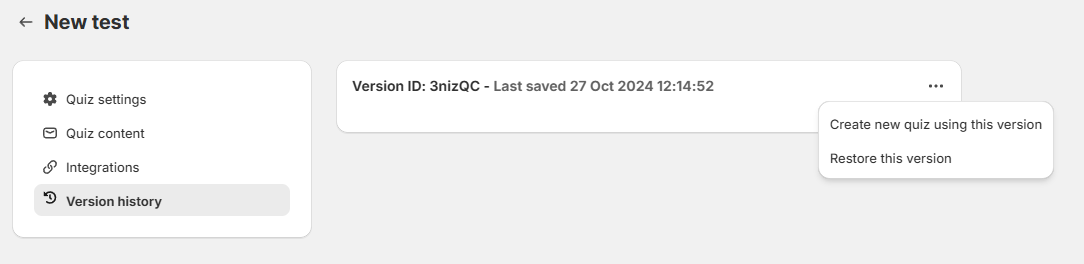
The Version History tab lets you track all changes made to your quiz over time. Each entry lists what was added, removed or modified, including questions, results, design elements and preferences.
Each version includes:
-
A Version ID (unique identifier)
-
Timestamp of when the version was saved
-
A summary of changes: Questions (added/removed), Results (added/removed/modified), Design and Preferences (modified)
Version ID: XXXXXX Last saved xx-xx-xxxx - A version of the quiz.
Options Menu
... - Click to open the restore menu.
Create new quiz using this version - Create a new quiz on your dashboard, based on this version of the current quiz.
Restore this version - Replaces the current version of the quiz with the selected one.
Copy quiz code - Copy the quiz code (JSON) of this version to clipboard. You can then transfer this quiz version to another store.
Show more details - Click to expand the version change details.
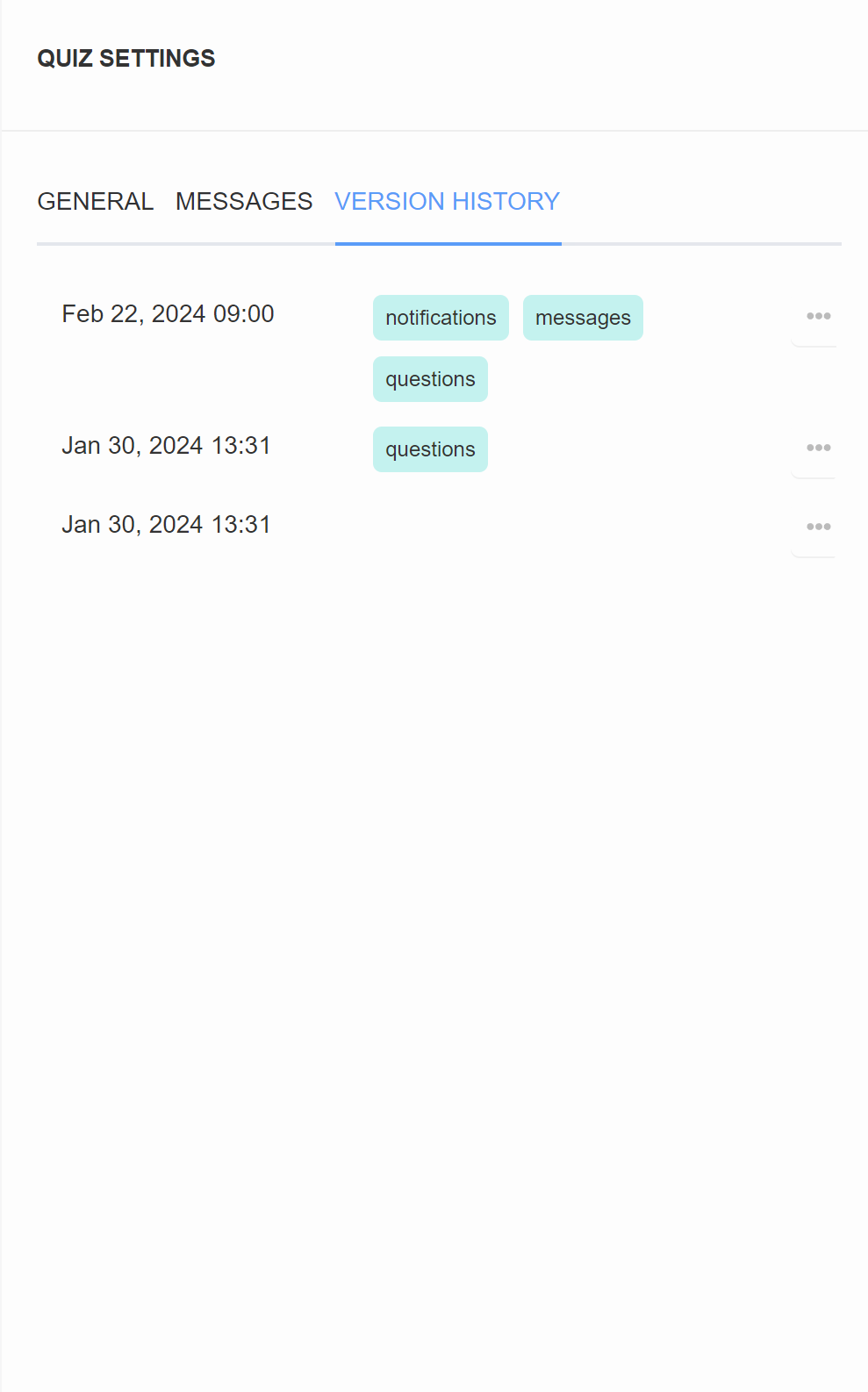
In the Version History section of Quiz Settings you will find all the published versions of the quiz. Each version is time-stamped with the publishing date. Tags such as "questions", "notifications" indicate what changes were made in this version of the quiz.
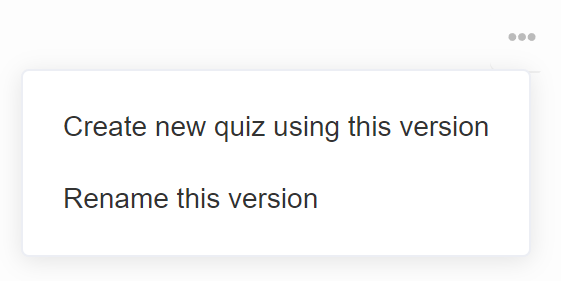
... - Click to open the restore menu.
Create new quiz using this version - Create a new quiz on your dashboard, based on this version of the current quiz.
Rename this version - Renames this saved version of the quiz.
In the Version History section of Quiz Settings you will find all the published versions of the quiz. Each version is time-stamped with the publishing date. Tags such as "questions", "notifications" indicate what changes were made in this version of the quiz.
... - Click to open the restore menu.
Create new quiz using this version - Create a new quiz on your dashboard, based on this version of the current quiz.
Rename this version - Renames this saved version of the quiz.
In the Version History section of Quiz Settings you will find all the published versions of the quiz. Each version is time-stamped with the publishing date. Tags such as "questions", "notifications" indicate what changes were made in this version of the quiz.
... - Click to open the restore menu.
Create new quiz using this version - Create a new quiz on your dashboard, based on this version of the current quiz.
Rename this version - Renames this saved version of the quiz.
In the Version History section of Quiz Settings you will find all the published versions of the quiz. Each version is time-stamped with the publishing date. Tags such as "questions", "notifications" indicate what changes were made in this version of the quiz.
... - Click to open the restore menu.
Create new quiz using this version - Create a new quiz on your dashboard, based on this version of the current quiz.
Rename this version - Renames this saved version of the quiz.
In the Version History section of Quiz Settings you will find all the published versions of the quiz. Each version is time-stamped with the publishing date. Tags such as "questions", "notifications" indicate what changes were made in this version of the quiz.
... - Click to open the restore menu.
Create new quiz using this version - Create a new quiz on your dashboard, based on this version of the current quiz.
Rename this version - Renames this saved version of the quiz.
Integrations
See Connect / Integrations for more information.
See Connect / Integrations for more information.
See Connect / Integrations for more information.
See Connect / Integrations for more information.
See Connect / Integrations for more information.
See Connect / Integrations for more information.
Emails to self
See Emails to the store owner for more information.
See Emails to the store owner for more information.
See Emails to the store owner for more information.
See Emails to the store owner for more information.
See Emails to the store owner for more information.
See Emails to the store owner for more information.
Emails to customers
See Emails to customers for more information.
See Emails to customers for more information.
See Emails to customers for more information.
See Emails to customers for more information.
See Emails to customers for more information.
See Emails to customers for more information.
← Previous: Notifications Next: Connect / Integrations →