Link Products
To link products or product variants to choices, go to Questions, select a multiple-choice question, then a choice, and open Choice settings.
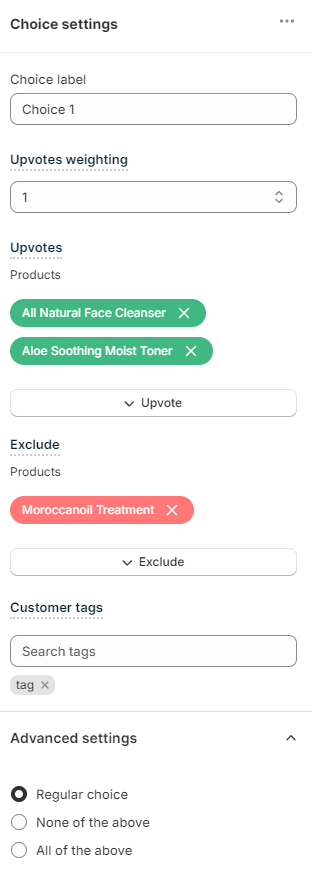
Choose the weight of this choice:
Upvotes weighting - Sets a default weight for this choice. For example, if the weight is set to 2, every product or variant this choice upvotes receives double upvotes.
Upvote
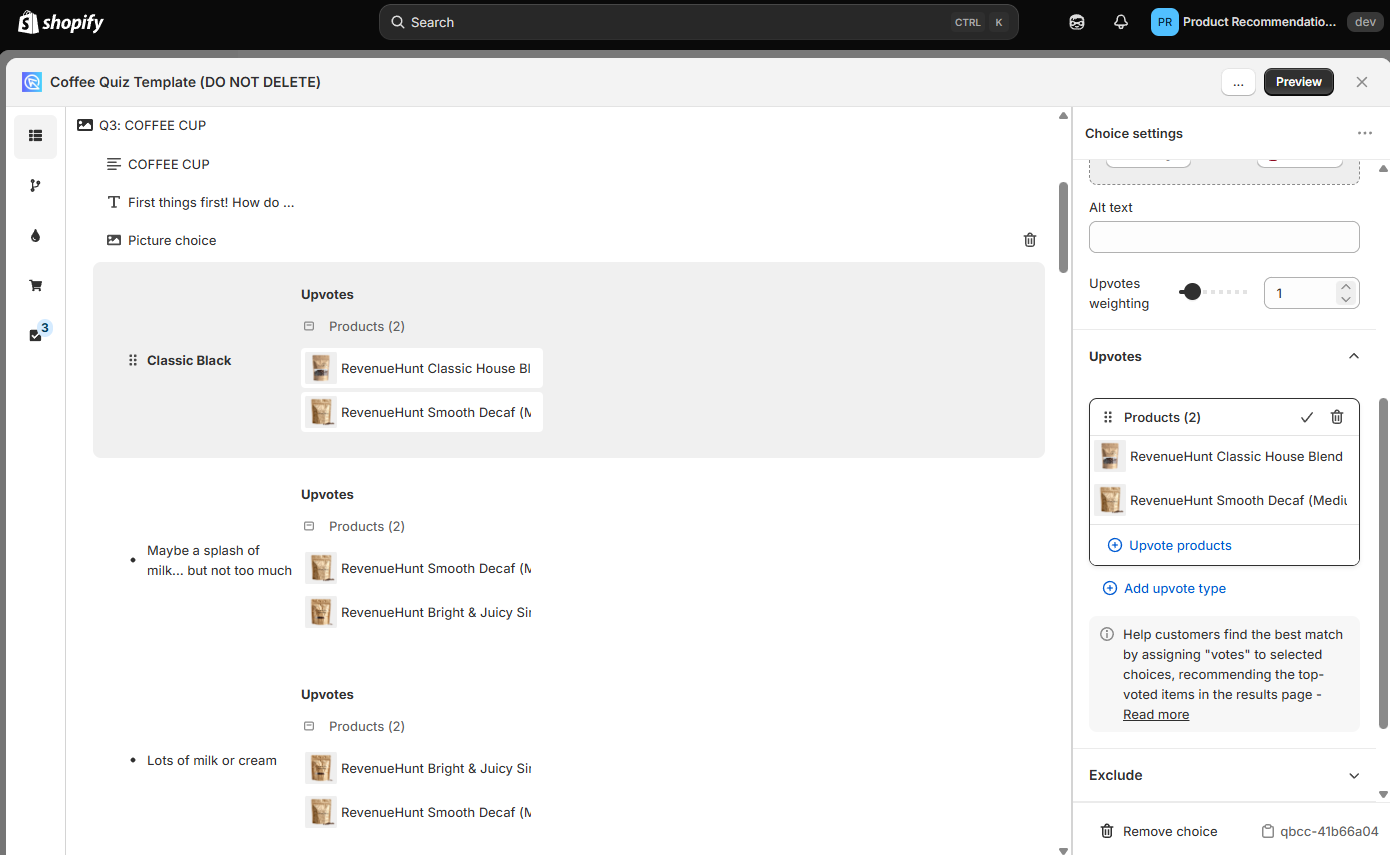
Use the Upvotes section to choose which products or variants to link to this choice:
Upvotes - Lists all the products or product variants linked to this choice.
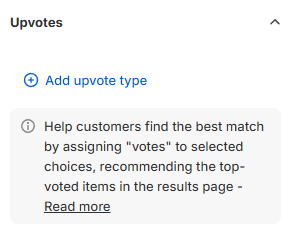
+ Add upvote type - Click to choose what to upvote. For this page, pick Products or Product variants. A new section then opens, where you pick items from your Shopify catalog. The menu also offers Collections, Tags, Variants and Vendors, covered in Link Collections.
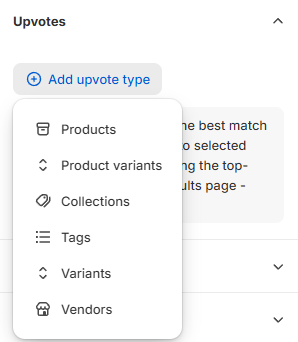
Products, Product variants or Variants?
These three types look similar but upvote different things:
Productsupvotes a product and all of its variants.Product variantsupvotes one variant of one product, for example the Large / Pink version of a dog bed.Variantsupvotes an option value, for example Color: Pink. Every variant in your catalog with that value gets the upvote, in all products.
Use Product variants when a choice must point to one exact variant. Use Variants when one upvote must cover many products that share an option value.
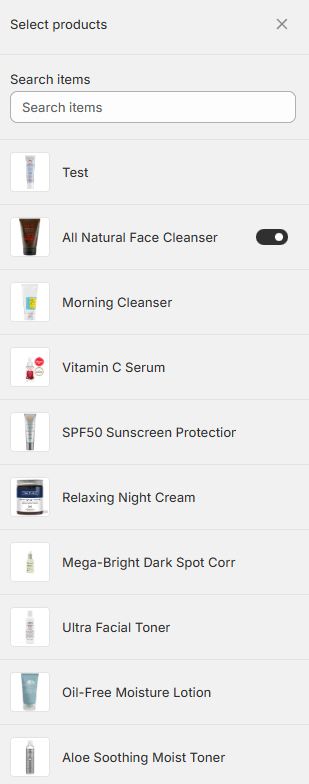
Toggle the products or variants to be upvoted to add them to the upvoted list.
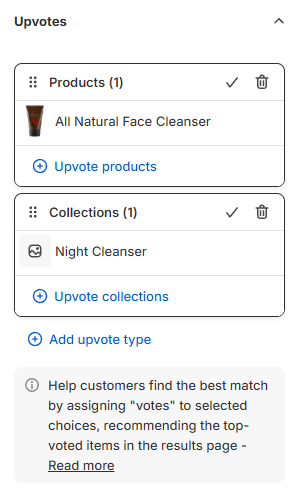
Upvoted products or variants are listed in the upvoted section.
Exclude
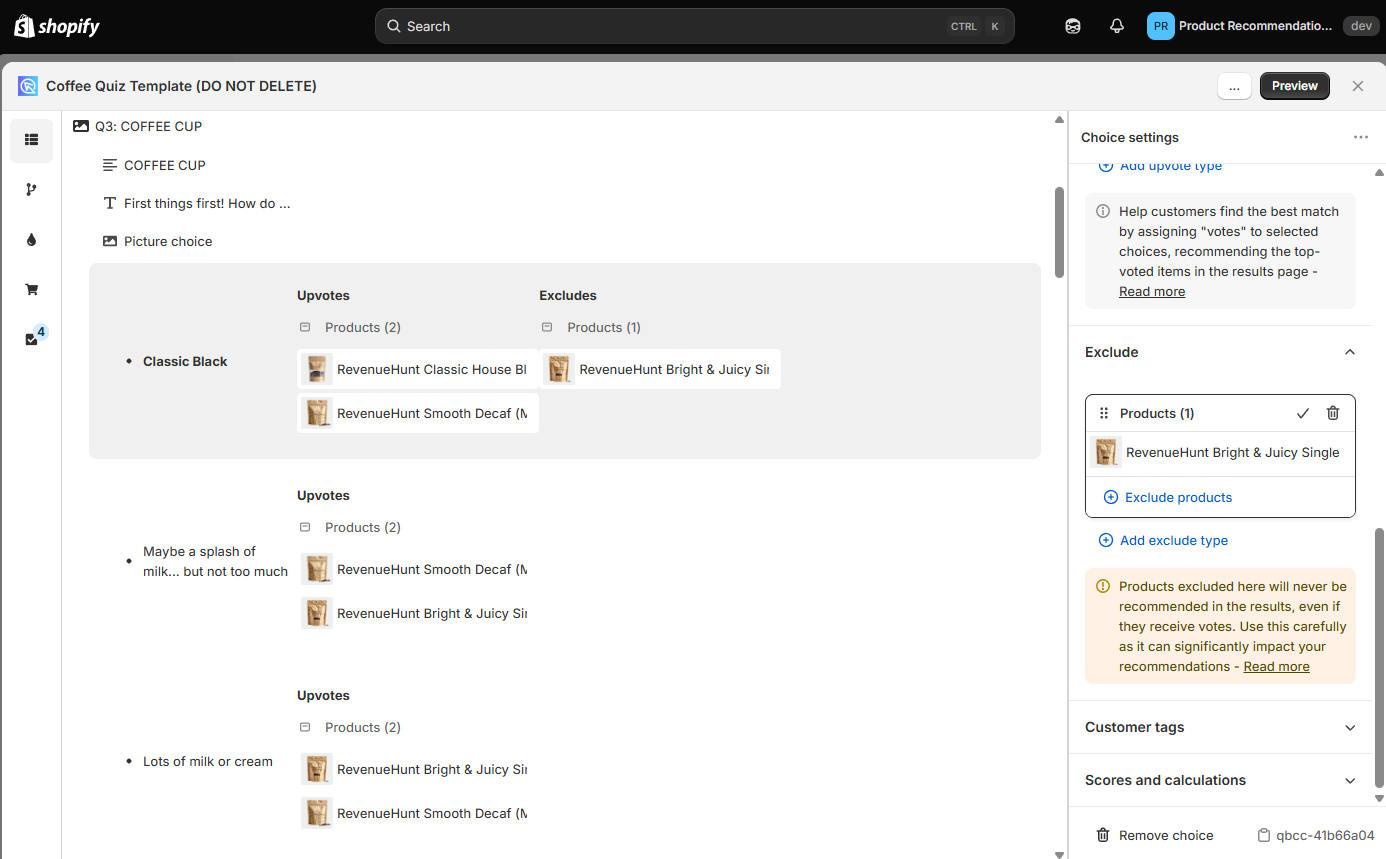
Use the Exclude section to choose which products or variants to exclude from this choice:
Exclude - Lists all the products or product variants excluded in this choice.
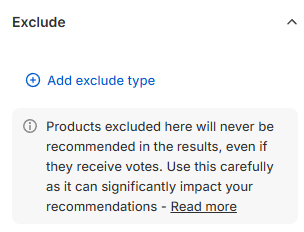
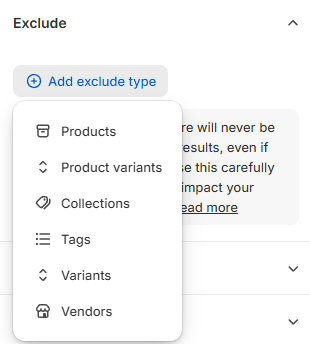
+ Add exclude type - Click to choose what to exclude. It offers the same six types as + Add upvote type. A new section then opens, where you pick items from your Shopify catalog.
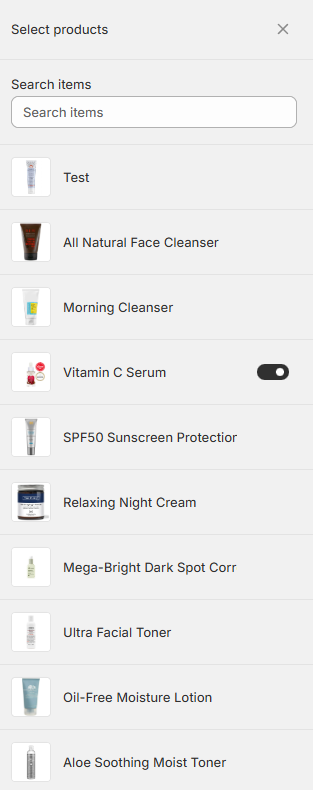
Toggle the products or variants to be excluded to add them to the excluded list.
Excluded products or variants are listed in the excluded section.
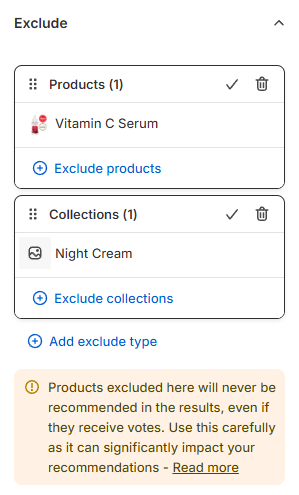
Be careful with exclusions
Once a product is excluded from a choice, it never shows on the results page, even if another choice upvoted it.
Missing products?
Run a catalog sync to bring new products and variants into the app.
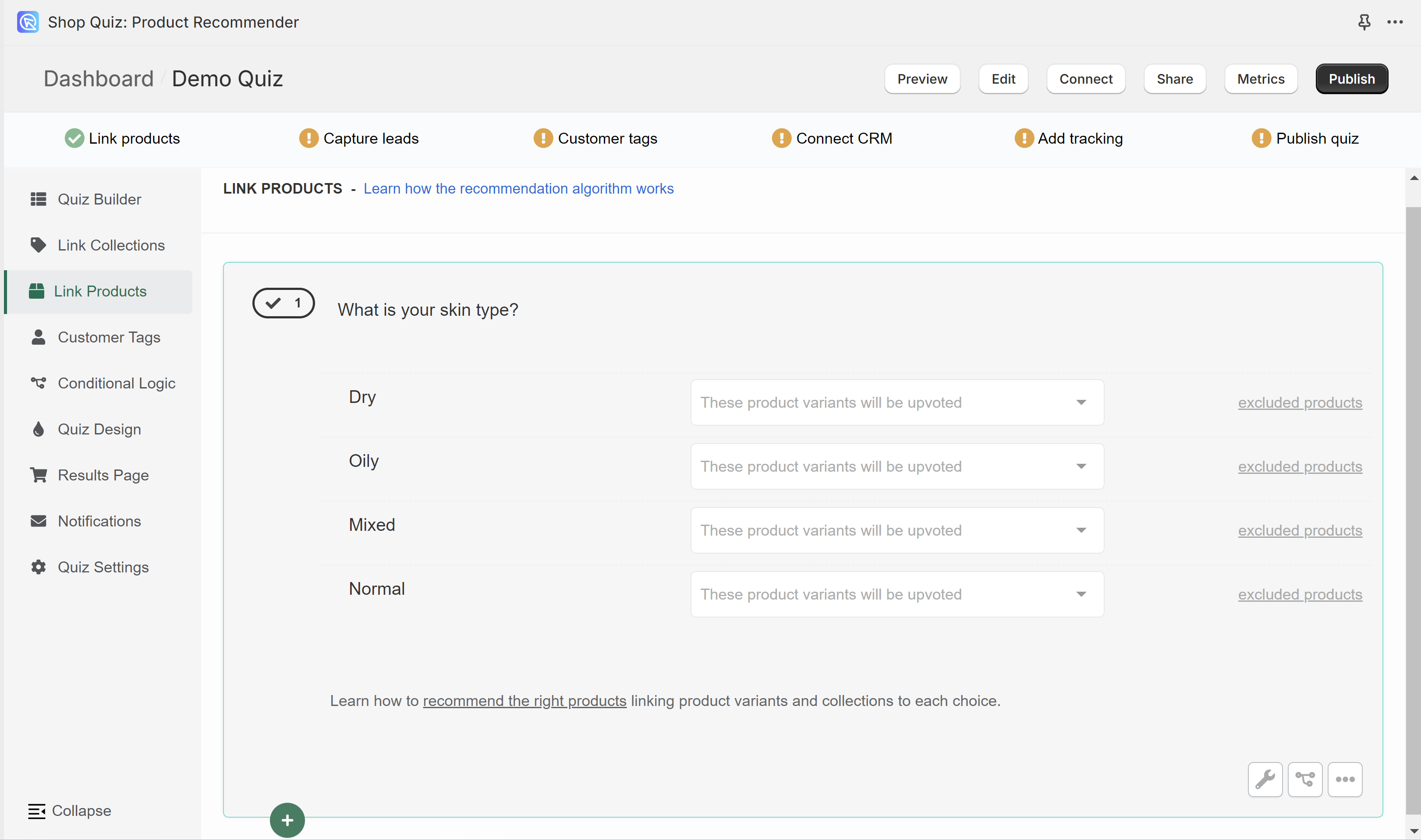
In the Link Products tab, you can link individual product variants from your store to choices.
Once a product variant is linked to a choice and the customer picks that choice, that product variant receives one upvote.
To link a product to a choice, click the white dropdown bar and start typing the name.
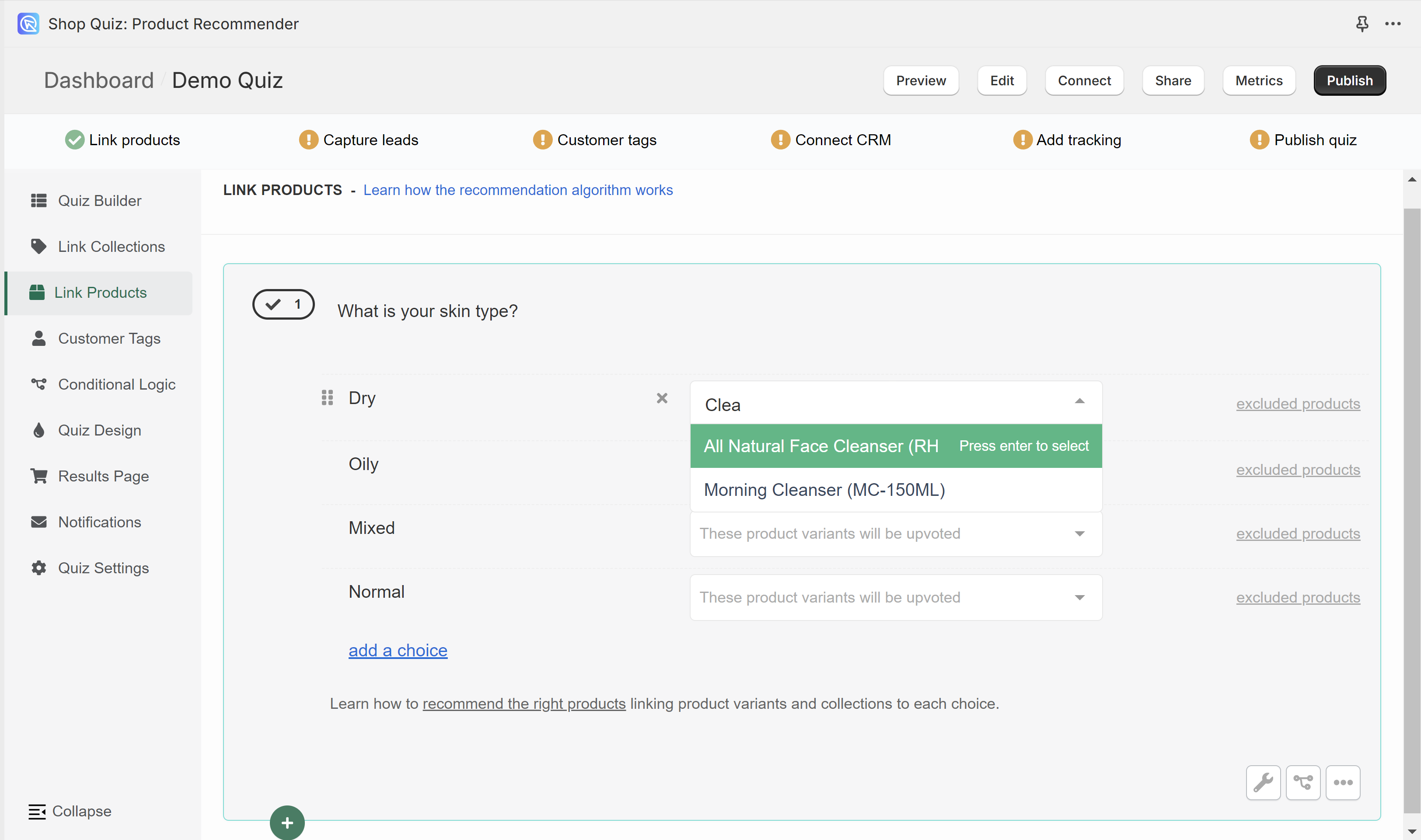
Select a product variant and it is added to the choice. You can link several product variants to the same choice.
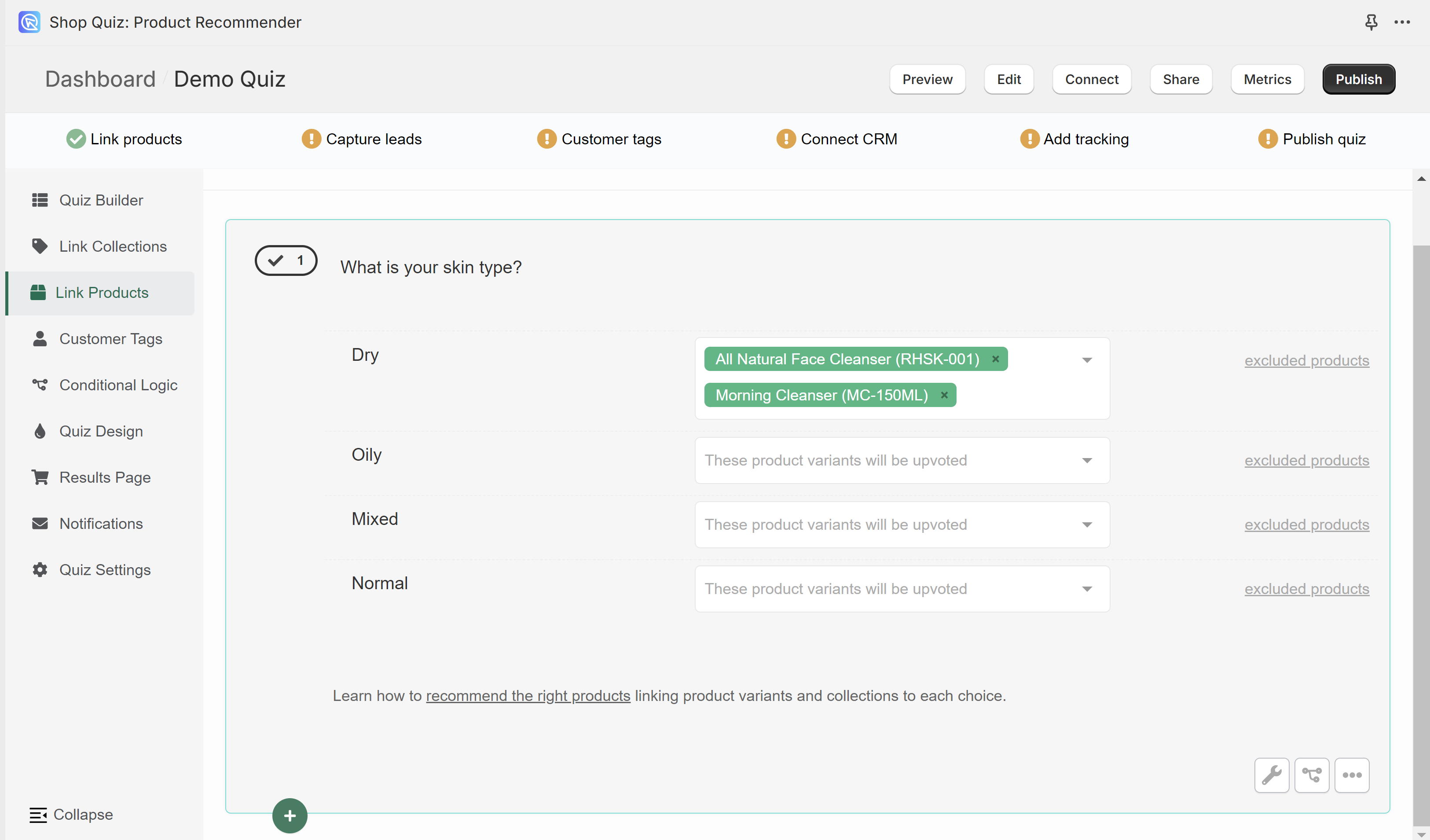
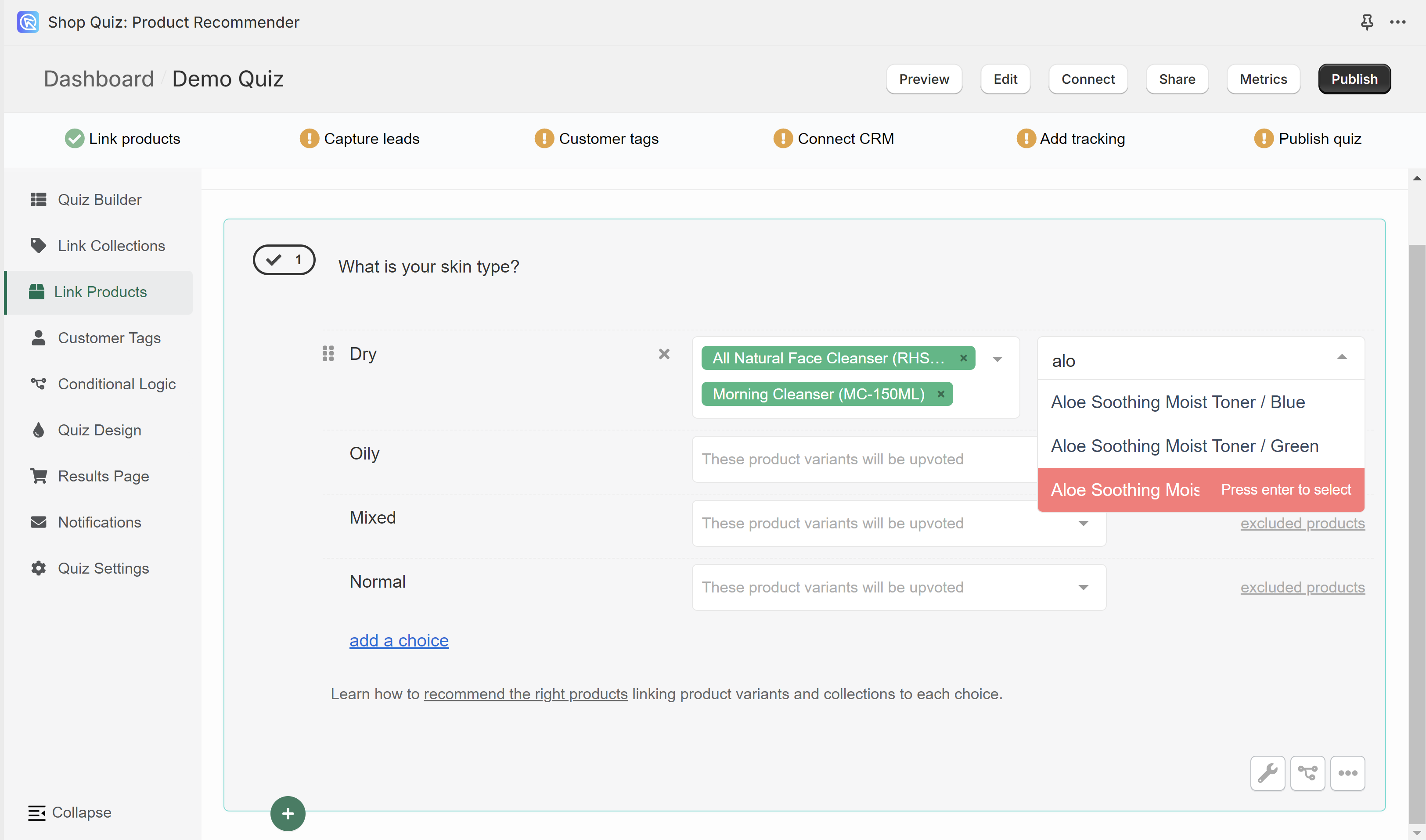
To remove a linked product, click x next to the product name.
excluded products - Opens the dropdown that lets you exclude products from a choice.
Be careful with exclusions
Once a product is excluded from a choice, it never shows on the results page, even if another choice upvoted it.
Missing products?
Run a catalog sync to bring new products and variants into the app.
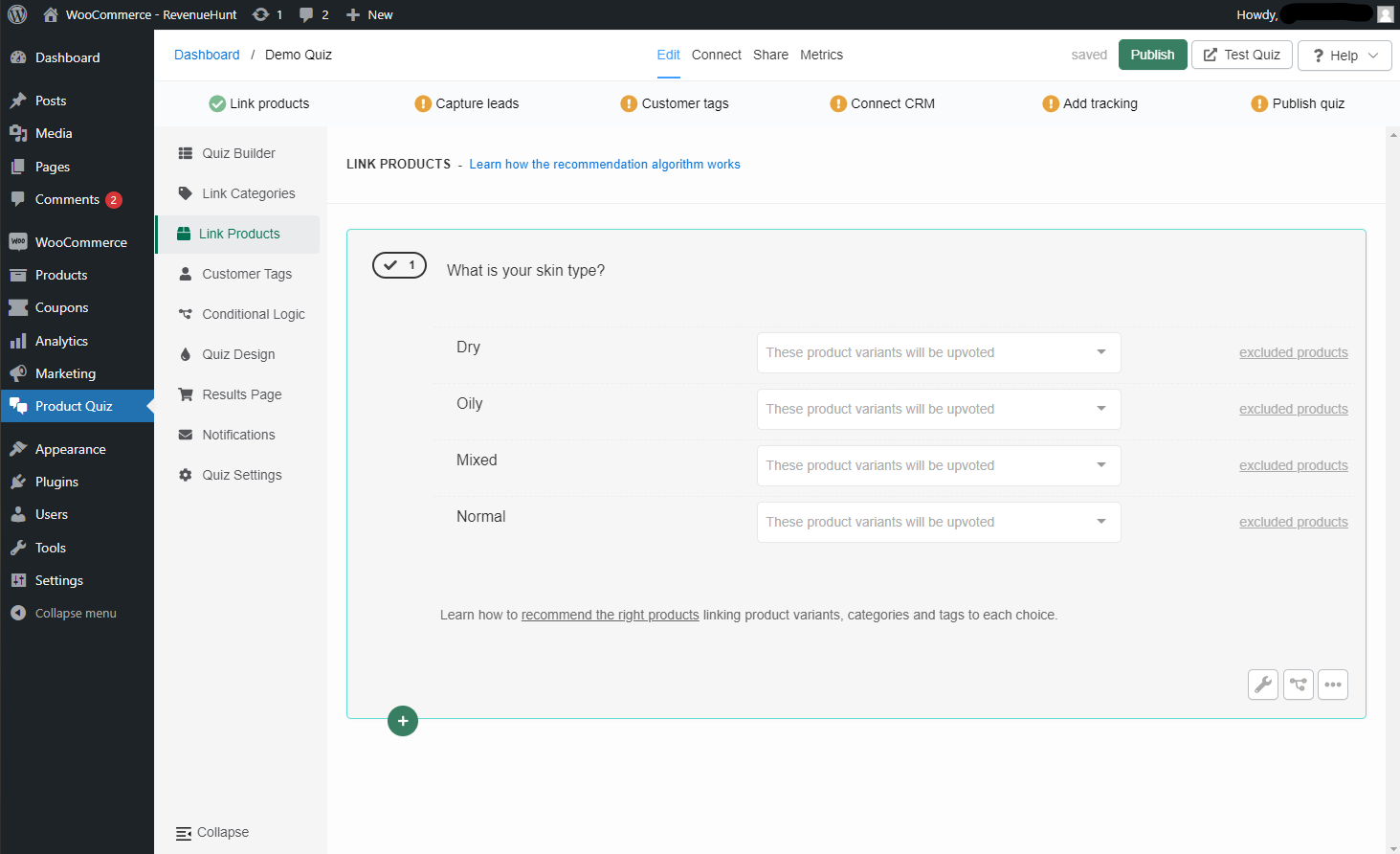
In the Link Products tab, you can link individual product variants from your store to choices.
Once a product variant is linked to a choice and the customer picks that choice, that product variant receives one upvote.
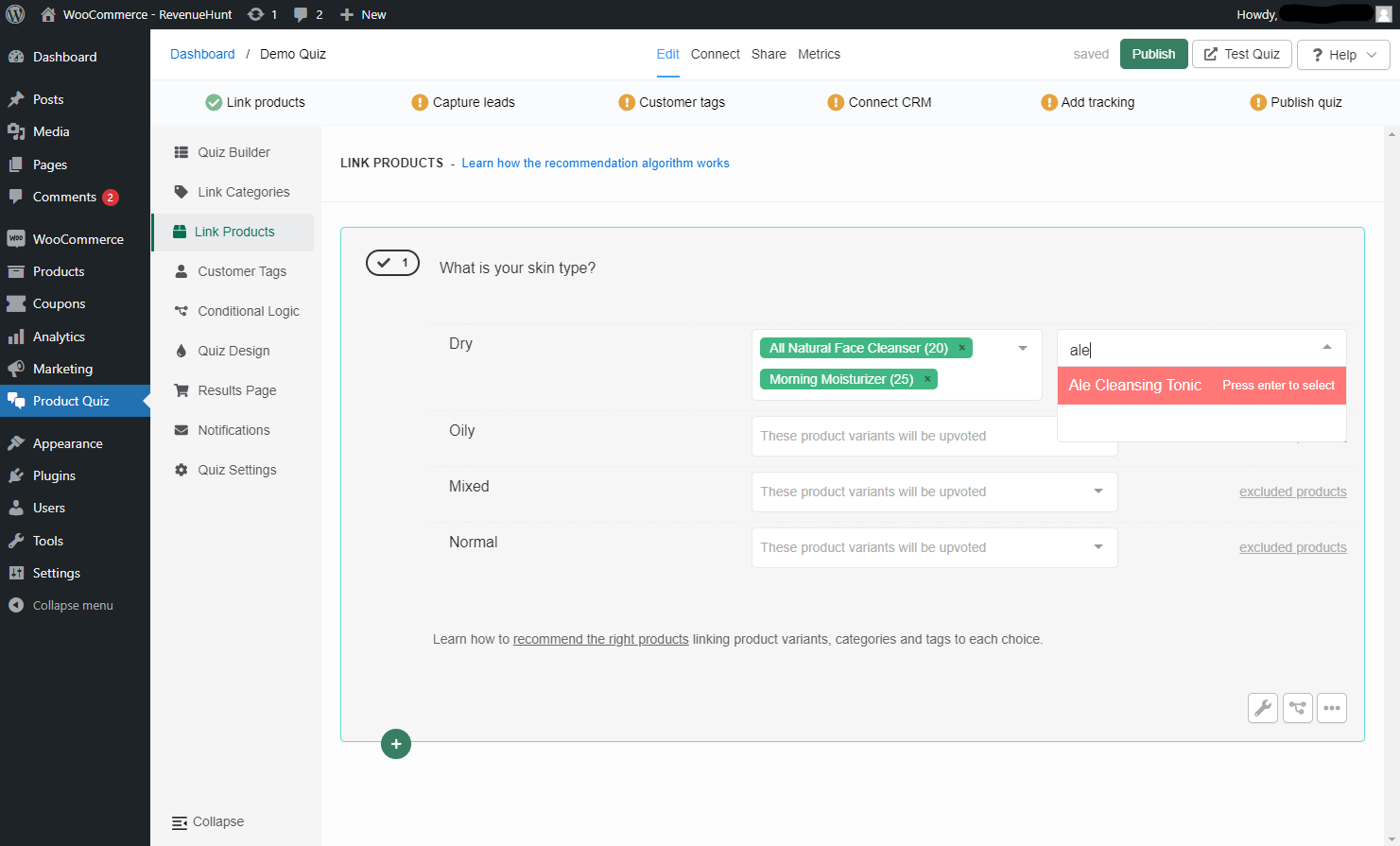
To link a product to a choice, click the white dropdown bar and start typing the name.
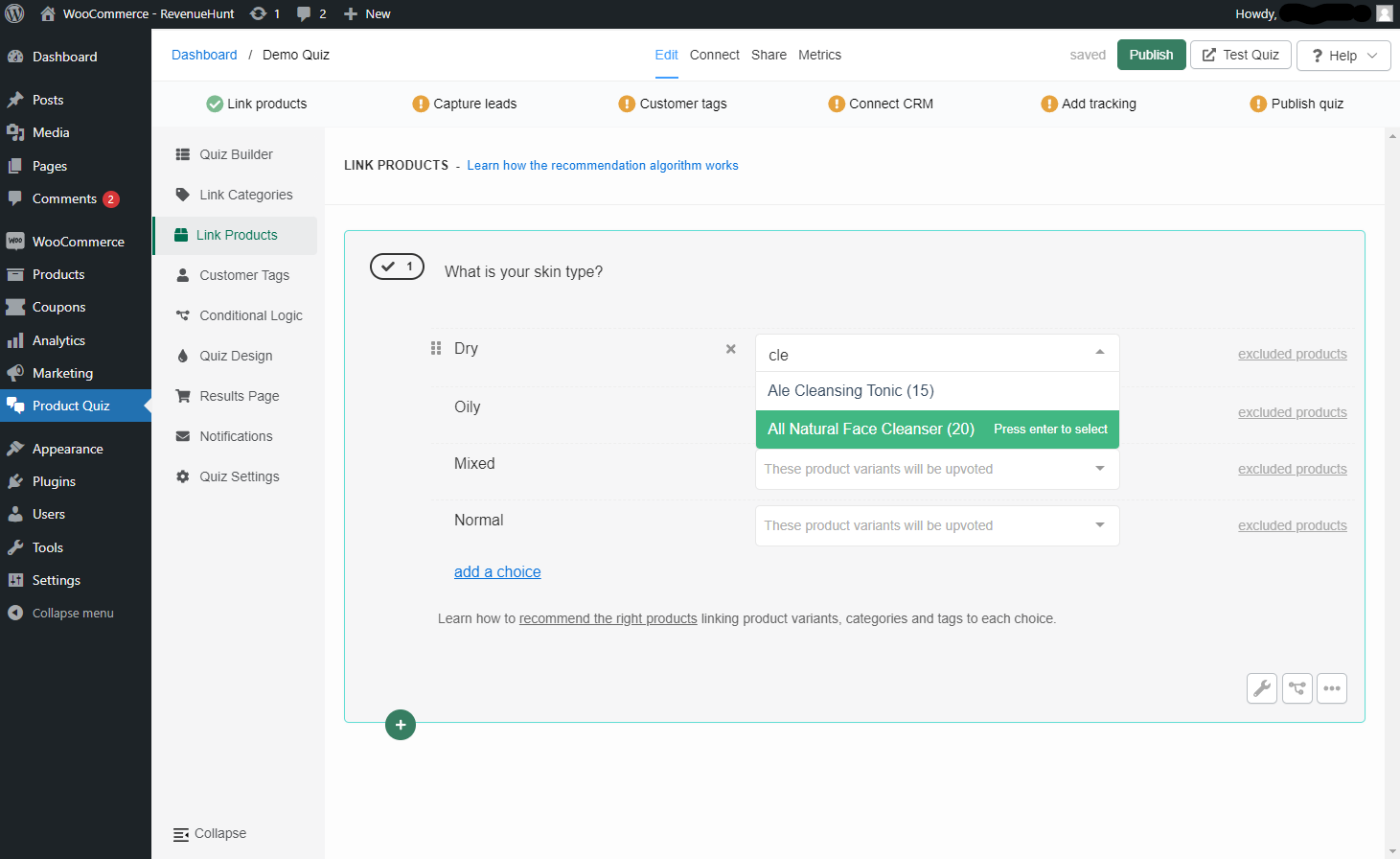
Select a product variant and it is added to the choice. You can link several product variants to the same choice.
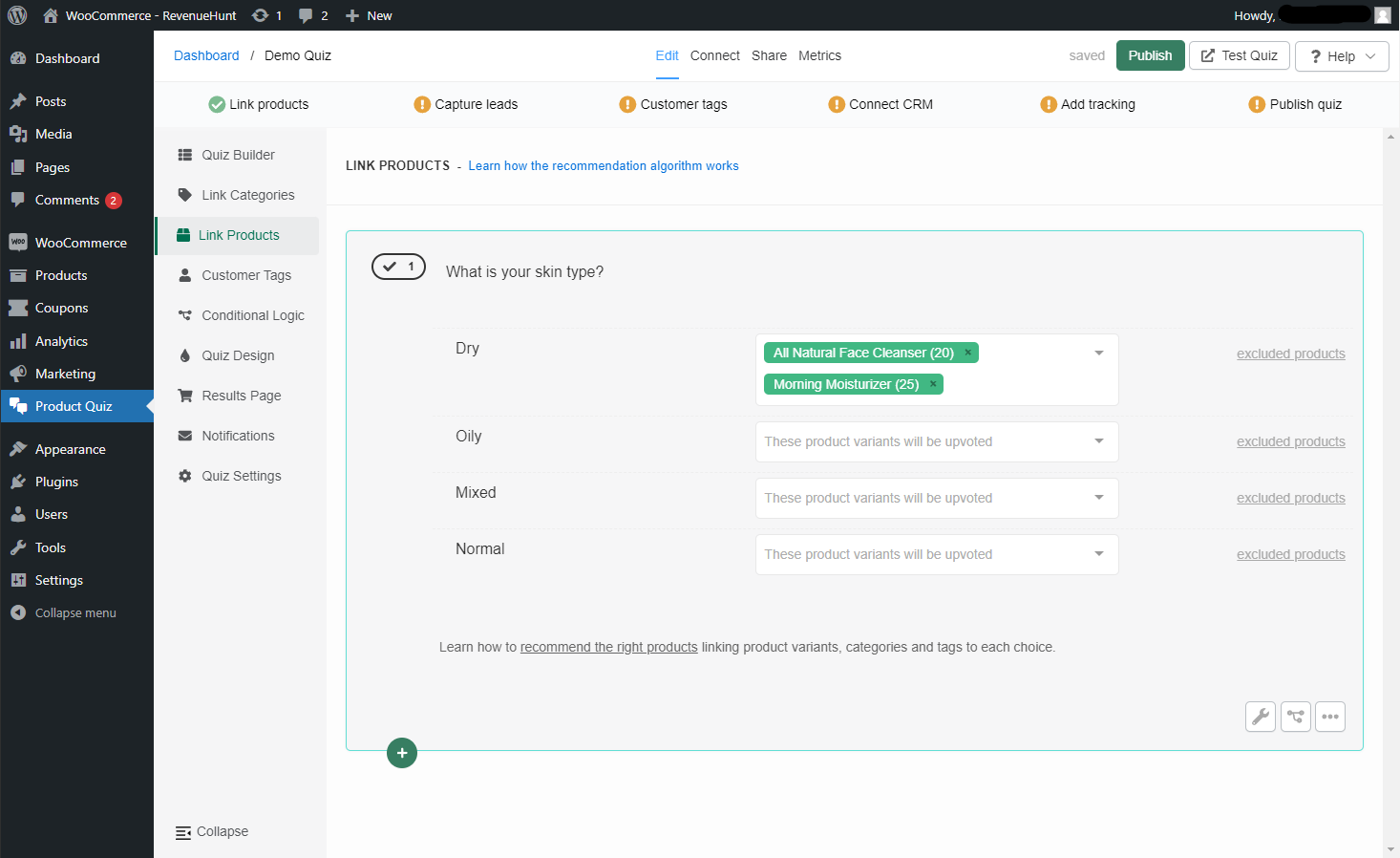
To remove a linked product, click x next to the product name.
excluded products - Opens the dropdown that lets you exclude products from a choice.
Be careful with exclusions
Once a product is excluded from a choice, it never shows on the results page, even if another choice upvoted it.
Missing products?
Run a catalog sync to bring new products and variants into the app.
In the Link Products tab, you can link individual product variants from your store to choices.
Once a product variant is linked to a choice and the customer picks that choice, that product variant receives one upvote.
To link a product to a choice, click the white dropdown bar and start typing the name.
Select a product variant and it is added to the choice. You can link several product variants to the same choice.
To remove a linked product, click x next to the product name.
excluded products - Opens the dropdown that lets you exclude products from a choice.
Be careful with exclusions
Once a product is excluded from a choice, it never shows on the results page, even if another choice upvoted it.
Missing products?
Run a catalog sync to bring new products and variants into the app.
In the Link Products tab, you can link individual product variants from your store to choices.
Once a product variant is linked to a choice and the customer picks that choice, that product variant receives one upvote.
To link a product to a choice, click the white dropdown bar and start typing the name.
Select a product variant and it is added to the choice. You can link several product variants to the same choice.
To remove a linked product, click x next to the product name.
excluded products - Opens the dropdown that lets you exclude products from a choice.
Be careful with exclusions
Once a product is excluded from a choice, it never shows on the results page, even if another choice upvoted it.
Missing products?
Run a catalog sync to bring new products and variants into the app.
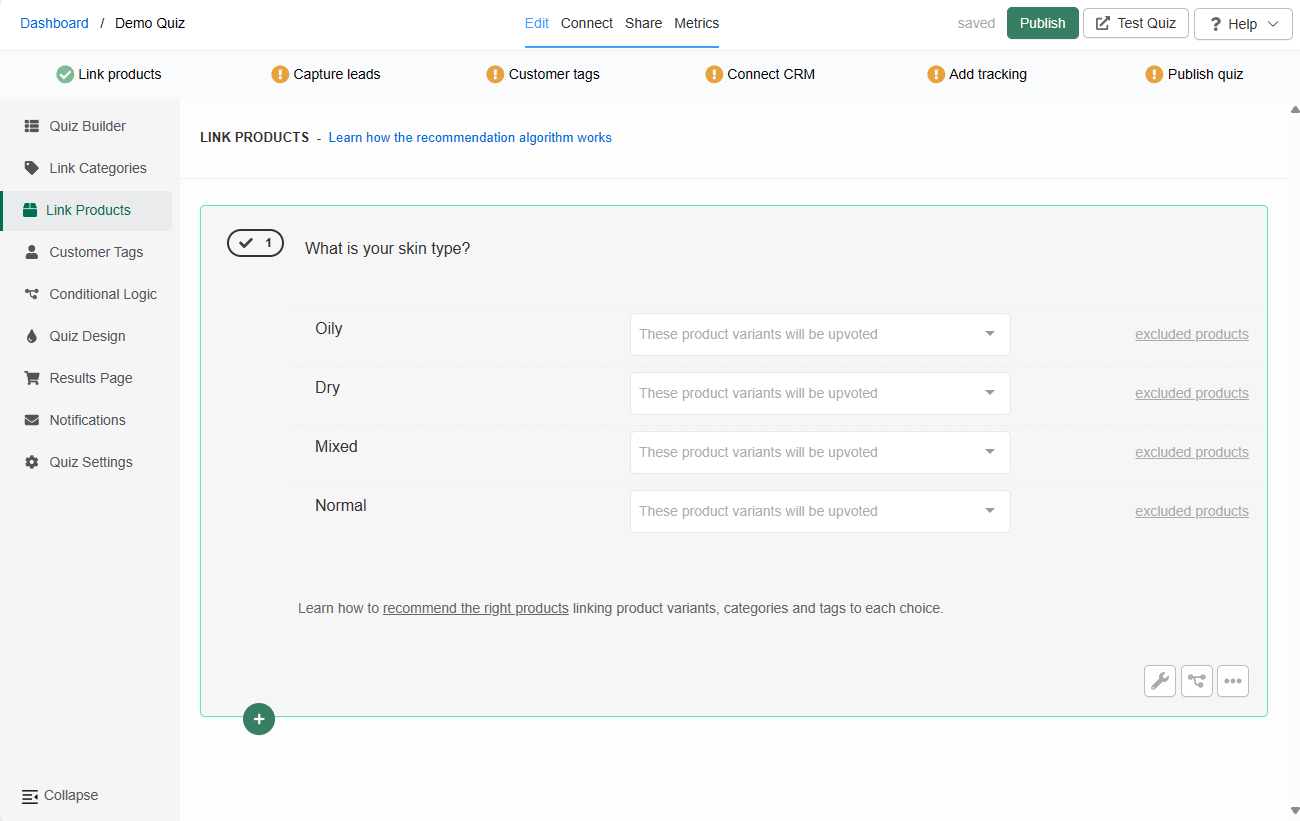
In the Link Products tab, you can link individual product variants from your catalog to choices.
Once a product variant is linked to a choice and the customer picks that choice, that product variant receives one upvote.
To link a product to a choice, click the white dropdown bar and start typing the name.
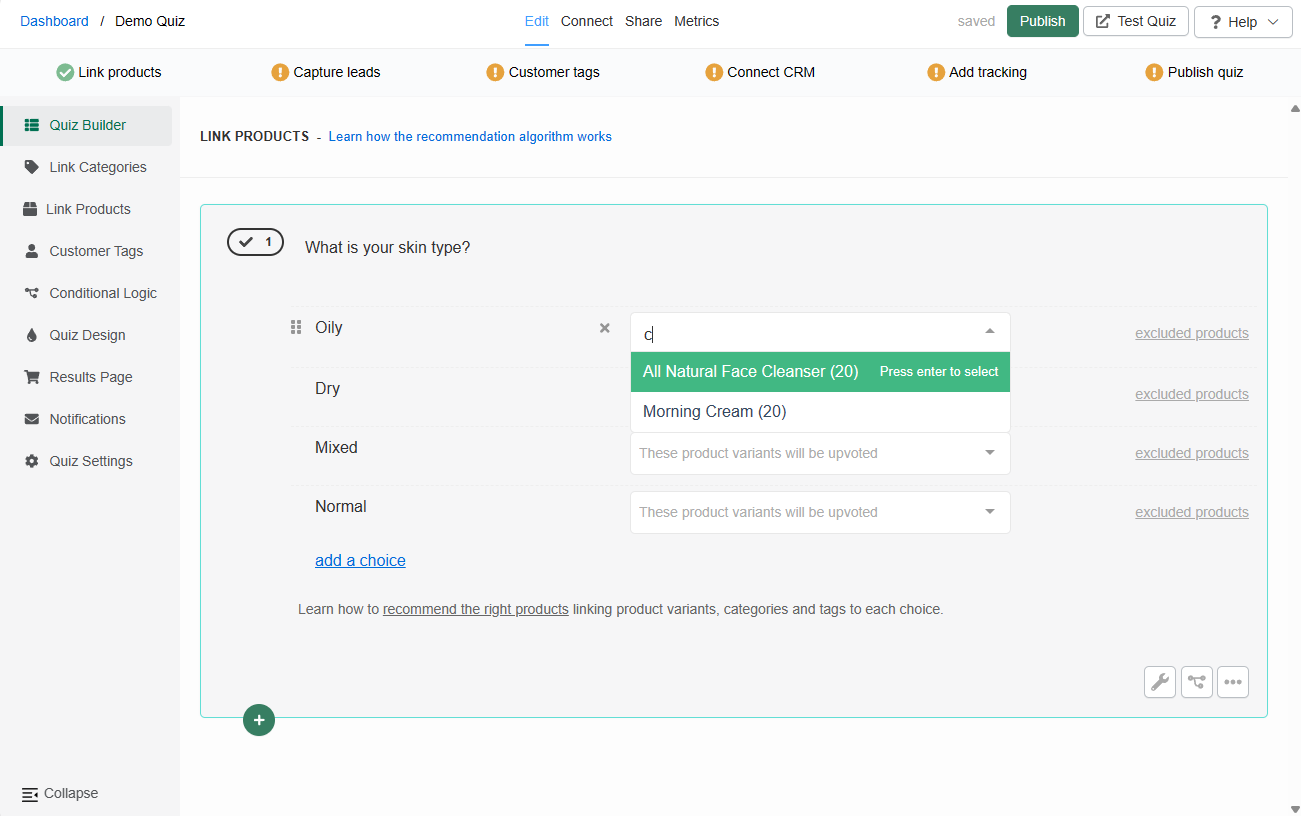
Select a product variant and it is added to the choice. You can link several product variants to the same choice.
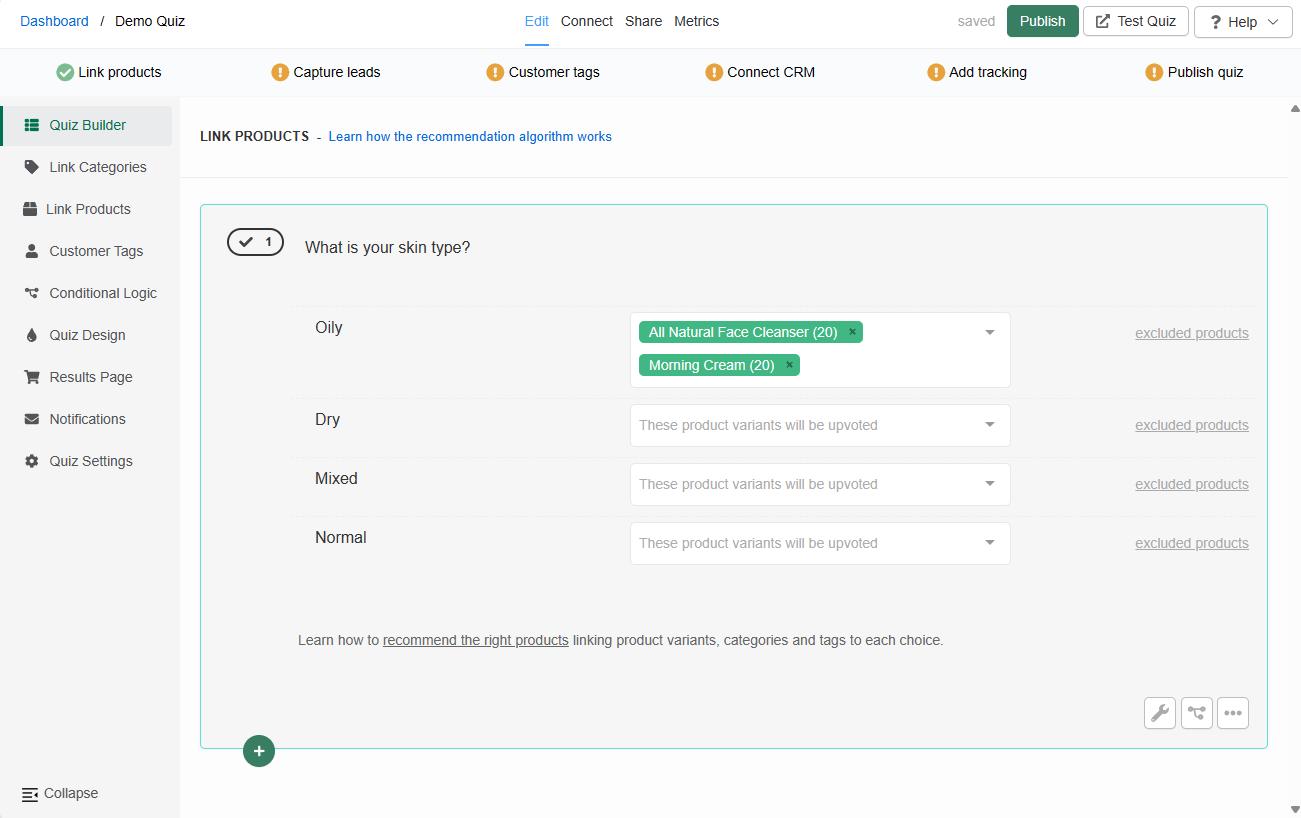
To remove a linked product, click x next to the product name.
excluded products - Opens the dropdown that lets you exclude products from a choice.
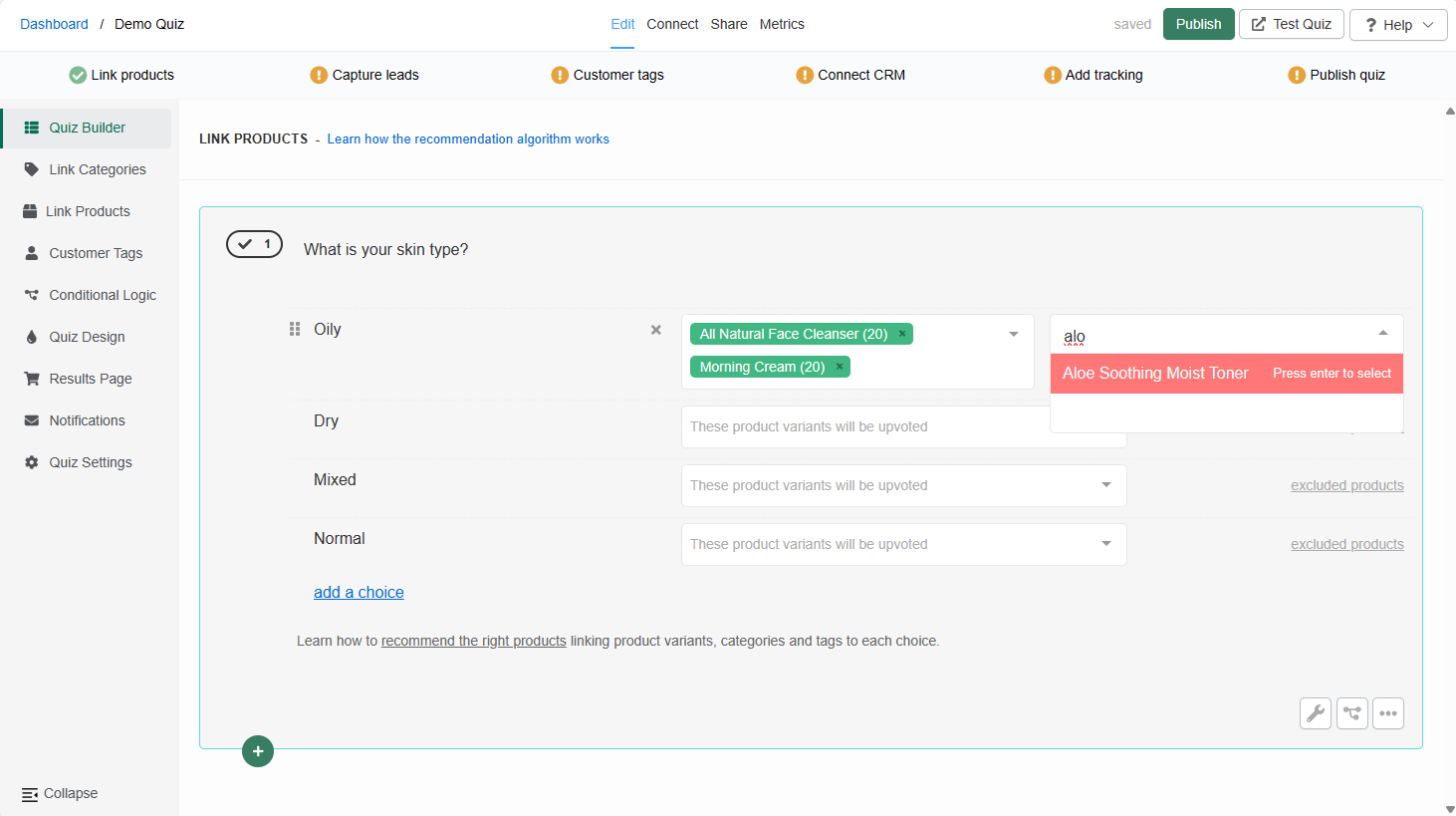
Be careful with exclusions
Once a product is excluded from a choice, it never shows on the results page, even if another choice upvoted it.
Missing products?
Run a catalog sync to bring new products and variants into the app.
← Previous: Link Collections / Link Categories Next: Customer Tags →