Conditional Logic
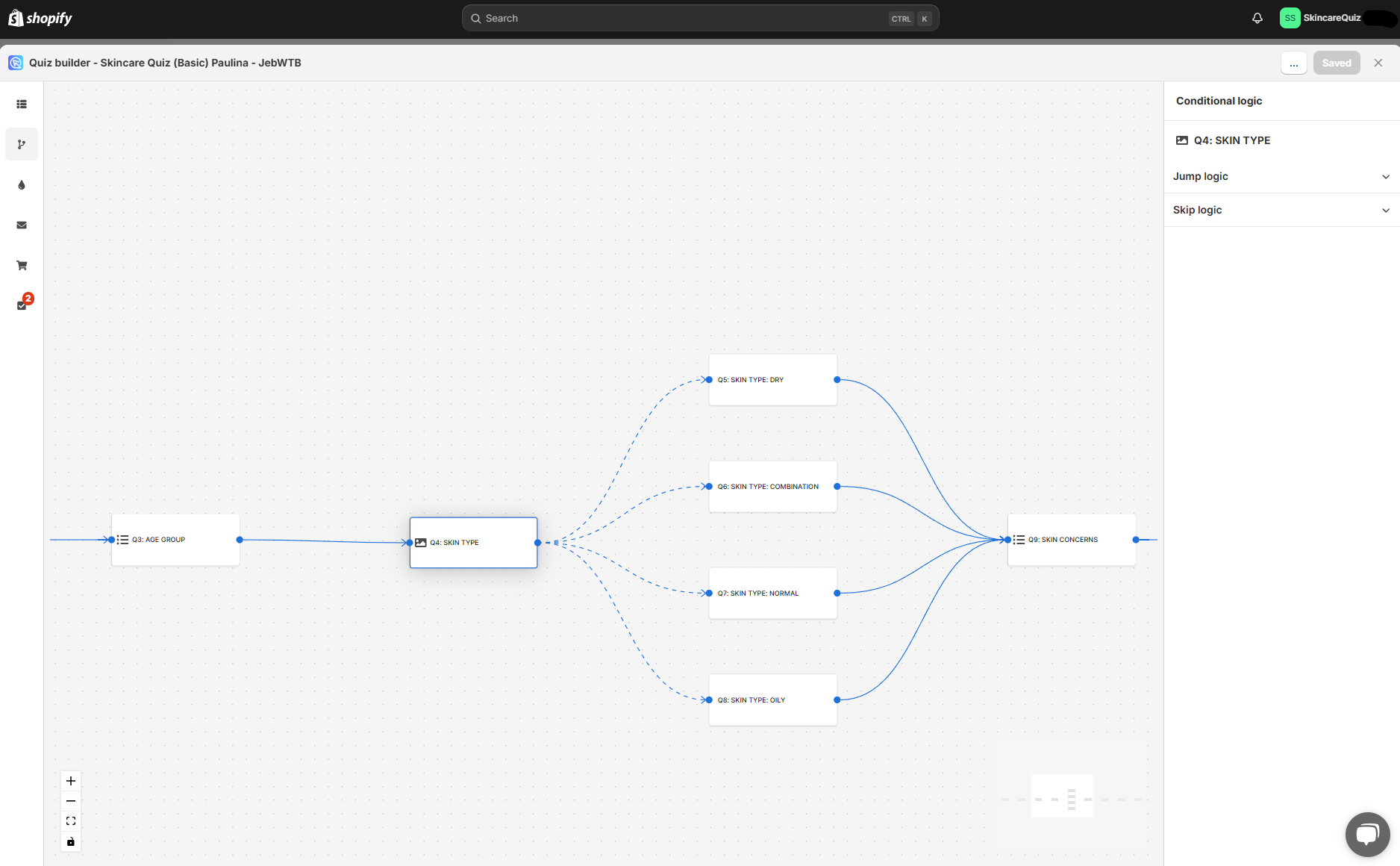
In the Conditional logic tab you can branch your quiz, skip certain questions, or send customers to a different results page.
Use the right-hand menu to add conditional logic rules to questions in the quiz. The center preview shows a logic tree of the quiz. Any branching you add will be reflected on the tree preview.
By default, the quiz moves from one question to the next in number order. Conditional logic changes that.
Conditional logic does not include display logic
This tab holds jump logic and skip logic. You set display logic on the results page itself.
- jump logic sends the customer to a question, a results page, or an external URL
- skip logic skips a question
- display logic shows or hides part of the results page
Jump logic and skip logic are triggered by an IF condition based on an answer, a variable or a score. Display logic acts on sections.

+ - Zoom in on the logic tree preview.
- - Zoom out on the logic tree preview.
[] - Center the logic tree preview and fit into view.
🔒 - Toggle whether you can interact with the preview.
Drag the logic tree with your mouse left button to navigate to specific branches.
Click on any of the questions in the quiz to add conditional logic to it.
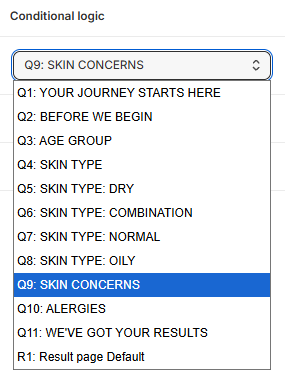
The dropdown at the top of the right-hand menu names the question you are working on. Click it to open the full list.
The list holds every question and every results page, in quiz order. Click an entry to go straight to the jump logic and skip logic rules of that question.
Picking a question in the dropdown does the same as clicking it on the logic tree. Use the dropdown when the tree is large and the question is hard to find.
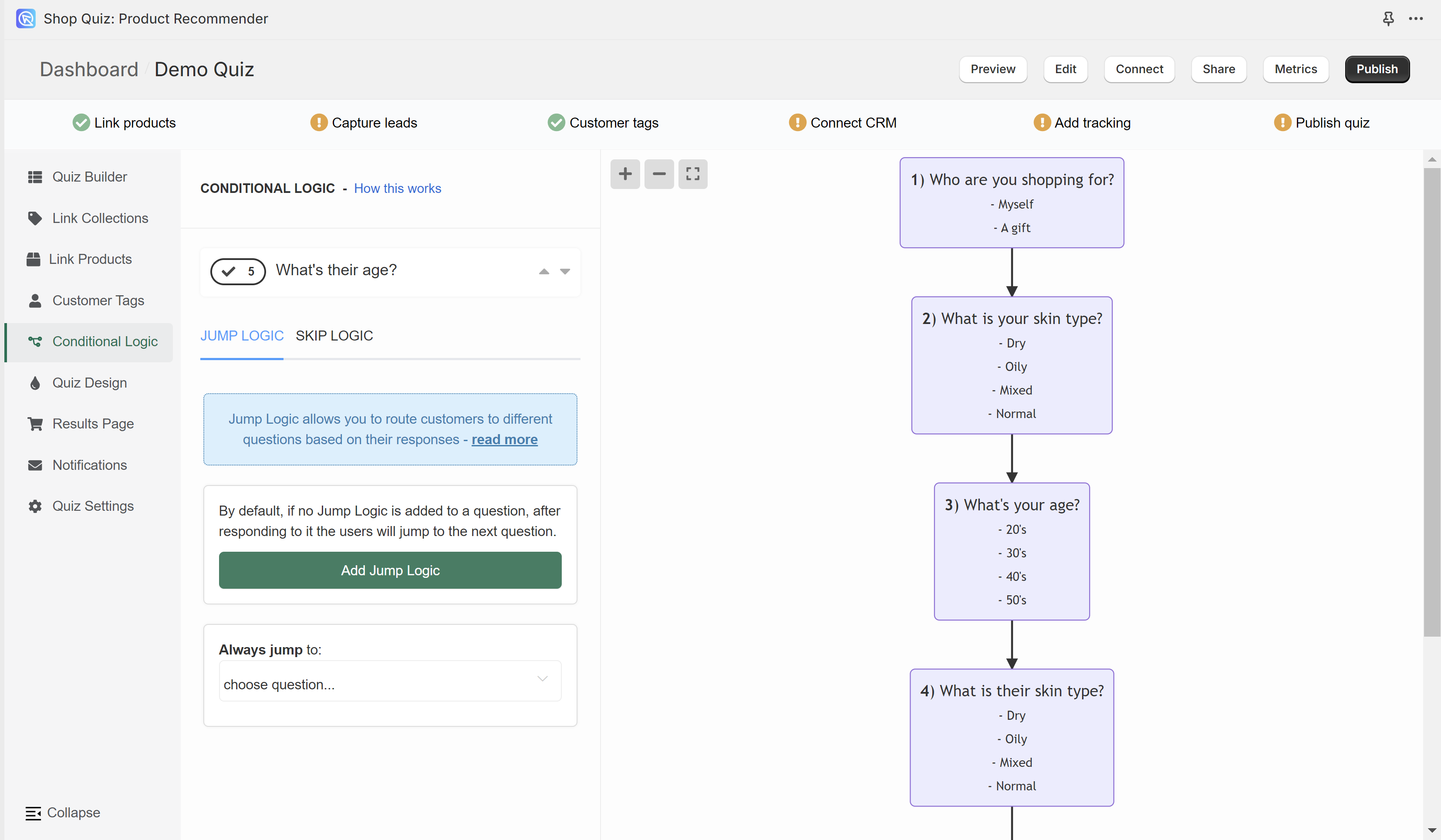
In the Conditional Logic tab you can branch your quiz, or tell it to skip certain questions. Use the left menu to add conditional logic rules to questions in the quiz. The right menu shows a logic tree of the quiz. Any branching you add will be reflected on the tree preview.
By default, the quiz moves from one question to the next in number order. Conditional logic changes that.
Conditional Logic does not include Display Logic
This tab holds Jump Logic and Skip Logic. You set Display Logic on the Results Page itself.
- Jump Logic sends the customer to a question, a Results Page, or an external URL
- Skip Logic skips a question
- Display Logic shows or hides part of the Results Page
Jump Logic and Skip Logic are triggered by an IF condition based on an answer. Display Logic acts on individual blocks.

+ - Zoom in on the logic tree preview.
- - Zoom out on the logic tree preview.
[] - Center the logic tree preview and fit into view.
Drag the logic tree with your mouse left button to navigate to specific branches.

Use the top menu to switch between questions.
arrow up - Moves up to the previous question.
arrow down - Moves down to the next question.
In the Conditional Logic tab you can branch your quiz, or tell it to skip certain questions. Use the left menu to add conditional logic rules to questions in the quiz. The right menu shows a logic tree of the quiz. Any branching you add will be reflected on the tree preview.
By default, the quiz moves from one question to the next in number order. Conditional logic changes that.
Conditional Logic does not include Display Logic
This tab holds Jump Logic and Skip Logic. You set Display Logic on the Results Page itself.
- Jump Logic sends the customer to a question, a Results Page, or an external URL
- Skip Logic skips a question
- Display Logic shows or hides part of the Results Page
Jump Logic and Skip Logic are triggered by an IF condition based on an answer. Display Logic acts on individual blocks.
+ - Zoom in on the logic tree preview.
- - Zoom out on the logic tree preview.
[] - Center the logic tree preview and fit into view.
Drag the logic tree with your mouse left button to navigate to specific branches.
Use the top menu to switch between questions.
arrow up - Moves up to the previous question.
arrow down - Moves down to the next question.
In the Conditional Logic tab you can branch your quiz, or tell it to skip certain questions. Use the left menu to add conditional logic rules to questions in the quiz. The right menu shows a logic tree of the quiz. Any branching you add will be reflected on the tree preview.
By default, the quiz moves from one question to the next in number order. Conditional logic changes that.
Conditional Logic does not include Display Logic
This tab holds Jump Logic and Skip Logic. You set Display Logic on the Results Page itself.
- Jump Logic sends the customer to a question, a Results Page, or an external URL
- Skip Logic skips a question
- Display Logic shows or hides part of the Results Page
Jump Logic and Skip Logic are triggered by an IF condition based on an answer. Display Logic acts on individual blocks.
+ - Zoom in on the logic tree preview.
- - Zoom out on the logic tree preview.
[] - Center the logic tree preview and fit into view.
Drag the logic tree with your mouse left button to navigate to specific branches.
Use the top menu to switch between questions.
arrow up - Moves up to the previous question.
arrow down - Moves down to the next question.
In the Conditional Logic tab you can branch your quiz, or tell it to skip certain questions. Use the left menu to add conditional logic rules to questions in the quiz. The right menu shows a logic tree of the quiz. Any branching you add will be reflected on the tree preview.
By default, the quiz moves from one question to the next in number order. Conditional logic changes that.
Conditional Logic does not include Display Logic
This tab holds Jump Logic and Skip Logic. You set Display Logic on the Results Page itself.
- Jump Logic sends the customer to a question, a Results Page, or an external URL
- Skip Logic skips a question
- Display Logic shows or hides part of the Results Page
Jump Logic and Skip Logic are triggered by an IF condition based on an answer. Display Logic acts on individual blocks.
+ - Zoom in on the logic tree preview.
- - Zoom out on the logic tree preview.
[] - Center the logic tree preview and fit into view.
Drag the logic tree with your mouse left button to navigate to specific branches.
Use the top menu to switch between questions.
arrow up - Moves up to the previous question.
arrow down - Moves down to the next question.
In the Conditional Logic tab you can branch your quiz, or tell it to skip certain questions. Use the left menu to add conditional logic rules to questions in the quiz. The right menu shows a logic tree of the quiz. Any branching you add will be reflected on the tree preview.
By default, the quiz moves from one question to the next in number order. Conditional logic changes that.
Conditional Logic does not include Display Logic
This tab holds Jump Logic and Skip Logic. You set Display Logic on the Results Page itself.
- Jump Logic sends the customer to a question, a Results Page, or an external URL
- Skip Logic skips a question
- Display Logic shows or hides part of the Results Page
Jump Logic and Skip Logic are triggered by an IF condition based on an answer. Display Logic acts on individual blocks.
+ - Zoom in on the logic tree preview.
- - Zoom out on the logic tree preview.
[] - Center the logic tree preview and fit into view.
Drag the logic tree with your mouse left button to navigate to specific branches.
Use the top menu to switch between questions.
arrow up - Moves up to the previous question.
arrow down - Moves down to the next question.
Jump logic
Jump logic routes customers to a different question based on their answers. It can also send them to another results page, or to an external URL.
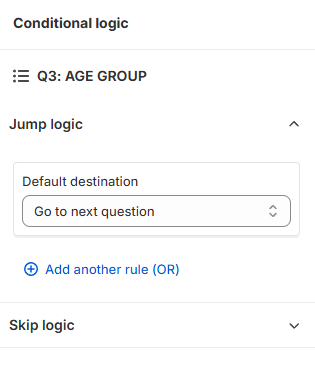
Jump logic - Click the heading to open or close the Jump logic rules of the selected question.
+ Add another rule (OR) - Add a new OR Jump logic rule to the selected question.
+ Add concurrent logic (AND) - Adds a new AND logical statement to the same rule. AND conditional statements can be tricky, as both statements have to be true for the rule to take effect. For most quizzes, using the OR rule is enough.
... - Open the menu of a rule. Use it to delete the rule.
Default destination - Select the question or URL the customer always goes to after this one.
Drag and drop reordering
You can reorder Jump logic rules by dragging them. Click and hold a rule, then drag it to a new position in the list.
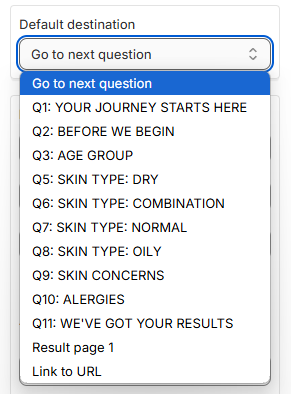
There are three types of Jump logic rules you can choose from:
Type 1: IF the response to the question...
A rule of this type has the format:
- IF
The response to the question..., then pick the question from the dropdown list - IS / IS NOT pick a choice from the dropdown list
- THEN go to... pick a slide from the dropdown list, or add a URL
Example 1
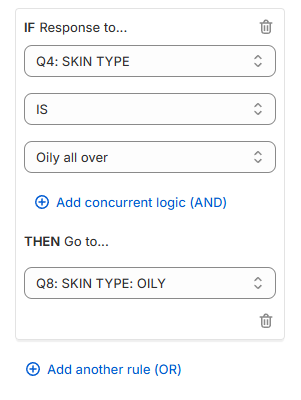
In the example, if a customer chooses "Oily all over" in Question 4 "SKIN TYPE" they go to Question 8 "SKIN TYPE: OILY".
Example 2
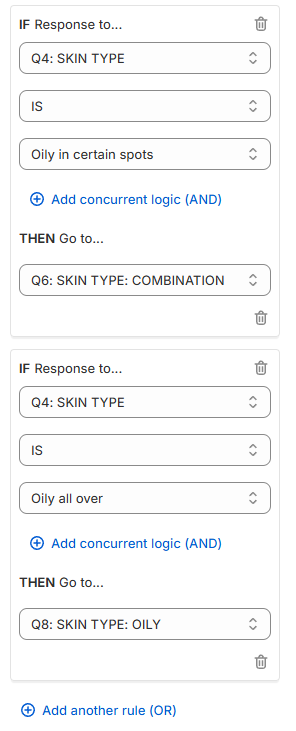
In the example, if a customer chooses "Oily in certain spots" in Question 4 "SKIN TYPE" they go to Question 6 "SKIN TYPE: COMBINATION". If the customer instead chooses "Oily all over" they go to Question 8 "SKIN TYPE: OILY".
Example 3
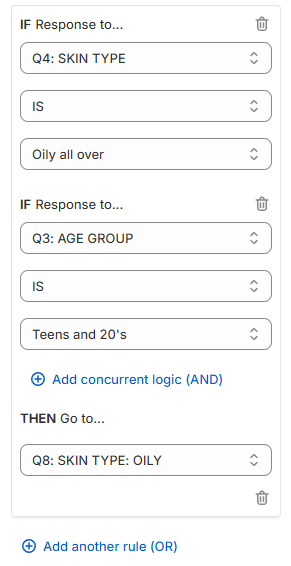
In the example, only if a customer chooses "Oily all over" in Question 4 "SKIN TYPE" and "Teens and 20's" in Question 3 "AGE GROUP" they go to Question 8 "SKIN TYPE: OILY".
Type 2: IF the score of the variable...
A rule of this type has the format:
- IF the score of the variable
- score pick the variable from a dropdown list
- pick the comparison from the dropdown list:
- is equal to / is not equal to
- is greater than / is less than
- is greater than or equal to / is less than or equal to
- Number / Another variable pick a choice from the dropdown list
- 0 / 1 / 2 / other numerical value type a value in the input field
- THEN go to pick a slide from the dropdown list or add a URL
Info
Scores are assigned to each choice in the Questions tab > Choice settings section.
Example 4
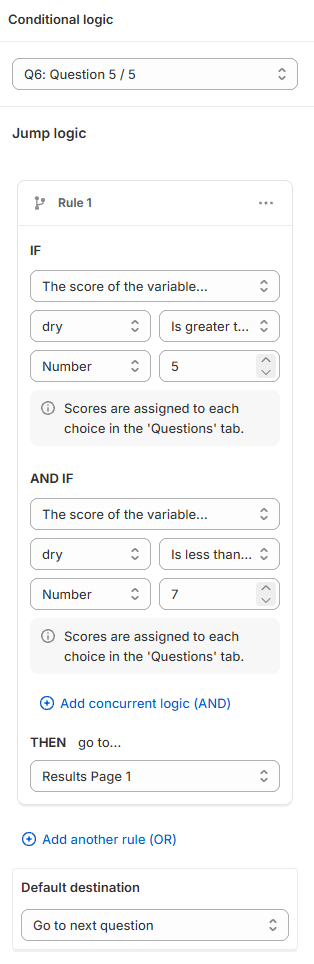
In the example, the rule reads the score of the variable dry twice. If the score is greater than number 5 and less than number 7, the customer goes to Results Page 1 after Question 6.
Type 3: IF the variable with the highest score...
A rule of this type has the format:
- IF the variable with the highest score
- IS / IS NOT pick a choice from the dropdown list
- variable pick a variable from the dropdown list
- THEN go to pick a slide from the dropdown list or add a URL
Info
Scores and variables are assigned to each choice in the Questions tab > Choice settings section.
Example 5
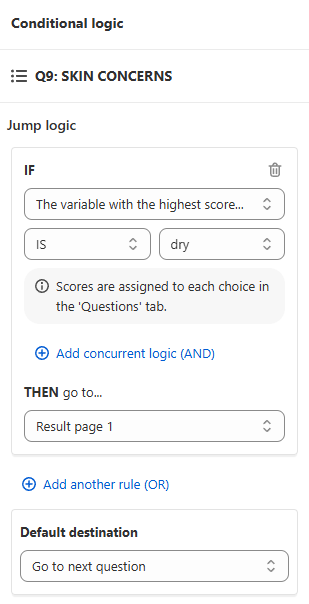
In the example, if the variable with the highest score is dry, the customer goes to Results Page 1 after Question 6.
Jump Logic routes customers to a different question based on their answers.
Add Jump Logic - Click to add a new Jump Logic rule for the selected question.
Info
All the Jump Logic rules follow the same format:
- IF response to pick the question from a dropdown list
- is/ is not pick a choice from the dropdown list
- THEN go to: pick a slide from the dropdown list or add a URL
Example
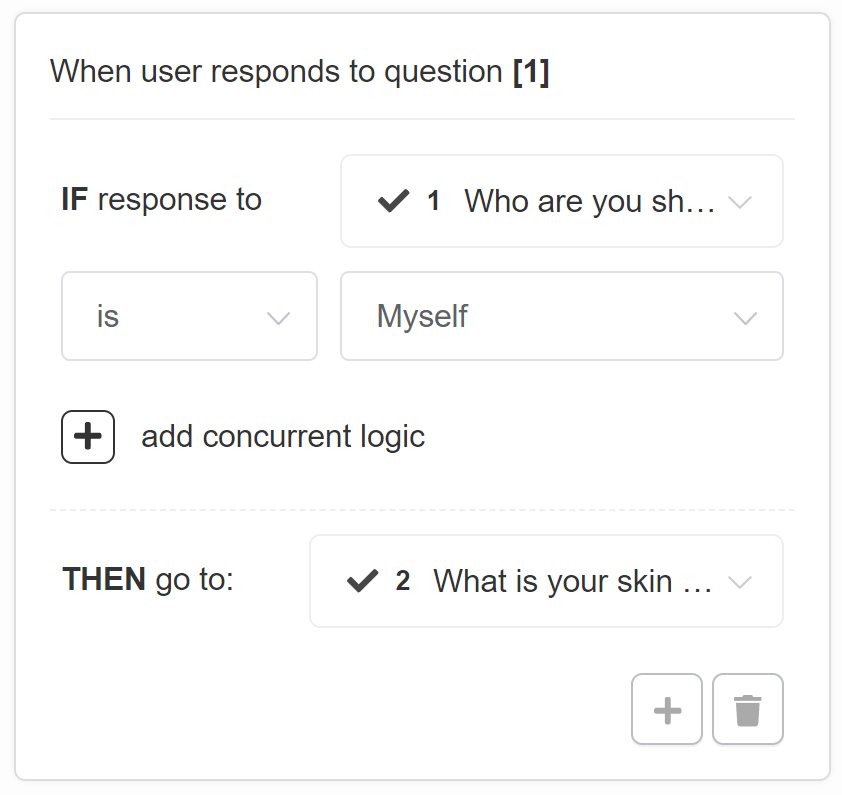
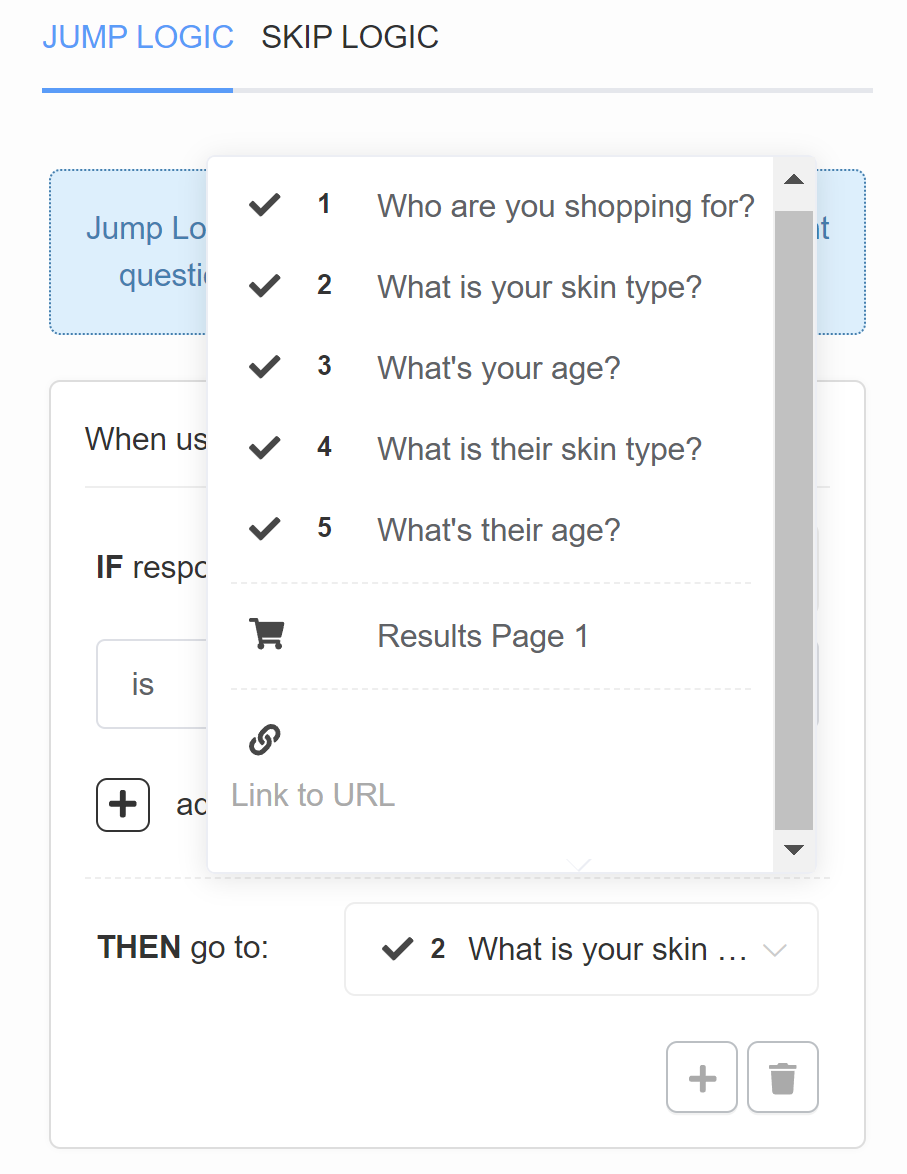
In the example, if a customer chooses "Myself" in Question 1 "Who are you shopping for?" they go to Question 2 "What is your skin type?".
+ - Add another Jump Logic rule. Adds a new OR logical rule.
Example
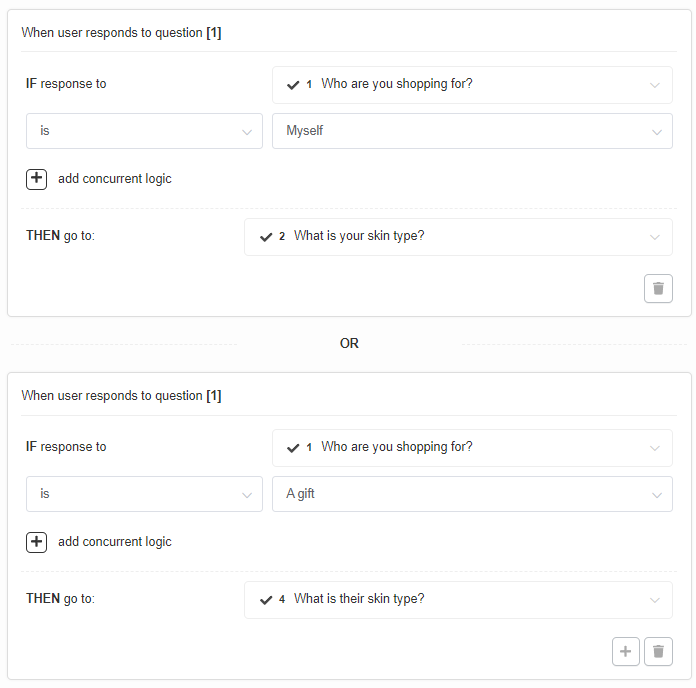
In the example, if a customer chooses "Myself" in Question 1 "Who are you shopping for?" they go to Question 2 "What is your skin type?". If the customer instead chooses "A gift" in Question 1 "Who are you shopping for?" they go to Question 4 "What is their skin type?".
bin - Delete the current Jump Logic rule.
+ add concurrent logic - Adds a new AND logical statement to the same rule. AND conditional statements can be tricky, as both statements have to be true for the rule to take effect. For most quizzes, using the OR rule is enough.
Example
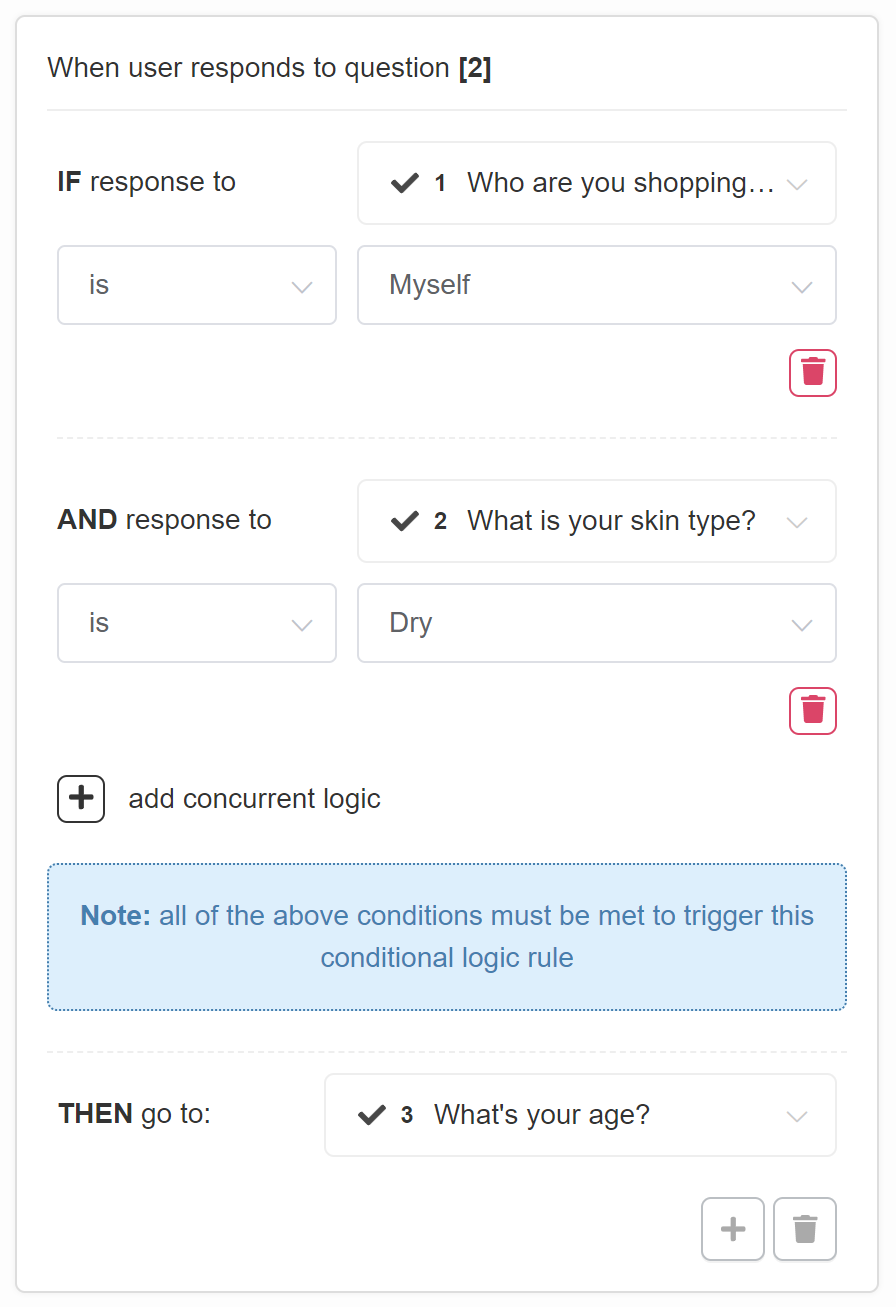
In the example, only if a customer chooses "Myself" in Question 1 "Who are you shopping for?" and "Dry" in Question 2 "What is your skin type?" they go to Question 3 What's your age?.
Always jump to: - Select the question or URL the customer always goes to after this one.
Jump Logic routes customers to a different question based on their answers.
Add Jump Logic - Click to add a new Jump Logic rule for the selected question.
Info
All the Jump Logic rules follow the same format:
- IF response to pick the question from a dropdown list
- is/ is not pick a choice from the dropdown list
- THEN go to: pick a slide from the dropdown list or add a URL
Example
In the example, if a customer chooses "Myself" in Question 1 "Who are you shopping for?" they go to Question 2 "What is your skin type?".
+ - Add another Jump Logic rule. Adds a new OR logical rule.
Example
In the example, if a customer chooses "Myself" in Question 1 "Who are you shopping for?" they go to Question 2 "What is your skin type?". If the customer instead chooses "A gift" in Question 1 "Who are you shopping for?" they go to Question 4 "What is their skin type?".
bin - Delete the current Jump Logic rule.
+ add concurrent logic - Adds a new AND logical statement to the same rule. AND conditional statements can be tricky, as both statements have to be true for the rule to take effect. For most quizzes, using the OR rule is enough.
Example
In the example, only if a customer chooses "Myself" in Question 1 "Who are you shopping for?" and "Dry" in Question 2 "What is your skin type?" they go to Question 3 What's your age?.
Always jump to: - Select the question or URL the customer always goes to after this one.
Jump Logic routes customers to a different question based on their answers.
Add Jump Logic - Click to add a new Jump Logic rule for the selected question.
Info
All the Jump Logic rules follow the same format:
- IF response to pick the question from a dropdown list
- is/ is not pick a choice from the dropdown list
- THEN go to: pick a slide from the dropdown list or add a URL
Example
In the example, if a customer chooses "Myself" in Question 1 "Who are you shopping for?" they go to Question 2 "What is your skin type?".
+ - Add another Jump Logic rule. Adds a new OR logical rule.
Example
In the example, if a customer chooses "Myself" in Question 1 "Who are you shopping for?" they go to Question 2 "What is your skin type?". If the customer instead chooses "A gift" in Question 1 "Who are you shopping for?" they go to Question 4 "What is their skin type?".
bin - Delete the current Jump Logic rule.
+ add concurrent logic - Adds a new AND logical statement to the same rule. AND conditional statements can be tricky, as both statements have to be true for the rule to take effect. For most quizzes, using the OR rule is enough.
Example
In the example, only if a customer chooses "Myself" in Question 1 "Who are you shopping for?" and "Dry" in Question 2 "What is your skin type?" they go to Question 3 What's your age?.
Always jump to: - Select the question or URL the customer always goes to after this one.
Jump Logic routes customers to a different question based on their answers.
Add Jump Logic - Click to add a new Jump Logic rule for the selected question.
Info
All the Jump Logic rules follow the same format:
- IF response to pick the question from a dropdown list
- is/ is not pick a choice from the dropdown list
- THEN go to: pick a slide from the dropdown list or add a URL
Example
In the example, if a customer chooses "Myself" in Question 1 "Who are you shopping for?" they go to Question 2 "What is your skin type?".
+ - Add another Jump Logic rule. Adds a new OR logical rule.
Example
In the example, if a customer chooses "Myself" in Question 1 "Who are you shopping for?" they go to Question 2 "What is your skin type?". If the customer instead chooses "A gift" in Question 1 "Who are you shopping for?" they go to Question 4 "What is their skin type?".
bin - Delete the current Jump Logic rule.
+ add concurrent logic - Adds a new AND logical statement to the same rule. AND conditional statements can be tricky, as both statements have to be true for the rule to take effect. For most quizzes, using the OR rule is enough.
Example
In the example, only if a customer chooses "Myself" in Question 1 "Who are you shopping for?" and "Dry" in Question 2 "What is your skin type?" they go to Question 3 What's your age?.
Always jump to: - Select the question or URL the customer always goes to after this one.
Jump Logic routes customers to a different question based on their answers.
Add Jump Logic - Click to add a new Jump Logic rule for the selected question.
Info
All the Jump Logic rules follow the same format:
- IF response to pick the question from a dropdown list
- is/ is not pick a choice from the dropdown list
- THEN go to: pick a slide from the dropdown list or add a URL
Example
In the example, if a customer chooses "Myself" in Question 1 "Who are you shopping for?" they go to Question 2 "What is your skin type?".
+ - Add another Jump Logic rule. Adds a new OR logical rule.
Example
In the example, if a customer chooses "Myself" in Question 1 "Who are you shopping for?" they go to Question 2 "What is your skin type?". If the customer instead chooses "A gift" in Question 1 "Who are you shopping for?" they go to Question 4 "What is their skin type?".
bin - Delete the current Jump Logic rule.
+ add concurrent logic - Adds a new AND logical statement to the same rule. AND conditional statements can be tricky, as both statements have to be true for the rule to take effect. For most quizzes, using the OR rule is enough.
Example
In the example, only if a customer chooses "Myself" in Question 1 "Who are you shopping for?" and "Dry" in Question 2 "What is your skin type?" they go to Question 3 What's your age?.
Always jump to: - Select the question or URL the customer always goes to after this one.
Skip logic
Skip logic determines whether a question is presented or skipped based on responses to previous questions. By default, if no Skip logic is added to a question, it will be shown.
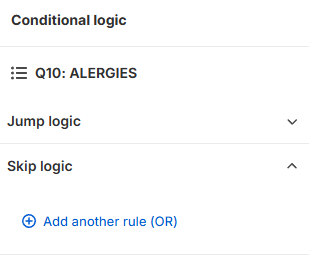
Skip logic - Click the heading to open or close the Skip logic rules of the selected question.
+ Add another rule (OR) - Add a new OR Skip logic rule to the selected question.
+ Add concurrent logic (AND) - Adds a new AND logical statement to the same rule. AND conditional statements can be tricky, as both statements have to be true for the rule to take effect. For most quizzes, using the OR rule is enough.
... - Open the menu of a rule. Use it to delete the rule.
Drag and drop reordering
You can reorder Skip logic rules by dragging them. Click and hold a rule, then drag it to a new position in the list.
There are three types of Skip logic rules you can choose from:
Type 1: IF the response to the question...
A rule of this type has the format:
- IF
The response to the question..., then pick the question from the dropdown list - IS / IS NOT pick a choice from the dropdown list
- THEN this question is skipped
Example 1
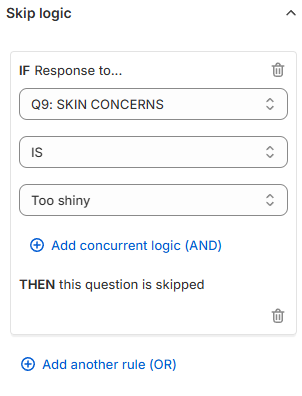
In the example, if a customer chooses "Too shiny" in Question 9 "SKIN CONCERNS" then Question 10 "ALERGIES" will be skipped (it will not be shown).
Type 2: IF the score of the variable...
A rule of this type has the format:
- IF the score of the variable
- score pick the variable from a dropdown list
- pick the comparison from the dropdown list:
- is equal to / is not equal to
- is greater than / is less than
- is greater than or equal to / is less than or equal to
- Number / Another variable pick a choice from the dropdown list
- 0 / 1 / 2 / other numerical value type a value in the input field
- THEN this question is skipped
Info
Scores are assigned to each choice in the Questions tab > Choice settings section.
Example 2
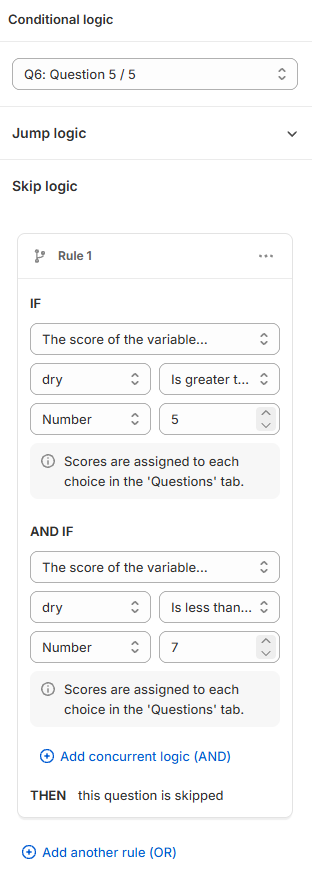
In the example, the rule reads the score of the variable dry twice. If the score is greater than number 5 and less than number 7, Question 6 is skipped.
Type 3: IF the variable with the highest score...
A rule of this type has the format:
- IF the variable with the highest score
- IS / IS NOT pick a choice from the dropdown list
- variable pick a variable from the dropdown list
- THEN this question is skipped
Info
Scores and variables are assigned to each choice in the Questions tab > Choice settings section.
Example 3
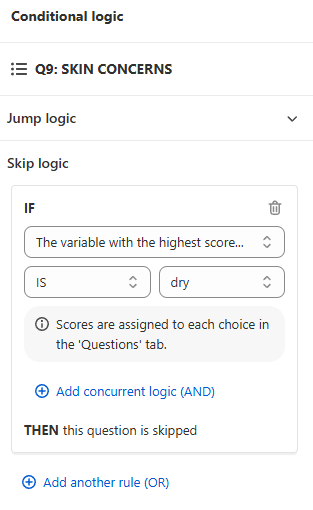
In the example, if the variable with the highest score is dry, Question 6 is skipped.
Skip Logic determines whether a question is presented or skipped based on responses to previous questions. By default, if no Skip Logic is added to a question, it will be shown.
Add Skip Logic - Click to add a new Skip Logic rule for the selected question.
Info
All the Skip Logic rules follow the same format:
- IF response to pick the question from a dropdown list
- is/ is not pick a choice from the dropdown list
- THEN this question is skipped
Example
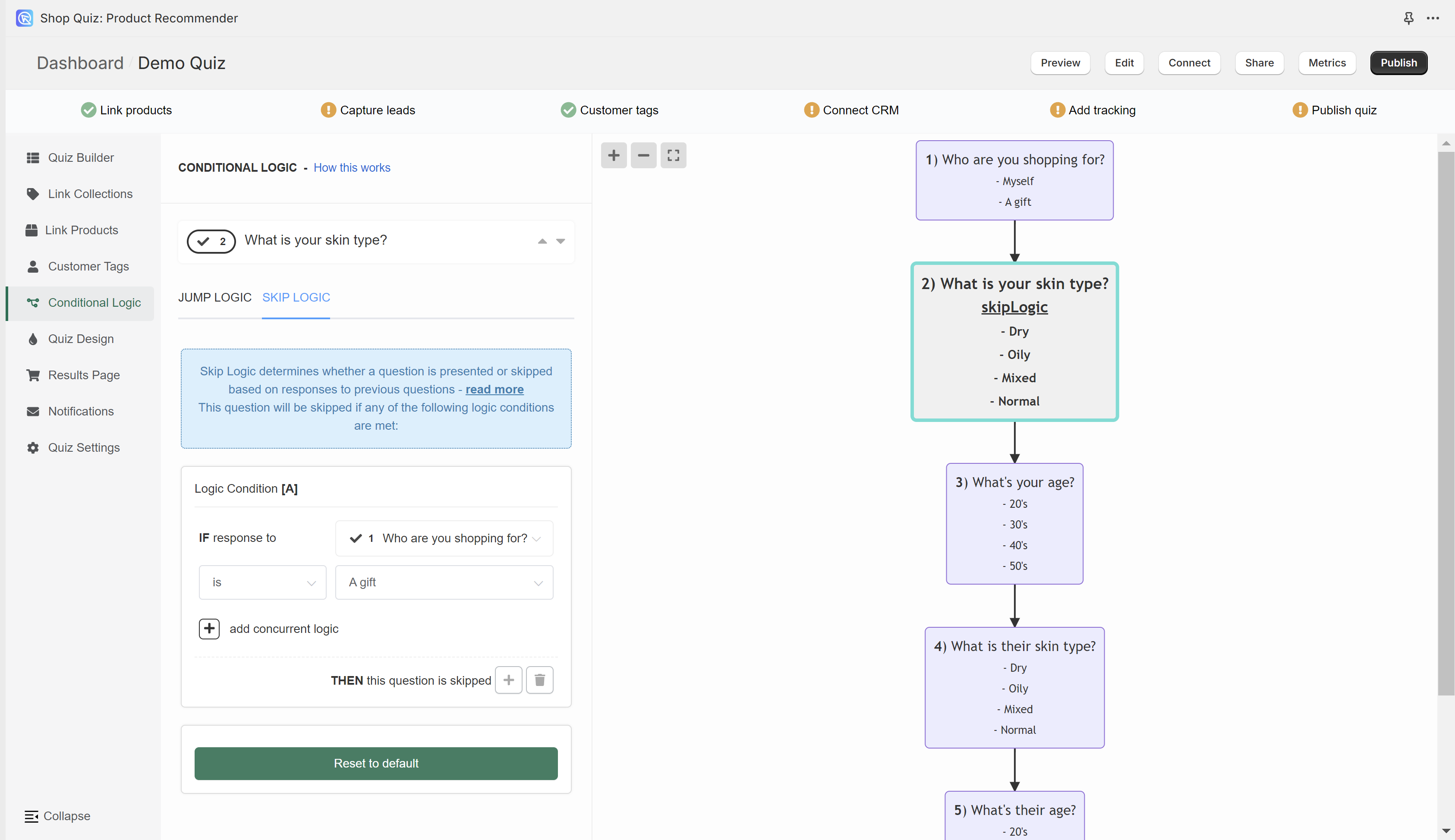
In the example, if a customer chooses "A gift" in Question 1 "Who are you shopping for?" then Question 2 "What is your skin type?" will be skipped (it will not be shown).
All slides that contain Skip Logic will be marked with "skip logic" text.
+ - Adds another Skip Logic rule. Adds a new OR logical rule.
bin - Delete the current Skip Logic rule.
+ add concurrent logic - Adds a new AND logical statement to the same rule. AND conditional statements can be tricky, as both statements have to be true for the rule to take effect. For most quizzes, using the OR rule is enough.
Skip Logic determines whether a question is presented or skipped based on responses to previous questions. By default, if no Skip Logic is added to a question, it will be shown.
Add Skip Logic - Click to add a new Skip Logic rule for the selected question.
Info
All the Skip Logic rules follow the same format:
- IF response to pick the question from a dropdown list
- is/ is not pick a choice from the dropdown list
- THEN this question is skipped
Example
In the example, if a customer chooses "A gift" in Question 1 "Who are you shopping for?" then Question 2 "What is your skin type?" will be skipped (it will not be shown).
All slides that contain Skip Logic will be marked with "skip logic" text.
+ - Adds another Skip Logic rule. Adds a new OR logical rule.
bin - Delete the current Skip Logic rule.
+ add concurrent logic - Adds a new AND logical statement to the same rule. AND conditional statements can be tricky, as both statements have to be true for the rule to take effect. For most quizzes, using the OR rule is enough.
Skip Logic determines whether a question is presented or skipped based on responses to previous questions. By default, if no Skip Logic is added to a question, it will be shown.
Add Skip Logic - Click to add a new Skip Logic rule for the selected question.
Info
All the Skip Logic rules follow the same format:
- IF response to pick the question from a dropdown list
- is/ is not pick a choice from the dropdown list
- THEN this question is skipped
Example
In the example, if a customer chooses "A gift" in Question 1 "Who are you shopping for?" then Question 2 "What is your skin type?" will be skipped (it will not be shown).
All slides that contain Skip Logic will be marked with "skip logic" text.
+ - Adds another Skip Logic rule. Adds a new OR logical rule.
bin - Delete the current Skip Logic rule.
+ add concurrent logic - Adds a new AND logical statement to the same rule. AND conditional statements can be tricky, as both statements have to be true for the rule to take effect. For most quizzes, using the OR rule is enough.
Skip Logic determines whether a question is presented or skipped based on responses to previous questions. By default, if no Skip Logic is added to a question, it will be shown.
Add Skip Logic - Click to add a new Skip Logic rule for the selected question.
Info
All the Skip Logic rules follow the same format:
- IF response to pick the question from a dropdown list
- is/ is not pick a choice from the dropdown list
- THEN this question is skipped
Example
In the example, if a customer chooses "A gift" in Question 1 "Who are you shopping for?" then Question 2 "What is your skin type?" will be skipped (it will not be shown).
All slides that contain Skip Logic will be marked with "skip logic" text.
+ - Adds another Skip Logic rule. Adds a new OR logical rule.
bin - Delete the current Skip Logic rule.
+ add concurrent logic - Adds a new AND logical statement to the same rule. AND conditional statements can be tricky, as both statements have to be true for the rule to take effect. For most quizzes, using the OR rule is enough.
Skip Logic determines whether a question is presented or skipped based on responses to previous questions. By default, if no Skip Logic is added to a question, it will be shown.
Add Skip Logic - Click to add a new Skip Logic rule for the selected question.
Info
All the Skip Logic rules follow the same format:
- IF response to pick the question from a dropdown list
- is/ is not pick a choice from the dropdown list
- THEN this question is skipped
Example
In the example, if a customer chooses "A gift" in Question 1 "Who are you shopping for?" then Question 2 "What is your skin type?" will be skipped (it will not be shown).
All slides that contain Skip Logic will be marked with "skip logic" text.
+ - Adds another Skip Logic rule. Adds a new OR logical rule.
bin - Delete the current Skip Logic rule.
+ add concurrent logic - Adds a new AND logical statement to the same rule. AND conditional statements can be tricky, as both statements have to be true for the rule to take effect. For most quizzes, using the OR rule is enough.
← Previous: Customer Tags Next: Quiz Design →