Results Page
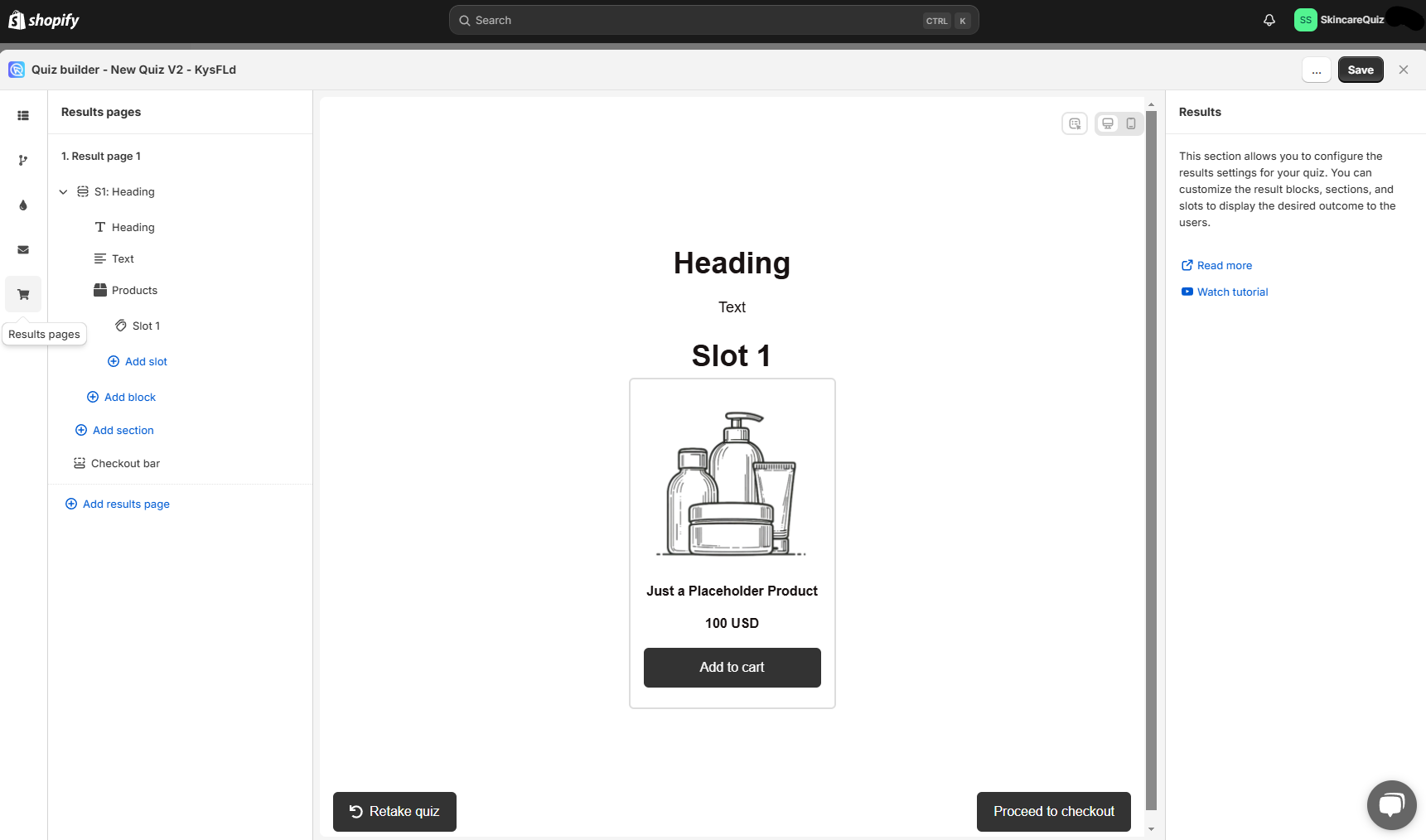
In the Results page section, you can add content to the results page shown at the end of the quiz. You can adjust the results page settings and preview how the page looks. Customize the blocks, sections and slots that customers see.
Results Page - the menu where all your results pages are nested.
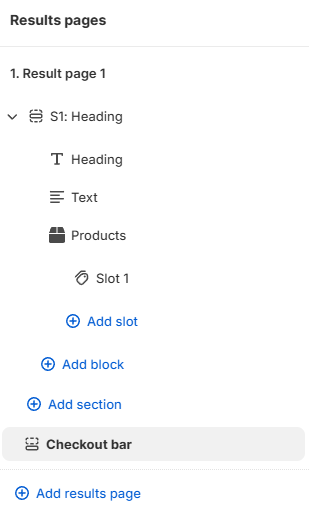
Results page 1 - the first results page, currently editing.
Λ / V - Click to expand or collapse all the blocks in the results page at once . Only shown when the results page has more than one section..
⚙️ - Click to open the results page settings.
+ Add slot - Adds a new slot to this Products block. To remove a section or a block, click the bin icon.
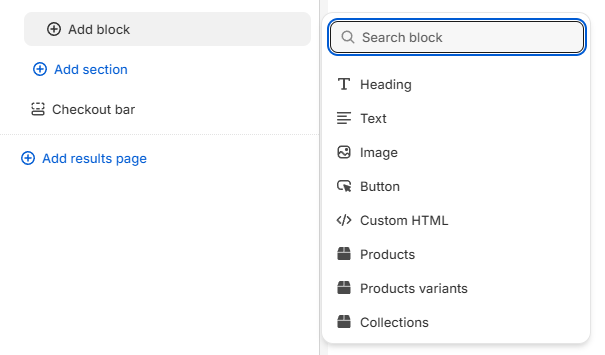
+ Add block - Adds a new block to this section.To remove a section or a block, click the bin icon.
+ Add section - Adds a new section to this results page. To remove a section or a block, click the bin icon.
+ Add results page - Add another results page to your quiz. To remove a Results page, click on the Results page and go to Results page settings.
Jump logic is required
The customers will be taken to the first results page by default. To send them to a different results page, use Jump logic in the Conditional logic tab.
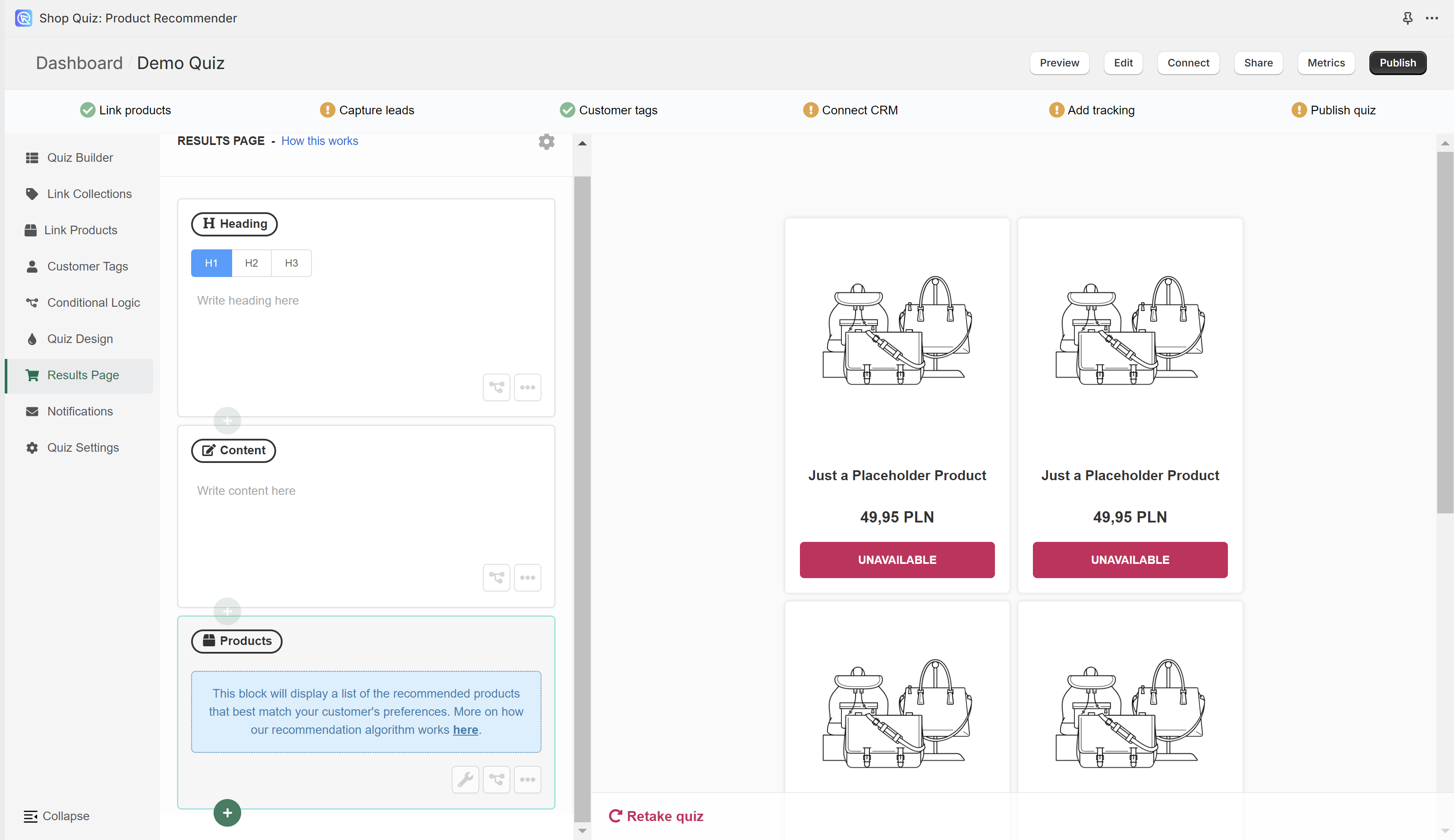
In the Results Page section, you can add content to the results page shown at the end of the quiz. You can adjust the results page settings and see the preview of how the results page looks like.
In the Results Page section, you can add content to the results page shown at the end of the quiz. You can adjust the results page settings and see the preview of how the results page looks like.
In the Results Page section, you can add content to the results page shown at the end of the quiz. You can adjust the results page settings and see the preview of how the results page looks like.
In the Results Page section, you can add content to the results page shown at the end of the quiz. You can adjust the results page settings and see the preview of how the results page looks like.
In the Results Page section, you can add content to the results page shown at the end of the quiz. You can adjust the results page settings and see the preview of how the results page looks like.
Results page structure
The results page is built from sections. Each section holds blocks, and a products block holds slots.
results page
└── section          a band, shown or hidden by display logic
    └── block        a component in that section
        └── slot     one recommendation position in a products block
| Block | What it does |
|---|---|
| Heading | The title of a section |
| Text | A paragraph, a list or a link |
| Image | A picture or a banner |
| Video | An uploaded video |
| Custom HTML | Your own HTML, with Liquid support |
| Products | The recommendation engine, sorted by upvotes |
| Slots | Recommendations grouped into fixed positions |
| Charts | A gauge, radar, bar, rating or custom chart |
| Buttons | A button, or the cart and checkout action |
Settings sit at three levels:
- Results page settings decide how products are picked for the whole page
- Block settings decide how one block looks and behaves
- Display logic shows or hides a whole section
The Results Page is built from blocks stacked in order. There are no sections. A new Results Page starts with a Heading Block, a Content Block and a Products Block.
Results Page
└── block            a component on the page
    └── slot         one recommendation position in a Slots Block
| Block | What it does |
|---|---|
| Heading Block | The main title of the page |
| Content Block | Rich text for descriptions, instructions or explanations |
| Image Block | A banner or another picture |
| HTML Block | Your own HTML and CSS |
| Products Block | The recommendation engine. Shows products based on the quiz logic |
| Slots Block | Fixed recommendations, shown whatever the score |
Settings sit at two levels:
- Results Page settings decide how products are picked. They also control add to cart and checkout for the whole page
- Block settings decide how one block looks
- Display Logic shows or hides an individual block
The Results Page is built from blocks stacked in order. There are no sections. A new Results Page starts with a Heading Block, a Content Block and a Products Block.
Results Page
└── block            a component on the page
    └── slot         one recommendation position in a Slots Block
| Block | What it does |
|---|---|
| Heading Block | The main title of the page |
| Content Block | Rich text for descriptions, instructions or explanations |
| Image Block | A banner or another picture |
| HTML Block | Your own HTML and CSS |
| Products Block | The recommendation engine. Shows products based on the quiz logic |
| Slots Block | Fixed recommendations, shown whatever the score |
Settings sit at two levels:
- Results Page settings decide how products are picked. They also control add to cart and checkout for the whole page
- Block settings decide how one block looks
- Display Logic shows or hides an individual block
The Results Page is built from blocks stacked in order. There are no sections. A new Results Page starts with a Heading Block, a Content Block and a Products Block.
Results Page
└── block            a component on the page
    └── slot         one recommendation position in a Slots Block
| Block | What it does |
|---|---|
| Heading Block | The main title of the page |
| Content Block | Rich text for descriptions, instructions or explanations |
| Image Block | A banner or another picture |
| HTML Block | Your own HTML and CSS |
| Products Block | The recommendation engine. Shows products based on the quiz logic |
| Slots Block | Fixed recommendations, shown whatever the score |
Settings sit at two levels:
- Results Page settings decide how products are picked. They also control add to cart and checkout for the whole page
- Block settings decide how one block looks
- Display Logic shows or hides an individual block
The Results Page is built from blocks stacked in order. There are no sections. A new Results Page starts with a Heading Block, a Content Block and a Products Block.
Results Page
└── block            a component on the page
    └── slot         one recommendation position in a Slots Block
| Block | What it does |
|---|---|
| Heading Block | The main title of the page |
| Content Block | Rich text for descriptions, instructions or explanations |
| Image Block | A banner or another picture |
| HTML Block | Your own HTML and CSS |
| Products Block | The recommendation engine. Shows products based on the quiz logic |
| Slots Block | Fixed recommendations, shown whatever the score |
Settings sit at two levels:
- Results Page settings decide how products are picked. They also control add to cart and checkout for the whole page
- Block settings decide how one block looks
- Display Logic shows or hides an individual block
The Results Page is built from blocks stacked in order. There are no sections. A new Results Page starts with a Heading Block, a Content Block and a Products Block.
Results Page
└── block            a component on the page
    └── slot         one recommendation position in a Slots Block
| Block | What it does |
|---|---|
| Heading Block | The main title of the page |
| Content Block | Rich text for descriptions, instructions or explanations |
| Image Block | A banner or another picture |
| HTML Block | Your own HTML and CSS |
| Products Block | The recommendation engine. Shows products based on the quiz logic |
| Slots Block | Fixed recommendations, shown whatever the score |
Settings sit at two levels:
- Results Page settings decide how products are picked. They also control add to cart and checkout for the whole page
- Block settings decide how one block looks
- Display Logic shows or hides an individual block
Naming
For the word RevenueHunt uses for each of these, and how it differs by platform, see the Glossary.
Block types
+ Add block - Adds a new block to this section.To remove a section or a block, click the bin icon.
Content
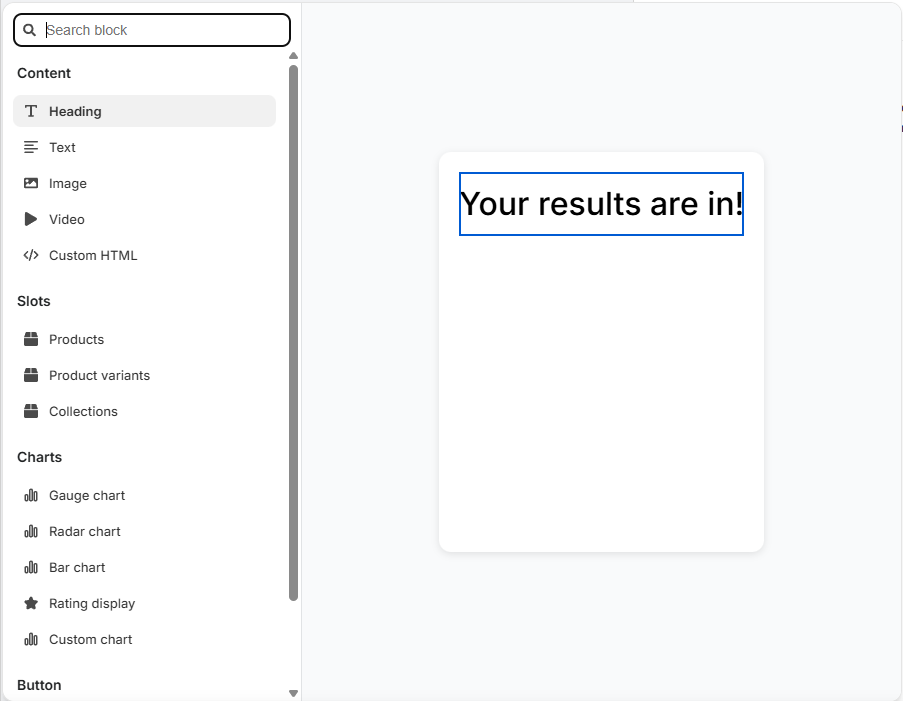
Heading - Adds a new heading to your page, ideal for titles or section breaks.
Text - Adds a new content block to your page, ideal for adding and formatting text, lists, and links.
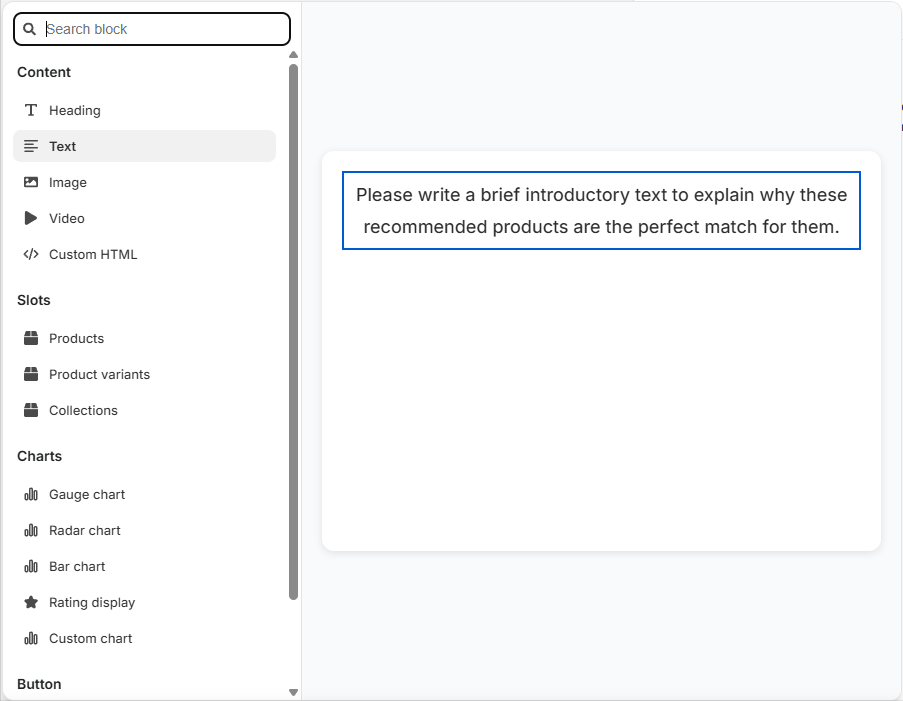
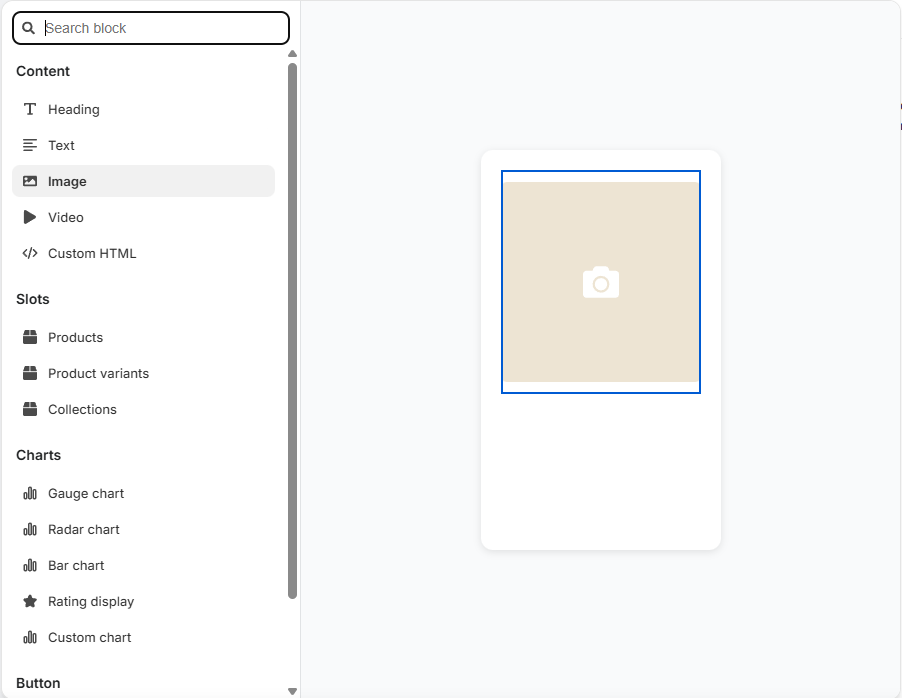
Image - Adds an embedded image block into your page. You can upload your own image. The image should be max 1000px x 1000px and max 2MB.
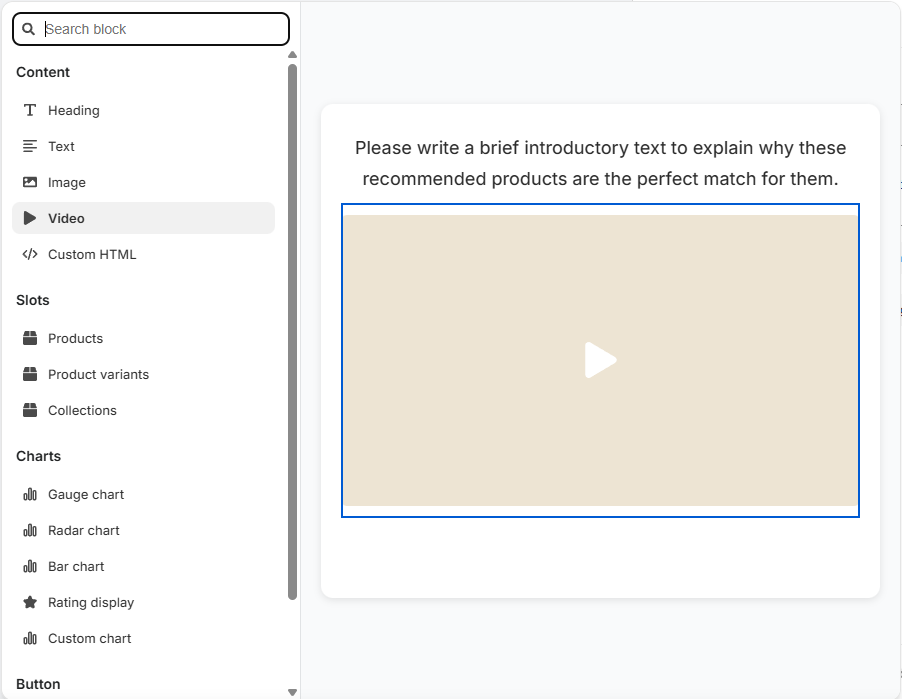
Video - Adds a video block to the results page. You can upload your own video.
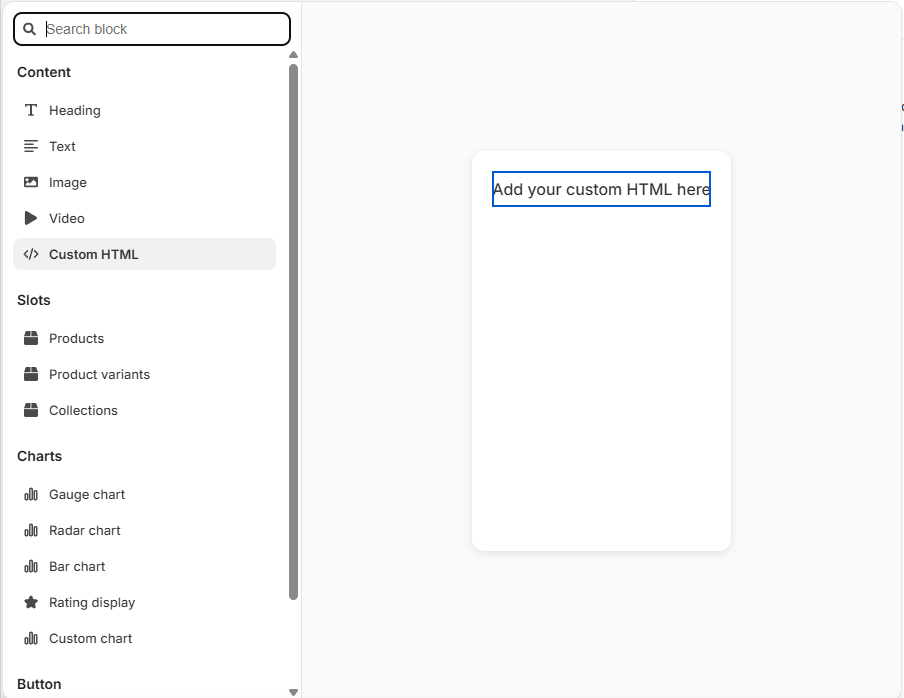
Custom HTML - Adds a block where you can input custom HTML code for advanced content and styling.
Slots
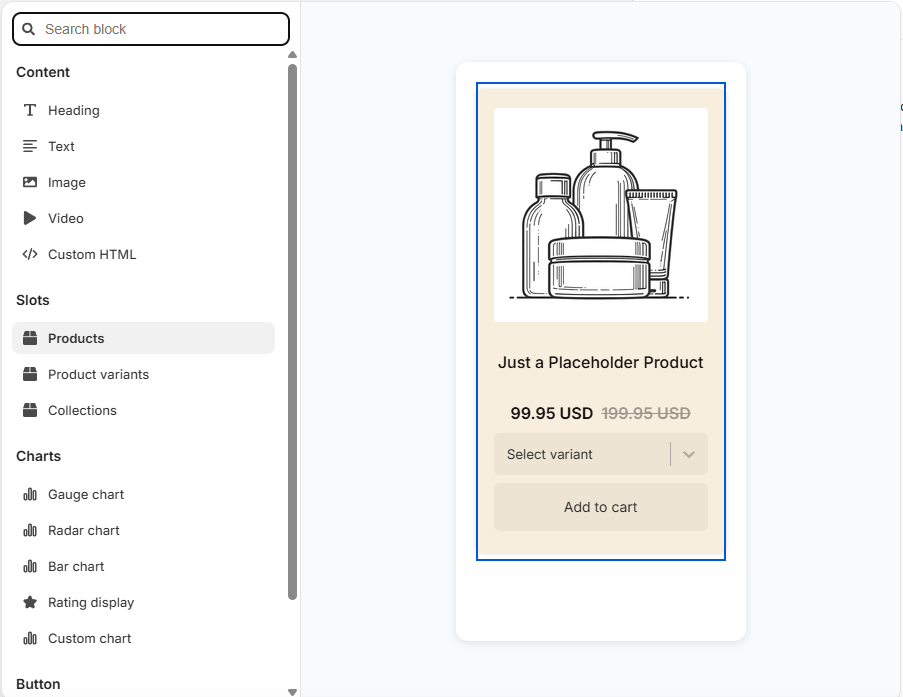
Products - Adds a block specifically designed for displaying a list of recommended products.
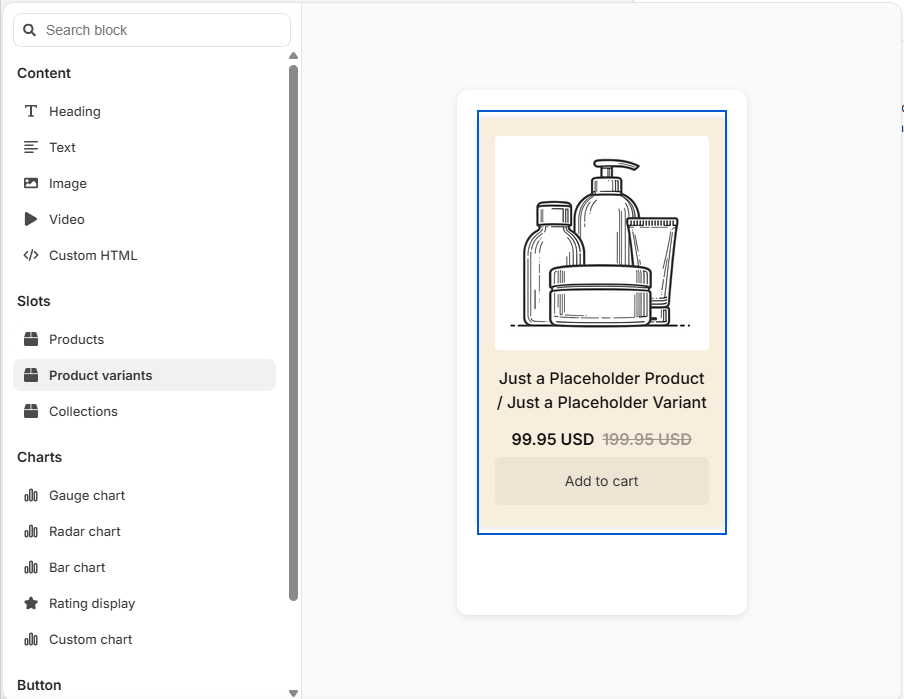
Product variants - Adds a block specifically designed for displaying a list of recommended product variants.
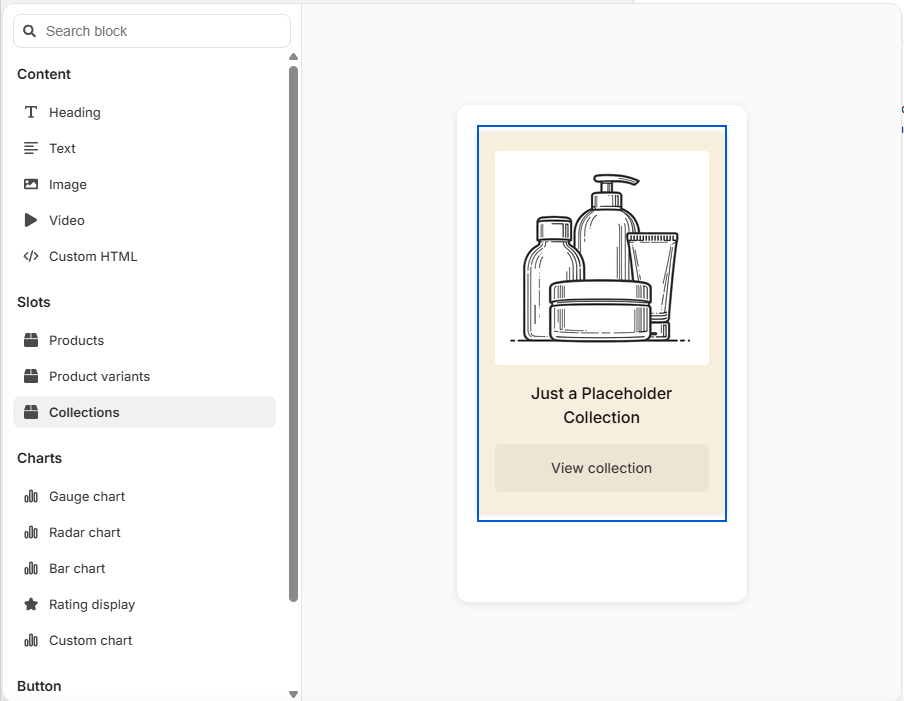
Collections - Adds a block specifically designed for displaying a list of recommended collections.
Charts
Gauge chart - Adds a gauge chart to the results page.
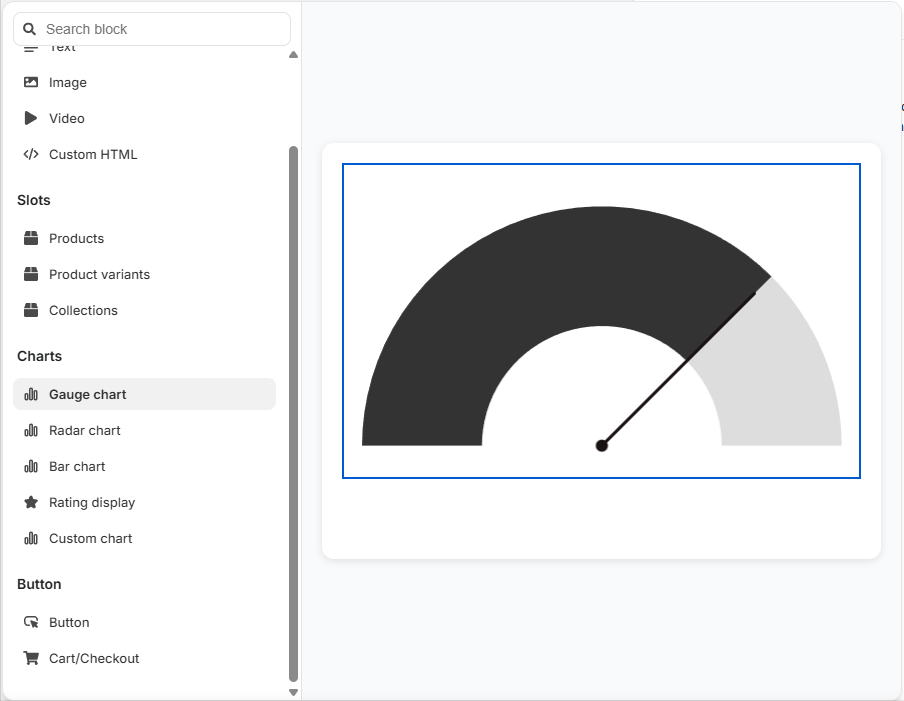
Radar chart - Adds a radar chart to the results page.
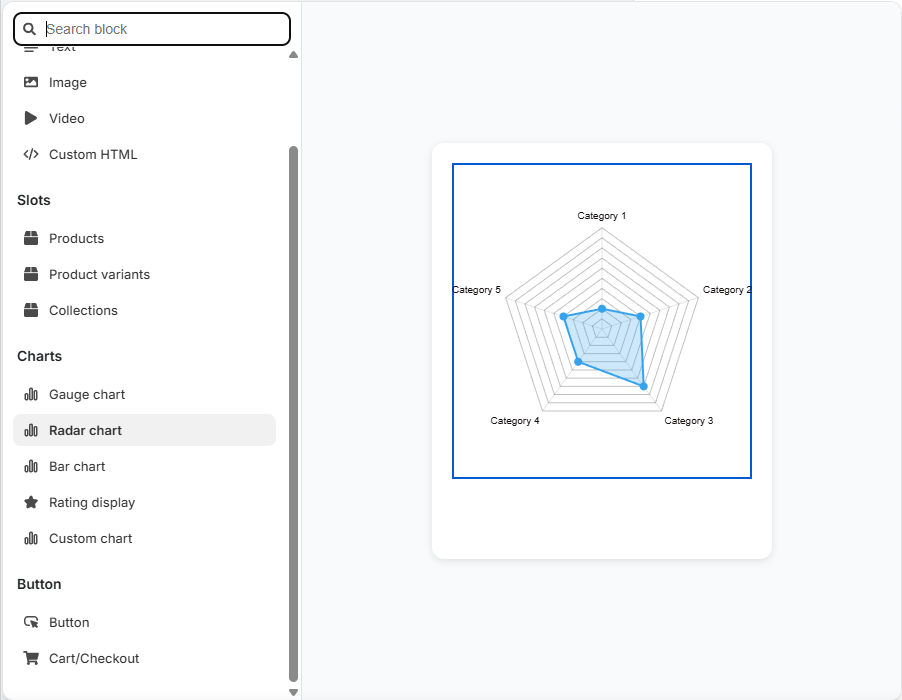
Bar chart - Adds a bar chart to the results page.
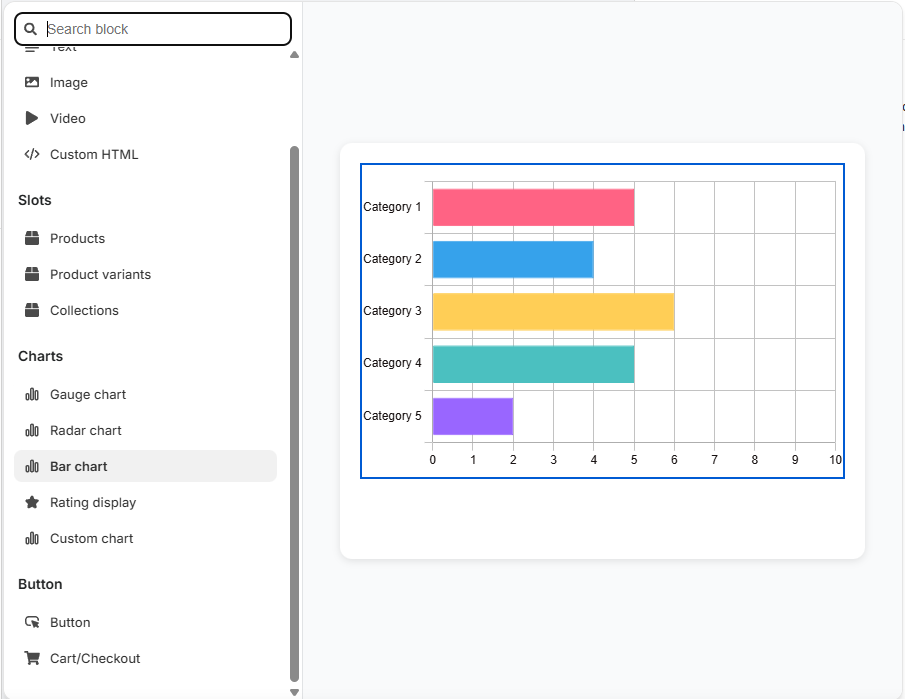
Rating display - Adds a rating display to the results page.
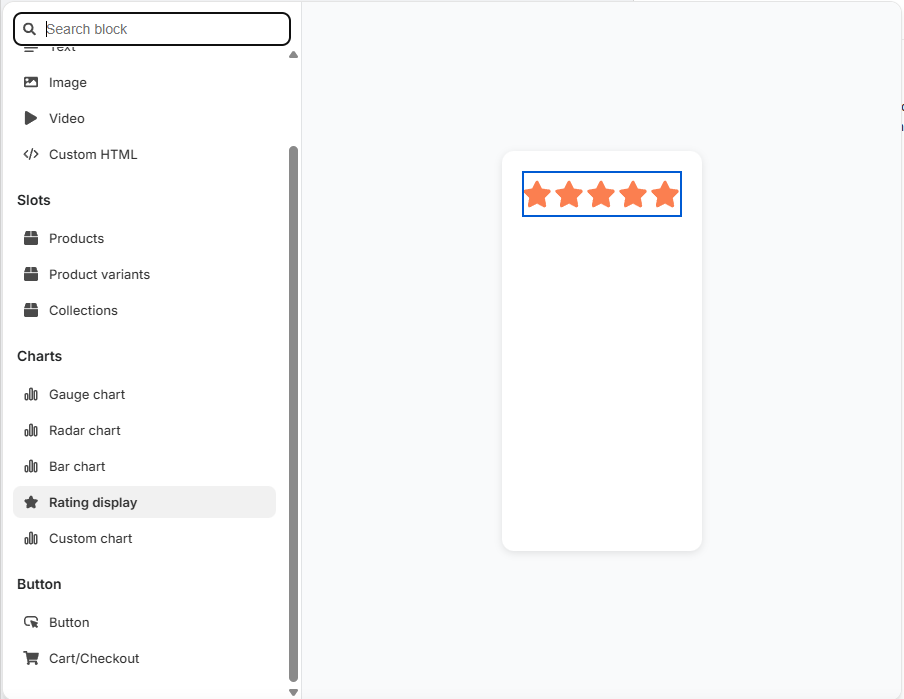
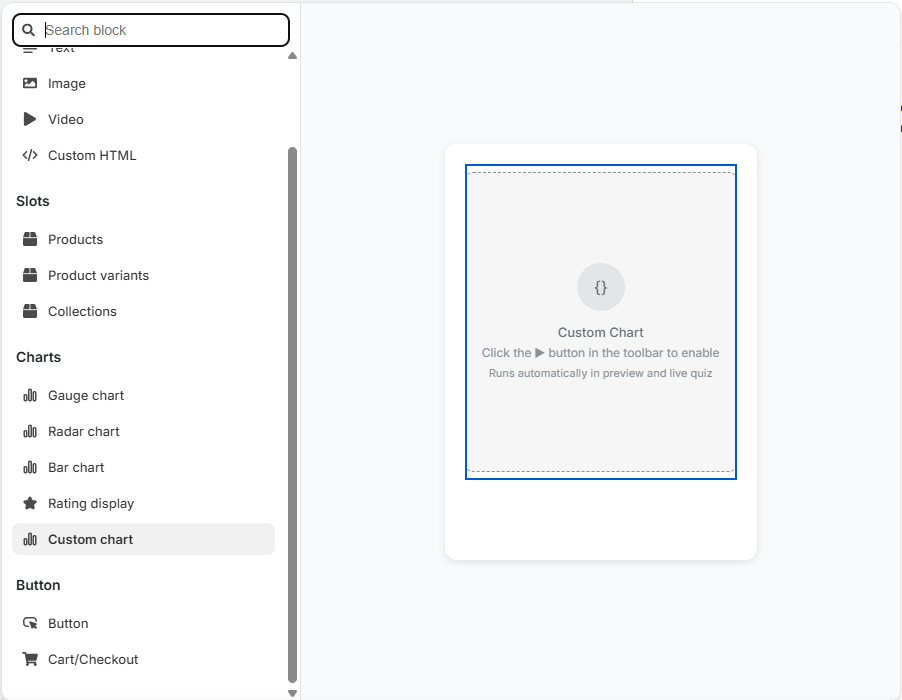
Custom chart - Adds a custom chart to the results page.
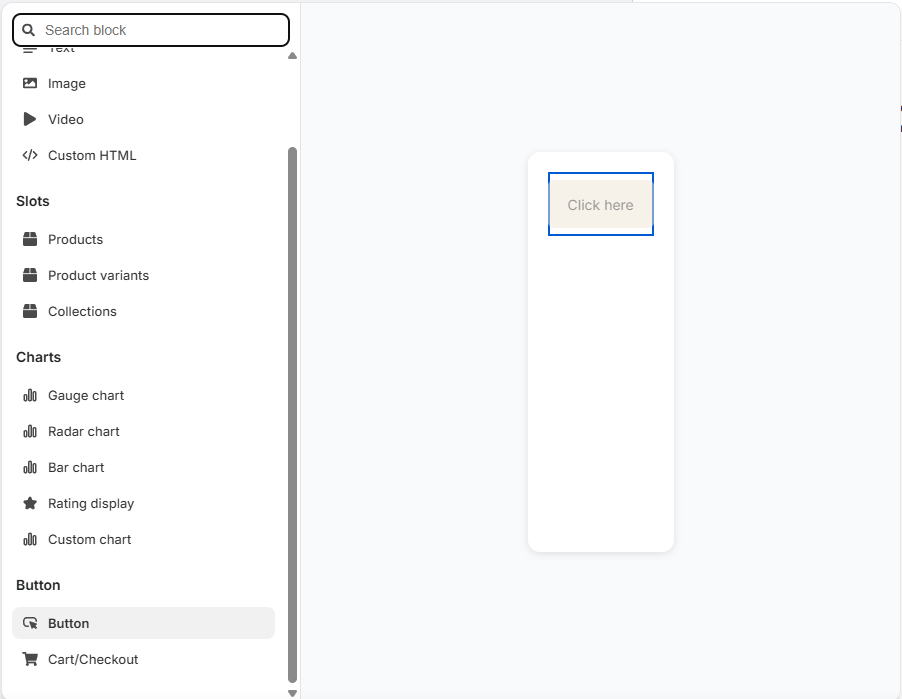
Button
Button - Adds a button to the results page. You can add any URL to the button.
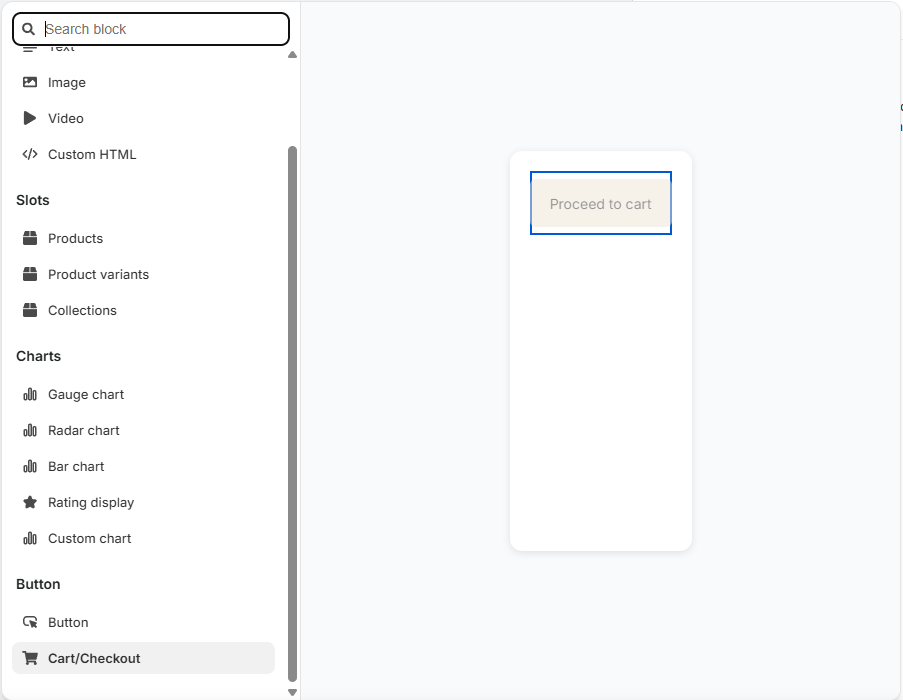
Cart/Checkout - Adds a Proceed to cart or Proceed to checkout button to the results page.
bin - Click on the bin icon to remove the block.
+ / add block - Opens a menu of content blocks that you can add to your results page. You can drag an drop the blocks to change the order.
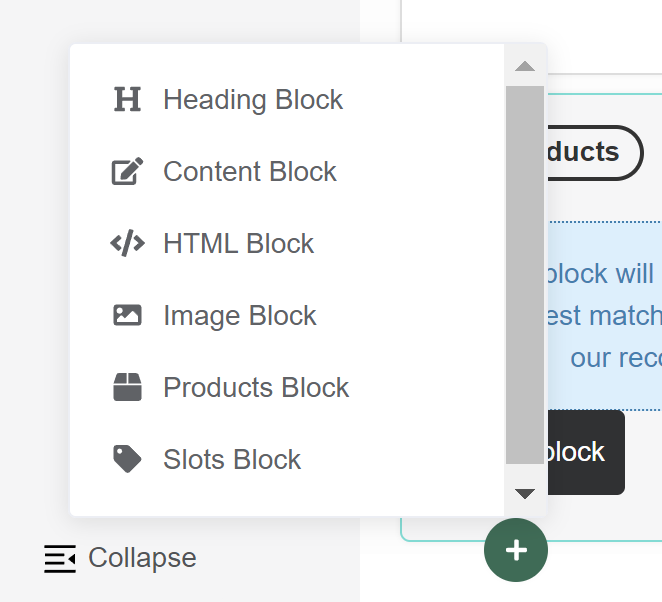
Heading Block - Adds a new heading to your page, ideal for titles or section breaks.
Content Block - Adds a new content block to your page, ideal for adding and formatting text, lists, and links.
HTML Block - Adds a block where you can input custom HTML code for advanced content and styling.
Image Block - Adds an embedded image block into your page. You can upload your own image. The image should be max 1000px x 1000px and max 2MB.
Products Block - Adds a block specifically designed for displaying a list of recommended products.
Slots Block - Adds a block specifically designed for displaying the recommended products sorted into slots. Slots group recommended products into categories, for example cleanser, toner, serum and moisturizer. A slot shows the most upvoted products from the collection linked to it.
+ / add block - Opens a menu of content blocks that you can add to your results page. You can drag an drop the blocks to change the order.
Heading Block - Adds a new heading to your page, ideal for titles or section breaks.
Content Block - Adds a new content block to your page, ideal for adding and formatting text, lists, and links.
HTML Block - Adds a block where you can input custom HTML code for advanced content and styling.
Image Block - Adds an embedded image block into your page. You can upload your own image. The image should be max 1000px x 1000px and max 2MB.
Products Block - Adds a block specifically designed for displaying a list of recommended products.
Slots Block - Adds a block specifically designed for displaying the recommended products sorted into slots. Slots group recommended products into categories, for example cleanser, toner, serum and moisturizer. A slot shows the most upvoted products from the collection linked to it.
+ / add block - Opens a menu of content blocks that you can add to your results page. You can drag an drop the blocks to change the order.
Heading Block - Adds a new heading to your page, ideal for titles or section breaks.
Content Block - Adds a new content block to your page, ideal for adding and formatting text, lists, and links.
HTML Block - Adds a block where you can input custom HTML code for advanced content and styling.
Image Block - Adds an embedded image block into your page. You can upload your own image. The image should be max 1000px x 1000px and max 2MB.
Products Block - Adds a block specifically designed for displaying a list of recommended products.
Slots Block - Adds a block specifically designed for displaying the recommended products sorted into slots. Slots group recommended products into categories, for example cleanser, toner, serum and moisturizer. A slot shows the most upvoted products from the collection linked to it.
+ / add block - Opens a menu of content blocks that you can add to your results page. You can drag an drop the blocks to change the order.
Heading Block - Adds a new heading to your page, ideal for titles or section breaks.
Content Block - Adds a new content block to your page, ideal for adding and formatting text, lists, and links.
HTML Block - Adds a block where you can input custom HTML code for advanced content and styling.
Image Block - Adds an embedded image block into your page. You can upload your own image. The image should be max 1000px x 1000px and max 2MB.
Products Block - Adds a block specifically designed for displaying a list of recommended products.
Slots Block - Adds a block specifically designed for displaying the recommended products sorted into slots. Slots group recommended products into categories, for example cleanser, toner, serum and moisturizer. A slot shows the most upvoted products from the collection linked to it.
+ / add block - Opens a menu of content blocks that you can add to your results page. You can drag an drop the blocks to change the order.
Heading Block - Adds a new heading to your page, ideal for titles or section breaks.
Content Block - Adds a new content block to your page, ideal for adding and formatting text, lists, and links.
HTML Block - Adds a block where you can input custom HTML code for advanced content and styling.
Image Block - Adds an embedded image block into your page. You can upload your own image. The image should be max 1000px x 1000px and max 2MB.
Products Block - Adds a block specifically designed for displaying a list of recommended products.
Slots Block - Adds a block specifically designed for displaying the recommended products sorted into slots. Slots group recommended products into categories, for example cleanser, toner, serum and moisturizer. A slot shows the most upvoted products from the collection linked to it.
Display logic / display section logic
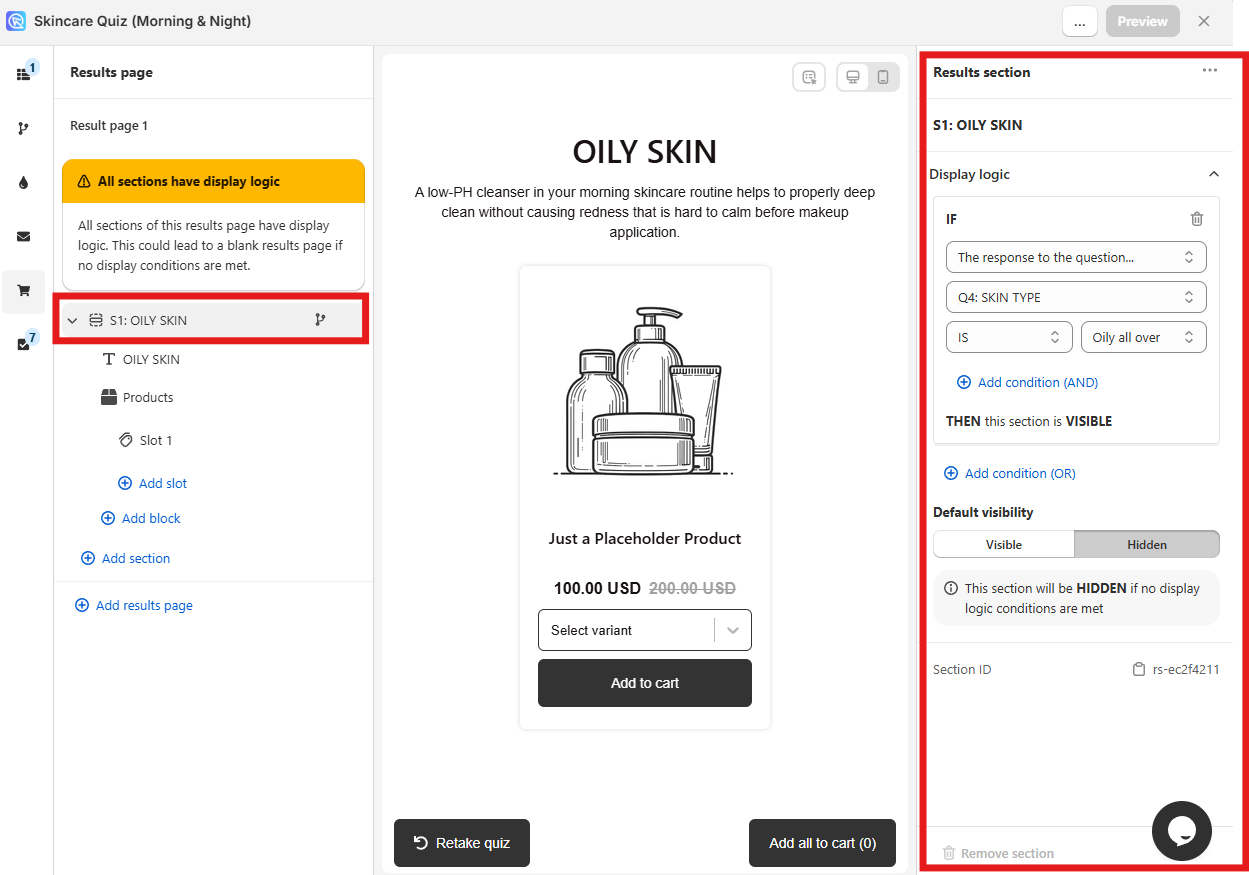
With Display logic you can make sections visible or hidden based on customer's responses.
Display logic
+ Add condition (OR) - Adds a new OR display logic rule.
+ Add condtion (AND) - Adds a new AND logical statement to the same rule. AND conditional statements can be tricky, as both statements have to be true for the rule to take effect. For most quizzes, using the OR rule is enough.
bin - Delete the current Logic rule.
+ Add condition (OR) - Adds another Display logic rule. Adds a new OR logical rule.
Default - Select whether this section should be Shown or Hidden by default.
There are three types of Display logic rules you can choose from:
Type 1: IF the response to the question...
Then the Display logic rules follow the following format:
- IF response to pick the question from a dropdown list
- is/ is not pick a choice from the dropdown list
- THEN section is Visible
- Default visibility pick either Visible or Hidden. If Visible is selected, then section will be shown by default unless the Display logic rule is triggered. If Hidden is selected, the section will be hidden by default unless the Display logic rule is triggered.
Example 1
In the example, if a user chooses a choice "Oily all over" in Question 4 "SKIN TYPE" then this section will be visible. If they give a different answer in Question 4 this content block will be hidden.
Type 2: IF the score of the variable...
Then the Display logic rules follow the following format:
- IF The score of the variable
- score pick the variable from a dropdown list
- pick the comparison from the dropdown list:
- is equal to / is not equal to
- is greater than / is less than
- is greater than or equal to / is less than or equal to
- Number / Another variable pick a choice from the dropdown list
- 0 / 1 / 2 / other numerical value type a value in the input field
- THEN section is Visible
- Default visibility pick either Visible or Hidden. If Visible is selected, then section will be shown by default unless the Display logic rule is triggered. If Hidden is selected, the section will be hidden by default unless the Display logic rule is triggered.
Info
Scores are assigned to each choice in the Questions tab > Choice settings section.
Example 2
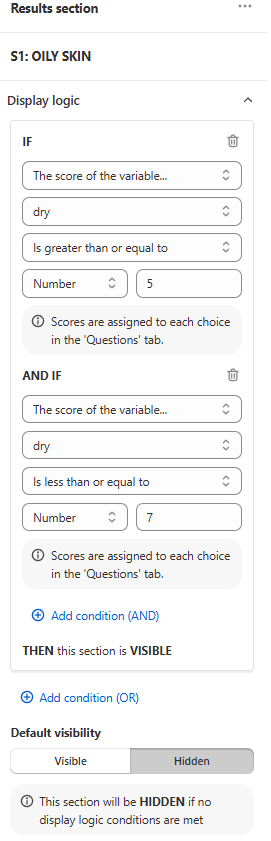
In the example, if the score of the variable dry is greater than or equal to number 5 AND IF the score of the variable dry is less than or equal to number 7 then this section will be visible. Otherwise, the section will be hidden.
Type 3: IF the variable with the highest score...
Then the Display logic rules follow the following format:
- IF the variable with the highest score
- score pick the variable from a dropdown list
- THEN section is Visible
- Default visibility pick either Visible or Hidden. If Visible is selected, then section will be shown by default unless the Display logic rule is triggered. If Hidden is selected, the section will be hidden by default unless the Display logic rule is triggered.
Info
Scores are assigned to each choice in the Questions tab > Choice settings section.
Example 3
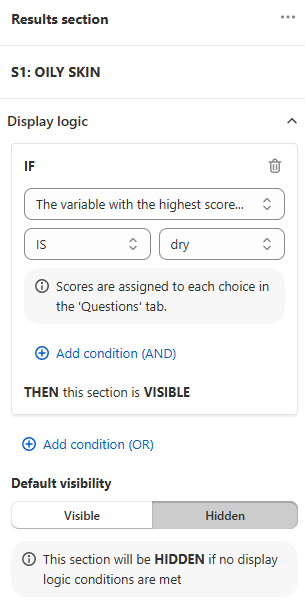
In the example, if the variable with the highest score is dry then this section will be visible. Otherwise, the section will be hidden.
conditional logic / tree icon - Opens the Display Logic menu.
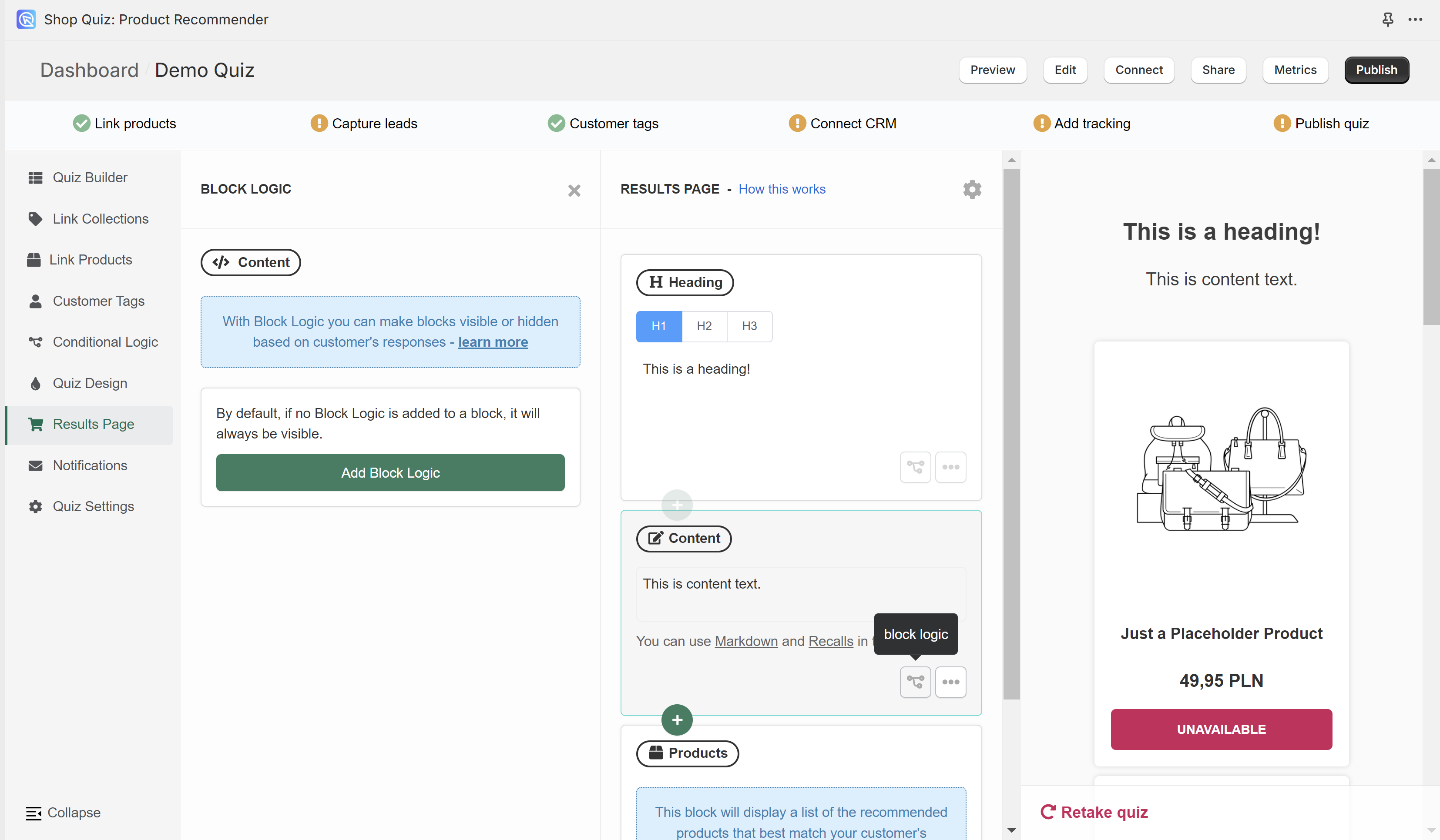
With Display Logic you can make blocks visible or hidden based on customer's responses.
Add Display Logic - Adds a new display logic rule.
Info
All the Display Logic rules follow the same format
- IF response to pick the question from a dropdown list
- is/ is not pick a choice from the dropdown list
- THEN block is pick either Visible or Hidden
- IN ALL OTHER CASES this block is pick pick either Visible or Hidden
Example
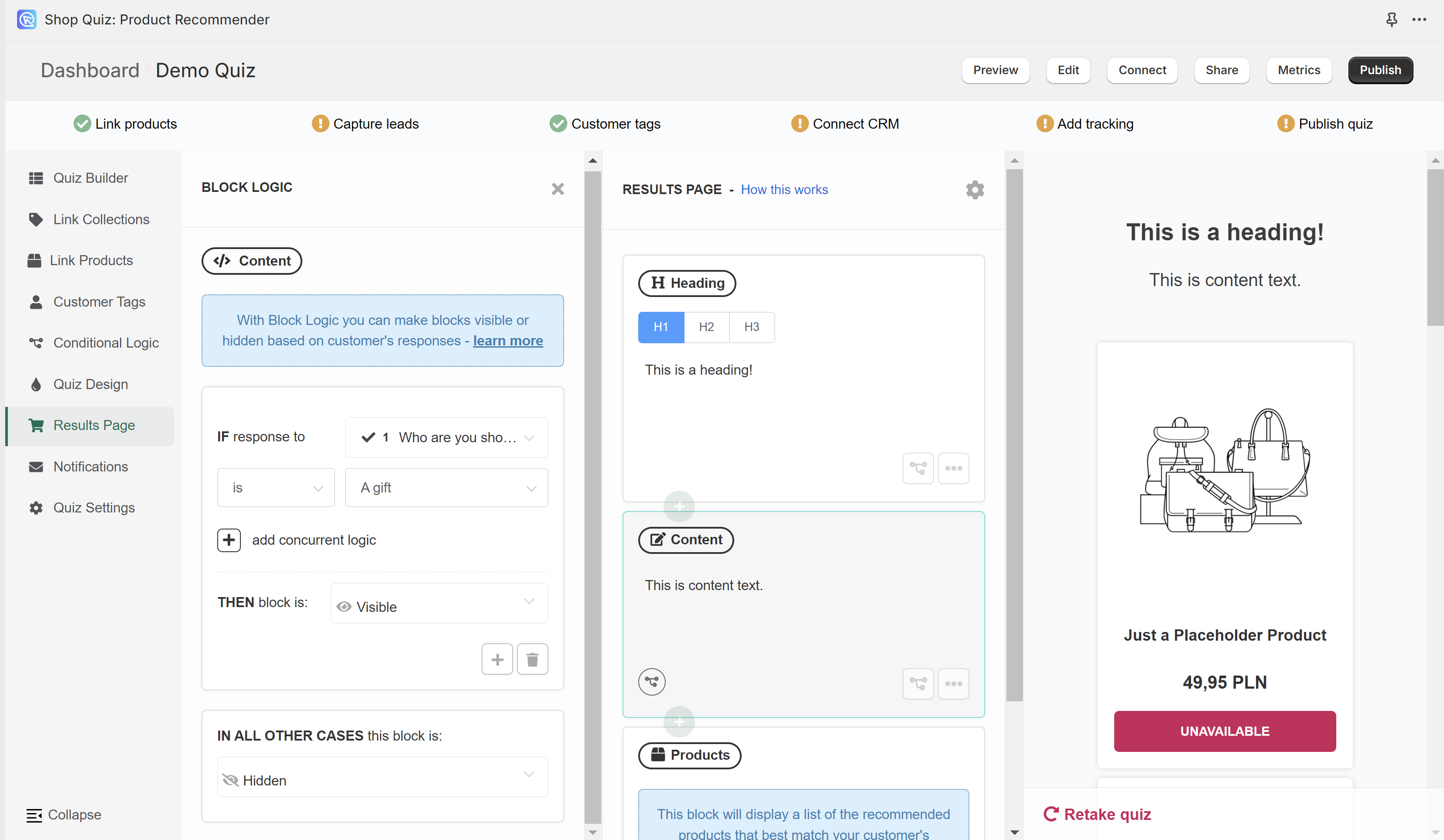
In the example, if a user chooses a choice "A gift" in Question 1 "Who are you shopping for?" then this content block with text "This is content text." will be visible. If they give a different answer in Question 1 this content block will be hidden.
+ - Adds another Display Logic rule. Adds a new OR logical rule.
bin - Delete the current Display Logic rule.
+ add concurrent logic - Adds a new AND logical statement to the same rule. AND conditional statements can be tricky, as both statements have to be true for the rule to take effect. For most quizzes, using the OR rule is enough.
... - Opens the more options menu.
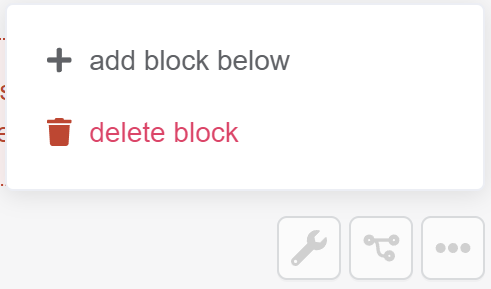
+ add block below - Opens the + / add block menu.
bin / delete block - Deletes the current block from the results page.
conditional logic / tree icon - Opens the Display Logic menu.
With Display Logic you can make blocks visible or hidden based on customer's responses.
Add Display Logic - Adds a new display logic rule.
Info
All the Display Logic rules follow the same format
- IF response to pick the question from a dropdown list
- is/ is not pick a choice from the dropdown list
- THEN block is pick either Visible or Hidden
- IN ALL OTHER CASES this block is pick pick either Visible or Hidden
Example
In the example, if a user chooses a choice "A gift" in Question 1 "Who are you shopping for?" then this content block with text "This is content text." will be visible. If they give a different answer in Question 1 this content block will be hidden.
+ - Adds another Display Logic rule. Adds a new OR logical rule.
bin - Delete the current Display Logic rule.
+ add concurrent logic - Adds a new AND logical statement to the same rule. AND conditional statements can be tricky, as both statements have to be true for the rule to take effect. For most quizzes, using the OR rule is enough.
... - Opens the more options menu.
+ add block below - Opens the + / add block menu.
bin / delete block - Deletes the current block from the results page.
conditional logic / tree icon - Opens the Display Logic menu.
With Display Logic you can make blocks visible or hidden based on customer's responses.
Add Display Logic - Adds a new display logic rule.
Info
All the Display Logic rules follow the same format
- IF response to pick the question from a dropdown list
- is/ is not pick a choice from the dropdown list
- THEN block is pick either Visible or Hidden
- IN ALL OTHER CASES this block is pick pick either Visible or Hidden
Example
In the example, if a user chooses a choice "A gift" in Question 1 "Who are you shopping for?" then this content block with text "This is content text." will be visible. If they give a different answer in Question 1 this content block will be hidden.
+ - Adds another Display Logic rule. Adds a new OR logical rule.
bin - Delete the current Display Logic rule.
+ add concurrent logic - Adds a new AND logical statement to the same rule. AND conditional statements can be tricky, as both statements have to be true for the rule to take effect. For most quizzes, using the OR rule is enough.
... - Opens the more options menu.
+ add block below - Opens the + / add block menu.
bin / delete block - Deletes the current block from the results page.
conditional logic / tree icon - Opens the Display Logic menu.
With Display Logic you can make blocks visible or hidden based on customer's responses.
Add Display Logic - Adds a new display logic rule.
Info
All the Display Logic rules follow the same format
- IF response to pick the question from a dropdown list
- is/ is not pick a choice from the dropdown list
- THEN block is pick either Visible or Hidden
- IN ALL OTHER CASES this block is pick pick either Visible or Hidden
Example
In the example, if a user chooses a choice "A gift" in Question 1 "Who are you shopping for?" then this content block with text "This is content text." will be visible. If they give a different answer in Question 1 this content block will be hidden.
+ - Adds another Display Logic rule. Adds a new OR logical rule.
bin - Delete the current Display Logic rule.
+ add concurrent logic - Adds a new AND logical statement to the same rule. AND conditional statements can be tricky, as both statements have to be true for the rule to take effect. For most quizzes, using the OR rule is enough.
... - Opens the more options menu.
+ add block below - Opens the + / add block menu.
bin / delete block - Deletes the current block from the results page.
conditional logic / tree icon - Opens the Display Logic menu.
With Display Logic you can make blocks visible or hidden based on customer's responses.
Add Display Logic - Adds a new display logic rule.
Info
All the Display Logic rules follow the same format
- IF response to pick the question from a dropdown list
- is/ is not pick a choice from the dropdown list
- THEN block is pick either Visible or Hidden
- IN ALL OTHER CASES this block is pick pick either Visible or Hidden
Example
In the example, if a user chooses a choice "A gift" in Question 1 "Who are you shopping for?" then this content block with text "This is content text." will be visible. If they give a different answer in Question 1 this content block will be hidden.
+ - Adds another Display Logic rule. Adds a new OR logical rule.
bin - Delete the current Display Logic rule.
+ add concurrent logic - Adds a new AND logical statement to the same rule. AND conditional statements can be tricky, as both statements have to be true for the rule to take effect. For most quizzes, using the OR rule is enough.
... - Opens the more options menu.
+ add block below - Opens the + / add block menu.
bin / delete block - Deletes the current block from the results page.
Block settings
Each building block of your results page has individual block settings.
Content
Heading
Adds a new heading to your page, ideal for titles or section breaks.
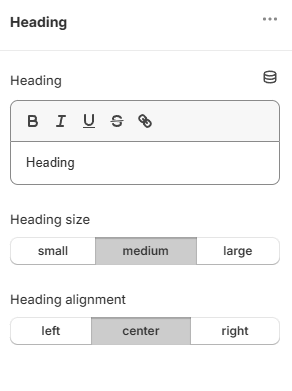
Edit the heading text in the text box. Style the text with boldness or emphasis. Add links or personalizations to the heading.
Choose the heading size and alignment.
Liquid templates supported
Heading blocks support Liquid templates for dynamic content. Use {{ quiz.answers.byBlock['qbi-name'].value }} to display quiz answers, or {{ quiz.variables.highest }} to show the winning variable. See Dynamic Content & JavaScript Reference for all available variables.
Content dynamic source - Content Dynamic Source lets you recall any answer the customer gave, and show it in a Text Block or a Heading Block on the results page. To add one, open a Text or Heading block and click the Dynamic content source icon.
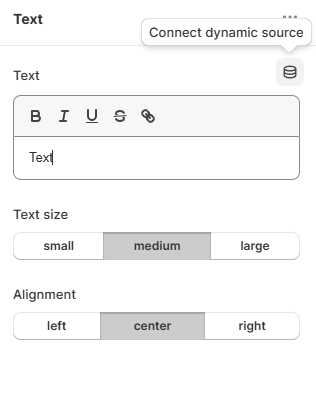
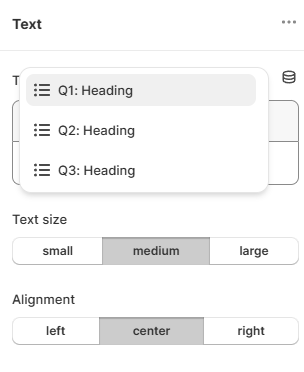
A dropdown will appear with the list of information to be recalled. Select the data point you want and it is added to the block.
Block ID - Displays the current block ID.
Remove block - Deletes the current block from the results page.
Click ... to open the more options menu.
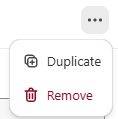
Duplicate - Duplicates the current block.
Remove - Deletes the current block from the results page.
Text
Adds a new content block to your page, ideal for adding and formatting text, lists, and links.
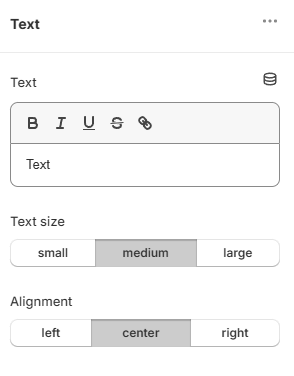
Edit the text in the text box. Style the text with boldness or emphasis. Add links or personalizations to the text block.
Choose the text size and alignment.
Liquid templates supported
Text blocks support Liquid templates for dynamic content. Use {{ quiz.answers.byBlock['qbi-name'].value }} to display quiz answers, or use conditional logic with {% if %} statements. See Dynamic Content & JavaScript Reference for all available variables.
Content dynamic source - Content Dynamic Source lets you recall any answer the customer gave, and show it in a Text Block or a Heading Block on the results page. To add one, open a Text or Heading block and click the Dynamic content source icon.
A dropdown will appear with the list of information to be recalled. Select the data point you want and it is added to the block.
Block ID - Displays the current block ID.
Remove block - Deletes the current block from the results page.
Click ... to open the more options menu.
Duplicate - Duplicates the current block.
Remove - Deletes the current block from the results page.
Image
Adds an embedded image block into your page. You can upload your own image. The image should be max 1000px x 1000px and max 2MB.
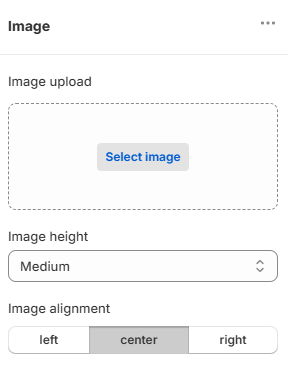
To add an image click Select image. You can upload an image from your device or select from the in-app uploaded image gallery.
Alt text - Add an alternative text for this image.
Image height - Select the size of the image.
Image alignment - Select the image alignment left, right or center.
Block ID - Displays the current block ID.
Remove block - Deletes the current block from the results page.
Click ... to open the more options menu.
Duplicate - Duplicates the current block.
Remove - Deletes the current block from the results page.
Video
Adds a video to the results page. You can upload your own video or select from the in-app uploaded video gallery.
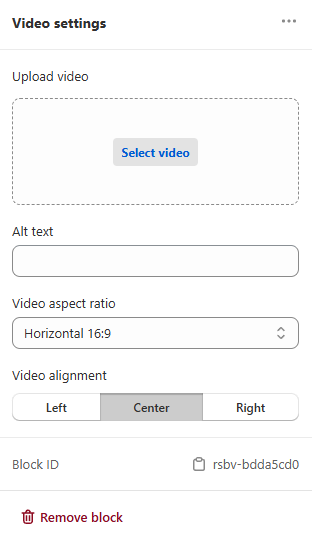
To add a video click Select video. You can upload a video from your device or select from the in-app uploaded video gallery.
Alt text - Add an alternative text for this video.
Video aspect ratio - Select the aspect ratio of the video.
Video alignment - Select the video alignment left, right or center.
Block ID - Displays the current block ID.
Remove block - Deletes the current block from the results page.
Click ... to open the more options menu.
Duplicate - Duplicates the current block.
Remove - Deletes the current block from the results page.
Custom HTML
Adds a block where you can input custom HTML code for advanced content and styling.
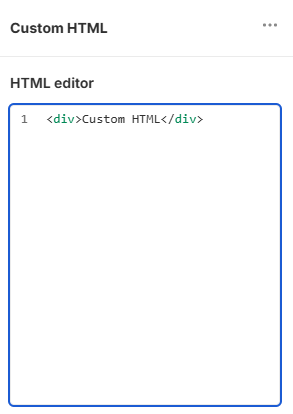
Liquid templates and JavaScript supported
Custom HTML blocks support both Liquid templates and JavaScript. Use Liquid for dynamic content and JavaScript in <script> tags for advanced logic. See Dynamic Content & JavaScript Reference for all available variables and methods.
Example with Liquid:
<div class="personalized-message">
  {% if quiz.variables.highest == 'dry' %}
    <h3>Your skin type: Dry</h3>
    <p>Based on your answers, we recommend hydrating products.</p>
  {% elsif quiz.variables.highest == 'oily' %}
    <h3>Your skin type: Oily</h3>
    <p>Based on your answers, we recommend oil-control products.</p>
  {% endif %}
</div>
Example with JavaScript:
Block ID - Displays the current block ID.
Remove block - Deletes the current block from the results page.
Click ... to open the more options menu.
Duplicate - Duplicates the current block.
Remove - Deletes the current block from the results page.
Slots
Product | product variants | collections
Adds a block specifically designed for displaying a list of recommended products, product variants or collections.
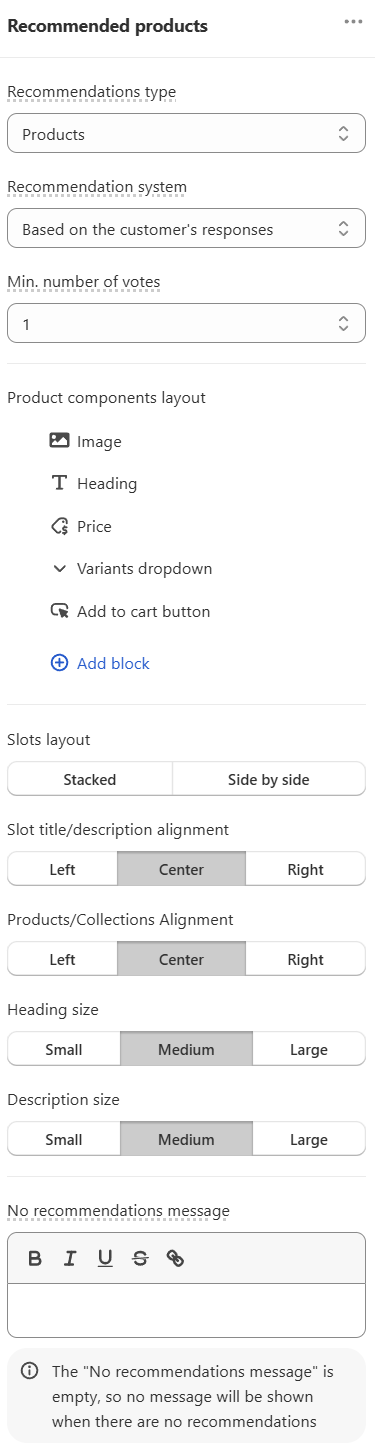
Click ... to open the more options menu.
Duplicate - Duplicates the current block.
Remove - Deletes the current block from the results page.
Recommendation system - Select whether you prefer to show dynamic recommendations based on customer responses or a fixed set of recommended products, variants or collections.
Min. number of upvotes - Select what minimum number of upvotes a product or a variants should receive in order to be displayed in this product block. If a product receives less upvotes than specified here at the end of the quiz, it will not be shown.
No recommendations message - Add a message to be displayed if there are no recommendations. Supports HTML and Liquid templates for personalized empty states (e.g., Sorry {{ quiz.answers.byBlock['qbi-name'].value }}, we couldn't find matching products.). If left empty, no message will be shown when there are no recommendations.
Slot design
Slot layout - Select the layout of the slot block, either Stacked or Side-by-side.
Heading alignment - Select how the slot title should be aligned within the slot block- left, center or right.
Items alignment - Select how the product items should be aligned on the results page - left, center or right.
Heading size - Select the text size of the slot heading from small, medium or large.
Description size - Select the text size of the slot description from small, medium or large.
rsbs-96f14392 - Click to copy the slot ID. Displays the current slot ID.
🗑 Remove block - Deletes the current block from the results page.
Slot item composition
Select which elements of the product slot should be displayed. Click and drag an element to change its position within the slot.
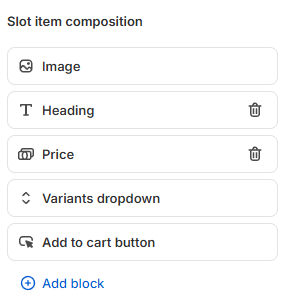
+ Add block - add an extra block to the product slot. Below you can find a list of available product components. All the data are synced directly from your Shopify catalog.
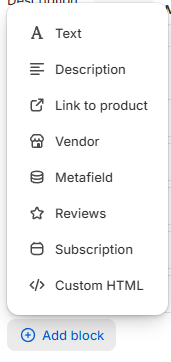
Image - Adds the product image.
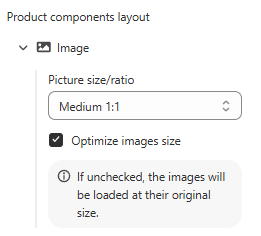
Shape - Choose the shape of the image from Square or Original.
Source - Choose the source of the image from Variant or Product. Choose whether to display the variant-specific image or the main product image. Select Variant to show the image associated with the selected variant (falls back to main product image if the variant has no image). Select Product to always display the main product image regardless of the variant selection.
Optimize images size - Select this option to optimize the image size for the quiz. If unchecked, the image will be displayed in the original size.
Tip
Check this guide to learn how to add and adjust images for the quiz: How to add and adjust images.
Heading - Add the product title as set up in Shopify Products.
Price - Adds the product price as set up in Shopify Products.
Why the compare-at price may not show on the results page
If the compare-at price is missing or showing as null on the quiz results page, this is usually a Shopify Markets setting. Shopify can hide compare-at prices for customers in some regions, in particular the European Economic Area (EEA), because of local pricing or legal rules.
How to Fix It:
Go to Shopify Admin > Settings > Markets > Preferences. Check that compare-at prices are enabled for that market, for example Germany or the EEA.
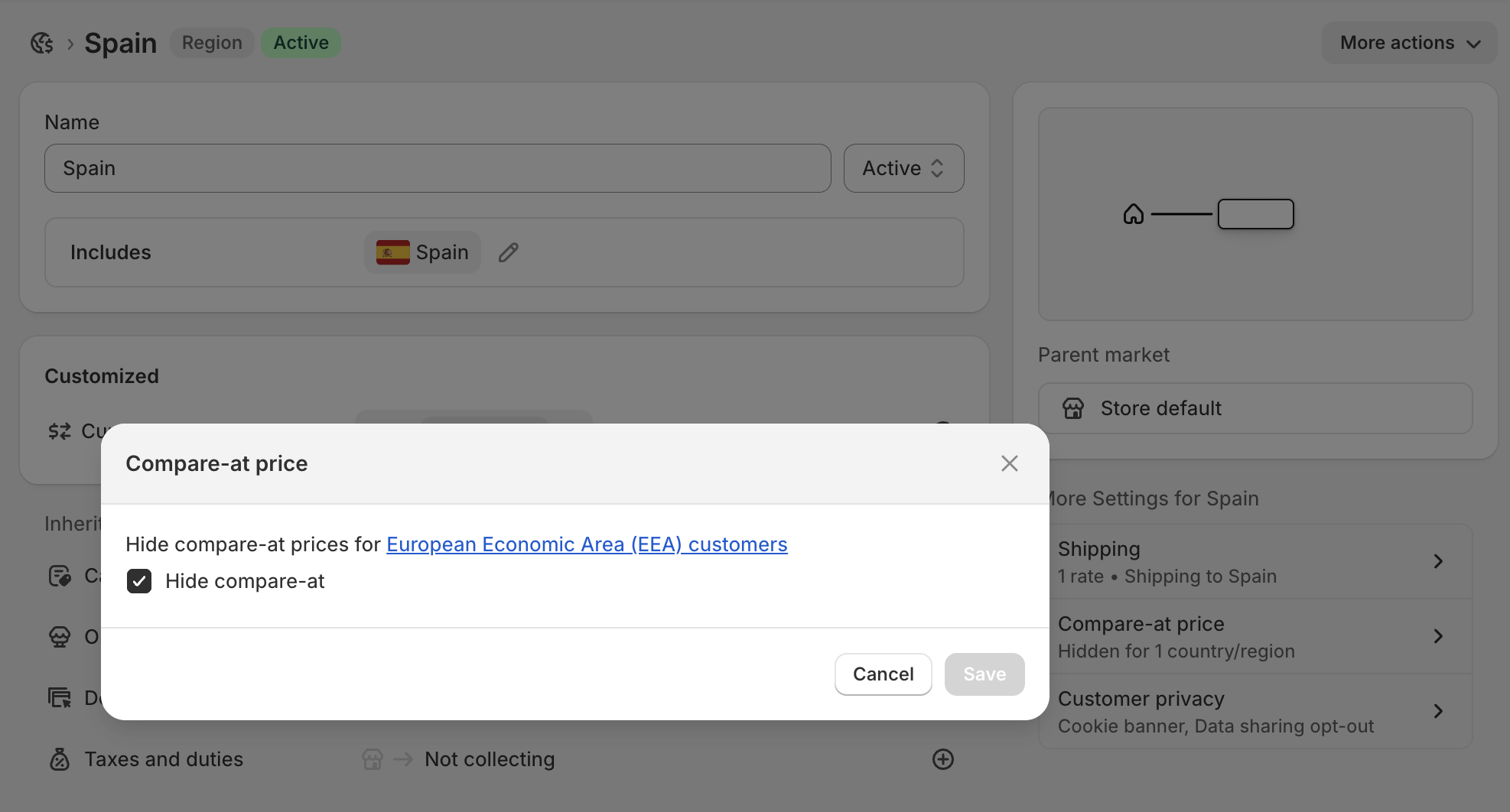
You can test this by previewing the quiz on your live store while simulating a customer from the affected country.
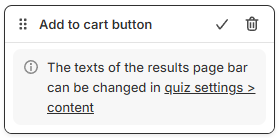
Add to cart button - Adds an "Add to cart" button.
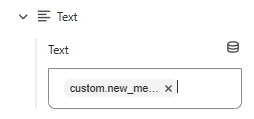
Text - Adds an extra text block. Opens a text block menu where you add your own text or a link. You can also add a content dynamic source to recall an answer from the quiz.
Description - Adds the product description as set up in Shopify Products.
Unit price - Adds a unit price text block to the product cards. This shows Shopify's per-unit pricing (e.g., "$5.00/L" or "€2.50/100g"). Useful for food, beverage, cosmetics, and other shops that sell by weight or volume.
Link to product - Adds a button link to the product URL. Links open only on live storefronts. They do not open in quiz preview or on password-protected stores.

Vendor - Adds the product vendor as set up in Shopify Products.
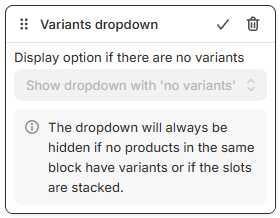
Variants dropdown - Adds a dropdown that displays all the product variants. The dropdown will always be hidden if no products in the same block have variants or if the slots are stacked.
Metafield - Adds a metafield to the product block. Select a metafield to display from the Select a metafield dropdown. Note: You can also display a metafield by adding a Text block to your product layout and adding the metafield value manually as a content dynamic source.
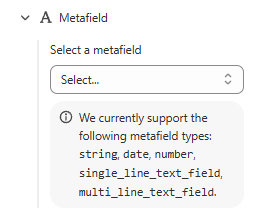
Supported metafields
The app can only sync and show the string, single_line_text_field, multi_line_text_field, date, and number product metafields. Rich_text_fields metafields are not currently supported.
In product variant slots, metafield blocks currently display metafields from the parent product, not variant-level metafields.
Reviews - Adds a product reviews block as star rating and review count.
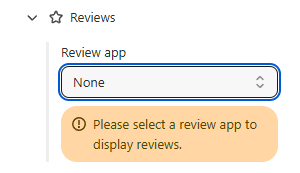
Review app - Select the review app to display the reviews from. Once you select the review app, save the changes with the top-right Save button.
Supported review apps
The app supports these review apps for Shopify:
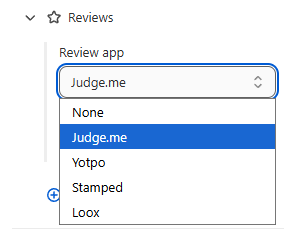
- Judge.me,
- Yotpo,
- Stamped,
- Loox.
Subscription - Adds an option to subscribe to the product for a specific duration.
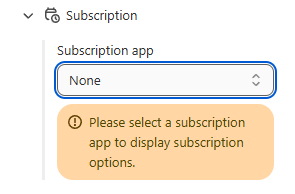
Subscription app - Select the subscription app to display the subscription from. Once you select the subscription app, save the changes with the top-right Save button.
Supported subscription apps
Support for these subscription apps for Shopify is being added:
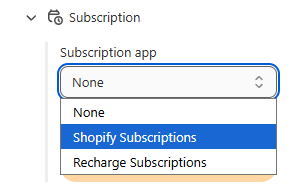
- Shopify Subscriptions,
- ReCharge Subscriptions (Pro plan only).
To request support for another subscription app, contact customer support.
Results slot
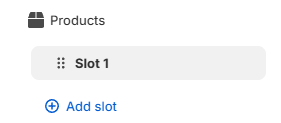
Slot 1 - Slots let you recommend items and group them into different categories (e.g. cleanser, toner, serum, moisturizer...).
How slots work
Slots display products based on the Recommendation system set up in Product block settings.
If the recommendations system is set to Upvotes then the slot will display the most upvoted items based on customer choices. Unless you add a filter, the slot will display a list of recommended products, variants or collections.
If the recommendations system is set to Fixed then the slot will display the products that are linked to the slot.
+ Add slot - Adds a new slot to the product/collection block.
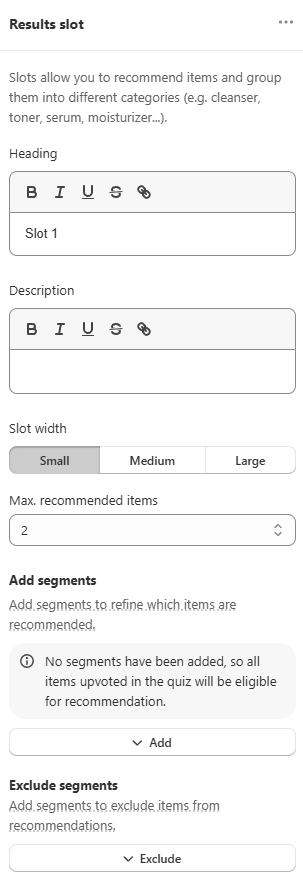
Heading - Adds a custom heading to the slot block. Supports HTML and Liquid templates for dynamic content.
Description - Adds a custom description to the slot block. Supports HTML and Liquid templates. Use Liquid to personalize descriptions based on quiz answers (e.g., Perfect for your {{ quiz.variables.highest }} skin type).
Slot width - Select the default slot width from small, medium or large.
Max. recommended items - The maximum number of items allowed to be displayed in the slot block.
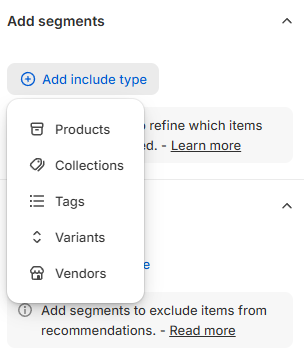
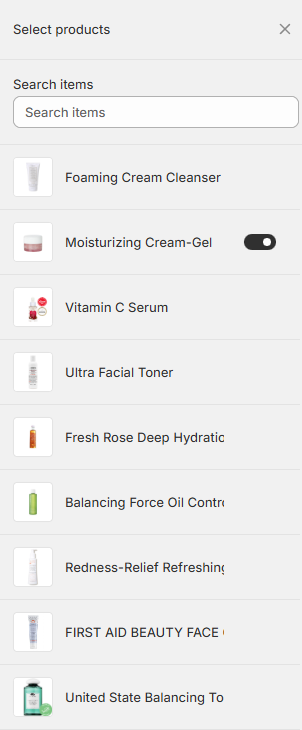
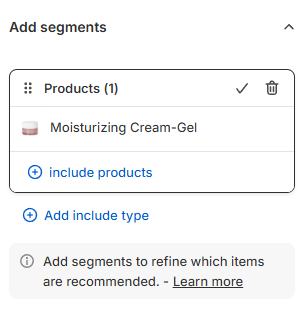
Add segments - Click + Add include type to select products, collections, tags, variants or vendors from which items will be shown in this slot block.
How slots work
Slots display products based on the Recommendation system set up in Product block settings.
If the recommendations system is set to Upvotes then the slot will display the most upvoted items based on customer choices. Unless you add a filter, the slot will display a list of recommended products, variants or collections.
If the recommendations system is set to Fixed then the slot will display the products that are linked to the slot.
Filtering
If the recommendations system is set to Upvotes then the slot will display the most upvoted items based on customer choices.
If you add a segment, the slot will be able to display the most upvoted items from the linked products/collections.
Unless you add a filter, the slot will display a list of upvoted items.
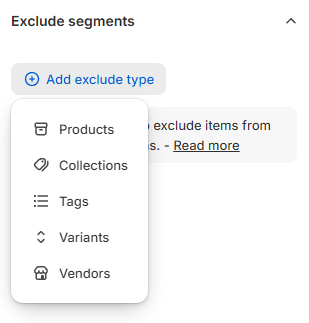
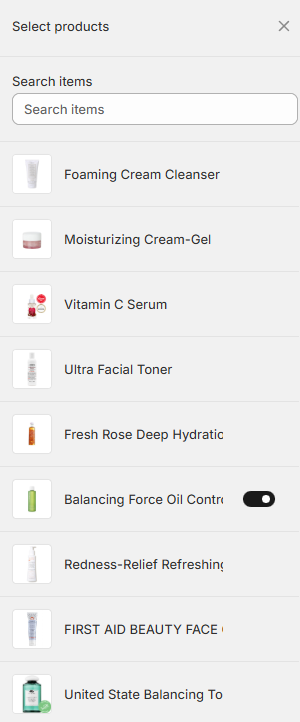
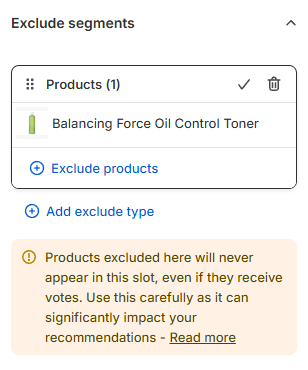
Exclude segments - Click + Add exclude type to choose products from which Products, Collections, Tags, Variants or Vendors must never be shown in this slot block. You can exclude by tag, vendor or variant, not only by collection. Shopify only.
Charts
Gauge chart
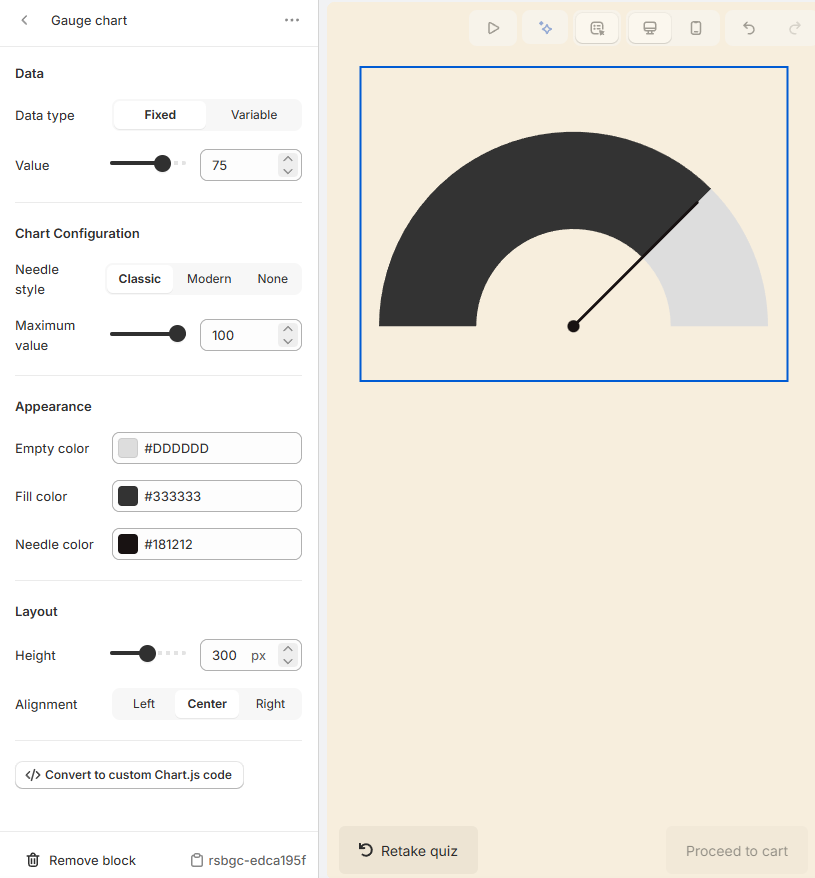
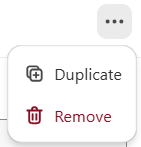
... - Opens the block management settings. Click Duplicate to duplicate the block or Remove to delete it.
Data
Data type - Select the data type to be displayed in the chart between Fixed or Variable. If you select Variable, you can select a variable from the dropdown list.
Value - Set the value to be displayed in the chart.
Chart Configuration
Needle style - Select the needle style to be displayed in the chart between Classic, Modern or None.
Maxiumum value - Set the maximum value to be displayed in the chart.
Appearance
Empty color - Set the color to be displayed in the chart when the value is 0.
Fill color - Set the color to be displayed in the chart when the value is not 0.
Needle color - Set the color to be displayed in the needle.
Layout
Height - Set the height of the chart.
Alignment - Set the alignment of the chart between Left, Center or Right.
Convert to custom Chart.js code - Convert the chart to a custom Chart.js code and edit the code to customize the chart.
🗑 Remove block - Click to delete this block.
rsbgc-070101fa - Click to copy the block ID/ref to the clipboard. Unique identifier for the block, useful for debugging or API use.
Radar chart
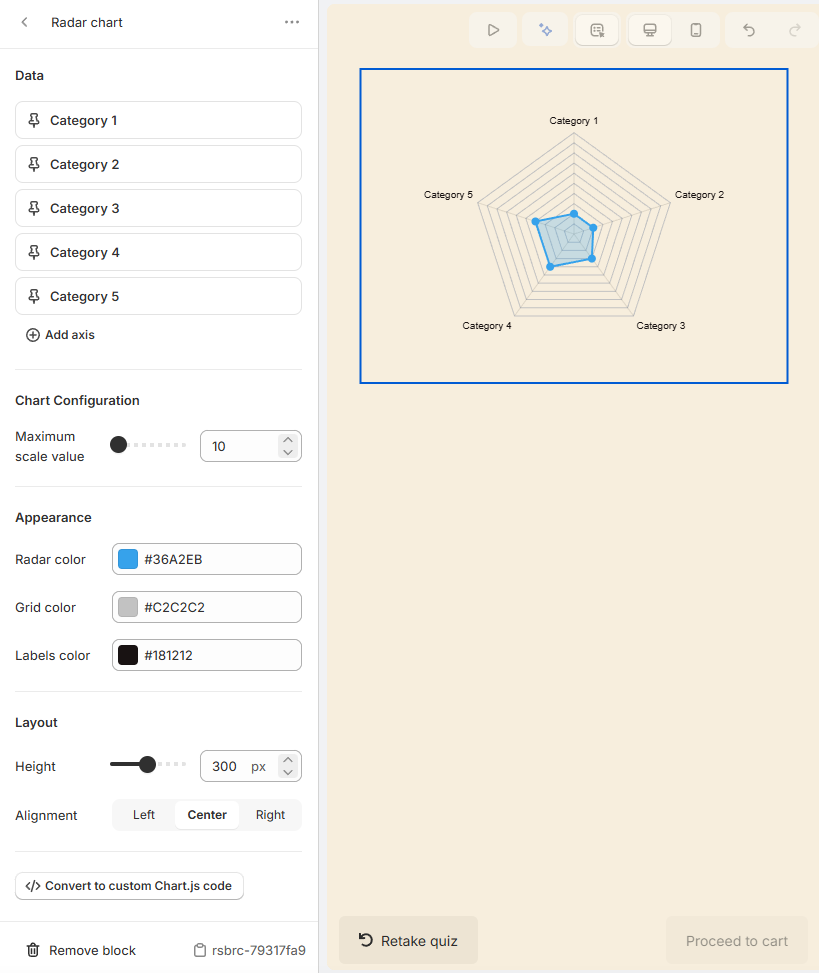
... - Opens the block management settings. Click Duplicate to duplicate the block or Remove to delete it.
Data
Category 1 - Set the category name for the first axis.
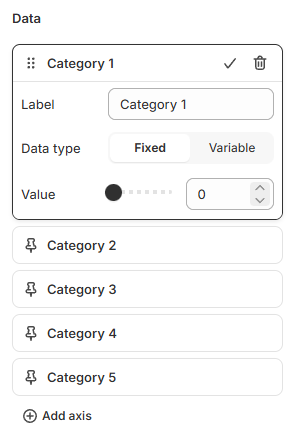
Label - Set the label for the first axis.
Data type - Select the data type to be displayed in the chart between Fixed or Variable. If you select Variable, you can select a variable from the dropdown list.
Value - If you select Fixed, set the value to be displayed in the chart.
Category 2 - Set the category name for the second axis.
Category 3 - Set the category name for the third axis.
Category 4 - Set the category name for the fourth axis.
Category 5 - Set the category name for the fifth axis.
+ Add axis - Click to add a new axis.
Chart Configuration
Maximum scale value - Set the maximum value to be displayed in the chart.
Appearance
Radar color - Set the color to be displayed in the radar.
Grid color - Set the color to be displayed in the grid.
Labels color - Set the color to be displayed in the labels.
Layout
Height - Set the height of the chart.
Alignment - Set the alignment of the chart between Left, Center or Right.
Convert to custom Chart.js code - Convert the chart to a custom Chart.js code and edit the code to customize the chart.
🗑 Remove block - Click to delete this block.
rsbgc-5e05d10c - Click to copy the block ID/ref to the clipboard. Unique identifier for the block, useful for debugging or API use.
Bar chart
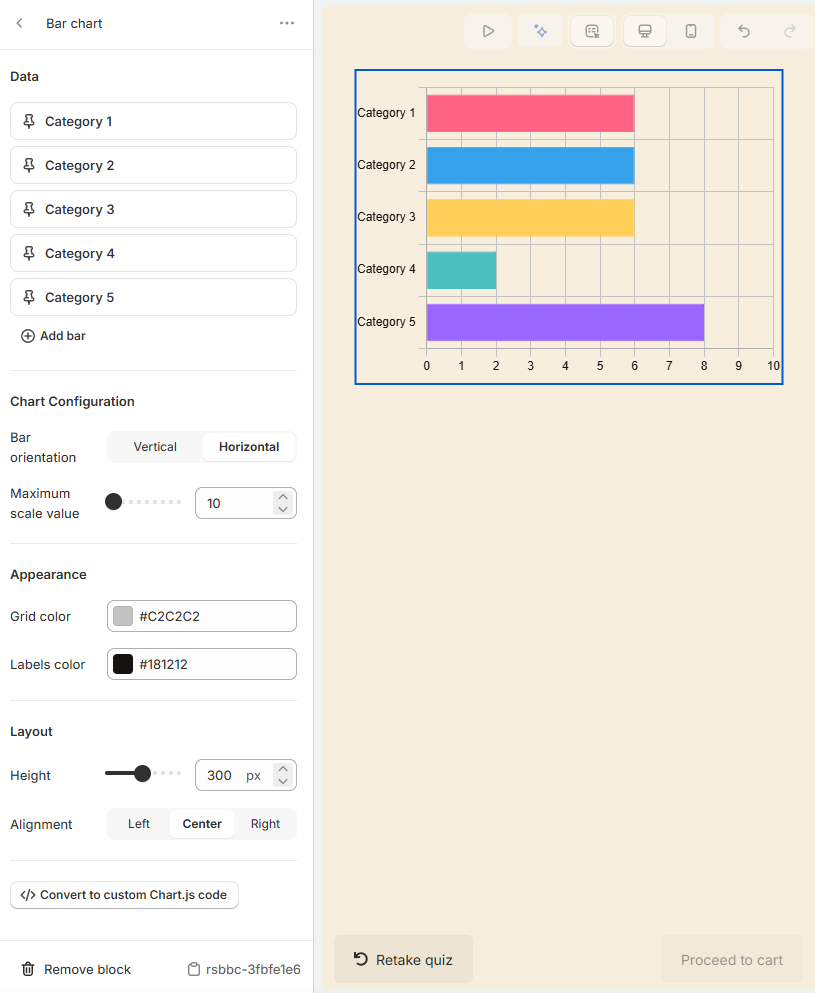
... - Opens the block management settings. Click Duplicate to duplicate the block or Remove to delete it.
Data
Category 1 - Set the category name for the first axis.
Label - Set the label for the first axis.
Data type - Select the data type to be displayed in the chart between Fixed or Variable. If you select Variable, you can select a variable from the dropdown list.
Value - If you select Fixed, set the value to be displayed in the chart.
Category 2 - Set the category name for the second axis.
Category 3 - Set the category name for the third axis.
Category 4 - Set the category name for the fourth axis.
Category 5 - Set the category name for the fifth axis.
+ Add axis - Click to add a new axis.
Chart Configuration
Bar orientation - Set the orientation of the bar between Vertical or Horizontal.
Maximum scale value - Set the maximum value to be displayed in the chart.
Appearance
Grid color - Set the color to be displayed in the grid.
Labels color - Set the color to be displayed in the labels.
Layout
Height - Set the height of the chart.
Alignment - Set the alignment of the chart between Left, Center or Right.
Convert to custom Chart.js code - Convert the chart to a custom Chart.js code and edit the code to customize the chart.
🗑 Remove block - Click to delete this block.
rsbgc-5e05d10c - Click to copy the block ID/ref to the clipboard. Unique identifier for the block, useful for debugging or API use.
Rating display
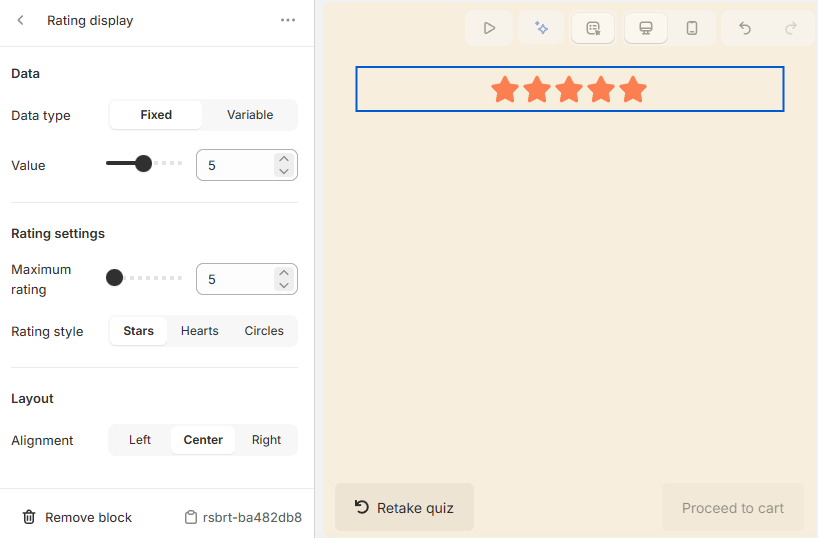
... - Opens the block management settings. Click Duplicate to duplicate the block or Remove to delete it.
Data
Data type - Select the data type to be displayed in the chart between Fixed or Variable. If you select Variable, you can select a variable from the dropdown list.
Value - Set the value to be displayed in the chart.
Rating settings
Maximum rating - Set the maximum rating to be displayed in the chart.
Rating style - Select the rating style to be displayed in the chart between Stars, Hearts or Circles.
Layout
Alignment - Set the alignment of the chart between Left, Center or Right.
🗑 Remove block - Click to delete this block.
rsbgc-5e05d10c - Click to copy the block ID/ref to the clipboard. Unique identifier for the block, useful for debugging or API use.
Custom chart
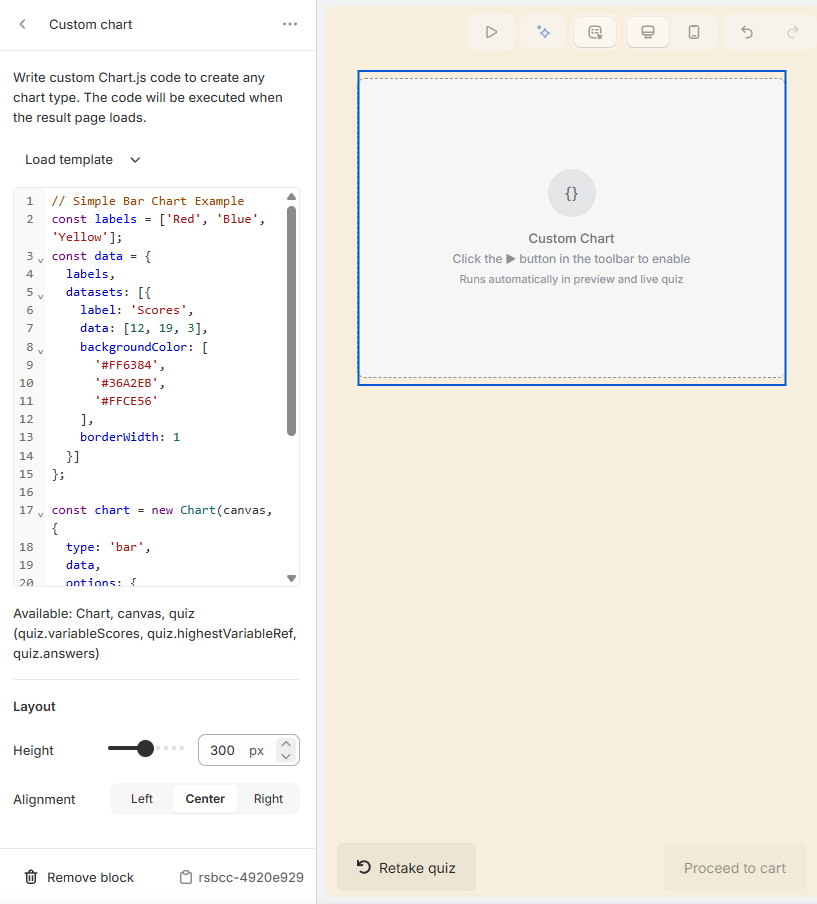
... - Opens the block management settings. Click Duplicate to duplicate the block or Remove to delete it.
Load template - Select a chart template code from the dropdown list.
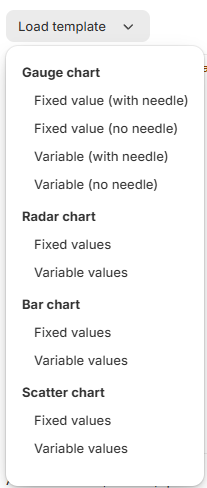
Layout
Height - Set the height of the chart.
Alignment - Set the alignment of the chart between Left, Center or Right.
🗑 Remove block - Click to delete this block.
rsbgc-5e05d10c - Click to copy the block ID/ref to the clipboard. Unique identifier for the block, useful for debugging or API use.
Buttons
Button
Adds a button to the results page. You can add any URL to the button.
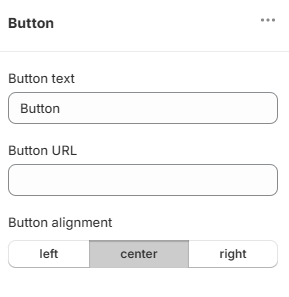
Button text - Type the text displayed ont eh button.
Button URL - Add a URL to the button.
Open in new tab - Select this option to open the link in a new tab.
Button alignment - Select the button alignment left, right or center.
Block ID - Displays the current block ID.
Remove block - Deletes the current block from the results page.
Click ... to open the more options menu.
Duplicate - Duplicates the current block.
Remove - Deletes the current block from the results page.
Cart/checkout
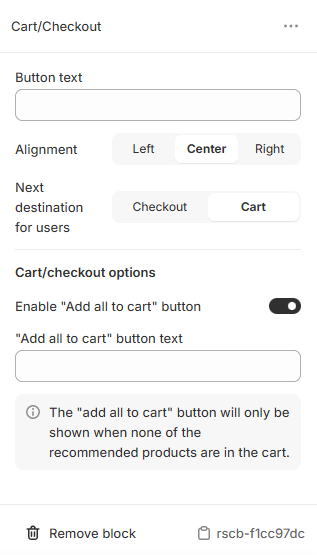
Next destination for customers - Select either Checkout or Cart as the next destination for customers.
Cart/checkout options
Enable "Add all to cart" button - Uncheck to hide the "Add all to cart" button from the footer. If checked, the "add all to cart" button will only be shown when none of the recommended products are in the cart.
Click ... to open the more options menu.
Duplicate - Duplicates the current block.
Remove - Deletes the current block from the results page.
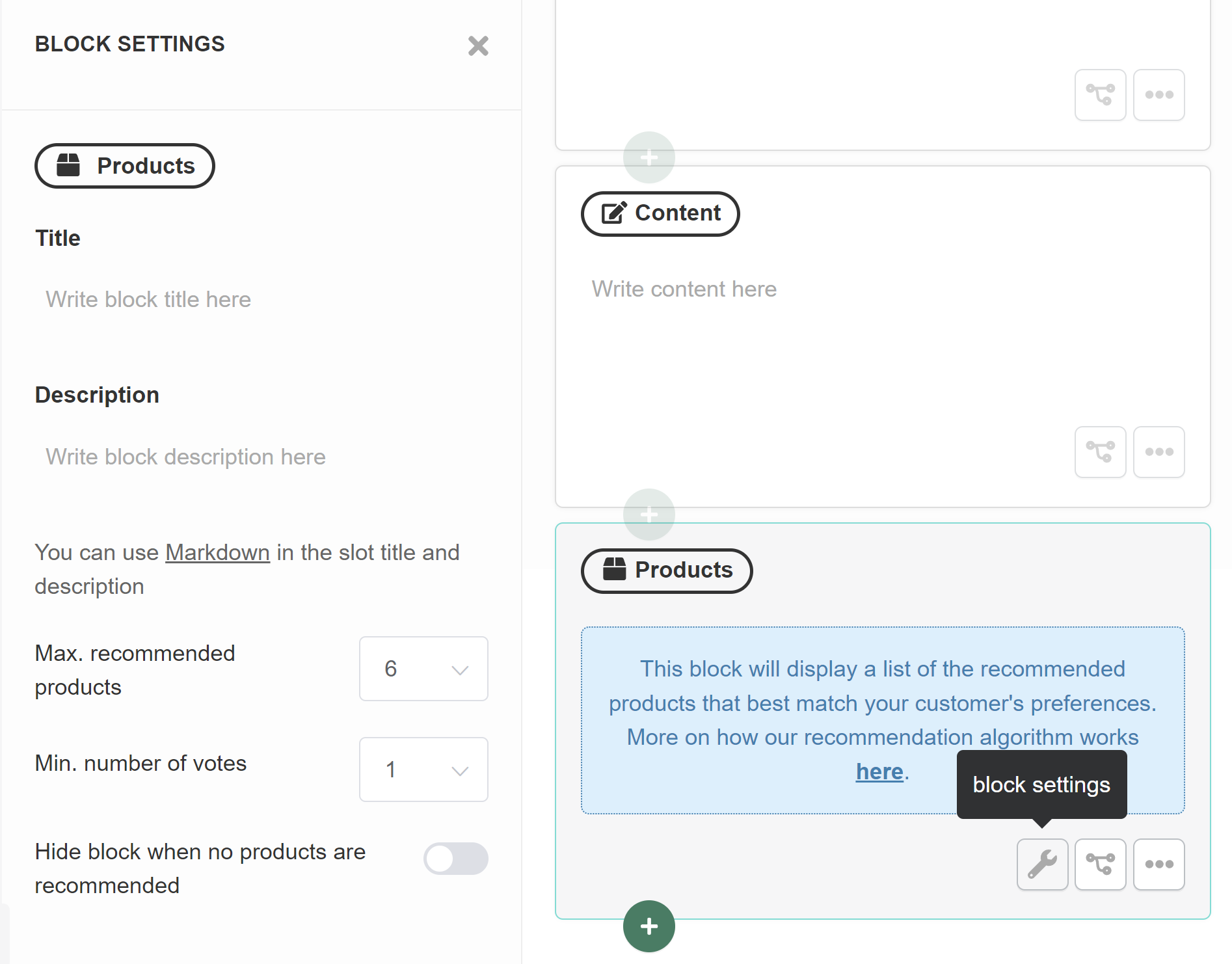
🔧 / wrench icon - Opens the block settings menu.
Product Block Settings
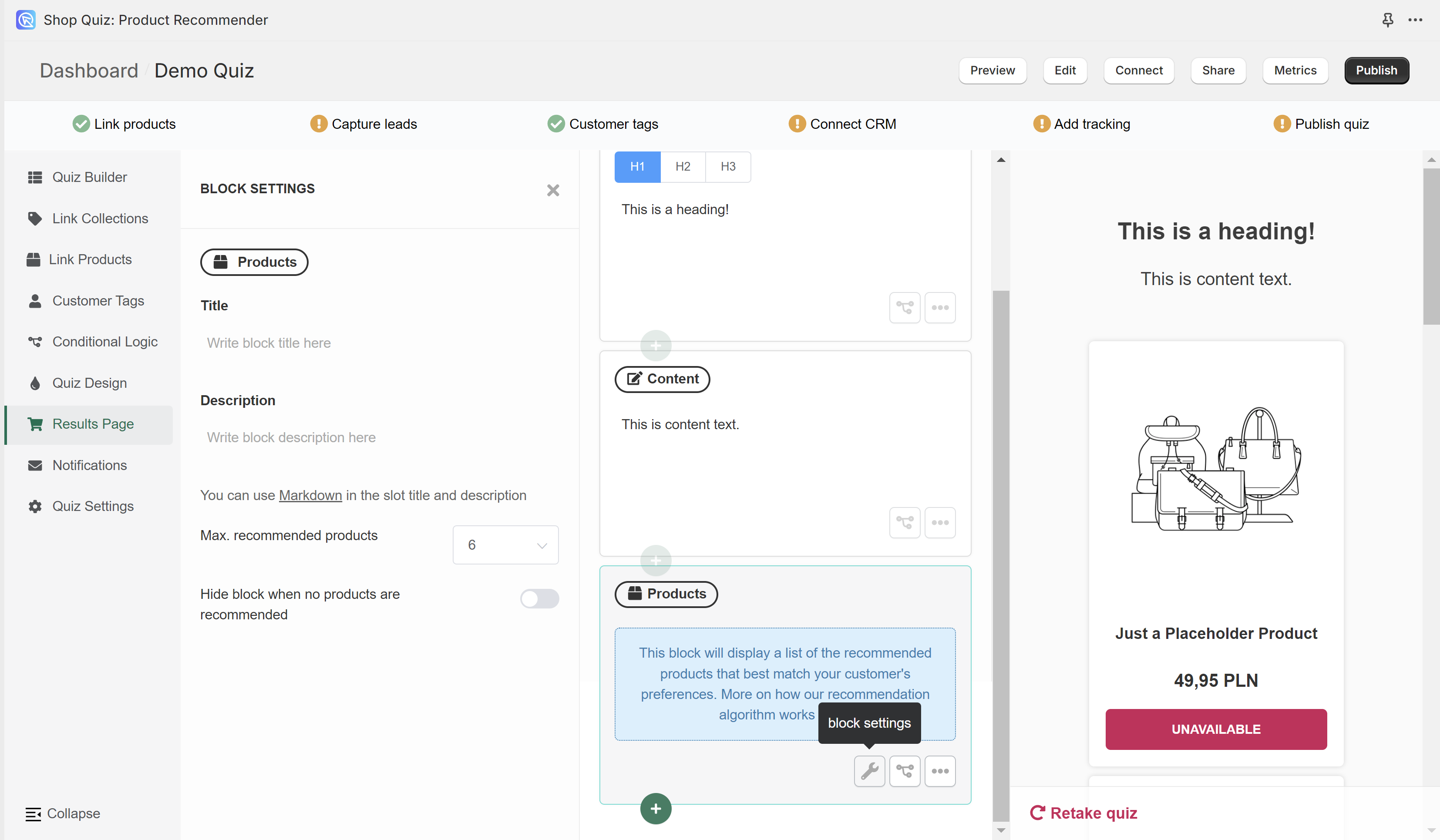
Title - Type a title to be displayed above the recommended products.
Description - Add a description to be displayed above the recommended products.
Max. recommended products - Select how many products should be recommended in this Product Block. Max 15 products can be displayed per block. To show more, add another Product Block. Make sure Allow duplicated recommendations is off in your Results page settings.
Hide block when no products are recommended - Tick this to hide the product block when a customer gets no recommendations. Left off, the block shows the default message instead: Based on your answers, we need a little more time to give you our recommendations. Please get in touch with us. Edit that text in Quiz settings > Quiz content.
Slot Block Settings
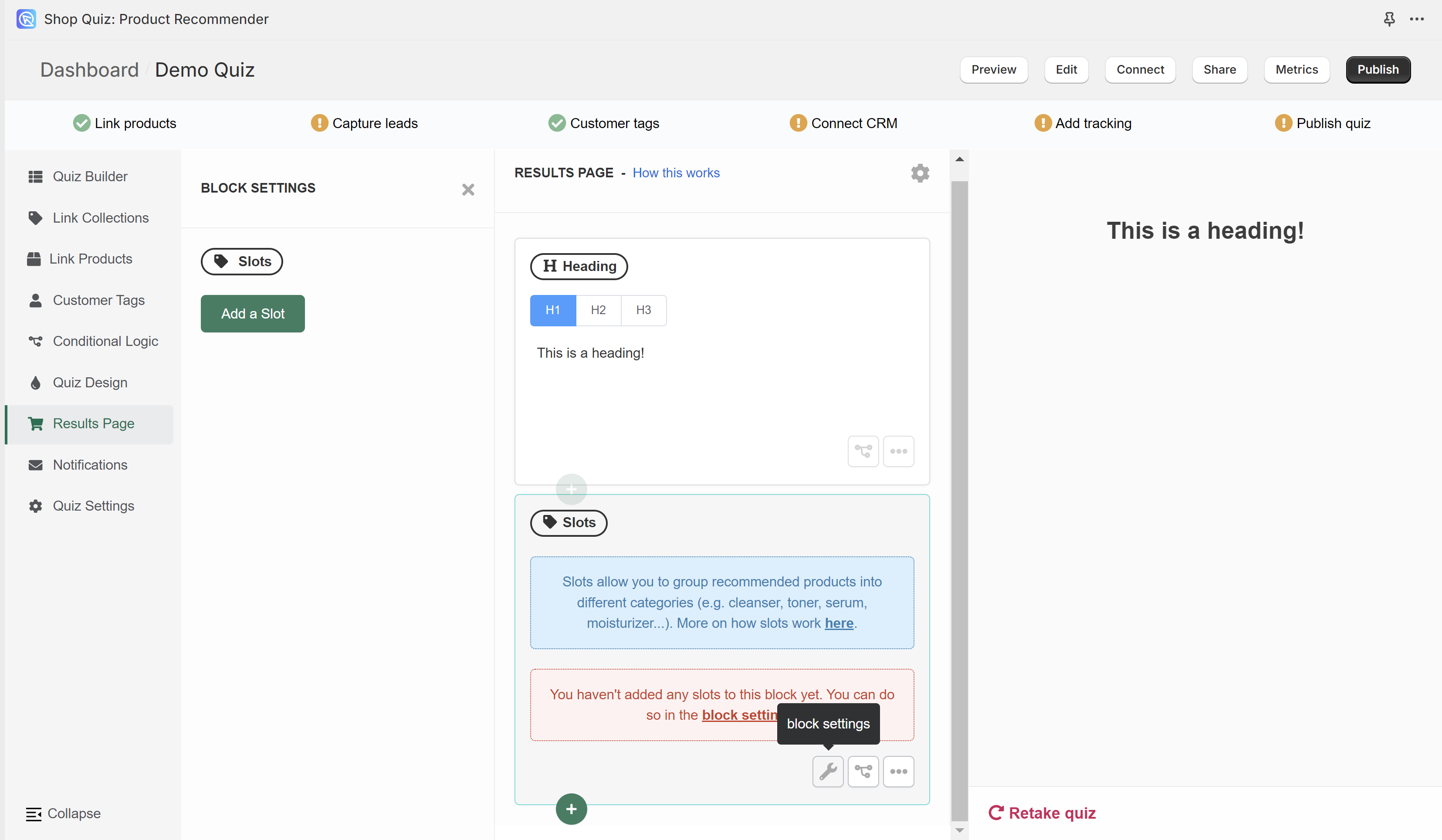
Add a slot - Adds a new slot to the slot block. You can have multiple slots in a slot block.
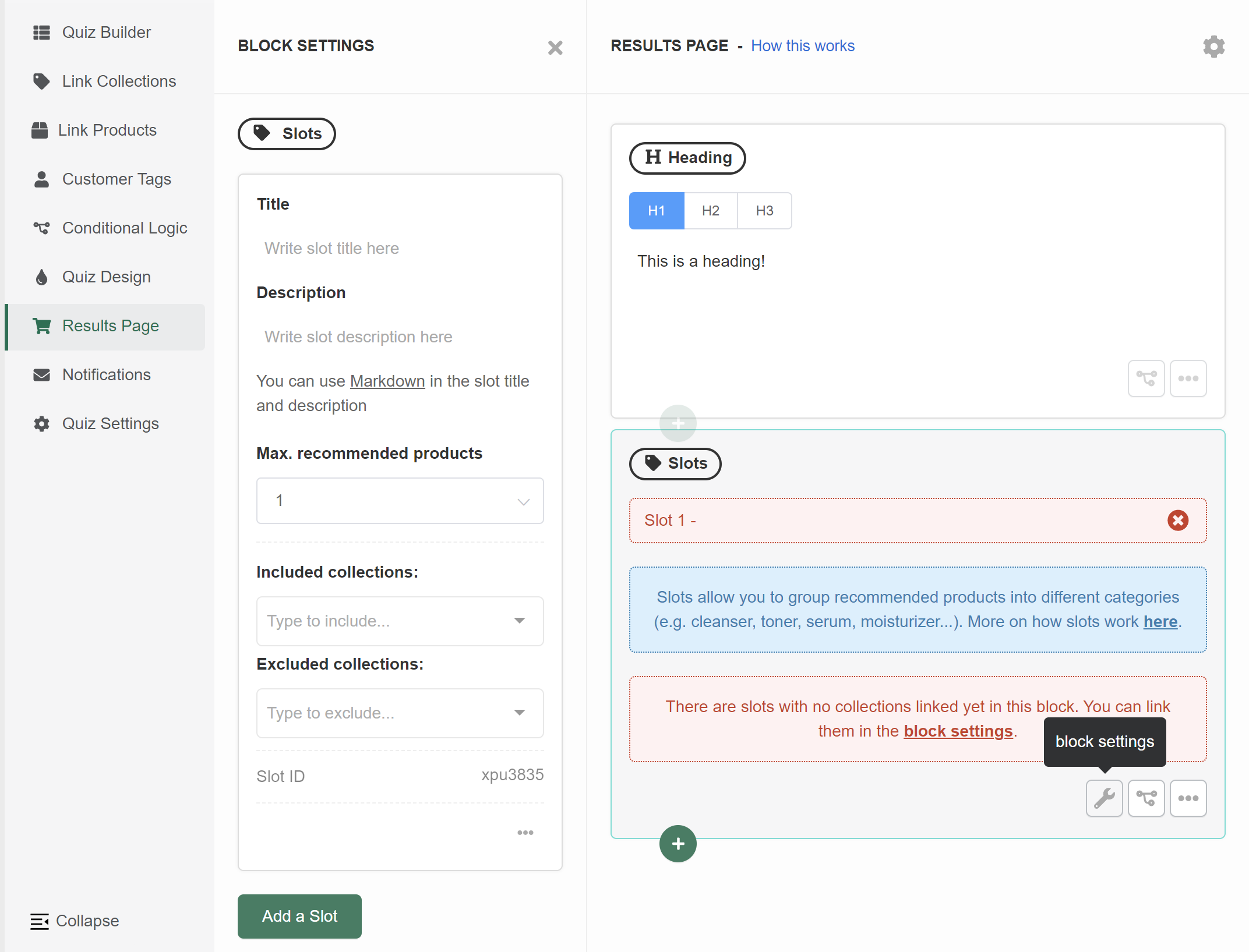
Title - Type a title to be displayed above the slot.
Description - Add a description to be displayed above the slot.
Max. recommended products - Select how many products should be recommended in this Slot. Max 15 products can be displayed per slot.
Included collections - Select which collections or tags the slot shows products from. A slot shows the most upvoted products from the collection linked to it.
Excluded collections - Select which collections or tags the slot must never show products from. A product that received upvotes but sits in an excluded collection is not shown.
Slot ID - Displays the current slot ID.
🔧 / wrench icon - Opens the block settings menu.
Product Block Settings
Title - Type a title to be displayed above the recommended products.
Description - Add a description to be displayed above the recommended products.
Max. recommended products - Select how many products should be recommended in this Product Block. Max 15 products can be displayed per block. To show more, add another Product Block. Make sure Allow duplicated recommendations is off in your Results page settings.
Hide block when no products are recommended - Tick this to hide the product block when a customer gets no recommendations. Left off, the block shows the default message instead: Based on your answers, we need a little more time to give you our recommendations. Please get in touch with us. Edit that text in Quiz settings > Quiz content.
Slot Block Settings
Add a slot - Adds a new slot to the slot block. You can have multiple slots in a slot block.
Title - Type a title to be displayed above the slot.
Description - Add a description to be displayed above the slot.
Max. recommended products - Select how many products should be recommended in this Slot. Max 15 products can be displayed per slot.
Included collections - Select which collections or tags the slot shows products from. A slot shows the most upvoted products from the collection linked to it.
Excluded collections - Select which collections or tags the slot must never show products from. A product that received upvotes but sits in an excluded collection is not shown.
Slot ID - Displays the current slot ID.
🔧 / wrench icon - Opens the block settings menu.
Product Block Settings
Title - Type a title to be displayed above the recommended products.
Description - Add a description to be displayed above the recommended products.
Max. recommended products - Select how many products should be recommended in this Product Block. Max 15 products can be displayed per block. To show more, add another Product Block. Make sure Allow duplicated recommendations is off in your Results page settings.
Hide block when no products are recommended - Tick this to hide the product block when a customer gets no recommendations. Left off, the block shows the default message instead: Based on your answers, we need a little more time to give you our recommendations. Please get in touch with us. Edit that text in Quiz settings > Quiz content.
Slot Block Settings
Add a slot - Adds a new slot to the slot block. You can have multiple slots in a slot block.
Title - Type a title to be displayed above the slot.
Description - Add a description to be displayed above the slot.
Max. recommended products - Select how many products should be recommended in this Slot. Max 15 products can be displayed per slot.
Included collections - Select which collections or tags the slot shows products from. A slot shows the most upvoted products from the collection linked to it.
Excluded collections - Select which collections or tags the slot must never show products from. A product that received upvotes but sits in an excluded collection is not shown.
Slot ID - Displays the current slot ID.
🔧 / wrench icon - Opens the block settings menu.
Product Block Settings
Title - Type a title to be displayed above the recommended products.
Description - Add a description to be displayed above the recommended products.
Max. recommended products - Select how many products should be recommended in this Product Block. Max 15 products can be displayed per block. To show more, add another Product Block. Make sure Allow duplicated recommendations is off in your Results page settings.
Hide block when no products are recommended - Tick this to hide the product block when a customer gets no recommendations. Left off, the block shows the default message instead: Based on your answers, we need a little more time to give you our recommendations. Please get in touch with us. Edit that text in Quiz settings > Quiz content.
Slot Block Settings
Add a slot - Adds a new slot to the slot block. You can have multiple slots in a slot block.
Title - Type a title to be displayed above the slot.
Description - Add a description to be displayed above the slot.
Max. recommended products - Select how many products should be recommended in this Slot. Max 15 products can be displayed per slot.
Included collections - Select which collections or tags the slot shows products from. A slot shows the most upvoted products from the collection linked to it.
Excluded collections - Select which collections or tags the slot must never show products from. A product that received upvotes but sits in an excluded collection is not shown.
Slot ID - Displays the current slot ID.
🔧 / wrench icon - Opens the block settings menu.
Product Block Settings
Title - Type a title to be displayed above the recommended products.
Description - Add a description to be displayed above the recommended products.
Max. recommended products - Select how many products should be recommended in this Product Block. Max 15 products can be displayed per block. To show more, add another Product Block. Make sure Allow duplicated recommendations is off in your Results page settings.
Hide block when no products are recommended - Tick this to hide the product block when a customer gets no recommendations. Left off, the block shows the default message instead: Based on your answers, we need a little more time to give you our recommendations. Please get in touch with us. Edit that text in Quiz settings > Quiz content.
Slot Block Settings
Add a slot - Adds a new slot to the slot block. You can have multiple slots in a slot block.
Title - Type a title to be displayed above the slot.
Description - Add a description to be displayed above the slot.
Max. recommended products - Select how many products should be recommended in this Slot. Max 15 products can be displayed per slot.
Included collections - Select which collections or tags the slot shows products from. A slot shows the most upvoted products from the collection linked to it.
Excluded collections - Select which collections or tags the slot must never show products from. A product that received upvotes but sits in an excluded collection is not shown.
Slot ID - Displays the current slot ID.
Results page settings
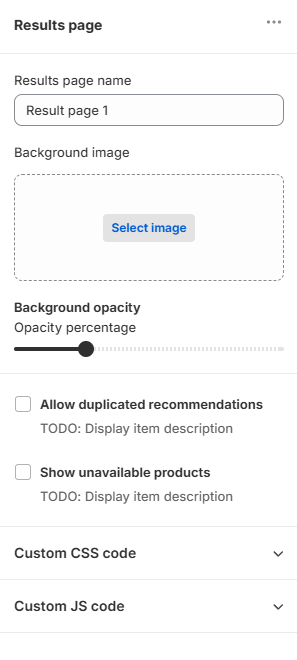
... - Opens the results page settings. Click Duplicate to duplicate the results page or Remove to delete it.

Results page name - Type the name of the results page.
Background image - Click Select image to upload a background image or select one from the in-app image gallery.
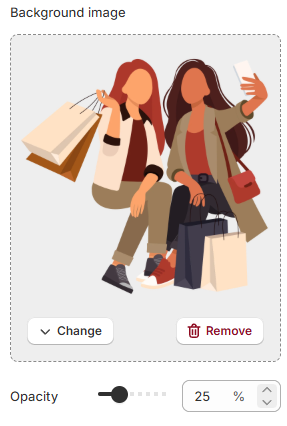
Background opacity - Use the slider to change the background image opacity percentage.
Allow duplicated recommendations - Check this option to allow products to be shown in more than one product/slot blocks.
Bar options - Select the settings of the checkout bar.
Info
The texts of the results page bar can be changed in Quiz settings > Messages.
Show bar - Uncheck to hide the checkout bar.
Show "Retake quiz" button - Uncheck if you want to hide the "retake quiz" button.
Show cart/checkout options - Select the settings of the cart/checkout options.
Cart/checkout options
Enable "Add all to cart" button - Uncheck to hide the "Add all to cart" button from the footer. If checked, the "add all to cart" button will only be shown when none of the recommended products are in the cart.
Next destination for customers - Choose where customers go after the results page either Checkout or Cart.
Discount code
Discount code - Add a discount code to the results page. The discount code will be applied at checkout. The code must be a valid discount code in your Shopify store.
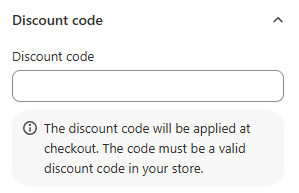
How to add a discount code
The code must be a valid discount code in your store. Check this guide to learn How to add a discount to the quiz.
Custom CSS code
Custom CSS code - Add custom CSS code to this results page only. To add custom CSS code to your entire quiz, go to quiz design.
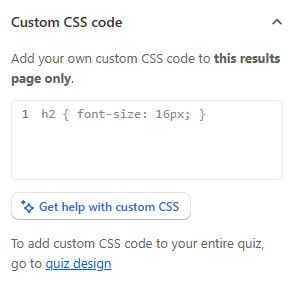
✨Get help with custom CSS - Opens a chat window with the Quiz Copilot AI. It can directly make design changes with CSS code.
App CSS structure
For a detailed overview of the CSS structure of the app and CSS examples, see the App CSS Structure reference.
Custom JS code
Custom JS code - Add custom JavaScript to this results page only. Custom JS will not work in the quiz builder, it will only work in the preview or live quiz.
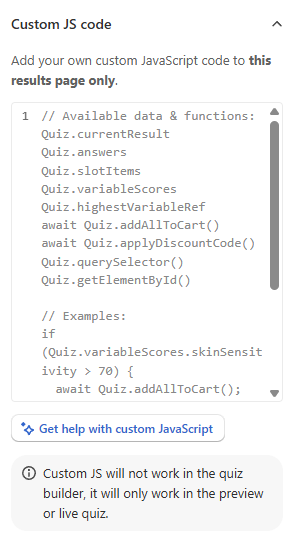
✨Get help with custom JavaScript - Opens a chat window with the Quiz Copilot AI. It can directly write JavaScript code for you.
Available JavaScript data and functions
Custom JavaScript code receives two parameters: quiz (data context) and actions (methods). See Dynamic Content & JavaScript Reference for full documentation.
Quick Reference:
// Quiz context (read-only)
quiz.currentResult         // Current result page object
quiz.results               // All result pages array
quiz.answers.byBlock       // Answers keyed by block reference
quiz.variables.scores      // Variable scores { varName: number }
quiz.variables.highest     // Highest scoring variable reference

// Result-specific context
quiz.resultContext.slotItems   // Recommended products/collections
quiz.resultContext.cartItems   // Items in cart
quiz.resultContext.discounts   // Applied discounts

// Shopify native cart API is the main source of truth
// Docs: https://shopify.dev/docs/api/ajax/reference/cart
// Use window.Shopify.routes.root + cart.js / add.js / change.js / update.js / clear.js

// RevenueHunt bridge
actions.syncCart()                  // Replace quiz cart state from Shopify cart.js

// DOM helpers (shadow DOM aware)
window.quiz.querySelector('#my-element')
window.quiz.getElementById('my-element')
Example - Use Shopify AJAX cart APIs, then sync the quiz UI:
if ((quiz.variables.scores.premium ?? 0) > 80) {
  await fetch(`${window.Shopify.routes.root}cart/add.js`, {
    method: 'POST',
    headers: { 'Content-Type': 'application/json' },
    body: JSON.stringify({
      items: [{ id: 12345678901234, quantity: 1 }]
    })
  });

  await actions.syncCart();
}
Example - Apply discount based on cart size:
const itemCount = Object.keys(quiz.resultContext.slotItems || {}).length;
if (itemCount >= 3) {
  await fetch(`${window.Shopify.routes.root}cart/update.js`, {
    method: 'POST',
    headers: { 'Content-Type': 'application/json' },
    body: JSON.stringify({
      discount: 'BUNDLE20'
    })
  });
}
Example - Save selected quiz data to Shopify note + cart attributes:
if (quiz.metadata.isStoreRenderer && !quiz.metadata.inBuilder) {
  await fetch(`${window.Shopify.routes.root}cart/update.js`, {
    method: 'POST',
    headers: { 'Content-Type': 'application/json' },
    body: JSON.stringify({
      note: 'Quiz completed',
      attributes: {
        __result_ref: quiz.currentResult?.ref || '',
        skincare_segment: quiz.variables.highest || ''
      }
    })
  });
}
RevenueHunt already tags the cart with internal quiz identifiers automatically. Use custom cart attributes for additional merchant-defined data.
🗑 Remove results page - Deletes the current results page.
r-dcc49e7e - Click to copy the results page ID. Displays the current results page ID.
⚙️ / gear icon - Opens the results page settings.
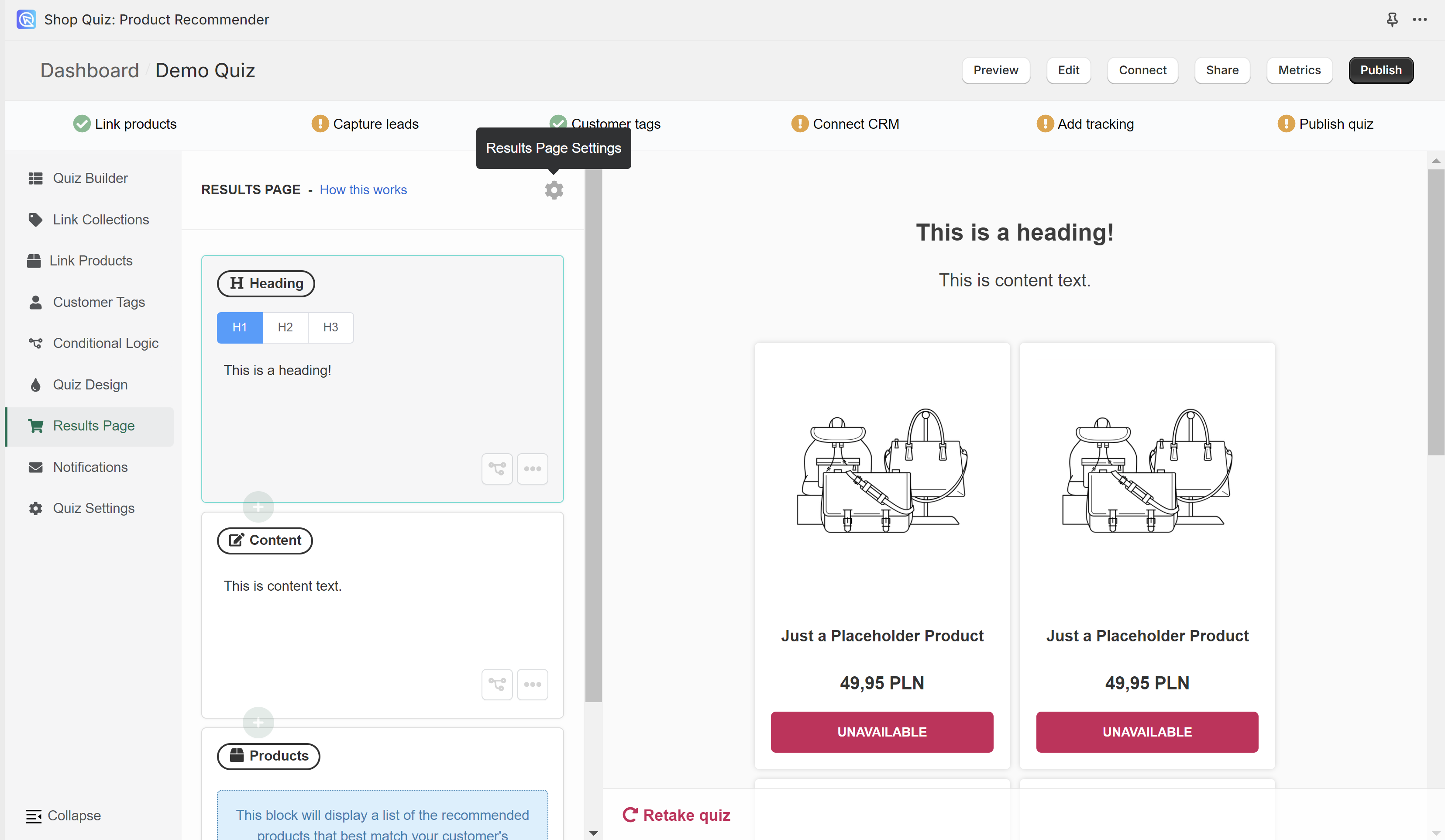
⚙️ / gear icon - Opens the results page settings.
⚙️ / gear icon - Opens the results page settings.
⚙️ / gear icon - Opens the results page settings.
⚙️ / gear icon - Opens the results page settings.
Basic settings
Checkout Settings
Check Results page settings > Checkout options.
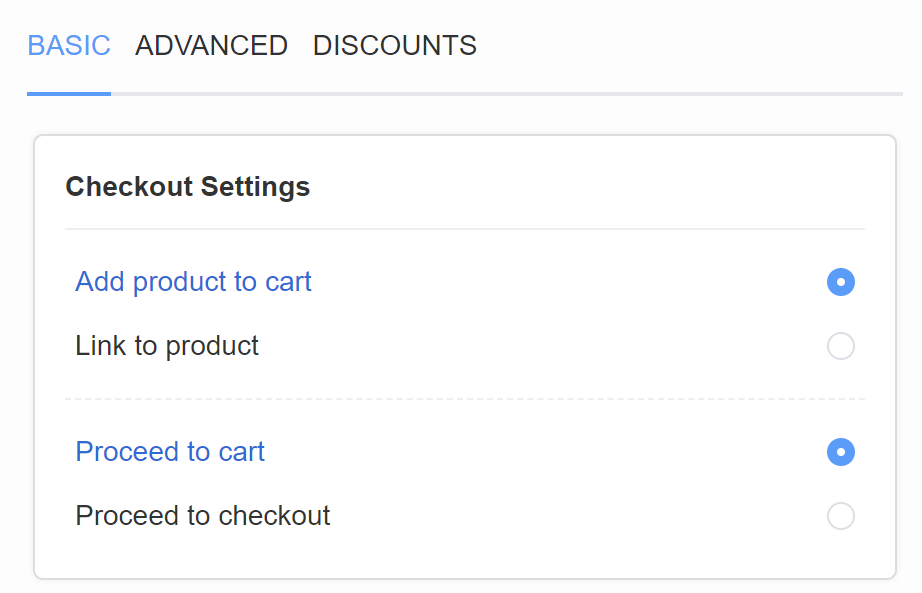
Add product to cart - Lets the customer add the recommended products to the cart directly from the results page.
Proceed to cart - After the products are added to the cart, the customer will proceed to the cart page.
Proceed to checkout - After the products are added to the cart, the customer will proceed to the checkout page.
Link to product - Displays a "view product" button that takes the customer to the product page. This option disables the "add to cart" feature.
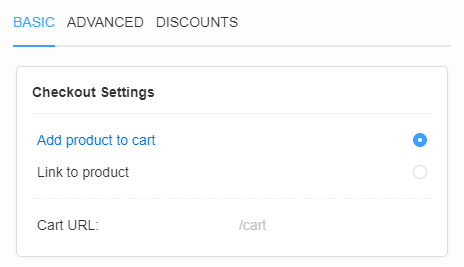
Add product to cart - Lets the customer add the recommended products to the cart directly from the results page.
Link to product - Displays a "view product" button that takes the customer to the product page. This option disables the "add to cart" feature.
Cart URL: - Type the cart URL that the customer is sent to after they add a product to the cart.
/cart - After the products are added to the cart, the customer will proceed to the cart page.
/checkout - After the products are added to the cart, the customer will proceed to the checkout page.
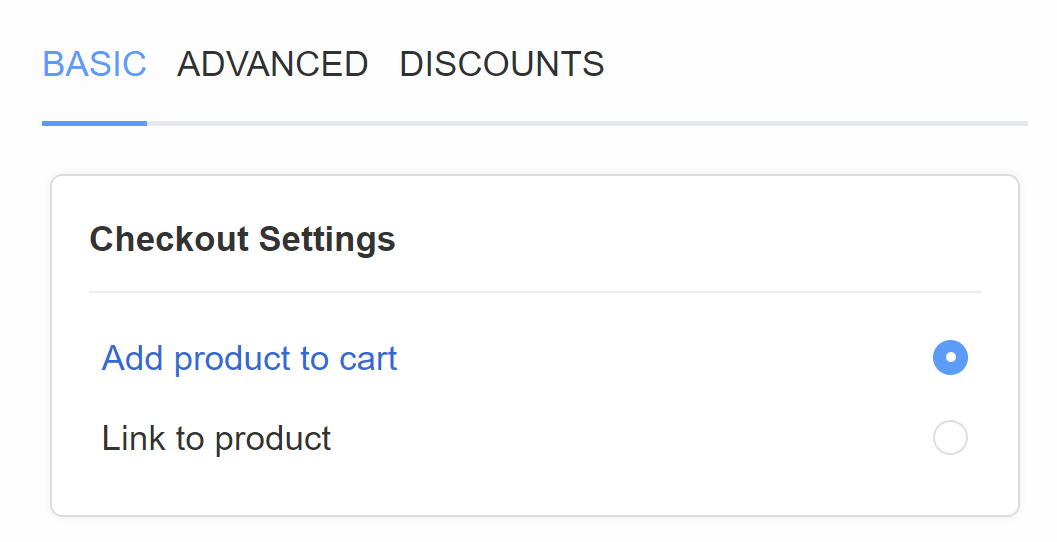
Add product to cart - Lets the customer add the recommended products to the cart directly from the results page. After the products are added to the cart, the customer will proceed to the cart page.
Link to product - Displays a "view product" button that takes the customer to the product page. This option disables the "add to cart" feature.
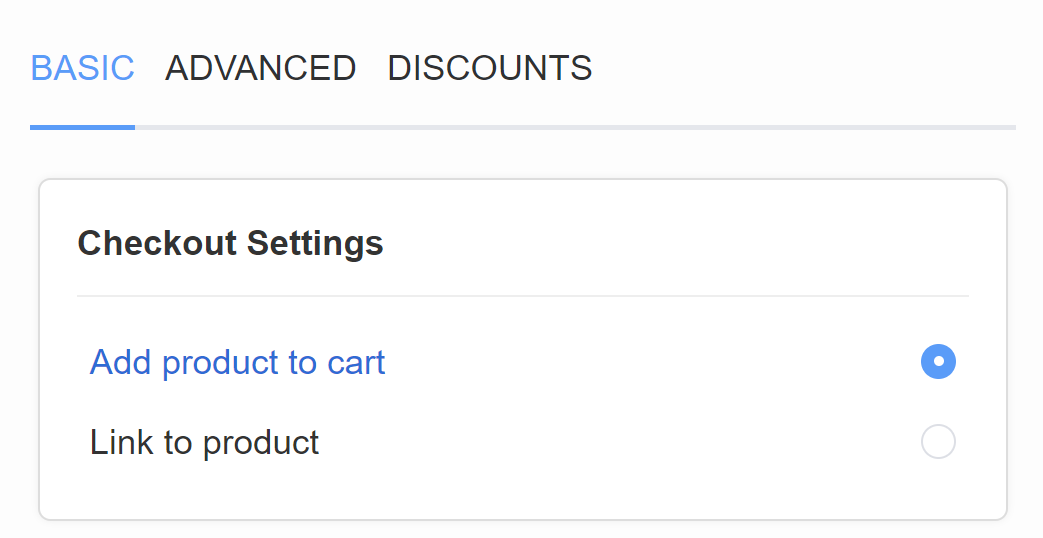
Add product to cart - Lets the customer add the recommended products to the cart directly from the results page. After the products are added to the cart, the customer will proceed to the cart page.
Link to product - Displays a "view product" button that takes the customer to the product page. This option disables the "add to cart" feature.
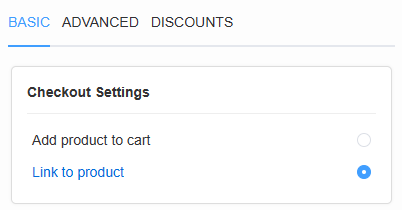
Link to product - Displays a "view product" button that takes the customer to the product page. This option disables the "add to cart" feature.
Not available on Standalone
Add product to cart is not available in the Standalone version of the app.
Tip
To add a product to the cart, set up your own results page in your store. Send the quiz data to it with the Callback function.
Individual Product Settings
These settings sit in the Results page settings panel, described at the top of this section.
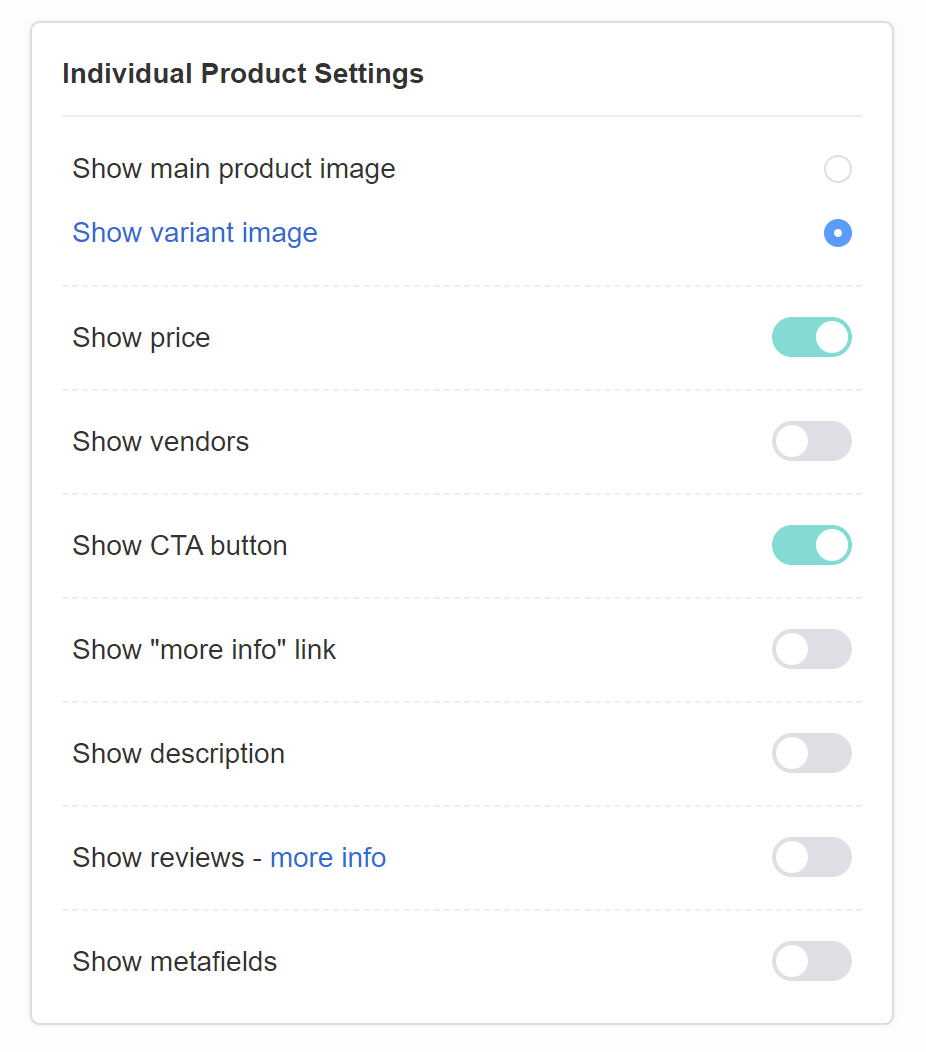
Show main product image - Click to always show the main product image, even when a variant is recommended.
Show variant image - Click to always show the variant image, instead of the main product image.
Show price - Toggle to display the product price on the results page.
Show vendors - Toggle to display the product vendor under the product on the results page.
Show CTA button - Toggle to display the "add to cart" or "view product" button under the products on the results page.
Show "more info" link - Toggle to display a "more info" link below the product name or description on the results page. The link takes you to the product page.
Show description - Toggle to display the product description below the product name on the results page. An additional option is displayed.
Truncate description - Toggle to shorten the product description on the results page and display a "read more" link which will enlarge it while clicked.
Show custom shorter product description
You can shorten the product descriptions that appear on the recommendations page. The instructions below show a Shopify store, but this also works for WooCommerce stores (see the WordPress More block documentation) and BigCommerce stores.
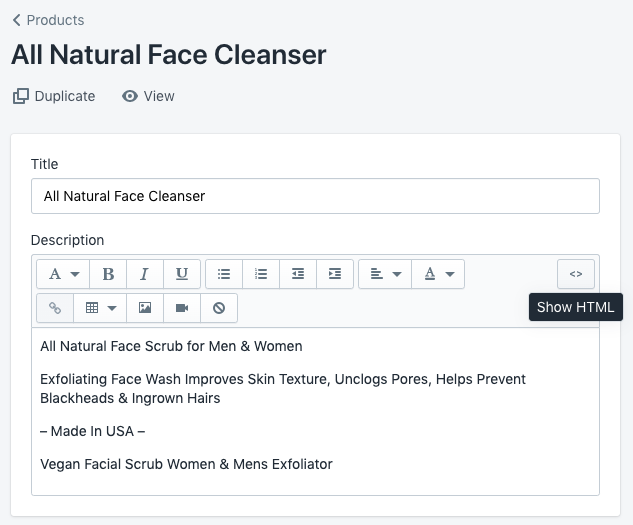
This feature lets you add a code snippet in your product description at the point where you want to cut it. In your ecommerce backend, open the product you want to edit. Click Show HTML, then add the <!--more--> snippet in the description:
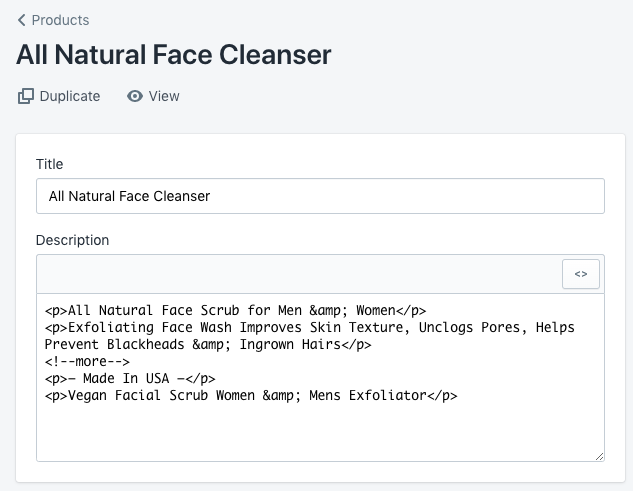
And paste the <!--more--> code after the introductory blurb:
This should cut the description on the quiz results page:
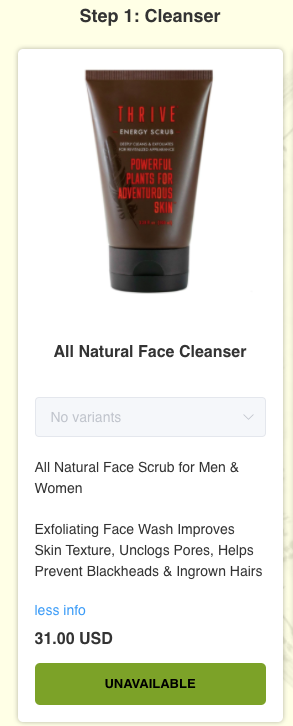
Deactivate truncate description in the Results Page settings, so the full description is shown and cut at the code snippet. Do this for every product the quiz can recommend.
Show reviews - Toggle to show product rating below the product name on the results page. After activation make sure to run a Catalog Sync to sync all the product reviews with the app.
Info
The app supports these review apps for Shopify:
- Product Reviews by Shopify,
- Stamped Product Reviews & UGC,
- Judge.me Product Reviews,
- Rivyo Product Reviews.
Show metafields - Toggle to allow showing of custom product metafields on the results page. To show product metafields follow the instructions in How to show product metafields in the quiz.
Style Settings
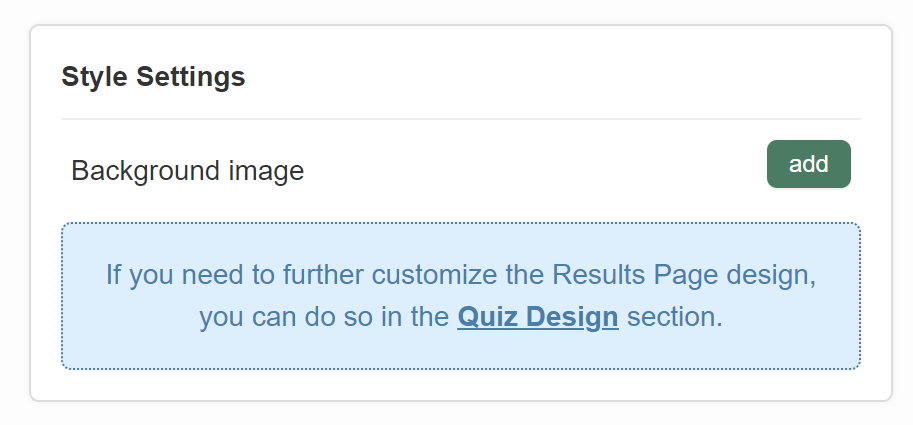
Background image - Click "Add" to upload a background image to the results page. Image should be max 1000px x 1000px and 2MB. An extra menu appears once activated.
Image Opacity - A slider which lets you adjust the opacity of the uploaded background image.
Show main product image - Click to always show the main product image, even when a variant is recommended.
Show variant image - Click to always show the variant image, instead of the main product image.
Show price - Toggle to display the product price on the results page.
Show vendors - Toggle to display the product vendor under the product on the results page.
Info
If you want to display the vendor of each product in the results page, please use Product Vendors by WooCommerce.
Show CTA button - Toggle to display the "add to cart" or "view product" button under the products on the results page.
Show "more info" link - Toggle to display a "more info" link below the product name or description on the results page. The link takes you to the product page.
Show description - Toggle to display the product description below the product name on the results page. An additional option is displayed.
Truncate description - Toggle to shorten the product description on the results page and display a "read more" link which will enlarge it while clicked.
Show custom shorter product description
You can shorten the product descriptions that appear on the recommendations page. The instructions below show a Shopify store, but this also works for WooCommerce stores (see the WordPress More block documentation) and BigCommerce stores.
This feature lets you add a code snippet in your product description at the point where you want to cut it. In your ecommerce backend, open the product you want to edit. Click Show HTML, then add the <!--more--> snippet in the description:
And paste the <!--more--> code after the introductory blurb:
This should cut the description on the quiz results page:
Deactivate truncate description in the Results Page settings, so the full description is shown and cut at the code snippet. Do this for every product the quiz can recommend.
Show reviews - Toggle to show product rating below the product name on the results page. After activation make sure to run a Catalog Sync to sync all the product reviews with the app.
Info
The app syncs only the official WooCommerce Reviews.
Show metafields/attributes - Toggle to allow the showing of custom product attributes on the results page. To show product attributes follow the instructions in How to show product metafields in the quiz.
Style Settings
Background image - Click "Add" to upload a background image to the results page. Image should be max 1000px x 1000px and 2MB. An extra menu appears once activated.
Image Opacity - A slider which lets you adjust the opacity of the uploaded background image.
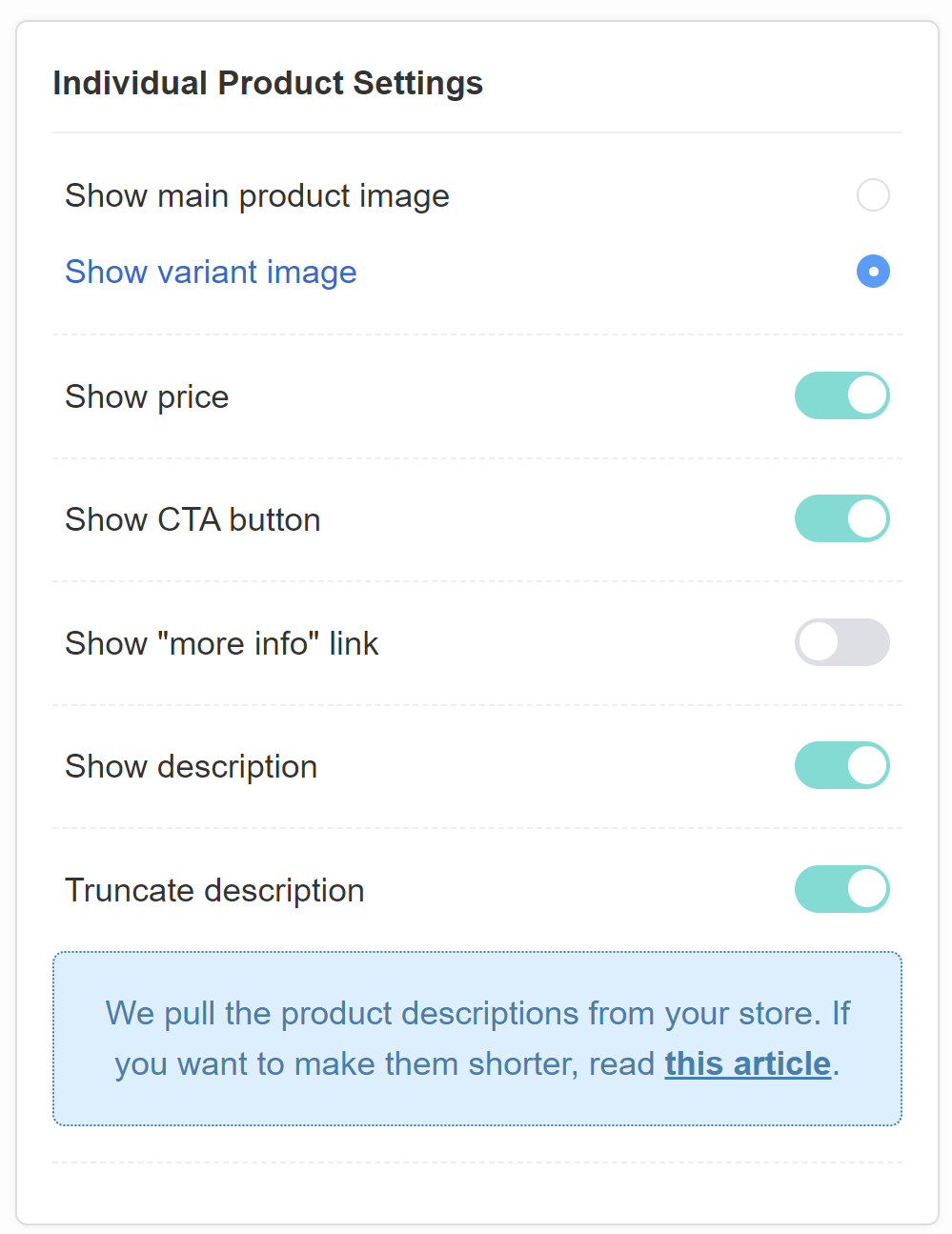
Show main product image - Click to always show the main product image, even when a variant is recommended.
Show variant image - Click to always show the variant image, instead of the main product image.
Show price - Toggle to display the product price on the results page.
Show CTA button - Toggle to display the "add to cart" or "view product" button under the products on the results page.
Show "more info" link - Toggle to display a "more info" link below the product name or description on the results page. The link takes you to the product page.
Show description - Toggle to display the product description below the product name on the results page. An additional option is displayed.
Truncate description - Toggle to shorten the product description on the results page and display a "read more" link which will enlarge it while clicked.
Show custom shorter product description
You can shorten the product descriptions that appear on the recommendations page. The instructions below show a Shopify store, but this also works for WooCommerce stores (see the WordPress More block documentation) and BigCommerce stores.
This feature lets you add a code snippet in your product description at the point where you want to cut it. In your ecommerce backend, open the product you want to edit. Click Show HTML, then add the <!--more--> snippet in the description:
And paste the <!--more--> code after the introductory blurb:
This should cut the description on the quiz results page:
Deactivate truncate description in the Results Page settings, so the full description is shown and cut at the code snippet. Do this for every product the quiz can recommend.
Style Settings
Background image - Click "Add" to upload a background image to the results page. Image should be max 1000px x 1000px and 2MB. An extra menu appears once activated.
Image Opacity - A slider which lets you adjust the opacity of the uploaded background image.
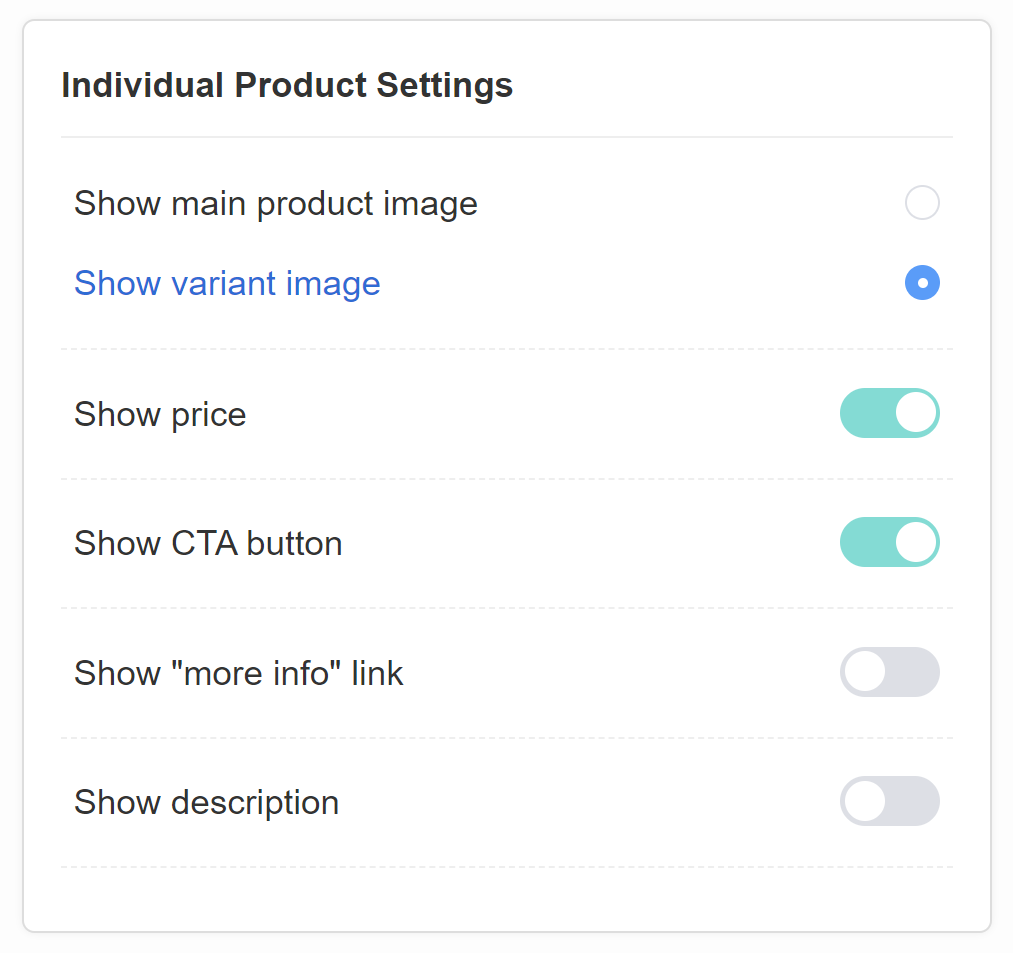
Show main product image - Click to always show the main product image, even when a variant is recommended.
Show variant image - Click to always show the variant image, instead of the main product image.
Show price - Toggle to display the product price on the results page.
Show CTA button - Toggle to display the "add to cart" or "view product" button under the products on the results page.
Show "more info" link - Toggle to display a "more info" link below the product name or description on the results page. The link takes you to the product page.
Show description - Toggle to display the product description below the product name on the results page. An additional option is displayed.
Show custom shorter product description
You can shorten the product descriptions that appear on the recommendations page. The instructions below show a Shopify store, but this also works for WooCommerce stores (see the WordPress More block documentation) and BigCommerce stores.
This feature lets you add a code snippet in your product description at the point where you want to cut it. In your ecommerce backend, open the product you want to edit. Click Show HTML, then add the <!--more--> snippet in the description:
And paste the <!--more--> code after the introductory blurb:
This should cut the description on the quiz results page:
Deactivate truncate description in the Results Page settings, so the full description is shown and cut at the code snippet. Do this for every product the quiz can recommend.
Style Settings
Background image - Click "Add" to upload a background image to the results page. Image should be max 1000px x 1000px and 2MB. An extra menu appears once activated.
Image Opacity - A slider which lets you adjust the opacity of the uploaded background image.
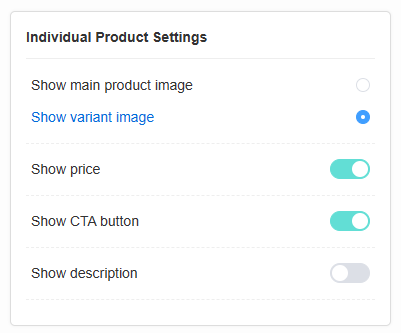
Show main product image - Click to always show the main product image, even when a variant is recommended.
Show variant image - Click to always show the variant image, instead of the main product image.
Show price - Toggle to display the product price on the results page.
Show CTA button - Toggle to display the "add to cart" or "view product" button under the products on the results page.
Show description - Toggle to display the product description below the product name on the results page. An additional option is displayed.
Show custom shorter product description
You can shorten the product descriptions that appear on the recommendations page. The instructions below show a Shopify store, but this also works for WooCommerce stores (see the WordPress More block documentation) and BigCommerce stores.
This feature lets you add a code snippet in your product description at the point where you want to cut it. In your ecommerce backend, open the product you want to edit. Click Show HTML, then add the <!--more--> snippet in the description:
And paste the <!--more--> code after the introductory blurb:
This should cut the description on the quiz results page:
Deactivate truncate description in the Results Page settings, so the full description is shown and cut at the code snippet. Do this for every product the quiz can recommend.
Style Settings
Background image - Click "Add" to upload a background image to the results page. Image should be max 1000px x 1000px and 2MB. An extra menu appears once activated.
Image Opacity - A slider which lets you adjust the opacity of the uploaded background image.
Advanced settings
These settings sit in the Results page settings panel, described at the top of this section.
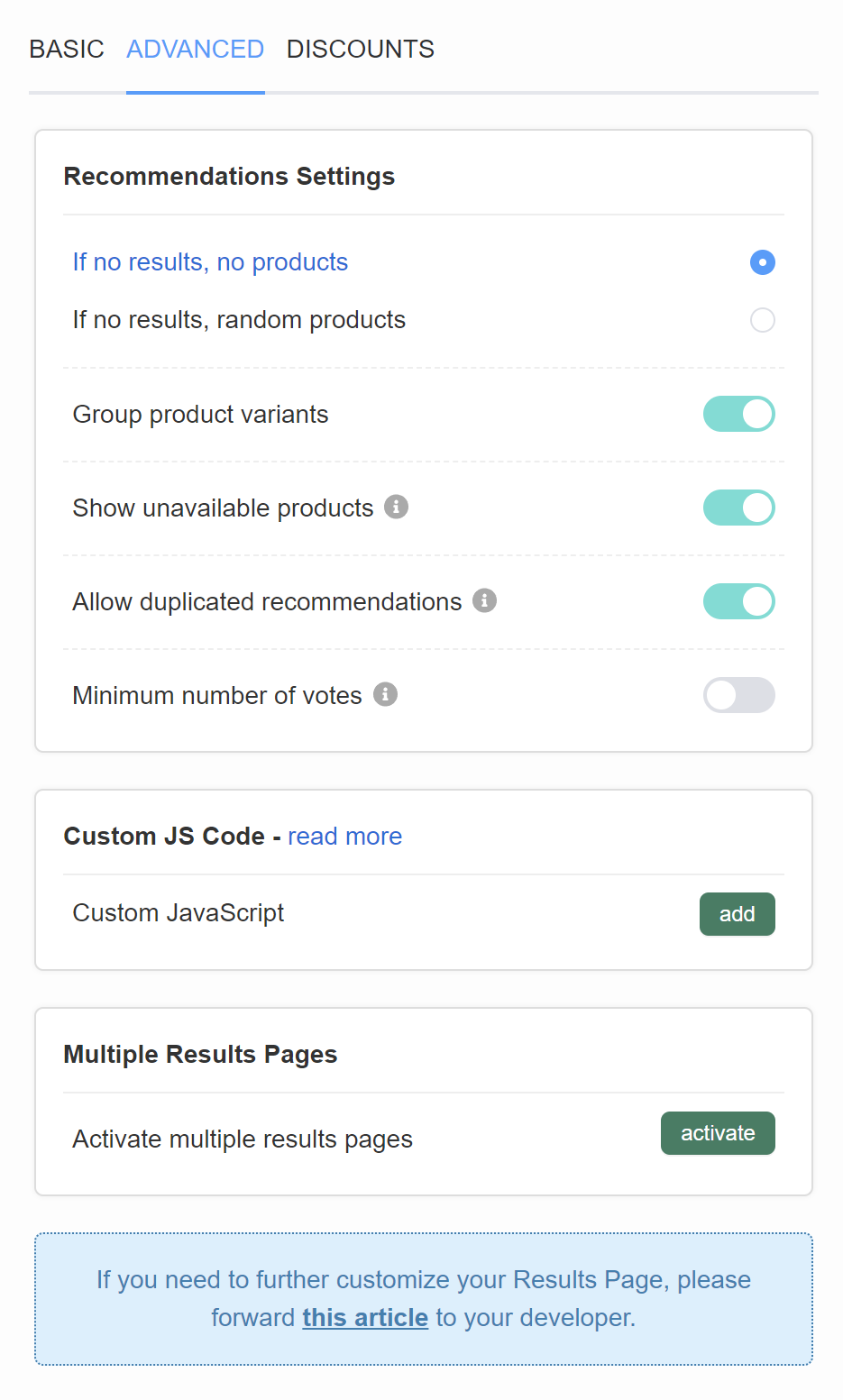
Recommendation Settings
If no results, no products - If there are no products that can be recommended a fallback message is shown instead. You can edit that text in Quiz Settings > Messages.
If no results, random products - If there are no products that can be recommended the app will show random products that received any upvotes.
Group product variants - Groups product variants as a dropdown under the main product name. Toggle to activate. Variants are displayed in the order of upvotes they received at the end of the quiz. If variants receive the same number of upvotes, the order in which they are displayed on the results page will be random.
Show unavailable products - Allows products that are unavailable (out of stock) in the store to be recommended via the quiz. Toggle to activate.
Allow duplicated recommendations - Allows products to show multiple times on the results page (for example in two different product blocks or slot blocks). Toggle to activate.
Minimum number of votes - Adds a setting to each product or slot block. It limits the block to products that received X upvotes or more. Toggle to activate.
Custom JS Code
Custom JavaScript - Click "Add" to open the JavaScript console.
Multiple Results Pages
Activate multiple results pages - Click "activate" to open the MULTIPLE RESULTS PAGES menu.
Recommendation Settings
If no results, no products - If there are no products that can be recommended a fallback message is shown instead. You can edit that text in Quiz Settings > Messages.
If no results, random products - If there are no products that can be recommended the app will show random products that received any upvotes.
Group product variants - Groups product variants as a dropdown under the main product name. Toggle to activate. Variants are displayed in the order of upvotes they received at the end of the quiz. If variants receive the same number of upvotes, the order in which they are displayed on the results page will be random.
Show unavailable products - Allows products that are unavailable (out of stock) in the store to be recommended via the quiz. Toggle to activate.
Allow duplicated recommendations - Allows products to show multiple times on the results page (for example in two different product blocks or slot blocks). Toggle to activate.
Minimum number of votes - Adds a setting to each product or slot block. It limits the block to products that received X upvotes or more. Toggle to activate.
Custom JS Code
Custom JavaScript - Click "Add" to open the JavaScript console.
Multiple Results Pages
Activate multiple results pages - Click "activate" to open the MULTIPLE RESULTS PAGES menu.
Recommendation Settings
If no results, no products - If there are no products that can be recommended a fallback message is shown instead. You can edit that text in Quiz Settings > Messages.
If no results, random products - If there are no products that can be recommended the app will show random products that received any upvotes.
Group product variants - Groups product variants as a dropdown under the main product name. Toggle to activate. Variants are displayed in the order of upvotes they received at the end of the quiz. If variants receive the same number of upvotes, the order in which they are displayed on the results page will be random.
Show unavailable products - Allows products that are unavailable (out of stock) in the store to be recommended via the quiz. Toggle to activate.
Allow duplicated recommendations - Allows products to show multiple times on the results page (for example in two different product blocks or slot blocks). Toggle to activate.
Minimum number of votes - Adds a setting to each product or slot block. It limits the block to products that received X upvotes or more. Toggle to activate.
Custom JS Code
Custom JavaScript - Click "Add" to open the JavaScript console.
Multiple Results Pages
Activate multiple results pages - Click "activate" to open the MULTIPLE RESULTS PAGES menu.
Recommendation Settings
If no results, no products - If there are no products that can be recommended a fallback message is shown instead. You can edit that text in Quiz Settings > Messages.
If no results, random products - If there are no products that can be recommended the app will show random products that received any upvotes.
Group product variants - Groups product variants as a dropdown under the main product name. Toggle to activate. Variants are displayed in the order of upvotes they received at the end of the quiz. If variants receive the same number of upvotes, the order in which they are displayed on the results page will be random.
Show unavailable products - Allows products that are unavailable (out of stock) in the store to be recommended via the quiz. Toggle to activate.
Allow duplicated recommendations - Allows products to show multiple times on the results page (for example in two different product blocks or slot blocks). Toggle to activate.
Minimum number of votes - Adds a setting to each product or slot block. It limits the block to products that received X upvotes or more. Toggle to activate.
Custom JS Code
Custom JavaScript - Click "Add" to open the JavaScript console.
Multiple Results Pages
Activate multiple results pages - Click "activate" to open the MULTIPLE RESULTS PAGES menu.
Recommendation Settings
If no results, no products - If there are no products that can be recommended a fallback message is shown instead. You can edit that text in Quiz Settings > Messages.
If no results, random products - If there are no products that can be recommended the app will show random products that received any upvotes.
Group product variants - Groups product variants as a dropdown under the main product name. Toggle to activate. Variants are displayed in the order of upvotes they received at the end of the quiz. If variants receive the same number of upvotes, the order in which they are displayed on the results page will be random.
Show unavailable products - Allows products that are unavailable (out of stock) in the store to be recommended via the quiz. Toggle to activate.
Allow duplicated recommendations - Allows products to show multiple times on the results page (for example in two different product blocks or slot blocks). Toggle to activate.
Minimum number of votes - Adds a setting to each product or slot block. It limits the block to products that received X upvotes or more. Toggle to activate.
Custom JS Code
Custom JavaScript - Click "Add" to open the JavaScript console.
Multiple Results Pages
Activate multiple results pages - Click "activate" to open the MULTIPLE RESULTS PAGES menu.
Multiple results pages settings
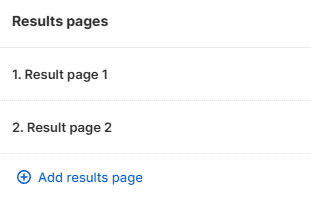
+ Add results page - Click to add an extra results page to your quiz. Each results page can have different settings and content.
Jump logic is required
The customers will be taken to the first results page by default. To send them to a different results page, use Jump logic in the Conditional logic tab.
See how to set up multiple results pages for how to set up multiple results pages and use Jump logic.
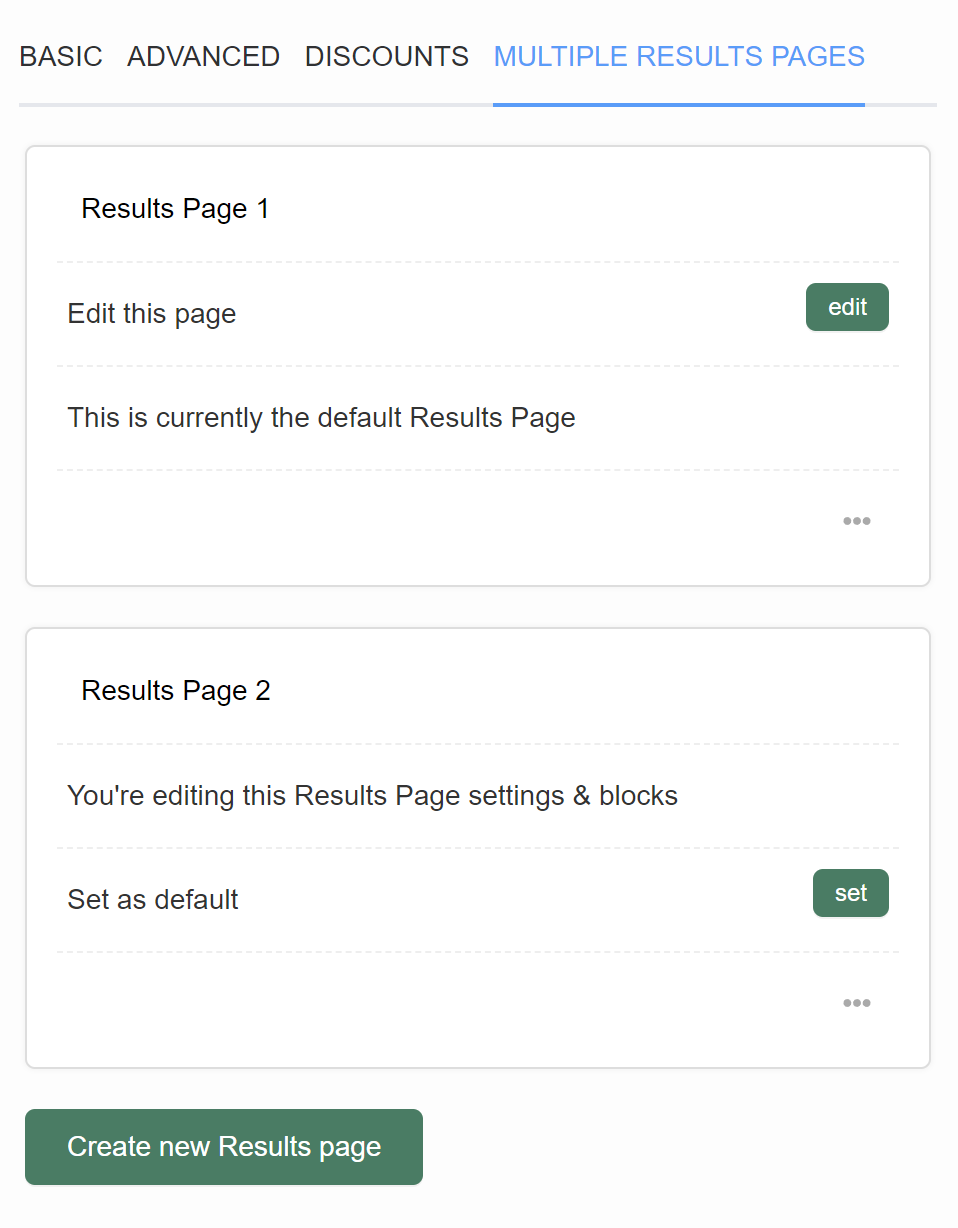
Results Page 1
Edit this page - Click "edit" to switch to this results page and edit its content.
This is currently the default Results Page - Indicates which page is the default one. Customer will be taken to the default results page unless you redirect them with Jump Logic to another page.
Results Page 2
You're editing this Results Page settings & blocks - Indicates which results page you are currently editing.
Set as default - Click "set" to select this results page as default. Customer will be taken to the default results page unless you redirect them with Jump Logic to another page.
Create new Results Page - add a new results page to your quiz.
Results Page 1
Edit this page - Click "edit" to switch to this results page and edit its content.
This is currently the default Results Page - Indicates which page is the default one. Customer will be taken to the default results page unless you redirect them with Jump Logic to another page.
Results Page 2
You're editing this Results Page settings & blocks - Indicates which results page you are currently editing.
Set as default - Click "set" to select this results page as default. Customer will be taken to the default results page unless you redirect them with Jump Logic to another page.
Create new Results Page - add a new results page to your quiz.
Results Page 1
Edit this page - Click "edit" to switch to this results page and edit its content.
This is currently the default Results Page - Indicates which page is the default one. Customer will be taken to the default results page unless you redirect them with Jump Logic to another page.
Results Page 2
You're editing this Results Page settings & blocks - Indicates which results page you are currently editing.
Set as default - Click "set" to select this results page as default. Customer will be taken to the default results page unless you redirect them with Jump Logic to another page.
Create new Results Page - add a new results page to your quiz.
Results Page 1
Edit this page - Click "edit" to switch to this results page and edit its content.
This is currently the default Results Page - Indicates which page is the default one. Customer will be taken to the default results page unless you redirect them with Jump Logic to another page.
Results Page 2
You're editing this Results Page settings & blocks - Indicates which results page you are currently editing.
Set as default - Click "set" to select this results page as default. Customer will be taken to the default results page unless you redirect them with Jump Logic to another page.
Create new Results Page - add a new results page to your quiz.
Results Page 1
Edit this page - Click "edit" to switch to this results page and edit its content.
This is currently the default Results Page - Indicates which page is the default one. Customer will be taken to the default results page unless you redirect them with Jump Logic to another page.
Results Page 2
You're editing this Results Page settings & blocks - Indicates which results page you are currently editing.
Set as default - Click "set" to select this results page as default. Customer will be taken to the default results page unless you redirect them with Jump Logic to another page.
Create new Results Page - add a new results page to your quiz.
Discounts settings
- To add a discount code to the results page, open the Results page settings.
-
Locate the
Discount codesection and paste the discount code in theCodefield. Note that the code must be a valid discount code in your Shopify store.
How to add a discount code
See how to add a discount to your quiz to learn how to add a discount code to the quiz.
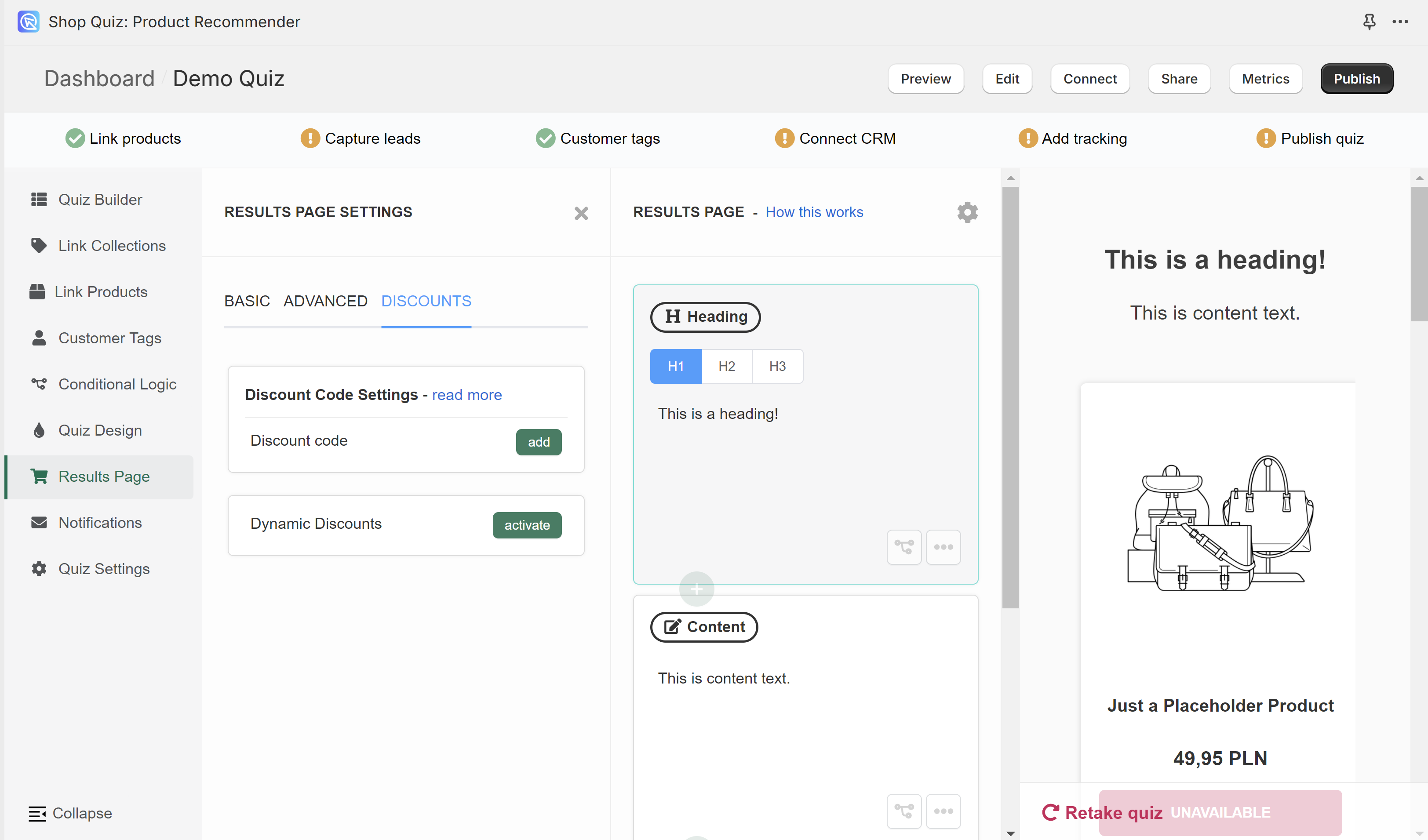
Discount Code Settings - Lets you add a static discount to your results page. Click "Add" to open the discount menu.
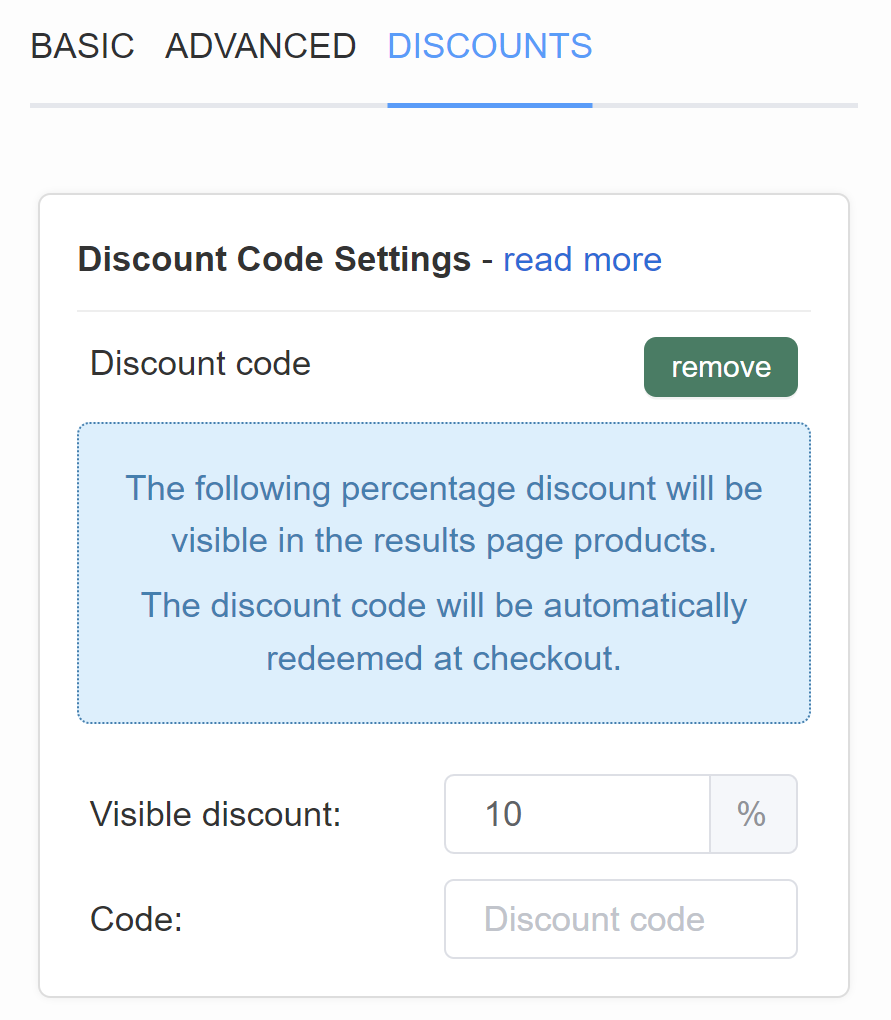
Visible discount - Select the discount % from the dropdown. The percentage discount will be visible on the results page products. The discount code will be automatically redeemed at checkout.
Code - Type a discount code that corresponds to this discount. You have to set up this discount code in your store > Shopify Discounts first. Follow this guide to learn How to add a discount to the quiz.
Dynamic Discounts - Lets you add a dynamic discount to your results page with a minimal cart value. Click "activate" to open the discount menu.
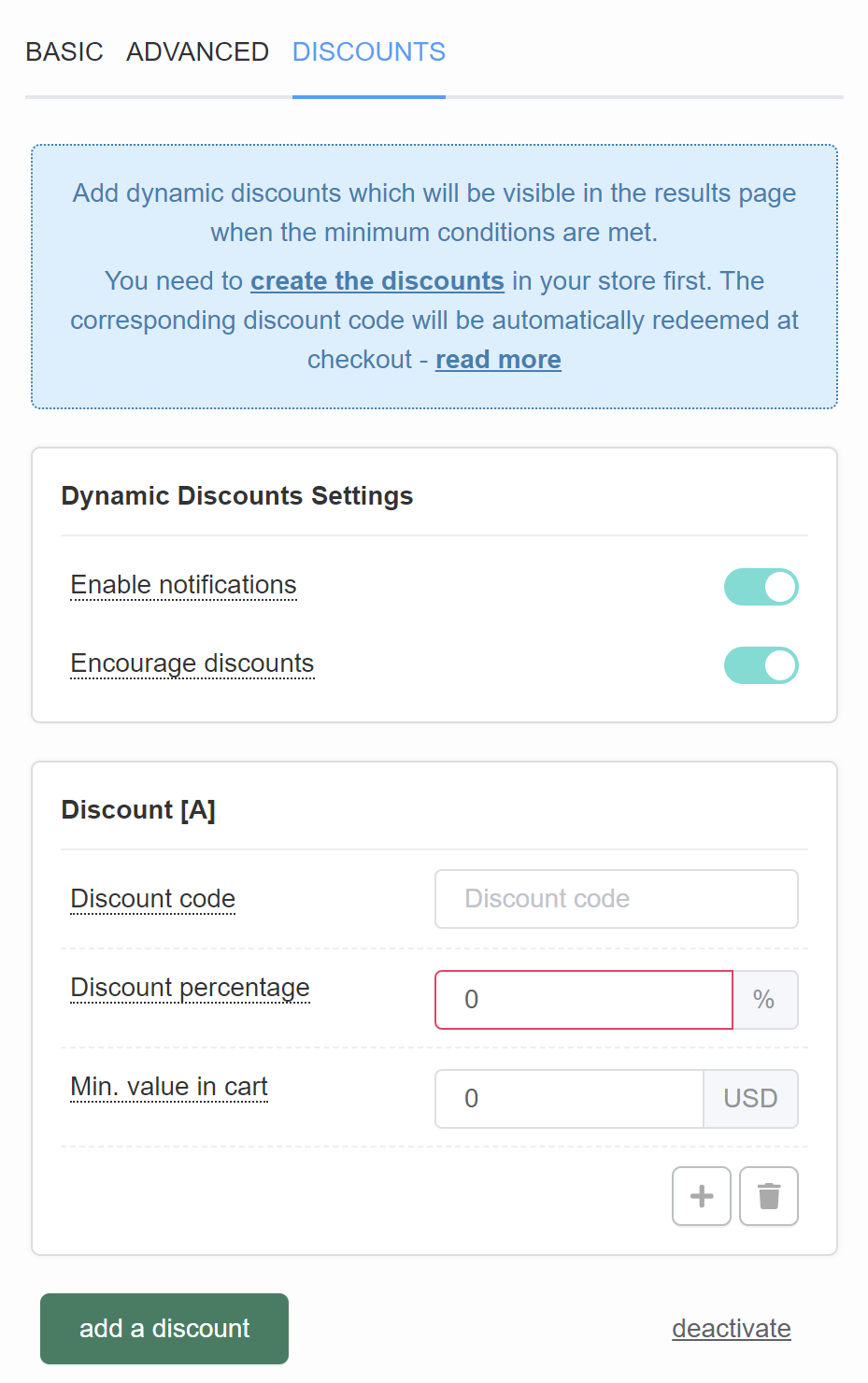
Dynamic Discounts Settings
Enable notifications - A toast notification will appear when a customer qualifies for a discount. Toggle to enable/disable.
Encourage discounts - The notification will also include a message telling the customer how close they are to receiving the next highest discount. Toggle to enable/disable.
Discount [A]
Discount code - Type a discount code that corresponds to this discount. You have to set up this discount code in your store > Shopify Discounts first. Follow this guide to learn How to add a discount to the quiz.
Discount percentage - Type the discount %. The percentage discount will be visible in the results page products. The discount code will be automatically redeemed at checkout.
Min. value in cart - Type the value of products added to the cart on the results page above which the discount will be applied.
+ / add another discount - adds a new dynamic discount (Discount [B]).
bin / delete this discount - deletes this dynamic discount.
add a discount - Adds a new dynamic discount below (Discount [B]).
deactivate - Deactivates dynamic discounts.
Discount Code Settings - Lets you add a static discount to your results page. Click "Add" to open the discount menu.
Visible discount - Select the discount % from the dropdown. The percentage discount will be visible on the results page products. The discount code will be automatically redeemed at checkout.
Code - Type a discount code that corresponds to this discount. You have to set up this discount code in your store > Shopify Discounts first. Follow this guide to learn How to add a discount to the quiz.
Dynamic Discounts - Lets you add a dynamic discount to your results page with a minimal cart value. Click "activate" to open the discount menu.
Dynamic Discounts Settings
Enable notifications - A toast notification will appear when a customer qualifies for a discount. Toggle to enable/disable.
Encourage discounts - The notification will also include a message telling the customer how close they are to receiving the next highest discount. Toggle to enable/disable.
Discount [A]
Discount code - Type a discount code that corresponds to this discount. You have to set up this discount code in your store > Shopify Discounts first. Follow this guide to learn How to add a discount to the quiz.
Discount percentage - Type the discount %. The percentage discount will be visible in the results page products. The discount code will be automatically redeemed at checkout.
Min. value in cart - Type the value of products added to the cart on the results page above which the discount will be applied.
+ / add another discount - adds a new dynamic discount (Discount [B]).
bin / delete this discount - deletes this dynamic discount.
add a discount - Adds a new dynamic discount below (Discount [B]).
deactivate - Deactivates dynamic discounts.
Discount Code Settings - Lets you add a static discount to your results page. Click "Add" to open the discount menu.
Visible discount - Select the discount % from the dropdown. The percentage discount will be visible on the results page products. The discount code will be automatically redeemed at checkout.
Code - Type a discount code that corresponds to this discount. You have to set up this discount code in your store > Shopify Discounts first. Follow this guide to learn How to add a discount to the quiz.
Dynamic Discounts - Lets you add a dynamic discount to your results page with a minimal cart value. Click "activate" to open the discount menu.
Dynamic Discounts Settings
Enable notifications - A toast notification will appear when a customer qualifies for a discount. Toggle to enable/disable.
Encourage discounts - The notification will also include a message telling the customer how close they are to receiving the next highest discount. Toggle to enable/disable.
Discount [A]
Discount code - Type a discount code that corresponds to this discount. You have to set up this discount code in your store > Shopify Discounts first. Follow this guide to learn How to add a discount to the quiz.
Discount percentage - Type the discount %. The percentage discount will be visible in the results page products. The discount code will be automatically redeemed at checkout.
Min. value in cart - Type the value of products added to the cart on the results page above which the discount will be applied.
+ / add another discount - adds a new dynamic discount (Discount [B]).
bin / delete this discount - deletes this dynamic discount.
add a discount - Adds a new dynamic discount below (Discount [B]).
deactivate - Deactivates dynamic discounts.
Discount Code Settings - Lets you add a static discount to your results page. Click "Add" to open the discount menu.
Visible discount - Select the discount % from the dropdown. The percentage discount will be visible on the results page products. The discount code will be automatically redeemed at checkout.
Code - Type a discount code that corresponds to this discount. You have to set up this discount code in your store > Shopify Discounts first. Follow this guide to learn How to add a discount to the quiz.
Dynamic Discounts - Lets you add a dynamic discount to your results page with a minimal cart value. Click "activate" to open the discount menu.
Dynamic Discounts Settings
Enable notifications - A toast notification will appear when a customer qualifies for a discount. Toggle to enable/disable.
Encourage discounts - The notification will also include a message telling the customer how close they are to receiving the next highest discount. Toggle to enable/disable.
Discount [A]
Discount code - Type a discount code that corresponds to this discount. You have to set up this discount code in your store > Shopify Discounts first. Follow this guide to learn How to add a discount to the quiz.
Discount percentage - Type the discount %. The percentage discount will be visible in the results page products. The discount code will be automatically redeemed at checkout.
Min. value in cart - Type the value of products added to the cart on the results page above which the discount will be applied.
+ / add another discount - adds a new dynamic discount (Discount [B]).
bin / delete this discount - deletes this dynamic discount.
add a discount - Adds a new dynamic discount below (Discount [B]).
deactivate - Deactivates dynamic discounts.
Discount Code Settings - Lets you add a static discount to your results page. Click "Add" to open the discount menu.
Visible discount - Select the discount % from the dropdown. The percentage discount will be visible on the results page products. The discount code will be automatically redeemed at checkout.
Code - Type a discount code that corresponds to this discount. You have to set up this discount code in your store > Shopify Discounts first. Follow this guide to learn How to add a discount to the quiz.
Dynamic Discounts - Lets you add a dynamic discount to your results page with a minimal cart value. Click "activate" to open the discount menu.
Dynamic Discounts Settings
Enable notifications - A toast notification will appear when a customer qualifies for a discount. Toggle to enable/disable.
Encourage discounts - The notification will also include a message telling the customer how close they are to receiving the next highest discount. Toggle to enable/disable.
Discount [A]
Discount code - Type a discount code that corresponds to this discount. You have to set up this discount code in your store > Shopify Discounts first. Follow this guide to learn How to add a discount to the quiz.
Discount percentage - Type the discount %. The percentage discount will be visible in the results page products. The discount code will be automatically redeemed at checkout.
Min. value in cart - Type the value of products added to the cart on the results page above which the discount will be applied.
+ / add another discount - adds a new dynamic discount (Discount [B]).
bin / delete this discount - deletes this dynamic discount.
add a discount - Adds a new dynamic discount below (Discount [B]).
deactivate - Deactivates dynamic discounts.
Dynamic content & JavaScript reference
This section provides a complete reference for dynamic content using Liquid templates and JavaScript on results pages.
Liquid templates
Liquid is a templating language. It lets you show dynamic content based on quiz answers and variables. On results pages it is supported in:
- Heading blocks - Personalized titles
- Text blocks - Dynamic paragraphs
- Custom HTML blocks - Full template control
- Slot title & description - Personalized slot headers
- No recommendations message - Personalized empty states
The quiz object
All Liquid templates have access to the quiz object with the following properties:
| Property | Type | Description |
|---|---|---|
quiz.id |
string | Quiz identifier |
quiz.mode |
string | Always 'result' on results pages |
quiz.currentResult |
object | Current results page data |
quiz.questions |
array | All quiz questions |
quiz.results |
array | All results pages |
Accessing answers
| Property | Description |
|---|---|
quiz.answers.list |
Array of all answers in chronological order |
quiz.answers.byBlock['ref'] |
Answer object keyed by block reference |
quiz.answers.byQuestion['ref'] |
Answers grouped by question reference |
quiz.answers.latest |
Most recent answer |
Each answer object contains:
| Property | Description |
|---|---|
.value |
The answer value (string) |
.blockRef |
Block reference ID |
.questionRef |
Question reference ID |
.choicesRefs |
Array of selected choice IDs |
.isValid |
Whether answer passed validation |
Variables & scoring
| Property | Description |
|---|---|
quiz.variables.scores |
Object with variable scores { varName: number } |
quiz.variables.highest |
Reference of highest-scoring variable |
Result context (results page only)
| Property | Description |
|---|---|
quiz.resultContext.slotItems |
Object of recommended products/collections keyed by Shopify GID |
quiz.resultContext.cartItems |
Array of items currently in cart |
quiz.resultContext.discounts |
Object with applied array and eligible boolean |
Liquid examples
Personalized greeting:
{% if quiz.answers.byBlock['qbi-name'] %}
  {{ quiz.answers.byBlock['qbi-name'].value }}, here are your results!
{% else %}
  Here are your personalized results!
{% endif %}
Display skin type result:
{% if quiz.variables.highest == 'dry' %}
  <h2>Your Skin Type: Dry</h2>
  <p>Your skin needs extra hydration. We recommend products with hyaluronic acid.</p>
{% elsif quiz.variables.highest == 'oily' %}
  <h2>Your Skin Type: Oily</h2>
  <p>Your skin produces excess oil. We recommend lightweight, mattifying products.</p>
{% elsif quiz.variables.highest == 'combination' %}
  <h2>Your Skin Type: Combination</h2>
  <p>Your skin has both dry and oily areas. We recommend balanced formulas.</p>
{% endif %}
Show score-based content:
{% assign sensitivity = quiz.variables.scores.sensitive | default: 0 %}
{% if sensitivity > 70 %}
  ⚠️ You have highly sensitive skin. All our recommendations are fragrance-free.
{% endif %}
Slot block context
In Custom HTML blocks within product slots, you have additional variables:
| Variable | Description |
|---|---|
item |
The Shopify product/variant/collection object |
itemType |
'product', 'variant', or 'collection' |
Example - Custom product display:
{% if itemType == 'product' %}
  <div class="product-card">
    <h4>{{ item.title }}</h4>
    <p>{{ item.description | truncate: 100 }}</p>
    <span class="price">{{ item.priceRange.minVariantPrice.amount }}</span>
  </div>
{% endif %}
JavaScript API
Custom JavaScript code receives two parameters: quiz (read-only context) and actions (methods).
Quiz context properties
The quiz parameter contains all the data from the Liquid context above, plus:
| Property | Description |
|---|---|
quiz.metadata.responseId |
Unique response identifier |
quiz.metadata.language |
Quiz language code |
quiz.metadata.inBuilder |
true if in builder preview |
quiz.metadata.isStoreRenderer |
true when the quiz renders inside the storefront, where the Shopify Ajax cart endpoints are reachable |
Actions (methods)
Results pages have additional cart-related actions:
| Method | Description |
|---|---|
actions.syncCart() |
Fetch Shopify cart state and replace the quiz result cart state (async) |
actions.setAnswer(blockRef, value) |
Set answer value |
actions.clearAnswer(blockRef) |
Clear an answer |
Older cart helpers
Existing quizzes may still call actions.addToCart(), actions.addAllToCart(), actions.applyDiscountCode() or actions.updateCartAttributes(). They still work, and they are kept for quizzes already built on them.
For new work, use Shopify's own Ajax Cart API and then call actions.syncCart(), so the quiz result UI picks up the cart Shopify actually holds.
DOM helpers
Since the quiz may render in a shadow DOM, use these helpers instead of document.querySelector:
| Method | Description |
|---|---|
window.quiz.querySelector(selector) |
Find element in quiz |
window.quiz.querySelectorAll(selector) |
Find all matching elements |
window.quiz.getElementById(id) |
Find element by ID |
JavaScript examples
Add all recommended items with Shopify cart APIs:
const toNumericVariantId = (gid) => {
  const raw = String(gid || '').split('/').pop();
  return raw ? Number(raw) : null;
};

const itemsToAdd = Object.values(quiz.resultContext.slotItems || {})
  .map((item) => {
    const variantGid = item?.__typename === 'ProductVariant'
      ? item.id
      : item?.variants?.edges?.[0]?.node?.id;
    const variantId = toNumericVariantId(variantGid);
    return variantId ? { id: variantId, quantity: 1 } : null;
  })
  .filter(Boolean);

if (itemsToAdd.length > 0) {
  await fetch(`${window.Shopify.routes.root}cart/add.js`, {
    method: 'POST',
    headers: { 'Content-Type': 'application/json' },
    body: JSON.stringify({ items: itemsToAdd })
  });

  await actions.syncCart();
}
Apply discount based on cart value:
const itemCount = Object.keys(quiz.resultContext.slotItems || {}).length;
if (itemCount >= 3) {
  await fetch(`${window.Shopify.routes.root}cart/update.js`, {
    method: 'POST',
    headers: { 'Content-Type': 'application/json' },
    body: JSON.stringify({
      discount: 'BUNDLE20'
    })
  });
}
Display personalized message:
const name = quiz.answers.byBlock['qbi-name']?.value || 'there';
const skinType = quiz.variables.highest || 'your';
const el = window.quiz.getElementById('personalized-intro');
if (el) {
  el.innerHTML = `<p>Hi ${name}! Based on your ${skinType} skin type, we've selected these products for you.</p>`;
}
Track quiz completion with analytics:
// Send quiz completion data to your analytics
const data = {
  responseId: quiz.metadata.responseId,
  skinType: quiz.variables.highest,
  scores: quiz.variables.scores,
  recommendedProducts: Object.keys(quiz.resultContext.slotItems || {}).length
};

// Example: Send to your analytics endpoint
fetch('/api/quiz-completed', {
  method: 'POST',
  headers: { 'Content-Type': 'application/json' },
  body: JSON.stringify(data)
});
Add your own JavaScript to the results page with how to add JavaScript, and your own CSS with how to customize the quiz design. To show a customer's own answers back to them, see how to use information recalls.
Add your own JavaScript to the results page with how to add JavaScript, and your own CSS with how to customize the quiz design. To show a customer's own answers back to them, see how to use information recalls.
Add your own JavaScript to the results page with how to add JavaScript, and your own CSS with how to customize the quiz design. To show a customer's own answers back to them, see how to use information recalls.
Add your own JavaScript to the results page with how to add JavaScript, and your own CSS with how to customize the quiz design. To show a customer's own answers back to them, see how to use information recalls.
Add your own JavaScript to the results page with how to add JavaScript, and your own CSS with how to customize the quiz design. To show a customer's own answers back to them, see how to use information recalls.
← Previous: Quiz Design Next: Notifications →