Building a Skin Type Quiz with RevenueHunt App
In this tutorial you will learn how to build a quiz that finds the customer's skin type and recommends the right products.
What you will learn
- how to build a personality-type quiz
- how to assign scores and variables to choices
- how to add a separate results page section for each result
- how to use display logic to show the right section for the customer's answers
- how to show fixed products on the results page
- how to troubleshoot quiz results
- how to publish the quiz as a linked button on your Shopify website
This tutorial covers quiz setup, variable assignment, results configuration, and adding the quiz to a Shopify store.
Plan the quiz
Before you build the quiz, plan what you want to show at the end.
For each skin type, write a short description and decide which products to recommend. The five types are dry, oily, combination, normal and sensitive.
You set these up on the results page later, so have them ready in advance.
Plan enough questions for one skin type to pull clearly ahead. With five types and one point per answer, a three-question quiz ties often. Six to eight questions give each type room to win.
A sample matrix of skin types and recommendations
| Skin Type | Heading | Description | Recommended Products |
|---|---|---|---|
| 🌵 Dry Skin | You have Dry Skin | Your skin tends to feel tight, rough or flaky, especially after washing. It may need extra TLC in the form of rich moisturizers and gentle, hydrating cleansers. Look for ingredients like hyaluronic acid, glycerin, and ceramides to help restore moisture and improve texture. Tip: Avoid over-exfoliating and opt for creamy, non-stripping products. |
1. Relaxing Night Cream 2. Ultra Facial Deep Moisture Balm 3. Vitamin C Serum |
| 🌼 Normal Skin | You have Normal Skin | Lucky you! Your skin feels balanced, neither too oily nor too dry. You may have occasional concerns, but overall, your skin is low-maintenance. Focus on maintaining that balance with a simple, consistent skincare routine. Tip: Keep it steady with gentle cleansers, light hydration, and sunscreen. |
1. Morning Cleanser 2. Fresh Rose Deep Hydration Toner 3. Organix Facial Moisturizer |
| 💧 Oily Skin | You have Oily Skin | Your skin produces more oil than average, especially in the T-zone. Shine and breakouts might be common, but the upside is slower visible aging! Stick with lightweight, non-comedogenic products that help balance oil without stripping your skin. Tip: Use gel-based moisturizers, salicylic acid, and clay masks to manage oil and minimize pores. |
1. Balancing Force Oil Control Toner 2. Oil-Free Moisture-Combination Skin 3. Neutrogena Oil-Free Acne Face Wash |
| 🌗 Combination Skin | You have Combination Skin | Your skin is a mix, oily in some spots such as the T-zone and dry or normal in others. You will benefit from targeting different areas with different products or using lightweight, balanced formulas. Tip: Try multi-masking or spot-treating for a tailored approach to your skin's varying needs. |
1. Oil-Free Moisture-Combination Skin 2. Super Antioxidant Serum 3. United State Balancing Tonic |
| 🌸 Sensitive Skin | You have Sensitive Skin | Your skin reacts easily, whether to weather changes, new products or stress. Redness, itching, or stinging might be common for you. A minimalist routine with soothing ingredients is your best friend. Tip: Choose fragrance-free, hypoallergenic products with calming ingredients like aloe vera, chamomile, or calendula. |
1. Redness-Relief Refreshing Cleansing Lotion 2. Aloe Soothing Toner 3. Soothing Serum |
Build the quiz
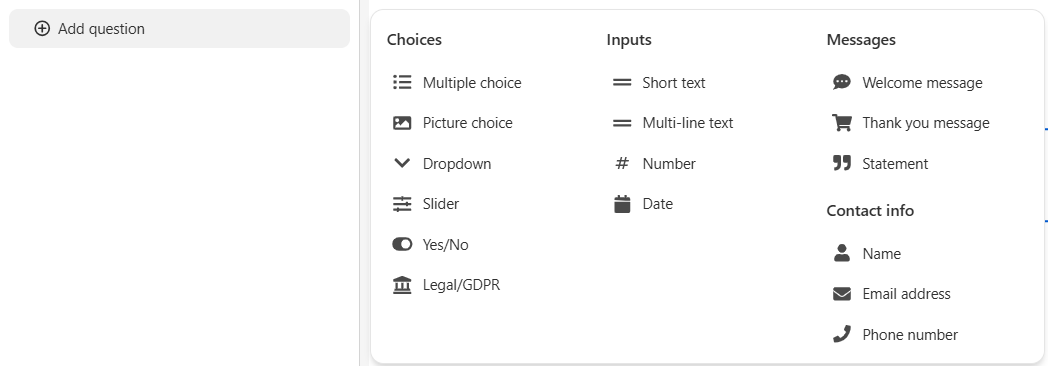
Now build the quiz.
- Go to the Quiz builder > Questions.
-
Add multiple-choice questions with 5 choices each. Each question and choice should give a clue about the customer's skin type.
Tip
To learn how to use the Quiz builder and add questions, see Making Your First Product Recommendation Quiz.
Sample questions
Question 1: How does your skin feel when you wake up in the morning?
- Choice 1: Tight
- Choice 2: Normal
- Choice 3: Oily
- Choice 4: Combination
- Choice 5: Sensitive
Question 2: How does your skin usually look by midday?
- Choice 1: Still tight
- Choice 2: Same as in the morning
- Choice 3: Shiny
- Choice 4: T-zone shiny
- Choice 5: Red and irritated
Assign variables to choices
Now assign variables and scores to each choice.
- Click on a choice to open the Choice settings.
-
Scroll to
Scores and calculationsand add a new variable.
-
Click the
Search or create variablesearch bar and type a variable name, for exampledry_skin,normal_skinoroily_skin. A dropdown then offersCreate a new variable "xxx". Click it to add the variable. - Assign a score of 1 to the matching variable.
-
Repeat the process for each choice in that question and move on to the next question in your quiz.
Note
The variable with the highest total score determines the result.
Sample scores and variables
Question 1: How does your skin feel when you wake up in the morning?
- Choice 1: Tight (variable
dry_skin+1) - Choice 2: Normal (variable
normal_skin+1) - Choice 3: Oily (variable
oily_skin+1) - Choice 4: Combination (variable
combination_skin+1) - Choice 5: Sensitive (variable
sensitive_skin+1)
Question 2: How does your skin usually look by midday?
- Choice 1: Still tight (variable
dry_skin+1) - Choice 2: Same as in the morning (variable
normal_skin+1) - Choice 3: Shiny (variable
oily_skin+1) - Choice 4: T-zone shiny (variable
combination_skin+1) - Choice 5: Red and irritated (variable
sensitive_skin+1)
- Choice 1: Tight (variable
Add sections to results page
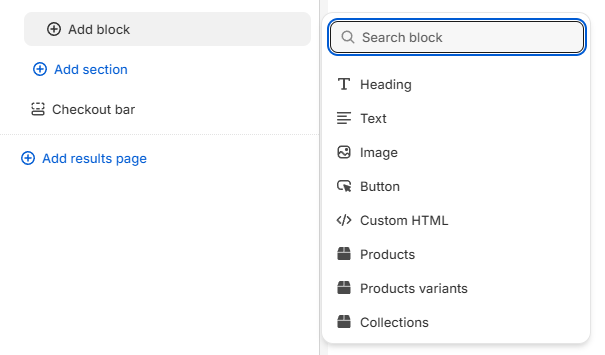
Now edit the Results page.
- Go to the Results page.
- Click
+ Add sectionto add a new section to your results page. - Add five sections, one for each skin type.
- In each section, add:
- A heading,
- A short text description of what that means,
- A Product block
- In the Product block settings, set the
Recommendation systemtoFixed Recommendations. The section is already matched to a result. You pick its products yourself, rather than letting the upvote system choose. - In the Product Slot settings, select the
Max. recommended itemsand click onSelect productsto manually select the products that match that skin type. - Repeat the process for each skin type section.
Add display logic
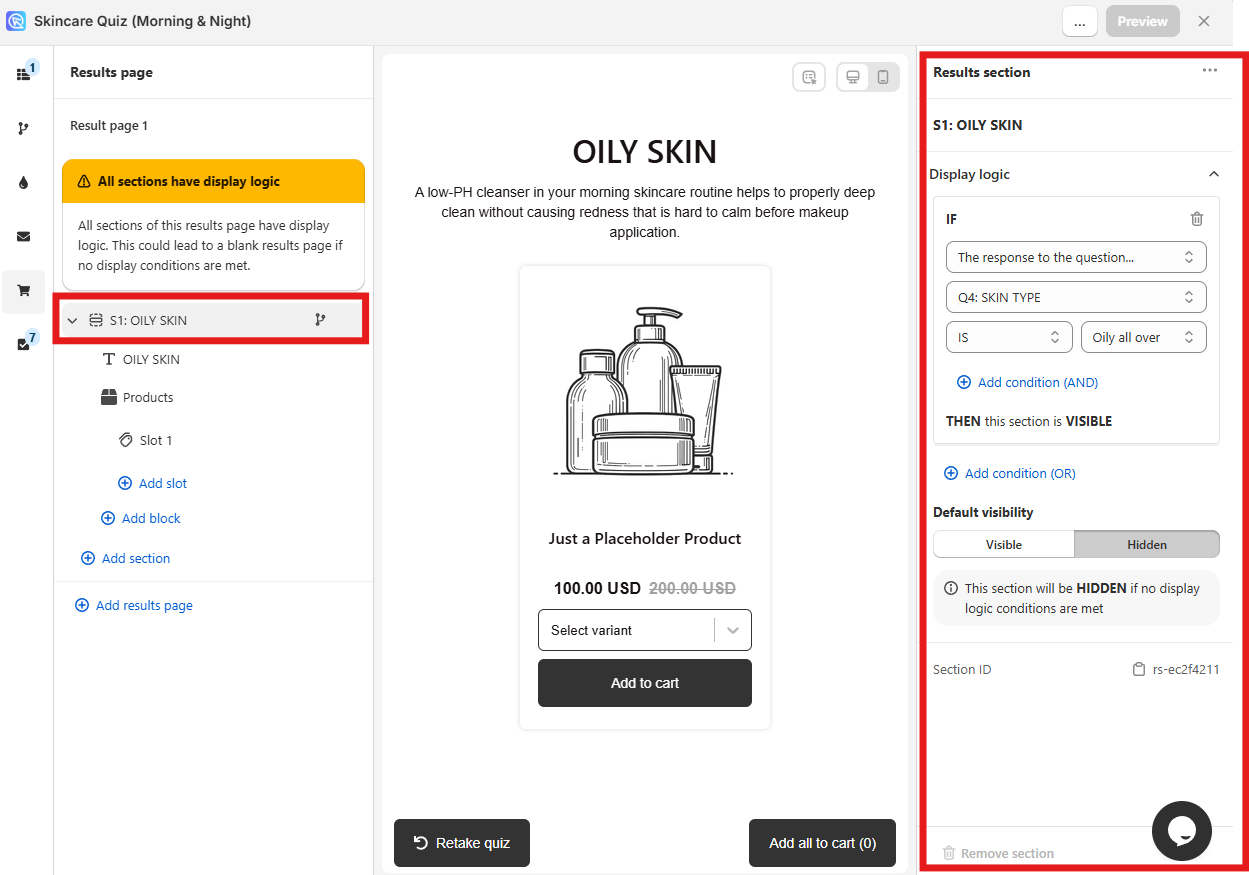
Now tell the app when to show each section.
- Click a specific section to open the
Results Sectionsettings. - Go to Display logic and click
+ Add condition (OR). -
Set the condition to IF
the variable with the highest scoreISdry_skin, THEN this section is VISIBLE. Set the default visibility toHIDDEN, so the section stays hidden until its variable wins. -
Repeat for each skin type section, using that section's own variable.
Sample display logic
- IF
the variable with the highest scoreISdry_skinTHEN this section is VISIBLE. Default visibility should beHIDDEN. - IF
the variable with the highest scoreISnormal_skinTHEN this section is VISIBLE. Default visibility should beHIDDEN. - IF
the variable with the highest scoreISoily_skinTHEN this section is VISIBLE. Default visibility should beHIDDEN. - IF
the variable with the highest scoreIScombination_skinTHEN this section is VISIBLE. Default visibility should beHIDDEN. - IF
the variable with the highest scoreISsensitive_skinTHEN this section is VISIBLE. Default visibility should beHIDDEN.
- IF
-
Save the changes with the
Savebutton.
Two variables can tie
the variable with the highest score does not break a tie for you. If two skin types finish level, decide what should happen and write it into the conditions.
Display logic also reads a variable's score directly, with is equal to, is greater than, is less than and the or-equal-to forms. Use those to set a threshold, such as showing the dry skin section only when dry_skin is greater than or equal to 4.
Preview
Once everything is set up, click Preview to test your quiz.
Choose different answers to simulate different skin types, and make sure the correct section and products are shown on the results page.
Troubleshoot results
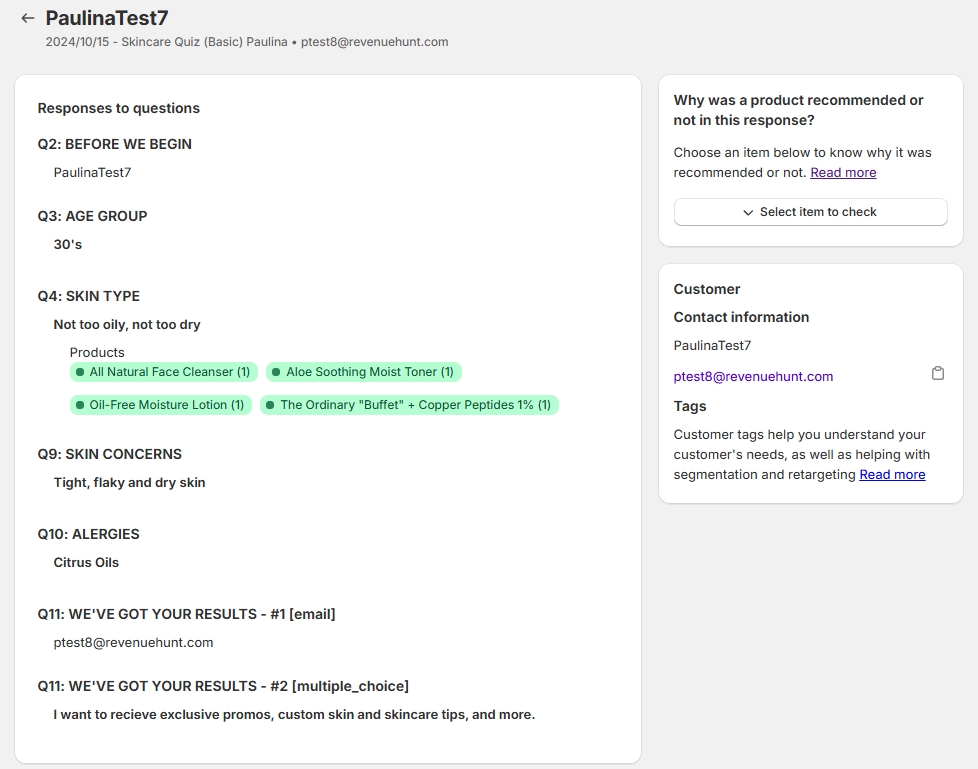
If you see the wrong result, double-check your variables and scoring in the Questions tab. Two variables finishing level is a common cause, so check the scores before the logic.
If you need help debugging, go to the Responses tab and open Analysis.
This section:
- shows you which variables were scored during a quiz session and in which answer,
- shows logic behind sections visibility,
- gives you an overview of the quiz results,
- gives you access to Quiz Copilot, an AI assistant that can help you analyze the response.
You can adjust scores or questions based on the analysis.
Publish the quiz as link button
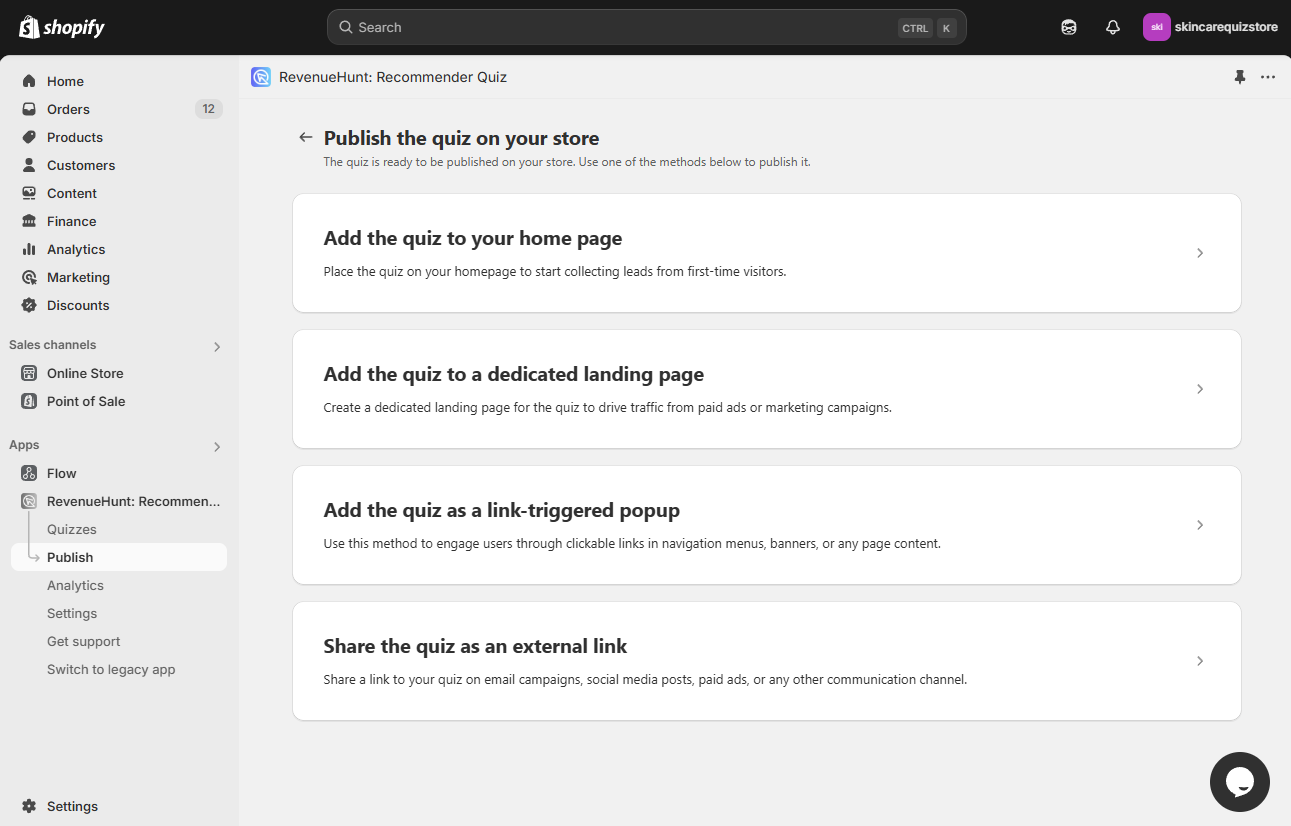
In Shopify, link a button or a menu item to #quiz to make the quiz open as a popup.
- Set the quiz as default by going to the Dashboard and clicking on the
Set as defaultbutton. - Go to the Publish tab and open
Add the quiz as a link-triggered popupfor step-by-step instructions. - In Shopify, go to
Online Store > Themes, and clickCustomizeon your current theme. - Go to
App Embedsin the left sidebar. Find theLink Popup Quizapp embed and toggle it on. This loads the quiz script, so that the quiz opens in a popup when the link is clicked. - In the theme editor, choose a section that contains a button, such as
Rich text. - Edit the section heading and the text on the button.
-
In the
Button Linkfield, type#quiz. Nothing else, and not a full URL.Warning
Do not link the full URL, such as
https://your-store.com/#quiz. The quiz does not open that way. Use the#quizhash on its own. -
Once done, click
Save.
Your quiz is now live, and a popup link on your site opens it.
You have created a skin type quiz with personalized product recommendations.
Tip
The Create New Quiz section has a ready-made template for this quiz. Use it as a starting point and customize it.
The scoring system is not available in the legacy version of the RevenueHunt app for Shopify. For this reason building a personality-type quiz or a scoring quiz like this one is not possible with the off-the-shelf solution.
Your developer can implement a custom scoring system with JavaScript on the Results Page instead.
Tip
To recommend products by how many choices the customer picked, see how to recommend products based on the number of choices. That guide covers this version.
Tip
To add custom JavaScript to the Results Page, see how to add custom JavaScript to the results page.
The scoring system is not available in the RevenueHunt app for WooCommerce. For this reason building a personality-type quiz or a scoring quiz like this one is not possible with the off-the-shelf solution.
Your developer can implement a custom scoring system with JavaScript on the Results Page instead.
Tip
To recommend products by how many choices the customer picked, see how to recommend products based on the number of choices. That guide covers this version.
Tip
To add custom JavaScript to the Results Page, see how to add custom JavaScript to the results page.
The scoring system is not available in the RevenueHunt app for Magento. For this reason building a personality-type quiz or a scoring quiz like this one is not possible with the off-the-shelf solution.
Your developer can implement a custom scoring system with JavaScript on the Results Page instead.
Tip
To recommend products by how many choices the customer picked, see how to recommend products based on the number of choices. That guide covers this version.
Tip
To add custom JavaScript to the Results Page, see how to add custom JavaScript to the results page.
The scoring system is not available in the RevenueHunt app for BigCommerce. For this reason building a personality-type quiz or a scoring quiz like this one is not possible with the off-the-shelf solution.
Your developer can implement a custom scoring system with JavaScript on the Results Page instead.
Tip
To recommend products by how many choices the customer picked, see how to recommend products based on the number of choices. That guide covers this version.
Tip
To add custom JavaScript to the Results Page, see how to add custom JavaScript to the results page.
The scoring system is not available in the Standalone version of the RevenueHunt app. For this reason building a personality-type quiz or a scoring quiz like this one is not possible with the off-the-shelf solution.
Your developer can implement a custom scoring system with JavaScript on the Results Page instead.
Tip
To recommend products by how many choices the customer picked, see how to recommend products based on the number of choices. That guide covers this version.
Tip
To add custom JavaScript to the Results Page, see how to add custom JavaScript to the results page.
This article explains how to build a quiz that finds the customer's skin type and recommends the right products.