How to Run Your Quiz Across Multiple Markets and Languages
What changes, what the app handles for you, and how to go from one quiz to a fully localized global setup.
When a shopper lands on your store, they make a split-second judgment: does this feel made for me?
A French customer greeted in English, shown prices in USD, and asked questions written for a US audience will answer that question with a bounce. A customer who sees their language, their currency, and questions that reflect how they think about a problem - that customer stays, engages, and buys.
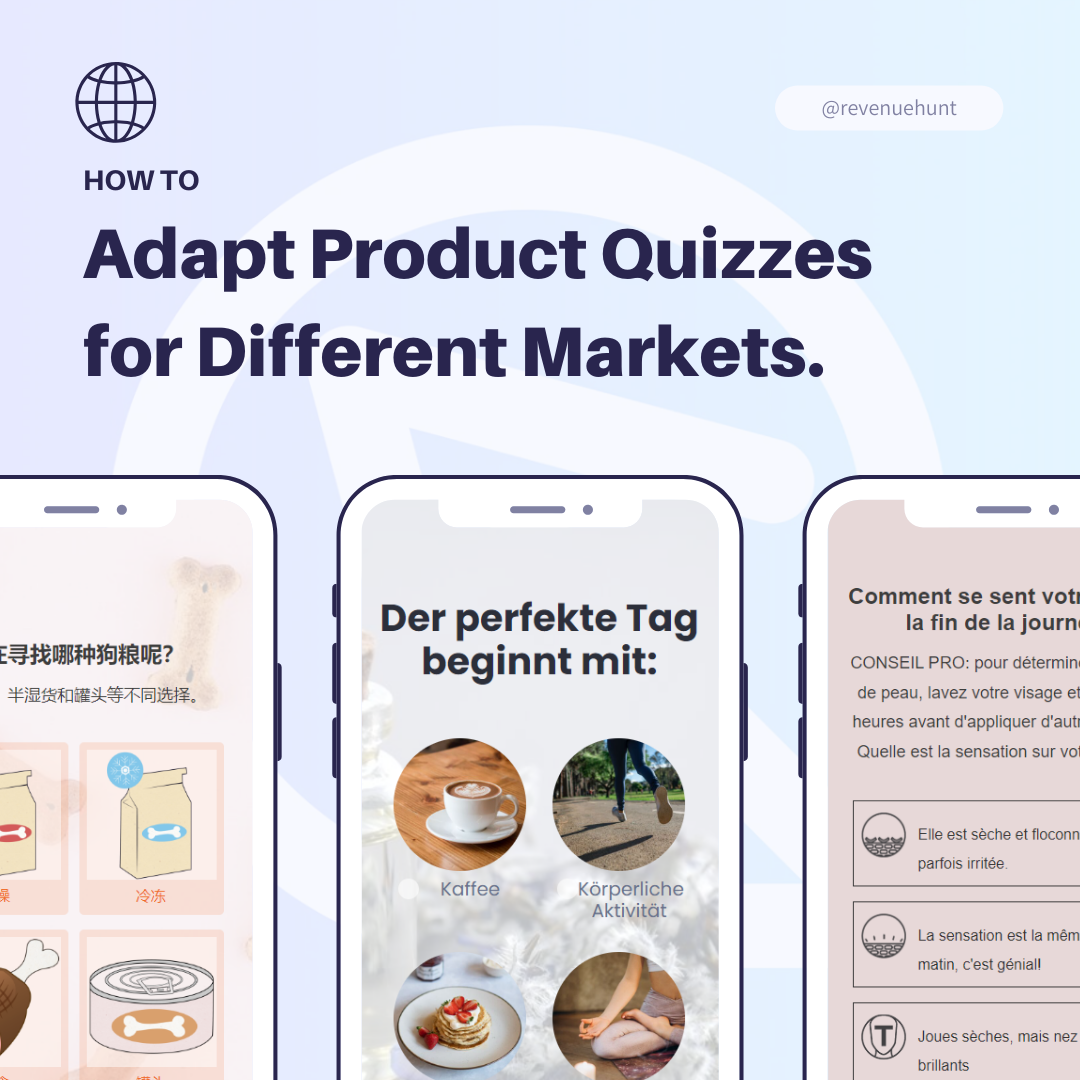
Adapting your quiz for different markets isn't just a translation task. It's about making every customer feel like the quiz was built for them specifically - because in a real sense, it should be.
What the App Handles Automatically
Before you start duplicating and translating quizzes, understand what you actually need to do manually - and what the app already handles for you.
💎 Built for Shopify - Shopify Markets integration
The automatic features below apply to the 💎 Built for Shopify version of the RevenueHunt app, which has native Shopify Markets integration.
Automatic: Product titles, descriptions, and prices
The results page pulls product data directly from Shopify's Storefront API. This means:
- Product titles and descriptions are shown in the customer's active language automatically - as long as you have translations set up in Shopify via the Translate & Adapt app
- Prices are shown in the customer's local currency, converted automatically by Shopify Markets
- Currency format defaults to your Shopify Markets settings (e.g.,
25 USD) but can be customized per market (e.g.,${{amount}}to show$25.00instead)
Product metafields are also translated automatically
If you show regional pricing like German Grundpreis or per-100ml cosmetics pricing, the RevenueHunt app syncs product metafields automatically from Shopify. No extra work needed on the quiz side.
Manual: Quiz questions, choices, and UI text
Everything that lives inside the quiz builder - your questions, answer choices, results page text, and UI button labels - needs to be translated by you. The app does not auto-translate quiz content.
| Content | Automatic? | How to handle |
|---|---|---|
| Product titles on results page | ✅ Yes (via Translate & Adapt) | Set up translations in Shopify |
| Product descriptions on results page | ✅ Yes (via Translate & Adapt) | Set up translations in Shopify |
| Product prices + currency | ✅ Yes (via Shopify Markets) | Configure currency format per market |
| Quiz questions and answer choices | ❌ No | Duplicate quiz and translate manually or with Copilot |
| Results page text blocks | ❌ No | Translate in the quiz builder |
| UI buttons (Next, Add to Cart, etc.) | ❌ No | Use Quiz Settings > Messages > Reset messages to change language |
| Email results content | ❌ No | Create language-specific email templates |
The Workflow: From One Quiz to a Global Setup
The process has four stages. You only need to do the first stage once - every additional market is a duplicate-and-adapt operation.
Stage 1: Build and perfect your default quiz
Create your main quiz for your primary market. Get the questions right, map all answers to products, set up email capture, connect Klaviyo. This is your master template.
Don't move to Stage 2 until this quiz is converting well. Localizing a quiz that doesn't work in your primary market just means you have a broken quiz in multiple languages.
Stage 2: Duplicate and translate for each market
For each additional market or language:
- From the app Dashboard, find your quiz and click
... > Duplicate - Rename it clearly: e.g., Skincare Quiz (FR), Skincare Quiz (DE), Skincare Quiz (ES)
- Open the duplicate and translate every question, answer choice, and results page text block
- Go to
Quiz Settings > Messagesand clickReset messagesto switch all system UI text (button labels, placeholder text) to the target language - Review product recommendations - some markets may need different products or collections assigned
Use Quiz Copilot to translate in minutes
Instead of translating manually, open the duplicate quiz and ask Quiz Copilot directly:
"Translate all questions, answer choices, and results page text in this quiz from English to French. Keep the same structure and tone."
Copilot will work through the quiz content and apply translations. Review and adjust the output before publishing - machine translation still needs a human eye, especially for brand voice and product terminology.
Stage 3: Assign quizzes to markets and languages
Once your translated quizzes are ready:
- Go to
App Settings > Shopify Markets - You'll see a list of all your Shopify Markets
- Use the dropdown next to each market to assign the correct default quiz
- Click
Show all localesto assign quizzes at the language level within a market (e.g., French quiz for French-speaking visitors in the EU market, Spanish quiz for Spanish-speaking visitors) - Save your changes
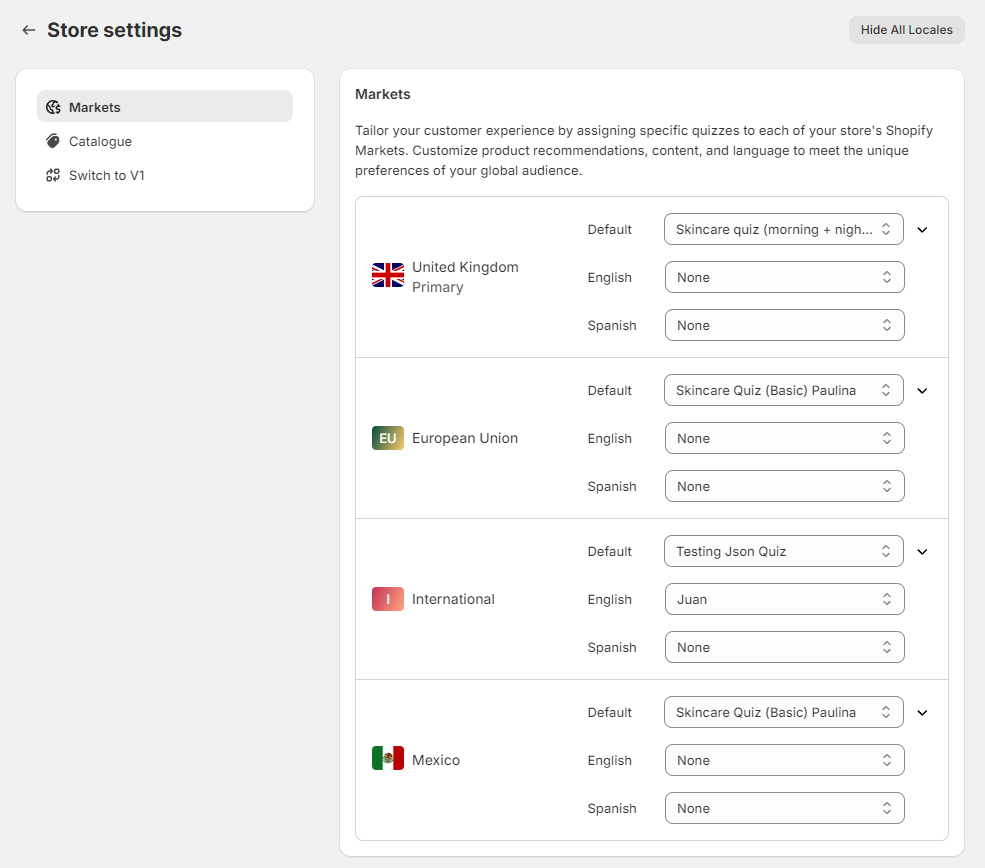
One quiz, published once
You only need to publish one quiz on your storefront - your default. The app automatically detects each visitor's market and language and serves the correct quiz. You don't need separate embeds for each language.
Stage 4: Test before going live
The app preview doesn't simulate market switching. To test properly:
- In Shopify Admin, go to
Online Storeand click the👁️eye icon to preview your storefront - Navigate to the page where your quiz is published
- Switch markets and languages using the Shopify preview controls
- Confirm the correct quiz loads, prices display correctly, and product content appears in the right language
Testing the results page specifically
You can also test market-specific results directly in the app:
- Open the Quiz Builder and click
Preview - Complete the quiz to reach the results page
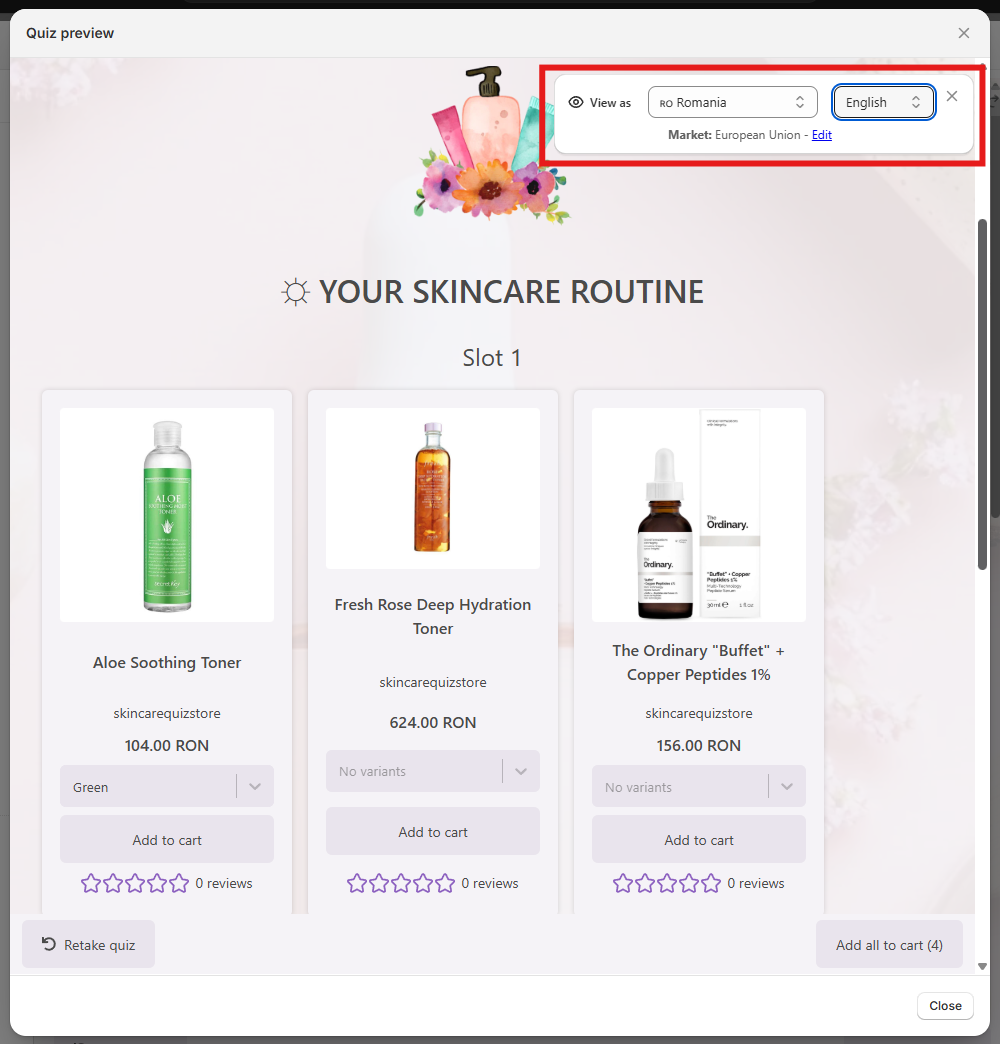
- Use the market/language selector on the preview results page to check how products appear in different markets
If You're Not on Shopify
The Shopify Markets integration is exclusive to the 💎 Built for Shopify version of the app. For WooCommerce, Magento, BigCommerce, and Standalone installations, the automatic market detection isn't available - but you can still run localized quizzes with a manual approach.
The manual multi-language setup:
- Create a separate quiz for each language (duplicate and translate your main quiz)
- Publish each quiz on language-specific pages or subdomains in your store (e.g.,
/fr/,/de/) - Link to the correct quiz from each language version of your store
- Manage quiz assignments manually when product lines change
It's more maintenance than the Shopify Markets integration, but it gives the same customer-facing result: the right quiz for the right visitor.
Beyond Translation: Adapting for Market-Specific Needs
Translation gets customers past the language barrier. True localization goes further.
Different questions for different markets
Not every question lands the same way everywhere. A question about SPF preferences makes perfect sense for Australian customers; it may be less relevant in Scandinavia. A question about hair texture has different answer options depending on the demographic makeup of your market.
Consider creating genuinely different question flows for markets where customer needs, climates, or product preferences differ significantly - not just translated versions of the same quiz.
Different product recommendations
Your best-sellers in the US may not even be available in the EU, or may have different regulations. Review your product mappings for each market quiz and make sure:
- Recommended products are actually available in that market
- Products comply with local regulations (ingredients, labeling, claims)
- Pricing makes sense relative to local market expectations
Compliance: what changes by region
Some markets have specific requirements that affect how you run the quiz:
EU/GDPR:
- Email capture must include clear consent language (e.g., "I agree to receive marketing emails")
- The consent checkbox cannot be pre-ticked
- Include a link to your privacy policy near the email field
- Customers have the right to request deletion of their data
Germany specifically:
- Product pricing should comply with Preisangabenverordnung (PAngV) requirements
- Per-unit pricing (
Grundpreis) is often legally required for cosmetics and food products - use product metafields to display this automatically
Canada:
- CASL requires express consent for commercial email - make email opt-in explicit, not implied
Don't copy your US email consent flow into EU markets
A pre-ticked consent checkbox or a passive opt-in (e.g., "by submitting you agree to receive emails") does not meet GDPR requirements. Each EU-market quiz should have an explicit, unchecked consent checkbox with clear language. This is a legal requirement, not a best practice.
Market Segmentation in Your CRM
Localization creates a natural segmentation opportunity. Tag every quiz taker with their market so you can send them market-specific follow-up flows.
Add a tag like market:eu, market:us, or lang:fr to every answer in each localized quiz using the same "add to all answers" technique described in the customer tags guide. These tags flow into Klaviyo (or your CRM of choice) alongside the customer's product preference tags.
This lets you:
- Send region-specific promotional emails (EU sale, US-only bundle)
- Apply country-specific legal email templates automatically
- Segment performance reporting by market to see which regions convert best
- Trigger different post-quiz flows for customers in different regulatory environments (e.g., GDPR-compliant flows for EU tags)
Rollout Strategy: Where to Start
Don't try to cover every market at once. Prioritize by impact:
- Identify your top 2-3 non-primary markets by revenue - check your Shopify Analytics for top countries outside your home market
- Start with the highest-revenue market first - build and test one localized quiz before moving to the next
- Prioritize language over geography - if you have French-speaking customers in both France and Canada, one French quiz may serve both (with minor adjustments for compliance)
- Use Copilot to move fast - a translated quiz can be ready in an hour; the bottleneck is usually product review and compliance checking, not translation itself
Check the full step-by-step tutorial
For the complete click-by-click setup guide including video walkthrough, see: Assign Quizzes to Shopify Markets and Languages
Related articles: