How to Add and Use Customer Tags
A customer tag is a label the quiz attaches to a customer when they select a certain choice. The tags travel with the quiz response to your mailing list or CRM.
Once the tags arrive there, you can group your contacts by what they answered, and write to each group separately.
This article explains how to add tags to choices, send them to a CRM, build segments from them, and write campaigns for those segments.
Why segment your audience
A long email list is worth little on its own. What it is worth depends on how much you know about the people on it.
- A highly segmented campaign can earn more than three times the revenue per recipient of an unsegmented one.
- A healthy list earns around $1 per subscriber per month. Much less than that usually means the list needs finer segments.
Customer tags give you that detail without asking anyone to fill in a profile. The customer answers the quiz, and the answers become tags.
Add customer tags to your quiz
-
Open your quiz in the Quiz builder. Click
Customizeon the quiz you want to tag. -
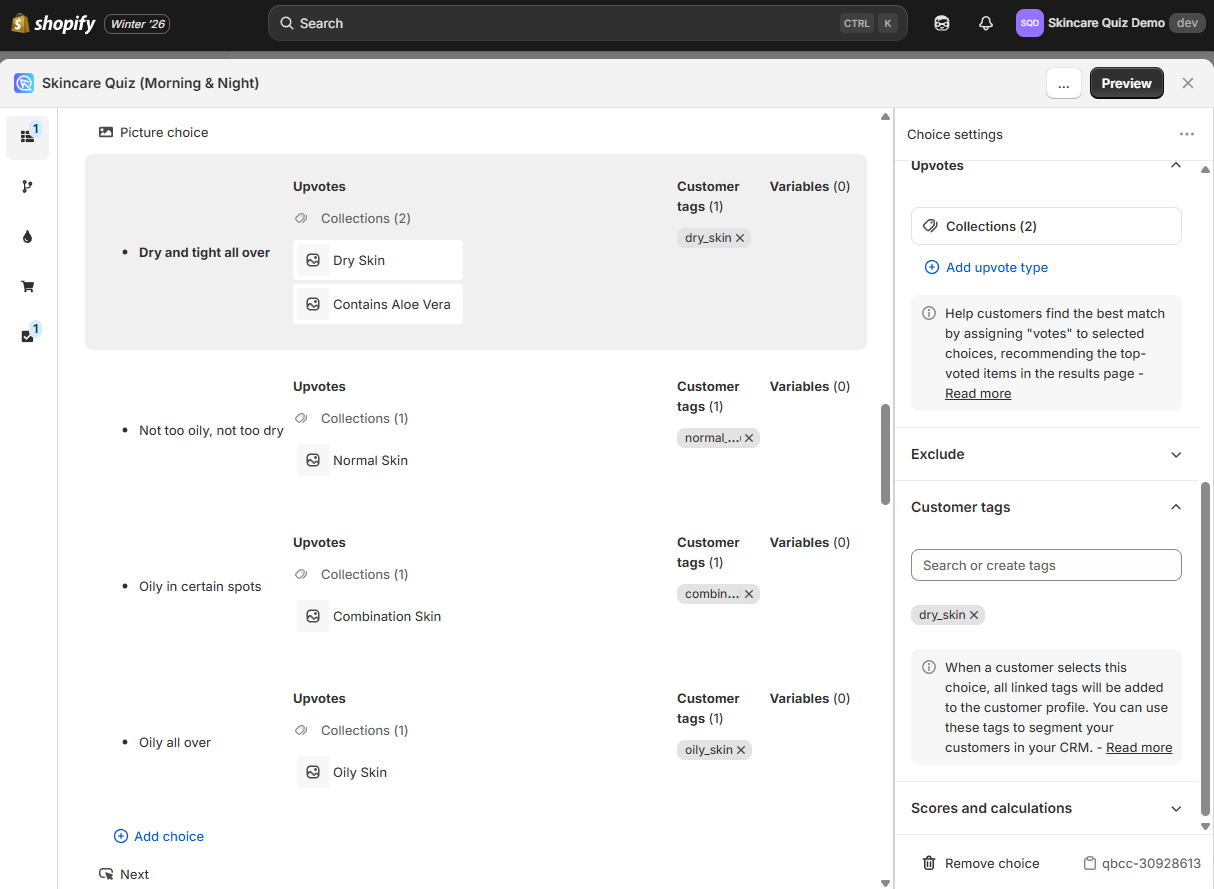
Click a choice to open its Choice settings.
-
Find the
Customer Tagssection.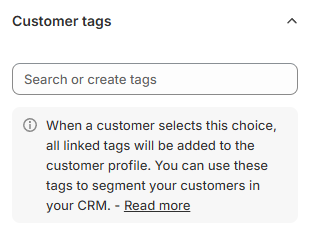
-
Use the search bar to find a tag you already created.
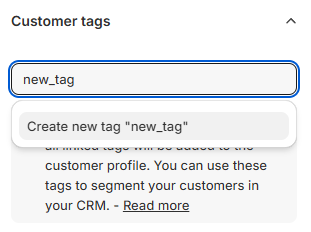
-
To add a new tag, type the name and click
Create new tag. One choice can carry several tags.
Give every customer the same tag
To put one shared tag on every customer, add it to all the choices of a single question. Whichever choice they select, the tag follows.
-
Click
Save. The quiz adds the tag whenever a customer selects that choice. -
Preview the quiz, and check that the tags appear on the response.
The tags reach your integrations too
Every tag on a response is forwarded to the services connected in the Integrations tab. Connect Shopify Customers and the tags land on the Shopify customer profile. Connect Klaviyo and they land on the Klaviyo profile.
-
Open the
Customer Tagstab in the Quiz Builder. -
Type a tag name next to a choice and confirm with
Enter.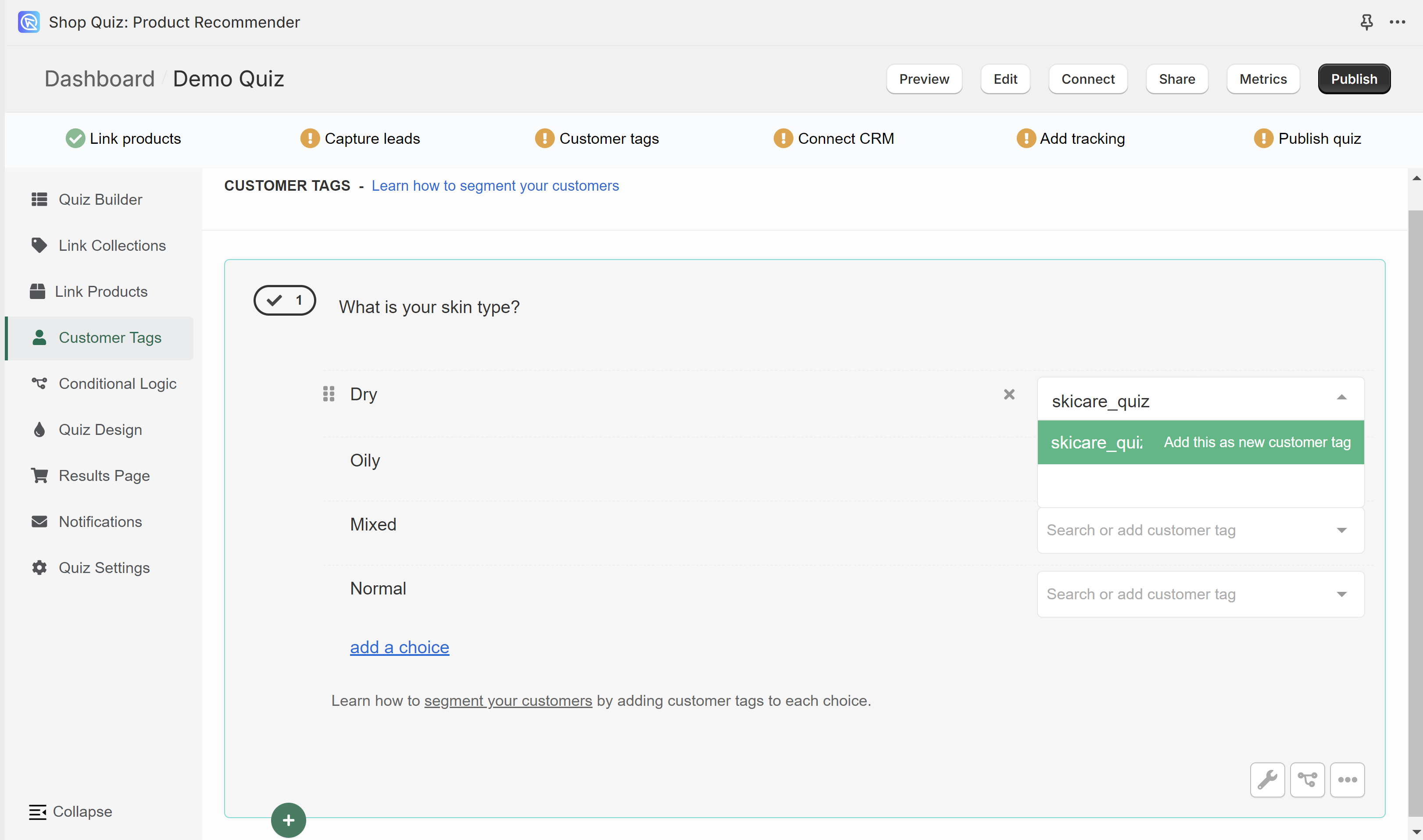
-
Link that tag to any other choice that calls for it. A tag you created once stays available for every choice in the quiz.
Give every customer the same tag
To put one shared tag on every customer, add it to all the choices of a single question. Whichever choice they select, the tag follows.
-
Click the top-right
Publishbutton. This updates both the preview and the live quiz. From then on, a customer who selects the choice is tagged.The tags reach your integrations too
Every tag on a response is forwarded to the services connected in the Connect tab. Connect Shopify Customers and the tags land on the Shopify customer profile. Connect Klaviyo and they land on the Klaviyo profile.
-
Open the
Customer Tagstab in the Quiz Builder. -
Type a tag name next to a choice and confirm with
Enter. -
Link that tag to any other choice that calls for it. A tag you created once stays available for every choice in the quiz.
Give every customer the same tag
To put one shared tag on every customer, add it to all the choices of a single question. Whichever choice they select, the tag follows.
-
Click the top-right
Publishbutton. This updates both the preview and the live quiz. From then on, a customer who selects the choice is tagged.The tags reach your integrations too
Every tag on a response is forwarded to the services connected in the Connect tab. Connect Klaviyo and the tags land on the Klaviyo profile. Connect HubSpot and they land on the HubSpot contact.
-
Open the
Customer Tagstab in the Quiz Builder. -
Type a tag name next to a choice and confirm with
Enter. -
Link that tag to any other choice that calls for it. A tag you created once stays available for every choice in the quiz.
Give every customer the same tag
To put one shared tag on every customer, add it to all the choices of a single question. Whichever choice they select, the tag follows.
-
Click the top-right
Publishbutton. This updates both the preview and the live quiz. From then on, a customer who selects the choice is tagged.The tags reach your integrations too
Every tag on a response is forwarded to the services connected in the Connect tab. Connect Klaviyo and the tags land on the Klaviyo profile. Connect HubSpot and they land on the HubSpot contact.
-
Open the
Customer Tagstab in the Quiz Builder. -
Type a tag name next to a choice and confirm with
Enter. -
Link that tag to any other choice that calls for it. A tag you created once stays available for every choice in the quiz.
Give every customer the same tag
To put one shared tag on every customer, add it to all the choices of a single question. Whichever choice they select, the tag follows.
-
Click the top-right
Publishbutton. This updates both the preview and the live quiz. From then on, a customer who selects the choice is tagged.The tags reach your integrations too
Every tag on a response is forwarded to the services connected in the Connect tab. Connect Klaviyo and the tags land on the Klaviyo profile. Connect HubSpot and they land on the HubSpot contact.
-
Open the
Customer Tagstab in the Quiz Builder. -
Type a tag name next to a choice and confirm with
Enter. -
Link that tag to any other choice that calls for it. A tag you created once stays available for every choice in the quiz.
Give every customer the same tag
To put one shared tag on every customer, add it to all the choices of a single question. Whichever choice they select, the tag follows.
-
Click the top-right
Publishbutton. This updates both the preview and the live quiz. From then on, a customer who selects the choice is tagged.The tags reach your integrations too
Every tag on a response is forwarded to the services connected in the Connect tab. Connect Klaviyo and the tags land on the Klaviyo profile. Connect HubSpot and they land on the HubSpot contact.
Send the tags to your CRM
-
Open the Quiz settings and go to the
Integrationstab. -
Find the service you use and connect it. The quiz connects directly to Shopify Customers, Klaviyo and Omnisend.
Any other service
Zapier and Webhooks carry the same data anywhere else. See how to send quiz leads to your CRM for the full list.
-
Follow the instructions the service shows on screen.
Every completed quiz then sends the contact details, the answers, the customer tags and the recommended products to that service.
-
Open the Quiz settings and go to the
Connecttab. -
Find the service you use and connect it. The quiz connects directly to Shopify Customers, Klaviyo, HubSpot and Omnisend.
Any other service
Zapier and Webhooks carry the same data anywhere else. See how to send quiz leads to your CRM for the full list.
-
Follow the instructions the service shows on screen.
Every completed quiz then sends the contact details, the answers, the customer tags and the recommended products to that service.
-
Open the Quiz settings and go to the
Connecttab. -
Find the service you use and connect it. The quiz connects directly to Klaviyo, HubSpot and Omnisend.
Any other service
Zapier and Webhooks carry the same data anywhere else. See how to send quiz leads to your CRM for the full list.
-
Follow the instructions the service shows on screen.
Every completed quiz then sends the contact details, the answers, the customer tags and the recommended products to that service.
-
Open the Quiz settings and go to the
Connecttab. -
Find the service you use and connect it. The quiz connects directly to Klaviyo, HubSpot and Omnisend.
Any other service
Zapier and Webhooks carry the same data anywhere else. See how to send quiz leads to your CRM for the full list.
-
Follow the instructions the service shows on screen.
Every completed quiz then sends the contact details, the answers, the customer tags and the recommended products to that service.
-
Open the Quiz settings and go to the
Connecttab. -
Find the service you use and connect it. The quiz connects directly to Klaviyo, HubSpot and Omnisend.
Any other service
Zapier and Webhooks carry the same data anywhere else. See how to send quiz leads to your CRM for the full list.
-
Follow the instructions the service shows on screen.
Every completed quiz then sends the contact details, the answers, the customer tags and the recommended products to that service.
-
Open the Quiz settings and go to the
Connecttab. -
Find the service you use and connect it. The quiz connects directly to Klaviyo, HubSpot and Omnisend.
Any other service
Zapier and Webhooks carry the same data anywhere else. See how to send quiz leads to your CRM for the full list.
-
Follow the instructions the service shows on screen.
Every completed quiz then sends the contact details, the answers, the customer tags and the recommended products to that service.
Create segments in your CRM
Your CRM now holds a list of tags for every contact who finished the quiz. A segment is a rule over those tags, and the CRM keeps it up to date on its own.
For example, contacts tagged dry_skin can receive a campaign for a moisturizing product, and contacts tagged oily_skin a campaign for a cleanser.
A segment definition
If the custom property tags contains dry_skin, include the contact in the segment.
The wording differs from one CRM to the next, but the shape of the rule is the same everywhere. Every profile carrying the tag joins the segment on its own, including the profiles that arrive later.
A retake replaces the earlier tags
In most integrations, a customer who takes the quiz again overwrites the tags from the previous attempt. To keep the tags from every attempt, contact support.
Send targeted emails
A segment earns nothing until something is sent to it. Build one flow or campaign per segment, and write it around what that group told you.
-
Read the tags in a segment and name what the group wants. The tags come from the customer's own answers, so they say it plainly.
-
Write the email around that need. Personalize the subject line and the body, and feature the products the quiz recommends for those tags.
-
Plan the schedule. Keep the group engaged, but not so often that people unsubscribe.
-
Automate the sends. Let the CRM trigger each email from what the customer does, instead of sending them by hand.
Two segments, two campaigns
- Curly hair. Curl-enhancing shampoos, conditioners and styling creams, with tips on maintaining curls and an offer on a curl care bundle.
- Dry hair. Moisturizing shampoos, conditioners and deep-conditioning treatments, with tips on treating dry hair and a discount on a hydrating set.
More on the strategy
How to use customer tags in product quizzes to maximize sales covers how to plan the segments and the campaigns around them.
This article explains how to add customer tags to a quiz, and how to use them to segment your audience and send targeted emails.