How to Fix the Mobile Viewport Issue
On a phone, the quiz can zoom in when the customer taps a text input. The page then drifts left and right, and the quiz no longer sits still.
Why it happens
The meta viewport tag in your store theme sets no maximum scale. Without one, the browser is free to zoom in on a focused input, and the page moves with it.
Adding maximum-scale=1.0 and user-scalable=0 to that tag stops the zoom, and the page stays put.
This is a change to your theme
The tag lives in your store theme, not in the quiz. Ask your developer to make the change if you are not comfortable editing theme files.
Find the meta viewport tag
-
In your Shopify admin, go to
Online Store > Themes. -
Click
...next to your current theme and selectEdit code. -
Open
theme.liquid, in theLayoutsection. -
Find the
<head>section. The meta viewport tag sits inside it.
-
In your Shopify admin, go to
Online Store > Themes. -
Click
Actionsnext to your current theme and selectEdit code. -
Open
theme.liquid, in theLayoutsection. -
Find the
<head>section. The meta viewport tag sits inside it.
-
In your WordPress admin, go to
Appearance > Theme Editor. -
Open the
header.phpfile of your active theme, in theTheme Fileslist. -
Find the
<head>section. The meta viewport tag sits inside it.
Magento builds the <head> from a layout file rather than from a template you can edit in the admin, so this one is a developer task.
-
Open or create
Magento_Theme/layout/default_head_blocks.xmlin your theme. -
Add the meta viewport tag to the
<head>section of that file. -
Deploy the static content and flush the cache.
The file layout, with an example
See the Adobe Commerce documentation on managing layouts.
A Stencil theme defines the <head> in its base layout, so this one is a developer task.
-
Open
templates/layout/base.htmlin your Stencil theme. -
Find the
<head>section. The meta viewport tag sits inside it. -
Push the theme to your store once you have made the change.
How a Stencil theme is put together
See the BigCommerce documentation on page composition and styling.
The quiz runs on a page of your own, so the meta viewport tag is in your own HTML.
-
Open the page that holds the quiz.
-
Find the
<head>section. The meta viewport tag sits inside it.
A hosted quiz link is not affected
This only applies to a quiz you embed on your own page. A quiz opened through a RevenueHunt hosted link runs on a page whose viewport is already set.
Edit the theme your store is actually using
A store can hold several themes. Make the change in the published one, or nothing will change for your customers.
Add the two values
-
Find the tag. It usually looks like this.
-
Add
maximum-scale=1.0anduser-scalable=0to the end of thecontentattribute.<meta name="viewport" content="width=device-width, height=device-height, initial-scale=1.0, minimum-scale=1.0, maximum-scale=1.0, user-scalable=0">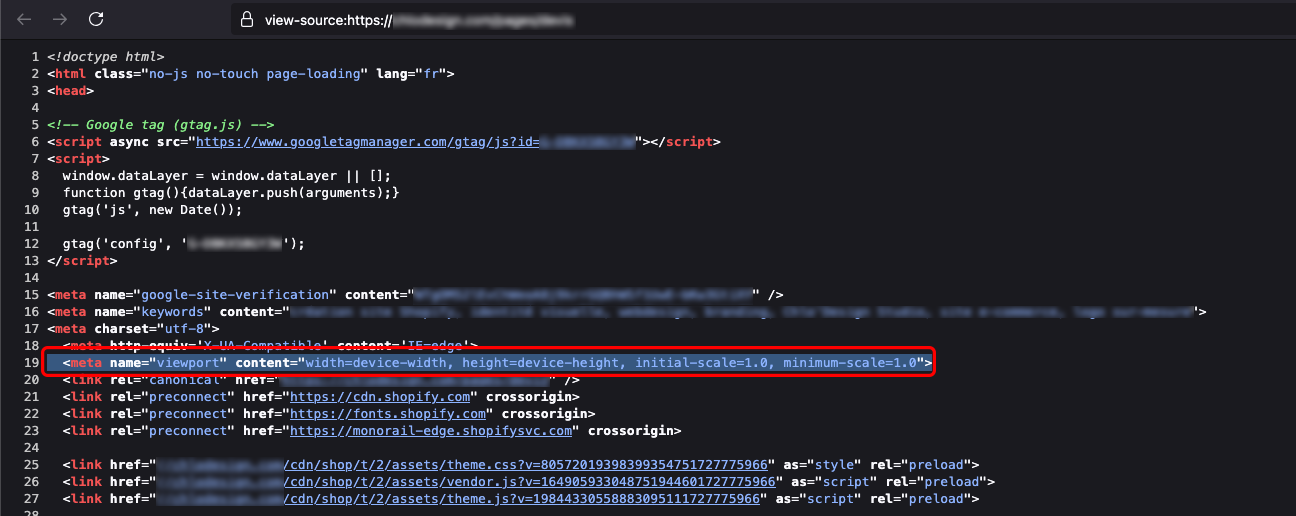
-
Save the file.
No viewport tag in the file
Add the whole tag from step 2 to the <head> section yourself.
Test the fix
Open the quiz on a phone and tap a text input. The page should stay still.
If it still zooms, the theme you edited may not be the published one, or a second viewport tag may be overriding the first. Ask your developer to check.
This article explains why a quiz zooms in on a phone, and how to stop it in your store theme.