How to Hide Product Variants
When a recommended product has variants, the results page shows a dropdown so the customer can pick one.
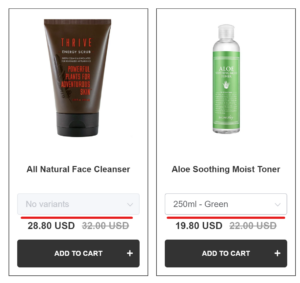
There are three ways to take it away, and they leave the customer with different things.
| Method | What the customer gets |
|---|---|
| Remove the dropdown component | The main product, with no variant to pick |
| Hide the dropdown with CSS | The main product, with no variant to pick |
| Recommend a variant instead | One variant, picked by the quiz |
Remove the dropdown from the product card
The product card is built from components you arrange yourself, and the dropdown is one of them. Removing it leaves the rest of the card alone.
-
Open your results page and click the
Productsblock. -
Scroll the block settings to
Slot item composition. It lists every component the product card shows.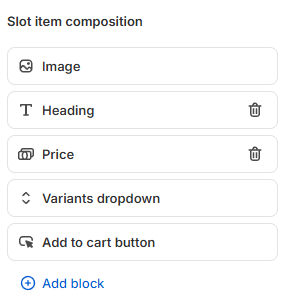
-
Hover over
Variants dropdownand click its bin icon. -
Click the top-right
Savebutton. -
Take the quiz and check the dropdown is gone from the recommendations.
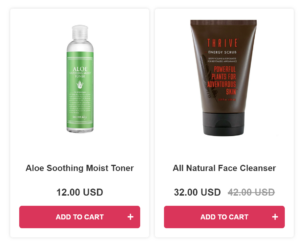
The dropdown hides itself in two cases
It never appears when no product in that block has variants, or when the slots are stacked. See Block types.
Not part of this version
The product card has no component list here, so the dropdown cannot be removed from it.
Hide it with custom CSS instead, or recommend a specific variant so there is nothing left to pick.
Not part of this version
The product card has no component list here, so the dropdown cannot be removed from it.
Hide it with custom CSS instead, or recommend a specific variant so there is nothing left to pick.
Not part of this version
The product card has no component list here, so the dropdown cannot be removed from it.
Hide it with custom CSS instead, or recommend a specific variant so there is nothing left to pick.
Not part of this version
The product card has no component list here, so the dropdown cannot be removed from it.
Hide it with custom CSS instead, or recommend a specific variant so there is nothing left to pick.
Not part of this version
The product card has no component list here, so the dropdown cannot be removed from it.
Hide it with custom CSS instead, or recommend a specific variant so there is nothing left to pick.
Hide the dropdown with custom CSS
A CSS rule hides the dropdown without touching the block. Removing the component is the tidier route, so try that first.
-
Open the Quiz design tab.
-
Go to the Advanced section and find the CSS console.
-
Paste this rule into the console.
-
Click the top-right
Savebutton. -
Take the quiz and check the dropdown is gone from the recommendations.
The rest of the results page classes
See the App CSS Structure reference.
A CSS rule hides the dropdown while the quiz carries on recommending the main product.
-
Open the Quiz Design tab.
-
Scroll to the
Custom CSSsection and clickadd. -
Paste both rules into the CSS console.
-
Click the top-right
Publishbutton. -
Take the quiz and check the dropdown is gone from the recommendations.
The rest of the results page classes
See the App CSS Structure reference.
A CSS rule hides the dropdown while the quiz carries on recommending the main product.
-
Open the Quiz Design tab.
-
Scroll to the
Custom CSSsection and clickadd. -
Paste both rules into the CSS console.
-
Click the top-right
Publishbutton. -
Take the quiz and check the dropdown is gone from the recommendations.
The rest of the results page classes
See the App CSS Structure reference.
A CSS rule hides the dropdown while the quiz carries on recommending the main product.
-
Open the Quiz Design tab.
-
Scroll to the
Custom CSSsection and clickadd. -
Paste both rules into the CSS console.
-
Click the top-right
Publishbutton. -
Take the quiz and check the dropdown is gone from the recommendations.
The rest of the results page classes
See the App CSS Structure reference.
A CSS rule hides the dropdown while the quiz carries on recommending the main product.
-
Open the Quiz Design tab.
-
Scroll to the
Custom CSSsection and clickadd. -
Paste both rules into the CSS console.
-
Click the top-right
Publishbutton. -
Take the quiz and check the dropdown is gone from the recommendations.
The rest of the results page classes
See the App CSS Structure reference.
A CSS rule hides the dropdown while the quiz carries on recommending the main product.
-
Open the Quiz Design tab.
-
Scroll to the
Custom CSSsection and clickadd. -
Paste both rules into the CSS console.
-
Click the top-right
Publishbutton. -
Take the quiz and check the dropdown is gone from the recommendations.
The rest of the results page classes
See the App CSS Structure reference.
Recommend a specific variant instead
A Product variants block recommends variants in their own right. Each recommendation is then one variant, so the customer has nothing left to pick.
-
Open your results page and click
Add block.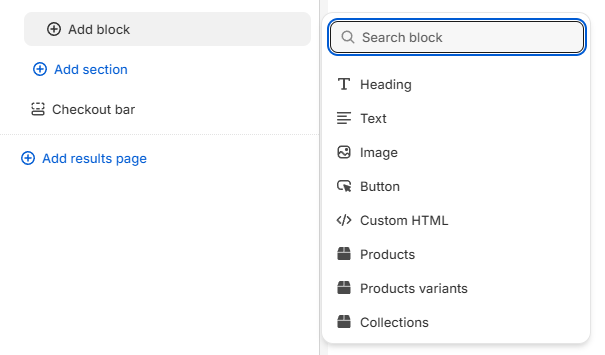
-
Under
Slots, chooseProduct variants.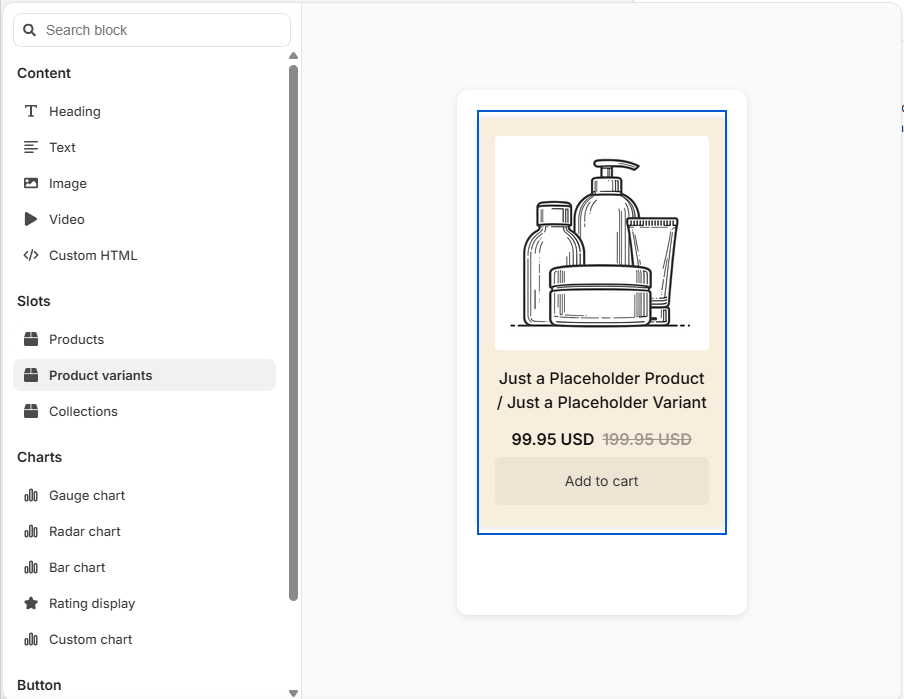
-
Open the block settings and set the
Recommendation system. Choose recommendations drawn from the answers, or a fixed set of variants. -
Click the top-right
Savebutton. -
Take the quiz and check that each recommendation is a single variant.
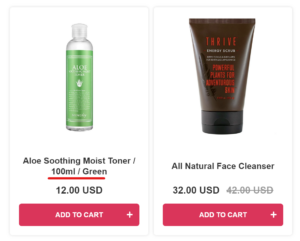
Group product variants collects the variants of a product into one dropdown. With it off, the quiz recommends each variant as an item of its own.
-
Open your results page in the Quiz Builder and click the cog icon.
-
Open the
ADVANCEDtab. -
Under
Recommendations Settings, turnGroup product variantsoff.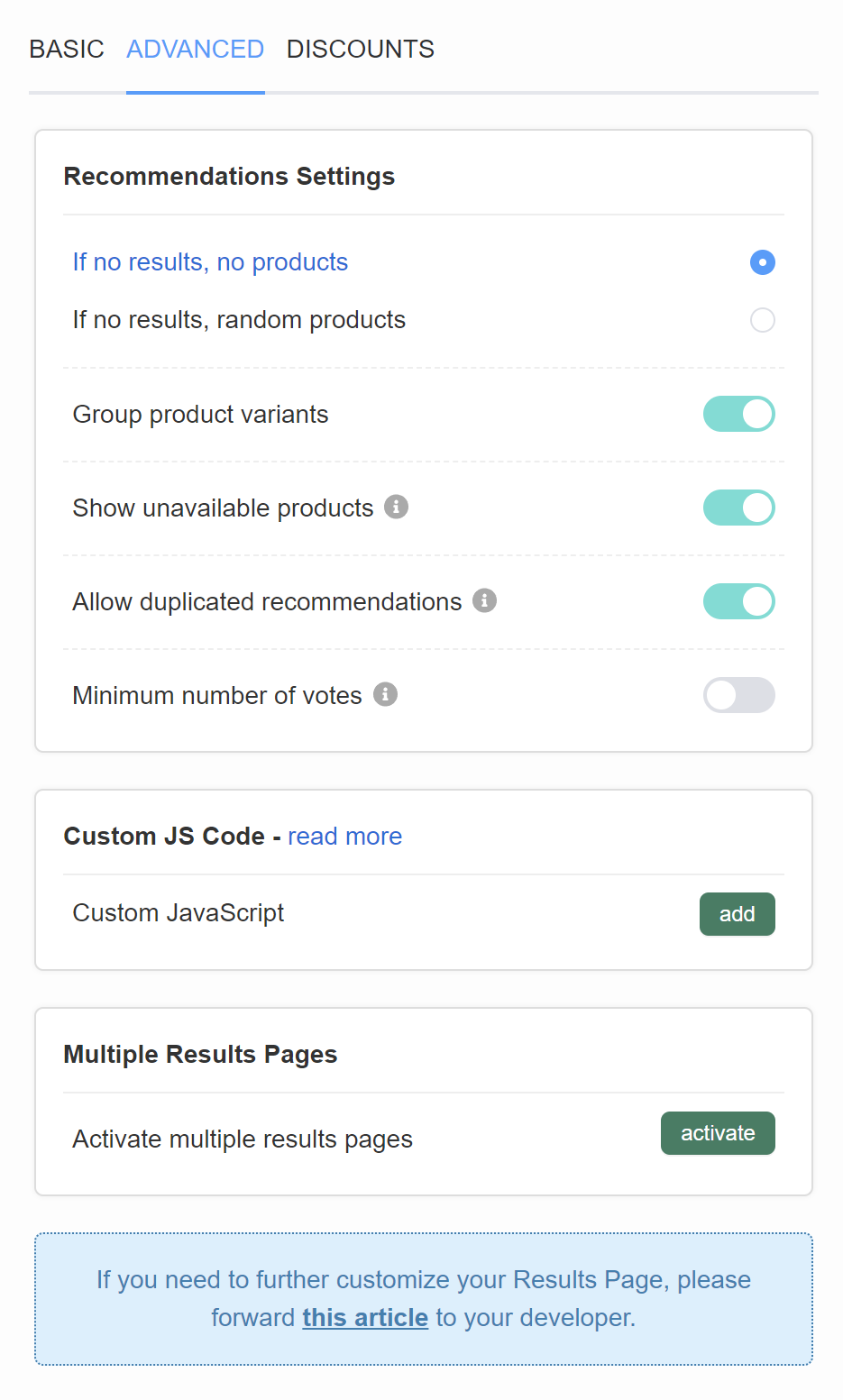
-
Click the top-right
Publishbutton. -
Take the quiz and check that each recommendation is a single variant.
How the variants are ordered
Variants appear in the order of the upvotes they collected. Variants on equal upvotes appear in a random order.
Group product variants collects the variants of a product into one dropdown. With it off, the quiz recommends each variant as an item of its own.
-
Open your results page in the Quiz Builder and click the cog icon.
-
Open the
ADVANCEDtab. -
Under
Recommendations Settings, turnGroup product variantsoff. -
Click the top-right
Publishbutton. -
Take the quiz and check that each recommendation is a single variant.
How the variants are ordered
Variants appear in the order of the upvotes they collected. Variants on equal upvotes appear in a random order.
Group product variants collects the variants of a product into one dropdown. With it off, the quiz recommends each variant as an item of its own.
-
Open your results page in the Quiz Builder and click the cog icon.
-
Open the
ADVANCEDtab. -
Under
Recommendations Settings, turnGroup product variantsoff. -
Click the top-right
Publishbutton. -
Take the quiz and check that each recommendation is a single variant.
How the variants are ordered
Variants appear in the order of the upvotes they collected. Variants on equal upvotes appear in a random order.
Group product variants collects the variants of a product into one dropdown. With it off, the quiz recommends each variant as an item of its own.
-
Open your results page in the Quiz Builder and click the cog icon.
-
Open the
ADVANCEDtab. -
Under
Recommendations Settings, turnGroup product variantsoff. -
Click the top-right
Publishbutton. -
Take the quiz and check that each recommendation is a single variant.
How the variants are ordered
Variants appear in the order of the upvotes they collected. Variants on equal upvotes appear in a random order.
Group product variants collects the variants of a product into one dropdown. With it off, the quiz recommends each variant as an item of its own.
-
Open your results page in the Quiz Builder and click the cog icon.
-
Open the
ADVANCEDtab. -
Under
Recommendations Settings, turnGroup product variantsoff. -
Click the top-right
Publishbutton. -
Take the quiz and check that each recommendation is a single variant.
How the variants are ordered
Variants appear in the order of the upvotes they collected. Variants on equal upvotes appear in a random order.
This article explains the three ways to take the variants dropdown off your results page, and what each one leaves the customer with.