How to Filter Recommendations by Price
A quiz can keep its recommendations inside the price range the customer picked.
The method is the same everywhere. Group your products by price in your store, ask the customer which range they want, then upvote that group and exclude the others.
-
Click
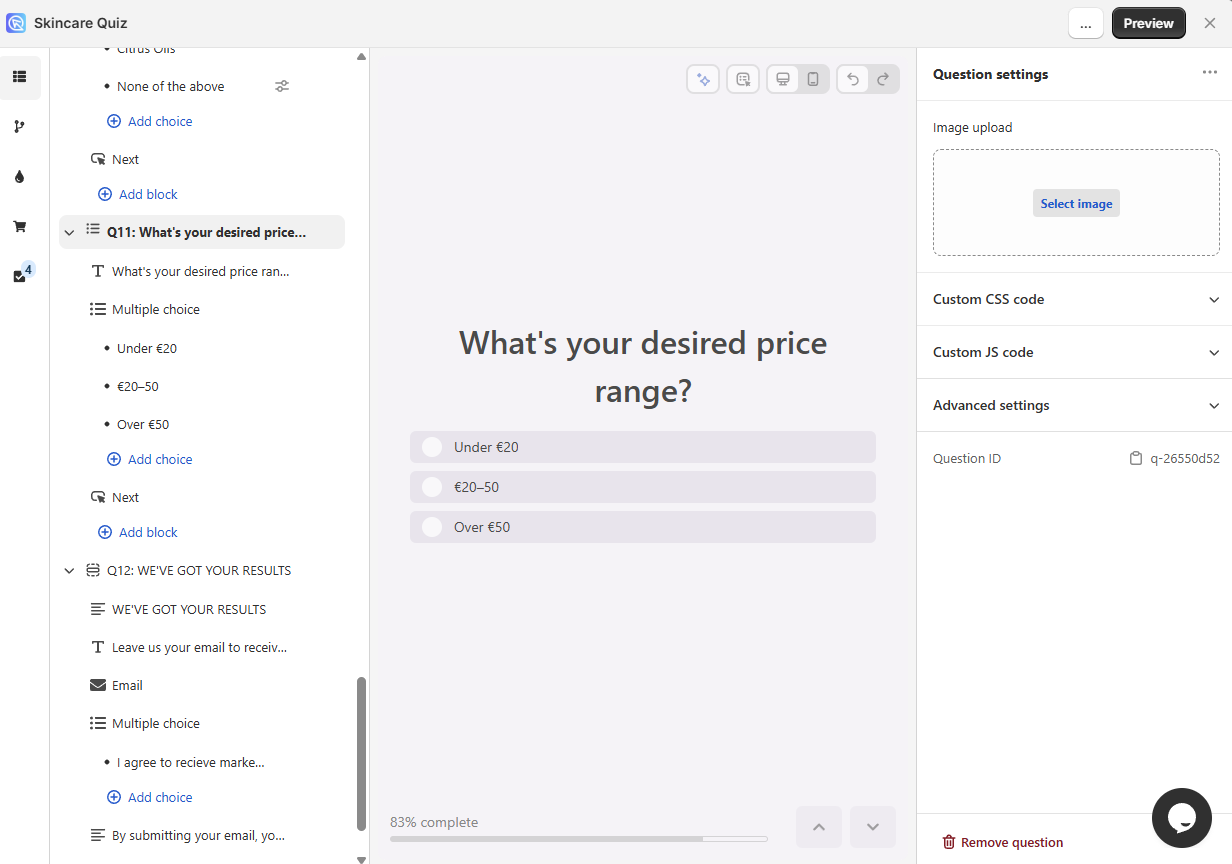
Customize, open Questions, and add a multiple-choice question about price. For example, "What is your desired price range?".The question
Three choices cover most catalogs:
- Under 20 euros
- Between 20 and 50 euros
- Over 50 euros
-
In your Shopify admin, go to
Products > Collectionsand clickAdd collection. -
Name it after the range, and make it a smart collection with a price condition.
The condition on each collection
Priceis less than20 eurosPriceis between20 eurosand50 eurosPriceis greater than50 euros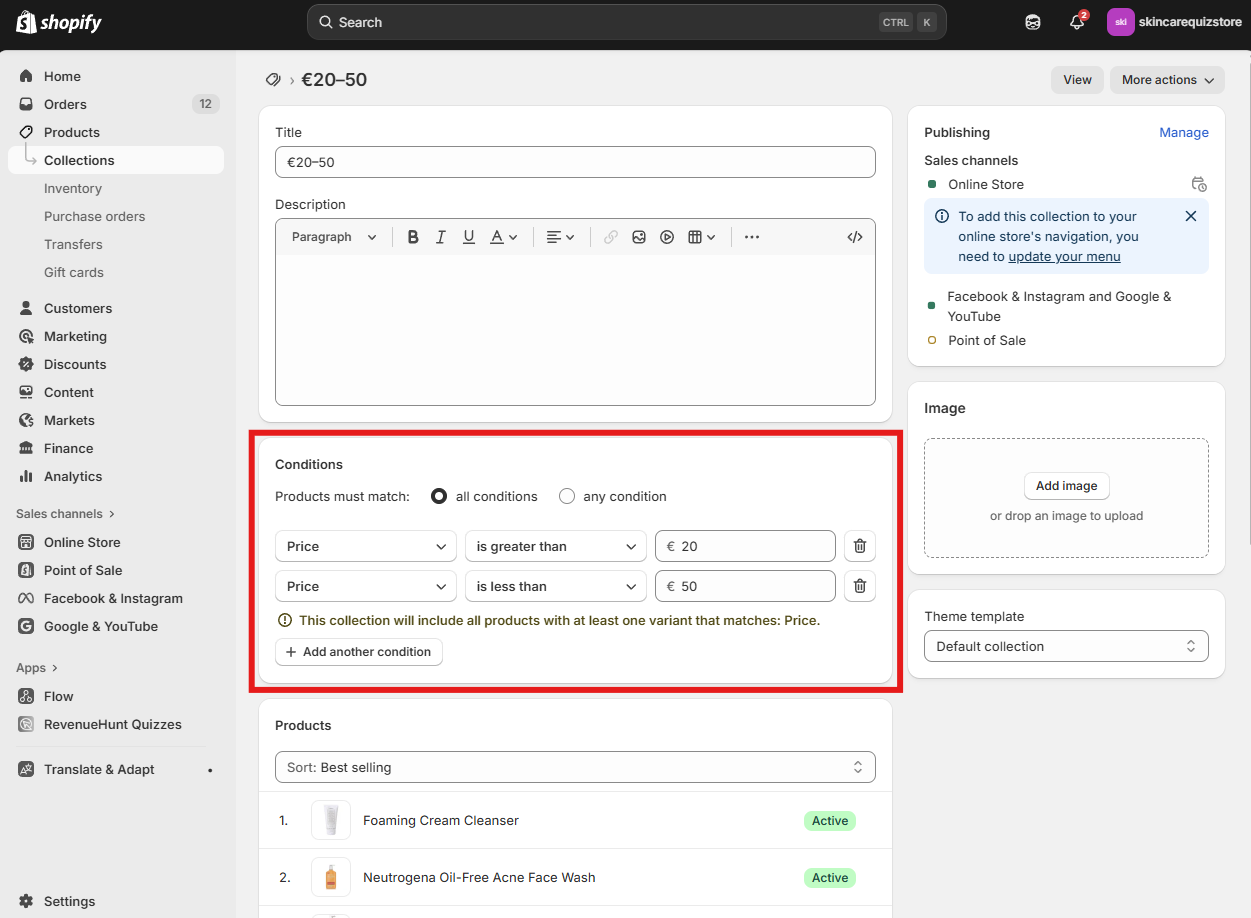
-
Repeat for each range, then save every collection.
-
Back in the quiz, open the price question and expand a choice.
-
Under Choice settings, open
Upvotesand clickUpvote > Collections. -
Upvote the collection for that choice, and exclude the other two.
One group upvoted, the rest excluded
- Under 20 euros upvotes the under-20 collection, and excludes the other two.
- 20 to 50 euros upvotes the 20-to-50 collection, and excludes the other two.
- Over 50 euros upvotes the over-50 collection, and excludes the other two.
-
Click the top-right
Savebutton. -
Preview the quiz and pick each range in turn. Only the products in that range should come back.
The wrong products come back
Open Response Analysis to see which products were upvoted and why.
A catalog sync also helps, in case the new groups have not reached the quiz yet.
-
Open the Quiz Builder and click
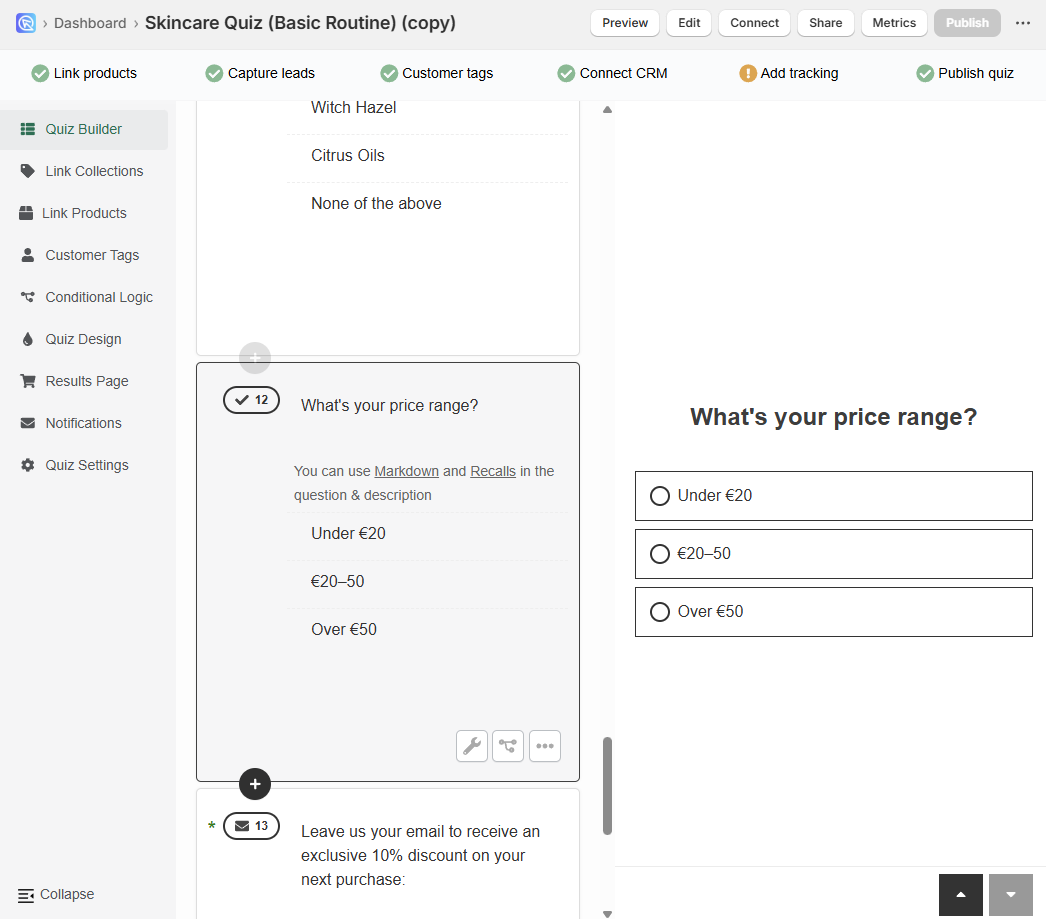
+to add a multiple-choice question about price. For example, "What is your desired price range?".The question
Three choices cover most catalogs:
- Under 20 euros
- Between 20 and 50 euros
- Over 50 euros
-
In your Shopify admin, go to
Products > Collectionsand clickAdd collection. -
Name it after the range, and make it a smart collection with a price condition.
The condition on each collection
Priceis less than20 eurosPriceis between20 eurosand50 eurosPriceis greater than50 euros -
Repeat for each range, then save every collection.
-
Run a catalog sync from the success checklist, so the new collections reach the quiz.
-
Open the Link Collections section, and for each choice upvote its own collection while excluding the others.
One group upvoted, the rest excluded
- Under 20 euros upvotes the under-20 collection, and excludes the other two.
- 20 to 50 euros upvotes the 20-to-50 collection, and excludes the other two.
- Over 50 euros upvotes the over-50 collection, and excludes the other two.

-
Click the top-right
Publishbutton. -
Preview the quiz and pick each range in turn. Only the products in that range should come back.
The wrong products come back
Open Response Analysis to see which products were upvoted and why.
A catalog sync also helps, in case the new groups have not reached the quiz yet.
-
Open the Quiz Builder and click
+to add a multiple-choice question about price. For example, "What is your desired price range?".The question
Three choices cover most catalogs:
- Under 20 euros
- Between 20 and 50 euros
- Over 50 euros
-
In your store admin, go to
Products > Categories. -
Create one category per price range, with
Add new category. -
Assign your products to the matching category.
- Products under 20 euros go in the under-20 category.
- Products between 20 and 50 euros go in the 20-to-50 category.
- Products over 50 euros go in the over-50 category.
-
Run a catalog sync from the success checklist, so the new categories reach the quiz.
-
Open the Link Categories section, and for each choice upvote its own category while excluding the others.
One group upvoted, the rest excluded
- Under 20 euros upvotes the under-20 category, and excludes the other two.
- 20 to 50 euros upvotes the 20-to-50 category, and excludes the other two.
- Over 50 euros upvotes the over-50 category, and excludes the other two.
-
Click the top-right
Publishbutton. -
Preview the quiz and pick each range in turn. Only the products in that range should come back.
The wrong products come back
Open Response Analysis to see which products were upvoted and why.
A catalog sync also helps, in case the new groups have not reached the quiz yet.
-
Open the Quiz Builder and click
+to add a multiple-choice question about price. For example, "What is your desired price range?".The question
Three choices cover most catalogs:
- Under 20 euros
- Between 20 and 50 euros
- Over 50 euros
-
In your store admin, go to
Catalog > Categories. -
Create one category per price range, with
Add Subcategoryunder your main category. -
Assign your products to the matching category.
- Products under 20 euros go in the under-20 category.
- Products between 20 and 50 euros go in the 20-to-50 category.
- Products over 50 euros go in the over-50 category.
Assign them in the
Products in Categorysection, then save the category. -
Run a catalog sync from the success checklist, so the new categories reach the quiz.
-
Open the Link Categories section, and for each choice upvote its own category while excluding the others.
One group upvoted, the rest excluded
- Under 20 euros upvotes the under-20 category, and excludes the other two.
- 20 to 50 euros upvotes the 20-to-50 category, and excludes the other two.
- Over 50 euros upvotes the over-50 category, and excludes the other two.
-
Click the top-right
Publishbutton. -
Preview the quiz and pick each range in turn. Only the products in that range should come back.
The wrong products come back
Open Response Analysis to see which products were upvoted and why.
A catalog sync also helps, in case the new groups have not reached the quiz yet.
-
Open the Quiz Builder and click
+to add a multiple-choice question about price. For example, "What is your desired price range?".The question
Three choices cover most catalogs:
- Under 20 euros
- Between 20 and 50 euros
- Over 50 euros
-
In your store admin, go to
Products > Product Categories. -
Create one category per price range, with
Add a Category. -
Assign your products to the matching category.
- Products under 20 euros go in the under-20 category.
- Products between 20 and 50 euros go in the 20-to-50 category.
- Products over 50 euros go in the over-50 category.
-
Run a catalog sync from the success checklist, so the new categories reach the quiz.
-
Open the Link Categories section, and for each choice upvote its own category while excluding the others.
One group upvoted, the rest excluded
- Under 20 euros upvotes the under-20 category, and excludes the other two.
- 20 to 50 euros upvotes the 20-to-50 category, and excludes the other two.
- Over 50 euros upvotes the over-50 category, and excludes the other two.
-
Click the top-right
Publishbutton. -
Preview the quiz and pick each range in turn. Only the products in that range should come back.
The wrong products come back
Open Response Analysis to see which products were upvoted and why.
A catalog sync also helps, in case the new groups have not reached the quiz yet.
-
Open the Quiz Builder and click
+to add a multiple-choice question about price. For example, "What is your desired price range?".The question
Three choices cover most catalogs:
- Under 20 euros
- Between 20 and 50 euros
- Over 50 euros
-
Open the Success Checklist and create one collection per price range.
Filling the catalogue
-
Put each product in the collection that matches its price.
- Products under 20 euros go in the under-20 collection.
- Products between 20 and 50 euros go in the 20-to-50 collection.
- Products over 50 euros go in the over-50 collection.
-
Open the Link Categories section, and for each choice upvote its own collection while excluding the others.
One group upvoted, the rest excluded
- Under 20 euros upvotes the under-20 collection, and excludes the other two.
- 20 to 50 euros upvotes the 20-to-50 collection, and excludes the other two.
- Over 50 euros upvotes the over-50 collection, and excludes the other two.
-
Click the top-right
Publishbutton. -
Preview the quiz and pick each range in turn. Only the products in that range should come back.
The wrong products come back
Open Response Analysis to see which products were upvoted and why.
A catalog sync also helps, in case the new groups have not reached the quiz yet.
This article explains how to keep quiz recommendations inside the price range a customer picked.