How to Show Product Reviews
Add a star rating and a review count to the product cards on your quiz results page. The ratings come from the review app you already use.
-
Open the Results page tab.
-
Find the Product block that recommends the products.
-
Open
Product Component Layout, underRecommended Products.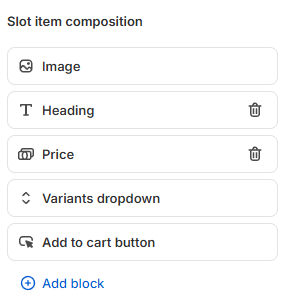
-
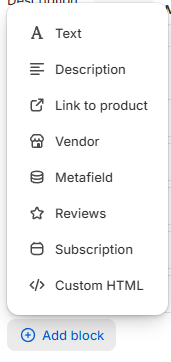
Click
+ Add Blockand select theReviewssection. A star rating box appears at the bottom of the product card.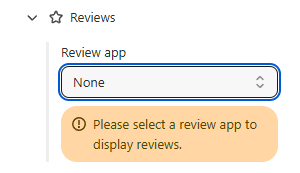
-
Open the
Reviewstab and pick your review app from the dropdown.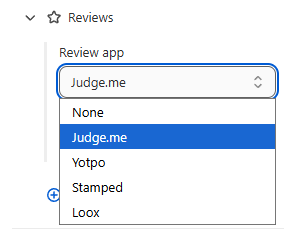
Supported review apps
Judge.me, Yotpo, Stamped and Loox. The screenshot uses Judge.me.
-
Drag the reviews section to where you want it in the product component layout. Right below the product title works well.
-
Expose the review metafields to the Storefront API in Shopify. The stars stay empty until you do. See Enabling storefront API access for review apps.
-
Click the top-right
Savebutton. -
Click
Previewand check that the ratings appear.
Enabling storefront API access for review apps
Every review app stores its product ratings in Shopify metafields. The RevenueHunt app can only read a metafield that is exposed to the Storefront API, and most review apps keep theirs private.
Which metafields are used?
All supported review apps use Shopify's reserved reviews namespace:
reviews.rating- the average star rating, stored as JSON withvalue,scale_minandscale_maxreviews.rating_count- the total number of reviews, stored as an integer
How to enable storefront API access
-
Log in to your Shopify Admin.
-
Go to
Settingsin the bottom left, thenCustom data. -
Select
Productsfrom the list. -
Find the
reviews.ratingmetafield definition.If the definition is not in the list
Open the
More actionsmenu and selectView unstructured metafields. -
Open the definition and turn on
ReadorStorefrontsin theStorefront accesssection. This sets the permission toPUBLIC_READ.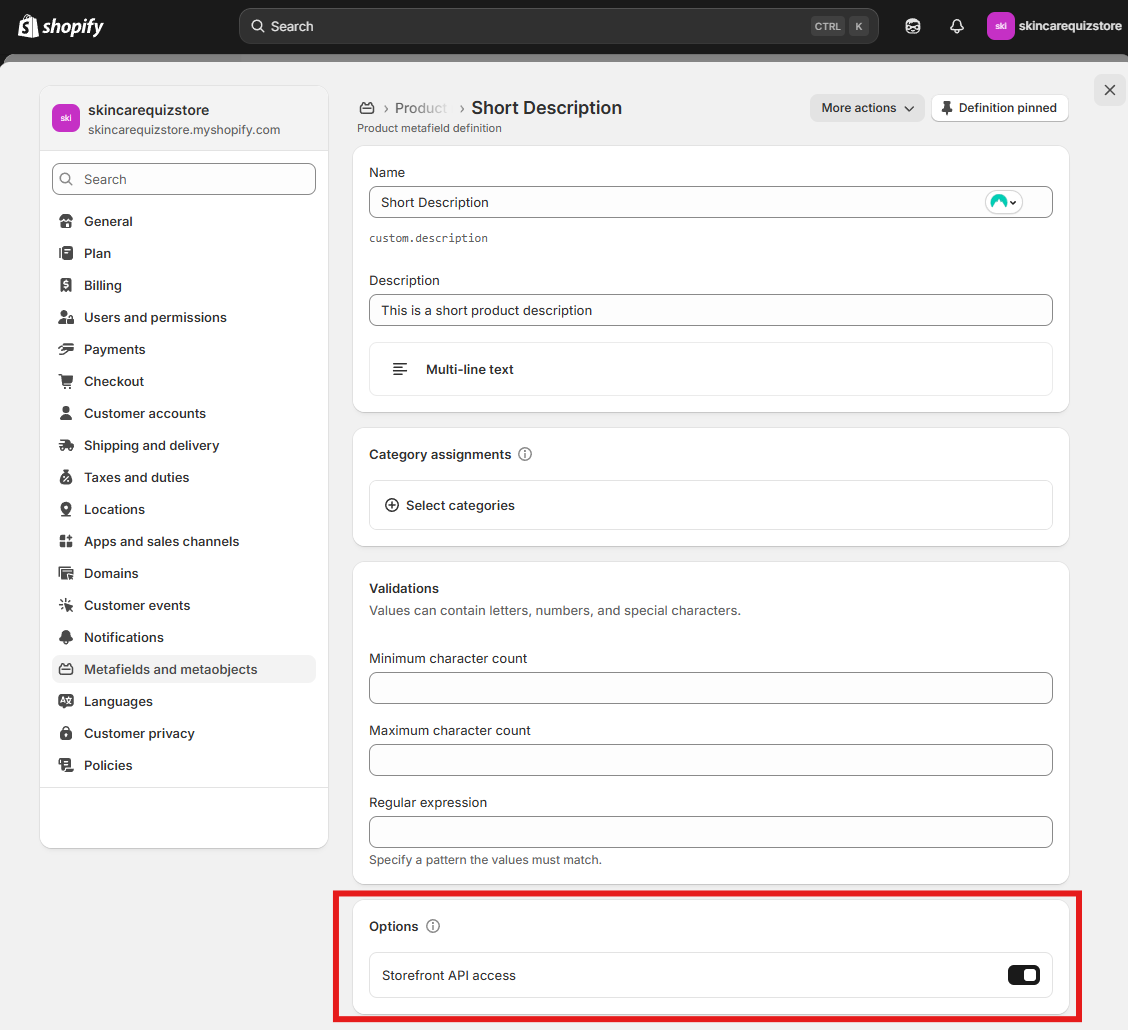
-
Click
Save. -
Repeat for
reviews.rating_count.
The ratings then appear on your quiz results page.
Give the cache a moment
Shopify's edge cache takes a few seconds to pick up the change. Clear your browser cache if the ratings do not appear straight away.
Notes for each review app
| Review app | What to know |
|---|---|
| Judge.me | Creates the reviews.rating and reviews.rating_count metafields on its own, once it has collected reviews. |
| Loox | Writes its review data to the reserved reviews namespace. |
| Yotpo | Uses the standard reviews namespace for ratings. |
| Stamped | Uses the standard reviews namespace. |
All four need Storefront API access before the ratings show. See how to enable storefront API access.
Loox may need a manual sync
Loox reviews and review counts sometimes stay missing after you enable Storefront API access. Email Loox support at support@loox.io and ask them to sync your store to the default reviews.rating and reviews.rating_count metafields.
Troubleshooting
Work through these if the ratings still do not appear.
-
Check that the product has reviews. Open it in your review app and confirm it collected some.
-
Check the metafield values. In Shopify Admin, go to
Products, select a product, then scroll to theMetafieldssection. -
Run a catalog import. Go to App settings > Catalog and run a quick catalog import.
-
Wait for the cache. Shopify's edge cache can take 5 to 30 seconds to update after a change.
-
Contact support. See how to contact customer support, or ask your review app's support team.
-
Go to
Results Page settings > Basic settings, thenIndividual product settings.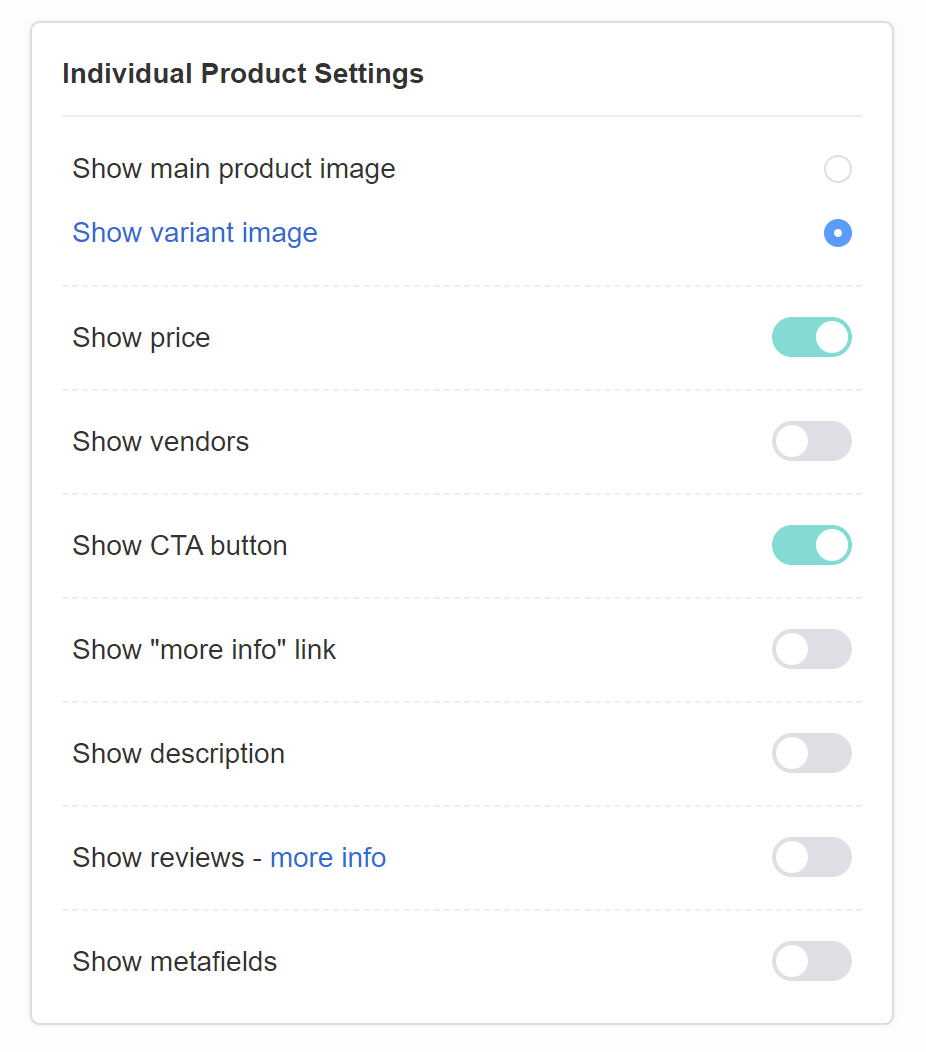
-
Turn on
Show reviews. Product ratings then appear below the product name on the Results Page. -
Run a Catalog Sync. This is what brings the reviews into the app.
Supported review apps
- Product Reviews by Shopify
- Stamped Product Reviews and UGC
- Judge.me Product Reviews
- Rivyo Product Reviews
-
Go to
Results Page settings > Basic settings, thenIndividual product settings. -
Turn on
Show reviews. Product ratings then appear below the product name on the Results Page. -
Run a Catalog Sync. This is what brings the reviews into the app.
Supported review apps
Only the official WooCommerce Reviews are synced.
Not available on this platform
This version of the app cannot show product reviews on the Results Page.
Not available on this platform
This version of the app cannot show product reviews on the Results Page.
Not available on this platform
This version of the app cannot show product reviews on the Results Page.
This article explains how to show product reviews on the results page of your quiz.