How to Set Up a Scoring Quiz
Give each choice a score, a variable, or both. The quiz adds them up as the customer answers. Logic then decides which text and which products appear at the end.
Use this method for:
- Personality type quizzes, Dosha quizzes
- Quizzes that show different results based on how many choices the customer picked (for example if the customer chooses most As, Bs, Cs, etc.)
- Quizzes that show different text results based on choices
- Quizzes that need to calculate scores that show different products
There are three ways to use a score once you have one.
| Method | Use it when |
|---|---|
| Winning variable quiz | The outcome is a type, such as a skin type or a personality. The variable chosen most often wins |
| Scoring quiz with one results page | One results page holds a section per outcome, and display logic shows the one that matches the total |
| Scoring quiz with multiple results pages | Each score range gets its own results page, and jump logic sends the customer there |
Not available on this platform
This version of the app has no scoring system. A developer can build one with custom JavaScript on the Results Page. See how to add custom JavaScript to the results page.
Not available on this platform
This version of the app has no scoring system. A developer can build one with custom JavaScript on the Results Page. See how to add custom JavaScript to the results page.
Not available on this platform
This version of the app has no scoring system. A developer can build one with custom JavaScript on the Results Page. See how to add custom JavaScript to the results page.
Not available on this platform
This version of the app has no scoring system. A developer can build one with custom JavaScript on the Results Page. See how to add custom JavaScript to the results page.
Not available on this platform
This version of the app has no scoring system. A developer can build one with custom JavaScript on the Results Page. See how to add custom JavaScript to the results page.
How to add scores or variables to choices
A score is a number a choice adds to a running total. A variable is a named bucket, such as dry skin, that keeps a total of its own. A choice can carry either, or both.
-
Open the Quiz builder and add your
Multiple-choice questions. For a quiz that works out a skin type, ask about age, skin condition, and so on. -
Open the Choice settings of a choice.
-
Find the
Scores and calculationssection. -
Set the score for that choice with the up and down arrows. Negative values are allowed.

Scoring three choices
- For choice one, set the score to 1.
- For choice two, set the score to 2.
- For choice three, set the score to 3.
-
To add a variable, click the
Search or create variablebar and type its name. For exampledry skinorvariable1. -
Click
Create a new variablein the dropdown.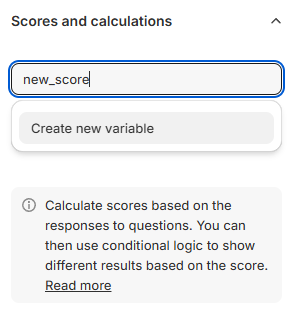
-
Assign a score to the new variable.
-
Repeat for every choice in the question, then move on to the next question.
What to do with the scores and variables
Not available on this platform
This version of the app has no scoring system. A developer can build one with custom JavaScript on the Results Page. See how to add custom JavaScript to the results page.
Not available on this platform
This version of the app has no scoring system. A developer can build one with custom JavaScript on the Results Page. See how to add custom JavaScript to the results page.
Not available on this platform
This version of the app has no scoring system. A developer can build one with custom JavaScript on the Results Page. See how to add custom JavaScript to the results page.
Not available on this platform
This version of the app has no scoring system. A developer can build one with custom JavaScript on the Results Page. See how to add custom JavaScript to the results page.
Not available on this platform
This version of the app has no scoring system. A developer can build one with custom JavaScript on the Results Page. See how to add custom JavaScript to the results page.
Winning variable quiz
Give each choice a variable instead of a plain score. The variable with the highest total decides the outcome, and Display Logic shows the section that matches it.
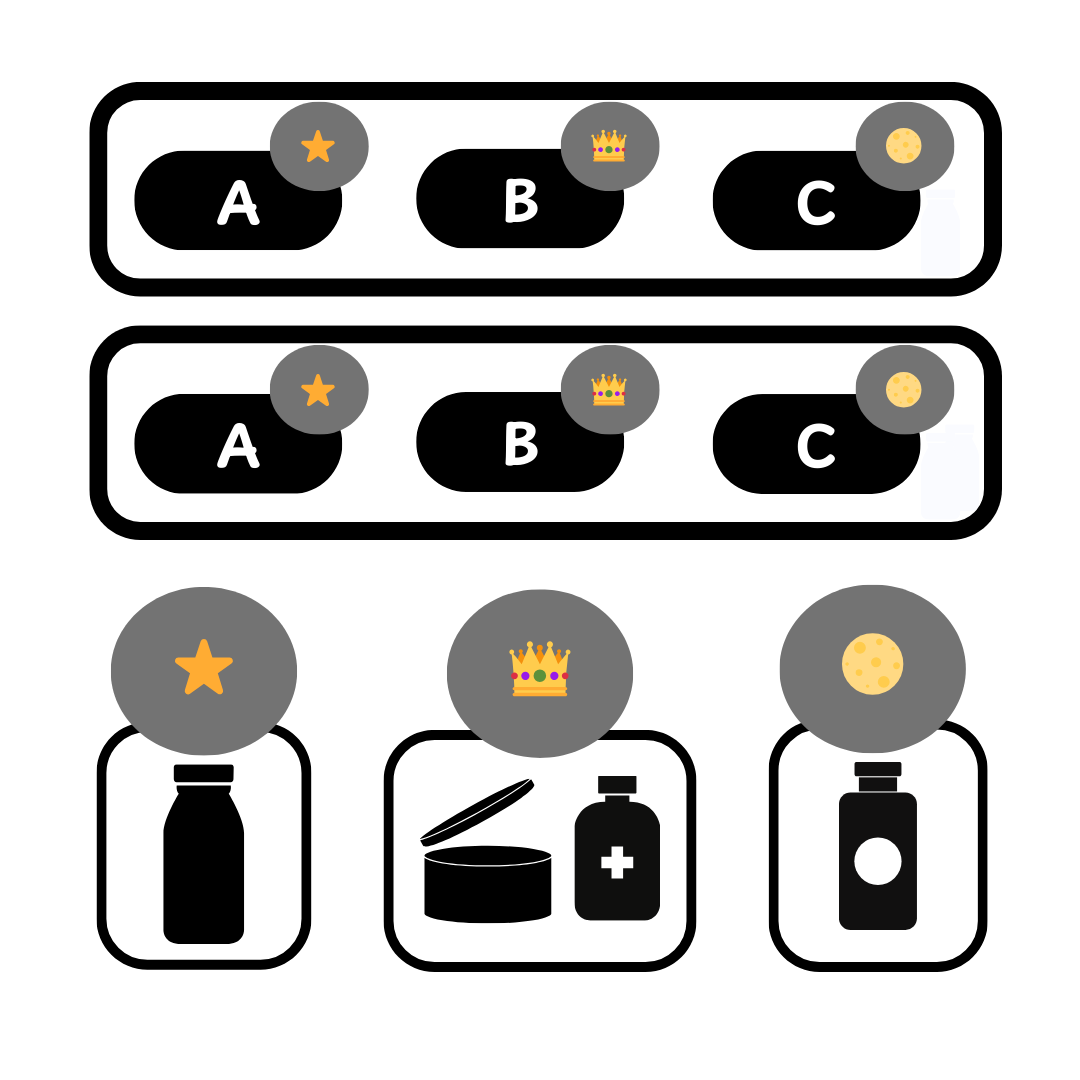
The example below is a quiz for a skin care brand that works out the customer's skin type.
-
Open the Quiz builder and add your
Multiple-choice questionsabout the customer's skin condition. For example: itchiness, tightness or dryness. -
Assign a variable to every choice in the Choice settings.
Adding the scores
Two questions, five variables
Question 1: How does your skin feel when you wake up in the morning?
- Choice 1: Tight (variable
dry skin+1) - Choice 2: Normal (variable
normal skin+1) - Choice 3: Oily (variable
oily skin+1) - Choice 4: Combination (variable
combination skin+1) - Choice 5: Sensitive (variable
sensitive skin+1)
Question 2: How does your skin usually look by midday?
- Choice 1: Still tight (variable
dry skin+1) - Choice 2: Same as in the morning (variable
normal skin+1) - Choice 3: Shiny (variable
oily skin+1) - Choice 4: T-zone shiny (variable
combination skin+1) - Choice 5: Red and irritated (variable
sensitive skin+1)
- Choice 1: Tight (variable
-
Add a Results page to your quiz.
-
Add one section per outcome to the results page.
One section per skin type
- Section 1: Dry Skin
- Section 2: Normal Skin
- Section 3: Oily Skin
- Section 4: Combination Skin
- Section 5: Sensitive Skin
-
Add a heading, text and a Product block to each section.
-
Set the
Recommendation systemtoFixed Recommendationsin the product block settings, then pick the products for that skin type. -
Add Display logic to each section, so that it appears only for its own winning variable.
One rule per section
- If the variable with the highest score is
dry skin, then Section 1 is visible. Otherwise Default visibility is hidden. - If the variable with the highest score is
normal skin, then Section 2 is visible. Otherwise Default visibility is hidden. - If the variable with the highest score is
oily skin, then Section 3 is visible. Otherwise Default visibility is hidden. - If the variable with the highest score is
combination skin, then Section 4 is visible. Otherwise Default visibility is hidden. - If the variable with the highest score is
sensitive skin, then Section 5 is visible. Otherwise Default visibility is hidden.
- If the variable with the highest score is
-
Click the top-right
Savebutton to update the preview and the live quiz.
Not available on this platform
This version of the app has no scoring system. A developer can build one with custom JavaScript on the Results Page. See how to add custom JavaScript to the results page.
To recommend products by how many choices the customer picked, see how to recommend products based on the number of choices.
Not available on this platform
This version of the app has no scoring system. A developer can build one with custom JavaScript on the Results Page. See how to add custom JavaScript to the results page.
To recommend products by how many choices the customer picked, see how to recommend products based on the number of choices.
Not available on this platform
This version of the app has no scoring system. A developer can build one with custom JavaScript on the Results Page. See how to add custom JavaScript to the results page.
To recommend products by how many choices the customer picked, see how to recommend products based on the number of choices.
Not available on this platform
This version of the app has no scoring system. A developer can build one with custom JavaScript on the Results Page. See how to add custom JavaScript to the results page.
To recommend products by how many choices the customer picked, see how to recommend products based on the number of choices.
Not available on this platform
This version of the app has no scoring system. A developer can build one with custom JavaScript on the Results Page. See how to add custom JavaScript to the results page.
To recommend products by how many choices the customer picked, see how to recommend products based on the number of choices.
Scoring quiz with one results page
Give each choice a number of points. One results page holds a section per outcome, and Display Logic shows the section that matches the total the customer reached.
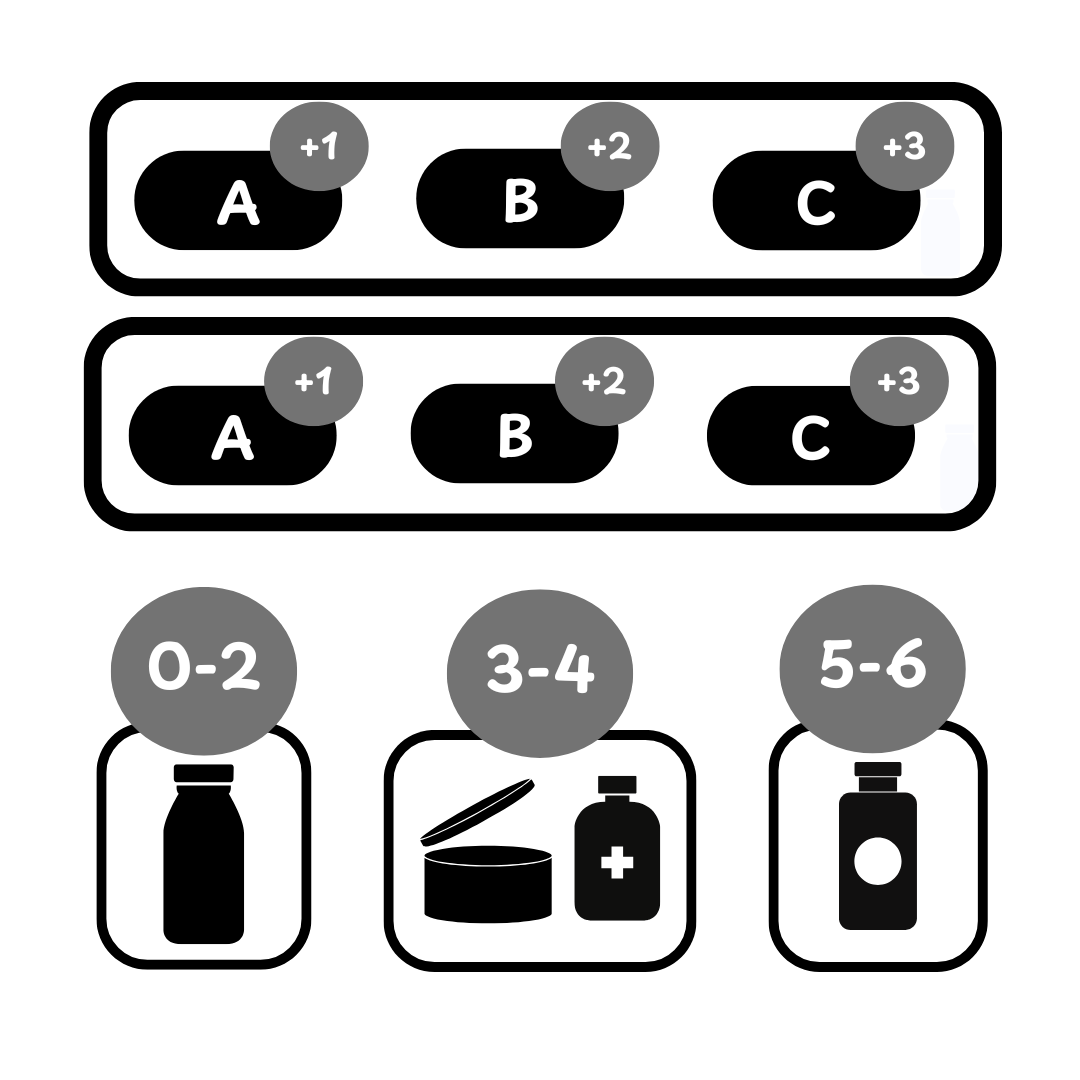
Start from the template
The app has a Scoring Quiz template. Go to the Dashboard, click Create Quiz, then select the Scoring Quiz template.
-
Open the Quiz builder and add your
Multiple-choice questions. For a skin care quiz, ask about age, skin type or environment. -
Assign a point value to every choice in the Choice settings.
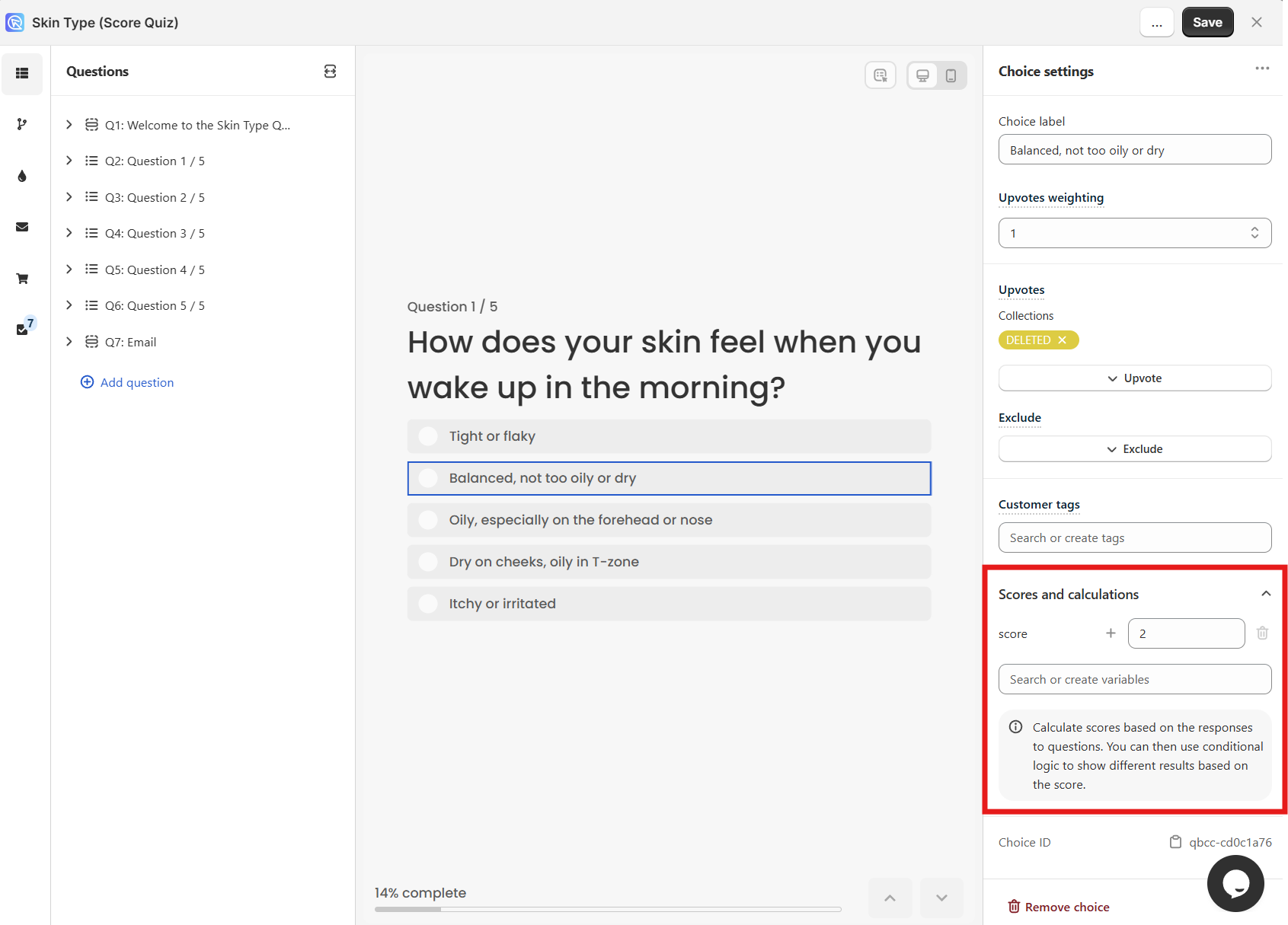
Adding the scores
Points for each skin type
- Dry skin choices: 1 point
- Normal skin choices: 2 points
- Oily skin choices: 3 points
- Combination skin choices: 4 points
- Sensitive skin choices: 5 points
-
Go to the Results page and click
+ Add section. Add one section per outcome. -
Add content blocks to each section, describing that skin type and its challenges.
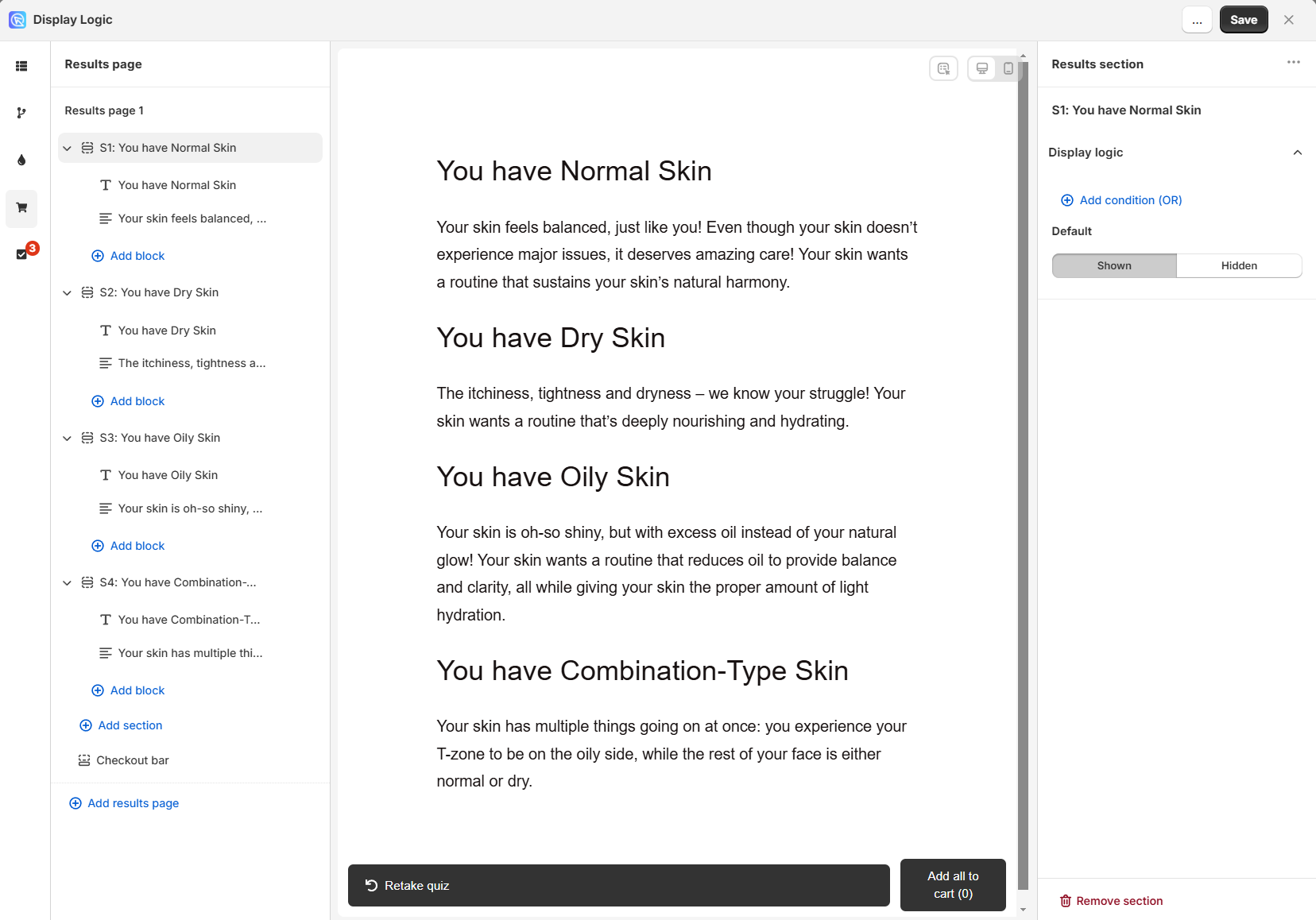
Text for each skin type
- You have Dry Skin: the itchiness, the tightness, the dryness. Your skin wants a routine that is deeply nourishing and hydrating.
- You have Normal Skin: your skin feels balanced, just like you. It has no major issues, and it still deserves care. Your skin wants a routine that keeps that balance.
- You have Oily Skin: Your skin is oh-so shiny, but with excess oil instead of your natural glow! Your skin wants a routine that reduces oil to provide balance and clarity, all while giving your skin the proper amount of light hydration.
- You have Combination-Type Skin: Your skin has multiple things going on at once: you experience your T-zone to be on the oily side, while the rest of your face is either normal or dry.
-
Add a
Product Blockto each section, holding the products for that skin type. -
Set the
Recommendation systemtoFixed Recommendationsin the Product block settings.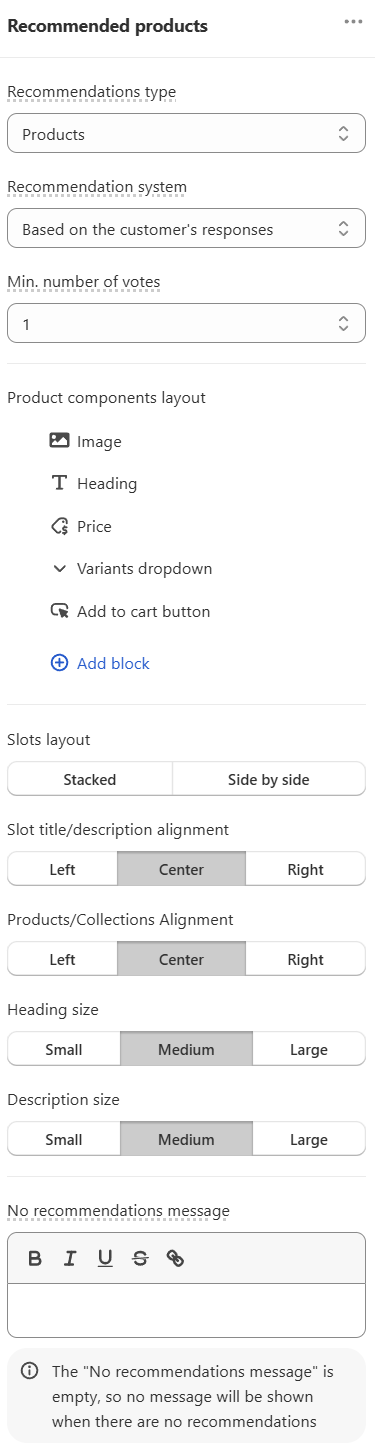
-
Select a content block and find
Display logicin the right-hand menu. -
Click
+ Add condition (OR). -
Choose
The variable with the highest score...orThe score of the variable.... These conditions read the total, rather than one specific answer. -
Set the score range that makes the block visible.
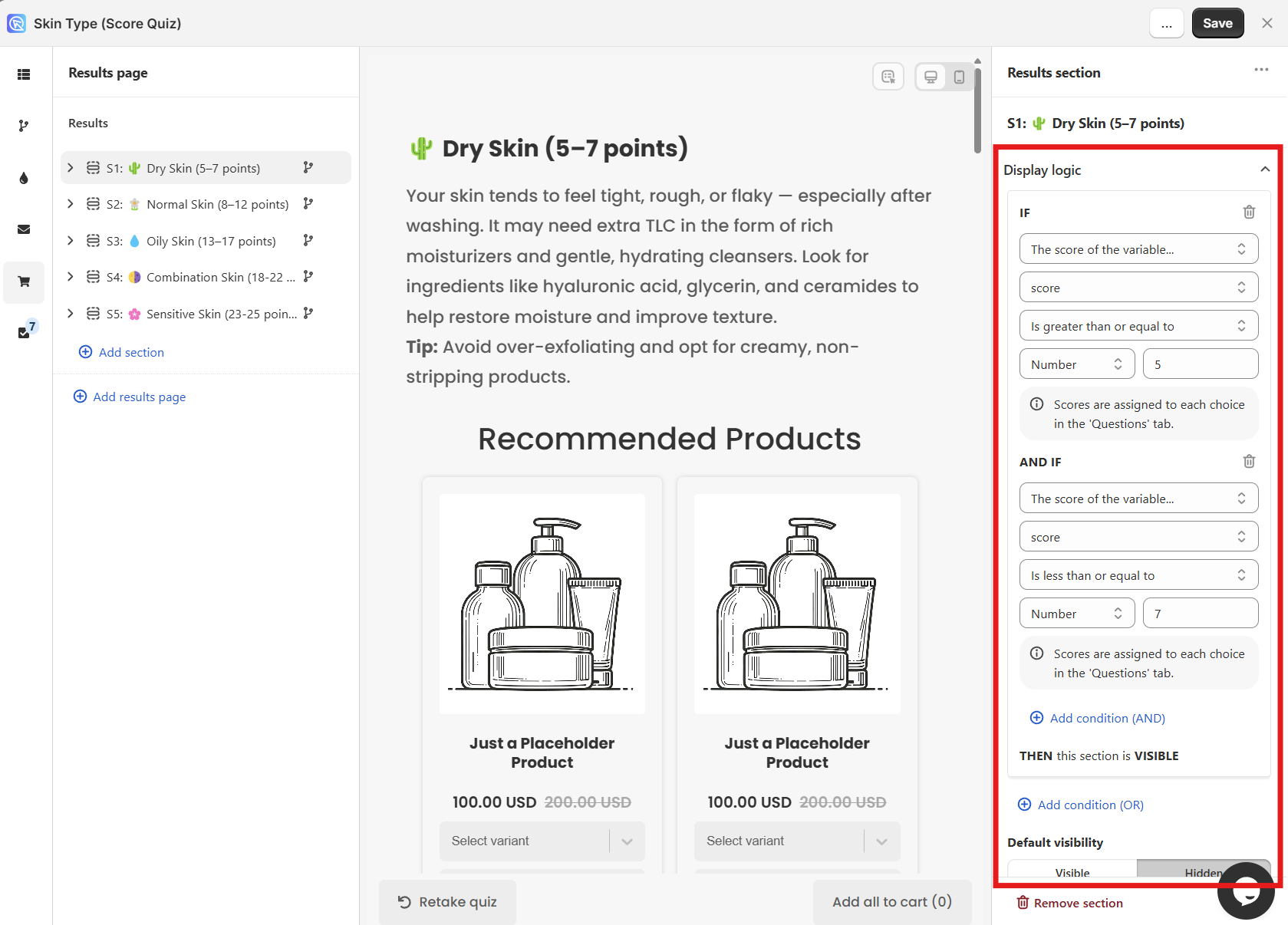
A range for each skin type
- Dry skin content: total score is between 5 and 7 points
- Normal skin content: total score is between 8 and 12 points
- Oily skin content: total score is between 13 and 17 points
- Combination skin content: total score is between 18 and 22 points
- Sensitive skin content: total score is between 23 and 25 points
-
Repeat for every content block.
-
Click the top-right
Savebutton to update the preview and the live quiz.
Not available on this platform
This version of the app has no scoring system. A developer can build one with custom JavaScript on the Results Page. See how to add custom JavaScript to the results page.
Not available on this platform
This version of the app has no scoring system. A developer can build one with custom JavaScript on the Results Page. See how to add custom JavaScript to the results page.
Not available on this platform
This version of the app has no scoring system. A developer can build one with custom JavaScript on the Results Page. See how to add custom JavaScript to the results page.
Not available on this platform
This version of the app has no scoring system. A developer can build one with custom JavaScript on the Results Page. See how to add custom JavaScript to the results page.
Not available on this platform
This version of the app has no scoring system. A developer can build one with custom JavaScript on the Results Page. See how to add custom JavaScript to the results page.
Scoring quiz with multiple results pages
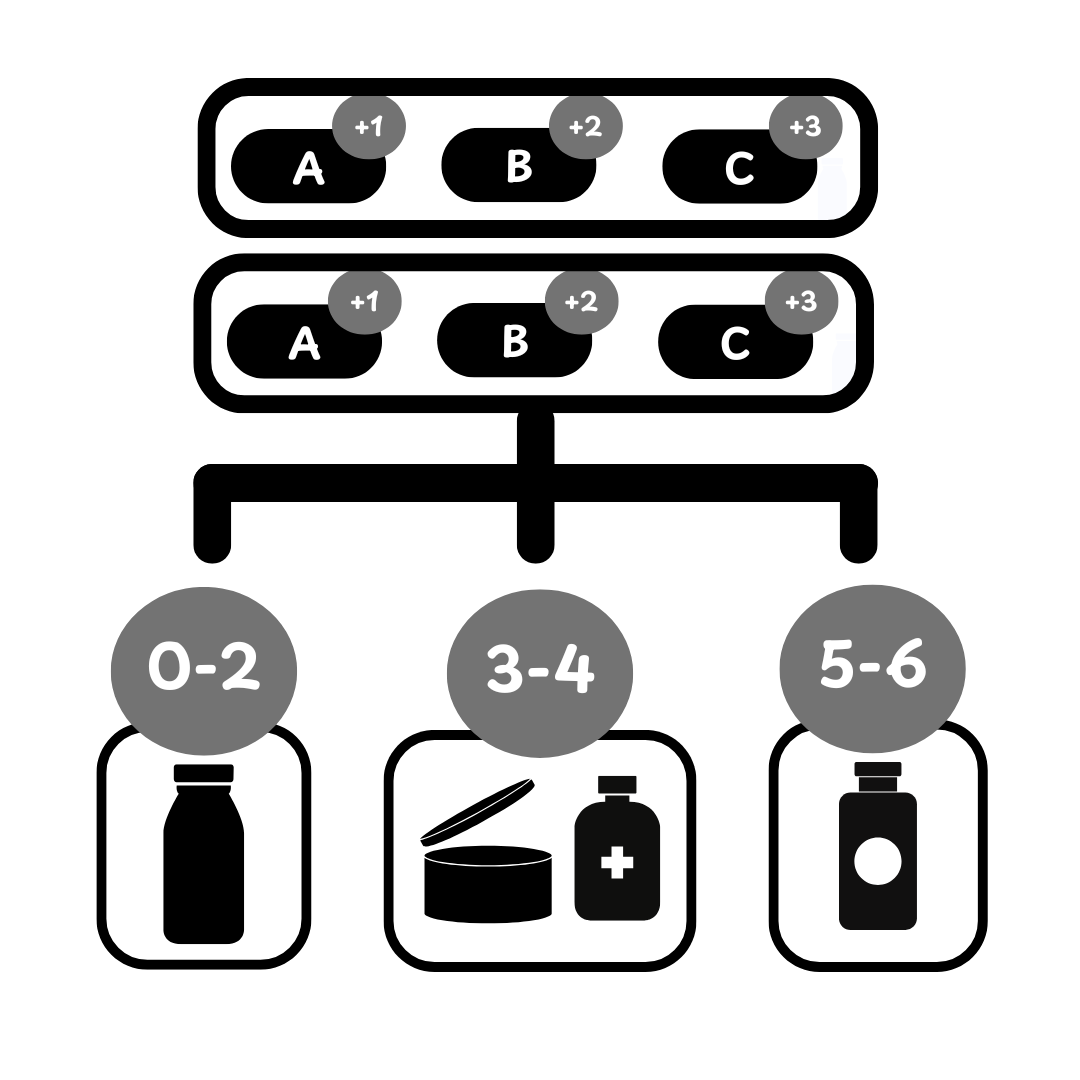
Give each choice a number of points, then build one results page per outcome. Jump Logic sends each customer to the page that matches their total.
-
Open the Quiz builder and add your
Multiple-choice questions. For a skin care quiz, ask about age, skin type or environment. -
Assign a point value to every choice in the Choice settings.
Adding the scores
Points for each skin type
- Dry skin choices: 1 point
- Normal skin choices: 2 points
- Oily skin choices: 3 points
- Combination skin choices: 4 points
- Sensitive skin choices: 5 points
-
Go to the Results page section and click
+ Add Results Page. Create one results page per outcome.
One results page per skin type
- Results page 1: Dry Skin Routine
- Results page 2: Normal Skin Routine
- Results page 3: Oily Skin Routine
- Results page 4: Combination Skin Routine
- Results page 5: Sensitive Skin Routine
-
Add the text for that outcome to each results page.
Text for each skin type
- You have Dry Skin: the itchiness, the tightness, the dryness. Your skin wants a routine that is deeply nourishing and hydrating.
- You have Normal Skin: your skin feels balanced, just like you. It has no major issues, and it still deserves care. Your skin wants a routine that keeps that balance.
- You have Oily Skin: Your skin is oh-so shiny, but with excess oil instead of your natural glow! Your skin wants a routine that reduces oil to provide balance and clarity, all while giving your skin the proper amount of light hydration.
- You have Combination-Type Skin: Your skin has multiple things going on at once: you experience your T-zone to be on the oily side, while the rest of your face is either normal or dry.
-
Add a product block to each results page, holding the products for that skin type.
-
Set the
Recommendation systemtoFixed Recommendationsin the Product block settings. -
Go to the Conditional logic section and open the Jump logic settings of the last question.
-
Click
+ Add condition (OR). -
Select
The variable with the highest score...orThe score of the variable.... -
Set the score range that sends the customer to one results page.

A range for each results page
- A total between 5 and 7 points jumps to Dry Skin Routine
- A total between 8 and 12 points jumps to Normal Skin Routine
- A total between 13 and 17 points jumps to Oily Skin Routine
- A total between 18 and 22 points jumps to Combination Skin Routine
- A total between 23 and 25 points jumps to Sensitive Skin Routine
-
Repeat for every results page.
-
Click the top-right
Savebutton to update the preview and the live quiz.
Not available on this platform
This version of the app has no scoring system. A developer can build one with custom JavaScript on the Results Page. See how to add custom JavaScript to the results page.
Not available on this platform
This version of the app has no scoring system. A developer can build one with custom JavaScript on the Results Page. See how to add custom JavaScript to the results page.
Not available on this platform
This version of the app has no scoring system. A developer can build one with custom JavaScript on the Results Page. See how to add custom JavaScript to the results page.
Not available on this platform
This version of the app has no scoring system. A developer can build one with custom JavaScript on the Results Page. See how to add custom JavaScript to the results page.
Not available on this platform
This version of the app has no scoring system. A developer can build one with custom JavaScript on the Results Page. See how to add custom JavaScript to the results page.
This article explains how to score the answers in a quiz, and how to turn those scores into a results page.