How to Migrate a Legacy Quiz to the 💎 Built for Shopify App
You can import a quiz from the legacy RevenueHunt app into the 💎 Built for Shopify version instead of rebuilding it. Questions, results pages, logic and design all come across in one click.
Import the quiz
Before you start
- The Built for Shopify version has to be installed and active. See how to install the app.
- Your legacy quizzes are left alone. The import makes a copy, and nothing is removed from the legacy app.
-
Open
RevenueHunt Product Quiz Makerin your Shopify admin. -
On the Dashboard, click
Create new quiz. -
Select
Migrate from Legacy Appfrom the menu that opens.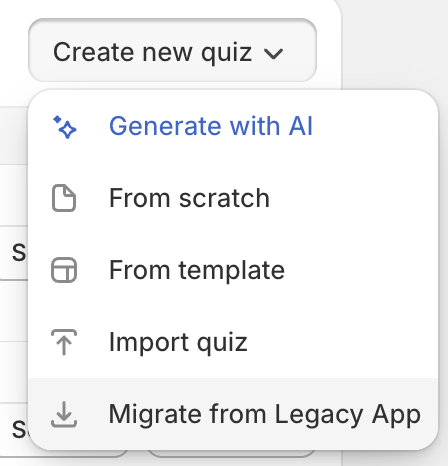
-
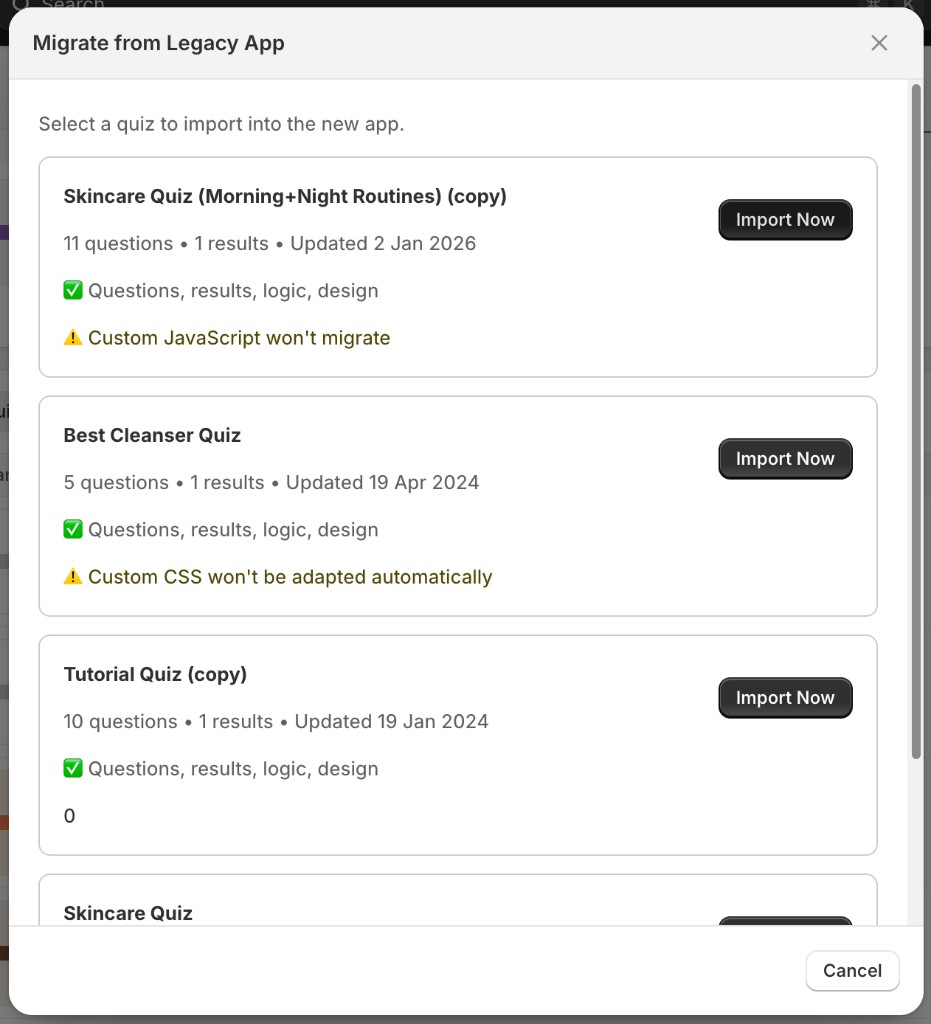
Find your quiz in the list and read its row. Each row carries the quiz name, how many questions and results pages it holds, and when it was last edited. A green tick marks what will migrate, and a yellow notice marks anything that will not.
-
Click
Import Nowbeside it. -
Check that the quiz opens in the Quiz builder with
(Imported from V1)after its name. That suffix is how you tell the copy from anything you build yourself.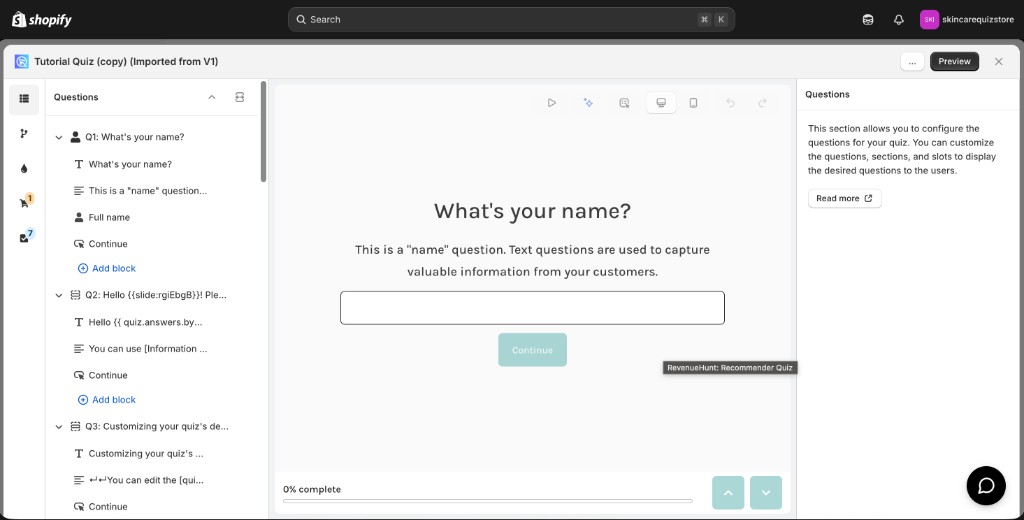
You run this from the other side
Migrate from Legacy App sits in the Built for Shopify dashboard, not in this one.
Select Switch to Built for Shopify in the Shopify side menu first, then follow the Shopify tab. Your progress is saved in both versions. See how to install the app.
Not part of this version
Migrate from Legacy App moves a quiz between the two Shopify apps, so it has nothing to do here.
To move a quiz to a different store, see how to copy the quiz from one store to another.
Not part of this version
Migrate from Legacy App moves a quiz between the two Shopify apps, so it has nothing to do here.
To move a quiz to a different store, see how to copy the quiz from one store to another.
Not part of this version
Migrate from Legacy App moves a quiz between the two Shopify apps, so it has nothing to do here.
To move a quiz to a different store, see how to copy the quiz from one store to another.
Not part of this version
Migrate from Legacy App moves a quiz between the two Shopify apps, so it has nothing to do here.
To move a quiz to a different store, see how to copy the quiz from one store to another.
What migrates, and what needs a hand
| What migrates | Status |
|---|---|
| Questions and answer choices | Fully migrated |
| Results pages and their content | Fully migrated |
| Conditional logic | Fully migrated |
| Quiz design and styling | Fully migrated |
| Product links | Should carry over, worth checking |
| Custom CSS | Comes across, but may not apply |
| Custom JavaScript | Does not migrate |
| Third-party integrations | Have to be reconnected |
Most quizzes come across cleanly. The four below are the ones worth a look afterwards.
Custom CSS
Your CSS comes across as written. The Built for Shopify app is built on a different HTML structure than the legacy one. Rules that targeted legacy elements may no longer match anything.
Check the design before you publish
Open the quiz preview. Wrong colors, a broken layout or a missing font mean the selectors no longer match. Update them for the new structure, or rebuild the style in the Quiz design tab. See how to customize the quiz design.
Custom JavaScript
Custom JavaScript does not migrate. The Built for Shopify app has a different JavaScript API, so a legacy script cannot be carried over.
Rewrite your scripts
Custom events, DOM changes and callback functions all have to be written again against the new API. See how to add JavaScript to the quiz.
Product links
Product links are tied to Shopify product IDs, and those are the same in both versions on the same store. They should carry over.
Check them anyway
Open your results page and confirm the products you expect are still linked. Link any that are missing in the Results page.
Third-party integrations
A connection to a third-party tool, such as Klaviyo, Mailchimp or a webhook, is not re-established by the import. Reconnect the ones you need in Quiz settings > Integrations.
Once you have switched
This applies to the quiz after it has been imported into the Built for Shopify version.
Not part of this version
Importing a legacy quiz happens between the two Shopify apps.
Not part of this version
Importing a legacy quiz happens between the two Shopify apps.
Not part of this version
Importing a legacy quiz happens between the two Shopify apps.
Not part of this version
Importing a legacy quiz happens between the two Shopify apps.
After the import
-
Take the quiz through with
Preview, from the first question to the results page. -
Reconnect your integrations in Quiz settings > Integrations.
-
Publish the quiz. See how to publish a quiz on your website.
-
Archive or delete the legacy quiz, once you are happy with the new one.
The base quiz always imports
Custom CSS, JavaScript or an unusual setup will not stop an import. Questions, logic and results pages always come across. A warning tells you which advanced feature needs work by hand, not that the import has failed.
Something did not come across
Once you have switched
This applies to the quiz after it has been imported into the Built for Shopify version.
Not part of this version
Importing a legacy quiz happens between the two Shopify apps.
Not part of this version
Importing a legacy quiz happens between the two Shopify apps.
Not part of this version
Importing a legacy quiz happens between the two Shopify apps.
Not part of this version
Importing a legacy quiz happens between the two Shopify apps.
This article explains how to import a legacy Shopify quiz into the Built for Shopify app, and what to check once it lands.