How to Set Up a Fixed Recommendations Quiz
A fixed recommendation shows the products you choose, rather than the products the quiz scores. Build a section for each outcome and fill it with the products you want. Logic then decides which section or results page each customer sees.
This suits a quiz with complex branching.
Use this method for:
- Quizzes that show the same product(s) to everyone regardless of answers
- Quizzes with multiple very precise outcomes and product recommendations
- Quizzes with complex branching
- Quizzes that require a lot of logic conditions and custom text
Recognizing a product matrix
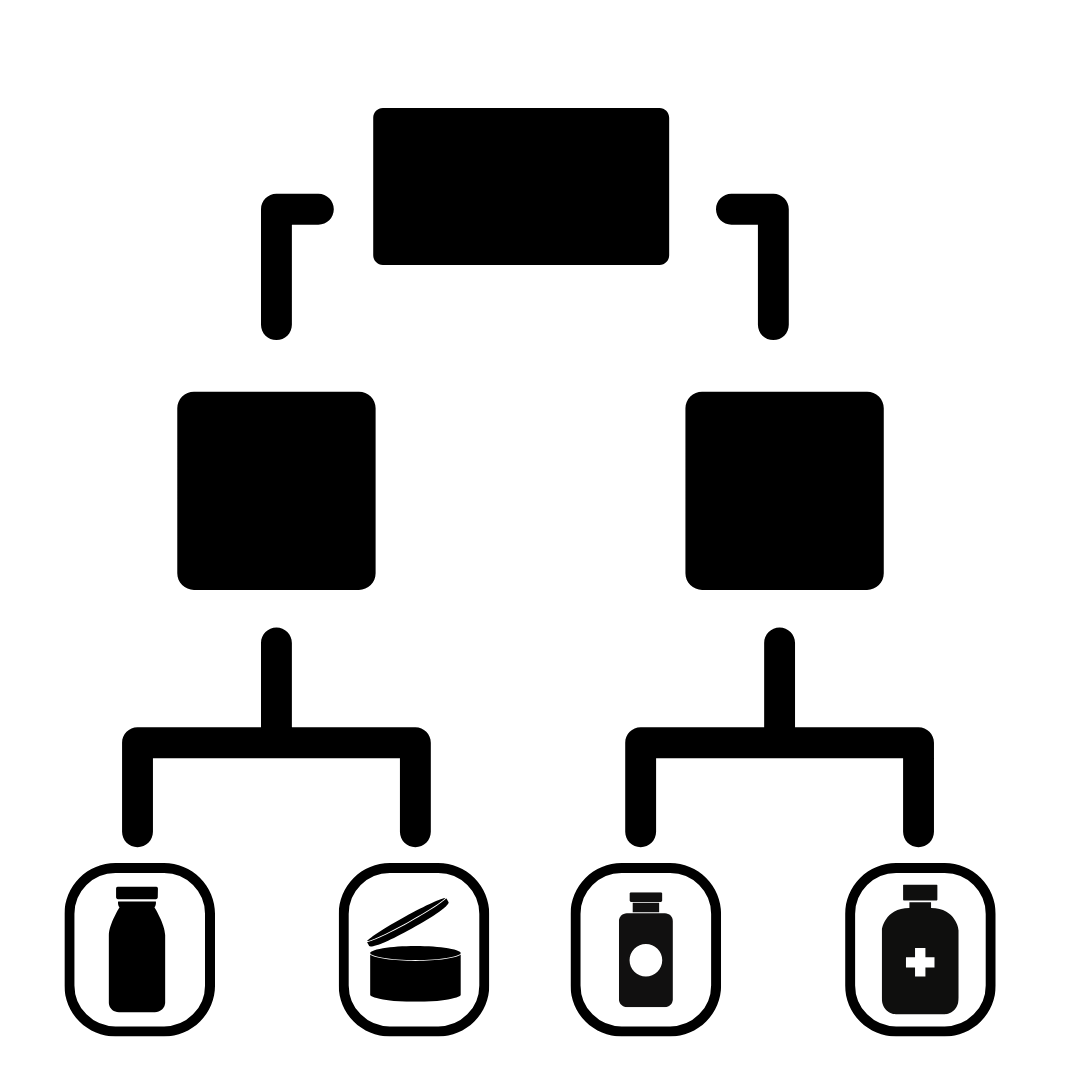
If your product matrix looks like this one, this method is the one you want.
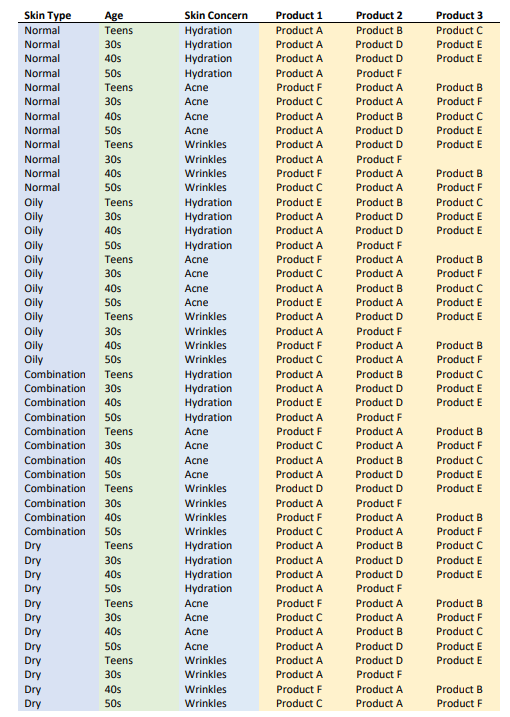
There are three ways to build one. They differ in how many results pages you need, and in which kind of logic decides what the customer sees.
| Method | Use it when |
|---|---|
| Always the same recommendations | Every customer sees the same products, whatever they answered |
| Fixed recommendations with display logic and one results page | One results page holds a section per outcome, and display logic shows the matching one |
| Fixed recommendations with display logic and multiple results pages | Each outcome gets its own results page, and jump logic sends the customer to it |
Always the same recommendations
A fixed section shows the same products on the results page, whatever the customer answered.
-
Add a Product block to the Results page.
-
Set its
Recommendation systemtoFixed Recommendations. -
Open
Slot 1, go toFixed recommended itemsand select the products to show. -
Set
Max. recommended itemsto the number of products you chose. -
Click
Save. -
Preview the quiz and check that the products appear.
This version has no fixed recommendations
This version of the app cannot pin products to the Results Page. Two workarounds get the same result. Use whichever fits your quiz.
Option 1: show the same products to everyone
Every customer sees the same products, whatever they answered.
-
Go to the Link Products section in the Quiz Builder.
-
Choose any question in your quiz.
-
Link the products you want to pin to every choice in that question.
Why this works
Every choice upvotes the same products, so those products collect upvotes whatever the customer picks. They then sit at the top of the Results Page, as the most upvoted products.
Option 2: give the fixed products their own block
This keeps the scored recommendations, and adds a separate block for the pinned products.
-
Create a collection in your Shopify store holding the products you always want shown.
-
Go to the Success Checklist in the app and click
Sync Catalog. -
Go to Link Products in the Quiz Builder.
-
Select any question, and link the new collection to every choice. Those products then collect upvotes whatever the customer picks.
-
Add two blocks to your Results Page:
- Product Block - shows the dynamic recommendations, which change with the answers.
- Slot Block - shows the most upvoted products from the collection linked to that slot.
-
Set the title and description of the Slot Block, and choose how many products it shows.
-
Link your new collection in the
Included Collectionsfield of the Slot Block. -
Save the quiz.
-
Take the quiz several times, with different answers each time.
-
Check that the dynamic recommendations change, and that the fixed products stay in their slot.
This version has no fixed recommendations
This version of the app cannot pin products to the Results Page. Two workarounds get the same result. Use whichever fits your quiz.
Option 1: show the same products to everyone
Every customer sees the same products, whatever they answered.
-
Go to the Link Products section in the Quiz Builder.
-
Choose any question in your quiz.
-
Link the products you want to pin to every choice in that question.
Why this works
Every choice upvotes the same products, so those products collect upvotes whatever the customer picks. They then sit at the top of the Results Page, as the most upvoted products.
Option 2: give the fixed products their own block
This keeps the scored recommendations, and adds a separate block for the pinned products.
-
Create a category in your WooCommerce store holding the products you always want shown.
-
Go to the Success Checklist in the app and click
Sync Catalog. -
Go to Link Products in the Quiz Builder.
-
Select any question, and link the new category to every choice. Those products then collect upvotes whatever the customer picks.
-
Add two blocks to your Results Page:
- Product Block - shows the dynamic recommendations, which change with the answers.
- Slot Block - shows the most upvoted products from the category linked to that slot.
-
Set the title and description of the Slot Block, and choose how many products it shows.
-
Link your new category in the
Included Collectionsfield of the Slot Block. -
Save the quiz.
-
Take the quiz several times, with different answers each time.
-
Check that the dynamic recommendations change, and that the fixed products stay in their slot.
This version has no fixed recommendations
This version of the app cannot pin products to the Results Page. Two workarounds get the same result. Use whichever fits your quiz.
Option 1: show the same products to everyone
Every customer sees the same products, whatever they answered.
-
Go to the Link Products section in the Quiz Builder.
-
Choose any question in your quiz.
-
Link the products you want to pin to every choice in that question.
Why this works
Every choice upvotes the same products, so those products collect upvotes whatever the customer picks. They then sit at the top of the Results Page, as the most upvoted products.
Option 2: give the fixed products their own block
This keeps the scored recommendations, and adds a separate block for the pinned products.
-
Create a category in your Magento store holding the products you always want shown.
-
Go to the Success Checklist in the app and click
Sync Catalog. -
Go to Link Products in the Quiz Builder.
-
Select any question, and link the new category to every choice. Those products then collect upvotes whatever the customer picks.
-
Add two blocks to your Results Page:
- Product Block - shows the dynamic recommendations, which change with the answers.
- Slot Block - shows the most upvoted products from the category linked to that slot.
-
Set the title and description of the Slot Block, and choose how many products it shows.
-
Link your new category in the
Included Collectionsfield of the Slot Block. -
Save the quiz.
-
Take the quiz several times, with different answers each time.
-
Check that the dynamic recommendations change, and that the fixed products stay in their slot.
This version has no fixed recommendations
This version of the app cannot pin products to the Results Page. Two workarounds get the same result. Use whichever fits your quiz.
Option 1: show the same products to everyone
Every customer sees the same products, whatever they answered.
-
Go to the Link Products section in the Quiz Builder.
-
Choose any question in your quiz.
-
Link the products you want to pin to every choice in that question.
Why this works
Every choice upvotes the same products, so those products collect upvotes whatever the customer picks. They then sit at the top of the Results Page, as the most upvoted products.
Option 2: give the fixed products their own block
This keeps the scored recommendations, and adds a separate block for the pinned products.
-
Create a category in your BigCommerce store holding the products you always want shown.
-
Go to the Success Checklist in the app and click
Sync Catalog. -
Go to Link Products in the Quiz Builder.
-
Select any question, and link the new category to every choice. Those products then collect upvotes whatever the customer picks.
-
Add two blocks to your Results Page:
- Product Block - shows the dynamic recommendations, which change with the answers.
- Slot Block - shows the most upvoted products from the category linked to that slot.
-
Set the title and description of the Slot Block, and choose how many products it shows.
-
Link your new category in the
Included Collectionsfield of the Slot Block. -
Save the quiz.
-
Take the quiz several times, with different answers each time.
-
Check that the dynamic recommendations change, and that the fixed products stay in their slot.
This version has no fixed recommendations
This version of the app cannot pin products to the Results Page. Two workarounds get the same result. Use whichever fits your quiz.
Option 1: show the same products to everyone
Every customer sees the same products, whatever they answered.
-
Go to the Link Products section in the Quiz Builder.
-
Choose any question in your quiz.
-
Link the products you want to pin to every choice in that question.
Why this works
Every choice upvotes the same products, so those products collect upvotes whatever the customer picks. They then sit at the top of the Results Page, as the most upvoted products.
Option 2: give the fixed products their own block
This keeps the scored recommendations, and adds a separate block for the pinned products.
-
Create a collection in your Standalone account holding the products you always want shown.
-
Go to the Success Checklist in the app and click
Sync Catalog. -
Go to Link Products in the Quiz Builder.
-
Select any question, and link the new collection to every choice. Those products then collect upvotes whatever the customer picks.
-
Add two blocks to your Results Page:
- Product Block - shows the dynamic recommendations, which change with the answers.
- Slot Block - shows the most upvoted products from the collection linked to that slot.
-
Set the title and description of the Slot Block, and choose how many products it shows.
-
Link your new collection in the
Included Collectionsfield of the Slot Block. -
Save the quiz.
-
Take the quiz several times, with different answers each time.
-
Check that the dynamic recommendations change, and that the fixed products stay in their slot.
Fixed recommendations with display logic and one results page
One results page holds the text and the products for every outcome. Display Logic then shows the ones that match the answers, and hides the rest.

-
Open the Quiz builder and add a
Multiple-choice questionabout the skin type. Give it the choices Dry, Normal, Oily and Combination-type skin.Helping the customer choose
Use the images or text blocks to help customers recognize their own skin type.
-
Go to the Results page tab and click
+ Add section. Add one section per skin type. -
Add content blocks to each section, describing that skin type and its challenges.
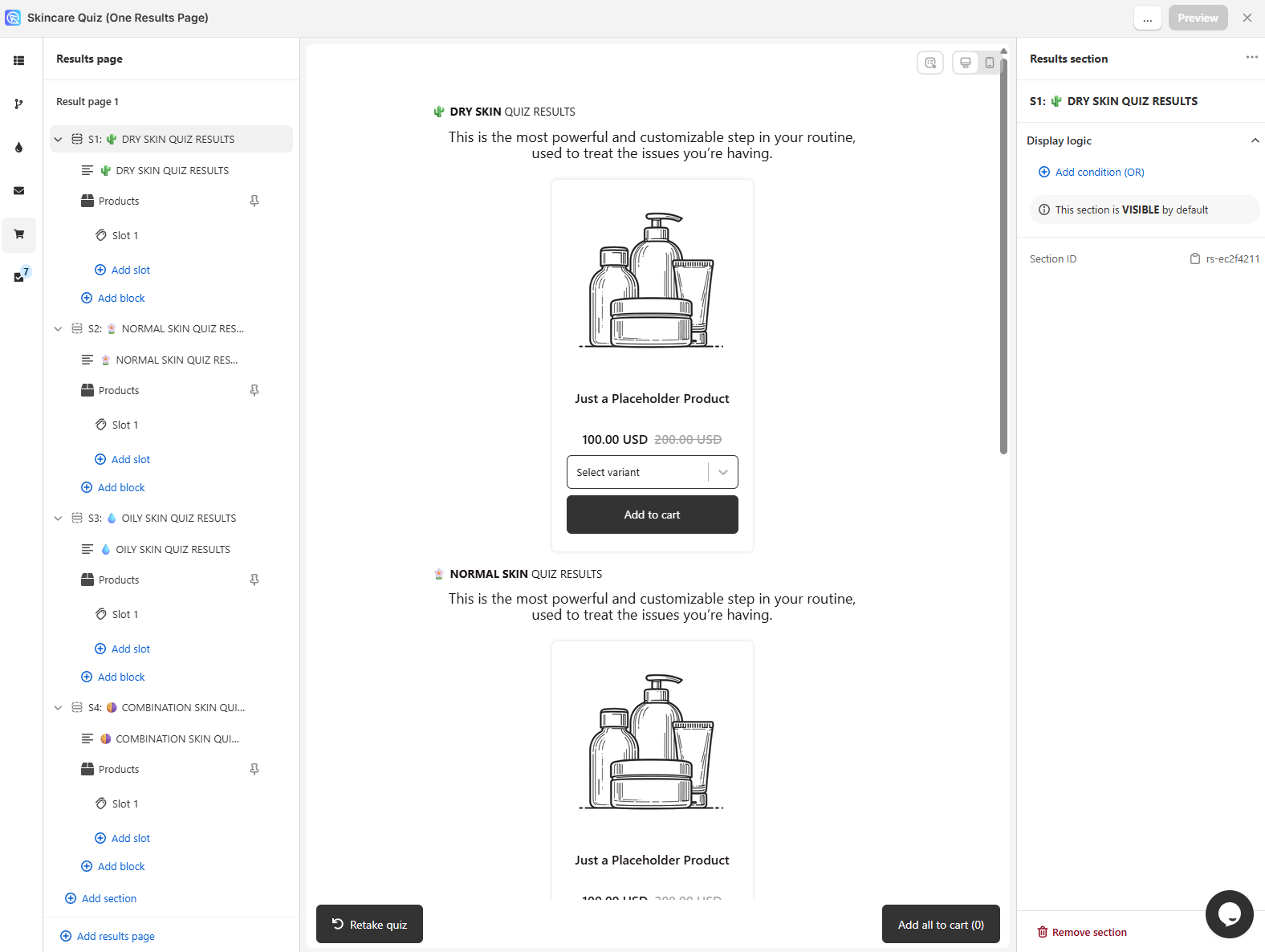
Text for each skin type
- You have Dry Skin: the itchiness, the tightness, the dryness. Your skin wants a routine that is deeply nourishing and hydrating.
- You have Normal Skin: your skin feels balanced, just like you. It has no major issues, and it still deserves care. Your skin wants a routine that keeps that balance.
- You have Oily Skin: Your skin is oh-so shiny, but with excess oil instead of your natural glow! Your skin wants a routine that reduces oil to provide balance and clarity, all while giving your skin the proper amount of light hydration.
- You have Combination-Type Skin: Your skin has multiple things going on at once: you experience your T-zone to be on the oily side, while the rest of your face is either normal or dry.
-
Add a
Product Blockto each section, holding the products for that skin type. -
Set the
Recommendation systemtoFixed Recommendationsin the Product block settings.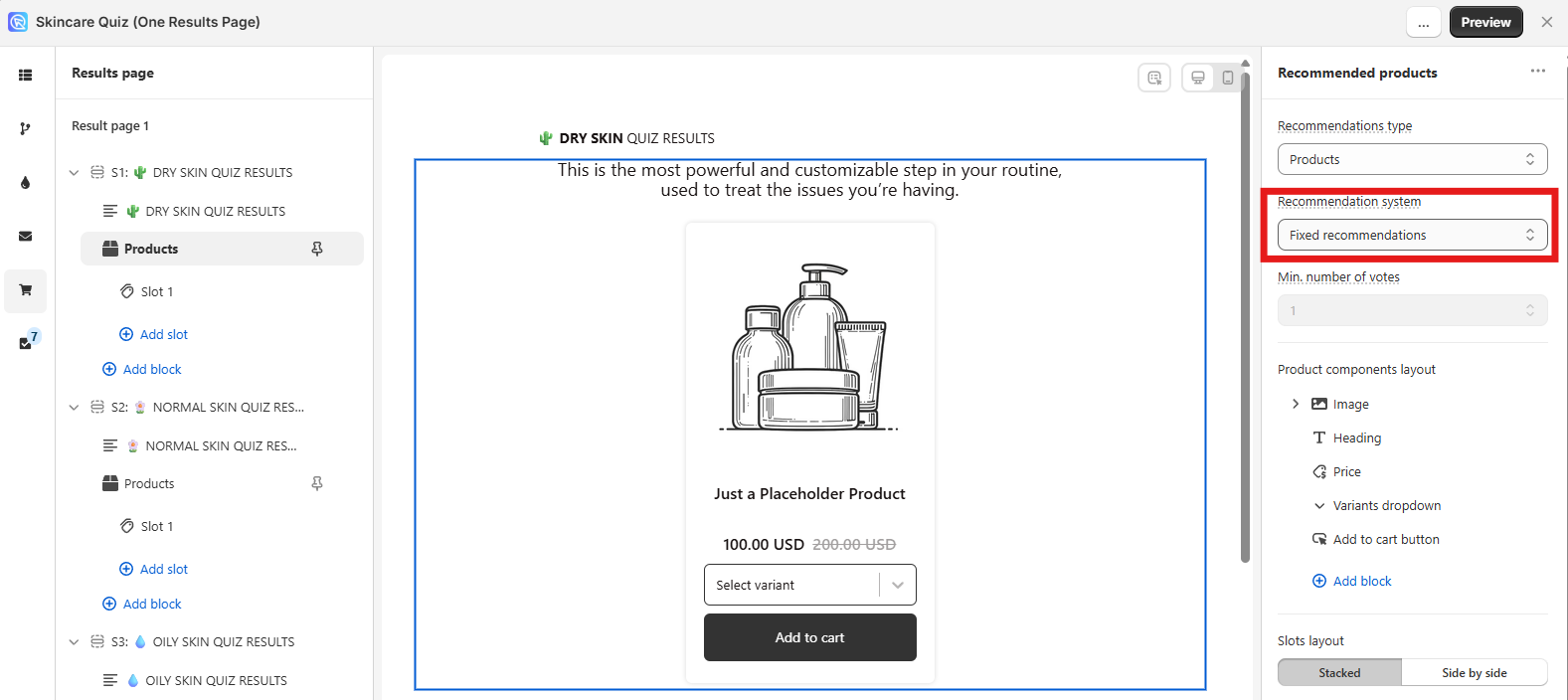
-
In the
Slotsettings, set the maximum number of products and choose which ones to show.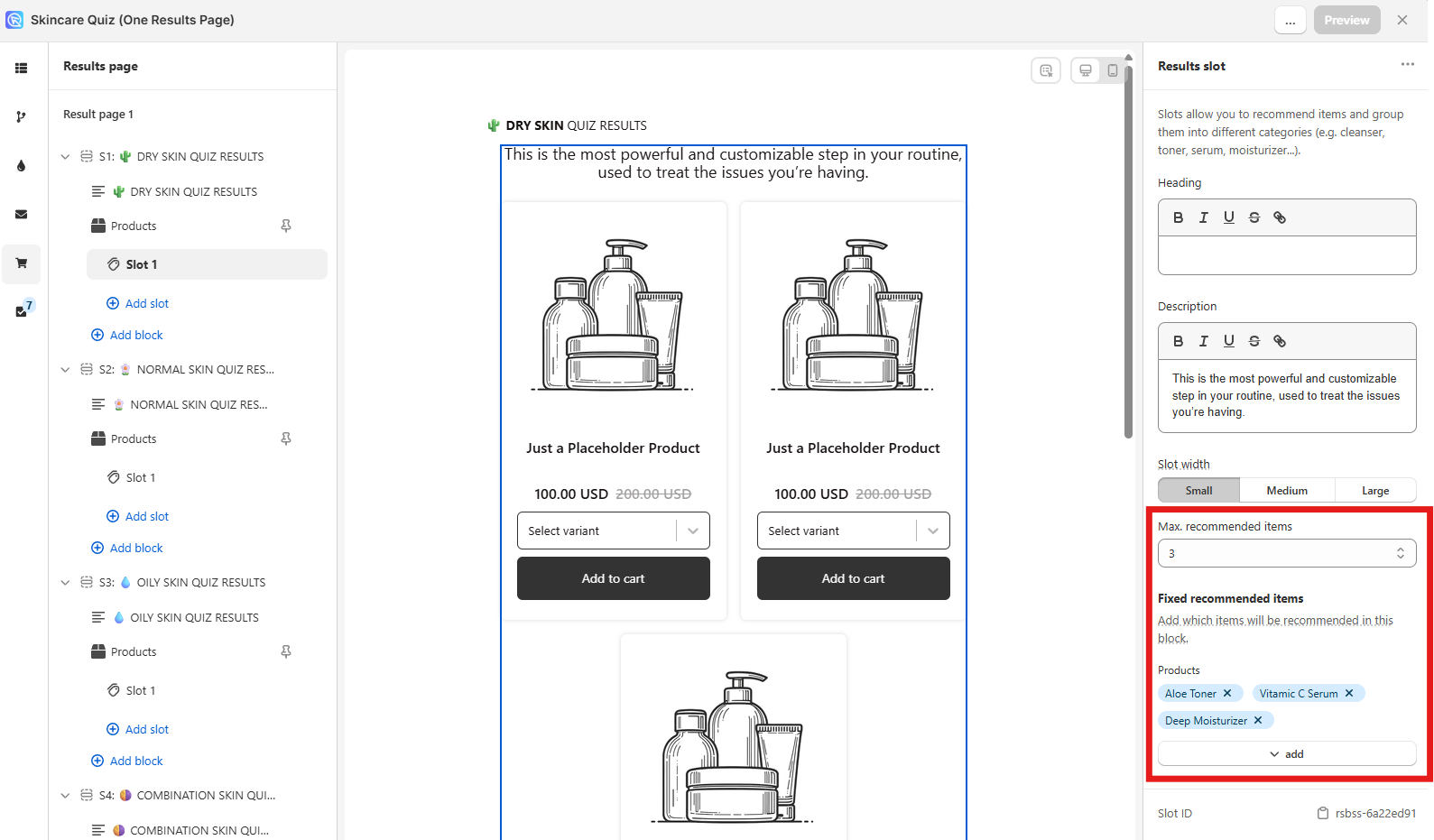
-
Select a content block and find
Display logicin the right-hand menu. -
Click
+ Add condition (OR)and write an IF-THEN rule that shows the block for one skin type.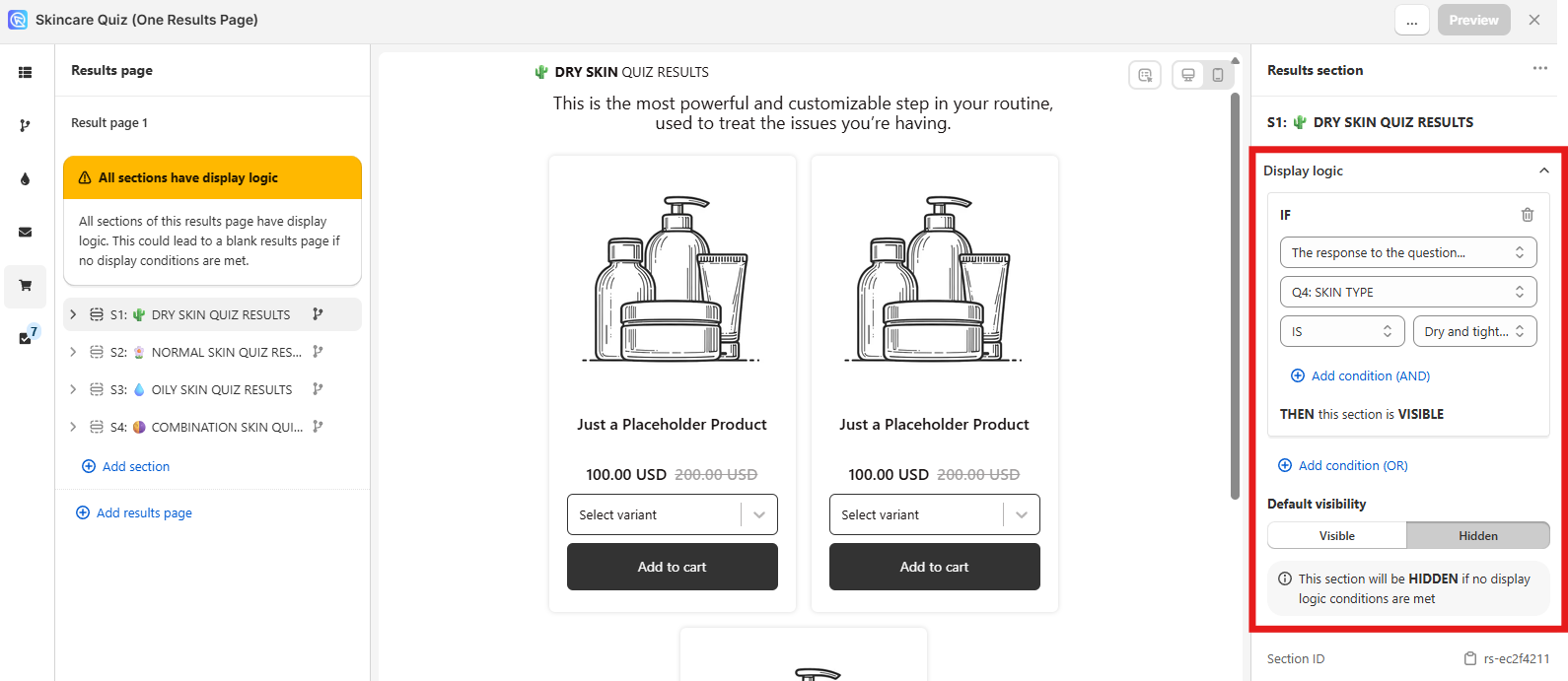
Without display logic, every block shows
Without Display logic, every block appears one after another on the Results page, whatever the customer answered.
-
Repeat for every block that belongs to one skin type only.
-
Click the top-right
Savebutton to update the preview and the live quiz.
This version cannot pin products
This version cannot pin products to a block. Use Display Logic for the text, and one of the workarounds in Always the same recommendations for the products.
-
Open the Quiz Builder and add a
Multiple-choice questionabout the skin type. Give it the choices Dry, Normal, Oily and Combination-type skin.Helping the customer choose
Use the description box in
Question Settings -> Show Descriptionto help customers recognize their own skin type. -
Go to the Results Page and click the
+sign. -
Select
Content Blockfrom the list. -
Write the text for one skin type in the block.
Text for each skin type
- You have Dry Skin: the itchiness, the tightness, the dryness. Your skin wants a routine that is deeply nourishing and hydrating.
- You have Normal Skin: your skin feels balanced, just like you. It has no major issues, and it still deserves care. Your skin wants a routine that keeps that balance.
- You have Oily Skin: Your skin is oh-so shiny, but with excess oil instead of your natural glow! Your skin wants a routine that reduces oil to provide balance and clarity, all while giving your skin the proper amount of light hydration.
- You have Combination-Type Skin: Your skin has multiple things going on at once: you experience your T-zone to be on the oily side, while the rest of your face is either normal or dry.
Formatting the text
Make the heading stand out with Markdown. A
#before a line turns it into a heading, and**around text makes it bold. -
Repeat for every skin type.
-
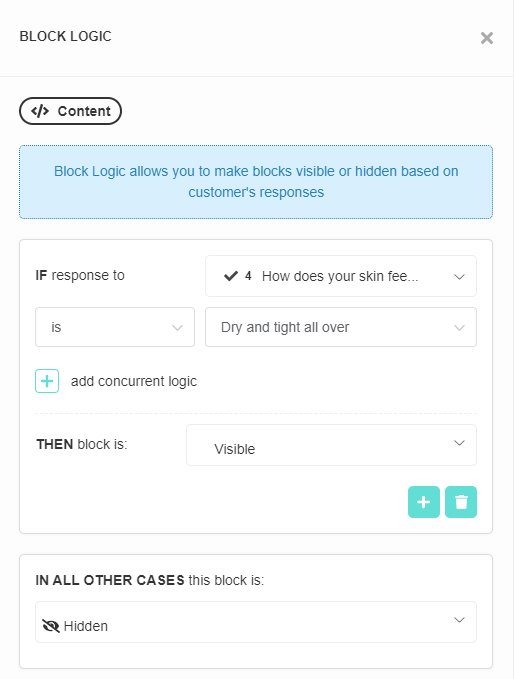
Select a content block, click
display logic, thenadd display logic. -
Write an IF-THEN rule that shows the block for one skin type.
Without Display Logic, every block shows
Without Display Logic, every block appears one after another on the Results Page, whatever the customer answered.
-
Repeat for every content block.
-
Click the top-right
Publishbutton to update the preview and the live quiz.
This version cannot pin products
This version cannot pin products to a block. Use Display Logic for the text, and one of the workarounds in Always the same recommendations for the products.
-
Open the Quiz Builder and add a
Multiple-choice questionabout the skin type. Give it the choices Dry, Normal, Oily and Combination-type skin.Helping the customer choose
Use the description box in
Question Settings -> Show Descriptionto help customers recognize their own skin type. -
Go to the Results Page and click the
+sign. -
Select
Content Blockfrom the list. -
Write the text for one skin type in the block.
Text for each skin type
- You have Dry Skin: the itchiness, the tightness, the dryness. Your skin wants a routine that is deeply nourishing and hydrating.
- You have Normal Skin: your skin feels balanced, just like you. It has no major issues, and it still deserves care. Your skin wants a routine that keeps that balance.
- You have Oily Skin: Your skin is oh-so shiny, but with excess oil instead of your natural glow! Your skin wants a routine that reduces oil to provide balance and clarity, all while giving your skin the proper amount of light hydration.
- You have Combination-Type Skin: Your skin has multiple things going on at once: you experience your T-zone to be on the oily side, while the rest of your face is either normal or dry.
Formatting the text
Make the heading stand out with Markdown. A
#before a line turns it into a heading, and**around text makes it bold. -
Repeat for every skin type.
-
Select a content block, click
display logic, thenadd display logic. -
Write an IF-THEN rule that shows the block for one skin type.
Without Display Logic, every block shows
Without Display Logic, every block appears one after another on the Results Page, whatever the customer answered.
-
Repeat for every content block.
-
Click the top-right
Publishbutton to update the preview and the live quiz.
This version cannot pin products
This version cannot pin products to a block. Use Display Logic for the text, and one of the workarounds in Always the same recommendations for the products.
-
Open the Quiz Builder and add a
Multiple-choice questionabout the skin type. Give it the choices Dry, Normal, Oily and Combination-type skin.Helping the customer choose
Use the description box in
Question Settings -> Show Descriptionto help customers recognize their own skin type. -
Go to the Results Page and click the
+sign. -
Select
Content Blockfrom the list. -
Write the text for one skin type in the block.
Text for each skin type
- You have Dry Skin: the itchiness, the tightness, the dryness. Your skin wants a routine that is deeply nourishing and hydrating.
- You have Normal Skin: your skin feels balanced, just like you. It has no major issues, and it still deserves care. Your skin wants a routine that keeps that balance.
- You have Oily Skin: Your skin is oh-so shiny, but with excess oil instead of your natural glow! Your skin wants a routine that reduces oil to provide balance and clarity, all while giving your skin the proper amount of light hydration.
- You have Combination-Type Skin: Your skin has multiple things going on at once: you experience your T-zone to be on the oily side, while the rest of your face is either normal or dry.
Formatting the text
Make the heading stand out with Markdown. A
#before a line turns it into a heading, and**around text makes it bold. -
Repeat for every skin type.
-
Select a content block, click
display logic, thenadd display logic. -
Write an IF-THEN rule that shows the block for one skin type.
Without Display Logic, every block shows
Without Display Logic, every block appears one after another on the Results Page, whatever the customer answered.
-
Repeat for every content block.
-
Click the top-right
Publishbutton to update the preview and the live quiz.
This version cannot pin products
This version cannot pin products to a block. Use Display Logic for the text, and one of the workarounds in Always the same recommendations for the products.
-
Open the Quiz Builder and add a
Multiple-choice questionabout the skin type. Give it the choices Dry, Normal, Oily and Combination-type skin.Helping the customer choose
Use the description box in
Question Settings -> Show Descriptionto help customers recognize their own skin type. -
Go to the Results Page and click the
+sign. -
Select
Content Blockfrom the list. -
Write the text for one skin type in the block.
Text for each skin type
- You have Dry Skin: the itchiness, the tightness, the dryness. Your skin wants a routine that is deeply nourishing and hydrating.
- You have Normal Skin: your skin feels balanced, just like you. It has no major issues, and it still deserves care. Your skin wants a routine that keeps that balance.
- You have Oily Skin: Your skin is oh-so shiny, but with excess oil instead of your natural glow! Your skin wants a routine that reduces oil to provide balance and clarity, all while giving your skin the proper amount of light hydration.
- You have Combination-Type Skin: Your skin has multiple things going on at once: you experience your T-zone to be on the oily side, while the rest of your face is either normal or dry.
Formatting the text
Make the heading stand out with Markdown. A
#before a line turns it into a heading, and**around text makes it bold. -
Repeat for every skin type.
-
Select a content block, click
display logic, thenadd display logic. -
Write an IF-THEN rule that shows the block for one skin type.
Without Display Logic, every block shows
Without Display Logic, every block appears one after another on the Results Page, whatever the customer answered.
-
Repeat for every content block.
-
Click the top-right
Publishbutton to update the preview and the live quiz.
This version cannot pin products
This version cannot pin products to a block. Use Display Logic for the text, and one of the workarounds in Always the same recommendations for the products.
-
Open the Quiz Builder and add a
Multiple-choice questionabout the skin type. Give it the choices Dry, Normal, Oily and Combination-type skin.Helping the customer choose
Use the description box in
Question Settings -> Show Descriptionto help customers recognize their own skin type. -
Go to the Results Page and click the
+sign. -
Select
Content Blockfrom the list. -
Write the text for one skin type in the block.
Text for each skin type
- You have Dry Skin: the itchiness, the tightness, the dryness. Your skin wants a routine that is deeply nourishing and hydrating.
- You have Normal Skin: your skin feels balanced, just like you. It has no major issues, and it still deserves care. Your skin wants a routine that keeps that balance.
- You have Oily Skin: Your skin is oh-so shiny, but with excess oil instead of your natural glow! Your skin wants a routine that reduces oil to provide balance and clarity, all while giving your skin the proper amount of light hydration.
- You have Combination-Type Skin: Your skin has multiple things going on at once: you experience your T-zone to be on the oily side, while the rest of your face is either normal or dry.
Formatting the text
Make the heading stand out with Markdown. A
#before a line turns it into a heading, and**around text makes it bold. -
Repeat for every skin type.
-
Select a content block, click
display logic, thenadd display logic. -
Write an IF-THEN rule that shows the block for one skin type.
Without Display Logic, every block shows
Without Display Logic, every block appears one after another on the Results Page, whatever the customer answered.
-
Repeat for every content block.
-
Click the top-right
Publishbutton to update the preview and the live quiz.
Fixed recommendations with display logic and multiple results pages
Give each results page its own fixed products and its own text. Jump Logic then sends each customer to the right page.
How this differs from the previous method
The previous method uses one results page holding several blocks, and Display Logic shows or hides them. This method uses several results pages, and Jump Logic decides which one the customer reaches. The work is the same either way. Only the place you put the logic changes.
-
Open the Quiz builder and add a
Multiple-choice questionabout the skin type. Give it the choices Dry, Normal, Oily and Combination-type skin.Helping the customer choose
Use the images or text blocks to help customers recognize their own skin type.
-
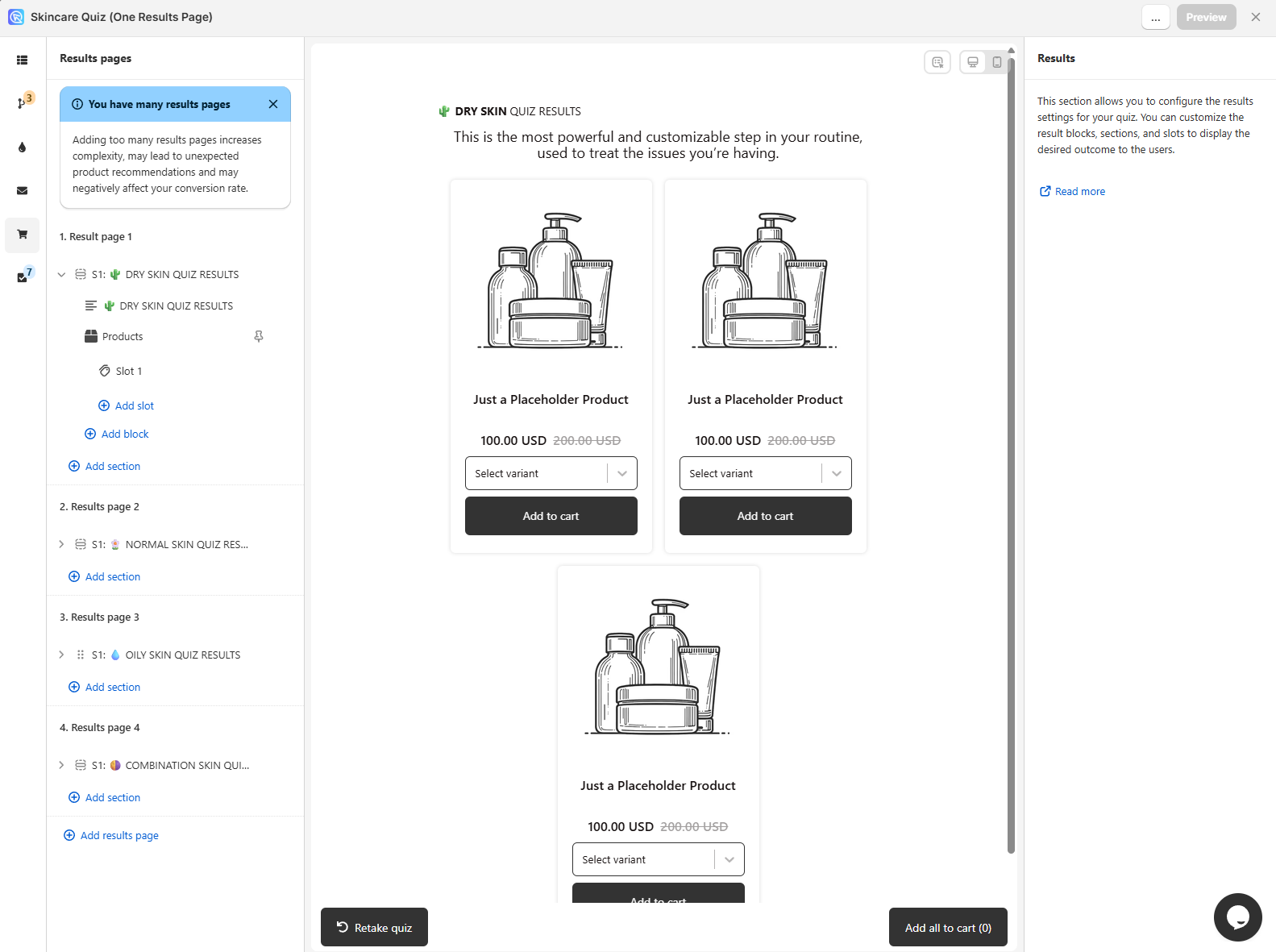
Go to the Results page tab and click
+ Add Results Page. Create one results page per skin type. -
Add content blocks to each results page, describing that skin type.
Text for each skin type
- You have Dry Skin: the itchiness, the tightness, the dryness. Your skin wants a routine that is deeply nourishing and hydrating.
- You have Normal Skin: your skin feels balanced, just like you. It has no major issues, and it still deserves care. Your skin wants a routine that keeps that balance.
- You have Oily Skin: Your skin is oh-so shiny, but with excess oil instead of your natural glow! Your skin wants a routine that reduces oil to provide balance and clarity, all while giving your skin the proper amount of light hydration.
- You have Combination-Type Skin: Your skin has multiple things going on at once: you experience your T-zone to be on the oily side, while the rest of your face is either normal or dry.
-
Add a
Products Blockto each results page, holding the products for that skin type. -
Set the
Recommendation systemtoFixed Recommendationsin the Product block settings.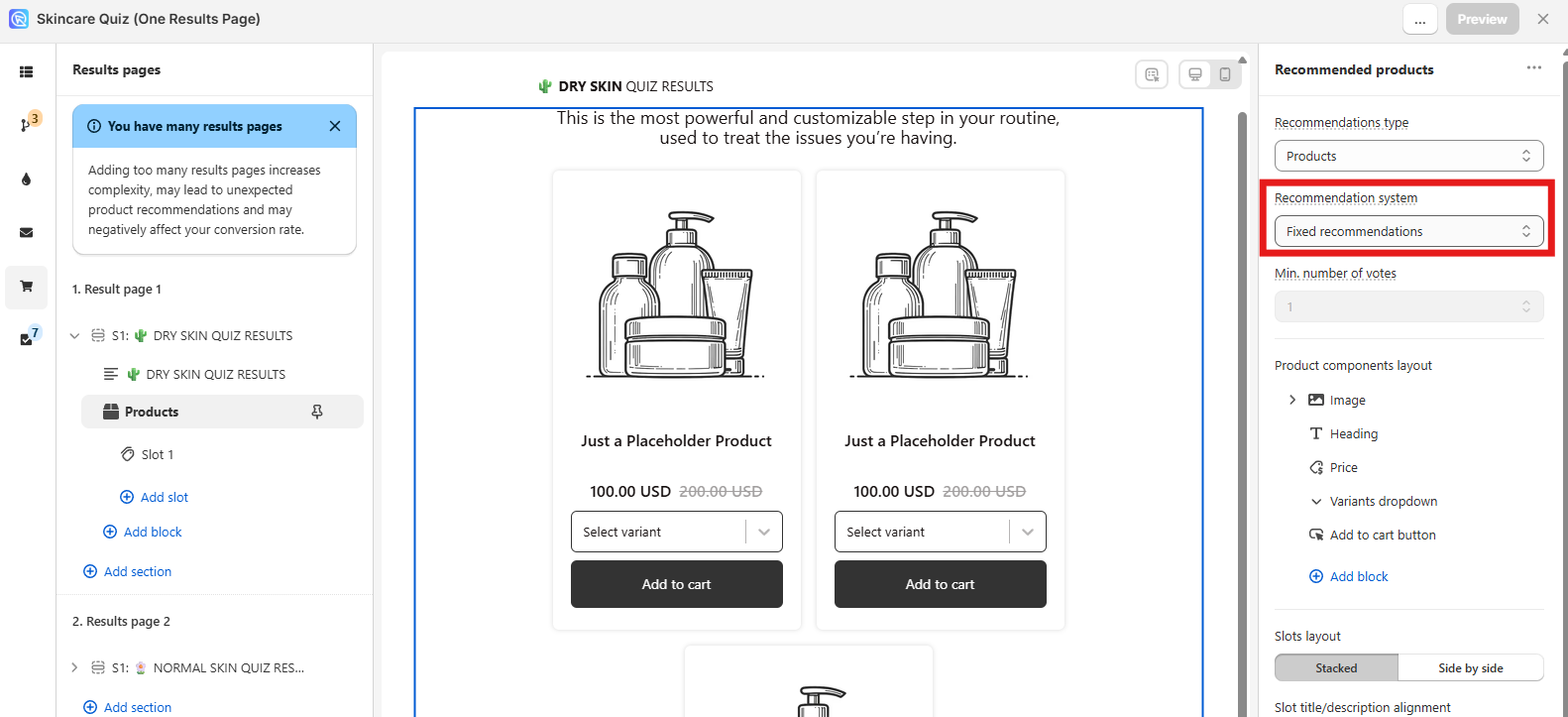
-
In the
Slotsettings, set the maximum number of products and select the ones to show.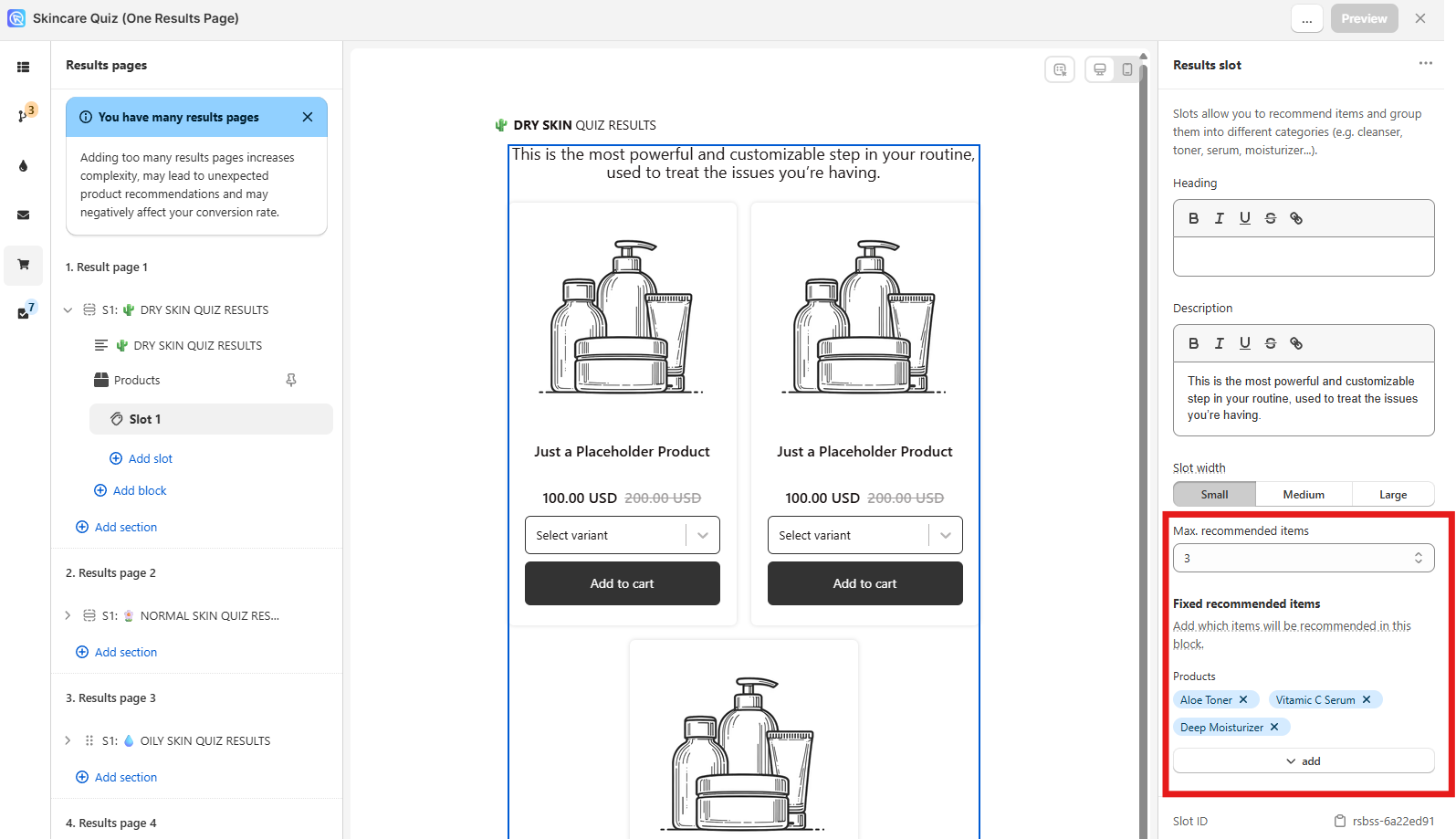
-
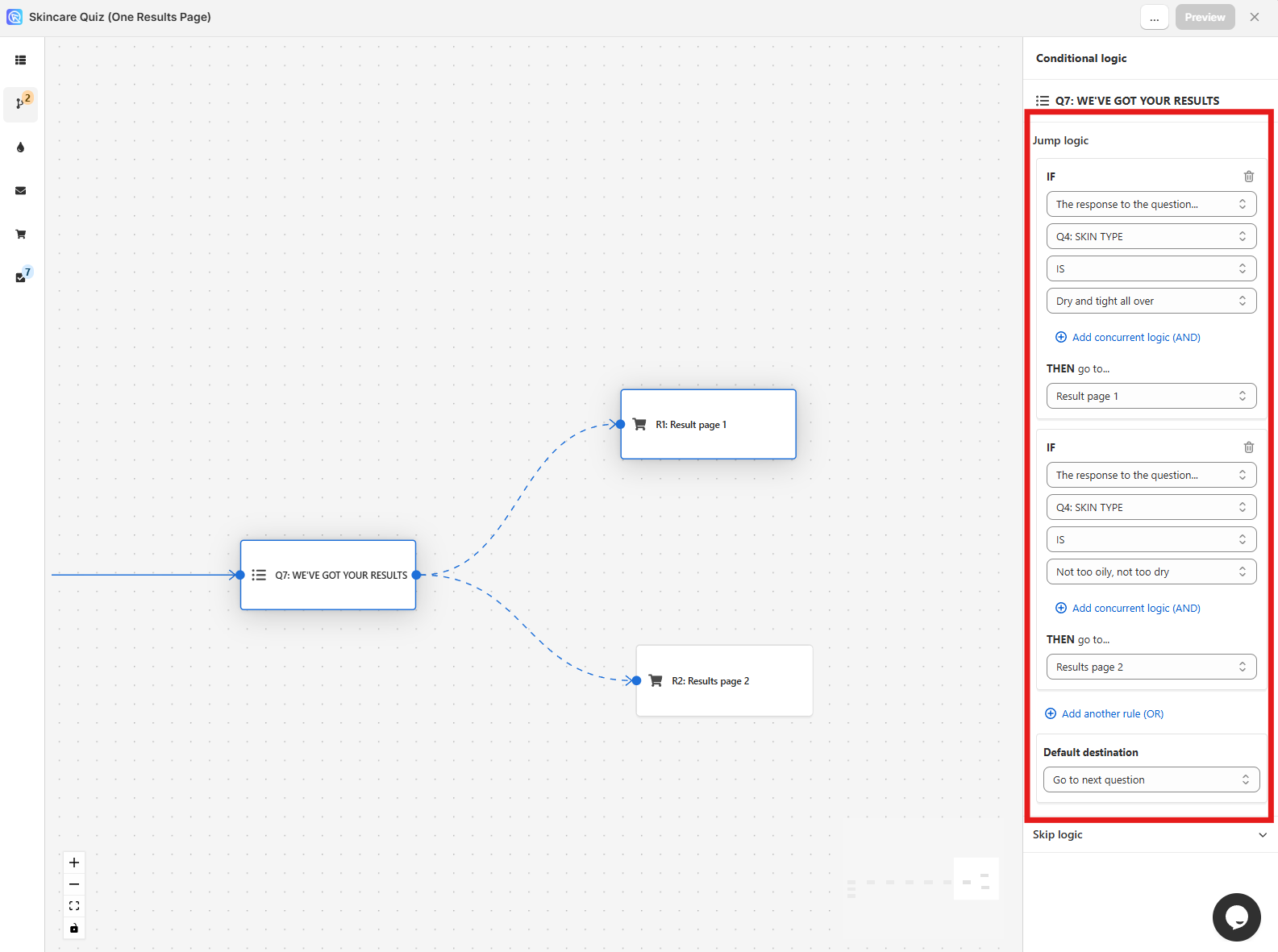
Go to the Conditional logic tab and pick the last question in the quiz.
-
Add a Jump logic rule that sends one skin type to its own results page. Click
+ Add another rule (OR)for each further rule.A rule that routes one choice
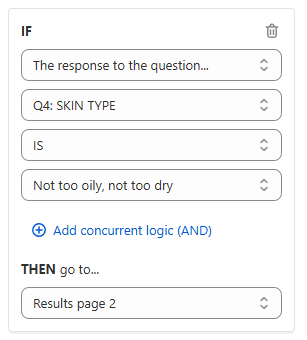
A customer who picks "Not too oily..." in Question 4, "SKIN TYPE", goes to Results page 2.
-
Repeat until every choice in the skin type question has a rule.
-
Click the top-right
Savebutton to update the preview and the live quiz.
-
Open the Quiz Builder and add the
Multiple-choice questionsthat ask about the customer's needs.Helping the customer choose
Use the description box in
Question Settings -> Show Descriptionto help customers recognize their own skin type. -
Go to the Results Page tab and click the
+sign. Add one results page per outcome, such as one per skin type.Working with several results pages
-
Add a Product Block to each results page.
-
Write the text for that outcome on each results page.
Text for each skin type
- You have Dry Skin: the itchiness, the tightness, the dryness. Your skin wants a routine that is deeply nourishing and hydrating.
- You have Normal Skin: your skin feels balanced, just like you. It has no major issues, and it still deserves care. Your skin wants a routine that keeps that balance.
- You have Oily Skin: Your skin is oh-so shiny, but with excess oil instead of your natural glow! Your skin wants a routine that reduces oil to provide balance and clarity, all while giving your skin the proper amount of light hydration.
- You have Combination-Type Skin: Your skin has multiple things going on at once: you experience your T-zone to be on the oily side, while the rest of your face is either normal or dry.
-
Use Jump Logic to branch the quiz. Draw the branches first, then build them.
Stage 1, the logic tree:
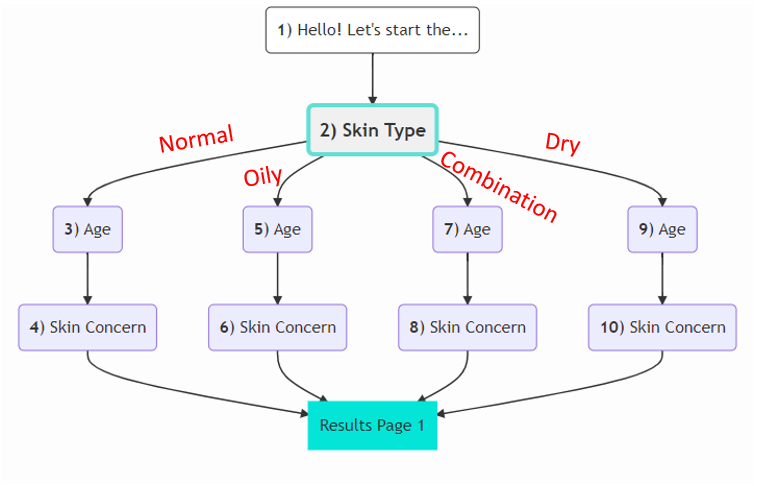
Stage 2, the same branches in the Quiz Builder:
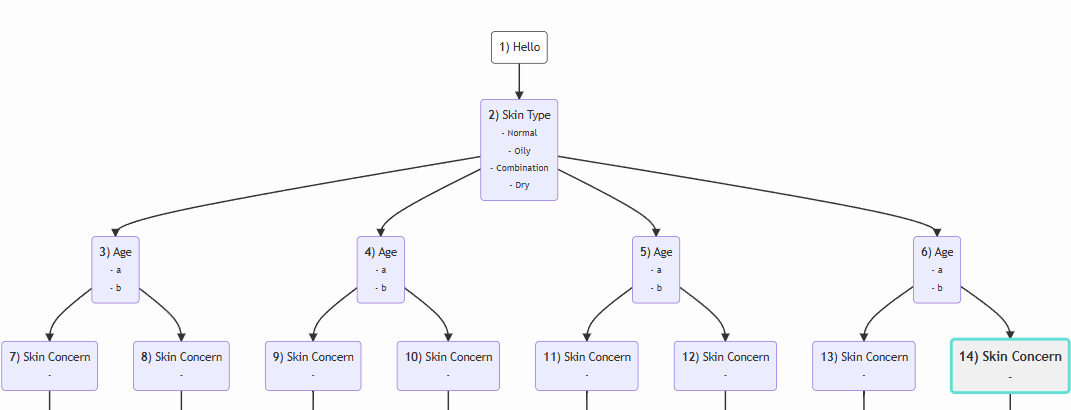
-
Link the recommended products to the choices in the last question of each branch.
-
Open the Conditional Logic tab and add one Jump Logic rule per branch. Each rule sends the customer to the results page that matches their answers.
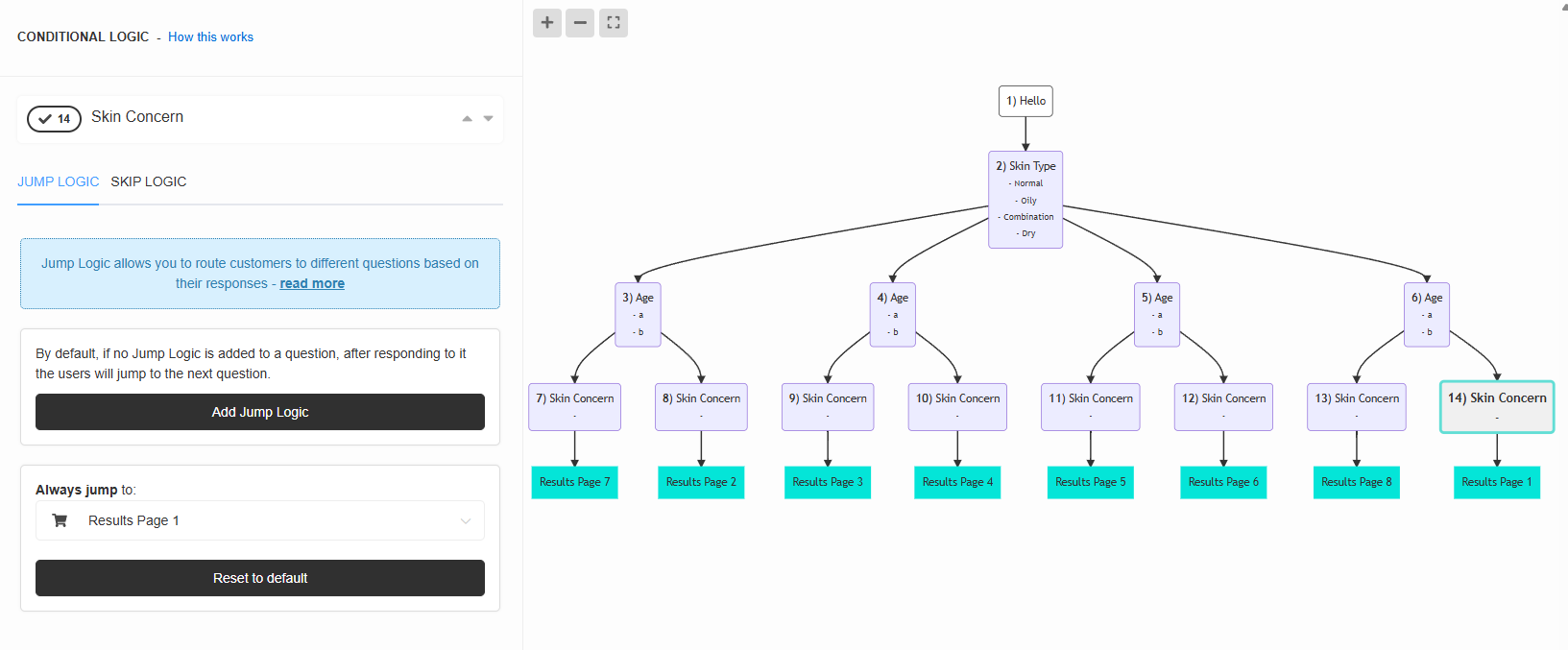
-
Repeat until every choice in the last question has a rule.
-
Click the top-right
Publishbutton to update the preview and the live quiz.
-
Open the Quiz Builder and add the
Multiple-choice questionsthat ask about the customer's needs.Helping the customer choose
Use the description box in
Question Settings -> Show Descriptionto help customers recognize their own skin type. -
Go to the Results Page tab and click the
+sign. Add one results page per outcome, such as one per skin type.Working with several results pages
-
Add a Product Block to each results page.
-
Write the text for that outcome on each results page.
Text for each skin type
- You have Dry Skin: the itchiness, the tightness, the dryness. Your skin wants a routine that is deeply nourishing and hydrating.
- You have Normal Skin: your skin feels balanced, just like you. It has no major issues, and it still deserves care. Your skin wants a routine that keeps that balance.
- You have Oily Skin: Your skin is oh-so shiny, but with excess oil instead of your natural glow! Your skin wants a routine that reduces oil to provide balance and clarity, all while giving your skin the proper amount of light hydration.
- You have Combination-Type Skin: Your skin has multiple things going on at once: you experience your T-zone to be on the oily side, while the rest of your face is either normal or dry.
-
Use Jump Logic to branch the quiz. Draw the branches first, then build them.
Stage 1, the logic tree:
Stage 2, the same branches in the Quiz Builder:
-
Link the recommended products to the choices in the last question of each branch.
-
Open the Conditional Logic tab and add one Jump Logic rule per branch. Each rule sends the customer to the results page that matches their answers.
-
Repeat until every choice in the last question has a rule.
-
Click the top-right
Publishbutton to update the preview and the live quiz.
-
Open the Quiz Builder and add the
Multiple-choice questionsthat ask about the customer's needs.Helping the customer choose
Use the description box in
Question Settings -> Show Descriptionto help customers recognize their own skin type. -
Go to the Results Page tab and click the
+sign. Add one results page per outcome, such as one per skin type.Working with several results pages
-
Add a Product Block to each results page.
-
Write the text for that outcome on each results page.
Text for each skin type
- You have Dry Skin: the itchiness, the tightness, the dryness. Your skin wants a routine that is deeply nourishing and hydrating.
- You have Normal Skin: your skin feels balanced, just like you. It has no major issues, and it still deserves care. Your skin wants a routine that keeps that balance.
- You have Oily Skin: Your skin is oh-so shiny, but with excess oil instead of your natural glow! Your skin wants a routine that reduces oil to provide balance and clarity, all while giving your skin the proper amount of light hydration.
- You have Combination-Type Skin: Your skin has multiple things going on at once: you experience your T-zone to be on the oily side, while the rest of your face is either normal or dry.
-
Use Jump Logic to branch the quiz. Draw the branches first, then build them.
Stage 1, the logic tree:
Stage 2, the same branches in the Quiz Builder:
-
Link the recommended products to the choices in the last question of each branch.
-
Open the Conditional Logic tab and add one Jump Logic rule per branch. Each rule sends the customer to the results page that matches their answers.
-
Repeat until every choice in the last question has a rule.
-
Click the top-right
Publishbutton to update the preview and the live quiz.
-
Open the Quiz Builder and add the
Multiple-choice questionsthat ask about the customer's needs.Helping the customer choose
Use the description box in
Question Settings -> Show Descriptionto help customers recognize their own skin type. -
Go to the Results Page tab and click the
+sign. Add one results page per outcome, such as one per skin type.Working with several results pages
-
Add a Product Block to each results page.
-
Write the text for that outcome on each results page.
Text for each skin type
- You have Dry Skin: the itchiness, the tightness, the dryness. Your skin wants a routine that is deeply nourishing and hydrating.
- You have Normal Skin: your skin feels balanced, just like you. It has no major issues, and it still deserves care. Your skin wants a routine that keeps that balance.
- You have Oily Skin: Your skin is oh-so shiny, but with excess oil instead of your natural glow! Your skin wants a routine that reduces oil to provide balance and clarity, all while giving your skin the proper amount of light hydration.
- You have Combination-Type Skin: Your skin has multiple things going on at once: you experience your T-zone to be on the oily side, while the rest of your face is either normal or dry.
-
Use Jump Logic to branch the quiz. Draw the branches first, then build them.
Stage 1, the logic tree:
Stage 2, the same branches in the Quiz Builder:
-
Link the recommended products to the choices in the last question of each branch.
-
Open the Conditional Logic tab and add one Jump Logic rule per branch. Each rule sends the customer to the results page that matches their answers.
-
Repeat until every choice in the last question has a rule.
-
Click the top-right
Publishbutton to update the preview and the live quiz.
-
Open the Quiz Builder and add the
Multiple-choice questionsthat ask about the customer's needs.Helping the customer choose
Use the description box in
Question Settings -> Show Descriptionto help customers recognize their own skin type. -
Go to the Results Page tab and click the
+sign. Add one results page per outcome, such as one per skin type.Working with several results pages
-
Add a Product Block to each results page.
-
Write the text for that outcome on each results page.
Text for each skin type
- You have Dry Skin: the itchiness, the tightness, the dryness. Your skin wants a routine that is deeply nourishing and hydrating.
- You have Normal Skin: your skin feels balanced, just like you. It has no major issues, and it still deserves care. Your skin wants a routine that keeps that balance.
- You have Oily Skin: Your skin is oh-so shiny, but with excess oil instead of your natural glow! Your skin wants a routine that reduces oil to provide balance and clarity, all while giving your skin the proper amount of light hydration.
- You have Combination-Type Skin: Your skin has multiple things going on at once: you experience your T-zone to be on the oily side, while the rest of your face is either normal or dry.
-
Use Jump Logic to branch the quiz. Draw the branches first, then build them.
Stage 1, the logic tree:
Stage 2, the same branches in the Quiz Builder:
-
Link the recommended products to the choices in the last question of each branch.
-
Open the Conditional Logic tab and add one Jump Logic rule per branch. Each rule sends the customer to the results page that matches their answers.
-
Repeat until every choice in the last question has a rule.
-
Click the top-right
Publishbutton to update the preview and the live quiz.
This article explains how to show the same products to every customer, and how to vary them with display logic instead of scoring.