How to Publish a Quiz on a GemPages Page
GemPages builds landing pages and product pages, and a RevenueHunt quiz can sit on one of them.
A quiz reaches a GemPages page through the Shopify App element, which opens the Shopify theme editor so you can pick the block.
-
Open the GemPages builder for the landing page or product page you want the quiz on.
-
Find the
Shopify Appelement and drag it into the page.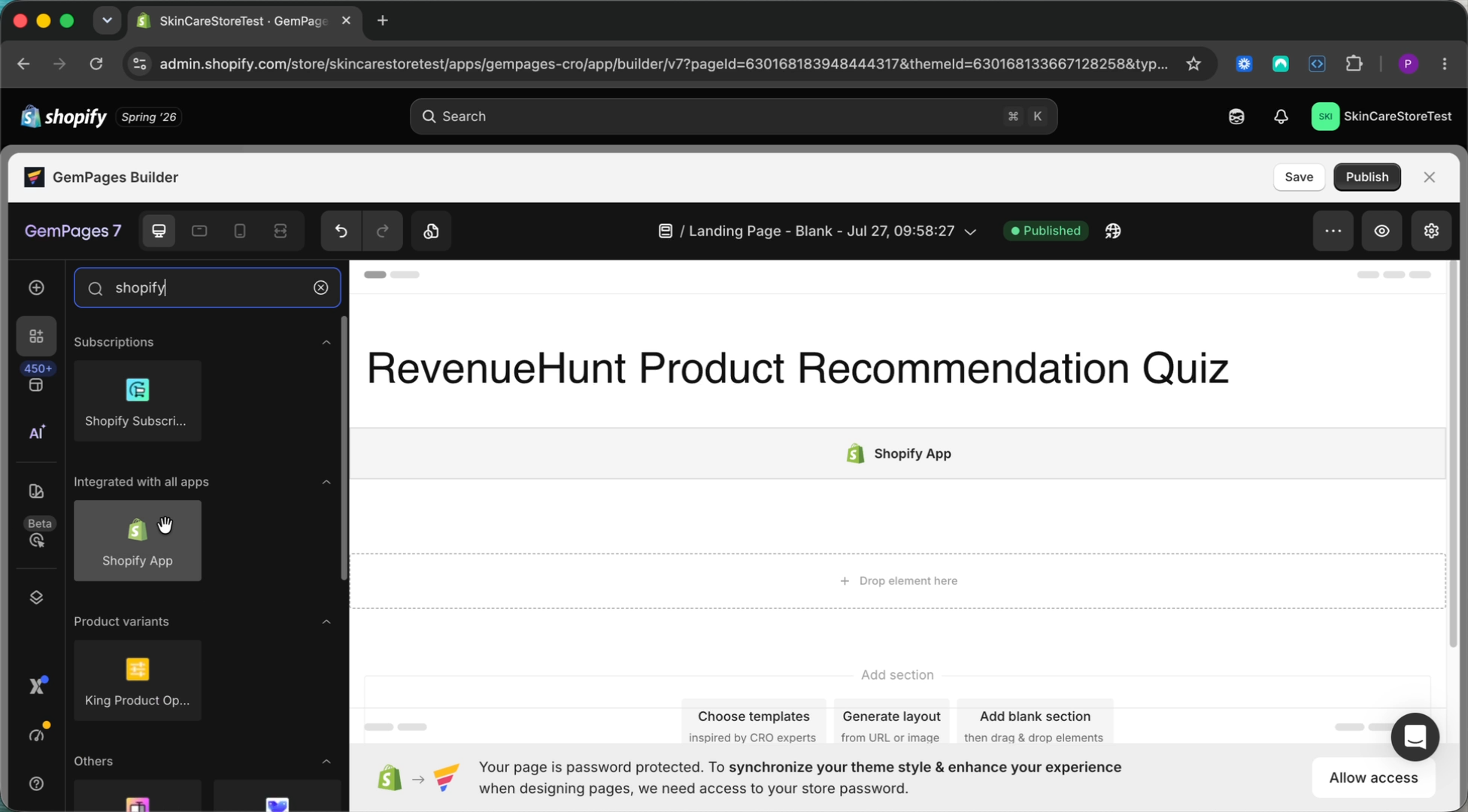
-
Click the element you just added, then click
Open Shopify editor. The Shopify theme editor opens on that section.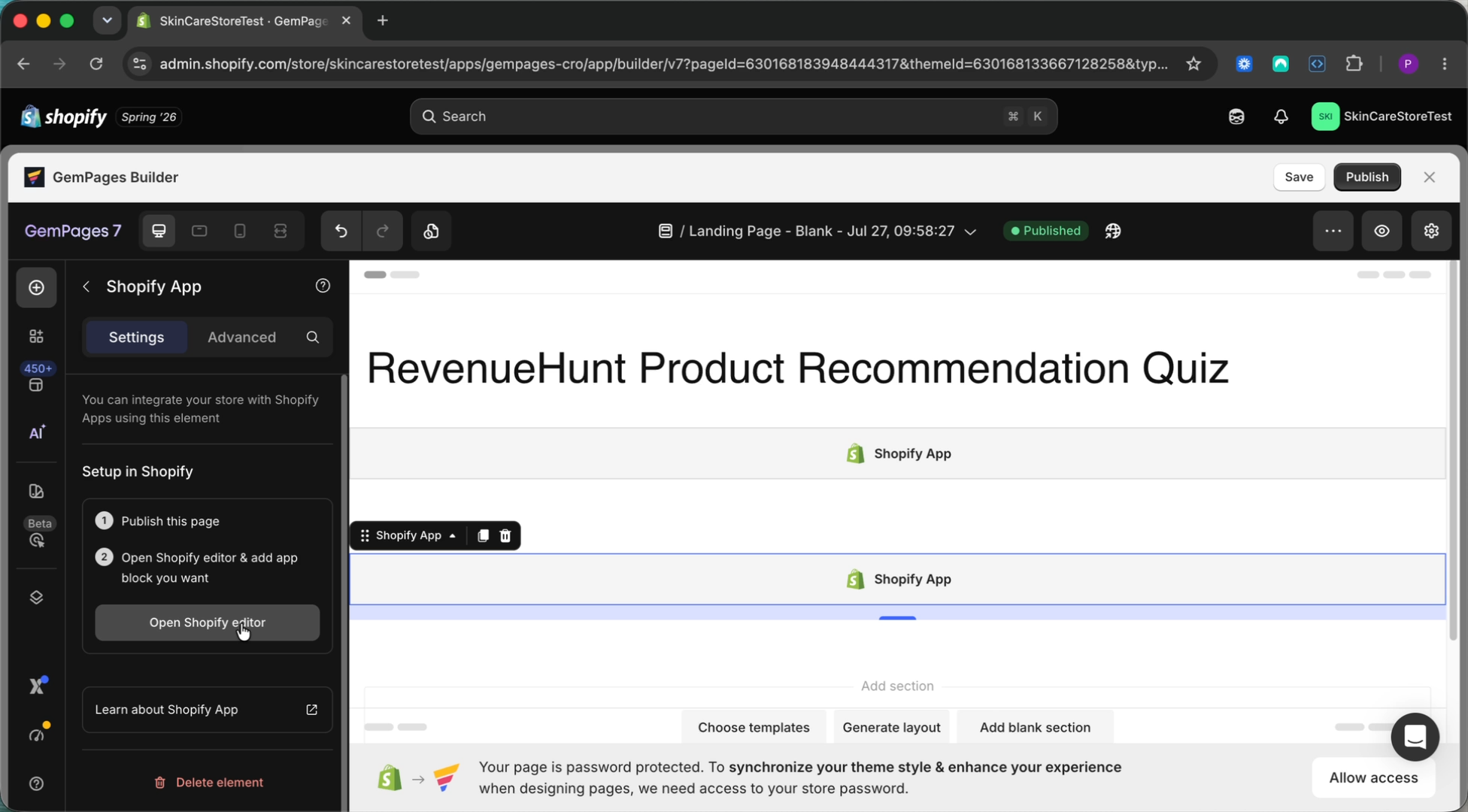
-
Select the section holding the
Shopify Appelement, clickAdd block, and open theAppstab. -
Add the RevenueHunt block that matches how you want the quiz to appear.
Block What it does Inline QuizSits in the page itself. See how to embed an inline quiz on your store Auto Popup QuizOpens on its own after a delay. See how to set up automatic popups Link Popup QuizOpens when a link or a button is clicked. See how to set up a quiz link popup on your store Chat Button QuizOpens from a floating chat-style button. See how to add a quiz popup via a chat-like button on your store 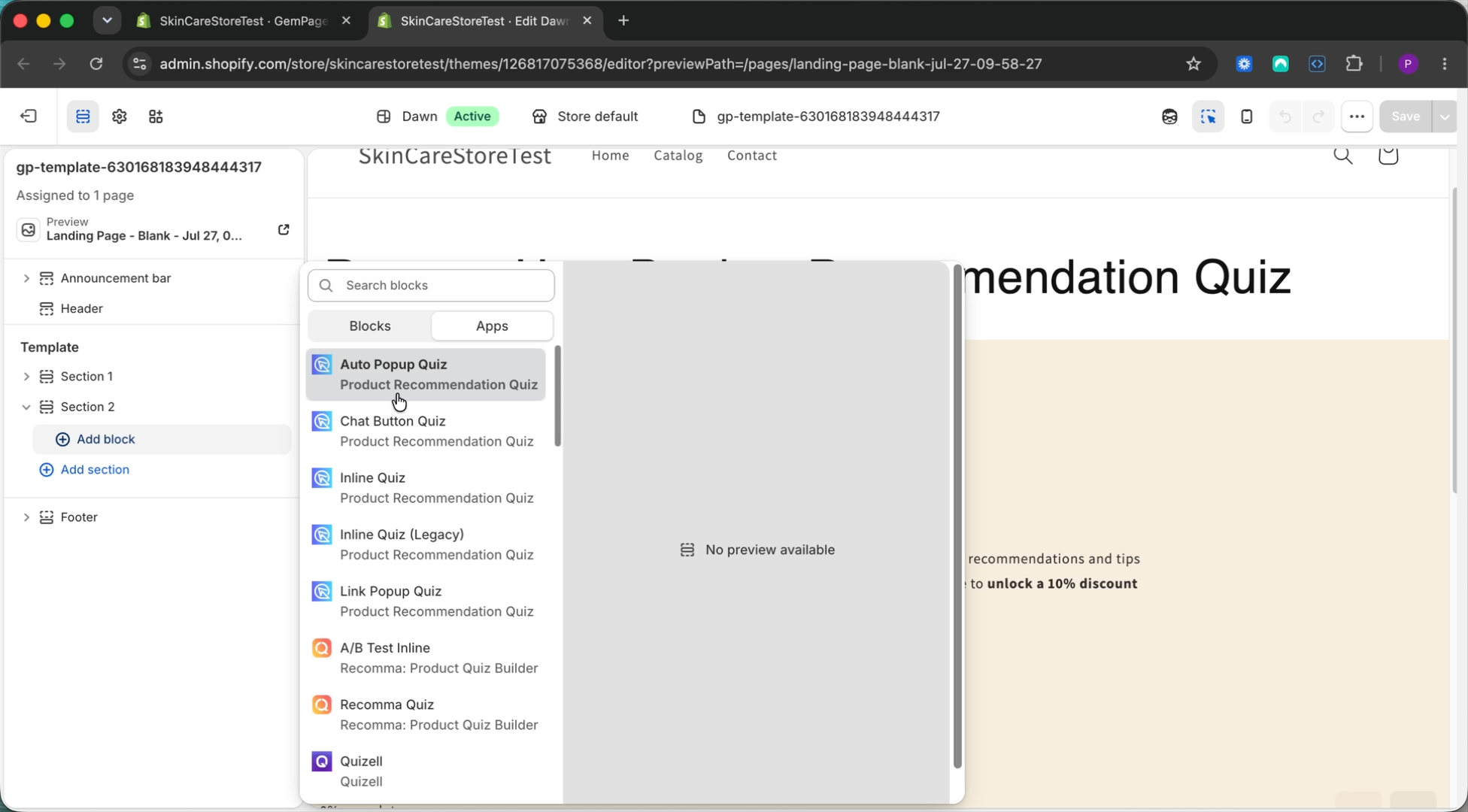
-
Click
Savein the Shopify theme editor. -
Back in GemPages, open your page and click
Save, thenPublish. GemPages marks the page as needing a republish, because the change was made in the theme editor.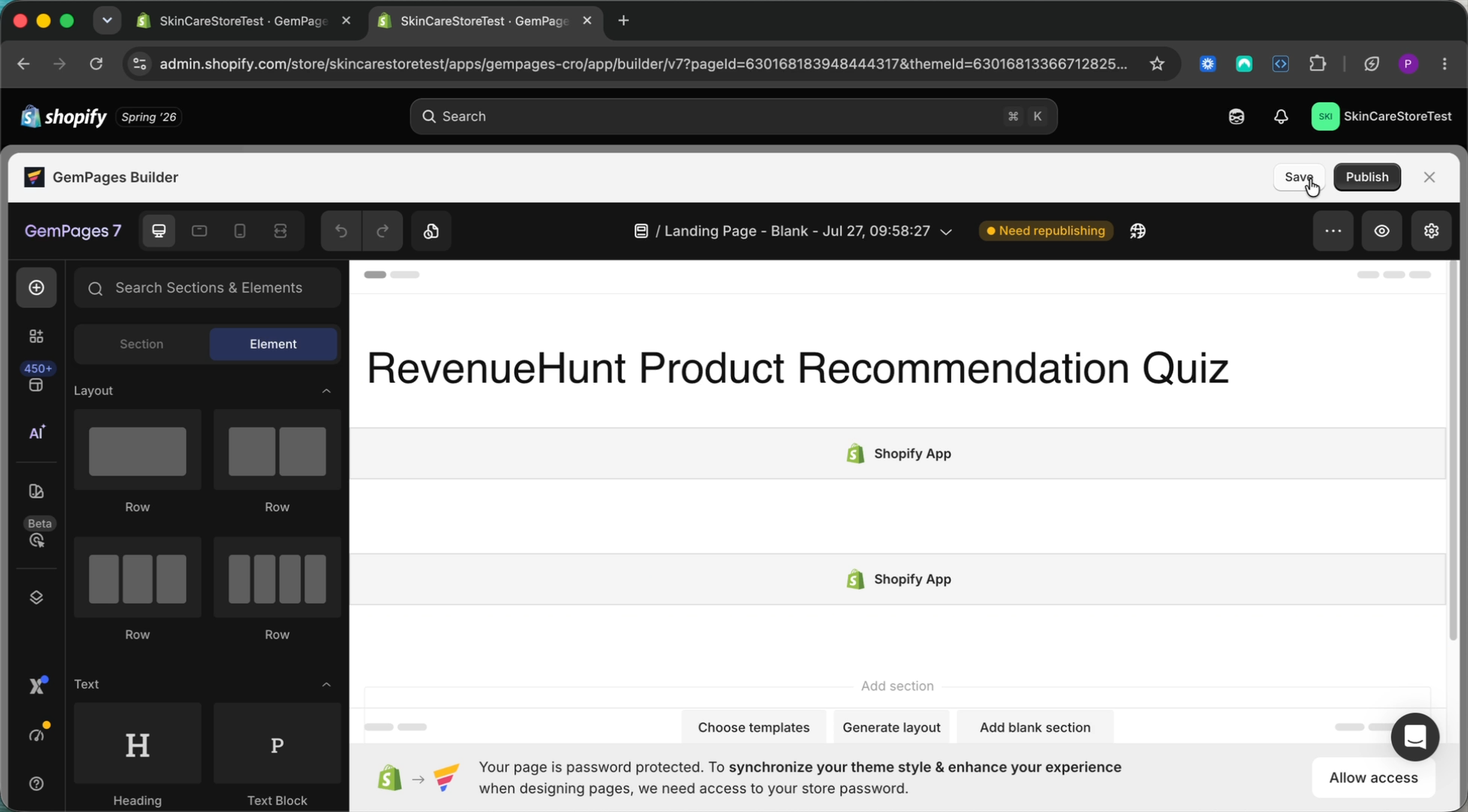
-
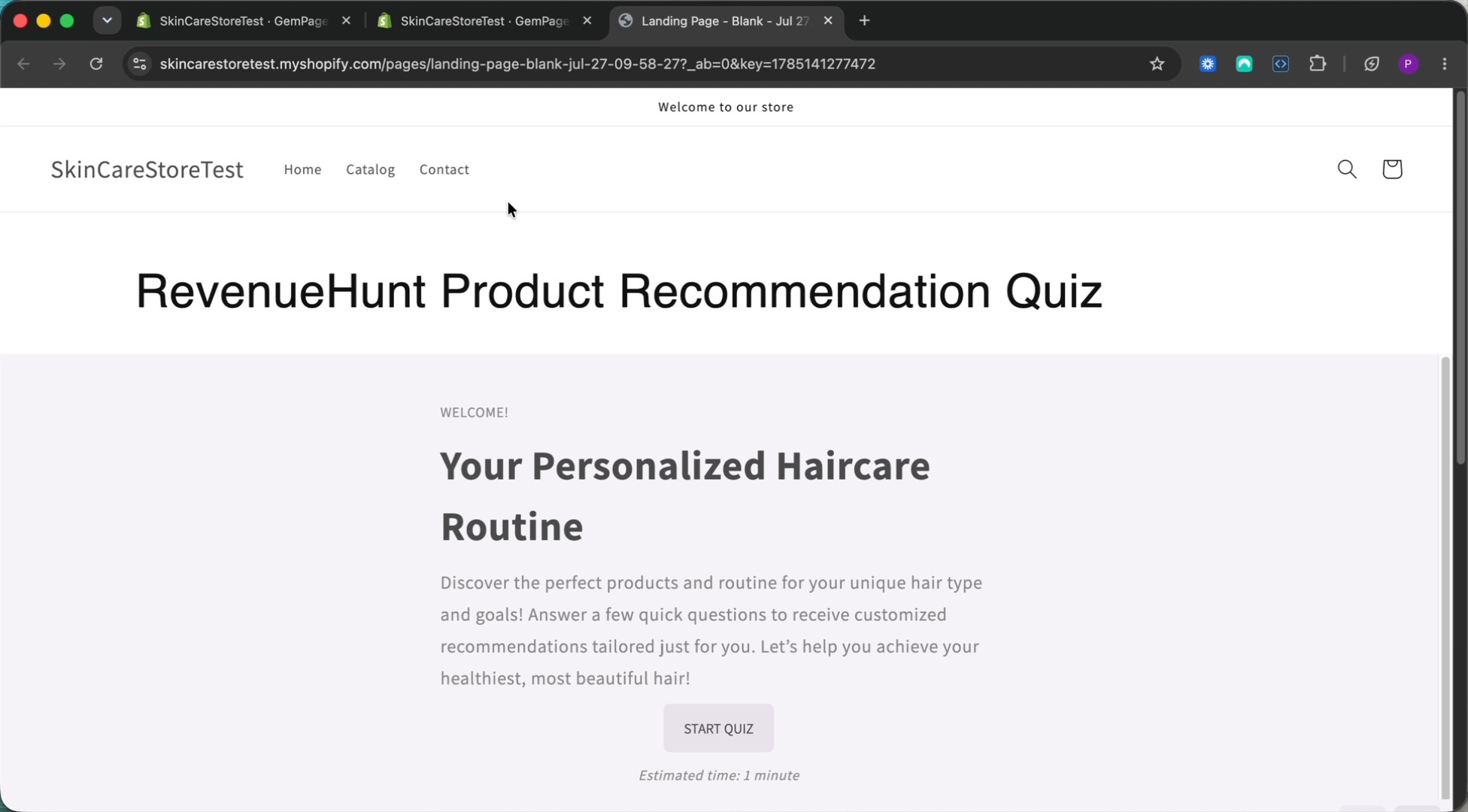
Open the live page and check the quiz is there. An automatic popup takes a moment to arrive.
A quiz reaches a GemPages page through the Shopify App element, which opens the Shopify theme editor so you can pick the block.
-
Open the GemPages builder for the landing page or product page you want the quiz on.
-
Find the
Shopify Appelement and drag it into the page. -
Click the element you just added, then click
Open Shopify editor. The Shopify theme editor opens on that section. -
Select the section holding the
Shopify Appelement, clickAdd block, and open theAppstab. -
Add the RevenueHunt block that matches how you want the quiz to appear. On this version each block carries a
(Legacy)label.Block What it does Inline Quiz (Legacy)Sits in the page itself. See how to embed an inline quiz on your store Auto Popup Quiz (Legacy)Opens on its own after a delay. See how to set up automatic popups Link Popup Quiz (Legacy)Opens when a link or a button is clicked. See how to set up a quiz link popup on your store Chat Button Quiz (Legacy)Opens from a floating chat-style button. See how to add a quiz popup via a chat-like button on your store -
Click
Savein the Shopify theme editor. -
Back in GemPages, open your page and click
Save, thenPublish. GemPages marks the page as needing a republish, because the change was made in the theme editor. -
Open the live page and check the quiz is there. An automatic popup takes a moment to arrive.
GemPages is a Shopify page builder
It has no WooCommerce version, so there is no GemPages page to put a quiz on here.
See how to publish a quiz on your website for the ways that do work on WooCommerce.
GemPages is a Shopify page builder
It has no Magento version, so there is no GemPages page to put a quiz on here.
See how to publish a quiz on your website for the ways that do work on Magento.
GemPages is a Shopify page builder
It has no BigCommerce version, so there is no GemPages page to put a quiz on here.
See how to publish a quiz on your website for the ways that do work on BigCommerce.
GemPages is a Shopify page builder
It has no Standalone version, so there is no GemPages page to put a quiz on here.
See how to publish a quiz on your website for the ways that do work on Standalone.
This article explains how to put a RevenueHunt quiz on a GemPages page. It also covers which block to pick for the way you want it to open.