How to Add Products in Standalone RevenueHunt App
The Standalone version has no store behind it, so its catalogue is yours to fill. You can type the products in one at a time, or import them from Google Merchant Center as a Google Product Feed XML file.
Add products manually
Not available on this platform
Your products come from Shopify, and the app imports them for you. There is nothing to add by hand.
Not available on this platform
Your products come from Shopify, and the app imports them for you. There is nothing to add by hand.
Not available on this platform
Your products come from WooCommerce, and the app imports them for you. There is nothing to add by hand.
Not available on this platform
Your products come from Magento, and the app imports them for you. There is nothing to add by hand.
Not available on this platform
Your products come from BigCommerce, and the app imports them for you. There is nothing to add by hand.
These steps add products and collections by hand, through the RevenueHunt catalogue.
-
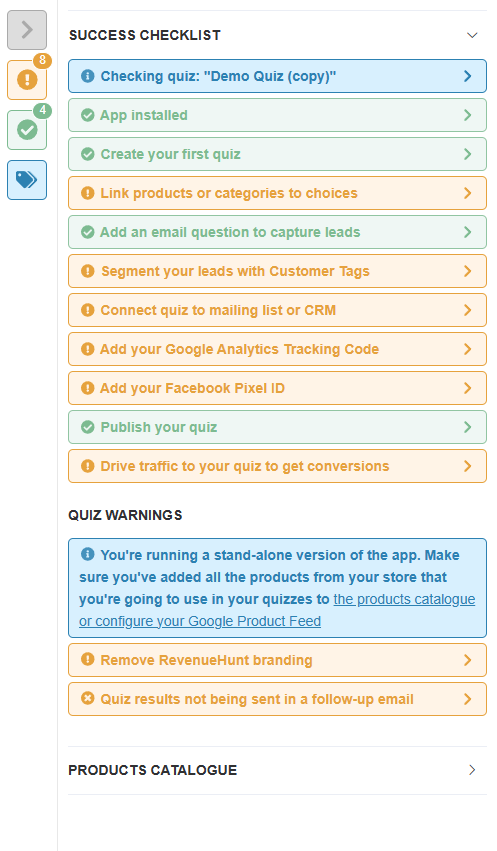
Open your RevenueHunt dashboard and find the Success Checklist icons. They look like ❓❗✅ 🔄.
-
Click the 🔄 icon to open the Sync section.
-
Click
View Catalog. The Catalogue opens, where you manage your products.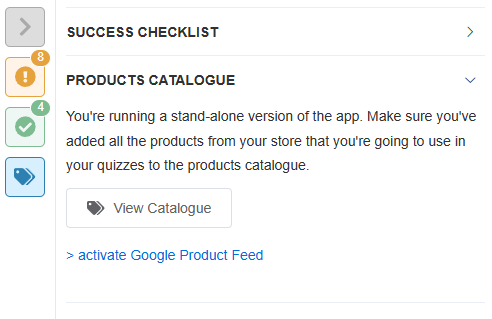
-
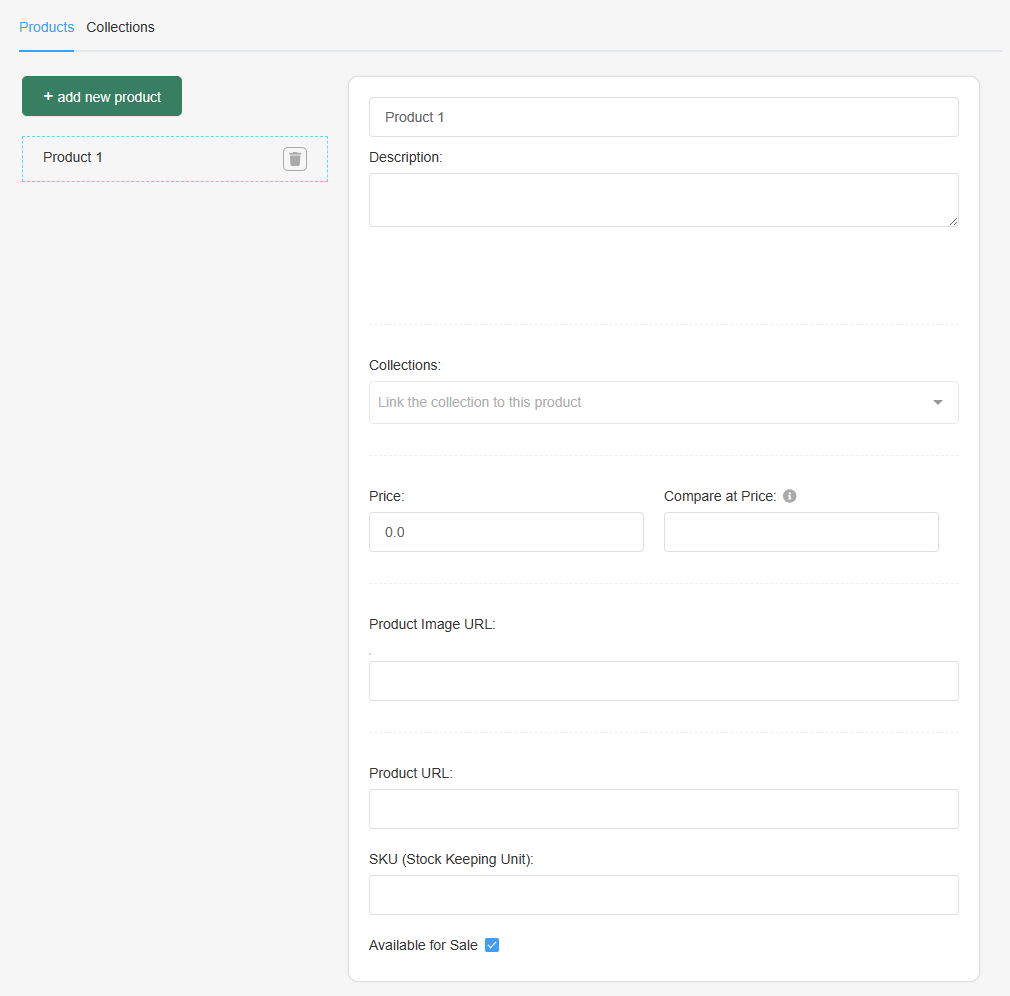
Click
+ add new product. -
Type a name for the product and click
Create. -
Fill in the product details, to match what you sell. Your changes save as you make them.
-
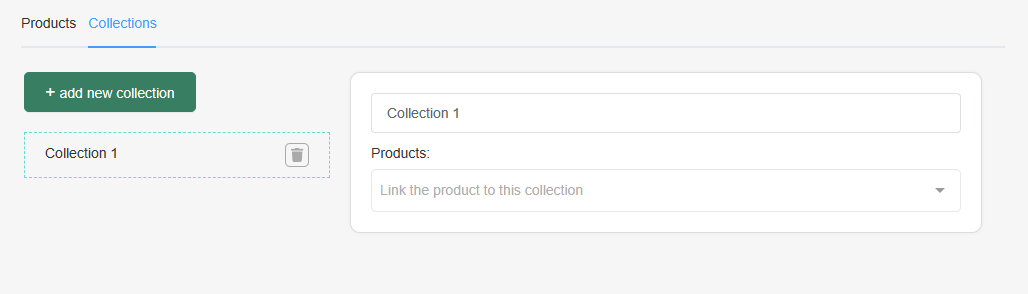
Click
+ add new collectionto group products together. -
Type a name for the collection and click
Create. -
Pick the products that belong in it from the dropdown. Your changes save as you make them.
Add products via Google Merchant Center
Not available on this platform
The app reads your Shopify catalog directly, so it needs no product feed.
Not available on this platform
The app reads your Shopify catalog directly, so it needs no product feed.
Not available on this platform
The app reads your WooCommerce catalog directly, so it needs no product feed.
Not available on this platform
The app reads your Magento catalog directly, so it needs no product feed.
Not available on this platform
The app reads your BigCommerce catalog directly, so it needs no product feed.
These steps import your products from Google Merchant Center in one go.
-
Open your RevenueHunt dashboard and find the Success Checklist icons. They look like ❓❗✅ 🔄.
-
Click the 🔄 icon to open the Sync section.
-
Click
>activate Google Product Feed. -
Paste your feed URL into the
Add your Google Product Feed:field. The address has to end in.xml.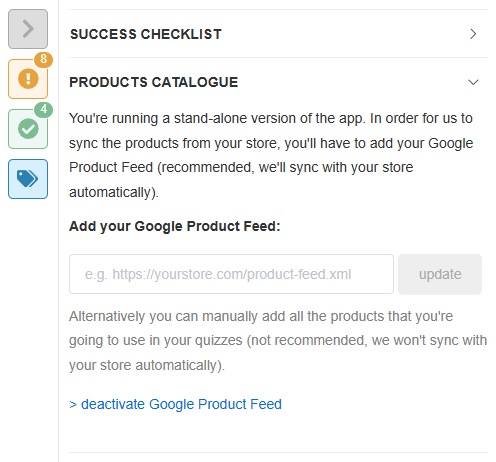
-
Wait while the app reads the feed. Your products and collections arrive in the quiz account.
Finding your Google Product Feed URL
-
Sign in at merchants.google.com.
-
Click
Products, thenManage product sources. -
Click the name of your data source.
-
Copy the address in the
File URLfield, underData source setup.
That address is what step 4 above asks for.
Hosting the XML file yourself
A feed does not have to come from Google. Any public address ending in .xml works.
- Shopify. Go to
Settings→Files, uploadgoogle_product_feed.xml, and copy the address Shopify gives you. It looks likehttps://cdn.shopify.com/s/files/.../google_product_feed.xml. - Your own hosting. Upload the file over FTP, through cPanel File Manager, or with your CMS media library.
- Cloud storage. Dropbox, Google Drive with a direct link, or Amazon S3. The link has to be public.
The file has to be a valid Google Product Feed
Not every XML file works. Check yours against the Google Merchant Center feed specification, and run it through the Google feed validation service.
If the feed looks right and still does not import, contact support.
What to do next
Once your catalogue holds products, the quiz can start recommending them.
This article explains how to fill the Standalone catalogue, by hand or from a Google Product Feed.