How to Use Display Logic
Display logic shows or hides part of the results page, from what the customer answered.
You build one results page that holds the content for every outcome. Display logic then decides which parts of it each customer sees.
A rule sits on a section, so it controls every block in that section at once.
A rule can read
- The answer a customer gave to a question.
- The score of a variable, in a scoring quiz or a personality-type quiz.
- The variable with the highest score, in a personality-type quiz.
This article explains how to write a rule, how to score the choices a rule reads, and works through three examples.
A rule sits on a single block, and it reads the answer the customer gave to a question. Each block carries its own rules.
This article explains how to write a rule, and works through an example.
A rule sits on a single block, and it reads the answer the customer gave to a question. Each block carries its own rules.
This article explains how to write a rule, and works through an example.
A rule sits on a single block, and it reads the answer the customer gave to a question. Each block carries its own rules.
This article explains how to write a rule, and works through an example.
A rule sits on a single block, and it reads the answer the customer gave to a question. Each block carries its own rules.
This article explains how to write a rule, and works through an example.
A rule sits on a single block, and it reads the answer the customer gave to a question. Each block carries its own rules.
This article explains how to write a rule, and works through an example.
Write a display logic rule
-
Open the Results page and select the section you want to control. Add the section first if it does not exist yet.
-
Find
Display logicin the section settings on the right.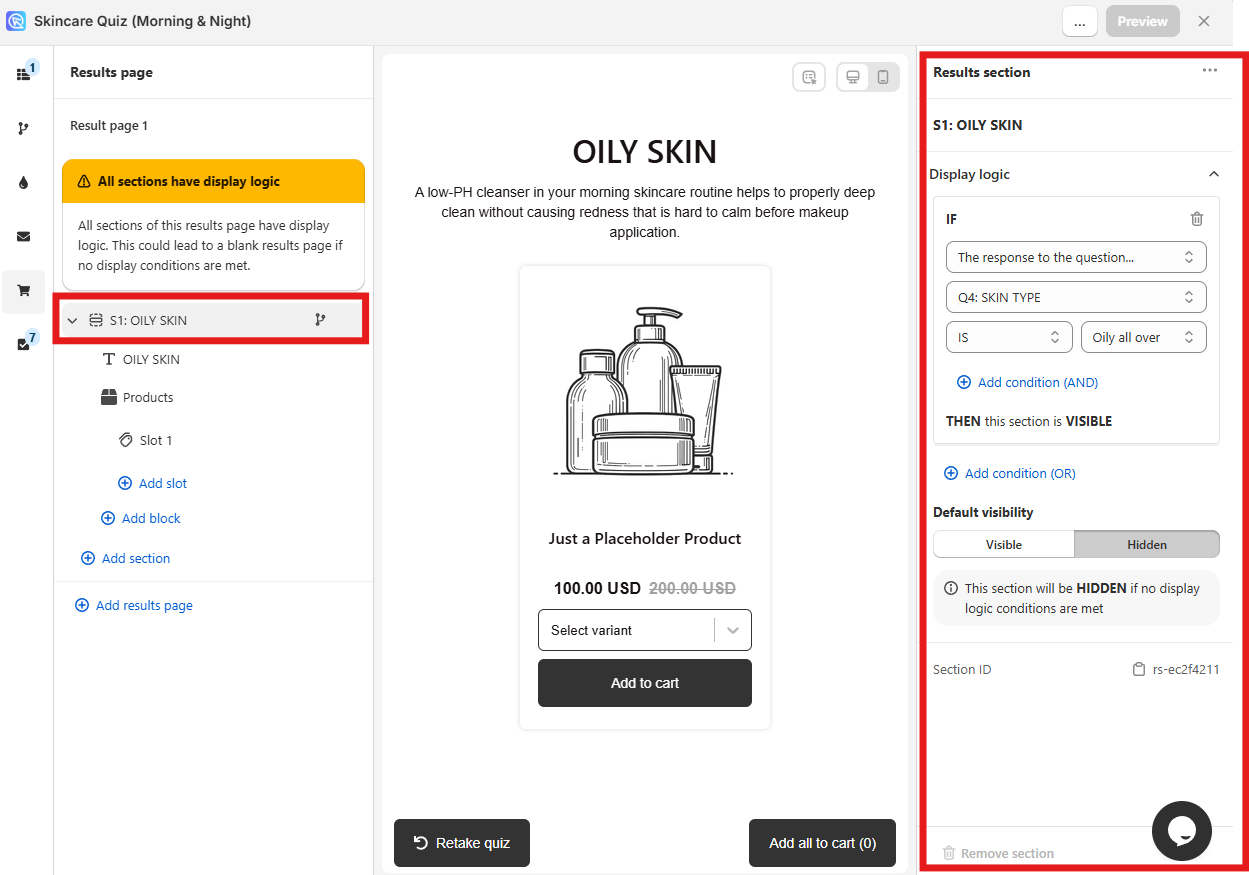
-
Click
+ Add logic condition (OR). -
Pick what the condition reads. The dropdown offers the response to a question, the score of a variable, or the variable with the highest score.
-
Complete the condition and leave the rule set to
THEN section is Visible. -
Set
Default visibilitytoHidden. The section then appears only when the rule is true. -
Click the top-right
Savebutton, then preview the quiz and answer it as a customer would.
The buttons in the Display logic panel
| Button | What it does |
|---|---|
+ Add condition (OR) |
Adds another rule. The section shows when any one rule is true |
+ Add condition (AND) |
Adds a second test to the current rule. Both tests must be true |
bin |
Deletes the current rule |
Default |
Sets the section to Shown or Hidden before any rule is true |
Most quizzes need only OR rules. An AND rule is easy to write and hard to satisfy, because every test in it has to be true at the same time.
A rule on an answer
IF the response to Question 4, SKIN TYPE, is Oily all over, THEN section is Visible. Default visibility is Hidden.
The section appears for customers who chose Oily all over, and stays hidden for everyone else.
A rule on the score of a variable
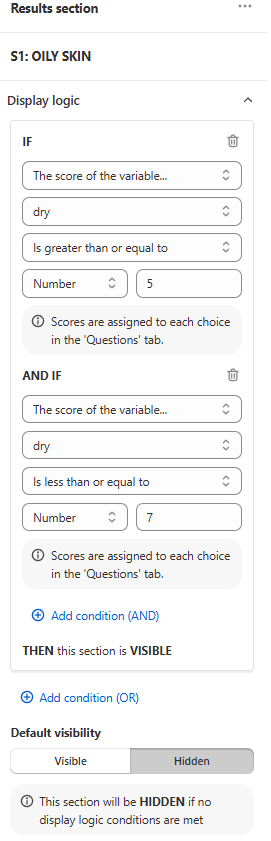
IF the score of the variable dry is greater than or equal to 5, AND IF the score of the variable dry is less than or equal to 7, THEN section is Visible.
The section appears for a dry score of 5, 6 or 7, and stays hidden otherwise.
A rule on the winning variable
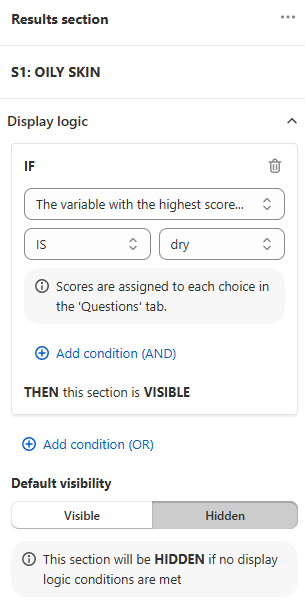
IF the variable with the highest score is dry, THEN section is Visible.
The section appears for customers whose highest score is dry, and stays hidden otherwise.
Where the scores come from
A score belongs to a choice. You set it in the Questions tab, under Choice settings. See Add scores and variables to choices.
-
Open the Results Page and select the block you want to control. Add the block first if it does not exist yet.
-
Click the
conditional logic / tree iconbutton in the block menu.
-
Click
add Display Logic.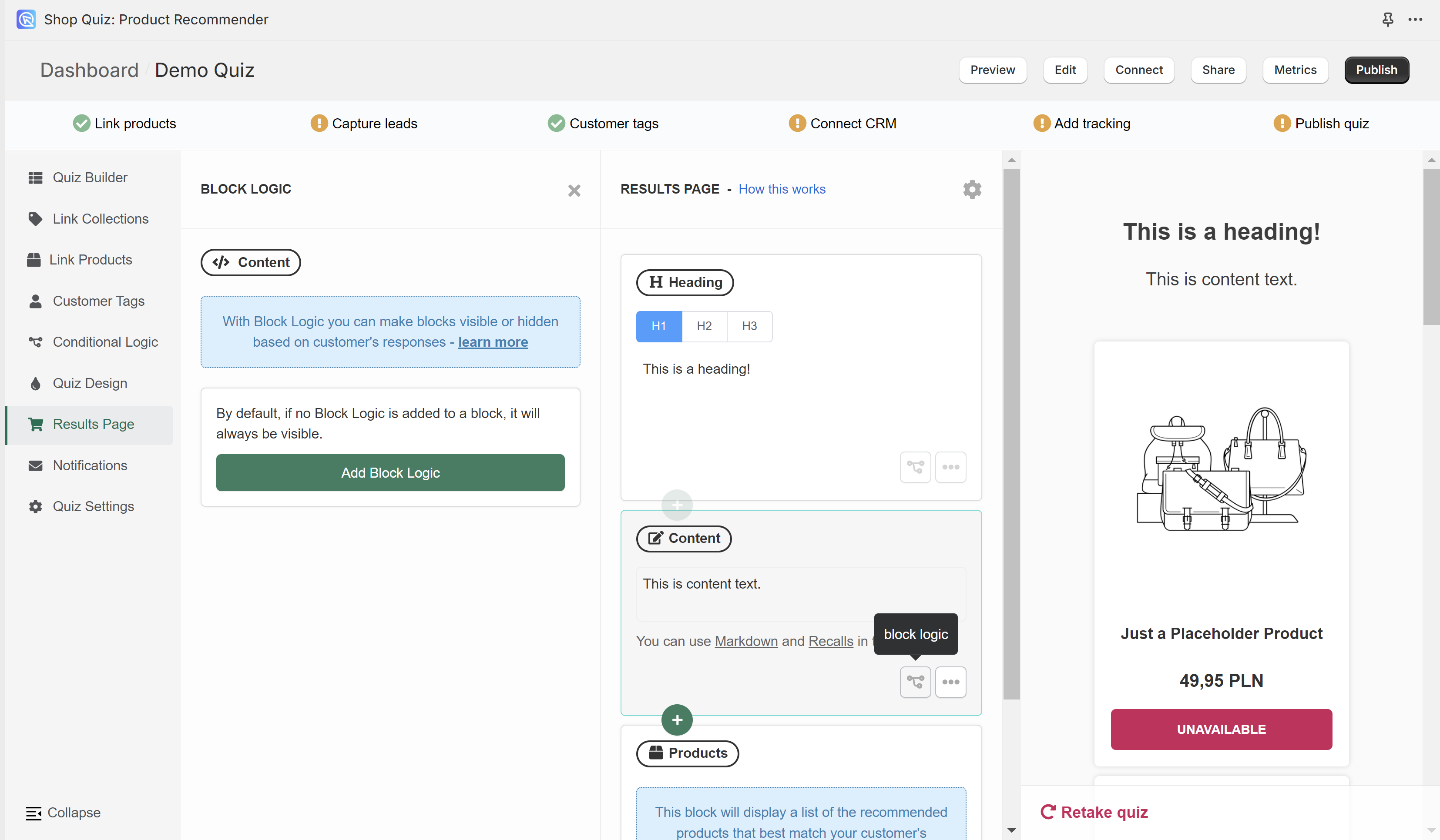
-
Pick the question the rule reads, under
IF response to. -
Pick
isoris not, then pick the choice. -
Set
THEN block istoVisible. -
Set
IN ALL OTHER CASES this block istoHidden. -
Click the top-right
Publishbutton, then preview the quiz and answer it as a customer would.
The buttons in the Display Logic panel
| Button | What it does |
|---|---|
+ |
Adds another rule. The block shows when any one rule is true |
+ add concurrent logic |
Adds a second test to the current rule. Both tests must be true |
bin |
Deletes the current rule |
Most quizzes need only OR rules. An AND rule is easy to write and hard to satisfy, because every test in it has to be true at the same time.
A rule on an answer
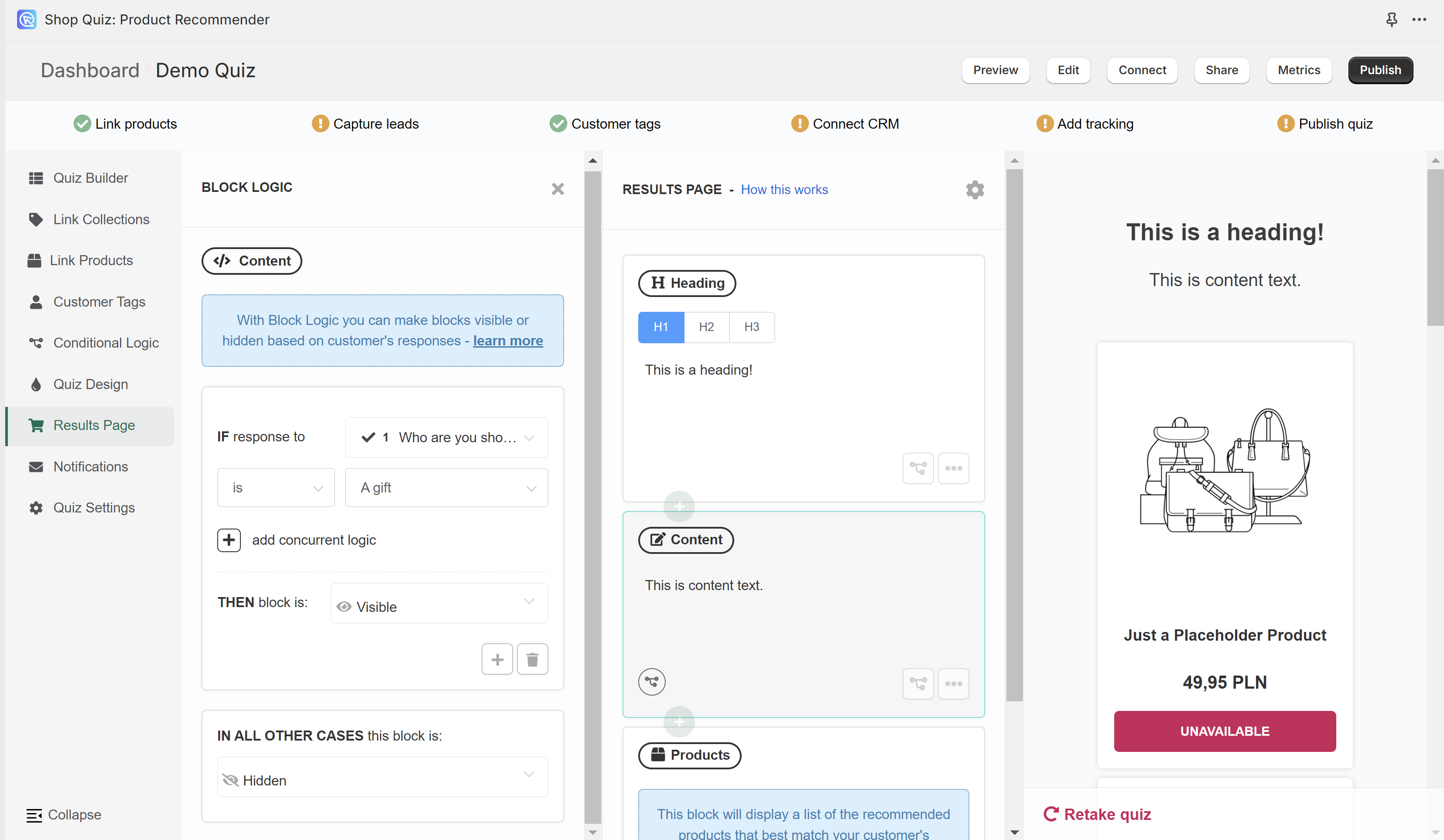
IF response to Question 1, Who are you shopping for?, is A gift, THEN block is Visible. IN ALL OTHER CASES this block is Hidden.
The block appears for customers who chose A gift, and stays hidden for everyone else.
-
Open the Results Page and select the block you want to control. Add the block first if it does not exist yet.
-
Click the
conditional logic / tree iconbutton in the block menu. -
Click
add Display Logic. -
Pick the question the rule reads, under
IF response to. -
Pick
isoris not, then pick the choice. -
Set
THEN block istoVisible. -
Set
IN ALL OTHER CASES this block istoHidden. -
Click the top-right
Publishbutton, then preview the quiz and answer it as a customer would.
The buttons in the Display Logic panel
| Button | What it does |
|---|---|
+ |
Adds another rule. The block shows when any one rule is true |
+ add concurrent logic |
Adds a second test to the current rule. Both tests must be true |
bin |
Deletes the current rule |
Most quizzes need only OR rules. An AND rule is easy to write and hard to satisfy, because every test in it has to be true at the same time.
A rule on an answer
IF response to Question 1, Who are you shopping for?, is A gift, THEN block is Visible. IN ALL OTHER CASES this block is Hidden.
The block appears for customers who chose A gift, and stays hidden for everyone else.
-
Open the Results Page and select the block you want to control. Add the block first if it does not exist yet.
-
Click the
conditional logic / tree iconbutton in the block menu. -
Click
add Display Logic. -
Pick the question the rule reads, under
IF response to. -
Pick
isoris not, then pick the choice. -
Set
THEN block istoVisible. -
Set
IN ALL OTHER CASES this block istoHidden. -
Click the top-right
Publishbutton, then preview the quiz and answer it as a customer would.
The buttons in the Display Logic panel
| Button | What it does |
|---|---|
+ |
Adds another rule. The block shows when any one rule is true |
+ add concurrent logic |
Adds a second test to the current rule. Both tests must be true |
bin |
Deletes the current rule |
Most quizzes need only OR rules. An AND rule is easy to write and hard to satisfy, because every test in it has to be true at the same time.
A rule on an answer
IF response to Question 1, Who are you shopping for?, is A gift, THEN block is Visible. IN ALL OTHER CASES this block is Hidden.
The block appears for customers who chose A gift, and stays hidden for everyone else.
-
Open the Results Page and select the block you want to control. Add the block first if it does not exist yet.
-
Click the
conditional logic / tree iconbutton in the block menu. -
Click
add Display Logic. -
Pick the question the rule reads, under
IF response to. -
Pick
isoris not, then pick the choice. -
Set
THEN block istoVisible. -
Set
IN ALL OTHER CASES this block istoHidden. -
Click the top-right
Publishbutton, then preview the quiz and answer it as a customer would.
The buttons in the Display Logic panel
| Button | What it does |
|---|---|
+ |
Adds another rule. The block shows when any one rule is true |
+ add concurrent logic |
Adds a second test to the current rule. Both tests must be true |
bin |
Deletes the current rule |
Most quizzes need only OR rules. An AND rule is easy to write and hard to satisfy, because every test in it has to be true at the same time.
A rule on an answer
IF response to Question 1, Who are you shopping for?, is A gift, THEN block is Visible. IN ALL OTHER CASES this block is Hidden.
The block appears for customers who chose A gift, and stays hidden for everyone else.
-
Open the Results Page and select the block you want to control. Add the block first if it does not exist yet.
-
Click the
conditional logic / tree iconbutton in the block menu. -
Click
add Display Logic. -
Pick the question the rule reads, under
IF response to. -
Pick
isoris not, then pick the choice. -
Set
THEN block istoVisible. -
Set
IN ALL OTHER CASES this block istoHidden. -
Click the top-right
Publishbutton, then preview the quiz and answer it as a customer would.
The buttons in the Display Logic panel
| Button | What it does |
|---|---|
+ |
Adds another rule. The block shows when any one rule is true |
+ add concurrent logic |
Adds a second test to the current rule. Both tests must be true |
bin |
Deletes the current rule |
Most quizzes need only OR rules. An AND rule is easy to write and hard to satisfy, because every test in it has to be true at the same time.
A rule on an answer
IF response to Question 1, Who are you shopping for?, is A gift, THEN block is Visible. IN ALL OTHER CASES this block is Hidden.
The block appears for customers who chose A gift, and stays hidden for everyone else.
Add scores and variables to choices
A variable turns the choices a customer makes into a number. Display logic reads that number, which is how a scoring quiz and a personality-type quiz work.
-
Open the Quiz builder and add the
Multiple-choice questionsyour quiz needs. For a skin type quiz, ask about age, skin condition and concerns. -
Click a choice to open its Choice settings.
-
Find the
Scores and calculationssection.
-
Set the value of the built-in
scorevariable with the up and down arrows. Negative values are allowed.Scoring one question
The first choice scores 1, the second scores 2, and the third scores 3.
-
To add a variable of your own, type its name in the
Search or create variablebar. For exampledry skinorvariable1. -
Click
Create a new variable "xxx"in the dropdown below the bar.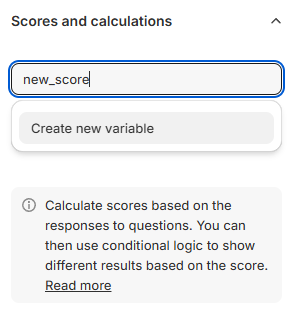
-
Give the new variable a score on this choice.
-
Repeat for every choice in the question, then move on to the next question.
Quizzes built on scores
Scores are not part of this version
A quiz here cannot hold a score or a variable, so a rule can only read an answer.
To sort customers into types or score bands, add custom JavaScript to the Results Page. The quiz response carries every answer the customer gave, so a developer can count them and show the right content.
Scores are not part of this version
A quiz here cannot hold a score or a variable, so a rule can only read an answer.
To sort customers into types or score bands, add custom JavaScript to the Results Page. The quiz response carries every answer the customer gave, so a developer can count them and show the right content.
Scores are not part of this version
A quiz here cannot hold a score or a variable, so a rule can only read an answer.
To sort customers into types or score bands, add custom JavaScript to the Results Page. The quiz response carries every answer the customer gave, so a developer can count them and show the right content.
Scores are not part of this version
A quiz here cannot hold a score or a variable, so a rule can only read an answer.
To sort customers into types or score bands, add custom JavaScript to the Results Page. The quiz response carries every answer the customer gave, so a developer can count them and show the right content.
Scores are not part of this version
A quiz here cannot hold a score or a variable, so a rule can only read an answer.
To sort customers into types or score bands, add custom JavaScript to the Results Page. The quiz response carries every answer the customer gave, so a developer can count them and show the right content.
Examples
Show content from an answer
A skincare quiz asks for the skin type in question 4, and the results page holds one section per type: dry, normal, oily and combination. Without display logic, all four appear at once.
-
Add one section per skin type to the Results page. Give each one its own heading, text and product block.
-
Select the dry skin section and find
Display logic. -
Click
+ Add logic condition (OR). -
Set the rule to
IF the response tothe skin type questionisthe dry skin choice. -
Leave
THEN section is Visibleand setDefault visibilitytoHidden.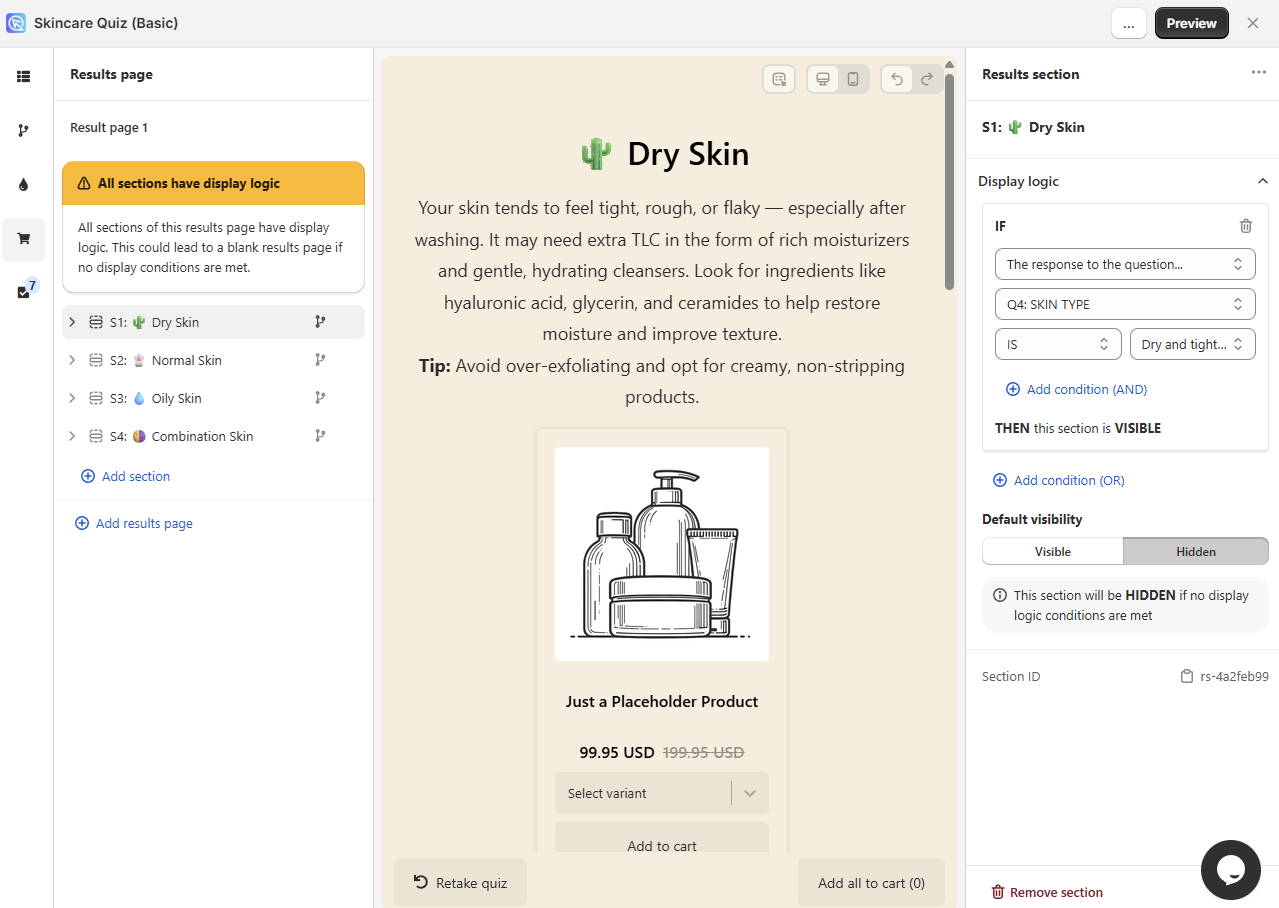
-
Repeat for the other three sections, each on its own choice.
Section Shown when the answer is Normal skin not too oily and not too dry Oily skin oily all over Combination skin oily in certain spots -
Click
Save, then preview the quiz and answer it once per skin type. Only the matching section should appear each time.
Rules that read more than one answer
A section can react to several answers. Show it when the skin type is dry and tight OR the age group is teens. Or show it only when the skin type is dry and tight AND the concerns include acne.
A skincare quiz asks for the skin type, and the Results Page holds one content block per type: dry, normal, oily and combination. Without Display Logic, all four appear at once.
-
Open the Quiz Builder and add a
Multiple-choice questionasking for the skin type. Offer dry, normal, oily and combination.Help the customer answer
Describe each skin type in
Question Settings -> Show Description, so the customer can tell which one fits. -
Go to the Results Page, click the
+sign and selectContent Block. -
Write the text for one skin type in that block.
Four blocks, one per skin type
- You have Dry Skin: The itchiness, the tightness, the dryness. Your skin wants a routine that is deeply nourishing and hydrating.
- You have Normal Skin: Your skin feels balanced, just like you. It has no major issues, and it still deserves care that sustains that natural harmony.
- You have Oily Skin: Your skin is shiny with excess oil rather than a natural glow. It wants a routine that balances and clarifies, with light hydration.
- You have Combination-Type Skin: Your T-zone runs oily, while the rest of your face is normal or dry.
Make the heading stand out
Put a
#in front of a line to turn it into a heading. See how to use markdown for the rest of the formatting. -
Repeat for every skin type, one content block each.
-
Select the first content block, click
display logic, then clickadd display logic. -
Set the rule to
IF response tothe skin type questionisthat block's own skin type. -
Set
THEN block istoVisible, andIN ALL OTHER CASES this block istoHidden.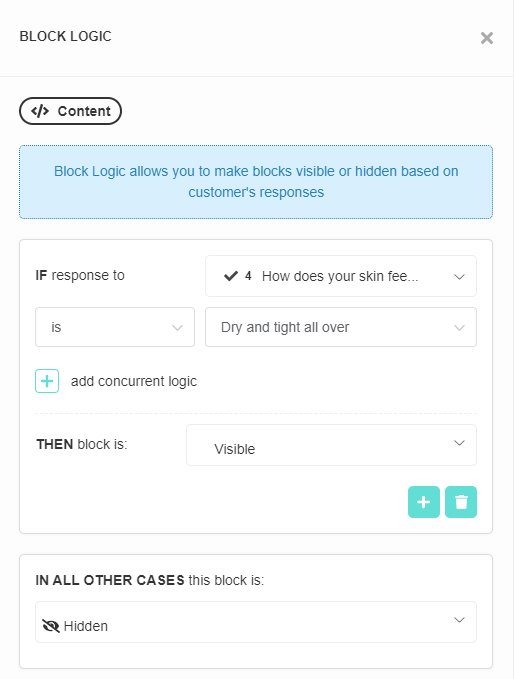
-
Repeat for every block.
-
Click the top-right
Publishbutton, then answer the quiz once per skin type. Only the matching block should appear each time.
A skincare quiz asks for the skin type, and the Results Page holds one content block per type: dry, normal, oily and combination. Without Display Logic, all four appear at once.
-
Open the Quiz Builder and add a
Multiple-choice questionasking for the skin type. Offer dry, normal, oily and combination.Help the customer answer
Describe each skin type in
Question Settings -> Show Description, so the customer can tell which one fits. -
Go to the Results Page, click the
+sign and selectContent Block. -
Write the text for one skin type in that block.
Four blocks, one per skin type
- You have Dry Skin: The itchiness, the tightness, the dryness. Your skin wants a routine that is deeply nourishing and hydrating.
- You have Normal Skin: Your skin feels balanced, just like you. It has no major issues, and it still deserves care that sustains that natural harmony.
- You have Oily Skin: Your skin is shiny with excess oil rather than a natural glow. It wants a routine that balances and clarifies, with light hydration.
- You have Combination-Type Skin: Your T-zone runs oily, while the rest of your face is normal or dry.
Make the heading stand out
Put a
#in front of a line to turn it into a heading. See how to use markdown for the rest of the formatting. -
Repeat for every skin type, one content block each.
-
Select the first content block, click
display logic, then clickadd display logic. -
Set the rule to
IF response tothe skin type questionisthat block's own skin type. -
Set
THEN block istoVisible, andIN ALL OTHER CASES this block istoHidden. -
Repeat for every block.
-
Click the top-right
Publishbutton, then answer the quiz once per skin type. Only the matching block should appear each time.
A skincare quiz asks for the skin type, and the Results Page holds one content block per type: dry, normal, oily and combination. Without Display Logic, all four appear at once.
-
Open the Quiz Builder and add a
Multiple-choice questionasking for the skin type. Offer dry, normal, oily and combination.Help the customer answer
Describe each skin type in
Question Settings -> Show Description, so the customer can tell which one fits. -
Go to the Results Page, click the
+sign and selectContent Block. -
Write the text for one skin type in that block.
Four blocks, one per skin type
- You have Dry Skin: The itchiness, the tightness, the dryness. Your skin wants a routine that is deeply nourishing and hydrating.
- You have Normal Skin: Your skin feels balanced, just like you. It has no major issues, and it still deserves care that sustains that natural harmony.
- You have Oily Skin: Your skin is shiny with excess oil rather than a natural glow. It wants a routine that balances and clarifies, with light hydration.
- You have Combination-Type Skin: Your T-zone runs oily, while the rest of your face is normal or dry.
Make the heading stand out
Put a
#in front of a line to turn it into a heading. See how to use markdown for the rest of the formatting. -
Repeat for every skin type, one content block each.
-
Select the first content block, click
display logic, then clickadd display logic. -
Set the rule to
IF response tothe skin type questionisthat block's own skin type. -
Set
THEN block istoVisible, andIN ALL OTHER CASES this block istoHidden. -
Repeat for every block.
-
Click the top-right
Publishbutton, then answer the quiz once per skin type. Only the matching block should appear each time.
A skincare quiz asks for the skin type, and the Results Page holds one content block per type: dry, normal, oily and combination. Without Display Logic, all four appear at once.
-
Open the Quiz Builder and add a
Multiple-choice questionasking for the skin type. Offer dry, normal, oily and combination.Help the customer answer
Describe each skin type in
Question Settings -> Show Description, so the customer can tell which one fits. -
Go to the Results Page, click the
+sign and selectContent Block. -
Write the text for one skin type in that block.
Four blocks, one per skin type
- You have Dry Skin: The itchiness, the tightness, the dryness. Your skin wants a routine that is deeply nourishing and hydrating.
- You have Normal Skin: Your skin feels balanced, just like you. It has no major issues, and it still deserves care that sustains that natural harmony.
- You have Oily Skin: Your skin is shiny with excess oil rather than a natural glow. It wants a routine that balances and clarifies, with light hydration.
- You have Combination-Type Skin: Your T-zone runs oily, while the rest of your face is normal or dry.
Make the heading stand out
Put a
#in front of a line to turn it into a heading. See how to use markdown for the rest of the formatting. -
Repeat for every skin type, one content block each.
-
Select the first content block, click
display logic, then clickadd display logic. -
Set the rule to
IF response tothe skin type questionisthat block's own skin type. -
Set
THEN block istoVisible, andIN ALL OTHER CASES this block istoHidden. -
Repeat for every block.
-
Click the top-right
Publishbutton, then answer the quiz once per skin type. Only the matching block should appear each time.
A skincare quiz asks for the skin type, and the Results Page holds one content block per type: dry, normal, oily and combination. Without Display Logic, all four appear at once.
-
Open the Quiz Builder and add a
Multiple-choice questionasking for the skin type. Offer dry, normal, oily and combination.Help the customer answer
Describe each skin type in
Question Settings -> Show Description, so the customer can tell which one fits. -
Go to the Results Page, click the
+sign and selectContent Block. -
Write the text for one skin type in that block.
Four blocks, one per skin type
- You have Dry Skin: The itchiness, the tightness, the dryness. Your skin wants a routine that is deeply nourishing and hydrating.
- You have Normal Skin: Your skin feels balanced, just like you. It has no major issues, and it still deserves care that sustains that natural harmony.
- You have Oily Skin: Your skin is shiny with excess oil rather than a natural glow. It wants a routine that balances and clarifies, with light hydration.
- You have Combination-Type Skin: Your T-zone runs oily, while the rest of your face is normal or dry.
Make the heading stand out
Put a
#in front of a line to turn it into a heading. See how to use markdown for the rest of the formatting. -
Repeat for every skin type, one content block each.
-
Select the first content block, click
display logic, then clickadd display logic. -
Set the rule to
IF response tothe skin type questionisthat block's own skin type. -
Set
THEN block istoVisible, andIN ALL OTHER CASES this block istoHidden. -
Repeat for every block.
-
Click the top-right
Publishbutton, then answer the quiz once per skin type. Only the matching block should appear each time.
Show content from the winning variable
A personality-type or dosha quiz sorts the customer into one type. Five questions carry five choices each, and every choice adds a point to one skin type variable.
- Dry skin:
dry +1 - Normal skin:
normal +1 - Oily skin:
oily +1 - Combination skin:
combination +1 - Sensitive skin:
sensitive +1
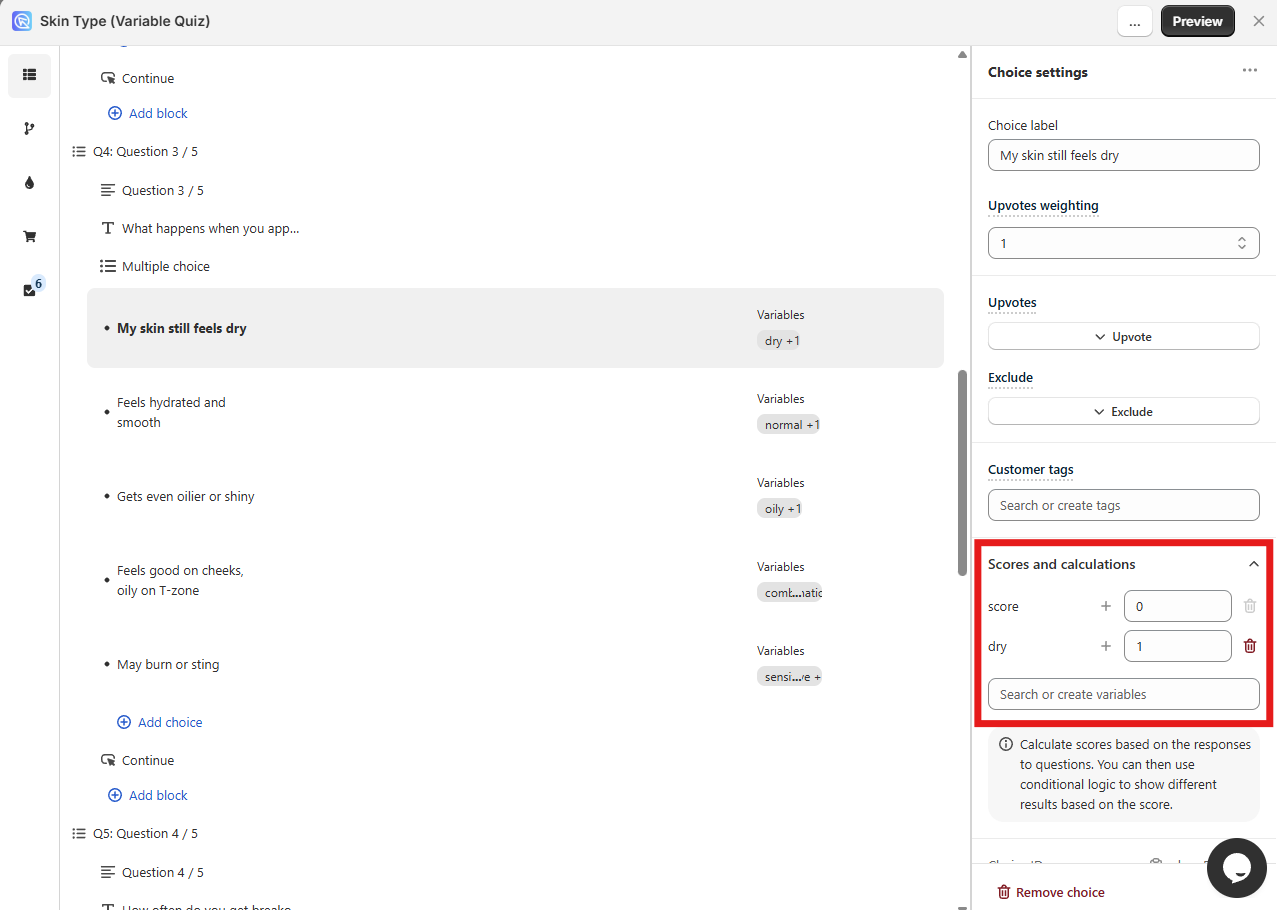
The variable with the most points at the end is the customer's skin type.
-
Give every choice its variable and score in Choice settings. See Add scores and variables to choices.
-
Add one section per skin type to the Results page. Each holds a heading, text and a product block.
-
Decide how each product block picks its products.
Two recommendation systems
- Fixed Recommendations show the products you select for that section, whatever the customer answered. This suits a personality-type quiz.
- Dynamic Recommendations rank the products by the upvotes you set in the choice settings.
Set this in
Recommendation system, in the Product Block Settings. -
Open
Display Logicon the dry skin section and click+ Add condition (OR). -
Set the rule to
IF the variable with the highest scoreisdry. -
Leave
THEN this section is VISIBLEand setDefault visibilitytoHidden.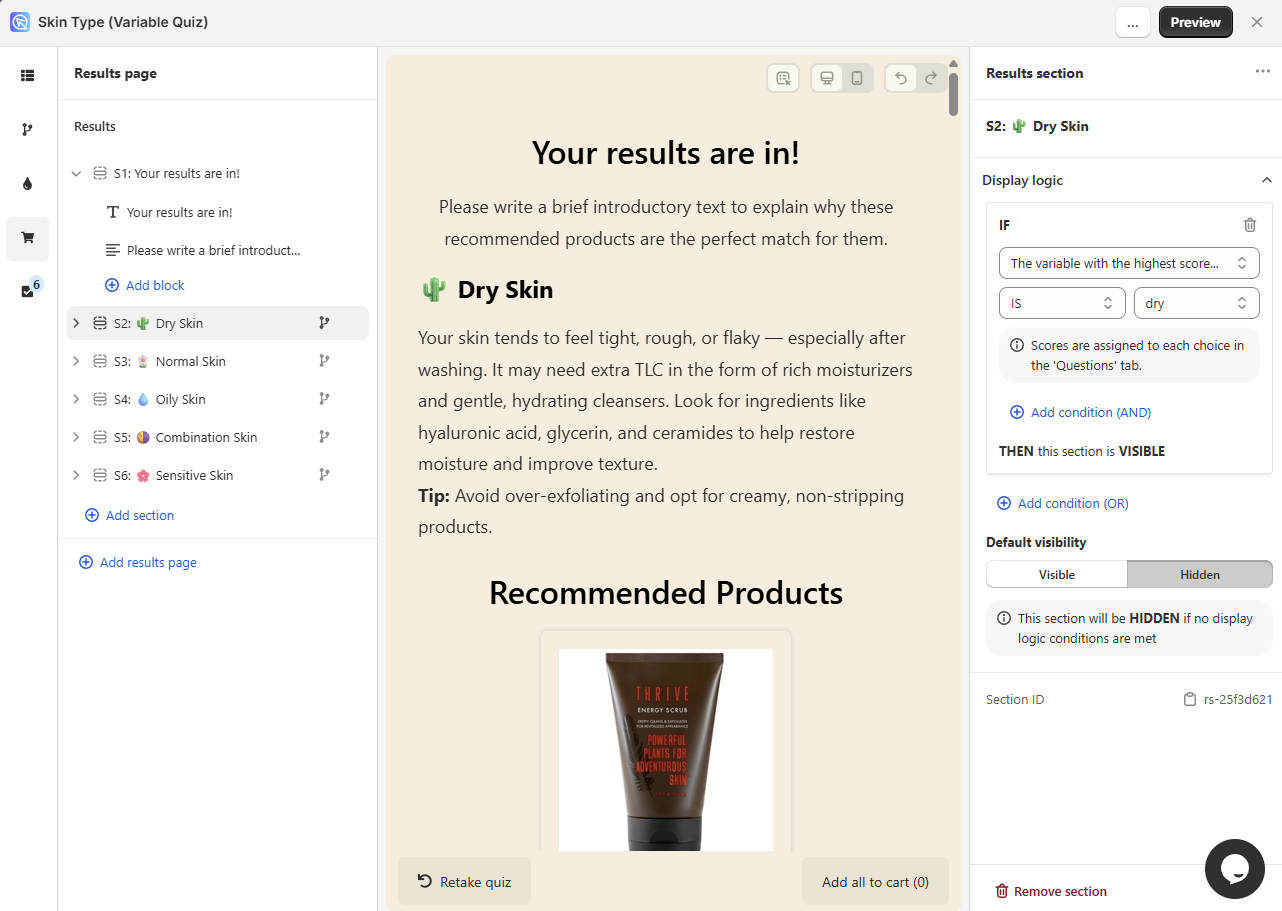
-
Repeat for the other four sections, one variable each.
Section Shown when the highest score is Normal skin normalOily skin oilyCombination skin combinationSensitive skin sensitive -
Click
Save, then preview the quiz and answer it as one clear type. Answer mostly dry, and only the dry skin section should appear.
Scores are not part of this version
A quiz here cannot hold a score or a variable, so a rule can only read an answer.
To sort customers into types or score bands, add custom JavaScript to the Results Page. The quiz response carries every answer the customer gave, so a developer can count them and show the right content.
Scores are not part of this version
A quiz here cannot hold a score or a variable, so a rule can only read an answer.
To sort customers into types or score bands, add custom JavaScript to the Results Page. The quiz response carries every answer the customer gave, so a developer can count them and show the right content.
Scores are not part of this version
A quiz here cannot hold a score or a variable, so a rule can only read an answer.
To sort customers into types or score bands, add custom JavaScript to the Results Page. The quiz response carries every answer the customer gave, so a developer can count them and show the right content.
Scores are not part of this version
A quiz here cannot hold a score or a variable, so a rule can only read an answer.
To sort customers into types or score bands, add custom JavaScript to the Results Page. The quiz response carries every answer the customer gave, so a developer can count them and show the right content.
Scores are not part of this version
A quiz here cannot hold a score or a variable, so a rule can only read an answer.
To sort customers into types or score bands, add custom JavaScript to the Results Page. The quiz response carries every answer the customer gave, so a developer can count them and show the right content.
Show content from a score
A scoring quiz adds the choices up into one number, and each band of the total gets its own section. Five questions carry five choices each, worth 1 to 5 points.
- First choice: 1 point
- Second choice: 2 points
- Third choice: 3 points
- Fourth choice: 4 points
- Fifth choice: 5 points
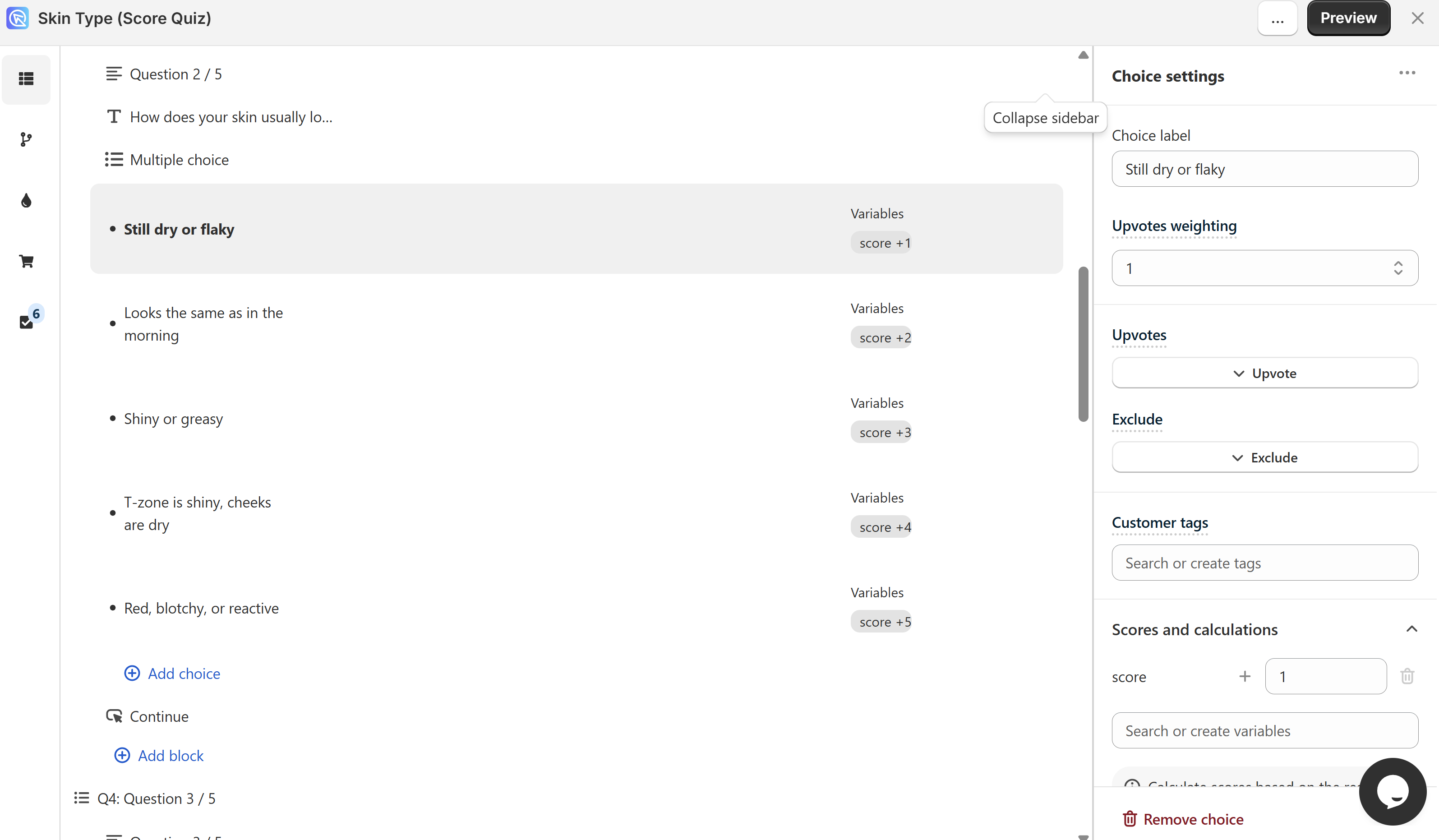
The total runs from 5 to 25, and the band it lands in is the customer's skin type.
-
Give every choice its points in Choice settings. See Add scores and variables to choices.
-
Add one section per band to the Results page. Each holds a heading, text and a product block.
-
Decide how each product block picks its products.
Two recommendation systems
- Fixed Recommendations show the products you select for that section, whatever the customer answered. This suits a personality-type quiz.
- Dynamic Recommendations rank the products by the upvotes you set in the choice settings.
Set this in
Recommendation system, in the Product Block Settings. -
Open
Display Logicon the dry skin section and click+ Add condition (OR). -
Set the first test to
IF the score of a variablescoreis greater than or equal to5. -
Click
+ Add condition (AND), then set the second test tois less than or equal to7. -
Leave
THEN this section is VISIBLEand setDefault visibilitytoHidden.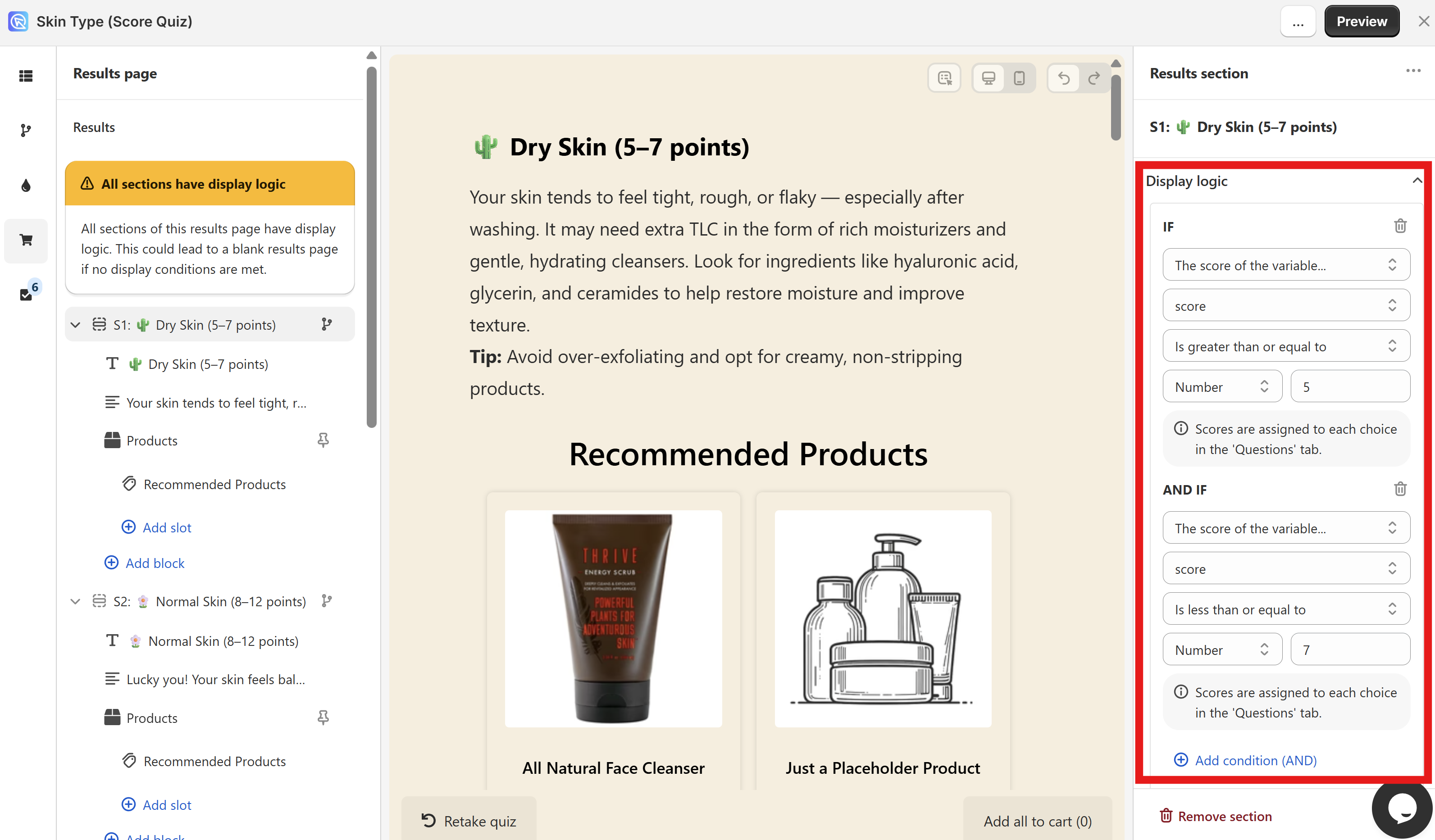
-
Repeat for the other four bands.
Section Shown when Dry skin score >= 5 && score <= 7Normal skin score >= 8 && score <= 12Oily skin score >= 13 && score <= 17Combination skin score >= 18 && score <= 22Sensitive skin score >= 23 && score <= 25 -
Click
Save, then preview the quiz and answer it to land in each band. Only the matching section should appear each time.
Leave no gap between the bands
Every possible total needs a band, or a customer lands on a results page with nothing on it. Run the lowest band down to the lowest score the quiz can produce, and the highest band up to the highest.
Scores are not part of this version
A quiz here cannot hold a score or a variable, so a rule can only read an answer.
To sort customers into types or score bands, add custom JavaScript to the Results Page. The quiz response carries every answer the customer gave, so a developer can count them and show the right content.
Scores are not part of this version
A quiz here cannot hold a score or a variable, so a rule can only read an answer.
To sort customers into types or score bands, add custom JavaScript to the Results Page. The quiz response carries every answer the customer gave, so a developer can count them and show the right content.
Scores are not part of this version
A quiz here cannot hold a score or a variable, so a rule can only read an answer.
To sort customers into types or score bands, add custom JavaScript to the Results Page. The quiz response carries every answer the customer gave, so a developer can count them and show the right content.
Scores are not part of this version
A quiz here cannot hold a score or a variable, so a rule can only read an answer.
To sort customers into types or score bands, add custom JavaScript to the Results Page. The quiz response carries every answer the customer gave, so a developer can count them and show the right content.
Scores are not part of this version
A quiz here cannot hold a score or a variable, so a rule can only read an answer.
To sort customers into types or score bands, add custom JavaScript to the Results Page. The quiz response carries every answer the customer gave, so a developer can count them and show the right content.
Additional resources
Read up on boolean logic before writing complex AND/OR rules. WolframAlpha evaluates a rule you type in, and Khan Academy explains how AND and OR combine.
See how to use conditional logic for the logic that runs inside the quiz itself, rather than on the results page.
This article explains how to write display logic rules, and works through the answer, variable and score examples.