How to Reward Quiz Completions with Growave
Growave is a Shopify loyalty and rewards app. You can give a customer Growave points when they complete your quiz.
The quiz does not connect to Growave directly. The connection runs through Shopify Flow and a customer metafield:
- The quiz - When a customer completes it, the RevenueHunt app sends the Quiz Completed trigger to Shopify Flow.
- Shopify Flow - A workflow sets a quiz completed customer metafield to True.
- Growave - It sees the new metafield value and gives the customer the reward.
What you need
- A Growave Growth plan or higher. The Customer metafield earning action is not available on lower plans.
- A Shopify plan that includes Shopify Flow.
- The RevenueHunt app, installed and active.
Prepare your quiz
The Quiz Completed trigger runs on a Shopify customer record. RevenueHunt finds that record by the email address the customer types into the quiz.
- Add an email question to your quiz, and make it required. Without an email address, no customer record is created and no reward is given. A phone number is not enough.
- In the RevenueHunt app, open
App settings > Shopify Customers. -
Turn on
Enable pushing quiz leads to Shopify Customers, then clickSave.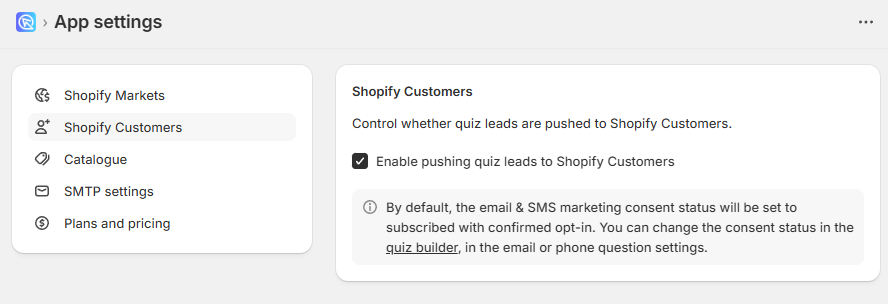
-
Publish the quiz.
For more on customer syncing, see How to Send Leads to Shopify Customers.
Create the customer metafield in Shopify
This metafield marks that a customer has completed the quiz. Growave reads it in the next section.
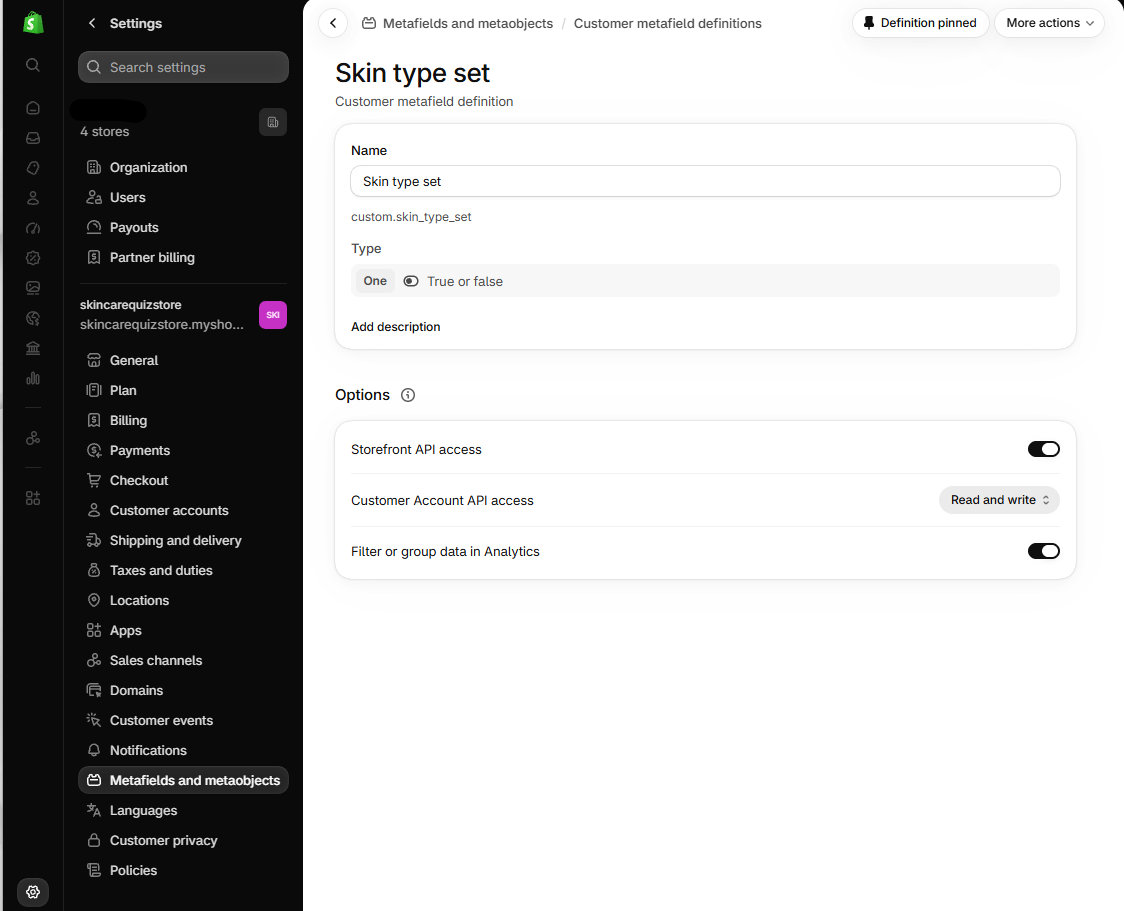
- In Shopify Admin, go to
Settings > Metafields and metaobjects > Customers. - Click
Add definition. - In
Name, type a name you will recognize, for exampleSkin type set. - In
Namespace and key, type a unique key, for examplecustom.skin_type_set. Write this key down. You need it again in Growave and in Flow. - Under
Select type, chooseTrue or false. - Under
Customer Account API access, chooseRead and write. - Click
Save.
Add the earning rule in Growave
- In the Growave admin, go to
Rewards > Points > Ways to earn. - Click
Add ways to earnand chooseCustomer metafield. - In
Reward, choose the reward, for examplePoints. - In
Point Value, type the number of points to give. - In
Metafield namespace, type the first part of your Shopify key, for examplecustom. - In
Metafield key, type the second part, for exampleskin_type_set. - Set
Metafield value typetoBoolean. - Set
Metafield conditiontoEquals. - Set
Metafield valuetoTrue. - In
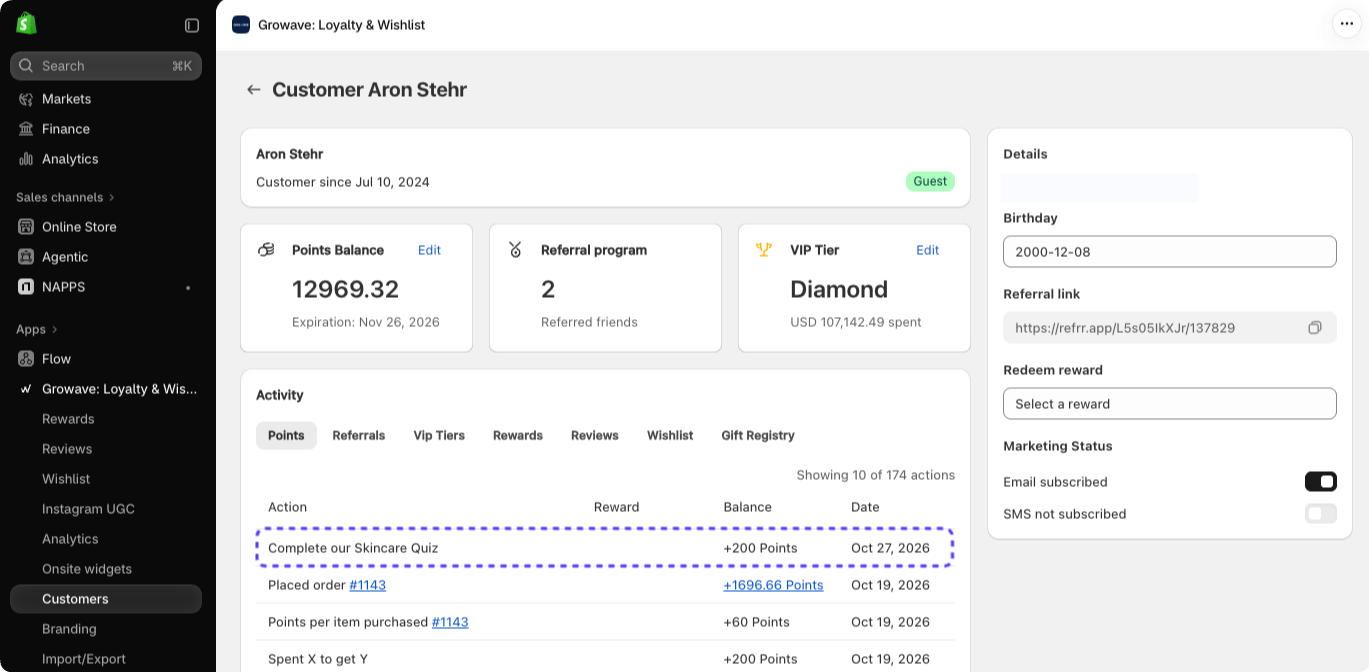
Title, type the name customers see for this reward, for exampleComplete our Skincare Quiz. - Click
Save.
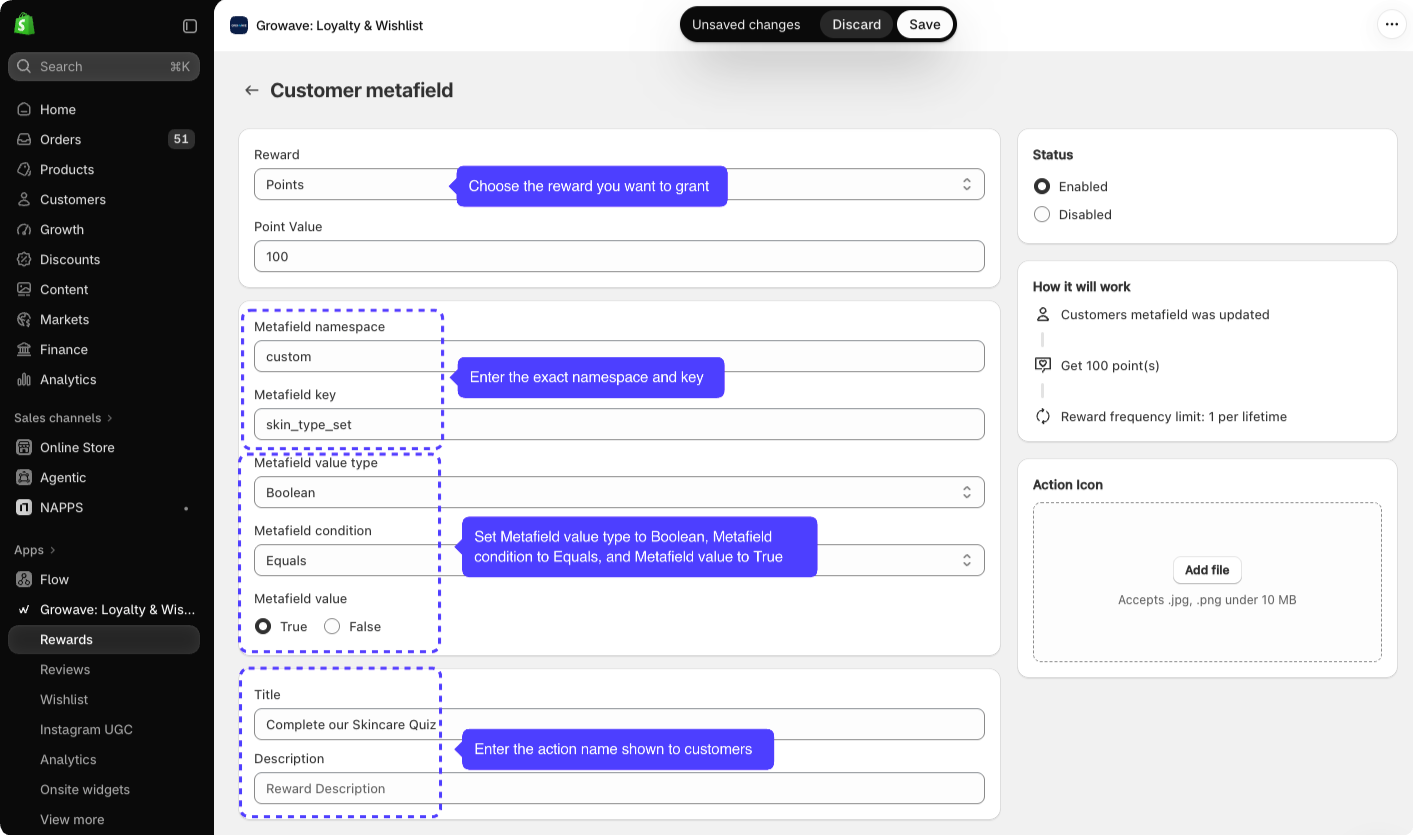
The How it will work panel shows the reward frequency limit, for example 1 per lifetime. With that limit, each customer earns the reward once, even if they take the quiz again.
Build the workflow in Shopify Flow
- In Shopify Admin, go to
Apps > Flowand clickCreate workflow. - Click
Select a trigger, chooseProduct Recommendation Quiz, then chooseQuiz Completed. -
Add a condition on the customer's
Email address, set toNot empty and exists. This makes sure the workflow only runs for a customer with an email address.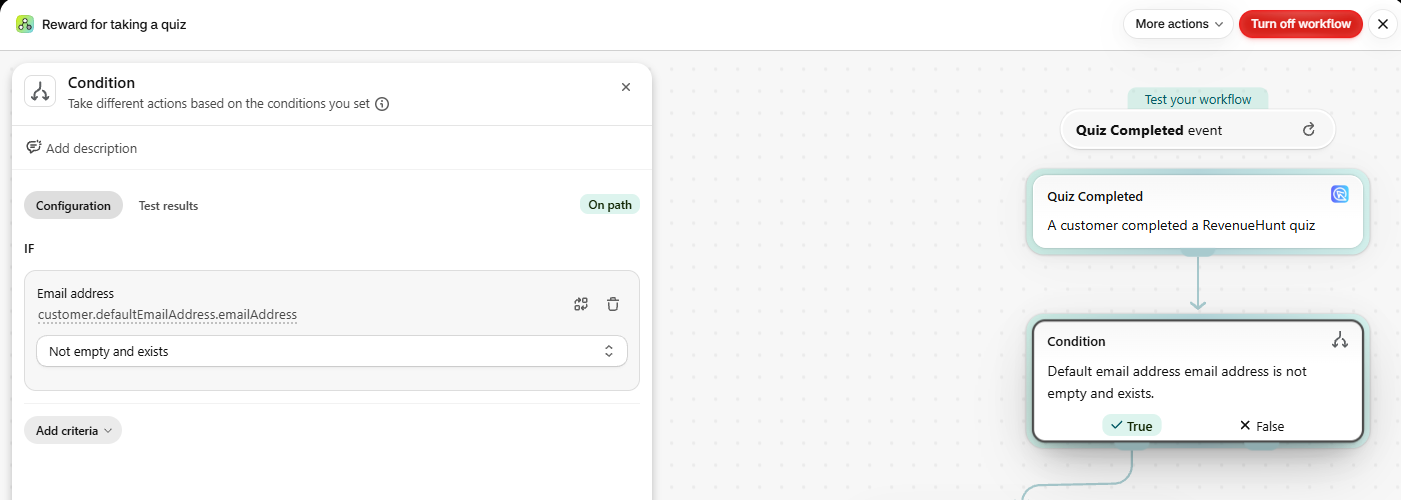
-
To reward only one quiz, add a second condition on
Quiz name, set toEqual toand the exact name of your quiz. Skip this step to reward a completion of any quiz.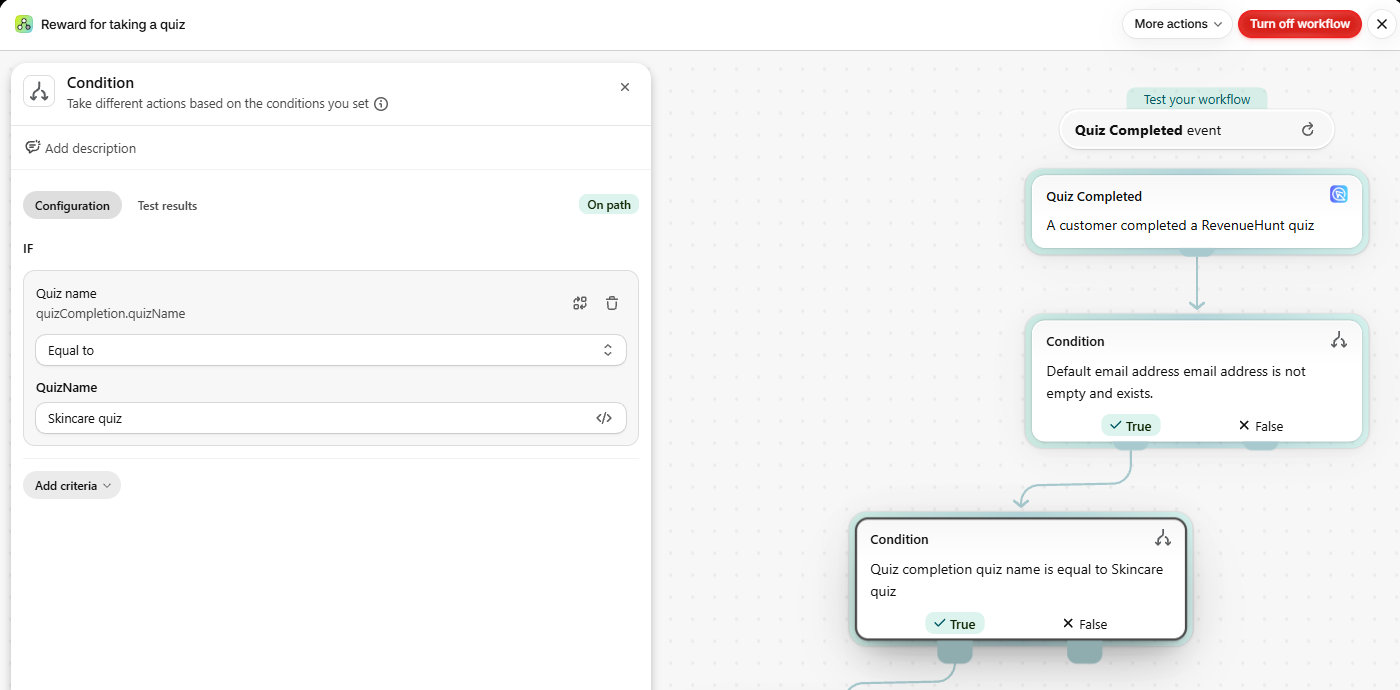
Match on the quiz name, not the quiz ID
A condition on
quizIdcan cause a validation error. Always match onquizName, and copy the quiz name exactly as it appears in the RevenueHunt app. -
On the
Truebranch, add the actionUpdate customer metafield. -
Select the metafield you created, and set
ValuetoTrue. TheTypeis filled in from the metafield, asTrue or false.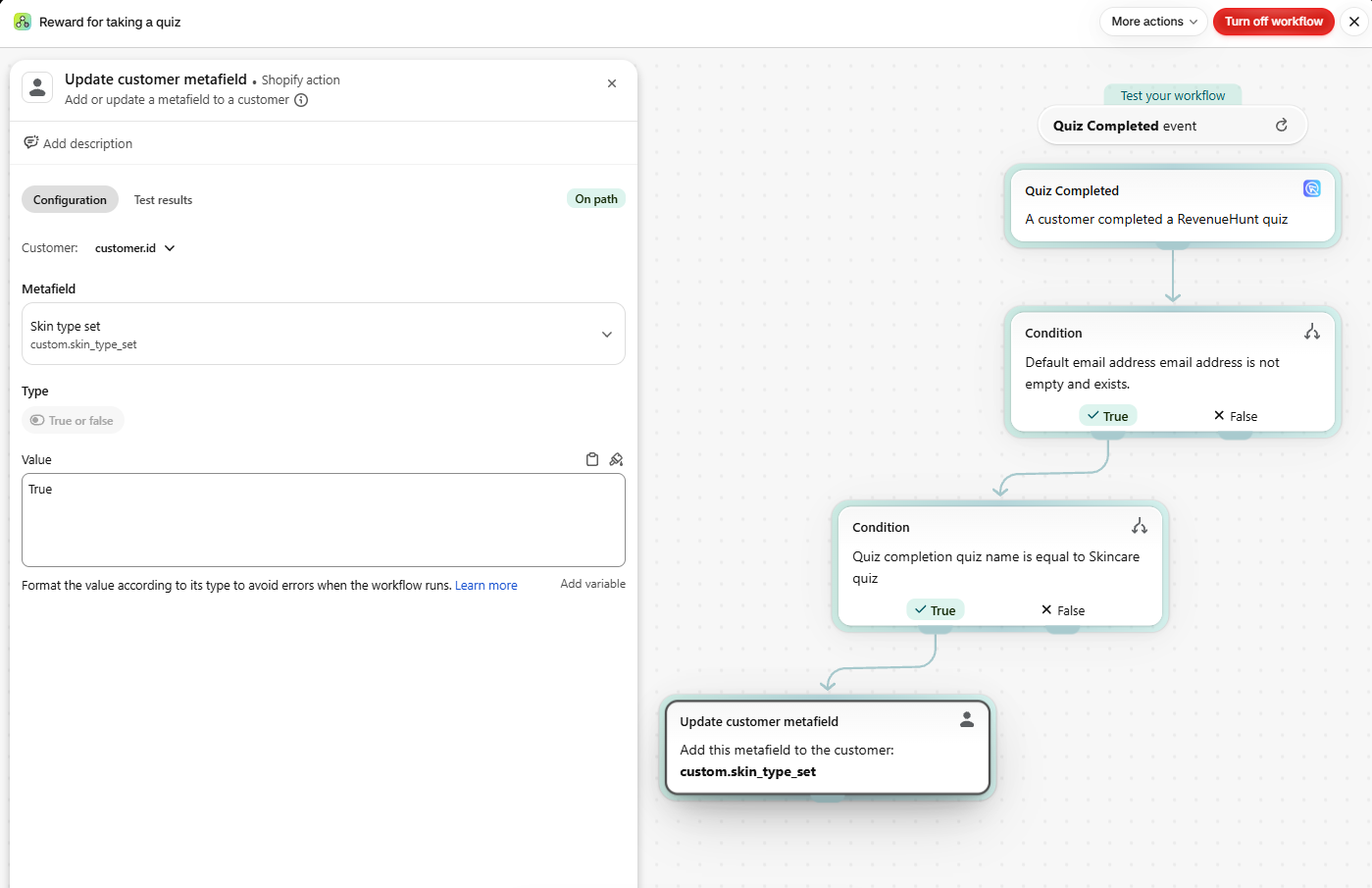
-
Give the workflow a name, then click
Turn on workflow.
Tip
For every field the trigger sends, see Automate Quiz Completions with Shopify Flow.
A metafield is simpler than customer tags
You can also start a Growave reward from customer tags. A dedicated metafield is simpler to set up, and it is easier to maintain when you change the quiz.
Test the reward
- Complete the published quiz with a test email address.
- In Shopify Admin, open
Customersand select the test customer. - Check that your metafield, for example
Skin type set, showsTrue. - In the Growave admin, go to
Rewards > Customersand select the test customer. -
Check that the reward appears in their activity history.
If the metafield is not True, open the workflow in Shopify Flow and review its recent runs. Check that the test included an email address, that customer syncing is on, and that the workflow is turned on.
If the metafield is True but no reward appears, check the earning rule in Growave. The namespace and key must match the Shopify metafield exactly.
Tip
Growave's own guide is the Growave Help Center article on integrating Growave with RevenueHunt.
This version has no Quiz Completed trigger
The Growave setup uses the Quiz Completed trigger, which only the 💎Built for Shopify version of the RevenueHunt app sends.
In the legacy app, a Flow workflow can start on Shopify's Customer created trigger and check customer tags instead. See the Shopify (Legacy) tab of Automate Quiz Completions with Shopify Flow.
To use the setup on this page, see Migrate a Legacy Quiz to Built for Shopify.
This integration needs Shopify Flow
This integration is not available in this version.
This integration needs Shopify Flow
This integration is not available in this version.
This integration needs Shopify Flow
This integration is not available in this version.
This integration needs Shopify Flow
This integration is not available in this version.
This article explains how to give customers Growave loyalty points when they complete your quiz.