How to Tag Quiz Orders
This article explains how the RevenueHunt app attributes orders and revenue to your quiz. It also explains how to tag the orders that came from the quiz, so you can find, filter and export them. What is possible depends on your platform.
What the app does on its own
The app never changes your orders. It saves quiz data to the Shopify cart instead, and Shopify copies it to the order at checkout.
When the customer reaches the results page, or goes to the cart or checkout after the quiz, the app saves two hidden cart attributes:
__quiz_response_id: the ID of the quiz response__quiz_id: the ID of the quiz
In Shopify, the attributes show under Additional details, in the Notes card of the order.
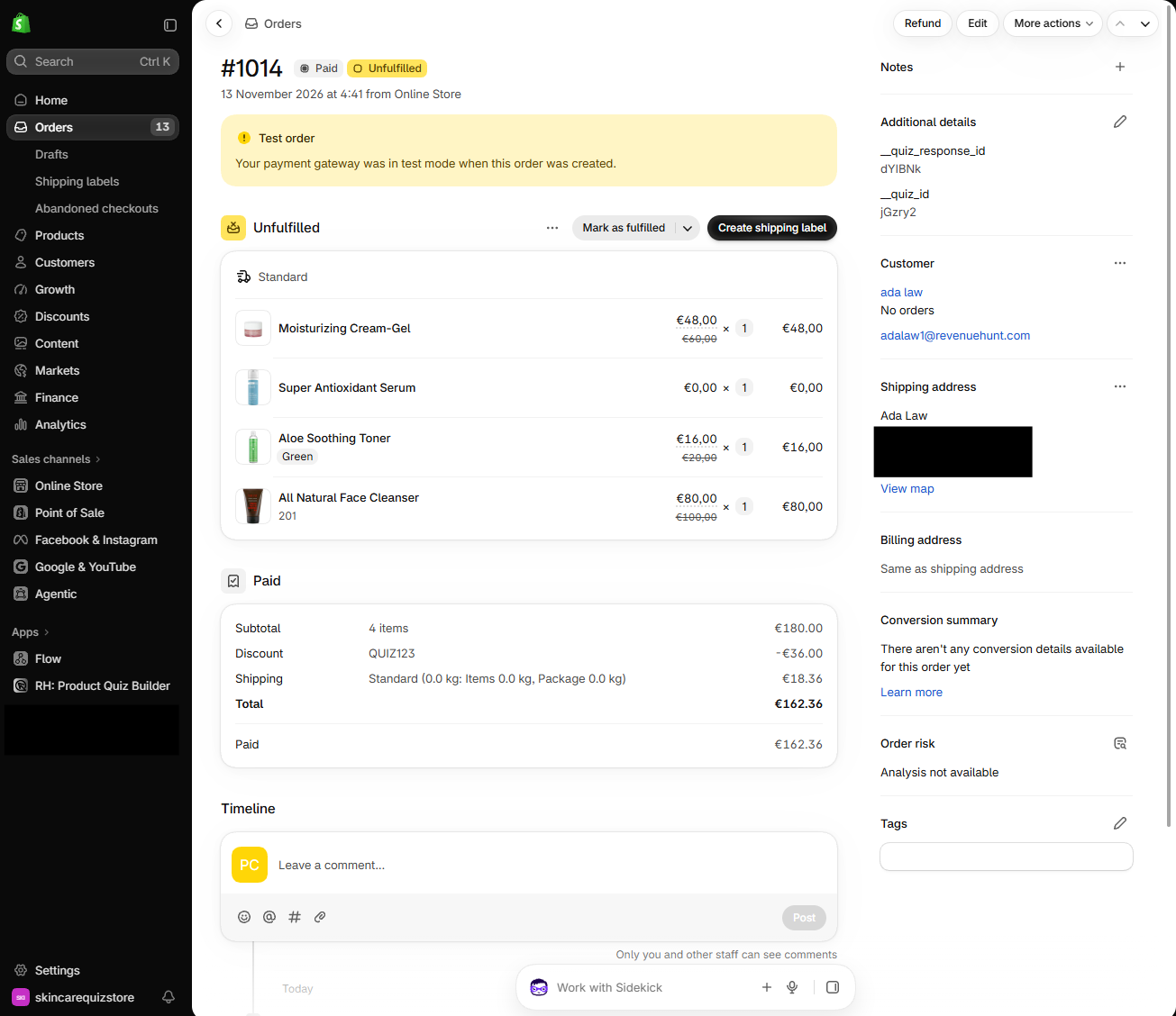
The app reads these attributes to count quiz orders and revenue in Analytics. You do not need to set anything up.
The quiz answers are not saved to the order on their own. To save answers or other values, add custom JavaScript. See How to Show Quiz Answers in Shopify Orders.
Attribution needs an unbroken flow
The customer has to add products to the cart from the results page, then complete the checkout in the same session. Set the Checkout settings on your results page to proceed to cart. See how to change checkout settings on your results page.
The app does not add Shopify order tags
Cart attributes are not order tags. You cannot filter the Shopify Orders list by them. To add a real order tag, use the Shopify Flow workflow in Tag quiz orders.
The Quiz Completed trigger in Shopify Flow
The app also sends a Quiz Completed trigger to Shopify Flow, with the answers, customer tags and recommended products. It runs on the customer, before any order exists, so it cannot tag an order. Use it for customer automations instead. See Automate Quiz Completions with Shopify Flow.
The app never changes your orders. It saves quiz data to the Shopify cart instead, and Shopify copies it to the order at checkout.
This happens only when Shopify Orders Tagging is connected for the quiz. It is a setting per quiz, in the Connect tab. Your theme must also have Order Notes enabled. See How to Show Quiz Answers in Shopify Orders.
When the customer completes the quiz, the app saves these cart attributes:
__prq_response_id: the ID of the quiz response__prq_quiz_id: the ID of the quiz- one attribute for each answered question, with the answers the customer chose
The name of a question attribute starts with __prq_, then a number and the first words of the question title. A long title is cut short.
A question attribute
For a question whose title starts with "How does your", the attribute is __prq_4_how_does_your_. Its value is the answer, for example It feels dry and flakey, sometimes irritated.
Every answer is saved, with no custom code. In Shopify, the attributes show under Additional details, in the Notes card of the order.
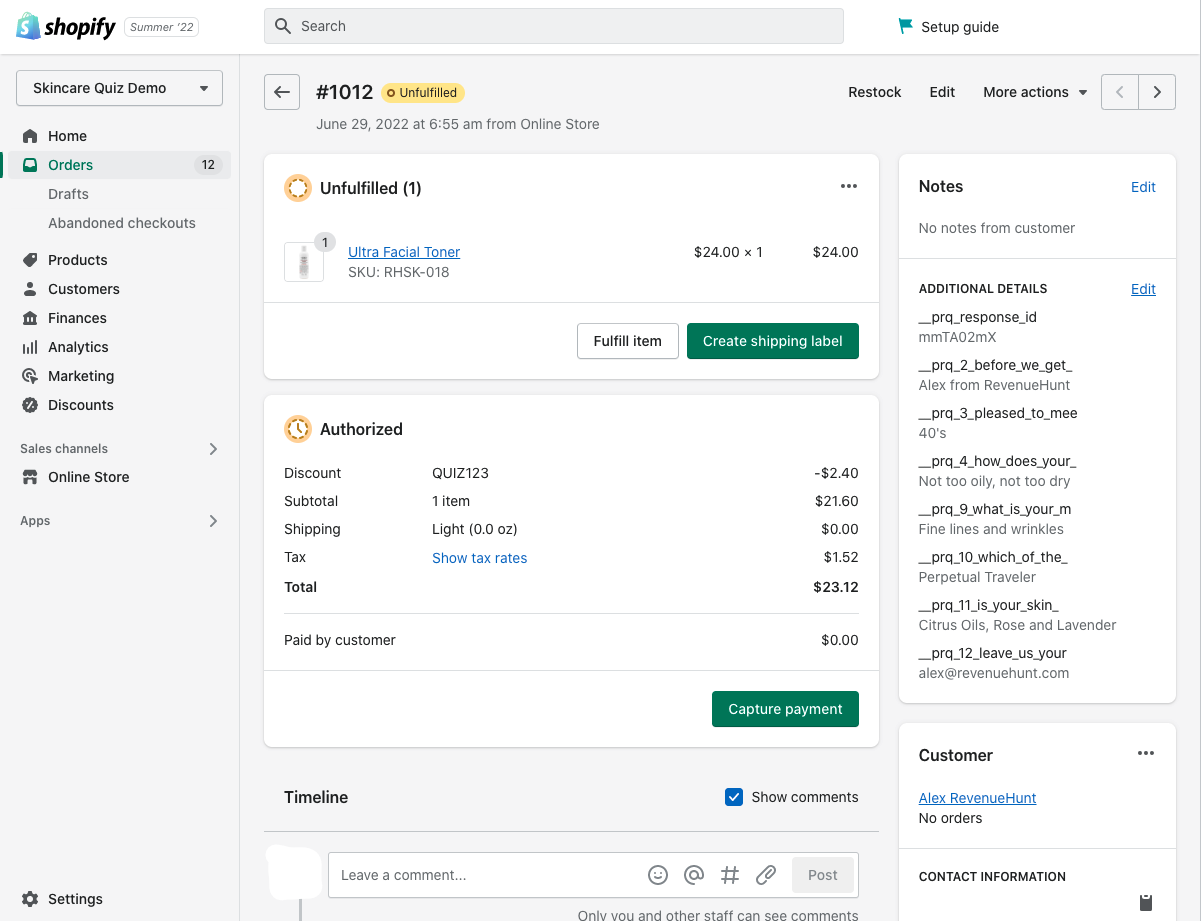
If you connect the Shopify Revenue Report, the app reads __prq_response_id to count quiz orders and revenue. See How to Track Quiz Revenue.
Attribution needs an unbroken flow
The customer has to add products to the cart from the results page, then complete the checkout in the same session. Set the Checkout settings on your Results Page to proceed to cart. See how to change checkout settings on your results page.
Shopify Orders Tagging does not add Shopify order tags
Despite its name, the setting saves cart attributes, not order tags. You cannot filter the Shopify Orders list by them. To add a real order tag, use the Shopify Flow workflow in Tag quiz orders.
The app does not save any quiz data to WooCommerce orders. It adds no order notes, order meta or tags. The app cannot tell which orders came from the quiz.
For other ways to link orders to the quiz, see Tag quiz orders.
The app does not save any quiz data to Magento orders. It adds no order comments, attributes or tags. The app cannot tell which orders came from the quiz.
For other ways to link orders to the quiz, see Tag quiz orders.
The app does not save any quiz data to BigCommerce orders. It adds no staff notes, custom fields or tags. The app cannot tell which orders came from the quiz.
For other ways to link orders to the quiz, see Tag quiz orders.
A standalone quiz is not connected to a store, so the app never sees your orders. It cannot save quiz data to them or tell which orders came from the quiz.
For other ways to link orders to the quiz, see Tag quiz orders.
Tag quiz orders
A Shopify Flow workflow can add an order tag to every quiz order. It looks for the __quiz_response_id cart attribute the app already saves. No code is needed.
-
In Shopify admin, go to
Apps > Flow. If your store does not have Shopify Flow, install it. It is free. -
Click
Create workflow. -
Click
Select a triggerand chooseOrder created. This is a Shopify trigger, not a RevenueHunt trigger. -
Under the trigger, add a
Condition. -
Click
Add criteriaand choose the order's custom attributesKey. Flow showsAt least one of order / custom attributes, and the fieldcustomAttributes_item.key.Choose the custom attributes key
Other order properties also have a
keyfield. The condition works only oncustomAttributes_item.key. -
Set the operator to
Equal to, and type__quiz_response_idin the value field.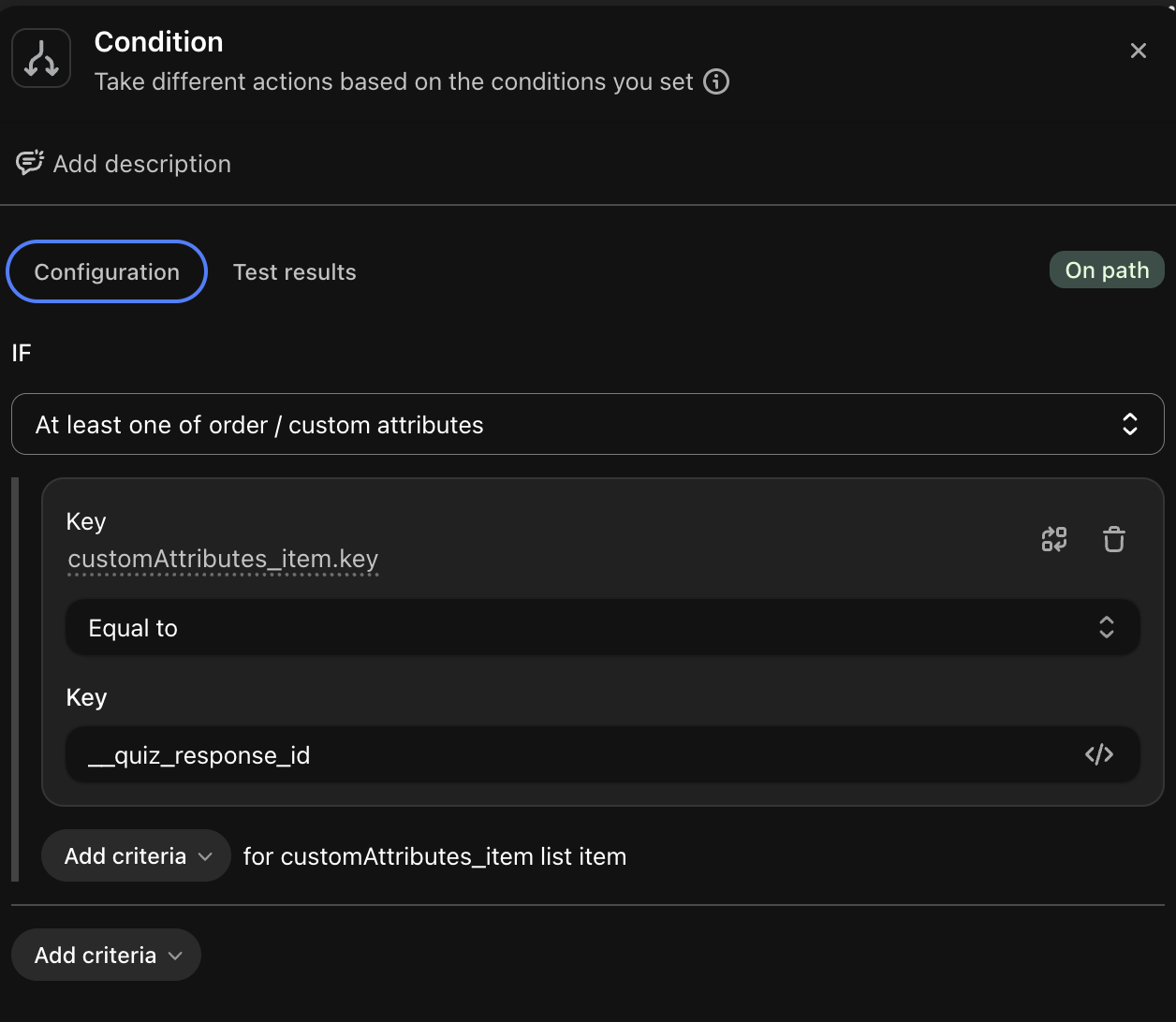
-
On the
Truebranch, add the actionAdd order tags. -
Type the tag you want, for example
RevenueHunt Quiz.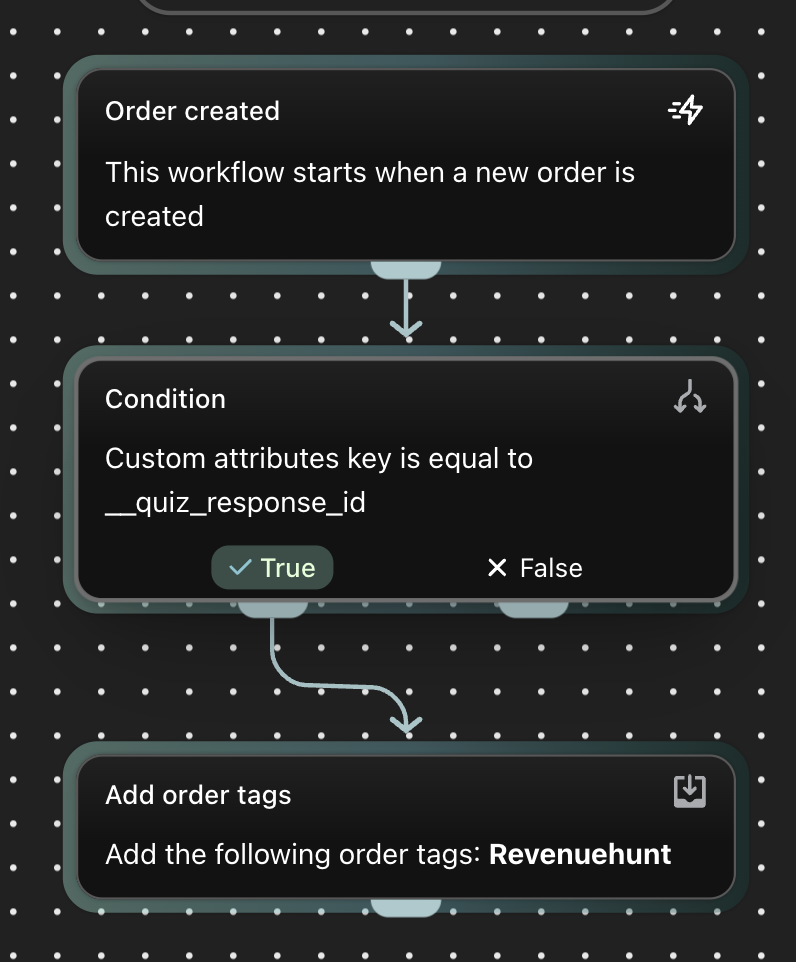
-
Give the workflow a name, then click
Turn on workflow. -
Open the live quiz on your storefront in an incognito window, and complete it. Do not test on the preview.
-
Add the products to the cart from the results page, then place a Shopify test order.
-
Open the Shopify Orders list and check the
Tagscolumn of the test order.
If the tag is missing, open the test order and look for __quiz_response_id under Additional details. If it is not there, the order has no quiz data. Check the warning about an unbroken flow above. If it is there, open the workflow in Shopify Flow and review its recent runs.
Only new orders are tagged
The workflow tags orders created after you turn it on. Orders placed before that do not get the tag.
Match orders by hand with CSV files
You can also match orders without Shopify Flow. Download your quiz responses as a CSV file. See How to Download Quiz Responses. Export your orders from Orders > Export in Shopify admin. Then match the two files by email address, for example in Google Sheets or Excel. This is a lot of manual work, so it suits an occasional check, not daily use.
A Shopify Flow workflow can add an order tag to every quiz order. It looks for the __prq_response_id cart attribute the app saves when Shopify Orders Tagging is connected.
-
Connect the quiz to
Shopify Orders Tagging, and enable Order Notes in your theme. Follow How to Show Quiz Answers in Shopify Orders. -
In Shopify admin, go to
Apps > Flow. If your store does not have Shopify Flow, install it. It is free. -
Click
Create workflow. -
Click
Select a triggerand chooseOrder created. This is a Shopify trigger, not a RevenueHunt trigger. -
Under the trigger, add a
Condition. -
Click
Add criteriaand choose the order's custom attributesKey. Flow showsAt least one of order / custom attributes, and the fieldcustomAttributes_item.key.Choose the custom attributes key
Other order properties also have a
keyfield. The condition works only oncustomAttributes_item.key. -
Set the operator to
Equal to, and type__prq_response_idin the value field.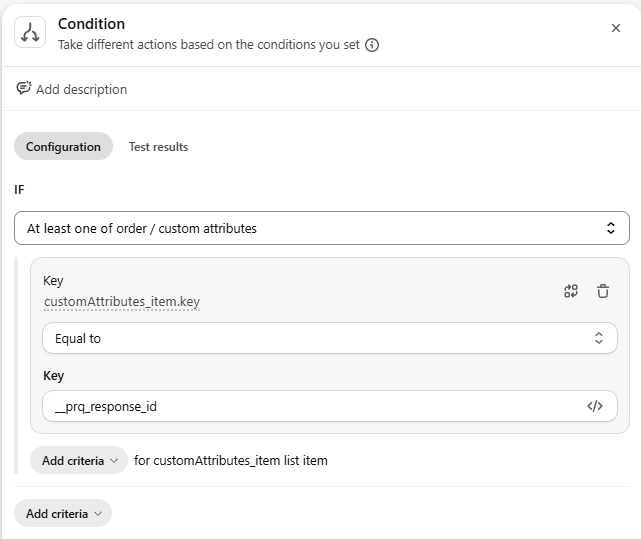
-
On the
Truebranch, add the actionAdd order tags. -
Type the tag you want, for example
RevenueHunt Quiz. -
Give the workflow a name, then click
Turn on workflow. -
Open the live quiz on your storefront in an incognito window, and complete it. Do not test on the preview.
-
Add the products to the cart from the results page, then place a Shopify test order.
-
Open the Shopify Orders list and check the
Tagscolumn of the test order.
If the tag is missing, open the test order and look for __prq_response_id under Additional details, in the Notes card. If they do not, see Testing the connection. If they do, open the workflow in Shopify Flow and review its recent runs.
Only new orders are tagged
The workflow tags orders created after you turn it on. Orders placed before that do not get the tag.
Match orders by hand with CSV files
You can also match orders without Shopify Flow. Download your quiz responses as a CSV file. See How to Download Quiz Responses. Export your orders from Orders > Export in Shopify admin. Then match the two files by email address, for example in Google Sheets or Excel. This is a lot of manual work, so it suits an occasional check, not daily use.
Order tagging is available in the Shopify versions of the app only. On WooCommerce, you can link orders to the quiz in these ways instead:
- Track quiz revenue in Google Analytics. Compare the purchases of customers who started the quiz with everyone else. See How to Track Quiz Revenue.
- Match orders by email address in another tool. Send quiz responses to Klaviyo, HubSpot, Omnisend, Zapier or a webhook. If that tool also receives your WooCommerce orders, you can find the customers who took the quiz and then ordered.
- Match orders by hand with CSV files. Download your quiz responses as a CSV file. See How to Download Quiz Responses. Export your WooCommerce orders with the customer email addresses, for example with an order export plugin. Then match the two files by email address, for example in Google Sheets or Excel. This is a lot of manual work, so it suits an occasional check, not daily use.
- Build a custom integration. A developer can write a WordPress plugin that receives the quiz webhook. It can then add an order note or order meta to the matching WooCommerce order.
Email matching is less precise
These options match the order by email address, not by the cart. An order placed with a different email address is missed. A later order from the same customer can also be matched, even if it did not come from the quiz.
Custom development is your responsibility
The RevenueHunt app does not provide a custom integration, and the support team cannot build one for you.
Order tagging is available in the Shopify versions of the app only. On Magento, you can link orders to the quiz in these ways instead:
- Track quiz revenue in Google Analytics. Compare the purchases of customers who started the quiz with everyone else. See How to Track Quiz Revenue.
- Match orders by email address in another tool. Send quiz responses to Klaviyo, HubSpot, Omnisend, Zapier or a webhook. If that tool also receives your Magento orders, you can find the customers who took the quiz and then ordered.
- Match orders by hand with CSV files. Download your quiz responses as a CSV file. See How to Download Quiz Responses. Export your orders from
Sales > Ordersin the Magento admin, with the customer email column. Then match the two files by email address, for example in Google Sheets or Excel. This is a lot of manual work, so it suits an occasional check, not daily use. - Build a custom integration. A developer can write a Magento module that receives the quiz webhook. It can then add an order comment to the matching Magento order.
Email matching is less precise
These options match the order by email address, not by the cart. An order placed with a different email address is missed. A later order from the same customer can also be matched, even if it did not come from the quiz.
Custom development is your responsibility
The RevenueHunt app does not provide a custom integration, and the support team cannot build one for you.
Order tagging is available in the Shopify versions of the app only. On BigCommerce, you can link orders to the quiz in these ways instead:
- Track quiz revenue in Google Analytics. Compare the purchases of customers who started the quiz with everyone else. See How to Track Quiz Revenue.
- Match orders by email address in another tool. Send quiz responses to Klaviyo, HubSpot, Omnisend, Zapier or a webhook. If that tool also receives your BigCommerce orders, you can find the customers who took the quiz and then ordered.
- Match orders by hand with CSV files. Download your quiz responses as a CSV file. See How to Download Quiz Responses. Export your orders from
Orders > Exportin the BigCommerce control panel. Then match the two files by email address, for example in Google Sheets or Excel. This is a lot of manual work, so it suits an occasional check, not daily use. - Build a custom integration. A developer can write a service that receives the quiz webhook. It can then use the BigCommerce API to add a staff note to the matching order.
Email matching is less precise
These options match the order by email address, not by the cart. An order placed with a different email address is missed. A later order from the same customer can also be matched, even if it did not come from the quiz.
Custom development is your responsibility
The RevenueHunt app does not provide a custom integration, and the support team cannot build one for you.
Order tagging is available in the Shopify versions of the app only. With a standalone quiz, you can link orders to the quiz in these ways instead:
- Track quiz revenue in Google Analytics. If your website sends purchase events to GA4, compare the purchases of customers who started the quiz with everyone else. See How to Track Quiz Revenue.
- Match orders by email address in another tool. Send quiz responses to Klaviyo, HubSpot, Omnisend, Zapier or a webhook. If that tool also receives your orders, you can find the customers who took the quiz and then ordered.
- Match orders by hand with CSV files. Download your quiz responses as a CSV file. See How to Download Quiz Responses. Export your orders from your order system, with the customer email addresses. Then match the two files by email address, for example in Google Sheets or Excel. This is a lot of manual work, so it suits an occasional check, not daily use.
- Build a custom integration. A developer can write a service that receives the quiz webhook. It can then mark the matching order in your own order system.
Email matching is less precise
These options match the order by email address, not by the cart. An order placed with a different email address is missed. A later order from the same customer can also be matched, even if it did not come from the quiz.
Custom development is your responsibility
The RevenueHunt app does not provide a custom integration, and the support team cannot build one for you.
This article explains how RevenueHunt links orders to your quiz on each platform, and how to tag quiz orders with Shopify Flow.